Ready to unlock another superpower of your Apple Watch? Today, we’re diving into how you can block contacts right from your wrist.
It’s all about keeping your space and not letting unwanted calls or notifications interrupt your day.
Curious to find out if your Apple Watch can do this? You bet it can! Let’s get started and explore this handy feature together.
Stick with me, and by the end of this guide, you’ll know exactly how to keep your peace without missing a beat. Ready to explore? Let’s roll!
How to block on your Apple Watch directly?
#1 Block Saved Contact on Apple Watch
Want to know how to block a contact directly from your Apple Watch?
This process is similar to turning off incoming calls on your iPhone, but right from your wrist.
Follow these simple steps:
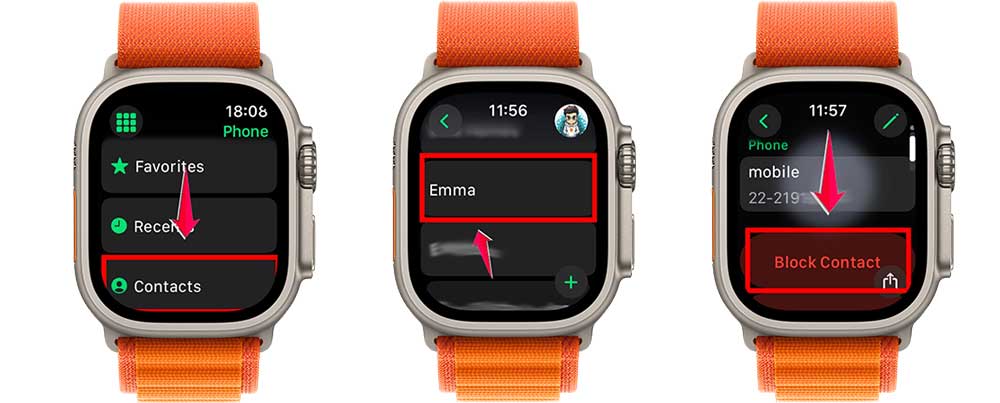
- Open the Phone app on your Apple Watch: Tap and open the Phone app and tap on Contacts.
- Select the Contact: Scroll through your contacts using the Digital Crown, then tap the contact you want to block.
- Block the Contact: At the bottom of the contact’s information page, tap Block Contact. This will prevent them from messaging or calling you.
#2 Block an Unknown/Unsaved Phone Number on Apple Watch
Need to block a number that isn’t saved as a contact?
Here’s how:
- Open the Phone App: Look for the green receiver icon on your Apple Watch.
- Go to the Recents Tab: This tab will show you all the numbers that have recently contacted you.
- Select the Number: Tap on the number you wish to block. Look for the circled “i” icon next to the number.
- Block the Caller: Tap Block this caller to prevent any more calls from that number on your Apple Watch.
#3 Unblock Someone on Apple Watch
If you change your mind, here’s how to unblock someone.
One thing that came to my mind is that you need to make sure your messages are syncing properly between your iPhone and Mac. Why? Because it makes sure that even the Apple Watch is working properly with your devices?
- Open the Apple Watch App on Your iPhone: Start by using your iPhone, as unblocking can’t be done directly from your Apple Watch.
- Navigate to My Watch Tab: This tab provides information and settings for your Apple Watch.
- Access Blocked Contacts: Tap on the Phone app within the Apple Watch app and then tap on Blocked Contacts. You’ll see a list of all contacts you’ve blocked.
- Unblock the Contact: Swipe left on the contact or number you want to unblock and tap Unblock.
These steps will help you manage your privacy directly from your wrist, ensuring that your Apple Watch continues to be a convenient and disturbance-free companion!
Does the Apple Watch come with a Block Contact function?
The answer is a resounding YES! Your Apple Watch isn’t just stylish. It’s a powerful tool for maintaining your privacy.
When you block someone on your paired iPhone, they’re automatically blocked on your Apple Watch, too. It’s seamless!
This feature covers calls, messages, and other notifications. Plus, you can even block unfamiliar numbers.
Wondering if you can stop calls without a full block? Absolutely! There are ways to manage calls on your iPhone that also apply to your Apple Watch, giving you flexibility in how you handle interruptions.
Does deleting messages from Apple Watch also delete them from the iPhone?
Deleting messages on your Apple Watch doesn’t affect the messages on your iPhone. They remain untouched and safe.
Keep in mind, though, that managing messages on your Apple Watch is slightly different.
You can’t delete all messages at once or clear individual conversations easily; you need to delete messages one contact at a time.
It’s a bit more work, but it helps keep your Apple Watch clutter-free.
Remember, you must manage your iPhone messages separately to organize both devices.
Speaking of managing messages, have you ever wondered why Marketplace messages might not be showing in Messenger on your iPhone?
I just thought to remind you to remember this because it is as painful as blocking someone on Apple Watch. What options do you have without your Phone, right?
Can you block someone on Apple Watch via a Paired iPhone?
Absolutely! When you block a number on your paired iPhone, it’s automatically blocked on your Apple Watch too. They sync perfectly to shield you from unwanted calls.
If you find that blocked calls or messages slip through, consider re-pairing your devices or checking your connections. Persistent issues? Contact customer support for help.
Wrapping it up
And there you have it. Your complete guide to managing your interactions directly from your wrist!
We’ve explored how to block and unblock contacts using your Apple Watch and iPhone, ensuring your peace of mind without unwanted interruptions.
From straightforward blocking methods to tips on unblocking and handling your device storage, we’ve covered everything you need to maintain control over your communications.
So, enjoy your Apple Watch, knowing you’re fully equipped to create a calm and controlled digital environment.
Here’s to a seamless and enjoyable experience with your smart tech! If you’re curious about other Apple devices, you might want to explore how to identify which AirPods you have.
Got any thoughts or questions? Drop a comment below, and let’s keep the conversation going!