Have you ever wanted to show what’s on your iPhone or Mac on your TV but couldn’t figure out how? You’re not alone. Many people find it hard to connect their Apple devices to Chromecast.
The problem is that Chromecast doesn’t work with AirPlay, which is what Apple devices usually use to share screens.
It’s like they’re speaking different languages. But don’t worry – there are ways to make them understand each other.
In this article, you’ll learn how to get your iPhone or Mac to show up on your TV using Chromecast. We’ll talk about some helpful apps you can use, and even a way to do it without downloading anything new.
By the time you’re done reading, you’ll know exactly how to share your screen, photos, or videos on the big screen. Let’s get started!
How to connect your Apple devices to Chromecast TV
Ever wanted to show what’s on your iPhone, iPad, or Mac on your TV? You can do that with your Chromecast, even though it doesn’t work with AirPlay.
Here are several methods to make it happen:
1. Using Replica for iPhone and iPad
Replica is a handy app that lets you connect your iPhone or iPad to Chromecast. Here’s how:
- Download Replica from the App Store.
- Make sure your iPhone and Chromecast TV are on the same WiFi network.
- Open the Replica app.

- Select your Chromecast from the device list.
- Tap “Start Broadcast” to show your screen.

Now, you can share anything from your iPhone or iPad on your TV screen.
2. TV Mirror for Chromecast
Another option for iPhone and iPad users is the “TV Mirror for Chromecast” app. It’s free and works with all Chromecast versions.
You can show videos, music, photos, games, documents, or any streaming app. Just make sure your devices are on the same WiFi network.
3. Mirror for Chromecast on Mac
If you have a Mac, you can use the “Mirror for Chromecast TV“ app:
- Download “Mirror for Chromecast TV” from the App Store.
- Connect your Mac and Chromecast to the same WiFi network.

- Open the app.
- Choose your Chromecast in the “Target device” menu.
- Click “Start Mirroring”.

To stop sharing, just turn off AirPlay on your Mac.
4. Sharing specific content from Mac
You can also share specific videos or browser tabs from your Mac:
For YouTube videos:
- Open Google Chrome.
- Go to YouTube and pick a video.
- Click the Cast icon (which looks like a small TV) in the video player.
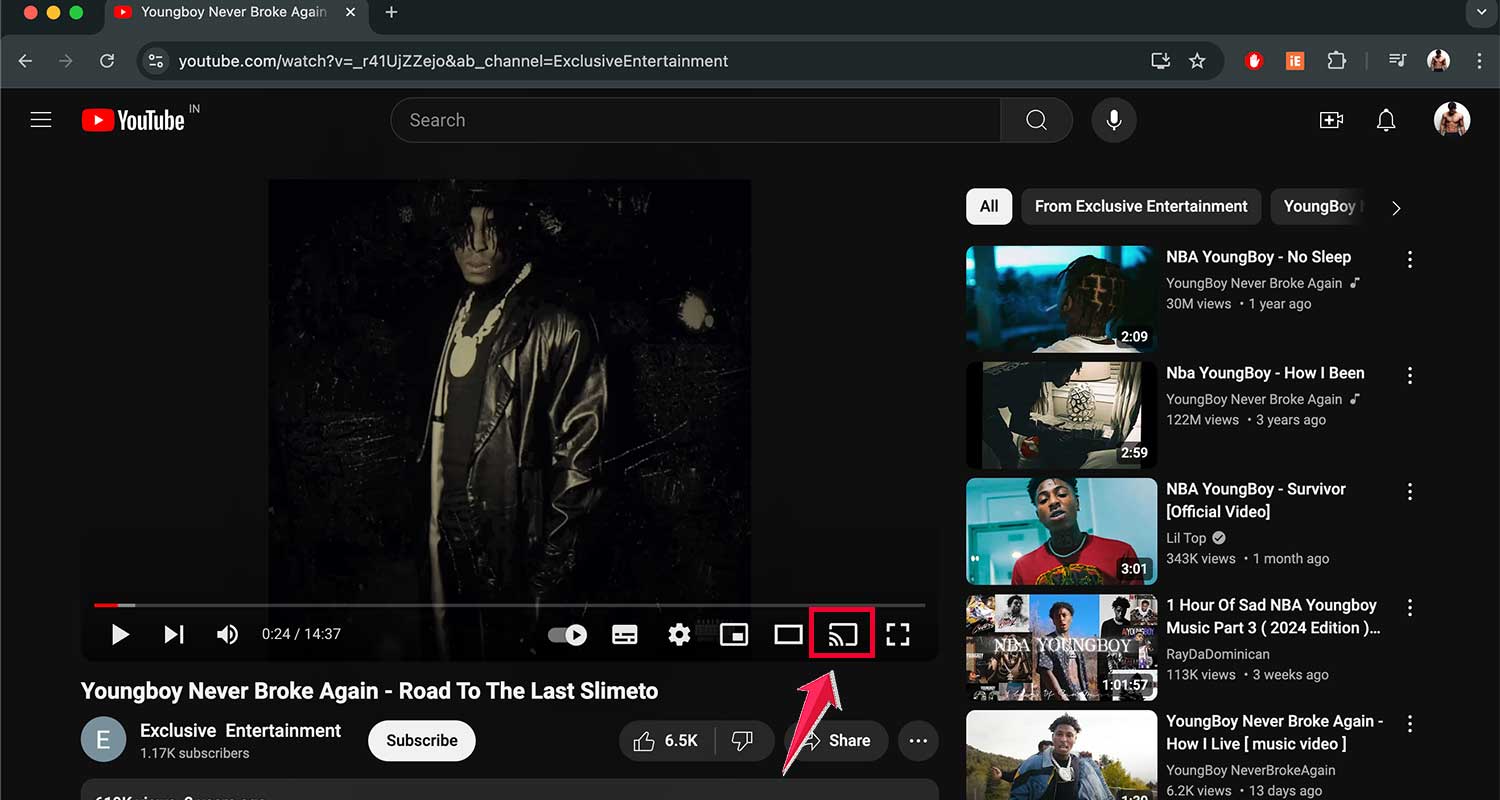
- Choose your Chromecast.
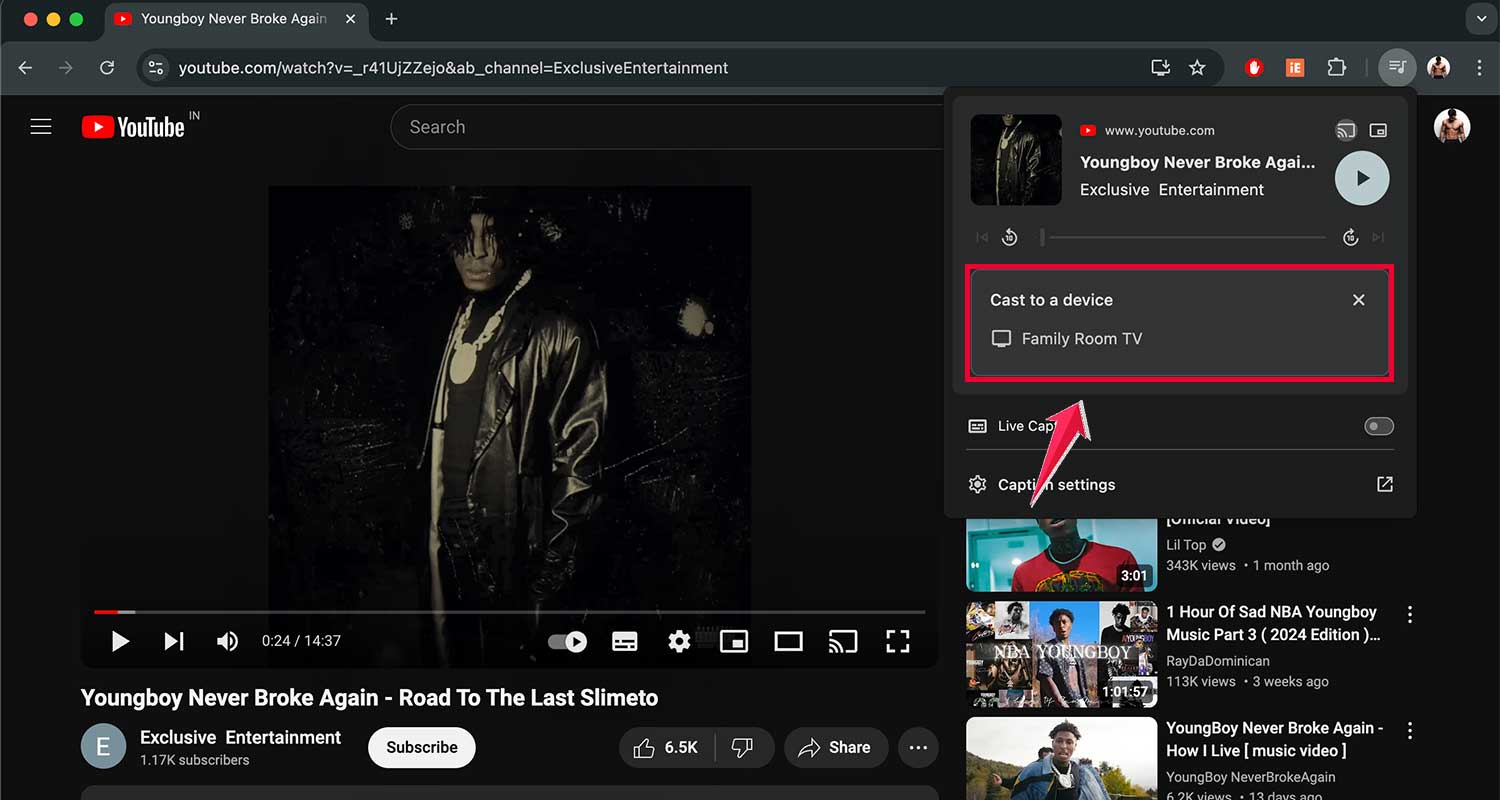
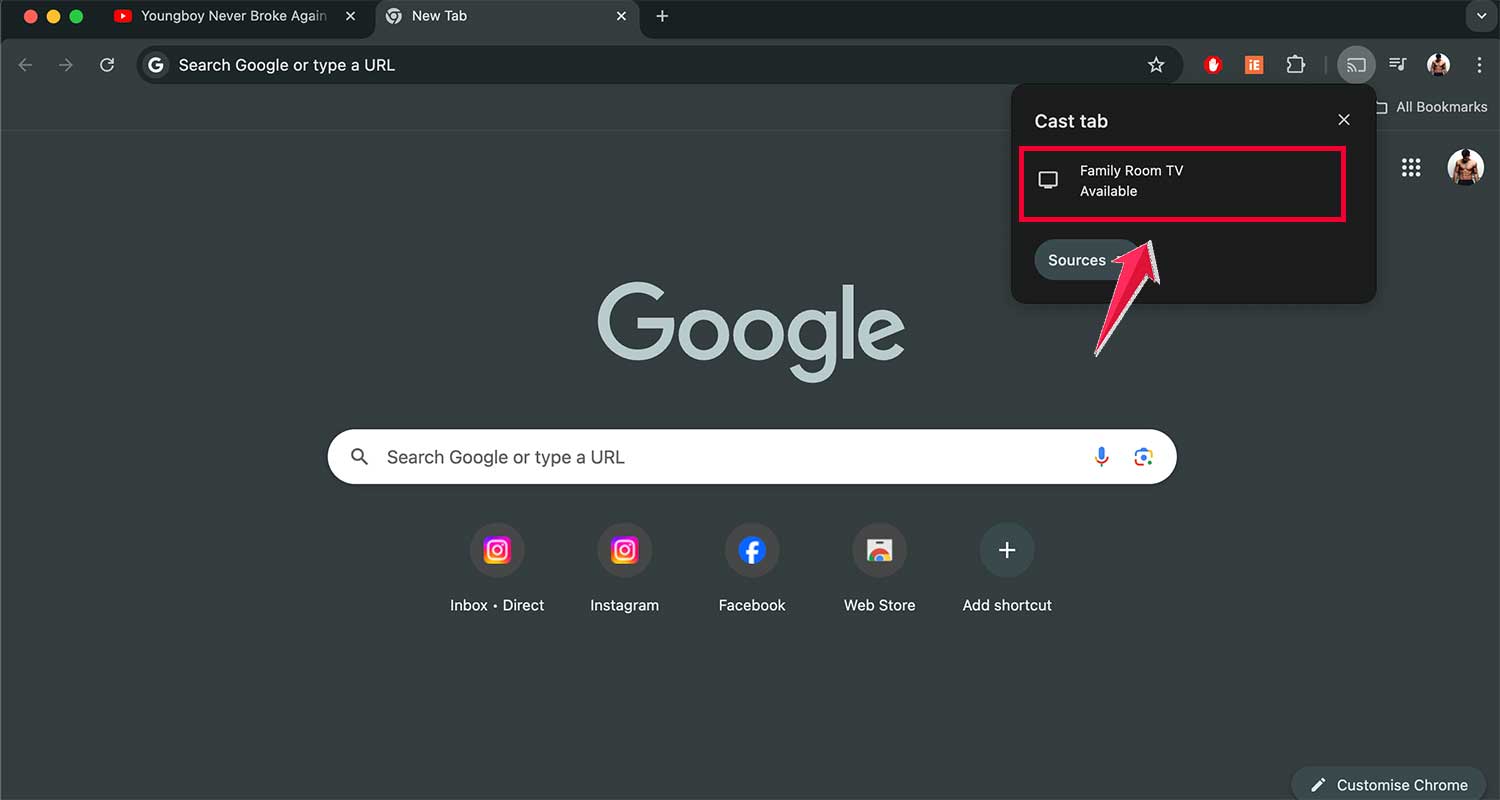
For browser tabs:
- Open Google Chrome.
- Click the three dots in the top right corner.
- Click “Cast”.

- Select your Chromecast.
If you’re browsing websites like Safari and want a native option, you can also AirPlay Safari from your iPhone.
5. Using Google Home for iPhone
To share music or podcasts from your iPhone:
- Ensure your iPhone and Chromecast are on the same WiFi network.
- Download the Google Home app.
- Sign in with your Google account.
- Go to the “Media” section.
- Choose your Chromecast TV in the “Listen On” section.
- Play content from connected services like Spotify or Google Podcasts.
For more powerful mirroring across devices, you could also AirPlay LonelyScreen from iPhone to Windows if needed.
Now you know several ways to share content from your Apple devices to your Chromecast TV.
Whether you’re using an iPhone, iPad, or Mac, you can show your screen, play videos, or share music on the big screen. Enjoy your content on your TV!
Difference between Chromecast and AirPlay
Let’s break down the key differences between Chromecast and AirPlay so you can decide which one suits your needs best.
Both are great for streaming content to your TV, but they have their unique features.
Chromecast:
- Setup: Plug into your TV’s HDMI port. Needs manual setup, but it’s straightforward.
- Compatibility: Works with a wide range of devices, including Android, iOS, and PCs.
- Functionality: Your phone or PC acts as a remote control. You can use your device for other things while casting.
AirPlay:
- Built-In Technology: Already built into Apple devices. No extra setup is needed.
- Apple-Exclusive: Only works with Apple products like iPhones, iPads, and Macs.
- Screen Mirroring: Allows you to mirror your device’s screen on the TV, but you can’t use your device for anything else while mirroring.
If you’re ever stuck with audio playing but no video, check how to fix AirPlay showing only audio without video.
Which one to choose?
- For a flexible solution with various devices, go for Chromecast.
- If you’re in the Apple ecosystem and want a seamless experience, choose AirPlay.
The takeaway
Connecting your Apple devices to your TV isn’t as hard as you might think. Even though Chromecast doesn’t work directly with AirPlay, there are still ways to make it happen.
You’ve learned about apps like Replica and TV Mirror that can help you show your iPhone or iPad screen on your Chromecast TV.
For Mac users, there’s the Mirror for Chromecast app. And don’t forget, you can use Google Chrome to share videos or browser tabs from your Mac.
Some people think you can’t use Apple devices with Chromecast at all. That’s not true!
While it’s not as simple as using AirPlay with Apple TV, there are plenty of options available. It includes cool tricks like AirPlay to Roku TV from iPhone.
The most important thing to remember is that you have choices. Whether you prefer Chromecast’s flexibility or AirPlay’s seamless Apple integration, you can find a way to share your screen that works for you. So go ahead, give it a try, and enjoy your favorite content on the big screen!
What do you think about these screen-sharing solutions? Share your thoughts in a comment below.