So, you’re stuck on that annoying “Updating Settings” screen in iCloud, right? I get it. You’re just trying to log in or set things up, and boom. Your screen freezes.
It’s frustrating, especially when you’ve got things to do and your iPhone decides it’s not going to cooperate.
Let me tell you. You’re definitely not the only one dealing with this. This issue usually happens during iCloud login or setup, and it’s more common than you think.
The screen just sits there, loading forever. And while it might look like your phone is doing something, it’s really just stuck.
Why does this matter so much? Well, iCloud isn’t just some random feature. It holds your photos, contacts, backups, and settings.
If it’s not working, your entire Apple experience feels broken. That’s why fixing this isn’t just about clearing a screen. It’s about getting your digital life back on track.
But don’t worry. I’ve got your back. We’ll walk through the fixes together, step by step. Some are super simple, and I’ll make sure it’s easy to follow. Ready? Let’s fix this now.
What could be causing the iCloud “Updating Settings” issue?
Before we fix it, let’s quickly go over what might be causing this mess. You’ll understand your iPhone better, and it’ll help you pick the right fix faster.
1. Could be your internet connection
If your Wi-Fi is weak or unstable, iCloud can get stuck. It’s like trying to send a message with no signal.
Your phone needs a steady internet connection to talk to Apple’s servers. So, if your connection is bad, iCloud might just freeze on that screen.
2. Apple’s servers might be down
Yep, sometimes it’s not even your fault. Apple’s systems can go down for maintenance or have temporary issues. When that happens, you can’t do much except wait. But it’s good to check their system status to be sure.
3. Your iOS might be outdated
If you’re running an older version of iOS, iCloud might not work the way it should. Apple updates iOS often to fix bugs and improve features. If you haven’t updated in a while, this could be the reason your iCloud is stuck.
4. Your iCloud storage might be full
iCloud needs space to sync things. If your storage is completely full, it might stop working properly. That can lead to all sorts of issues, including this “Updating Settings” freeze.
5. It could be a random glitch
Sometimes, things just go wrong. Software glitches happen. Your phone might’ve hit a hiccup during the iCloud login process. It doesn’t mean something is broken. It just needs a little push to get back on track.
Alright, now that we’ve got a few ideas on what’s going on, let’s move into the real reason you’re here. Yes, the fixes.
Here’s how to fix iCloud stuck on “Updating Settings.”
Let’s go one fix at a time. You don’t have to try everything at once. Start with the easiest one and move down the list. Most users fix it in the first few steps.
#1 Check your internet connection
This is the first thing you should check. iCloud needs a strong, stable internet connection to load your settings. If your Wi-Fi is acting up, it could be the reason your screen is stuck.
Here’s what you can do:
- Open another app that needs the internet. Is it working? If not, your Wi-Fi might be the problem.
- Move closer to your router if the signal is weak.
- Restart your router. Unplug it, wait 10 seconds, and plug it back in.
#2 Restart your iPhone
This one’s simple but powerful. A quick restart can clear out small bugs and refresh your phone’s memory.
- Hold the side button and either volume button until you see the power slider.
- Slide to power off.
- Wait a few seconds, then hold the power button again to turn it back on.
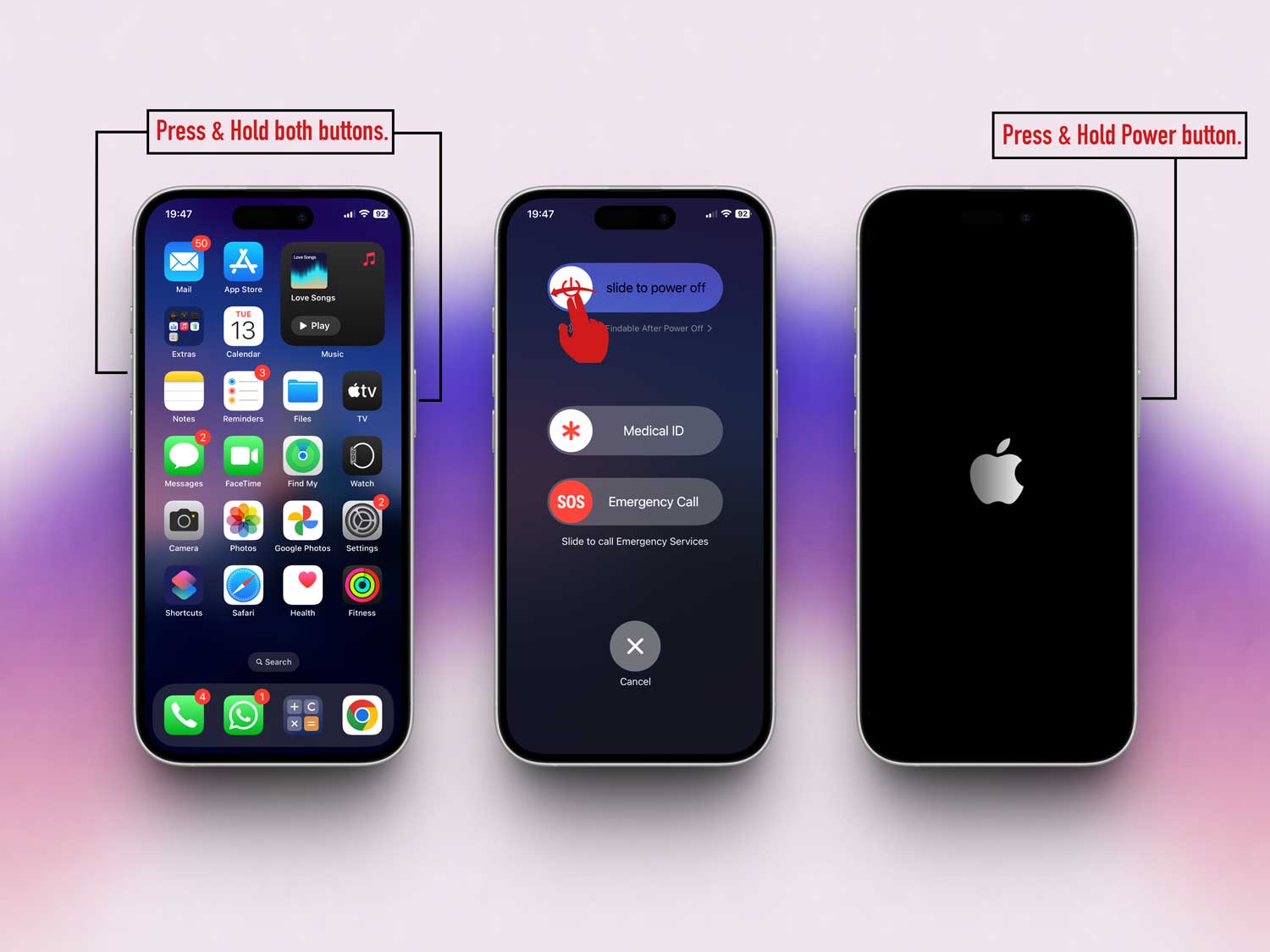
Once it’s back on, check if the iCloud screen is still stuck.
#3 Update your iOS
Running an outdated iOS version? That could be the issue. Apple often fixes bugs in newer updates, and this might be one of them.
- Go to Settings > General.

- Tap on Software Update.
- If there’s an update available, tap Update Now.

After the update, see if iCloud is working now.
#4 Sign out of iCloud and back in
This step refreshes your connection to Apple’s servers. It sounds simple, but it can actually fix the issue quickly.
- Go to Settings.
- Tap your name at the top.
- Scroll down and tap Sign Out.

- Enter your Apple ID password if asked.
- Once signed out, sign back in using your Apple ID.
#5 Check Apple’s system status
If Apple’s services are down, you won’t be able to fix anything on your end until they’re back up.
So, it’s worth checking.
- Go to Apple’s System Status page.
- Look for any issues with iCloud.
If it’s showing problems, just wait a bit and try again later.
#6 Free up iCloud storage
If your iCloud is full, it might cause syncing issues. Let’s clean it up a bit.
- Go to Settings.
- Tap your name, then tap iCloud.
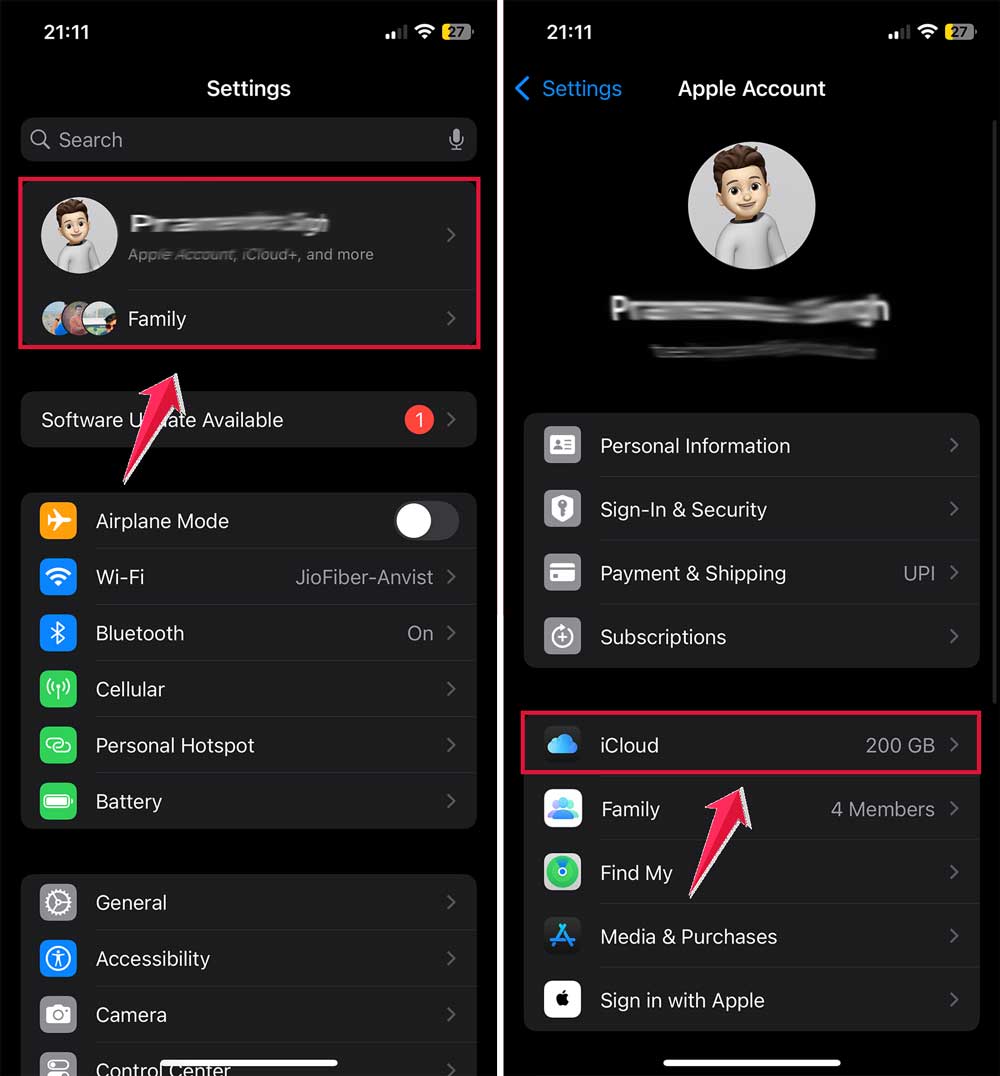
- Tap Manage Storage or iCloud Storage.
- Delete old backups or files you don’t need anymore.
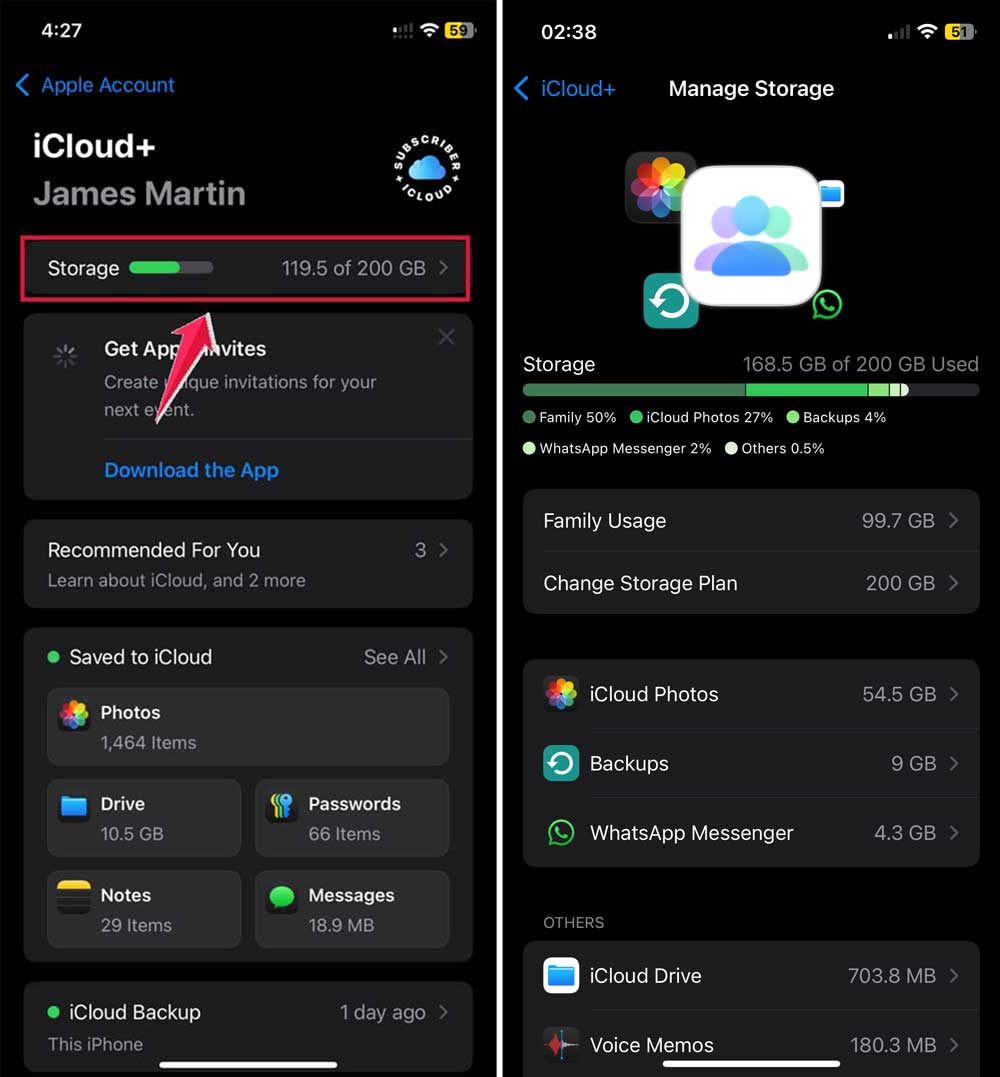
Give it a try now. See if that screen finally goes away.
#7 Reset network settings
This will clear saved Wi-Fi networks and reset your connection settings.
It helps if your device has a deeper network issue.
- Go to Settings > General > Transfer or Reset iPhone.

- Tap Reset.
- Select Reset Network Settings.
- Enter your passcode and confirm.

After the reset, reconnect to Wi-Fi and try iCloud again.
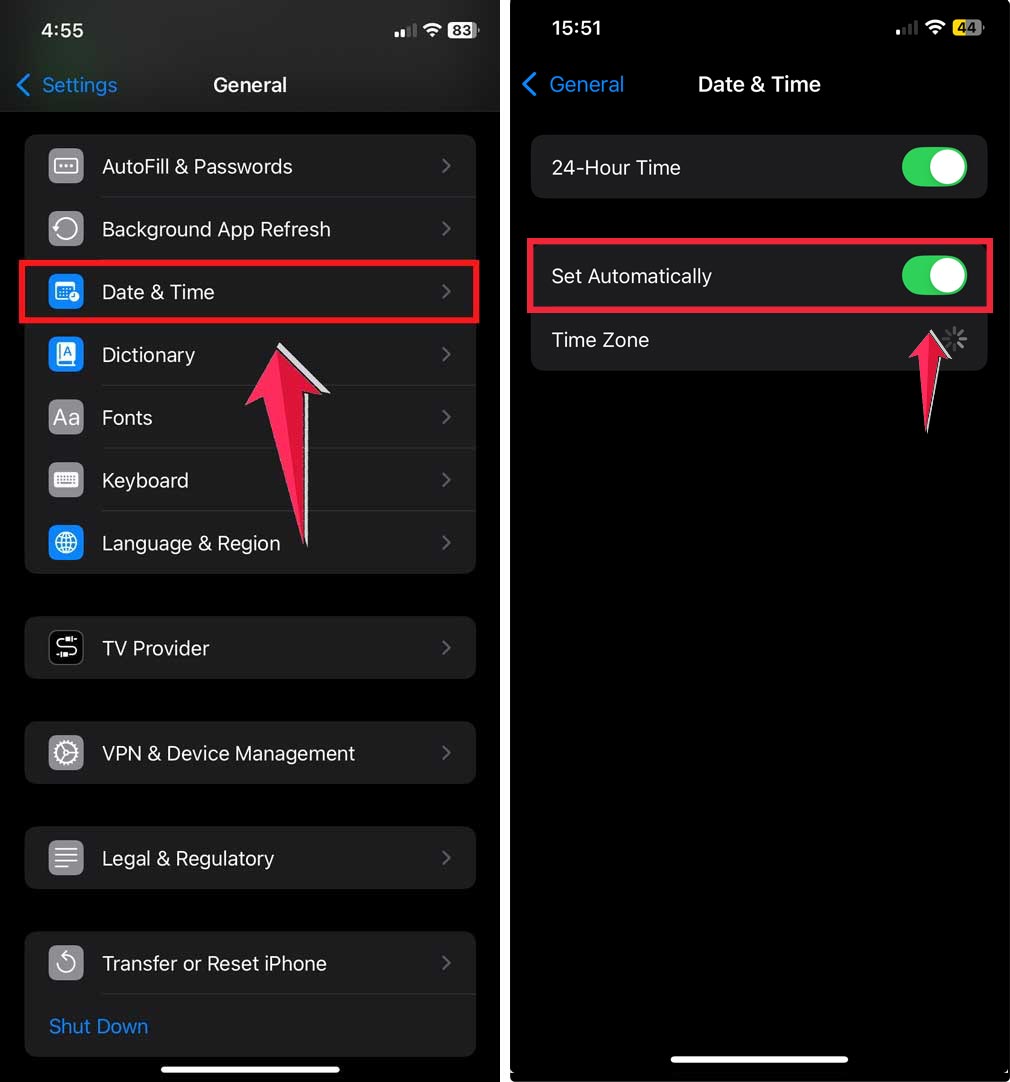
#8 Check date and time settings
Your phone needs to be in sync with Apple’s servers.
If the time is off, iCloud might not respond correctly.
- Go to Settings > General.
- Tap on Date & Time.
- Make sure Set Automatically is turned on.
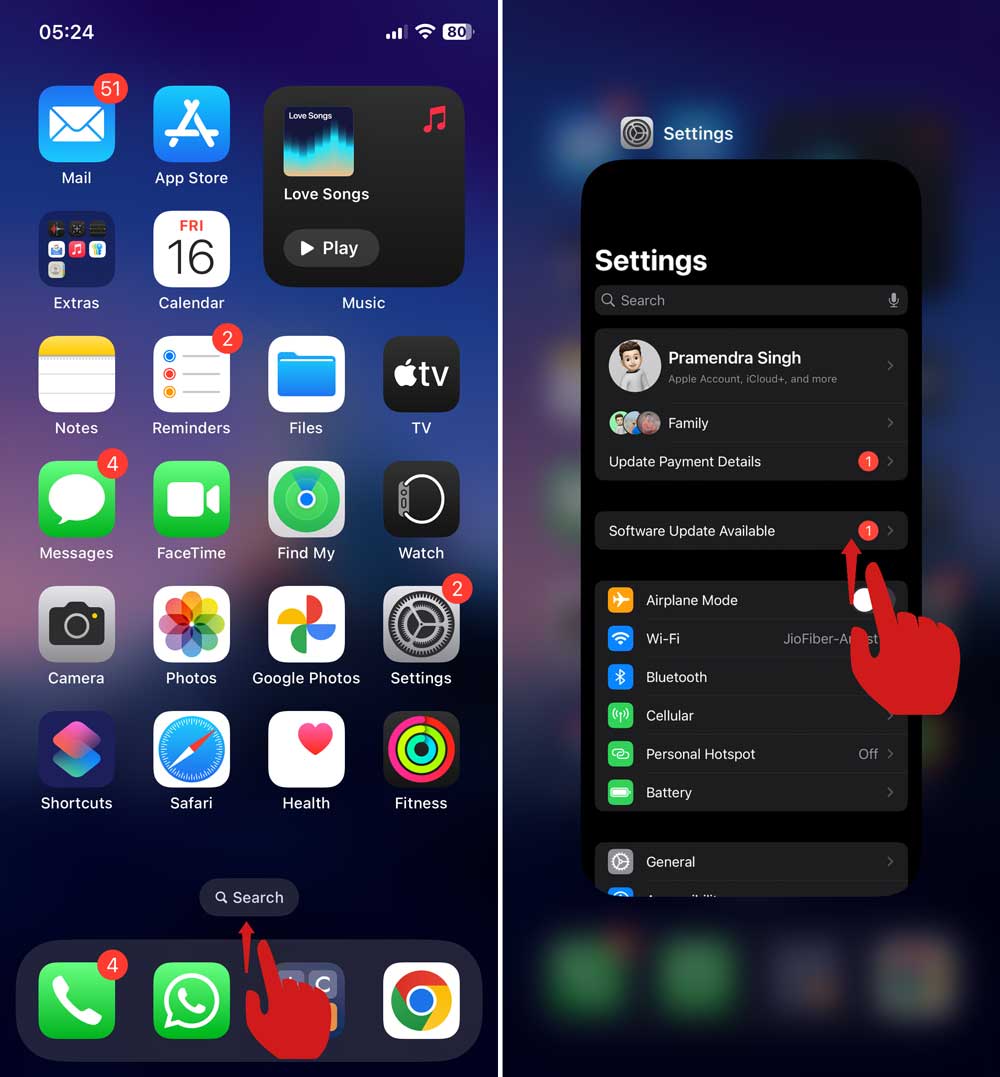
#9 Force close the Settings app
If the Settings app itself is frozen or acting up, try force-closing it.
- On iPhones with Face ID, swipe up from the bottom and pause in the middle of the screen.
- On iPhones with a Home button, double-click the Home button.
- Swipe the Settings app up to close it.
- Reopen it and try again.
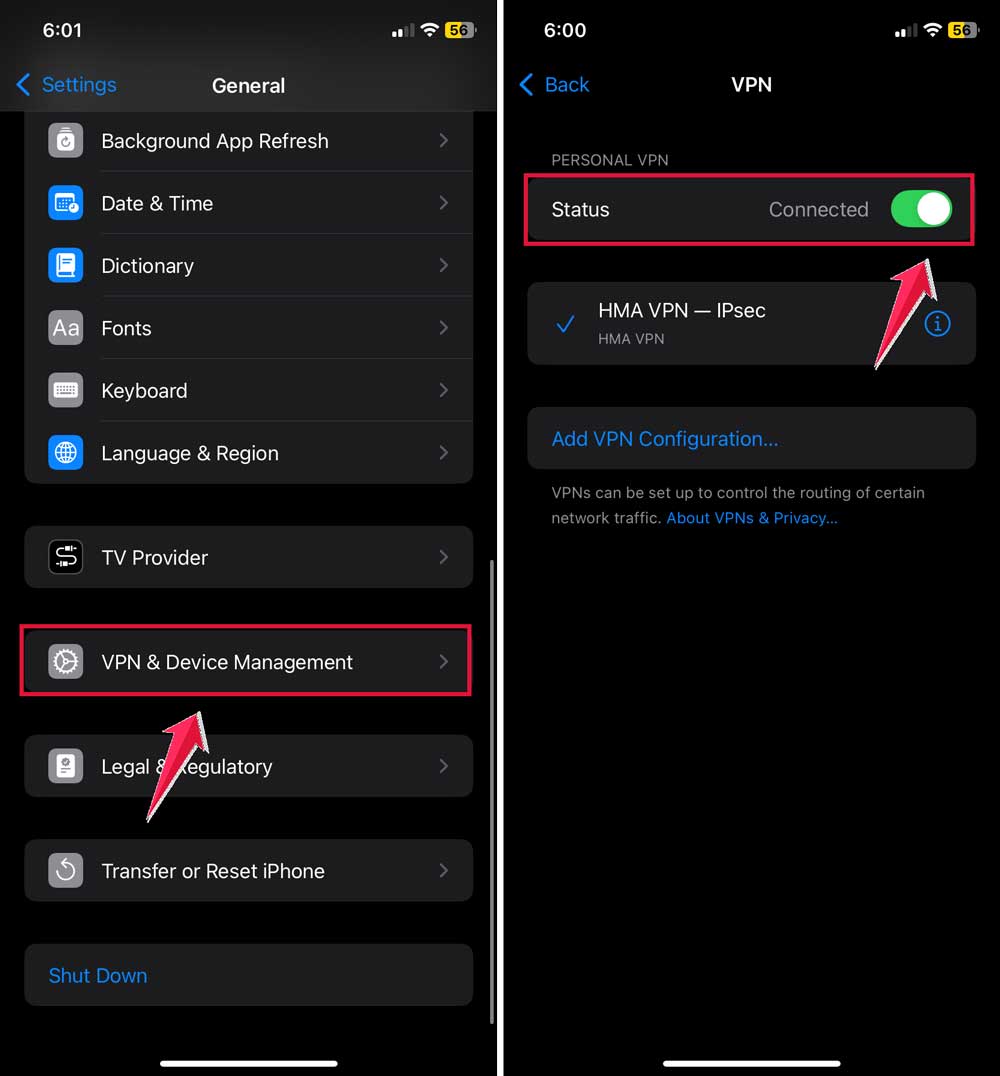
#10 Turn off VPN (if you’re using one)
Using a VPN? It might interfere with your connection to iCloud.
- Go to Settings > General.
- Tap VPN & Device Management or your VPN app.
- Turn it off and see if iCloud starts working.
#11 Backup and restore (last resort)
If nothing else works, you can try backing up your data and restoring your iPhone.
This is a bit more advanced, so only do it if you’re comfortable.
- Use iCloud or iTunes to back up your device.
- Then, go to Settings > General.
- Tap on Transfer or Reset iPhone.
- Select Erase All Content and Settings.
- After the reset, restore from your backup.

The Takeaway
Getting stuck on the iCloud “Updating Settings” screen is frustrating, but it’s usually fixable.
Most of the time, a simple restart, checking your internet, or updating your software is all it takes. Other times, it might be Apple’s servers or a full iCloud account causing the trouble.
Try the steps one by one, and don’t give up. You’ve got this. And hey, if you’re still stuck or something’s not working, leave a comment below. I’ll do my best to help you out.
Good luck. And let’s get your iCloud back to normal!