Recording your iPhone screen can be incredibly useful. You might want to create tutorials, save important conversations, or share your gaming achievements with friends.
It’s a great feature, but it’s important to know that screen recordings can take up a lot of storage space on your iPhone. This might slow down your device if you’re not careful.
You’ve come to the right place to learn all about iPhone screen recording.
In this guide, you’ll discover how to record your iPhone screen, find out how long you can record, and learn how to manage these large video files. You’ll also get some helpful tips on freeing up space on your device.
Let’s dive in and explore everything you need to know about screen recording on your iPhone.
How Long Can You Screen Record On iPad or iPhone?
You might be wondering how long you can keep your screen recording going.
Good news – on both iPad and iPhone, you can record for up to three hours continuously.
But there are a couple of things to keep in mind that the longer you record, the more space it will take up on your device and screen recording can use up your battery pretty quickly.
If you’re planning a long recording session, here are some tips:
- Make sure your device is fully charged before you start.
- Even better, keep your device plugged in while you’re recording. This way, you won’t have to worry about your battery dying in the middle of your session.
By keeping an eye on your storage and battery, you can record for as long as you need without any problems. Remember, the key is to be prepared before you hit that record button.
How to Screen Record on Your iPhone
Ready to capture what’s happening on your iPhone screen? It’s easy to do, whether you want to save a memorable moment or create a helpful tutorial. Here’s how you can start recording your screen:
- Swipe down from the top-right corner of your screen.
- Look for the Screen Recording icon. It looks like a circle with a dot in the middle.
- Tap the icon and wait for the three-second countdown.

- You’re now recording! When you’re done, tap the red status bar at the top of your screen and select “Stop“.

Your video will automatically save to your Photos app. From there, you can edit it or share it however you like.
How to Edit Your Screen Recordings on iPhone
Now that you’ve got your screen recording, you might want to make a few changes. Maybe you want to trim the beginning or end, or add some quick notes. Here’s how you can polish your video using the Photos app:
- Open the Photos app and find your screen recording.
- Tap on the video to open it, then tap “Edit” in the top right corner.
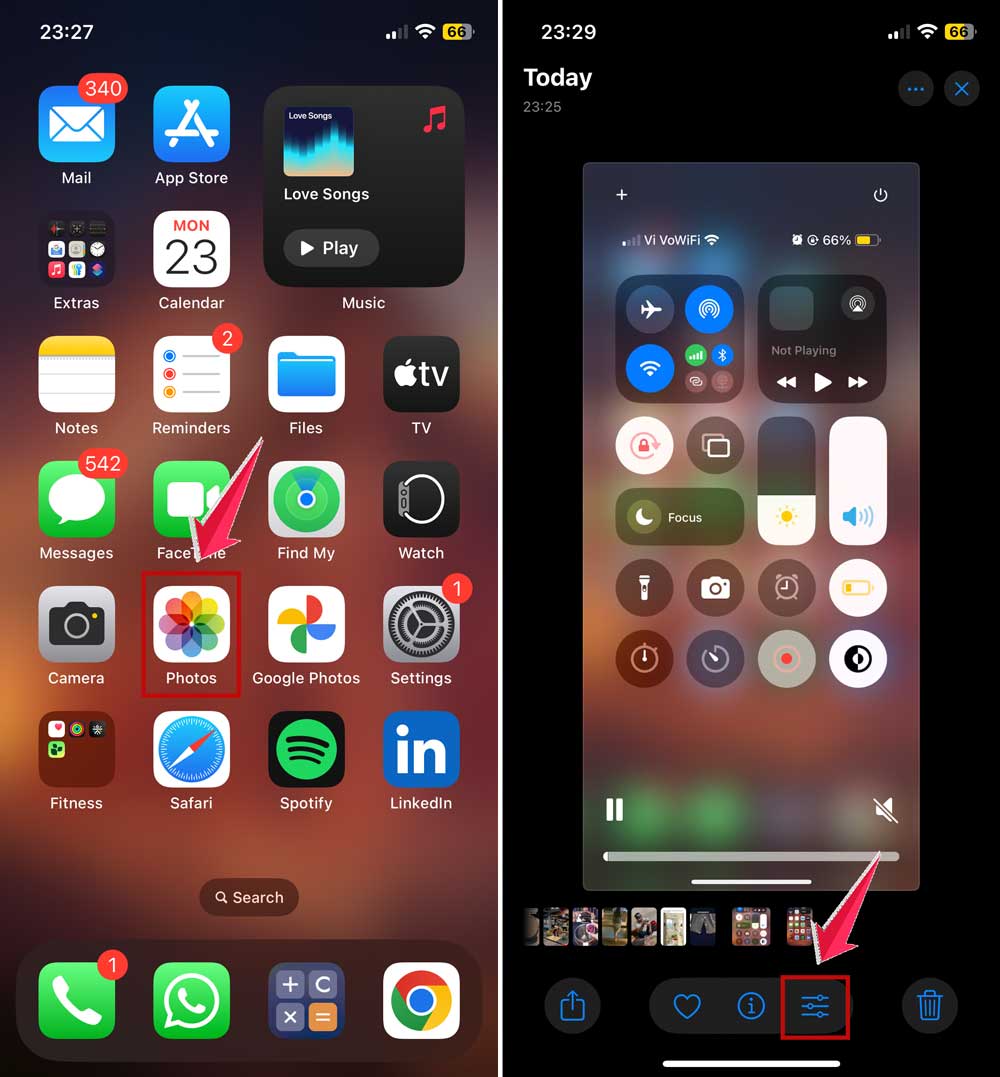
- You’ll see yellow handles on the timeline at the bottom.
- Drag these to choose the part of the video you want to keep.
- Tap “Done” to save your changes.
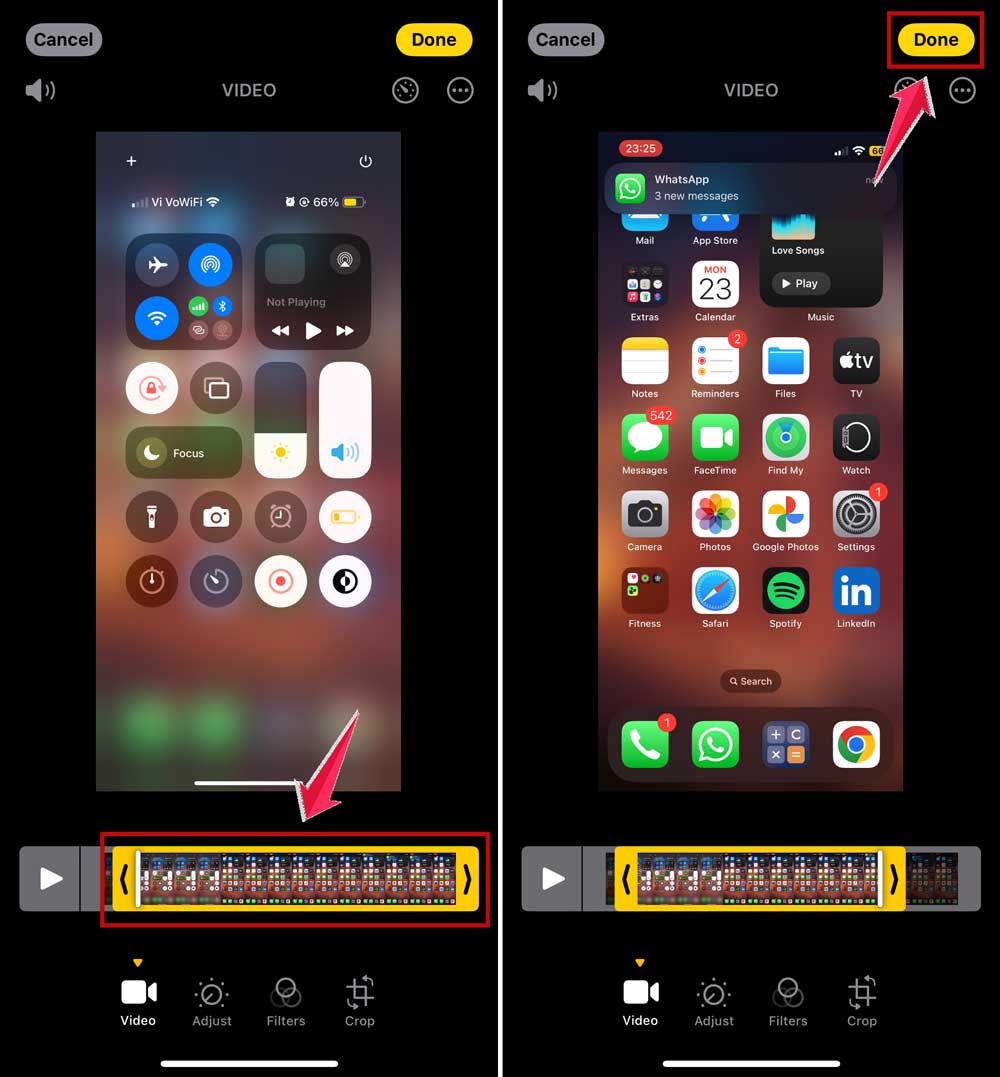
That’s all there is to it! In just a few steps, you can trim your video and make it look more professional. The Photos app is great for quick and simple edits.
If you need more advanced editing tools, you might want to look into other video editing apps. The App Store has plenty of options if you need more features.
How To Manage Your Screen Recording Videos
Screen recording can be fun, but it’s easy to end up with lots of videos taking up space on your iPhone. Here’s how you can manage these recordings and keep your storage in check:
- Use the Photos app to cut your videos down to just the important parts. This can save a lot of space.
- If you’re running low on storage, consider moving your videos off your iPhone.
- You can use cloud storage services like Google Drive or Dropbox. Or, use the Files app to transfer videos and free up space on your device.
By managing your videos smartly, you can enjoy screen recording without worrying about running out of storage.
Use The Files App To Move Or Delete Your Videos
Screen recordings, photos, and apps can quickly fill up your iPhone’s storage. Here are some ways to keep your iPhone running smoothly:
Offload Unused Apps:
- Go to Settings > General > iPhone Storage
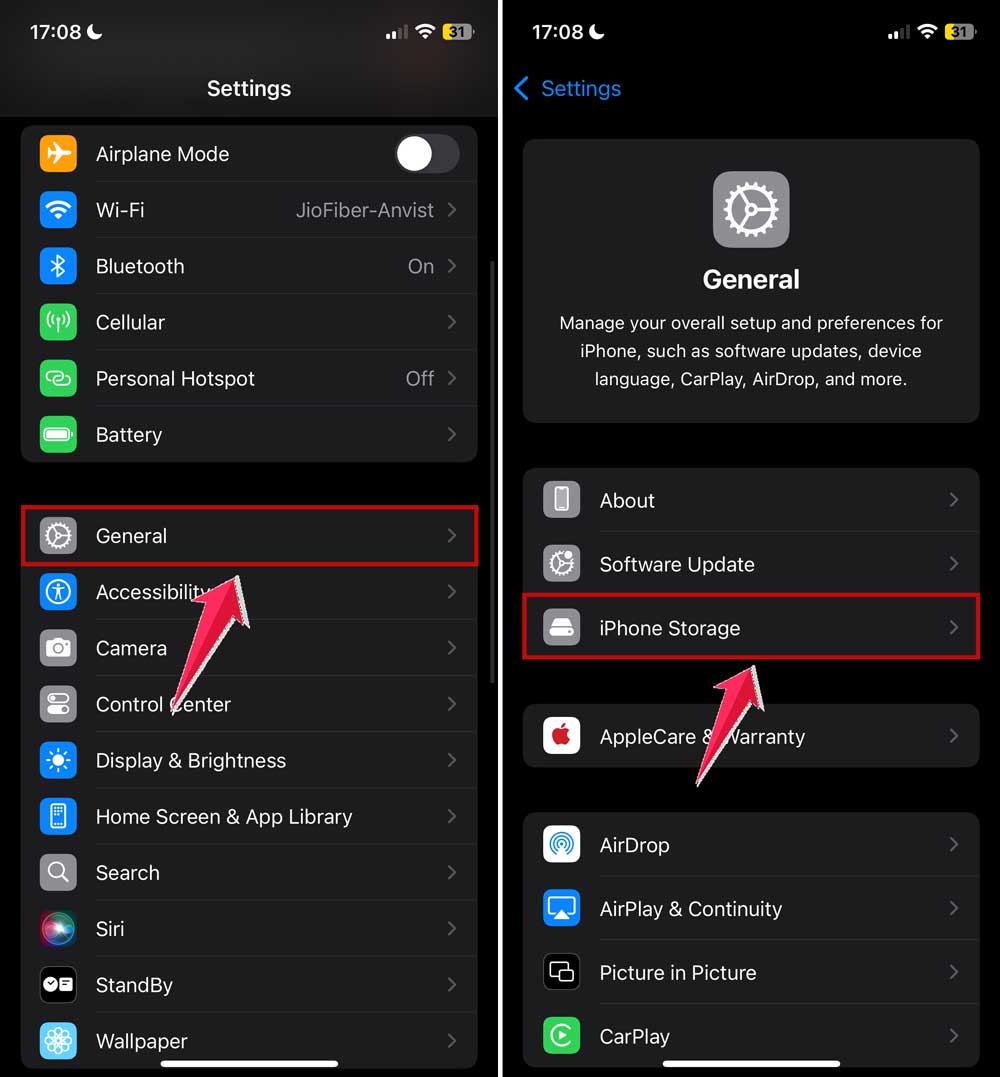
- Find an app you don’t use often
- Tap on it and select “Offload App“
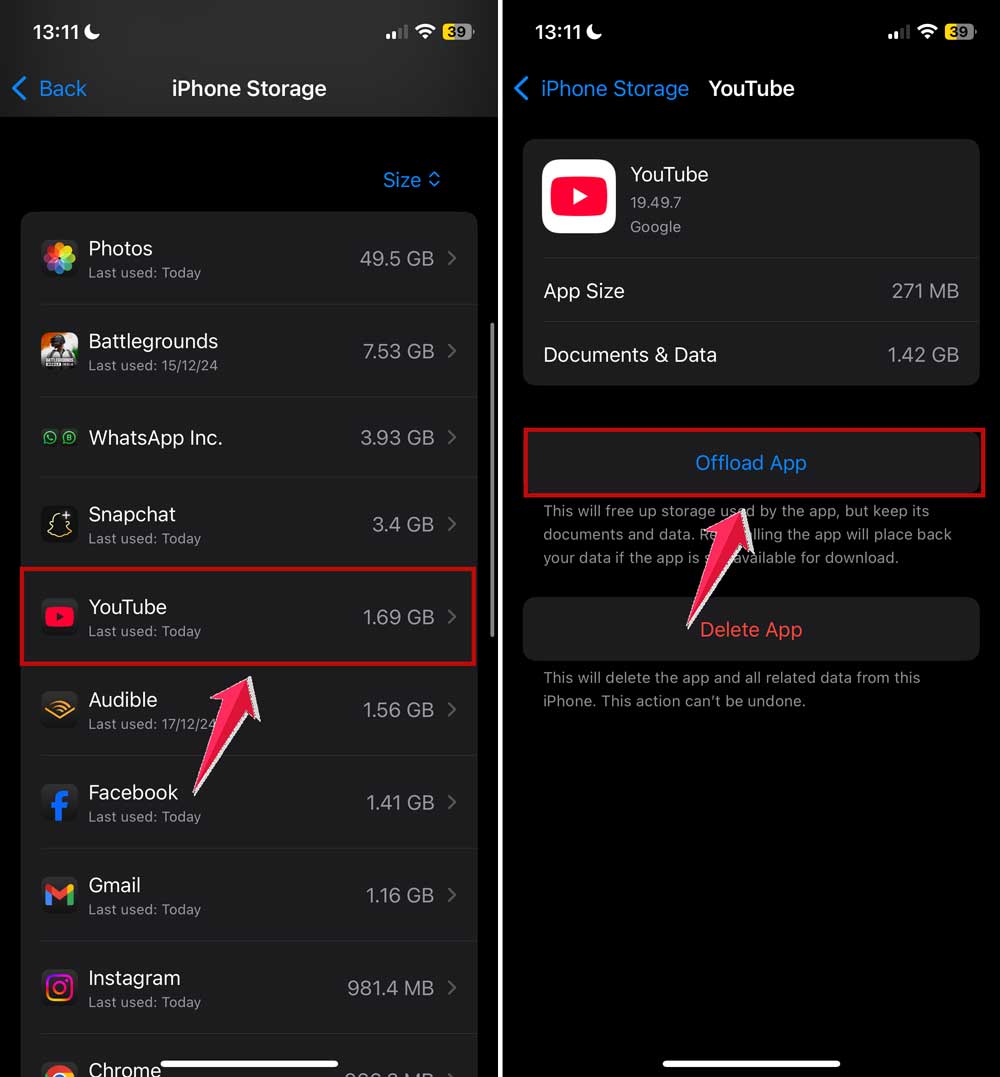
This removes the app but keeps its data, so you can easily reinstall it later if needed.
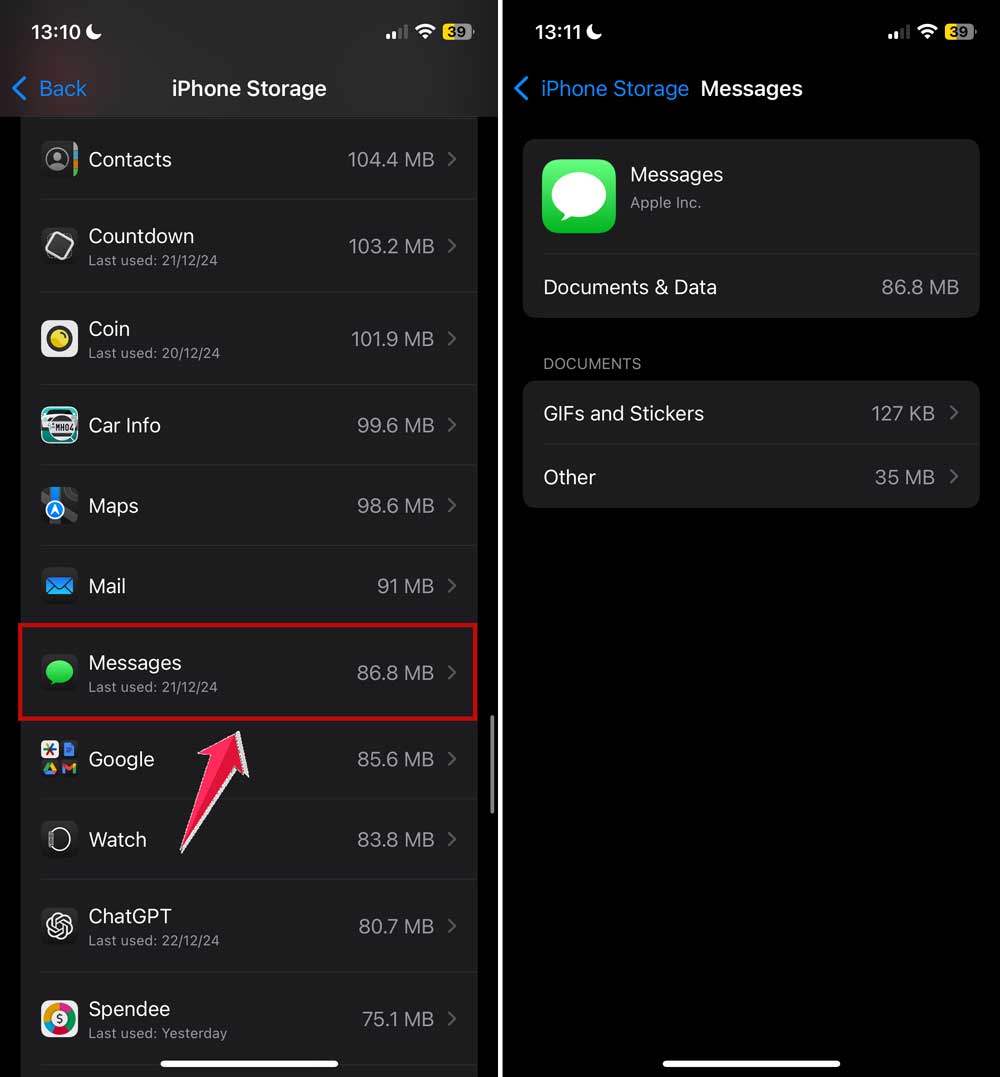
Clear Old Messages:
- Go to Settings > General > iPhone Storage.
- Then, find and click on the Messages app.
- Here, you can delete old messages and attachments that are taking up space
- To prevent future clutter, set your messages to auto-delete after 30 days
Manage Media Storage:
- Go to Settings > General > iPhone Storage
- Look for options to save space on photos, music, and videos
- Consider optimizing your iCloud Photo Library or managing downloaded videos

Remember, regularly checking your iPhone’s storage helps keep your device running well and ensures you have space for new content. Try these tips to keep your iPhone organized and working at its best.
Wrapping Up
You’ve now got all the tools you need to make the most of screen recording on your iPhone. You know how to capture those important moments, edit your videos, and keep your storage under control.
By following these tips, you’ll be able to enjoy screen recording without worrying about running out of storage or slowing down your iPhone. Remember, a little bit of management goes a long way in keeping your device running smoothly.
So go ahead and start capturing those important moments, creating helpful tutorials, or sharing your achievements with friends.
Your iPhone is ready for whatever you want to record. Just keep an eye on your storage, trim your videos when you can, and clear out unnecessary files now and then.