Hey there, iPad user! Feeling annoyed because your screen won’t rotate while watching YouTube or Netflix? You’re not alone.
This is a super common problem, and the good news is—it’s usually easy to fix.
Sometimes the video just stays stuck in portrait mode, even when you flip your iPad sideways.
And that’s not fun at all, especially when you’re ready to relax and enjoy your favorite show or a new movie. Watching in full screen is way more comfortable, right?
So why does this even happen? It could be something as simple as a setting you forgot about, or maybe the app just needs a quick refresh.
Whatever the reason, you deserve the best viewing experience, especially when you’re paying for it.
Let’s go step-by-step together and get your iPad screen rotating again. Ready to fix it? Let’s do this.
Common reasons your iPad screen won’t rotate with YouTube or Netflix
Alright, let’s take a look at what usually causes this issue. Don’t worry, we’ll keep it simple and walk through each one.
1. Orientation Lock is On
This one sneaks up on a lot of people. If your iPad has rotation lock turned on, your screen won’t flip no matter what you do. It’s easy to miss, but just as easy to fix.
2. The App is Acting Up
Sometimes, apps like YouTube or Netflix just decide not to play nice. It’s not your fault—it happens. Restarting the app can often fix this.
3. iOS Glitches Happen
Your iPad’s software might hit a small hiccup. It’s rare, but it can stop your screen from rotating. A quick restart might be all it needs to get back on track.
4. Old Software Can Cause Problems
If you haven’t updated your iPad or the apps in a while, that could be the reason. Updates bring fixes. Without them, bugs might mess with how things work—including screen rotation.
Now that we’ve covered the usual causes, let’s roll up our sleeves and fix it for real.
YouTube / Netflix Not Rotating on iPad – Let’s Fix It
Alright, now let’s walk through the actual fixes. I’ll explain what to try and when to move on if something doesn’t work. We’ll start with the easiest ones first.
#1 Check the Orientation Lock
Let’s make sure the screen rotation isn’t locked. This is often the main reason the screen won’t flip.
Here’s what to do:
- Swipe down from the top-right corner of your screen to open the Control Center.

- Look for the lock icon with a circle around it. If it’s highlighted, that means it’s on.
- Tap it once to turn it off.
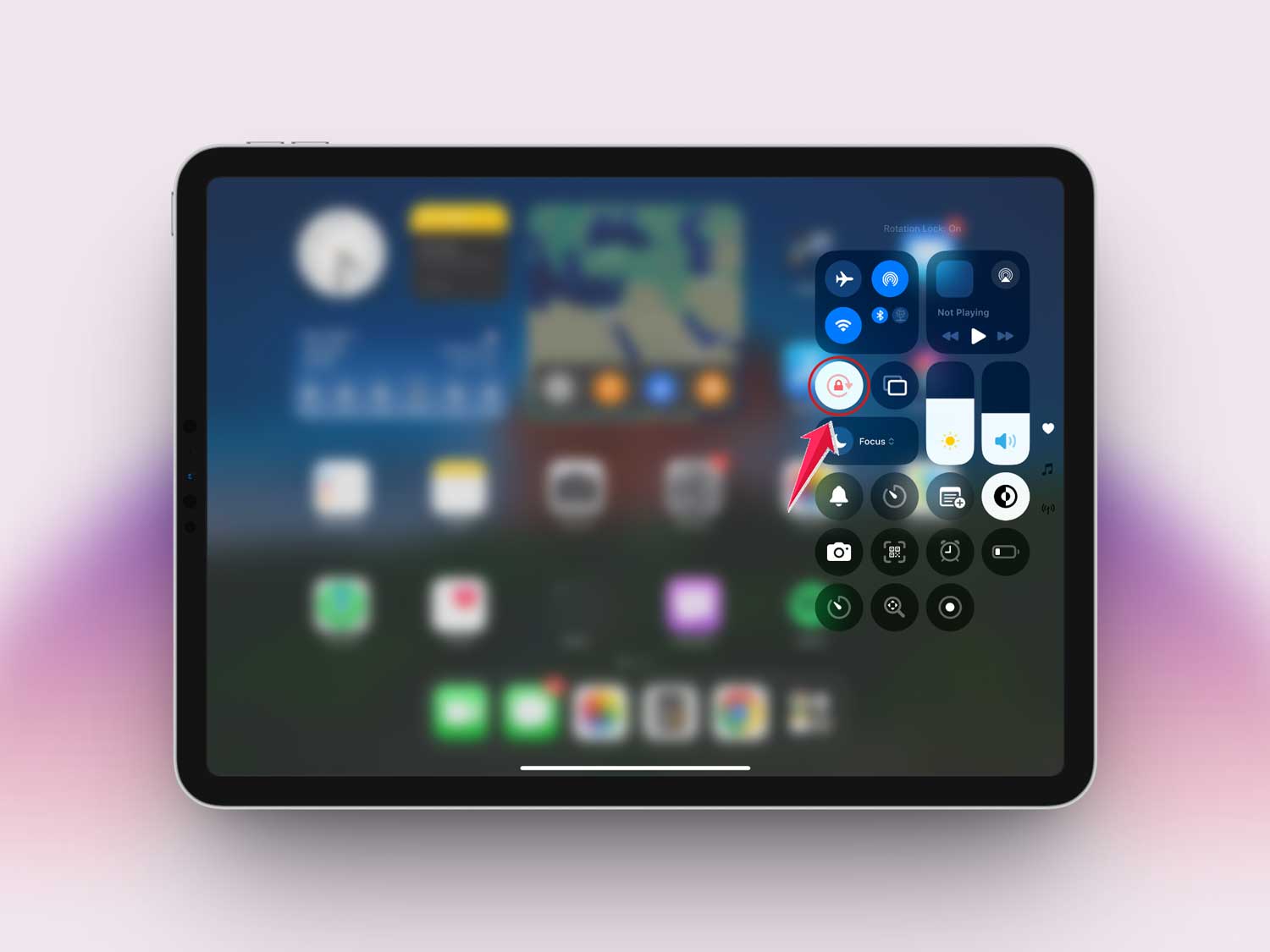
- Now, rotate your iPad and see if the screen flips.
If the lock was off and it’s still not rotating, no worries—we’ve got more steps.
#2 Restart Your iPad
Sometimes your iPad just needs a quick break. Restarting it can fix small software bugs that mess with the screen.
Try this:
- Press and hold the top button until you see “slide to power off.”
- Slide it to turn off your iPad.
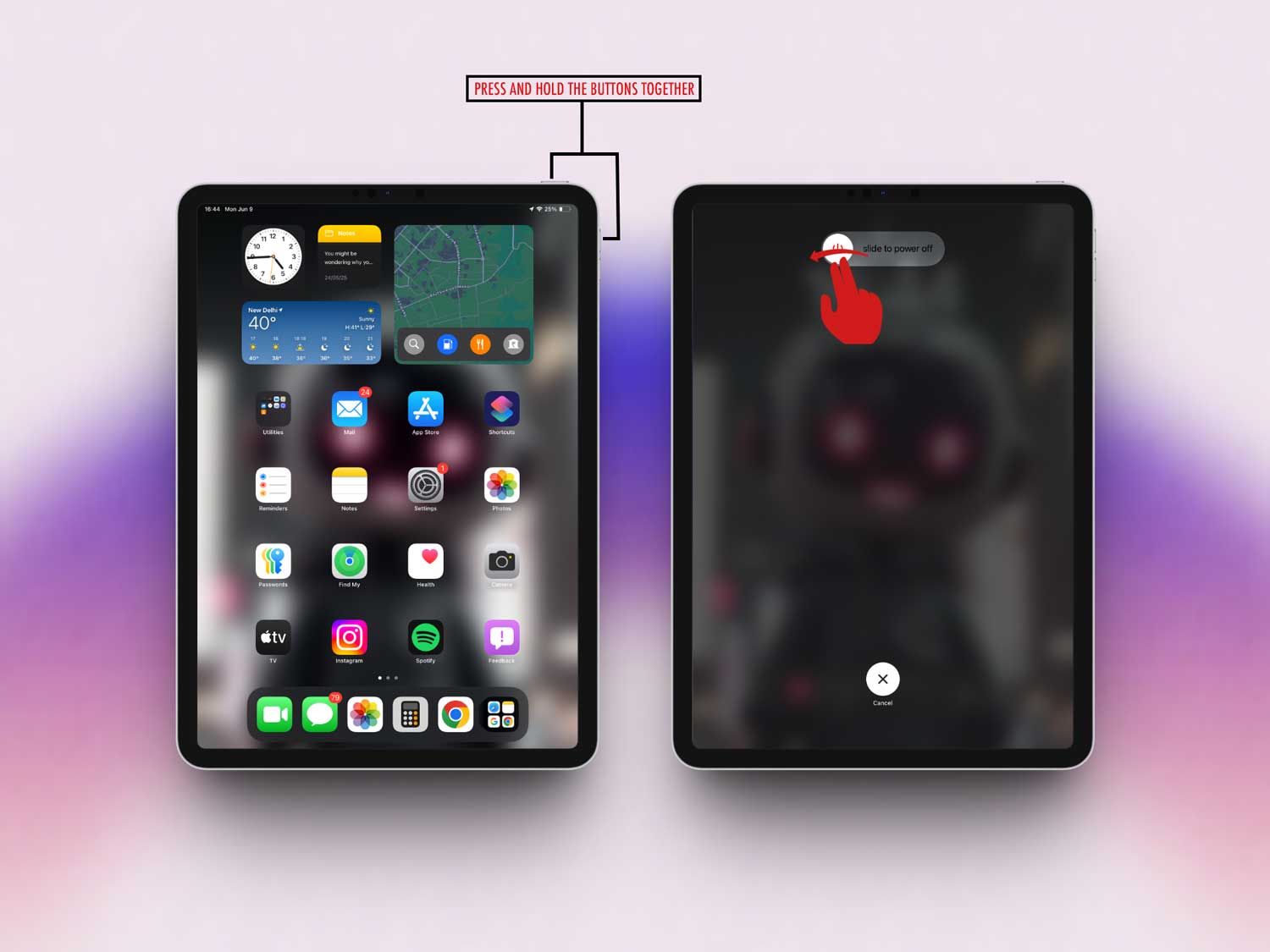
- Wait a few seconds, then press the top button again to turn it back on.

Once it’s back on, open YouTube or Netflix and see if it rotates now.
#3 Update Your Apps
If your apps are out of date, they might not work properly. Updating them can fix bugs and improve performance.
Here’s how to update:
- Open the App Store.
- Tap your profile icon in the top right corner.

- Scroll to “Upcoming Automatic Updates”.
- If you see YouTube or Netflix, tap Update next to them.
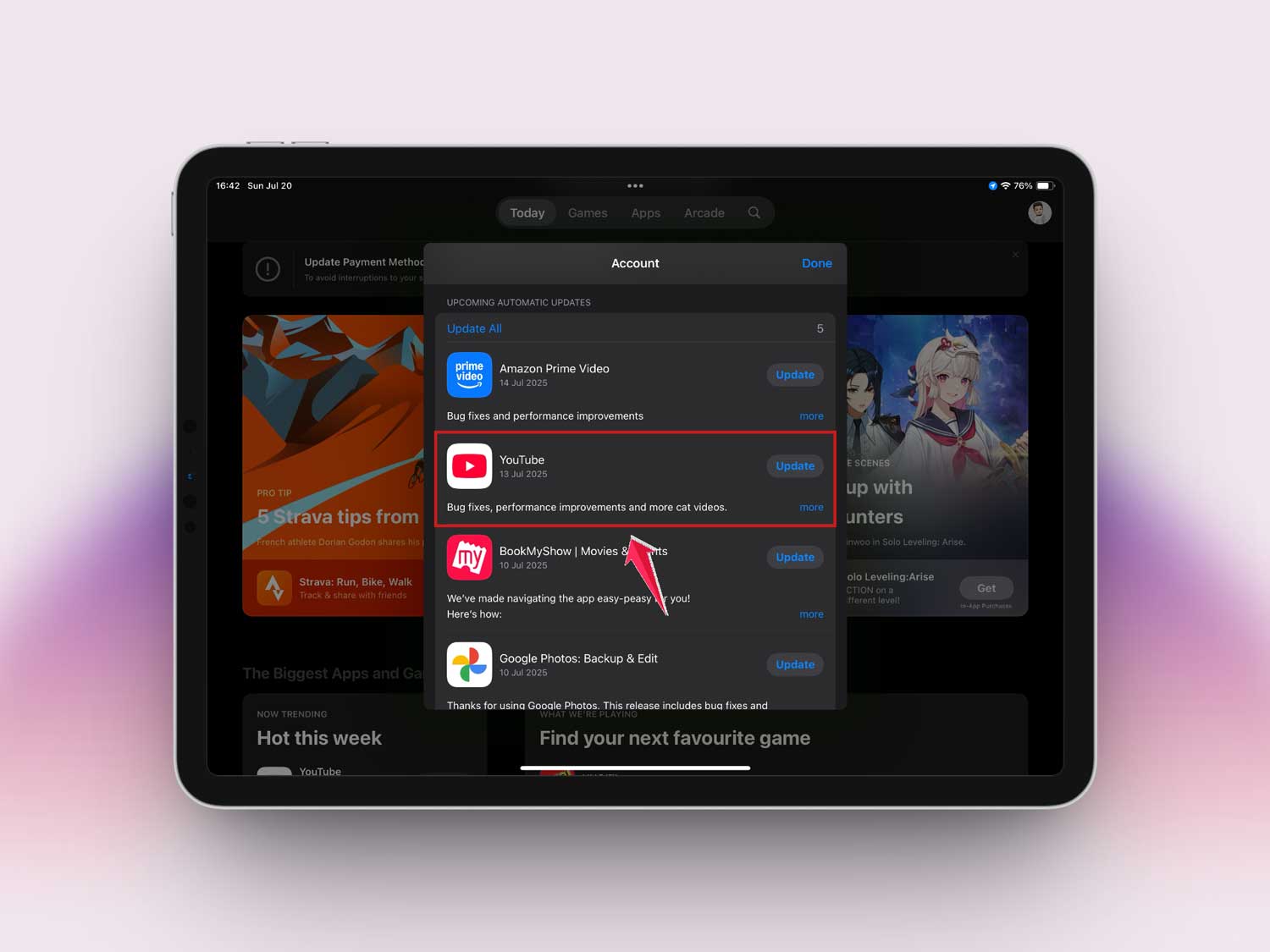
Once updated, open the app again and check the screen rotation.
#4 Update iPadOS
Keeping your iPad’s system updated helps prevent random bugs like this one. Updates often include small fixes for annoying problems.
To update your iPad:
- Go to Settings.

- Tap General.
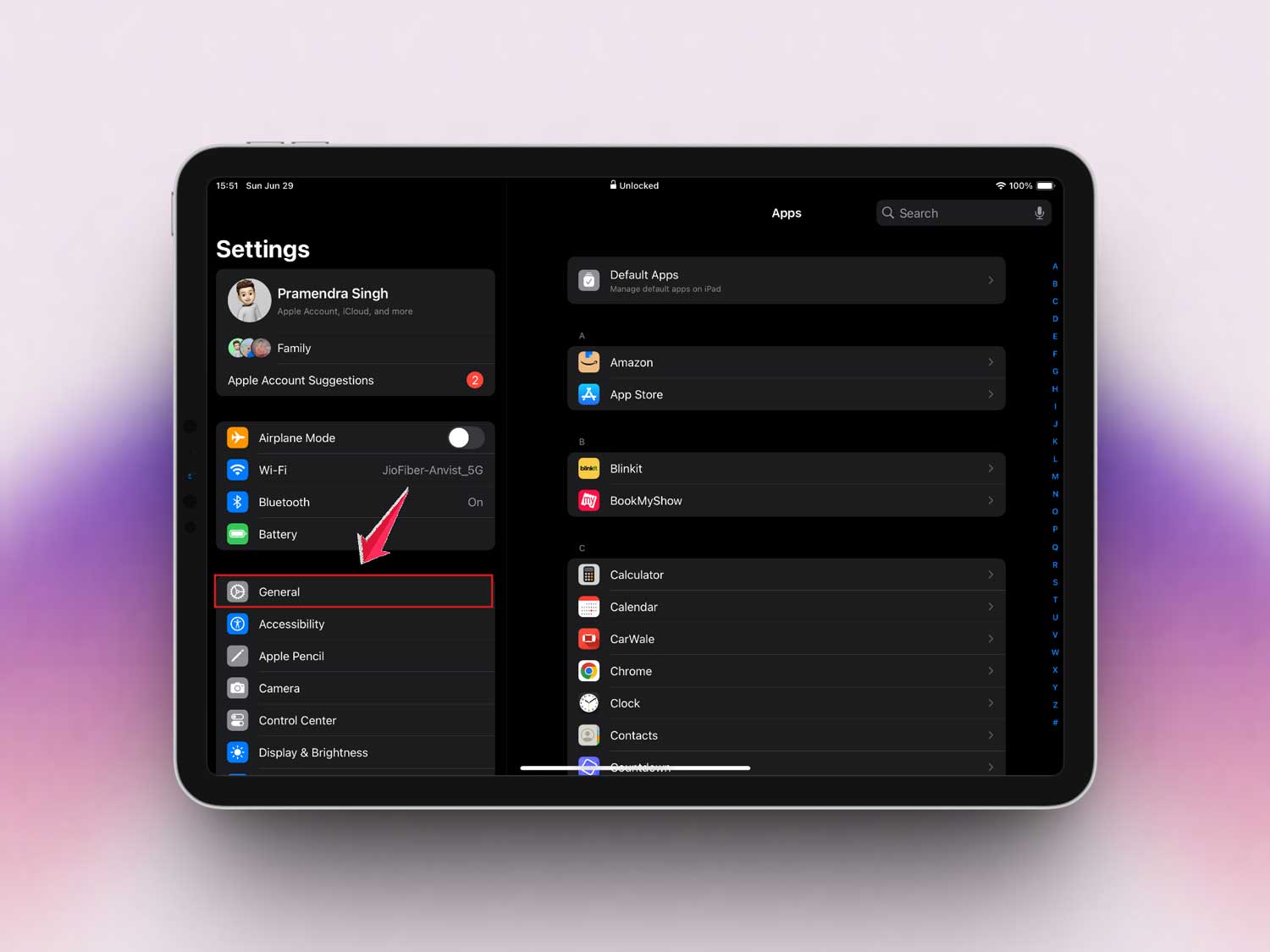
- Then, Software Update.

- If an update is available, tap Update Now.
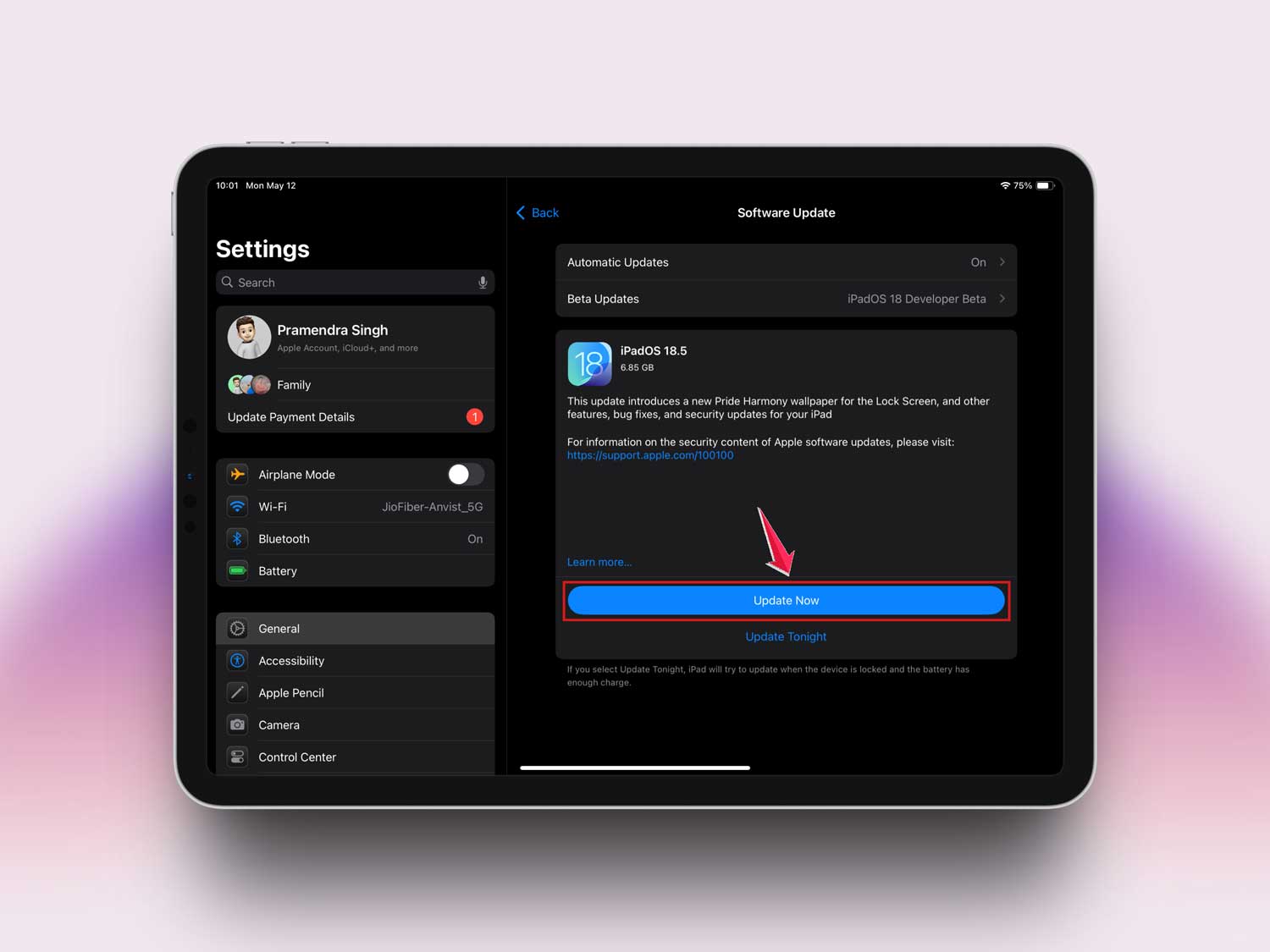
After the update finishes, restart your iPad and give screen rotation another try.
#5 Reset All Settings
Still stuck? Don’t worry. This step resets your settings without deleting your data. It’s a clean way to fix weird issues.
Here’s how:
- Go to Settings.
- Tap General.
- Scroll down and tap Transfer or Reset iPad.

- Tap Reset.

- Then choose Reset All Settings.

This will reset things like Wi-Fi passwords and preferences, but your photos and apps stay safe.
Extra Tips if It’s Still Not Working
Alright, if it’s still not working after all that, don’t give up. These extra tips might help.
1. Clear App Cache (by reinstalling)
iOS doesn’t let you clear app cache directly, but you can delete and reinstall the app to refresh it. Long press the app icon, tap Remove App, then reinstall it from the App Store.
2. Free Up Storage
Too many files? That can slow things down and affect how apps behave. Go through your photos, videos, or unused apps and delete what you don’t need.
3. Offload Unused Apps
If you don’t want to delete apps, you can offload them. This saves your data but frees up space.
- Go to Settings > General > iPad Storage.
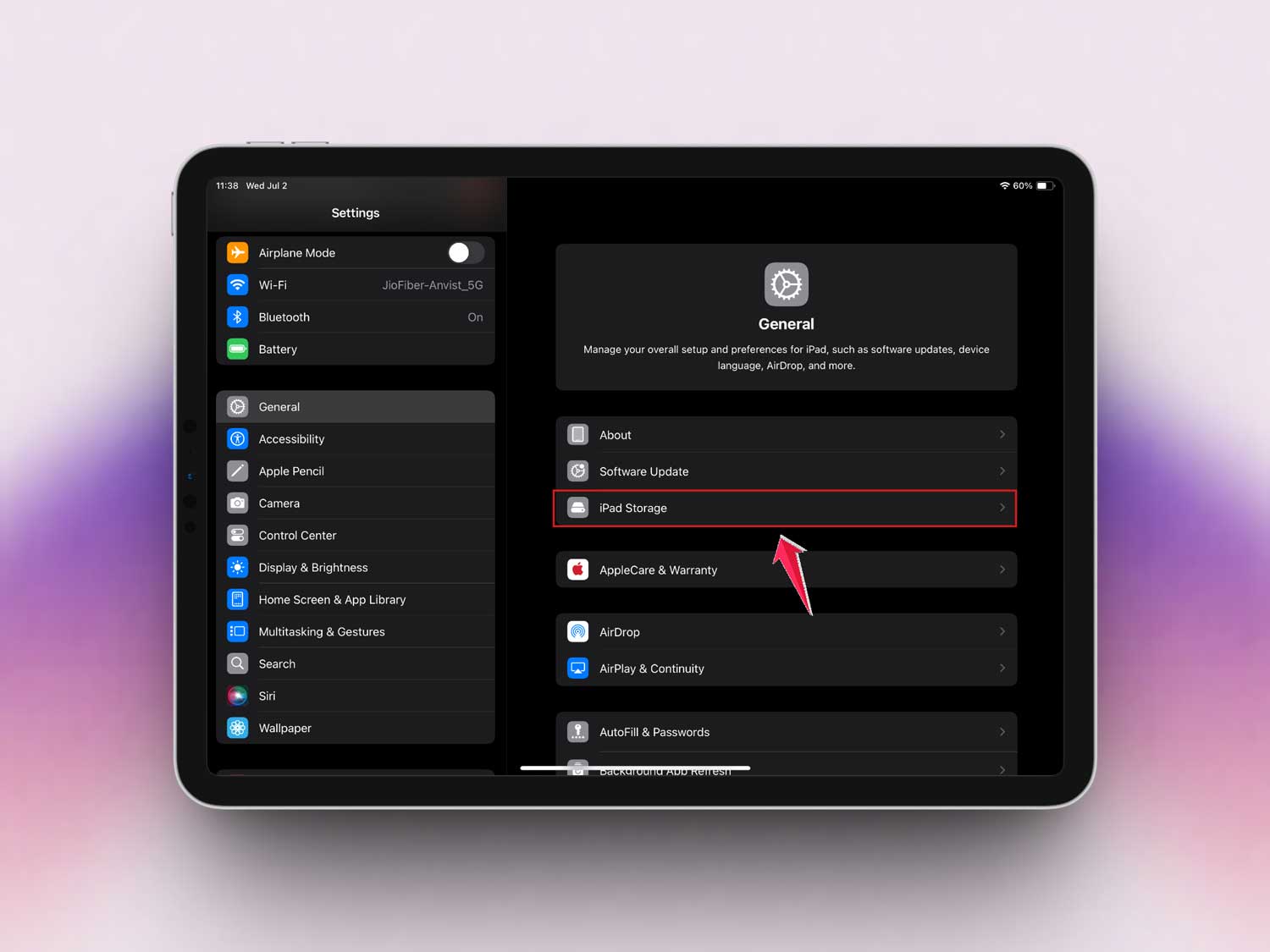
- Tap on the app.

- Then choose Offload App.

4. Reset Location & Privacy Settings
Sometimes, strange rotation issues are tied to privacy settings.
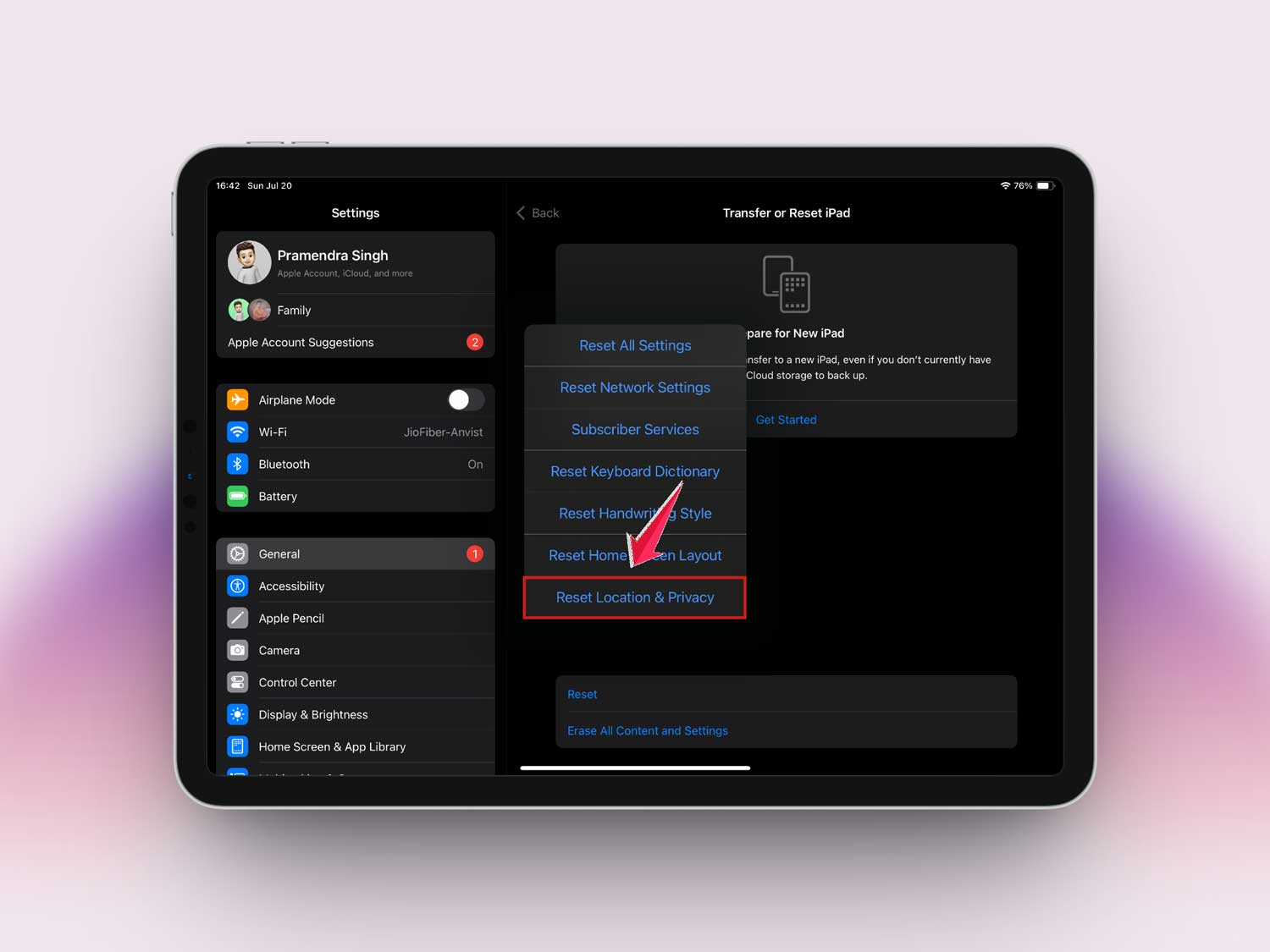
- Go to Settings > General > Transfer or Reset iPad.
- Tap Reset.
- Then choose Reset Location & Privacy.
5. Remove Accessories
Some cases or mounts can stop your iPad from rotating. If you’re using a thick case or magnetic stand, try removing it and see if that helps.
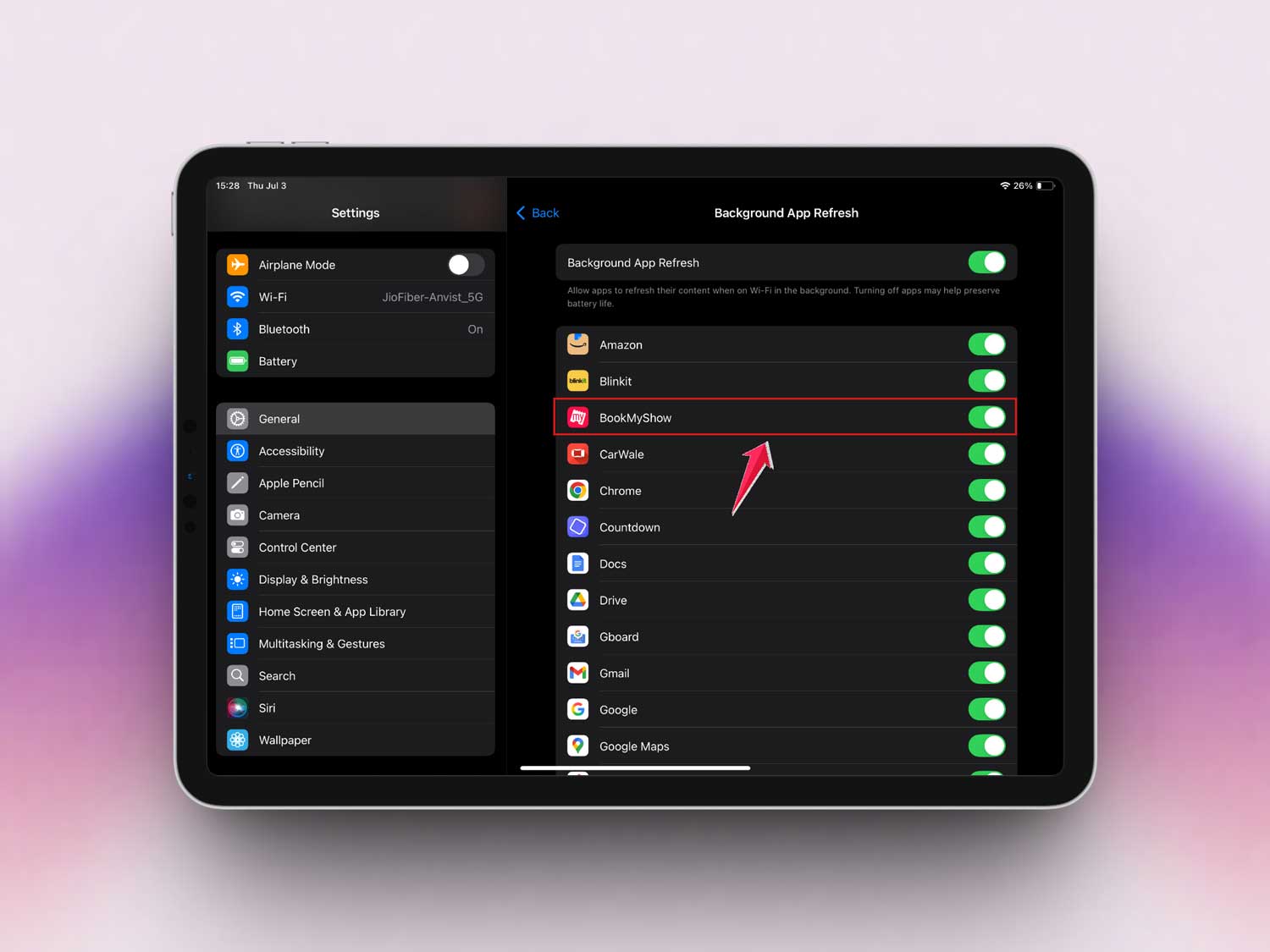
6. Turn Off Background App Refresh
This helps improve performance and might fix app behavior, too.
- Go to Settings > General > Background App Refresh.

- Select Off or choose which apps to disable.
Try these extra steps and check again. Still stuck? Hang tight—we’ll wrap it up below.
The Takeaway
Alright, we’ve tried a bunch of things. If your iPad screen isn’t rotating for YouTube or Netflix, it’s usually something small. The orientation lock is a top culprit.
Restarting your iPad, updating your apps, or even doing a quick reset can really help. And no, resetting your settings won’t delete your stuff—so don’t worry.
Remember, tech can be weird sometimes. But you’ve got this. Keep following the steps, and you’ll be back to watching your favorite shows in full-screen before you know it.
Got a question or found a different fix that worked for you? Drop a comment below and let’s help each other out!