You know that moment—you’re all set for a movie night or you’re right in the middle of a Zoom meeting… and the sound just doesn’t match the video.
It’s like your Mac is out of sync with reality. Super annoying, right? You hear the words a second after seeing someone’s lips move. It feels off, and honestly, it ruins the whole experience.
So, what’s really happening here? When your Mac’s audio lags behind the video, it’s usually because something’s slowing it down.
This could be an outdated macOS, Bluetooth issues, or even too many apps running at the same time. All of these things can mess with how smoothly your sound and video play together.
But here’s the good news—you’re not stuck like this. You don’t need to be a tech expert to fix it either. There are simple things you can do right now to bring everything back in sync.
I’ll walk you through each one, step by step. Let’s fix that sound delay so you can enjoy your music, videos, or calls without any hiccups.
Ready? Let’s figure this out together.
What causes audio lag on macOS?
Let’s talk about what might be behind this whole audio delay thing. Sometimes it’s your settings. Sometimes it’s your system. But either way, once you understand what’s going on, it’s a lot easier to fix.
1. Outdated macOS or apps – When your system isn’t updated, it can create bugs or glitches. These often affect how sound and video work together.
2 .Bluetooth interference – Got wireless headphones? If there are too many Bluetooth devices nearby, things can get messy. Your Mac might struggle to keep a stable connection.
3. Too many apps open – If your Mac is trying to do too many things at once, audio might not be its top priority. This can slow everything down.
4. Loose or faulty connections – If you’re using wired headphones or speakers, even a slightly loose plug can cause sound lag.
5. System overload – When your Mac is working too hard—maybe running big apps or background tasks—it can’t keep up with everything, including your sound.
Now that you know what’s possibly causing it, let’s go fix it.
Sound delayed on macOS – how to fix audio lag
Alright, let’s jump into the actual fixes. These are simple, and you don’t need to be tech-savvy to try them. I’ll explain everything in a way that’s easy to follow, just like we’re talking in person.
#1: Update your macOS
If your system isn’t updated, you’re more likely to face these kinds of issues. Updates often fix stuff like audio lag.
Here’s how to check for updates:
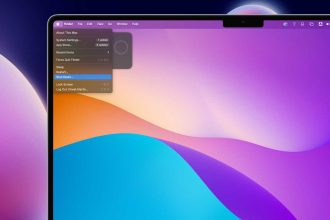
- Click the Apple menu in the top-left corner.
- Select System Preferences.
- Click Software Update.
- If an update is available, click Update Now.
Once it updates, restart your Mac and check if the sound is back in sync.
#2: Restart your Mac
I know—it sounds too simple. But trust me, a quick restart can clear out temporary glitches.
Go ahead and do this:
- Click the Apple menu.
- Choose Restart.
After it boots up again, test your audio right away.
#3: Check your audio output settings
Sometimes, your Mac might be sending sound to the wrong device. Let’s make sure that’s not the case.
Here’s how:
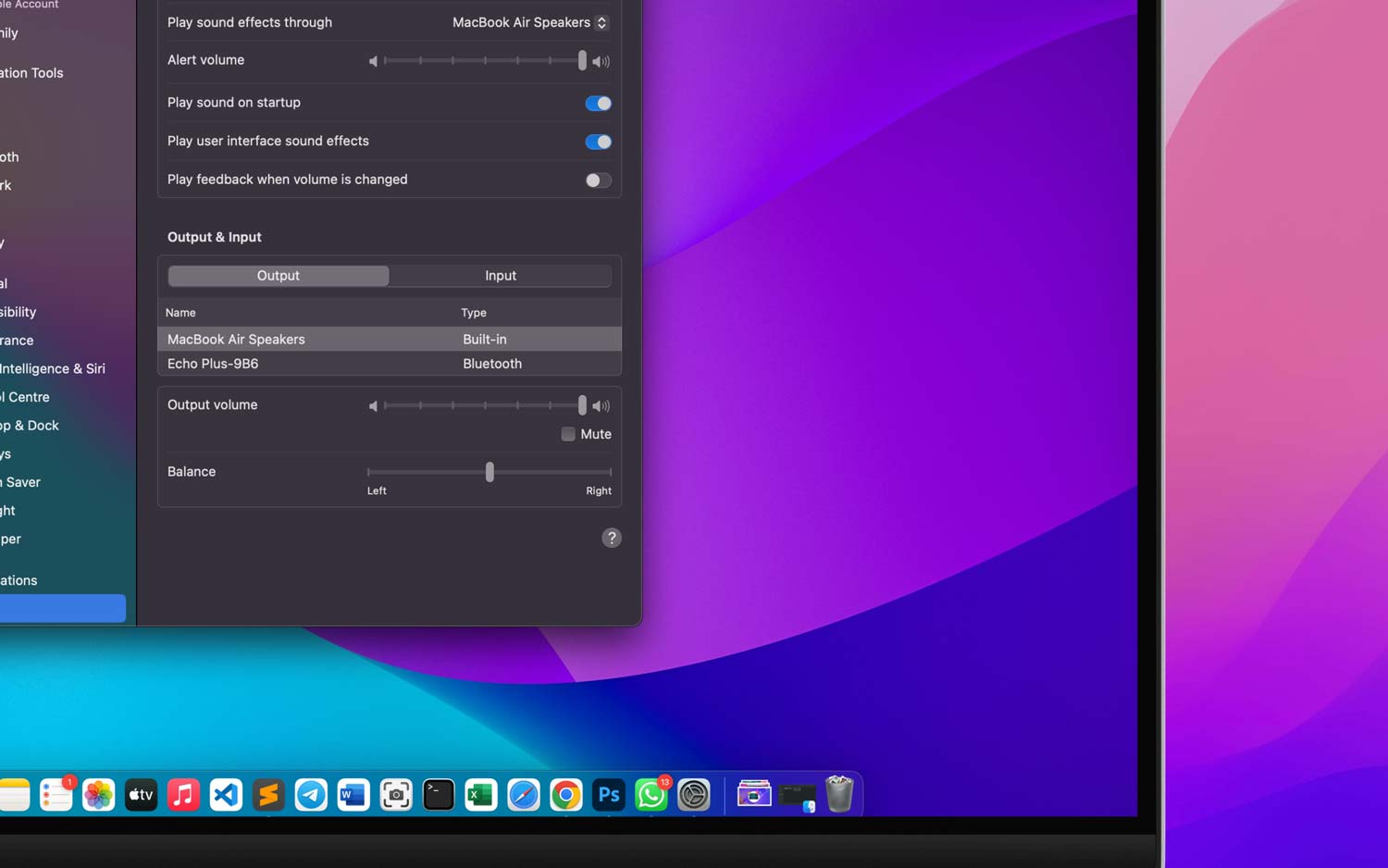
- Open System Preferences.
- Click on Sound.
- Go to the Output tab.
- Select the correct speaker or headphone device.
Choose the one you’re using now. If it was set wrong, this might fix your issue instantly.
#4: Reset your Bluetooth
Bluetooth can be super helpful, but also super buggy. If you’re using wireless headphones, this step is for you.
Try this first:
- Click the Bluetooth icon in the top menu bar.
- Turn it off.
- Wait a few seconds, then turn it back on.
Still lagging? Then try forgetting the device:
- Go to System Preferences > Bluetooth.
- Click the x next to your device to remove it.
- Re-pair your headphones or speaker.
Give it a test and see if the lag is gone.
#5: Close unnecessary apps
Your Mac can only do so much at once. If you’ve got a bunch of apps open, that could be the problem.
Here’s how to clear things up:
- Open Activity Monitor (you’ll find it in Applications > Utilities).
- Look under the CPU tab to see which apps are using the most power.
- Select the ones you don’t need and click the X button to close them.
This frees up memory and lets your Mac focus on the audio.
#6: Try using wired headphones or speakers
If none of the above works, switch to a wired connection. It might sound old-school, but it’s reliable.
Bluetooth can drop or lag if the signal isn’t strong. Plugging in your headphones or speakers directly usually gives you instant, stable audio.
Just connect them and check if the lag disappears.
Extra tips to avoid sound delay in the future
Now that you’ve fixed the issue (or are close to it), here are a few extra things you can do to keep your Mac sounding great.
1. Keep your system and apps updated – Don’t skip updates. They fix bugs and improve performance.
2. Monitor your Mac’s performance – Use Activity Monitor to see what’s using up your memory or CPU. Close apps you don’t need.
3. Clean up your Mac – Delete old files, unused apps, and clear storage. A lighter system runs smoother.
4. Tweak your sound settings – Go into System Preferences > Sound and try different settings. Sometimes, small changes make a big difference.
5. Watch background apps – Music players, browsers with open tabs, or syncing tools can slow things down. Keep it simple when using audio-heavy apps.
Doing these things regularly can help prevent future audio issues.
The takeaway
Let’s wrap this up. Audio lag on your Mac is annoying, but it’s usually easy to fix. Most of the time, it’s not even a hardware problem—it’s just a setting, a bug, or too much going on in the background.
Start with the basics. Update your macOS. Restart your Mac. Check your audio settings. If you’re using Bluetooth, reset or switch to a wired connection. And don’t forget to close apps that are hogging your system.
Many people think they need to replace their headphones or take their Mac in for repair. But you probably don’t. Just follow these steps, and you’ll likely fix the problem yourself.
Give it a try. If it works, great! If not, come back here, recheck the steps, and see what you might’ve missed.
And hey, if you’ve got a tip that worked for you or have a question, drop it in the comments. I’d love to hear how it went for you.