Did you know that Safari is used by over 1 billion people worldwide on their Apple devices?
It’s the go-to web browser for iPhone and iPad users. But even the most popular tools can have hiccups.
If you’ve ever been browsing the web on your iPhone or iPad and suddenly found Safari crashing or closing unexpectedly, you’re not alone.
This frustrating issue can interrupt your online activities and make it difficult to access important information or complete tasks.
Safari crashes can happen for various reasons, from software glitches to memory issues on your device.
The good news is that there are several simple solutions you can try to get Safari running smoothly again.
In this article, you’ll learn some easy-to-follow steps to fix Safari when it keeps crashing on your iPhone or iPad.
Whether you’re a tech novice or just looking for a quick solution, these tips will help you get back to seamless browsing in no time.
6 ways to fix Safari crashes on your iPhone or iPad
Is Safari giving you trouble on your iPhone or iPad? Don’t worry! Here are some simple fixes to get your browser back on track.
You can try these in any order, but I’ve listed them from easiest to more involved. Let’s get started!
1. Update your iOS
Think of updates as a power-up for your device. They often include fixes for small bugs and issues.
If Safari’s acting up, an update might be just what it needs.
Here’s how to update:
- Open the Settings app and tap General.

- Tap Software Update.
- If an update is available, install it.

Remember to back up your device before updating. You can also set up automatic updates if you tend to forget.
2. Turn off Safari Suggestions
There used to be a small issue with Safari Suggestions. While it’s mostly fixed now, you can still turn it off if it’s causing problems.
To disable Safari Suggestions:
- Go to Settings.
- Click on Apps.
- Tap Safari.
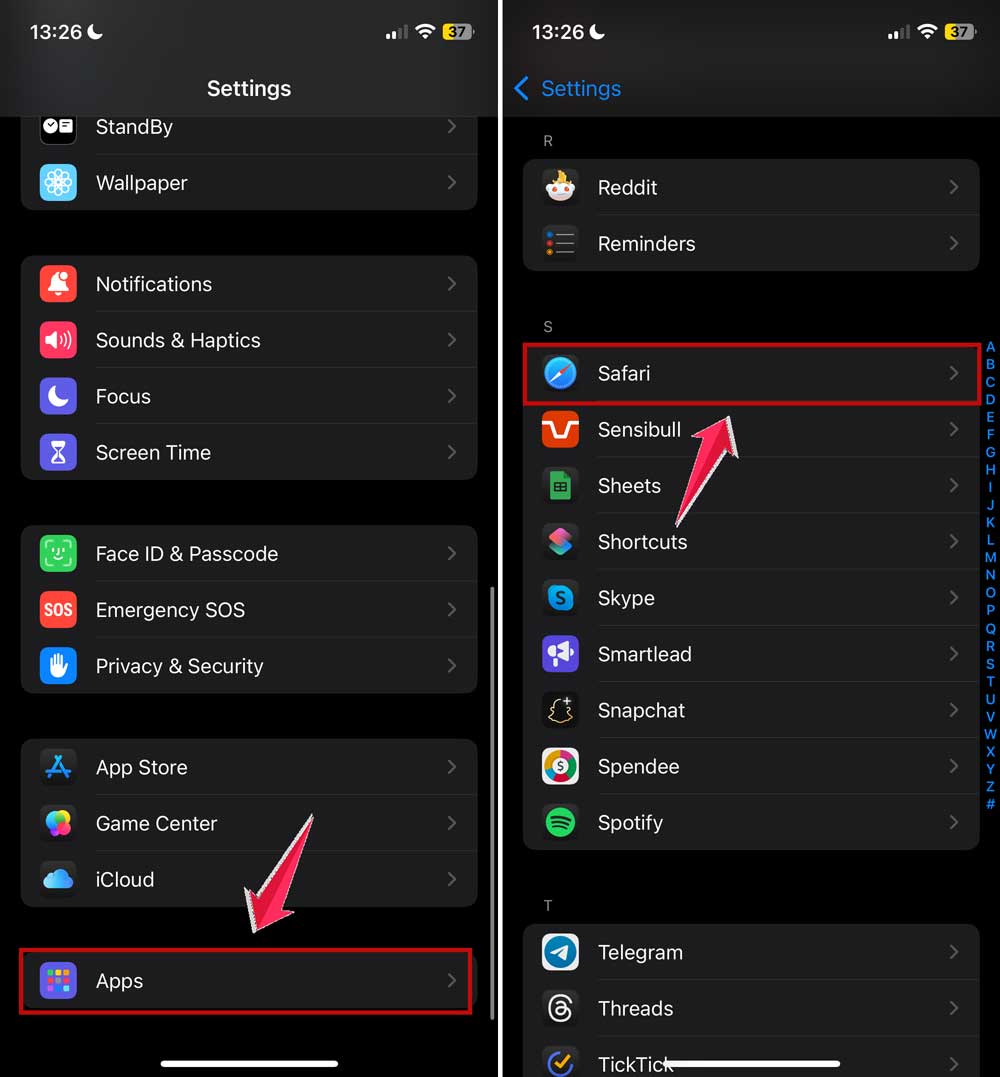
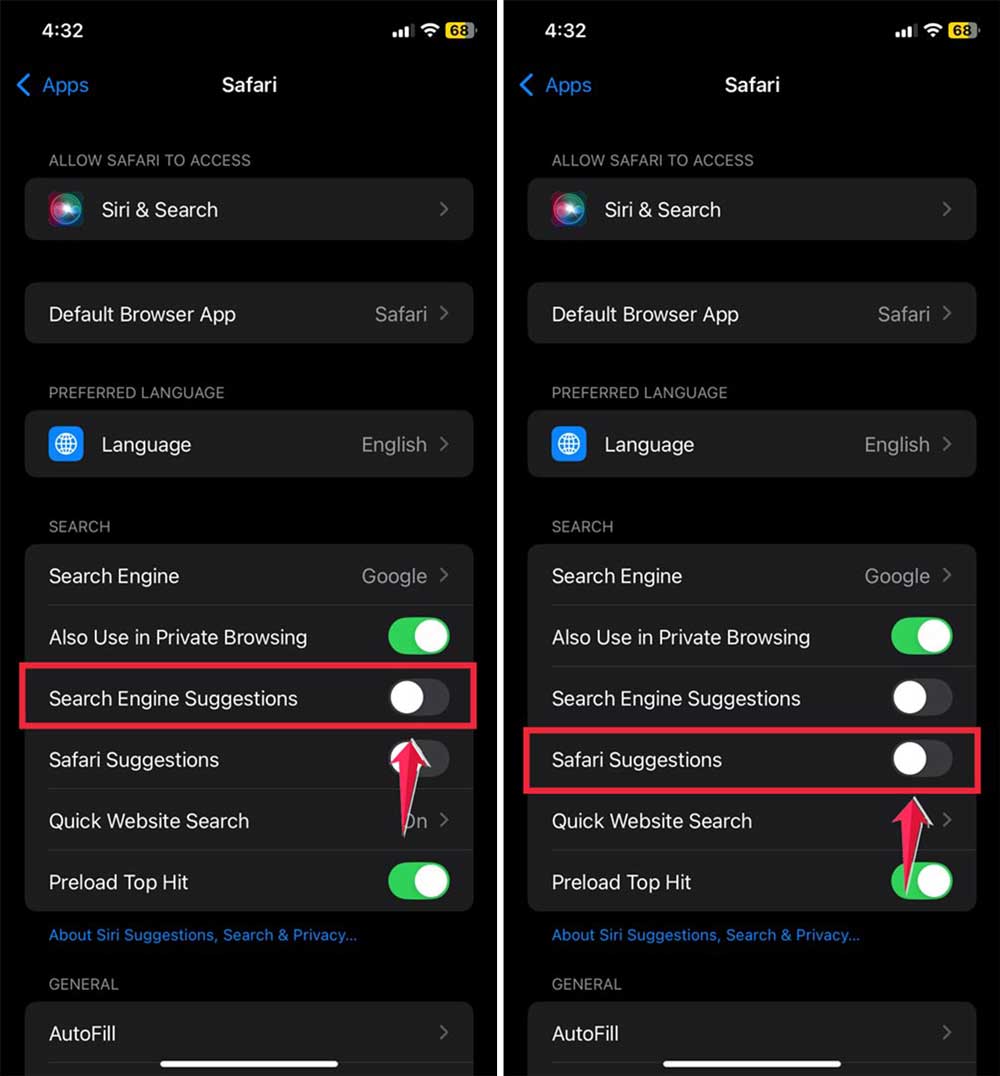
- Find “Search Engine Suggestions” and toggle it off.
- Also, turn off “Safari Suggestions“.
3. Close extra Safari tabs
Having lots of tabs open is like throwing a big party in your browser. It’s fun, but things can get a bit chaotic.
If Safari seems overwhelmed, try closing some tabs.
Here’s how:
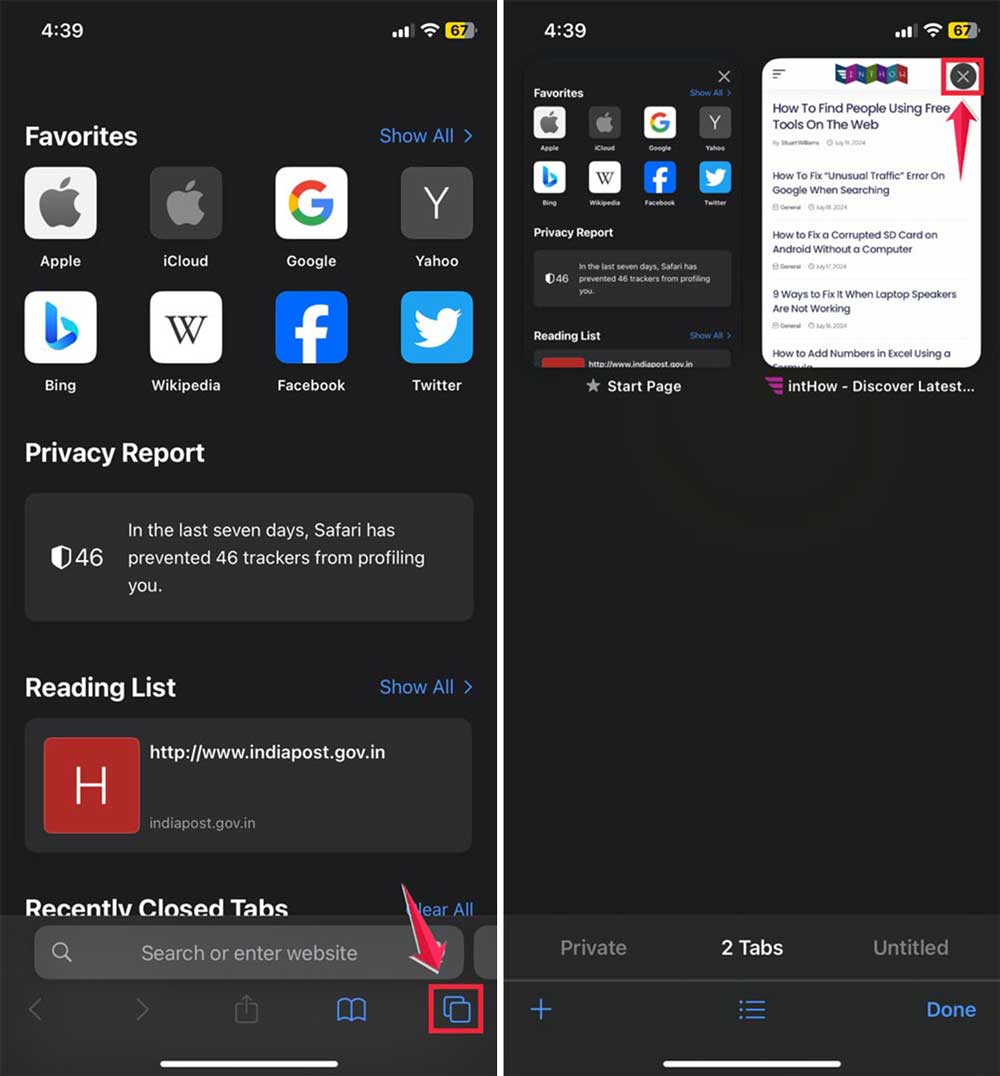
- Open Safari.
- Tap the tabs button (it looks like two overlapping squares).
- To close a tab, tap the “X” on its title.
4. Clear Safari’s history and website data
Safari keeps a record of the websites you visit and other data.
Sometimes, this buildup can cause issues. Clearing it out might help.
To clean up Safari:
- Go to Settings.
- Click on Apps.
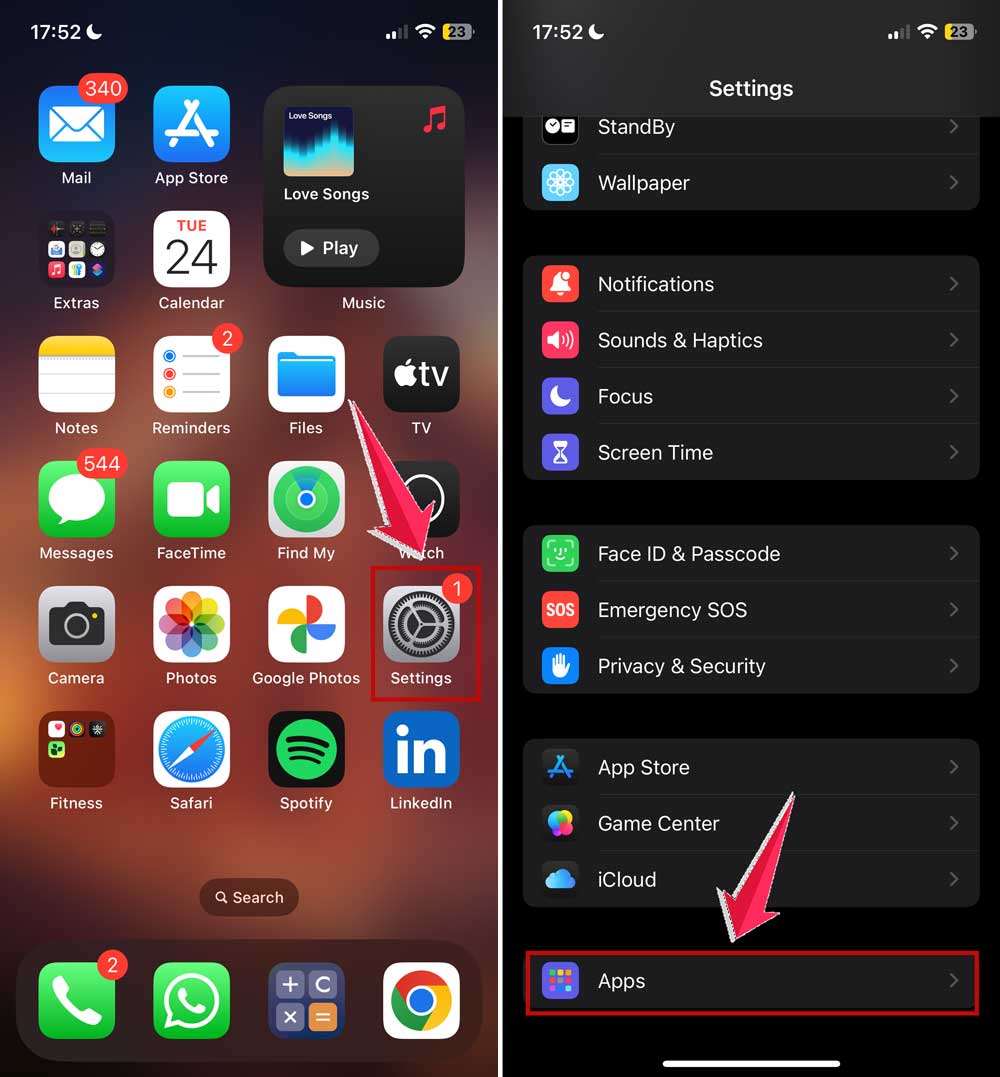
- Tap Safari.
- Tap “Clear History and Website Data“.

Keep in mind that this will clear the history from all devices signed into your iCloud account.
If you don’t want to erase everything, you can delete just recent history, but this might not solve all problems.
5. Force quit and relaunch Safari
Sometimes, Safari just needs a quick restart to get back on track.
Here’s how to force quit Safari:
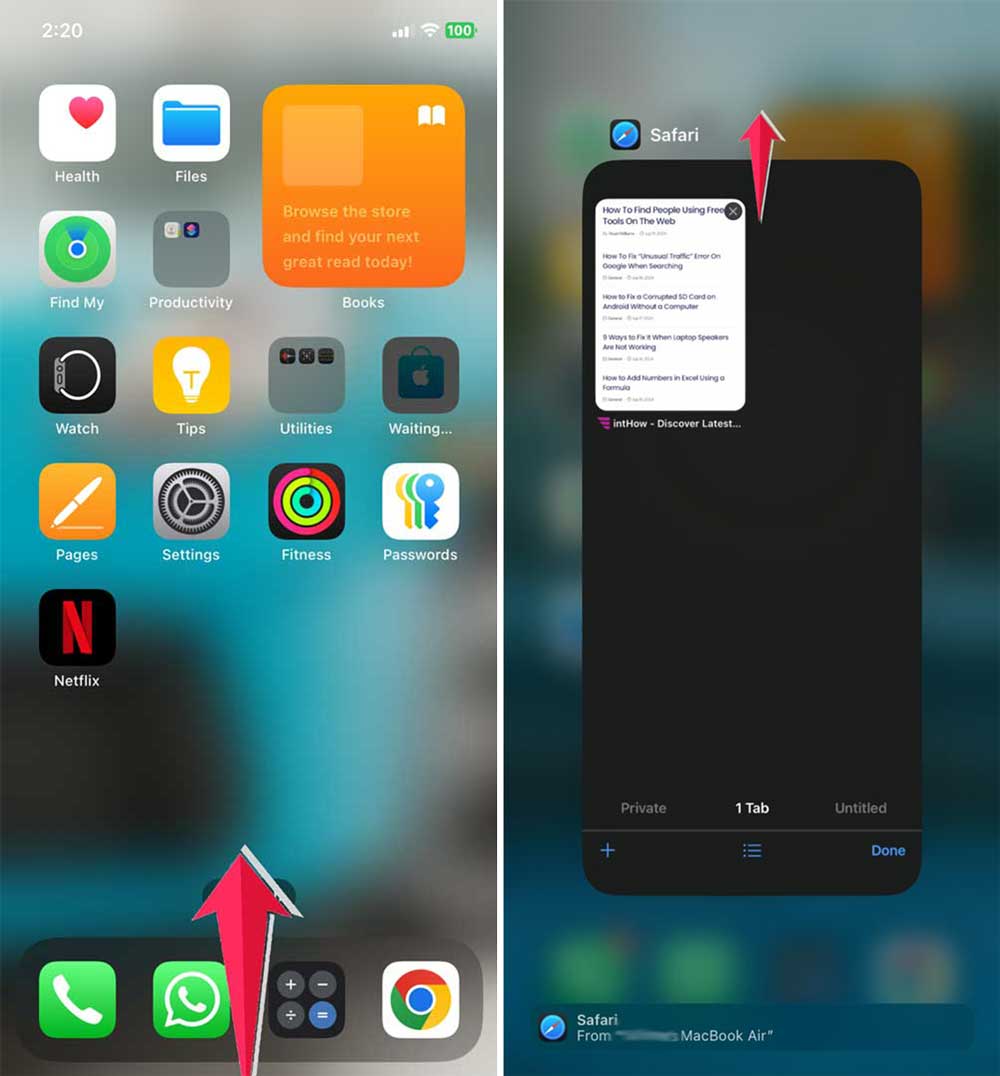
- Double-click the Home button (or swipe up from the bottom on newer devices).
- Swipe up on the Safari app preview to close it.
- Open Safari again as usual.
This mini ‘vacation’ for your device can often resolve issues.
It’s like giving your iPhone a quick breather, similar to how managing your battery usage can give your device a longer life.
6. Restart your iPhone or iPad
When all else fails, a device restart can work wonders. It’s like giving your iPhone or iPad a fresh start.
To restart your device:
- Press and hold the power button and either volume button.
- Slide to power off when prompted.
- After the device turns off, press and hold the power button to turn it back on.

This mini “vacation” for your device can often resolve issues.
There you have it! Six ways to get Safari running smoothly again. If one method doesn’t work, don’t give up.
Try the next one. Remember, every problem has a solution, and you’re now equipped to tackle Safari crashes like a pro.
The takeaway
Safari crashing on your iPhone or iPad can be frustrating, but it’s a problem you can solve. We’ve explored several simple fixes that can get your browser back on track.
Updating your iOS, clearing Safari’s data, and closing extra tabs are quick solutions that often do the trick. If those don’t work, don’t worry.
Turning off Safari Suggestions, force-quitting the app, or restarting your device can also help. Remember, these fixes are easy to try and don’t require any special tech skills.
Some people think that when apps crash, it means their device is broken. That’s usually not the case. Most of the time, it’s just a small software hiccup that you can fix yourself.
The most important thing to remember is that you have the power to solve these issues. Don’t be afraid to try these solutions when Safari acts up.
With a little patience and the tips we’ve discussed, you can keep your browsing experience smooth and enjoyable. Happy surfing!
We’d love to hear about your experience fixing Safari crashes. Share your thoughts in a comment below!