Is your MacBook screen flickering? Don’t worry, you’re not the only one dealing with this frustrating problem. While it doesn’t happen to everyone, it’s common enough that many MacBook users have faced it at some point.
In this guide, we’ll walk you through the reasons why your MacBook screen might be flickering. More importantly, we’ll share some easy-to-follow solutions to help you fix the issue.
So if you’re tired of that annoying flicker, keep reading! We’ll help you get your MacBook screen back to normal in no time.
Why Is My MacBook Screen Flickering?
Have you noticed your MacBook screen acting weird? You might see strange lines or flashes, and it can happen whether you’re doing simple tasks or using more complex programs. This problem can affect all types of MacBooks, both old and new.
You might think only older MacBooks have this issue, but even the newest models can experience screen flickering.
It often seems to happen for no reason, but sometimes it starts when you connect your MacBook to another screen or use certain apps.
So, what’s causing this annoying flicker? Here are the main reasons:
- Software Problems: Sometimes, the programs on your MacBook don’t work well together, causing the screen to flicker.
- Hardware Issues: If you’ve accidentally dropped your MacBook or spilled something on it, this could damage the screen.
- Power Problems: If your MacBook isn’t getting steady power, it might make the screen flicker.
How To Fix Mac Screen Flickering?
Now, let me suggest you some effective fixes which can help you stop screen flickering on your Mac. Here are some simple steps you can try to fix it:
1. Restart Your MacBook
Sometimes, the easiest fix is to turn your MacBook off and on again. It’s amazing how often this solves problems!
2. Update Your MacBook
Keeping your MacBook up-to-date is important:
1. Go to the Apple menu, then System Settings
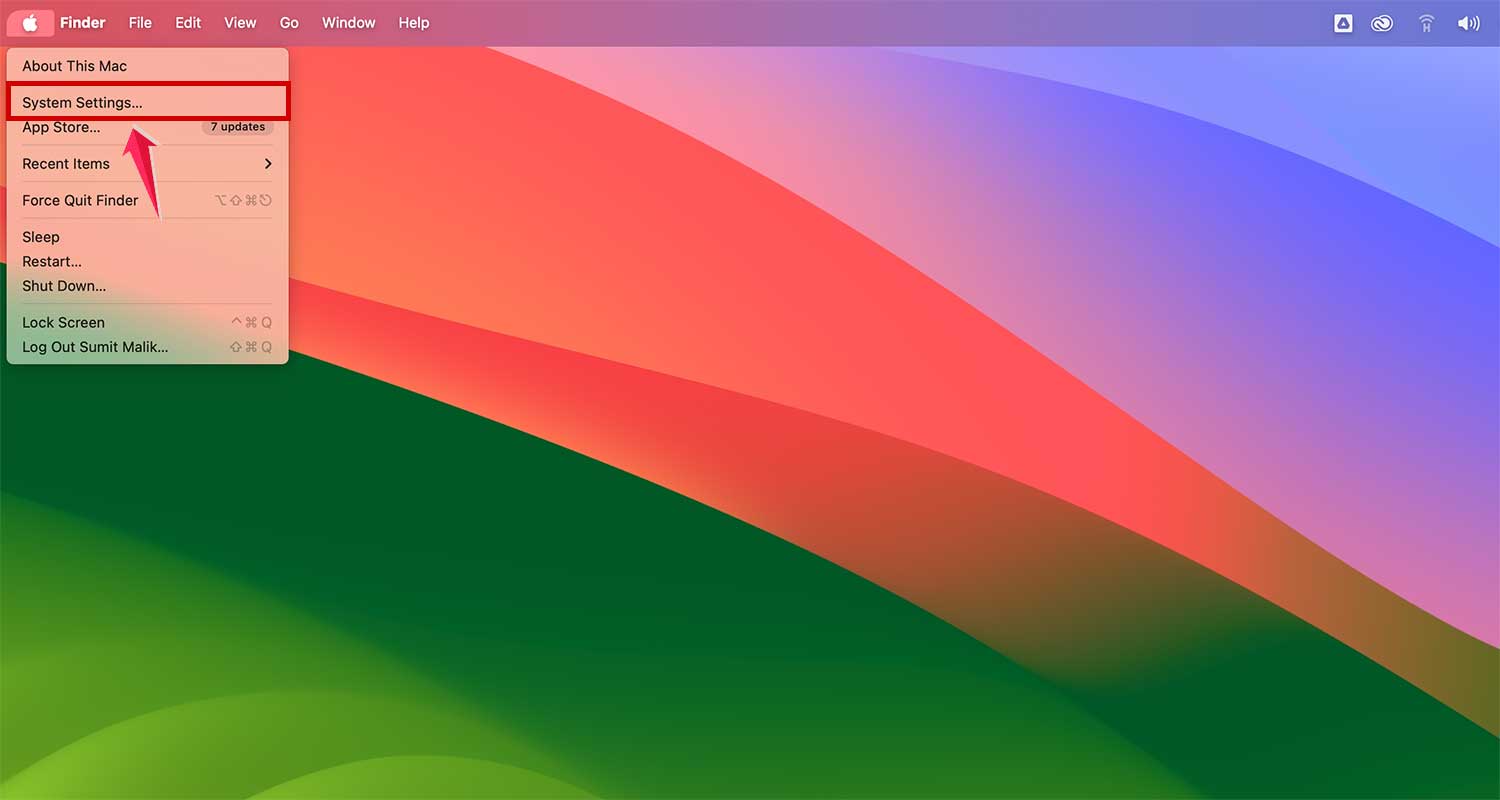
2. Now Go to General > Software Update.
3. Follow the instructions to install the latest update. If there is no update, it will show “Your Mac is up to date”.
NOTE: Before updating, save your important files to an external drive or cloud storage.
3. Reset the PRAM or NVRAM
This might sound complicated, but it’s not too hard.
Simply turn off your MacBook, then turn it on and quickly press Option, Command, P, and R keys together for about 20 seconds.
4. Run Maintenance Scripts
This is a bit more technical, but it can help:
- Your MacBook does some cleaning on its own, but sometimes it needs extra help.
- This involves using commands in a program called Terminal.
- If you’re not comfortable with this, it might be best to ask someone who knows more about computers.
5. Check for Hardware Problems
If your screen is still flickering, it might be a hardware issue. Here’s how to check:
- Turn off your MacBook.
- Unplug everything except the mouse, keyboard, and screen.
- Turn on your MacBook:
- For older MacBooks: Press and hold the D key right away.
- For newer MacBooks: Hold the power button until you see options, then press Command-D.
- Follow the instructions on the screen.
This test will tell you if there’s a hardware problem. Make sure you’re connected to the internet so you can get help if needed.
6. Change Energy Settings
Sometimes, energy-saving settings can cause flickering:
- Go to System Settings > Battery > Options.
- Look for “Automatic graphic switching” and turn it off.
- Restart your MacBook.
Note: Not all MacBooks have this option. If you don’t see it, your MacBook doesn’t need this change.
7. Remove Extra Colour Settings
Sometimes, having two colour settings can cause your screen to flicker. Here’s how to fix it:
1. Go to System Settings > Displays and tap on “Colour LCD” in Colour Profile section.
2. Drag down to choose “Customize”.
3. If you see two settings with the same name (like two “Colour LCD” options), delete one:
- Click on one of them.
- Click the “-“ button and tap “Delete”.
4. Choose the remaining “Colour LCD” option and Click “Done”.
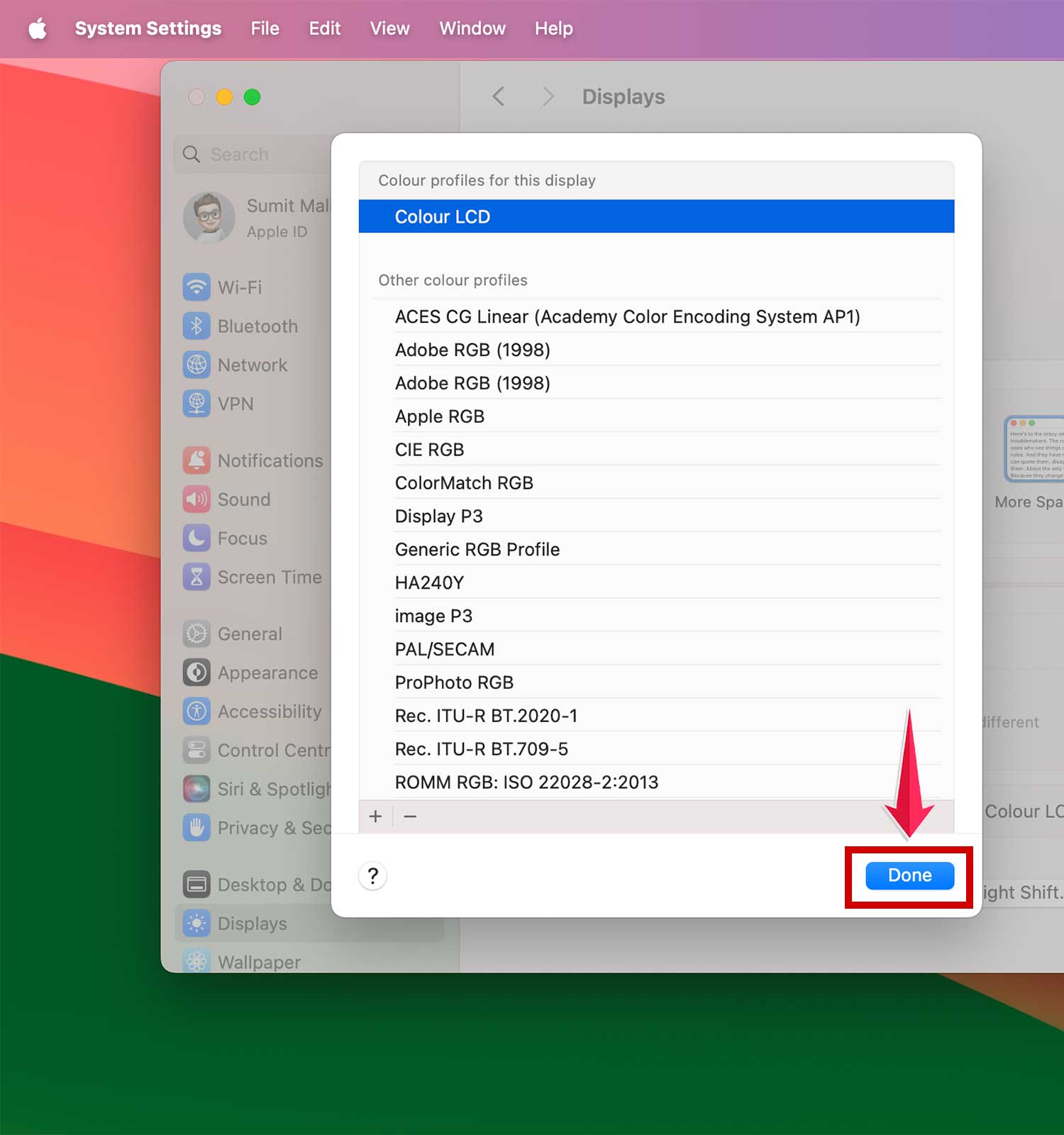
This can help your screen work better and stop flickering.
8. Check Your Cables
If you’re using an extra screen or other devices with your MacBook, loose cables can cause flickering:
- Make sure all cables are plugged in tightly.
- Try unplugging each cable and plugging it back in.
This simple check can often fix flickering problems, especially when you’re using extra screens or devices.
9. Turn Off True Tone
If you have a MacBook from 2018 or newer, it has a feature called True Tone that changes screen colors. Sometimes, this can cause flickering. Here’s how to turn it off:
- Go to System Settings > Displays.
- Find “True Tone” and turn it off.
Or, you can do it quickly from the top of your screen:
- Click the Control Center icon (it looks like two toggles).
- Click Display.
- Turn off “True Tone”.
After turning it off, check if the flickering stops.
10. Change Screen Resolution
If your screen is still flickering, try changing how sharp the picture is:
1. Go to System Settings > Displays> Advanced.
2. Tap on “Show resolutions as list” and turn it on & click “Done”
3. Now tap on “Show resolutions”.
4. Look for Resolutions and Try different options to see if one stops the flickering.
Sometimes, using a different resolution can fix the problem.
If you’ve tried all these steps and your screen is still flickering, it might be time to ask an expert for help. Most MacBook problems can be fixed, so don’t worry!
In Conclusion To
Screen flickering on your MacBook can be really annoying, but don’t worry! We’ve covered lots of ways to fix it.
Remember, every MacBook is a bit different. What works for one might not work for another. If you’ve tried everything here and your screen is still flickering, it might be time to ask an expert for help.
The good news is, most MacBook screen problems can be fixed. By trying these steps, you’re likely to find a solution that works for you. Soon, you’ll be back to enjoying your MacBook without any annoying flickers!
Did this guide help you? Do you have any questions or other tips to share? Let us know in the comments below!