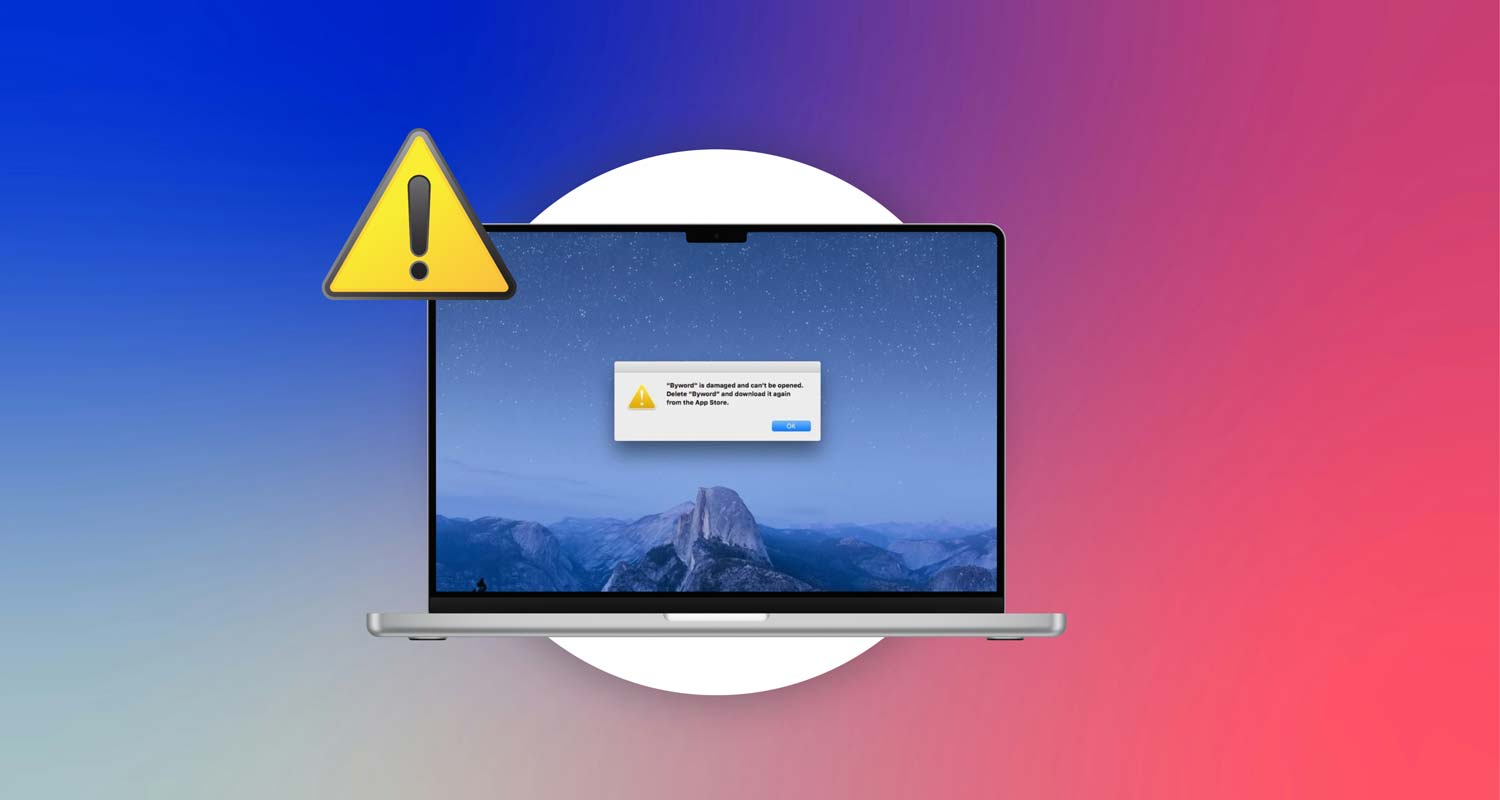
You’re all set to open a new app on your Mac. You’re excited to see what it does. Then suddenly—boom! A pop-up says “App is Damaged.”
Yeah, that’s frustrating. You were just trying to get things done or maybe have some fun, and now you’re stuck.
This kind of message shows up more often than you might think. It usually means something went wrong with the download.
Or maybe your Mac’s security settings are being a little too careful. Sometimes, the app just isn’t signed right, so macOS thinks it’s unsafe, even when it’s not.
Why is this a big deal? Well, when you need an app to work, you want it to work now. Whether it’s for work, school, or just watching videos, delays are annoying.
But don’t worry—you don’t need to be a tech expert to fix this. You can handle it with a few easy steps.
So, let’s go through what causes this error and how you can make it go away. Trust me, you’ll have that app running again in no time.
What causes the “App is Damaged” message on Mac?
Alright, let’s break down what’s really going on when your Mac says an app is damaged. It’s not always as serious as it sounds. In fact, most of the time, it’s something small that you can fix quickly.
1. Sometimes the download didn’t finish right. Maybe your internet cut out for a second, or the download got interrupted. Even a small glitch can mess up the app. If the file isn’t complete, your Mac won’t run it. So, the easiest fix? Just download it again.
2. macOS is trying to protect you. Apple has built-in security that checks apps before they open. If your Mac thinks the app didn’t come from a trusted developer, it might block it. It doesn’t mean the app is bad—it’s just macOS being extra cautious.
3. App signatures aren’t matching. Apps come with a digital “signature” to prove they’re safe. If that’s missing or doesn’t look right, your Mac might think the app is broken. This can happen even if the app is totally fine. Sometimes, the signature just doesn’t match what macOS expects.
See? It’s not always a big problem—it’s just your Mac being careful. Now let’s walk through the steps to fix it.
Mac Says “App is Damaged” – How to Fix It
Okay, now that we know what’s going on, let’s fix it. These steps are simple, and I’ll walk you through each one. If one doesn’t work, move on to the next. We’ll get there.
#1 Redownload the App
Let’s start with the easiest fix first.
Sometimes, the download didn’t finish properly. That means the app file is incomplete or corrupted. It happens a lot more than you’d think.
Here’s what you should do:
- Go back to the website or the App Store where you got the app.
- Download the app again and wait for it to finish completely.
- Once it’s done, try opening the app again.
If it opens without that error, great! You’re done. If not, don’t worry—we’ve got more fixes.
#2 Use Terminal to Bypass Security Messages
Alright, this one sounds technical, but it’s really not hard. You’ll use the Terminal app to tell your Mac to stop being so strict.
Here’s how to do it:
- Open Terminal. You’ll find it in Applications > Utilities.
- Type this command: sudo xattr -rd com.apple.quarantine (don’t hit Enter yet).
- Now, drag the app icon into the Terminal window. This adds the app’s location to the command.
- Press Enter and type your Mac password if asked.
That’s it. You’ve just told your Mac to stop blocking this app. Try opening it again now. It should work.
#3 Check and Change Security Settings
Your Mac is trying to help, but sometimes it gets in the way. Let’s loosen the settings just a bit—only for apps you trust.
Here’s how you do it:
- Go to System Preferences.
- Click on Security & Privacy.
- Under the General tab, look at the bottom of the window.
- If the settings are locked, click the lock icon and enter your password.
- Select App Store and identified developers.
Now try opening your app again. If macOS sees that it came from a known developer, it should let it through.
#4 Verify and Re-enable the App Signature
This one’s about checking the app’s digital signature. Think of it like a badge that tells macOS “Hey, I’m safe.” If that badge is missing or wrong, your Mac might panic.
Let’s check it:
- Open the Terminal again.
- Type codesign -v (with a space after it).
- Drag the app into the Terminal window to auto-fill the path.
- Press Enter.
If the signature is fine, Terminal won’t show anything. If there’s a problem, you’ll see an error. In that case, your best bet is to download a fresh copy of the app from a trusted source.
Still not working? Then the app might be outdated or not built for your macOS version. You can try reaching out to the developer or checking for a newer version.
Extra Tips to Keep Your Mac’s Apps Problem-Free
Let’s avoid this happening again. These tips will help you keep your Mac clean and your apps running smoothly.
1. Update Your macOS and Apps. Yeah, I get it. Updates can be annoying. But they fix bugs and improve app compatibility. So, keep your system and apps up to date.
2. Download from Safe Places. Stick with the App Store or trusted developer websites. Random downloads from the internet? Not a great idea.
3. Use a System Cleaner. Your Mac builds up junk files over time. Use a cleaner app now and then to tidy things up. It keeps your system running better.
4. Backup Often. Use Time Machine or another backup tool. It’s a lifesaver if something goes wrong.
5. Check for Disk Issues. Now and then, open Disk Utility and run First Aid on your drive. It catches small problems before they turn big.
The Takeaway
Seeing “App is Damaged” on your Mac is annoying, no doubt. But now you know exactly what’s going on—and more importantly, how to fix it. Most of the time, it’s not your fault. It’s just your Mac being overly protective.
You’ve learned how to redownload the app, use Terminal to bypass warnings, and adjust security settings. These are simple fixes that can save you a lot of time.
Remember, your Mac wants to keep you safe. But sometimes, you’ve got to step in and give it a little nudge. With these tips, you’re more than ready to handle it.
Try these steps, one by one. One of them will work. And once your app is up and running, you’ll feel like a pro.
Got questions? Still stuck? Drop a comment below—I’m here to help.