Did you know that microphone issues are one of the most common problems iPhone users face?
If you’re having trouble with your iPhone’s microphone, you’re not alone. Many people find themselves in a frustrating situation where their phone seems to be on mute, even when it’s not.
There are several reasons why your iPhone’s microphone might not be working properly. These can range from simple issues like dust buildup to more complex hardware problems.
Understanding these causes is the first step to getting your microphone back in working order.
In this article, you’ll learn about six main reasons why your iPhone microphone might be acting up. We’ll explore each of these causes and provide you with practical solutions.
Whether it’s a problem with your phone case, a software glitch, or something else entirely, you’ll find the information you need to troubleshoot and fix the issue.
By the time you finish reading, you’ll know how to diagnose and solve your iPhone’s microphone problems.
Let’s get started on turning your silent iPhone back into the communication tool it’s meant to be.
Let’s test your iPhone’s microphones first.
Before we dive into fixing your iPhone’s microphone, let’s first make sure we know which one isn’t working.
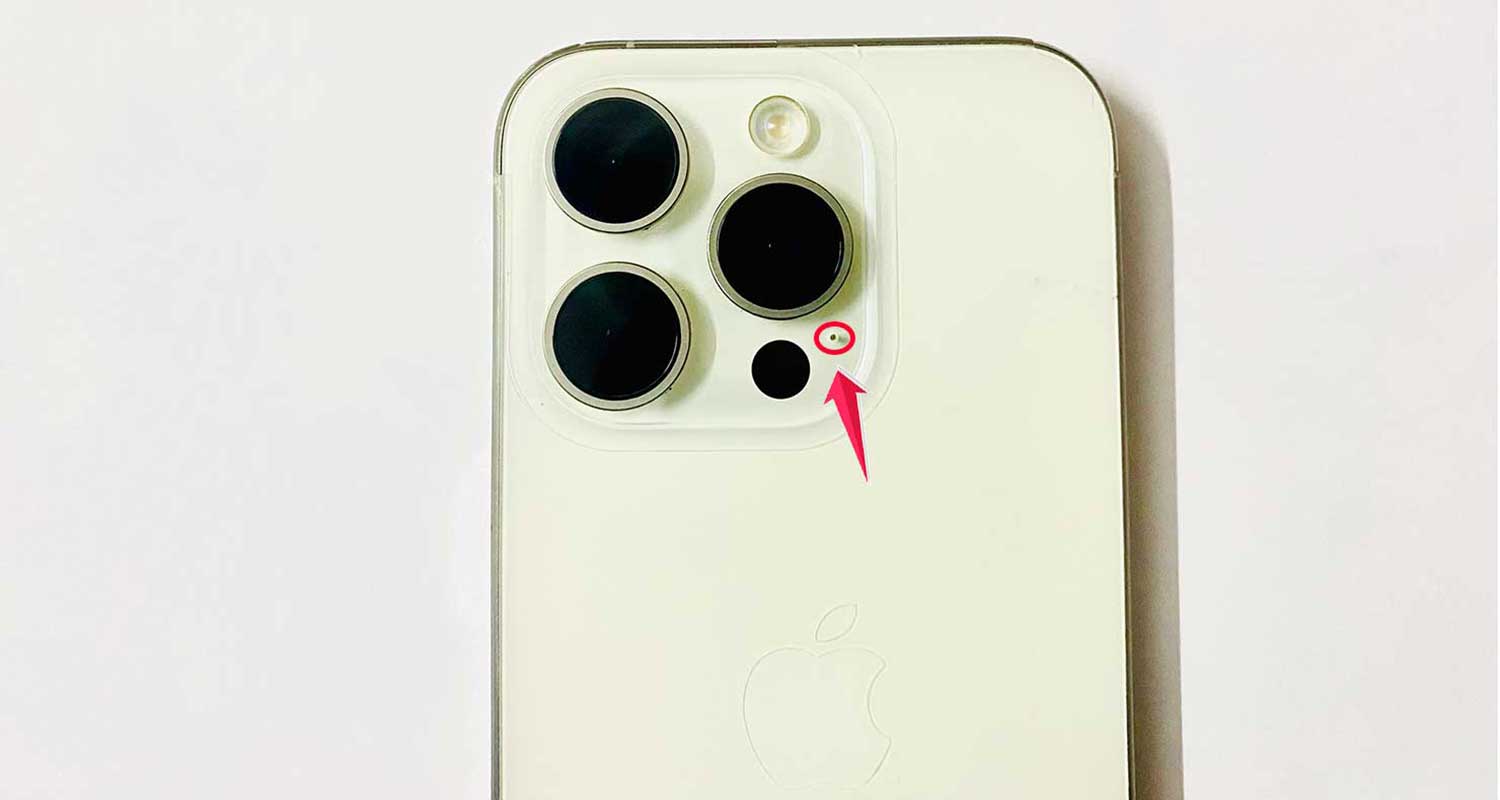
Your iPhone actually has three microphones:
- At the bottom.
- At the back.
- At the front.
1. Test the bottom microphone
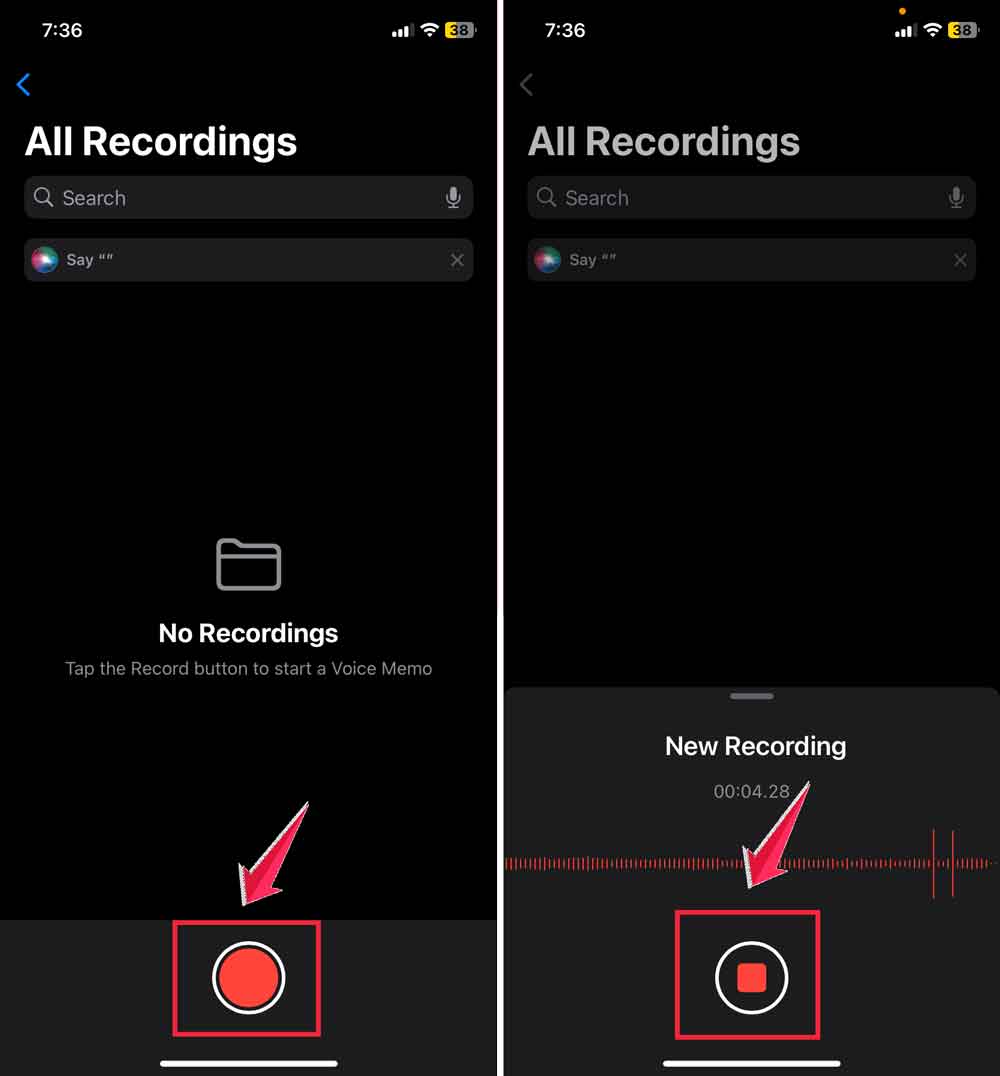
- Open the Voice Memos app on your iPhone.
- Tap the red record button and speak into the bottom of your phone.
- This app is not only useful for testing your microphone but also for saving important audio messages.
- Stop the recording and play it back.
2. Test the back and front microphones
- Open the Camera app.
- Record a video while speaking towards the top of your iPhone.
- Switch to the front camera and record another video.
- Playback both videos to check the audio quality.
3. Use Siri to test your microphones
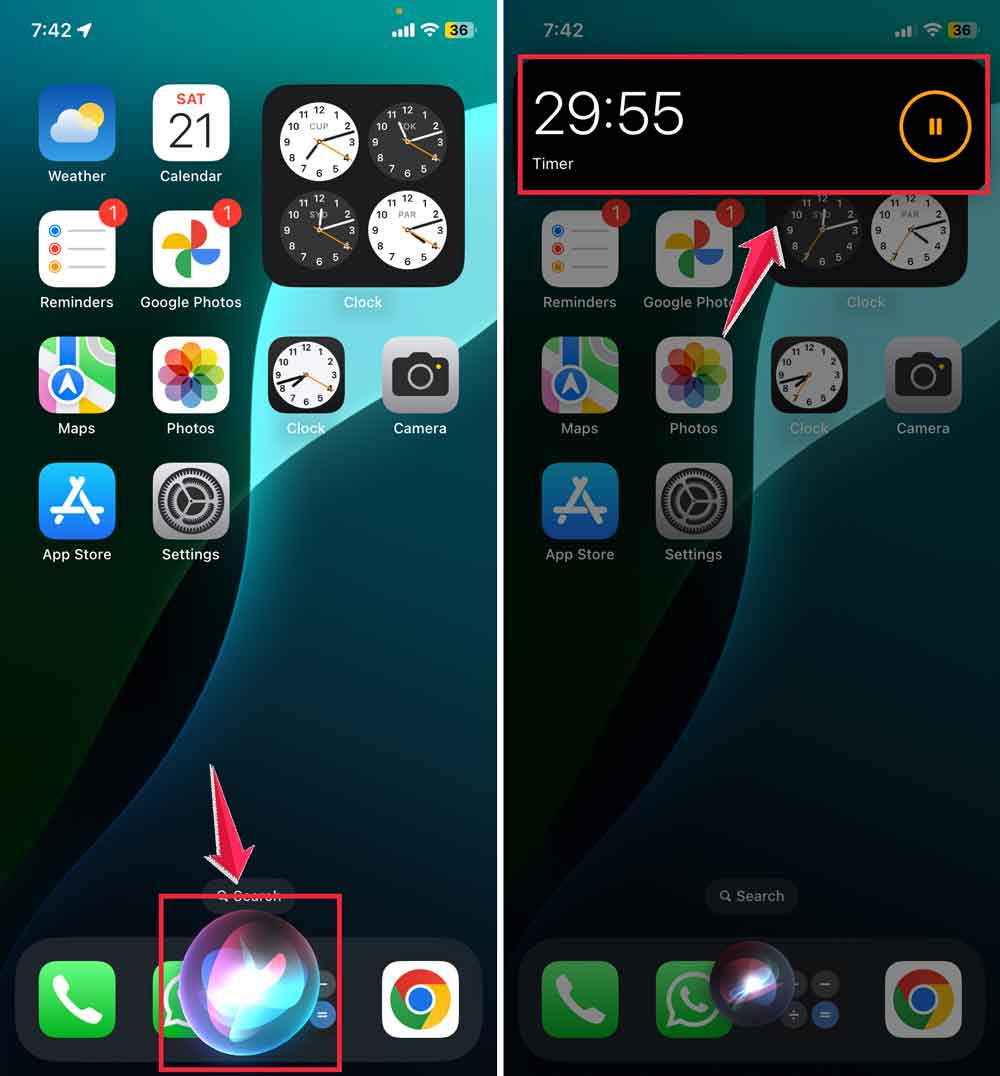
You can also use the Siri feature to test your microphones:
- Go to Settings > Siri > Talk to Siri > ”Hey Siri”.

- Enable “Listen for ”Hey Siri” if it’s not already on.

- Try activating Siri by saying “Hey Siri” and asking a question.
If you can hear yourself clearly in these tests, your microphones are working fine. If not, let’s look at some possible reasons and fixes.
Why your iPhone microphone isn’t working and how to fix it
Possible reason #1: Dust buildup
Your iPhone goes everywhere with you, which means it can collect dust and debris. This can block your microphone and affect its performance.
How to fix it:
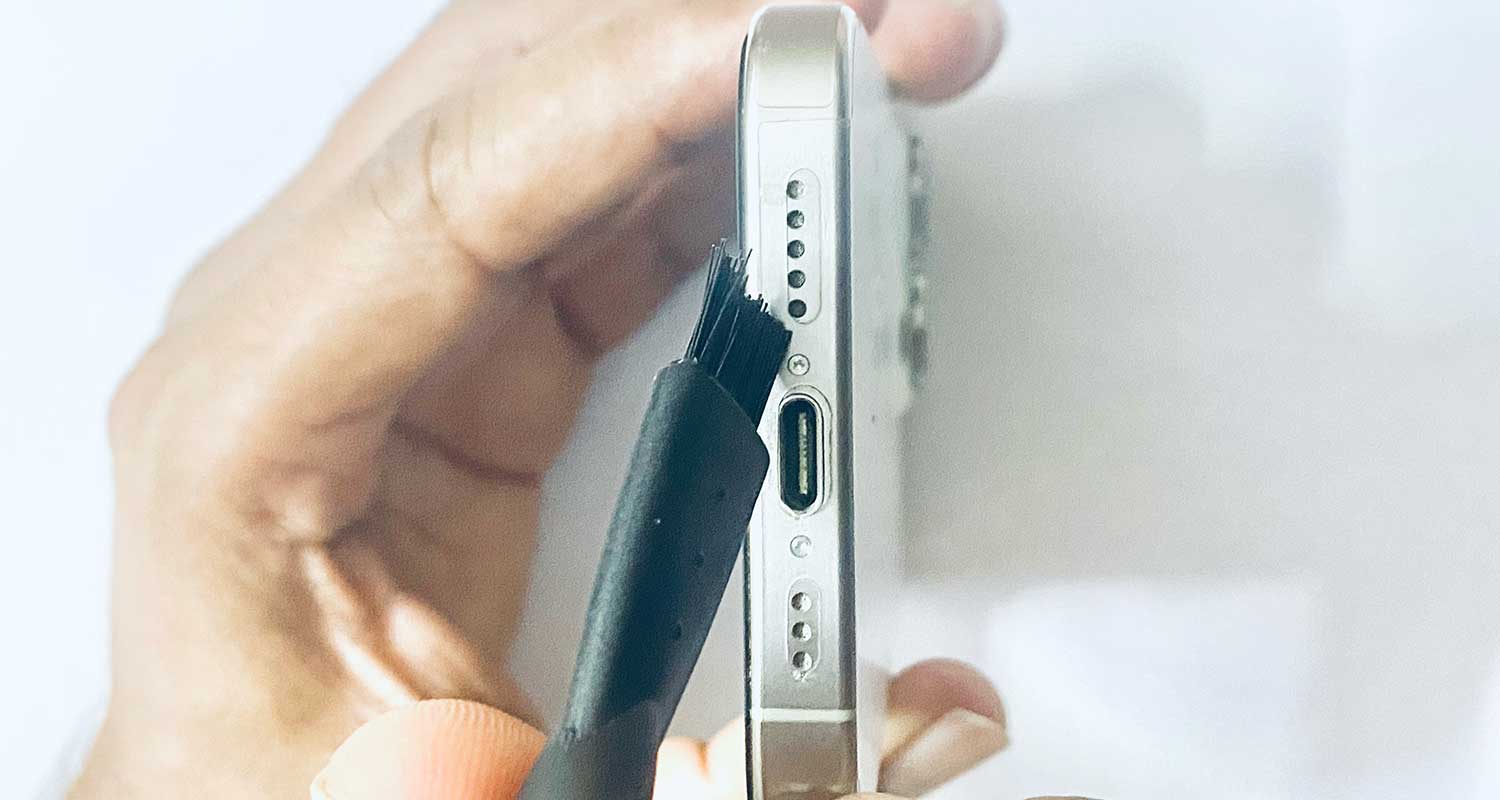
- Use a clean, soft-bristled brush (like a new toothbrush) to gently clean the microphone openings. Regular cleaning is important for maintaining your iPhone, similar to how you might clean your AirPods to keep them functioning properly.
- If you have compressed air, use it carefully to blow out any dust. Be gentle to avoid damaging the internal components.
- Check your phone case and screen protector to ensure they’re not covering the microphone openings.
Possible reason #2: Software glitches
Sometimes, the problem isn’t with the hardware but with the software controlling your microphone.
How to fix it:
- Close and restart any apps that are having microphone issues.
- Restart your iPhone by turning it off and on again.
- If a normal restart doesn’t work, try a force restart.
- Check for iOS updates by going to Settings > General > Software Update.

Possible reason #3: Faulty accessories
Sometimes, external accessories can interfere with your iPhone’s microphone.
How to fix it:
- Unplug all physical accessories from your iPhone.
- Turn off Bluetooth from the Control Center or Settings.
- Go to Settings > Bluetooth and “Forget” devices you’re not using.
Possible reason #4: Phone noise cancellation
For iPhone 12 and older models, the Phone Noise Cancellation feature can sometimes cause issues.
How to fix it:
- Go to Settings > Accessibility > Audio/Visual.

- Turn off Phone Noise Cancellation.
- Restart your iPhone and test the microphone again.

Possible reason #5: App permissions
Some apps might not have permission to use your microphone.
How to fix it:
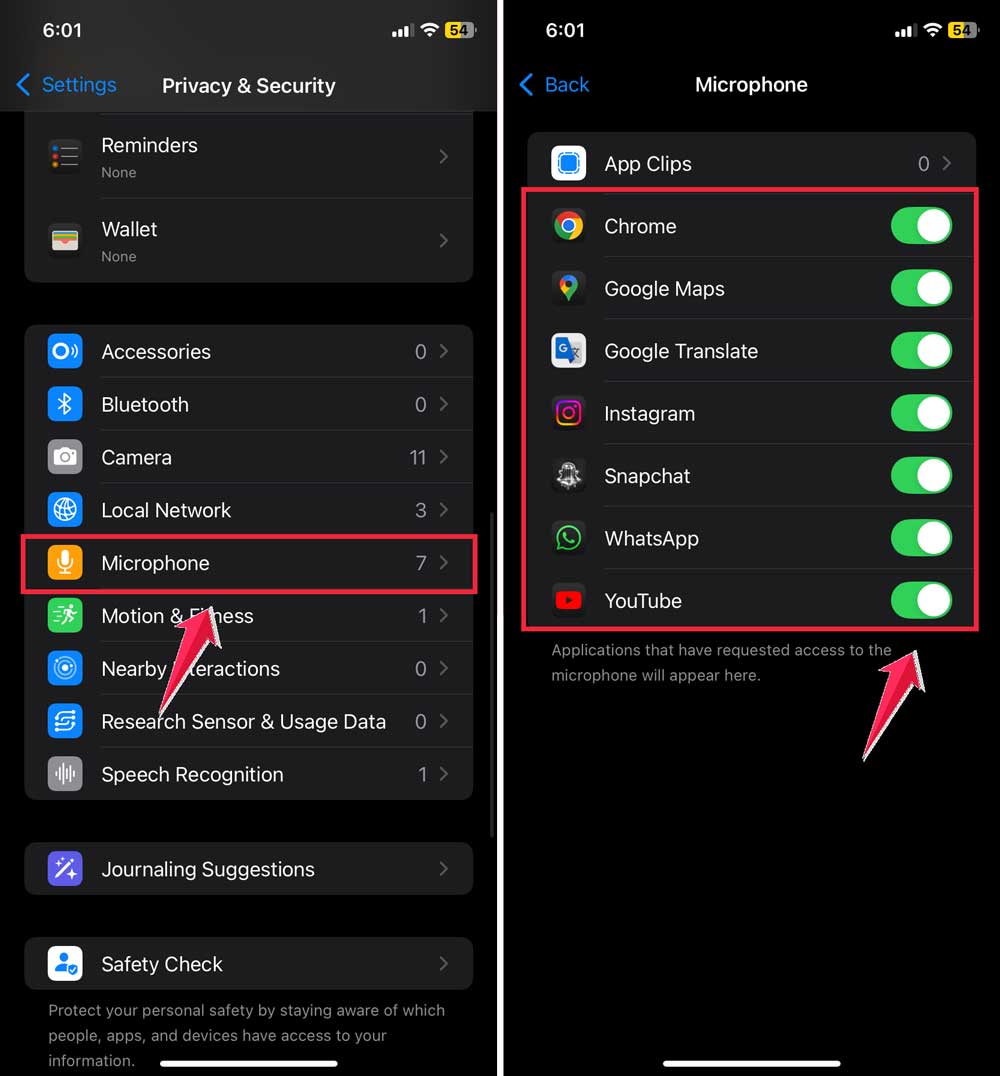
- Go to Settings > Privacy & Security > Microphone.
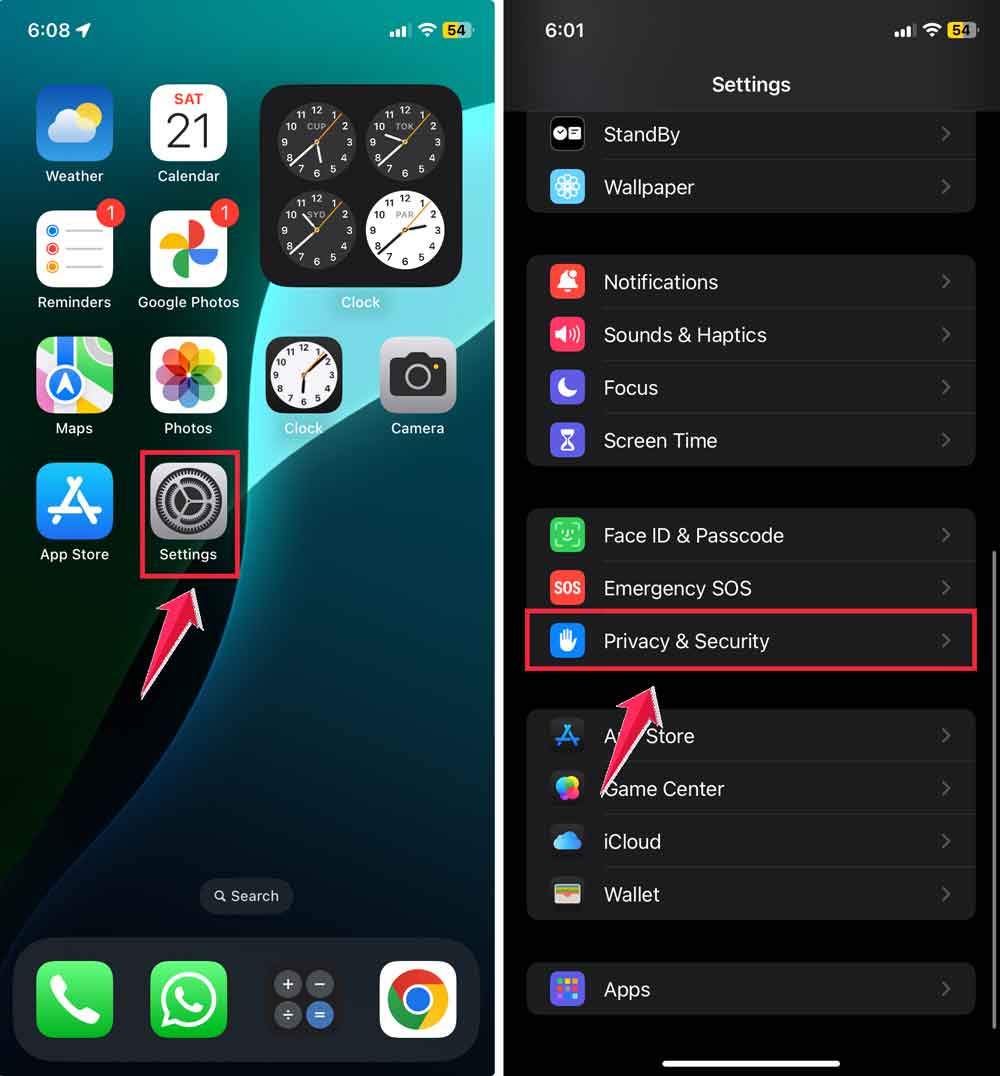
- Check if the problematic app has microphone access.
- If not, toggle it on.
Speaking of settings, have you tried adjusting your iPhone’s lock screen perspective zoom?
If you have Screen Time restrictions:
- Go to Settings > Screen Time > Content & Privacy Restrictions.
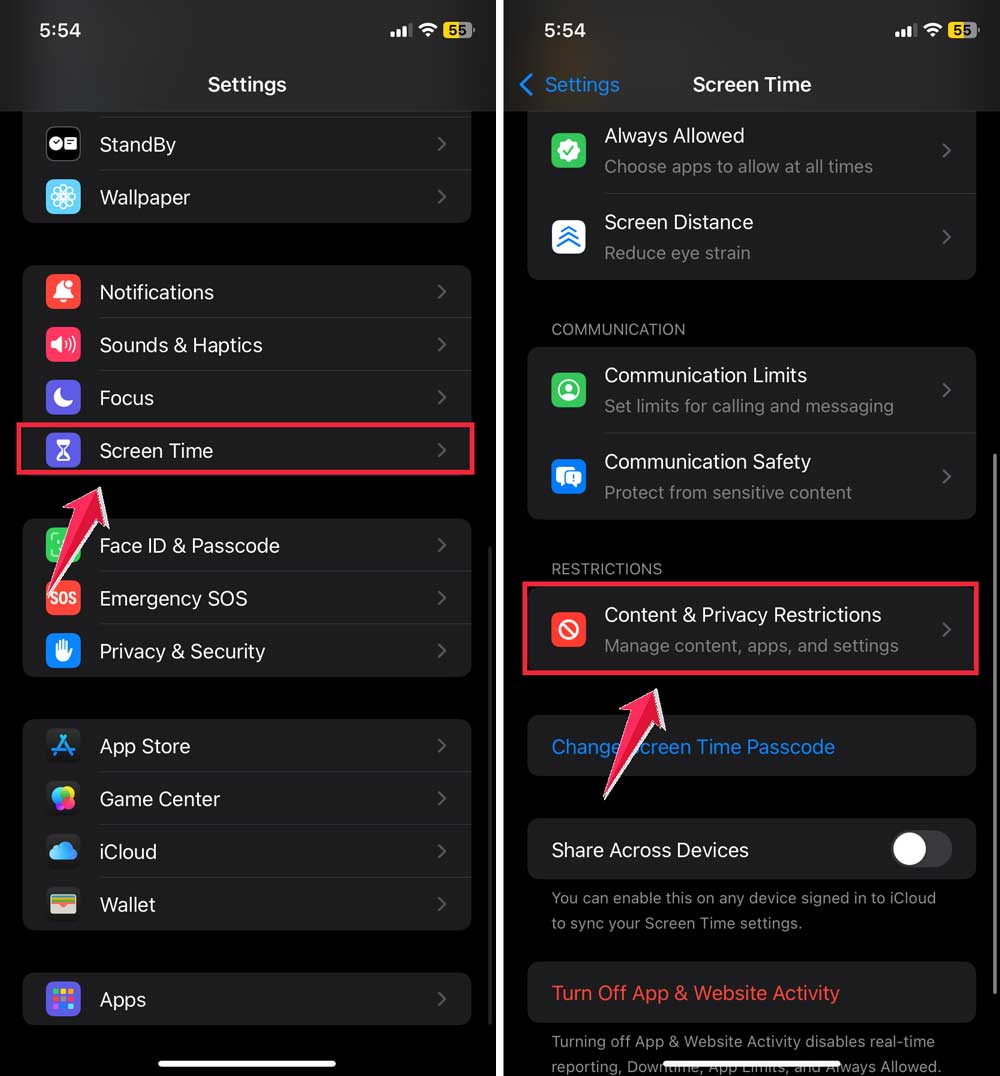
- Click on Microphone then tap on Allow Changes.

Possible reason #6: Faulty hardware
If your iPhone has been dropped or exposed to liquid, there might be physical damage to the microphone.
How to fix it:
- Take your iPhone to a reputable repair shop.
- Contact Apple Support for professional assistance.

Additional troubleshooting methods:
- Check for water damage: If your iPhone has been exposed to water, let it dry completely before use.
- Update your apps: Outdated apps can sometimes cause microphone issues. Update all your apps from the App Store.
- Reset all settings: Go to Settings > General > Transfer or Reset iPhone.

- Click on Reset > Reset All Settings. This won’t delete your data but will reset all settings to default.

If none of these solutions work, it’s best to contact Apple Support or visit an Apple Store.
They have the tools and expertise to diagnose and fix more complex issues with your iPhone’s microphone.
The takeaway
Having a microphone that doesn’t work on your iPhone can be really frustrating.
It can stop you from making calls, recording voice memos, or using voice commands. But now you have some tools to fix this problem.
We’ve looked at several possible causes, from dust in the microphone to software issues.
You’ve learned how to clean your iPhone, check app permissions, and adjust settings that might be causing the problem. These simple steps can often get your microphone working again.
Sometimes, people think they need a new iPhone when the microphone stops working. But that’s not always true.
Many microphone issues can be fixed at home with the steps we’ve discussed.
If you’ve tried everything and your microphone still isn’t working, it might be time to get help from Apple Support. They’re the experts and can fix more serious problems.
Remember, a working microphone is important for your iPhone, so don’t hesitate to seek help if you need it.
What do you think about these tips? Feel free to share your thoughts in a single-line comment below.