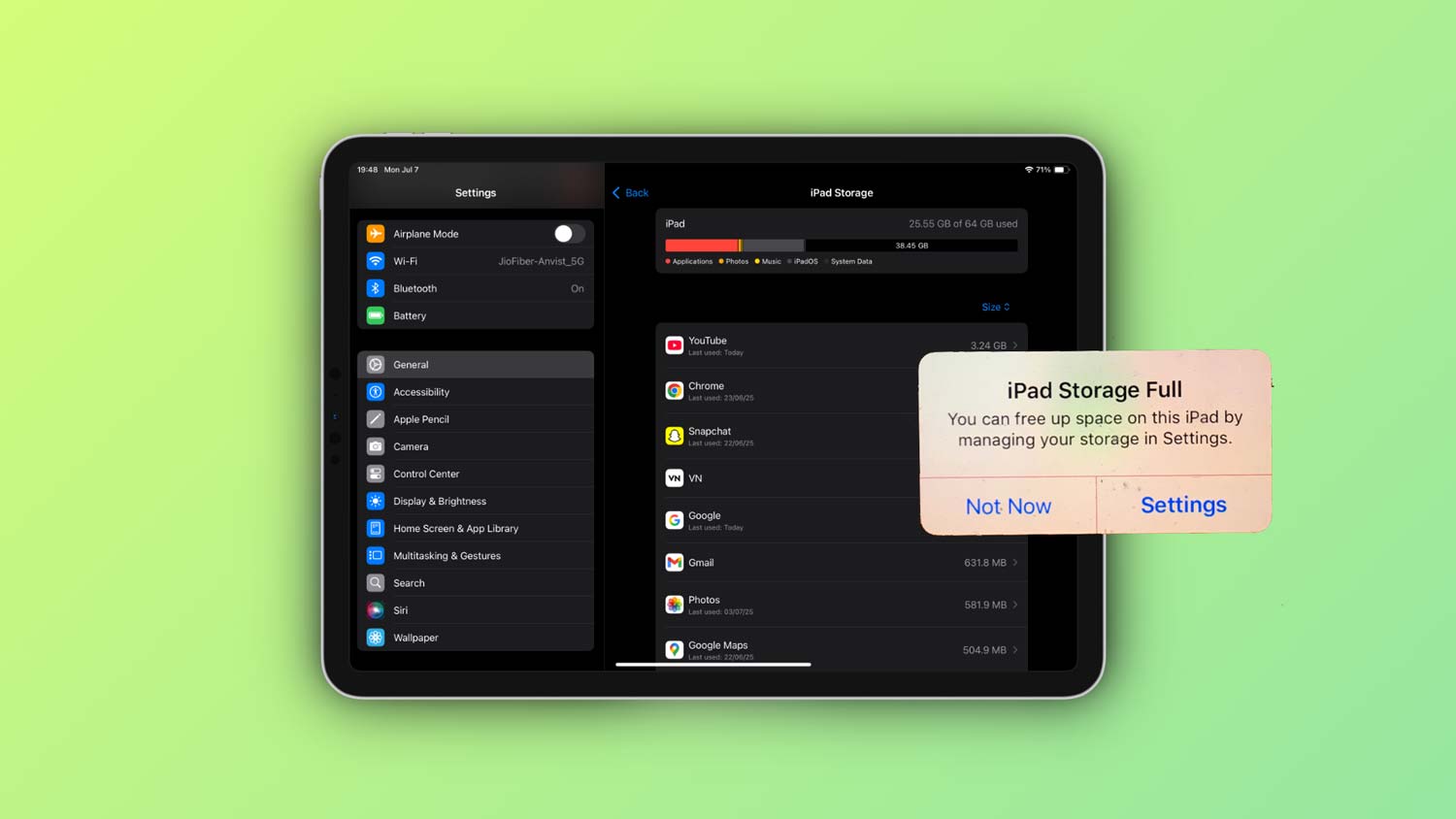
You’ve got an iPad blinking “storage full” in your face. Frustrating, right? You look at your apps and photos, and everything seems normal.
What’s gobbling up all that space? It’s like a digital game of hide and seek.
Here’s the deal. Your iPad is likely overflowing with hidden data. Things like cached data from apps, sneaky system files, or even those ghost files you thought you deleted ages ago.
They hide out and bog down your device. It’s maddening because it’s not just about storage. It’s about keeping your iPad running smoothly as butter.
Why does this matter? Because nobody likes a sluggish iPad. It slows you down, and it can block you from adding new apps or photos.
You need space for all the fun, creative, and useful things you want to do.
But don’t worry! We’ll explore some easy fixes to get your space back. Stick around, and let’s tackle this problem together. Your iPad will thank you!
Why your iPad’s storage plays tricks on you
Your iPad can feel sneaky, hiding stuff in places you can’t see. Let’s break down why this happens and what’s really going on behind the scenes.
1. Cached data loves to hoard space
Every app you use saves little bits of data to make things load faster next time. Sounds helpful, right? But over time, these little bits pile up.
Before you know it, they turn into a huge mess that quietly munches away at your storage.
2. System storage holds hidden puzzles
iOS system files and updates aren’t always visible. Sometimes, your device keeps temporary files you don’t even know about.
It all gets lumped under “System Data,” making it hard to figure out what’s eating up your space.
3. Ghost files refuse to leave
Ever deleted photos, apps, or files but noticed your storage didn’t free up? Yep, those are ghost files.
They sneak around in the background, clinging to your storage even after you think they’re gone.
Each of these sneaky culprits can bloat your storage without you even noticing. It’s frustrating, I know.
But now that you know where the problem hides, we can roll up our sleeves and fix it. Let’s do this together!
How to fix your iPad running out of space without visible files
Alright, friend, let’s get your iPad back in shape. If you’re tired of seeing “Storage Full” and feeling stuck, I’m right here with you. Let’s go through the fixes step-by-step.
#1 Clear Safari Cache
First stop: Safari. Web browsing can secretly pile up loads of junk files.
Here’s how you can clear it:
- Go to Settings on your iPad.

- Then scroll down and tap on Apps.

- Tap Safari.

- Tap “Clear History and Website Data.”

That’s it. This simple act can free up a surprising amount of space. Plus, it won’t mess up your saved passwords or bookmarks.
#2 Offload unused apps
Next up, let’s talk about those apps you downloaded and forgot about. No shame, we all do it!
Good news: Apple lets you offload apps without losing your data. Here’s how:
- Go to Settings.
- Tap General.
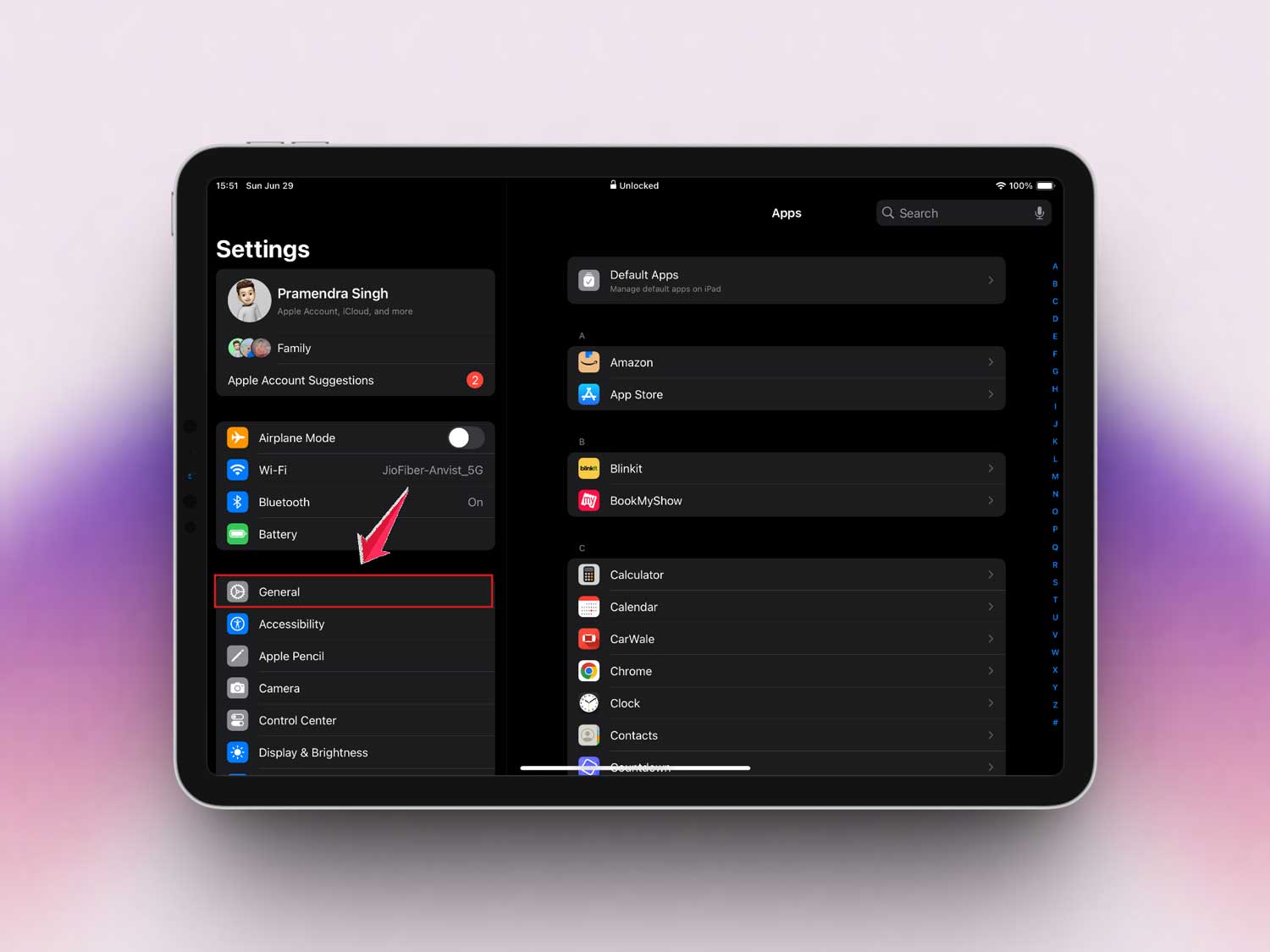
- Then tap iPad Storage.
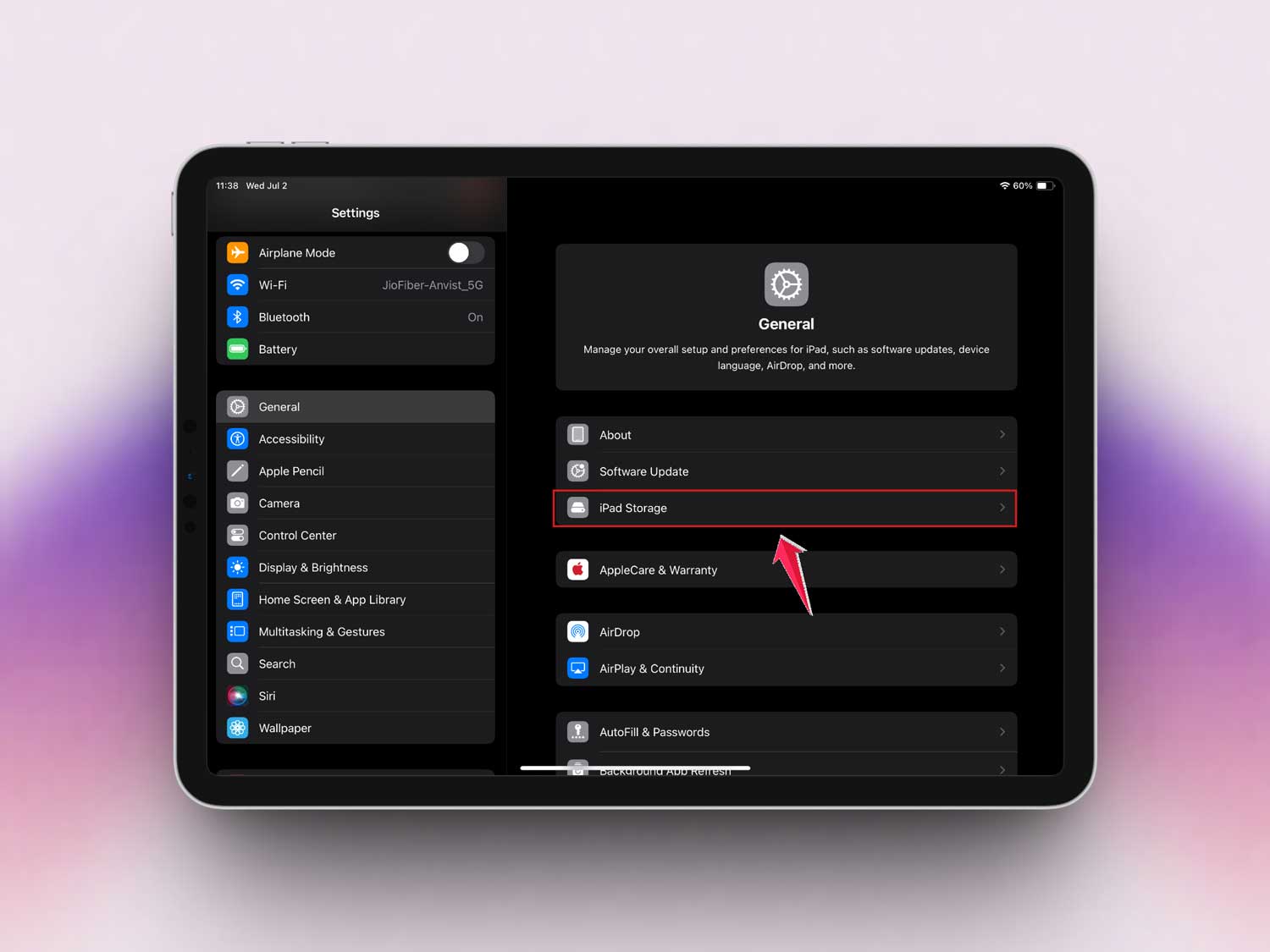
- Tap on any app that uses the most storage.

- Look for the option to “Offload Unused Apps.”
- Tap on it if you want to save space easily.

What’s cool is, when you reinstall the app later, all your stuff will still be there. Easy, right?
#3 Delete old messages
Messages seem small, but all those GIFs, memes, and videos add up fast. Trust me, cleaning them out can give you a lot of space back.
Here’s your quick cleanup:
- Open the Messages app.
- Go into conversations you don’t need anymore.
- Delete old messages or entire threads.
Bonus: You can also set messages to auto-delete after 30 days. It saves you from future headaches.
#4 Review iCloud content
Sometimes, you think something’s saved in the cloud, but it’s still hogging space on your iPad. Let’s double-check that.
- Open Settings.
- Scroll down and tap iCloud.

- Review what’s being backed up and stored.
- Turn off backups for apps you don’t really need.
Keeping only what you truly need in iCloud helps your iPad breathe easier too.
#5 Update iOS
Believe it or not, updating your software can clean out junk you can’t even see.
Here’s how you check for updates:
- Go to Settings.
- Tap General.

- Tap Software Update.
- If an update is available, tap Update Now.

Updates often come with system optimizations that free up hidden space. Plus, your iPad will run smoother and faster.
Follow these steps, and you should start seeing more breathing room on your iPad. It’s all about giving your device a little regular TLC. You’ve got this!
Extra tips to keep your iPad space-free
Want to make sure you don’t end up in the same spot again? Let’s cover a few bonus tips you’ll want to keep in your back pocket.
1. Regularly peek at your storage settings
Make it a habit to check your storage settings every now and then. It’s super easy:
- Go to Settings.
- Tap General.
- Tap iPad Storage.
See what’s taking up space before it becomes a problem. Trust me, future-you will be grateful.
2. Get cozy with the cloud, but watch for duplicates
Using the cloud is smart. But sometimes, you end up saving the same thing twice. Keep an eye out and delete duplicates when you spot them. It’ll keep your storage neat and tidy.
3. Stream, don’t download
Love movies and music? Me too. But instead of downloading, try streaming. It saves a ton of space and gives you access to way more content without filling up your iPad.
4. Clean your email attachments
Emails can hide big attachments you forgot about. Every few weeks, skim through and delete anything you don’t need anymore. Your iPad will feel lighter instantly.
5. Say goodbye to duplicate photos
We all snap five photos of the same thing, hoping for the perfect shot. But then we forget to delete the extras. Take a few minutes to clear out those duplicates. Your photo library (and your storage) will thank you.
The takeaway
Got an iPad with hidden files hogging all your space? It’s super frustrating.
But remember, clearing your Safari cache and offloading unused apps can be game-changers.
Many people overlook these simple tricks and think their iPad is doomed to be full forever.
Tackling these tiny steps can reveal the hidden space and bring your iPad back to life. Now that you’re armed with fixes, go ahead and give them a try!
Feel free to share your thoughts or questions in the comments below. We’re here to help!