Ever felt that frustration when your iCloud Mail just won’t sync on your iPhone or Mac? Yeah, I’ve been there too.
It’s annoying, especially when you’re waiting for an important email or trying to respond quickly.
You open your Mail app… and nothing. No new messages. Just silence.
So, what’s going on? Well, your device isn’t updating your iCloud emails like it should. And this little glitch? It can mess with your routine big time.
You miss updates. You miss work emails. You feel disconnected. And let’s be honest. None of us wants that.
But here’s the good news: you don’t need to panic. I’ve got your back. We’re going to fix this together, step by step.
It’s not as complicated as it sounds. And by the end of this guide, your iCloud Mail should be syncing just like it’s supposed to. Let’s get started.
Why your iCloud Mail isn’t syncing
Before we jump into the fixes, let’s quickly go over what might be causing this issue.
Understanding the problem helps us fix it faster. So here’s what could be going wrong:
1. Your software might be outdated.
Sometimes, we forget to update our devices. It happens. But if your iPhone or Mac is running on outdated software, that can mess with how iCloud Mail syncs.
Updates include bug fixes and improvements that keep things running smoothly, including your email.
2. Your internet connection could be weak.
If your Wi-Fi or mobile data isn’t strong or stable, your device might struggle to connect with iCloud servers.
That means no new emails. Give your connection a quick check. If it’s acting up, that might be the reason.
3. Your iCloud settings might be off.
Sometimes, the issue is as simple as a setting being turned off. If Mail isn’t enabled in your iCloud settings, syncing won’t happen.
It’s easy to overlook, but easy to fix, too.
4. Apple’s servers could be having issues.
It’s rare, but it does happen. If Apple’s iCloud Mail servers are down, there’s not much you can do except wait. But I’ll show you how to check that too.
5. Minor bugs or glitches.
Tech isn’t perfect. Glitches can pop up out of nowhere. A simple restart can often clear these up and get things working again.
Alright, now that we’ve got an idea of what might be going on, let’s fix it.
How to Fix iCloud Mail Not Syncing on iPhone/Mac
Let’s walk through each fix one by one. Stick with me here. We’ll take it slow and simple. You’ve got this.
#1: Make sure your internet connection is working well
Okay, first things first. Your device needs a stable internet connection to sync emails. If your Wi-Fi or mobile data is weak, emails won’t come through. So let’s check that:
- Go to Settings on your iPhone or Mac.
- Tap Wi-Fi and make sure it’s connected to a strong network.

- If you’re using mobile data, check your signal bars. Make sure you’ve got a solid connection.
If your current network seems slow or unstable, try switching to another Wi-Fi or even using a mobile hotspot. A quick change can do the trick.
#2: Update your software
Outdated software can cause all sorts of problems, including this one. Let’s update your device and make sure everything’s current:
- On iPhone: Settings > General > Software Update.
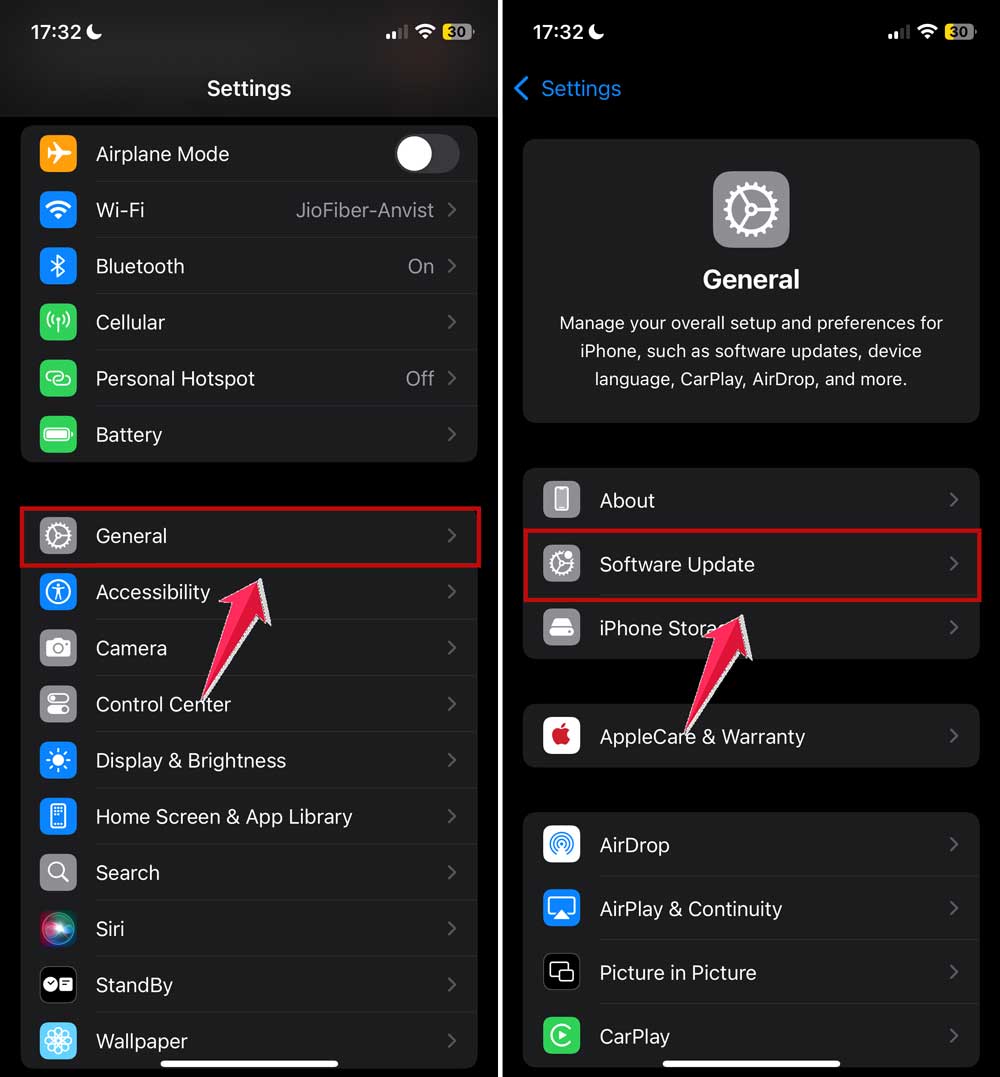
- On Mac: Apple icon > System Settings > General > Software Update.

If there’s an update available, go ahead and install it. It could be the simple fix your Mail app needs.
#3: Check your iCloud Mail settings
This one’s easy to miss. If Mail isn’t turned on in your iCloud settings, it won’t sync. Let’s double-check:
- Open Settings on your device.
- Tap your name at the top.
- Tap iCloud.
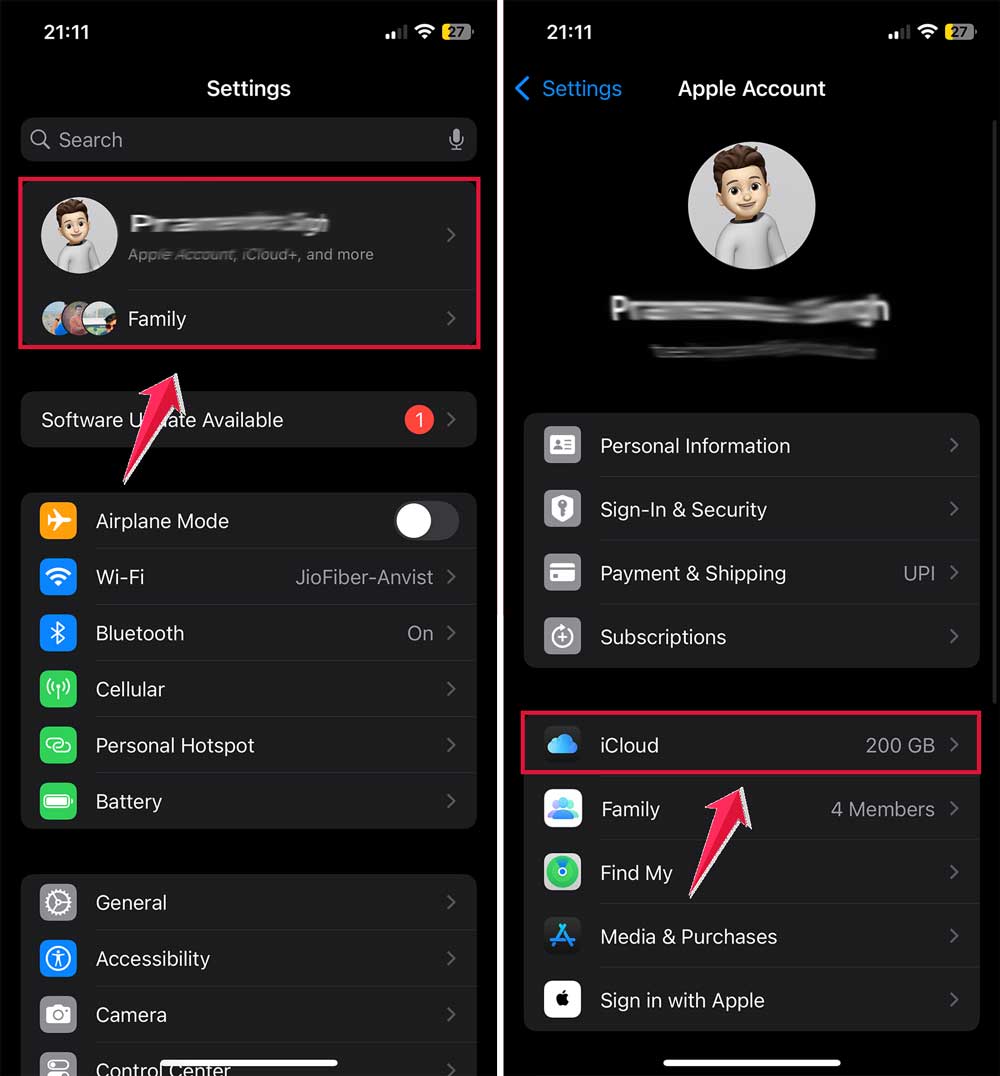
- Make sure Mail is toggled ON.

If it was off, turn it on and give it a minute to sync. That might be all it takes.
#4: Restart your device
It sounds too simple, right? But trust me, restarting your device can clear out small bugs that are messing things up.
- On iPhone: Hold the Side button and volume up button until the slider appears. Slide to power off, wait, then turn it back on.
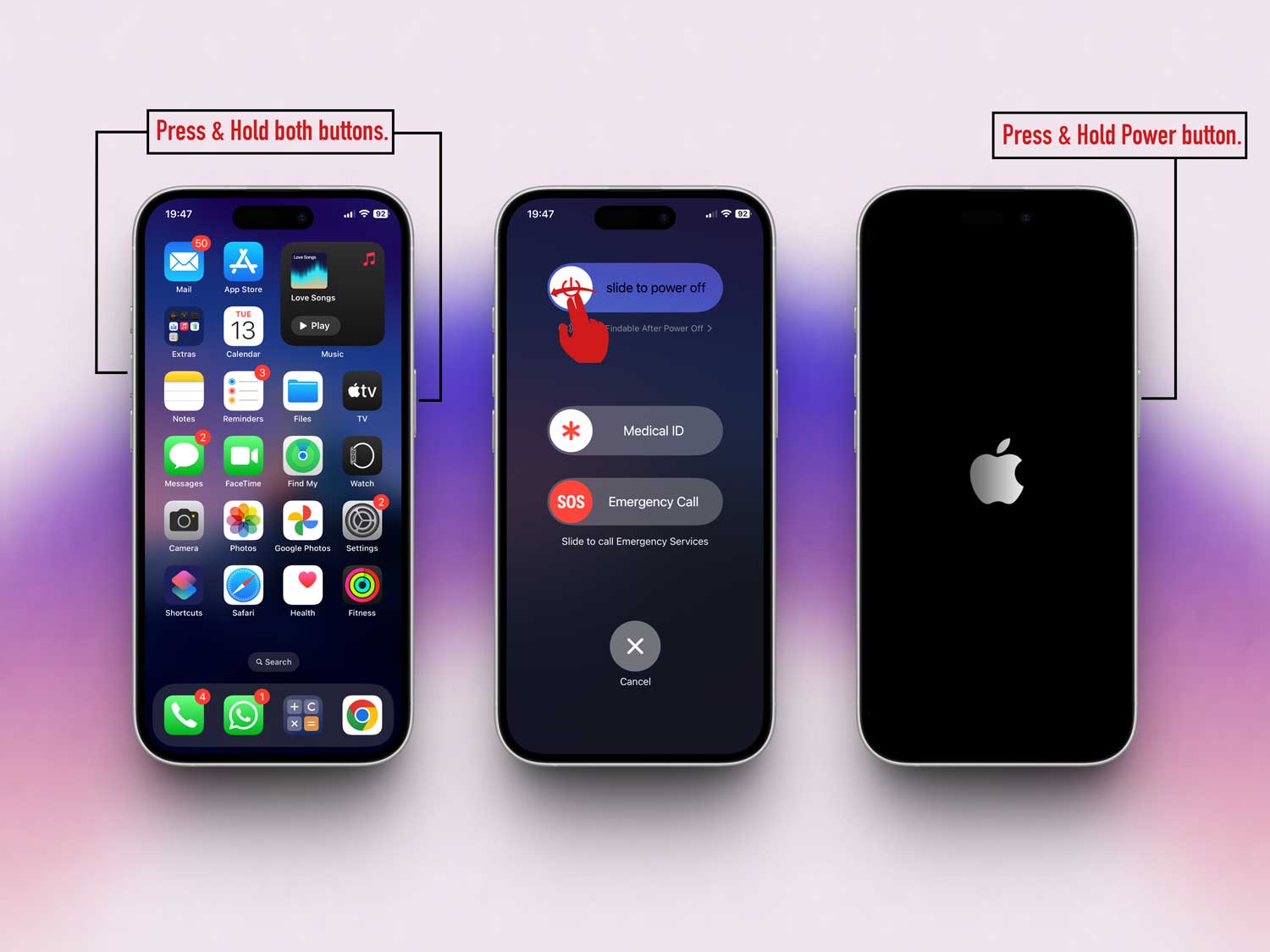
- On Mac: Click the Apple icon > Restart.
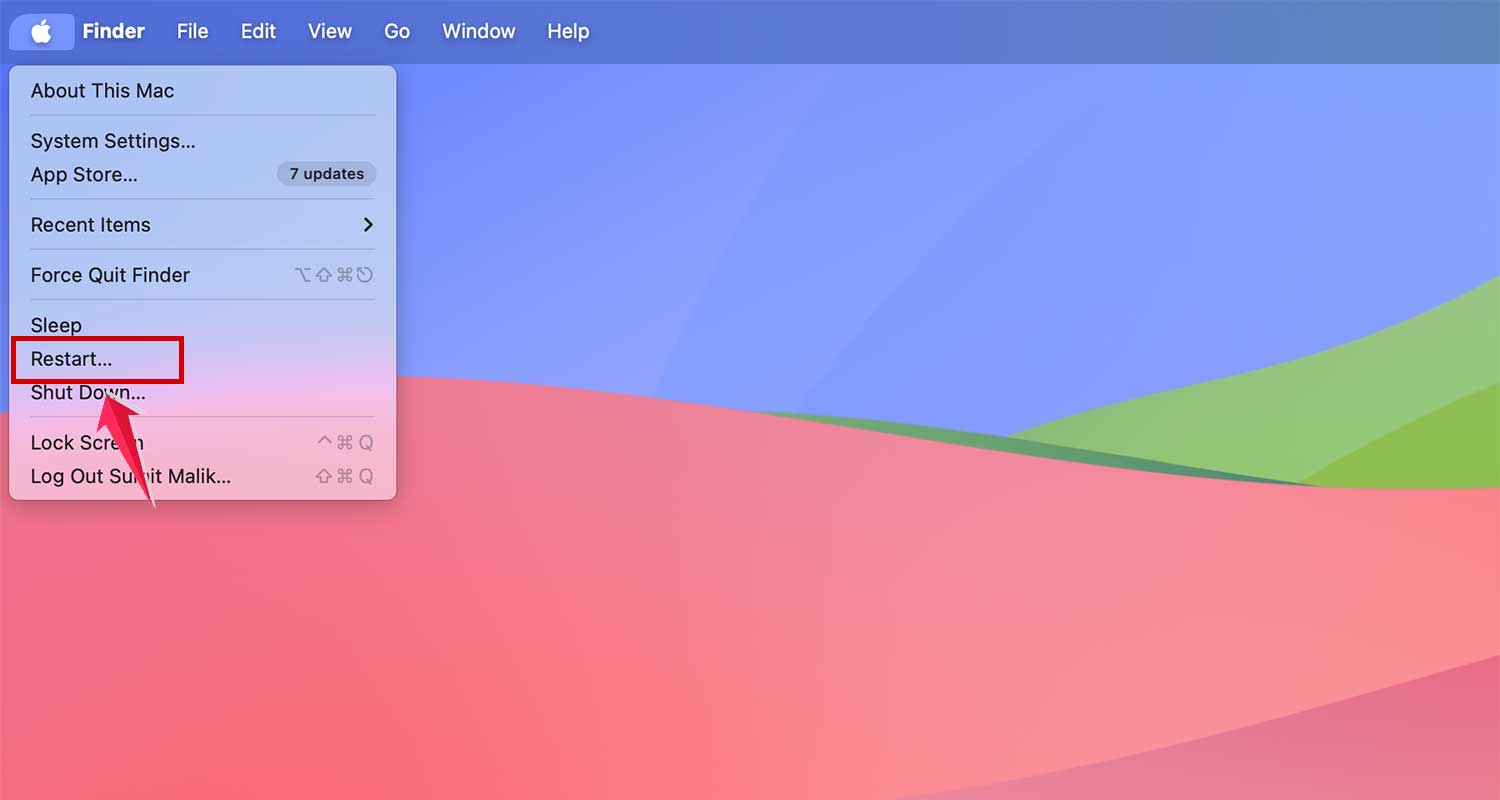
Once you’re back on, open your Mail app and see if things are syncing again.
#5: Sign out of iCloud and sign back in
Sometimes, your iCloud session just needs a refresh. Don’t worry. You won’t lose your data. Here’s how to do it:
- Go to Settings (or System Settings on Mac).
- Tap your name at the top.
- Scroll down and tap Sign Out.

- Restart your device.
- Sign back into iCloud.
Now, check if your emails are syncing properly. This fix works more often than you’d think.
#6: Check if Apple’s system is down
If everything seems fine on your end, the problem might be with Apple. Let’s check:
- Visit Apple’s System Status page.
- Look for iCloud Mail. If it has a green dot, it’s working. If not, the issue is on Apple’s side.
If Apple is having a temporary issue, all you can do is wait it out. It usually doesn’t take long to resolve.
#7: Reset network settings on iPhone
This is a bit more advanced, but it can help if your network is causing the problem.
Just know this will erase saved Wi-Fi networks and passwords.
- Go to Settings > General >Transfer or Reset iPhone > Reset > Reset Network Settings.

After it resets, reconnect to your Wi-Fi and check your mail again. This can solve deeper network-related syncing problems.
#8: Try Airplane Mode for a quick reset
Here’s a quick trick. Turn on Airplane Mode for a few seconds, then turn it off.
This resets your network connection and might help your iCloud Mail sync again.
#9: Check file attachments
Huge attachments in your inbox can sometimes slow things down.
If you see big files, download and delete them. It frees up space and lets other emails sync faster.
#10: Use another device to check
If you’ve got another Apple device, check if your mail is syncing there. If it is, the issue is with your primary device. That helps you narrow things down.
#11: Check your device storage
If your iPhone or Mac is almost full, it can affect all kinds of functions, including mail syncing. Clear out some space and try again.
#12: Still stuck? Contact Apple Support
Sometimes, it’s just time to ask for help. Apple Support can look into your specific issue and offer a solution. Don’t hesitate. They’re there for this exact reason.
The Takeaway
So, there you have it. iCloud Mail not syncing is annoying, but most of the time, it’s easy to fix. Start with your internet and updates.
Then check your settings and restart your device. If that doesn’t do it, try logging out of iCloud or resetting your network settings.
Remember, you don’t need a new device or anything fancy. Just a few simple tweaks can bring your email back to life.
And if nothing works? Apple’s support team is just a click away.
Give these steps a try and see what works for you.
And once it’s fixed, let me know in the comments. What worked for you? Your tip might help someone else too.