So, you’ve just finished an intense workout. You’re sweaty and tired but feel accomplished.
You look at your Apple Watch, eager to see those activity rings fill up and validate your hard work.
But wait. The rings are barely moving. Your heart sinks. All that effort, and your watch didn’t track it?
If this sounds familiar, you’re not alone. Millions of Apple Watch users rely on their devices to accurately track their fitness activities.
When it fails to do so, it’s more than just a technical glitch. It’s demotivating and can throw off your entire fitness routine.
Your Apple Watch is supposed to be your trusty fitness companion, recording every step, every calorie burned, and every minute of exercise.
When it doesn’t do its job, you’re left in the dark about your progress. It’s like working out with a broken scoreboard.
So why is your watch letting you down? There could be several reasons. But don’t worry. You’ve come to the right place. Let’s get started.
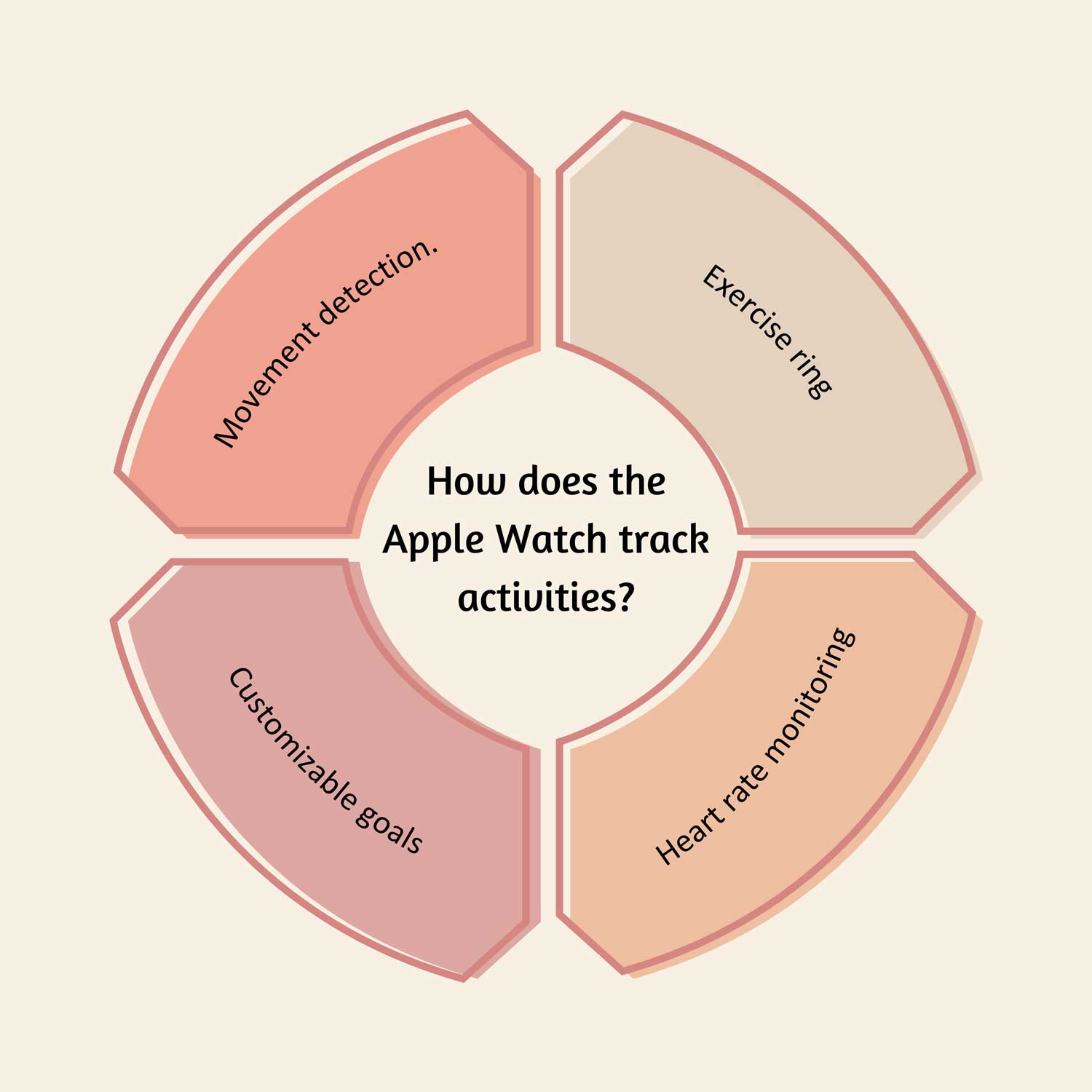
How does the Apple Watch track activities?
Your Apple Watch is like a mini fitness lab on your wrist. It uses sophisticated sensors to monitor your heart rate and movements constantly.
Here’s how it keeps tabs on your activities:
1. Movement detection. When you’re active, your watch notices an increase in movement and heart rate. It starts counting the duration of your activity, tracking every step and motion.
2. Exercise ring. For intense or fast-paced activities, your watch adds a minute to your “Exercise Ring”. This visual indicator shows how active you’ve been throughout the day.
3. Heart rate monitoring. If your heart rate stays at resting levels, even if you’re moving, the watch might not count it as exercise. No change in your Activity Ring in this case.
4. Customizable goals. You can personalize what your watch considers a workout. This allows you to tailor the tracking to your specific activity levels and exercise preferences.
These mechanics help you troubleshoot any tracking issues.
How to fix your Apple Watch when it’s not tracking activity
Your Apple Watch isn’t tracking your activities properly? Don’t worry. We’ve got you covered.
Here’s a step-by-step guide to get your watch back on track:
1. Check Location Services
Your iPhone plays a crucial role in how your Apple Watch tracks activities, especially for GPS-based workouts. Here’s how to check the settings:
- Open “Settings” on your iPhone.
- Tap “Privacy & Security”, then “Location Services”.
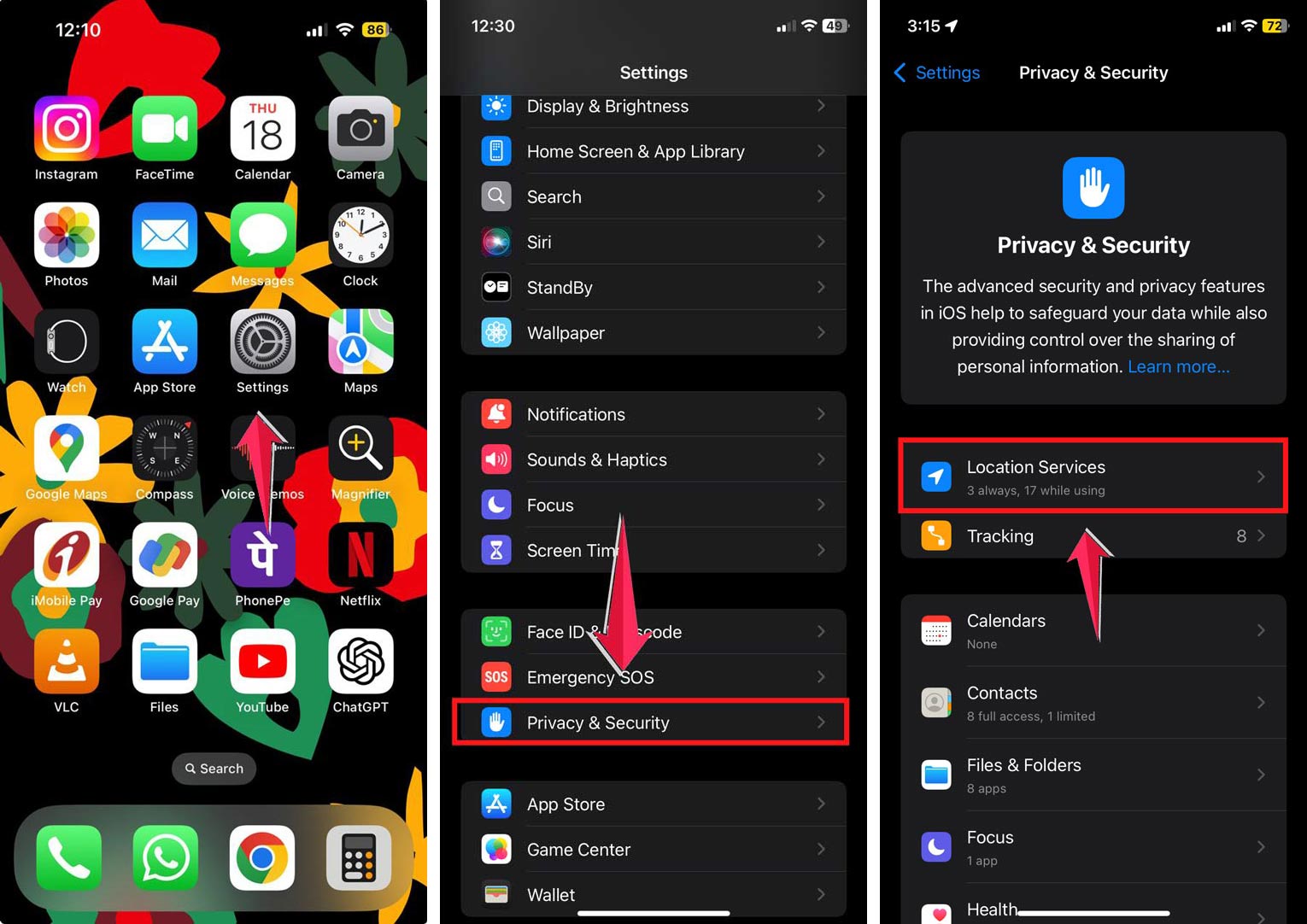
- Make sure it’s turned on.
- Scroll to “System Services”.
- Enable “Motion Calibration & Distance”.

These settings help your Apple Watch accurately track your movements and activities.
2. Update Personal Details
Your watch uses details like height and weight for accurate tracking. Here’s how to check and update:
- Open the “Watch” app on your iPhone.
- Tap “My Watch”, then “Health”.
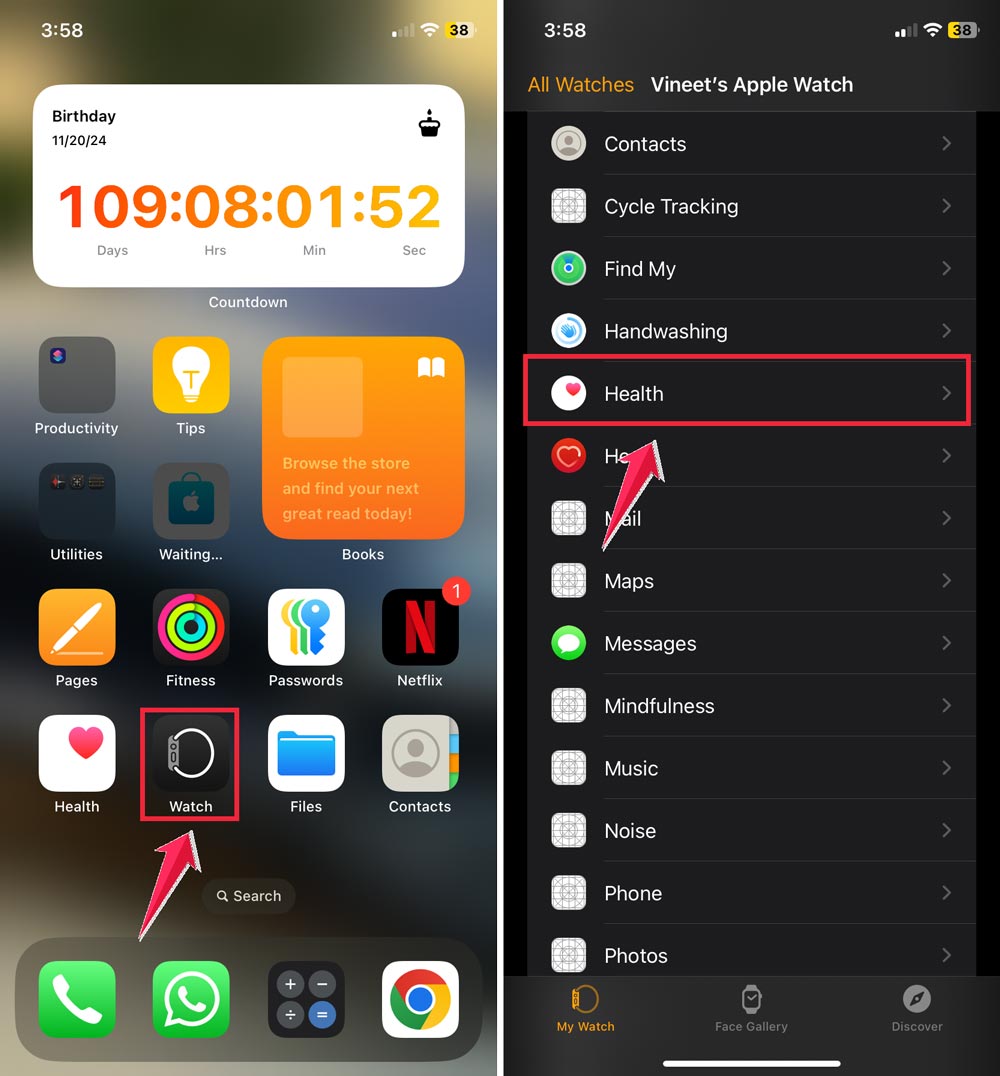
- Select “Health Details”.
- Verify and update your information if needed.

3. Reset Fitness Calibration Data
Give your watch a fresh start by resetting its fitness data:
- In the “Watch” app, go to “My Watch” > “Privacy”.
- Tap “Reset Fitness Calibration Data”.
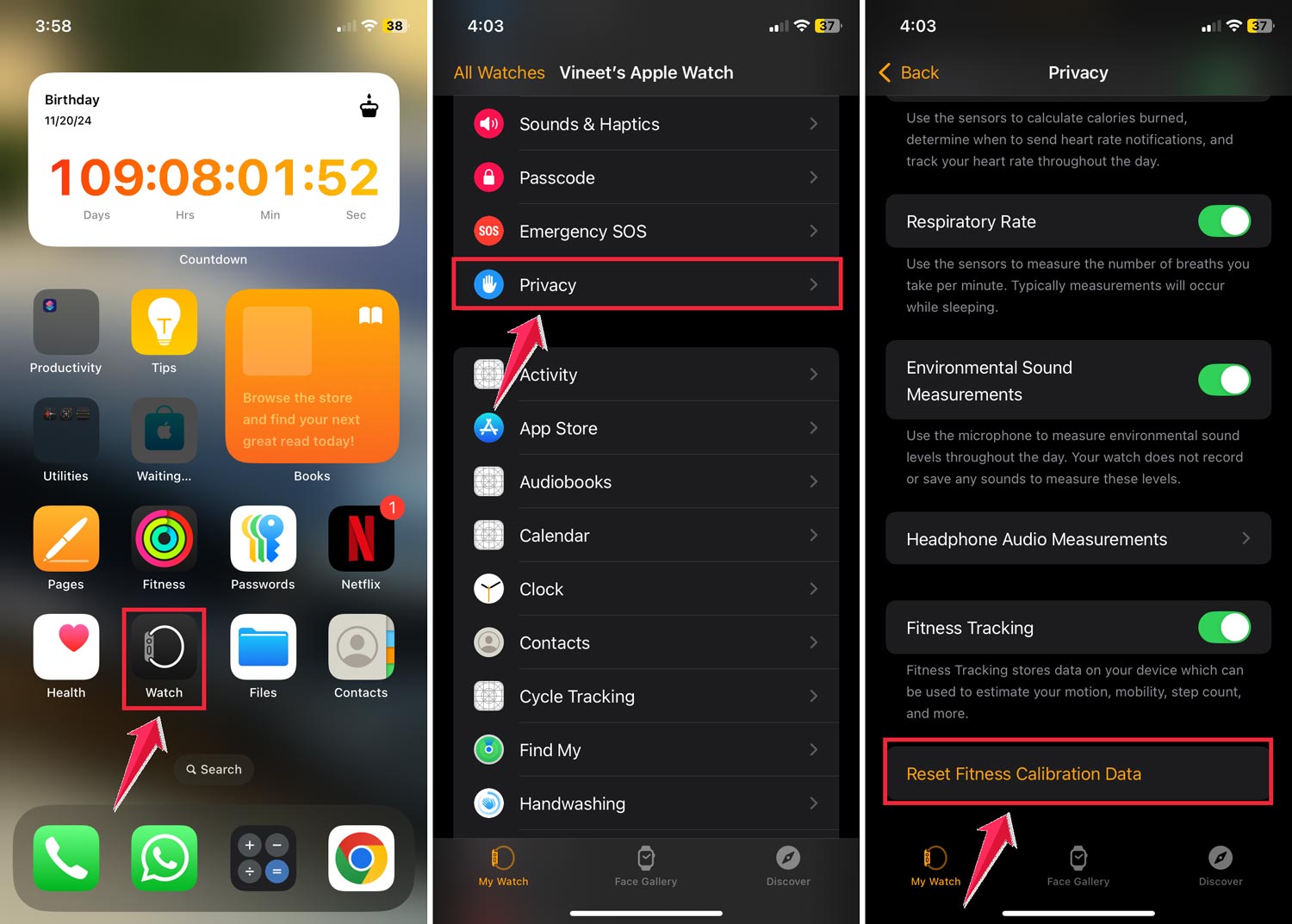
This helps your watch relearn your workout patterns and movements.
4. Wear Your Apple Watch Correctly
The way you wear your watch matters:
- Wear it on the wrist you selected during setup.
- Ensure a snug but comfortable fit.
5. Check Workout Settings
Your iPhone’s privacy settings affect workout tracking:
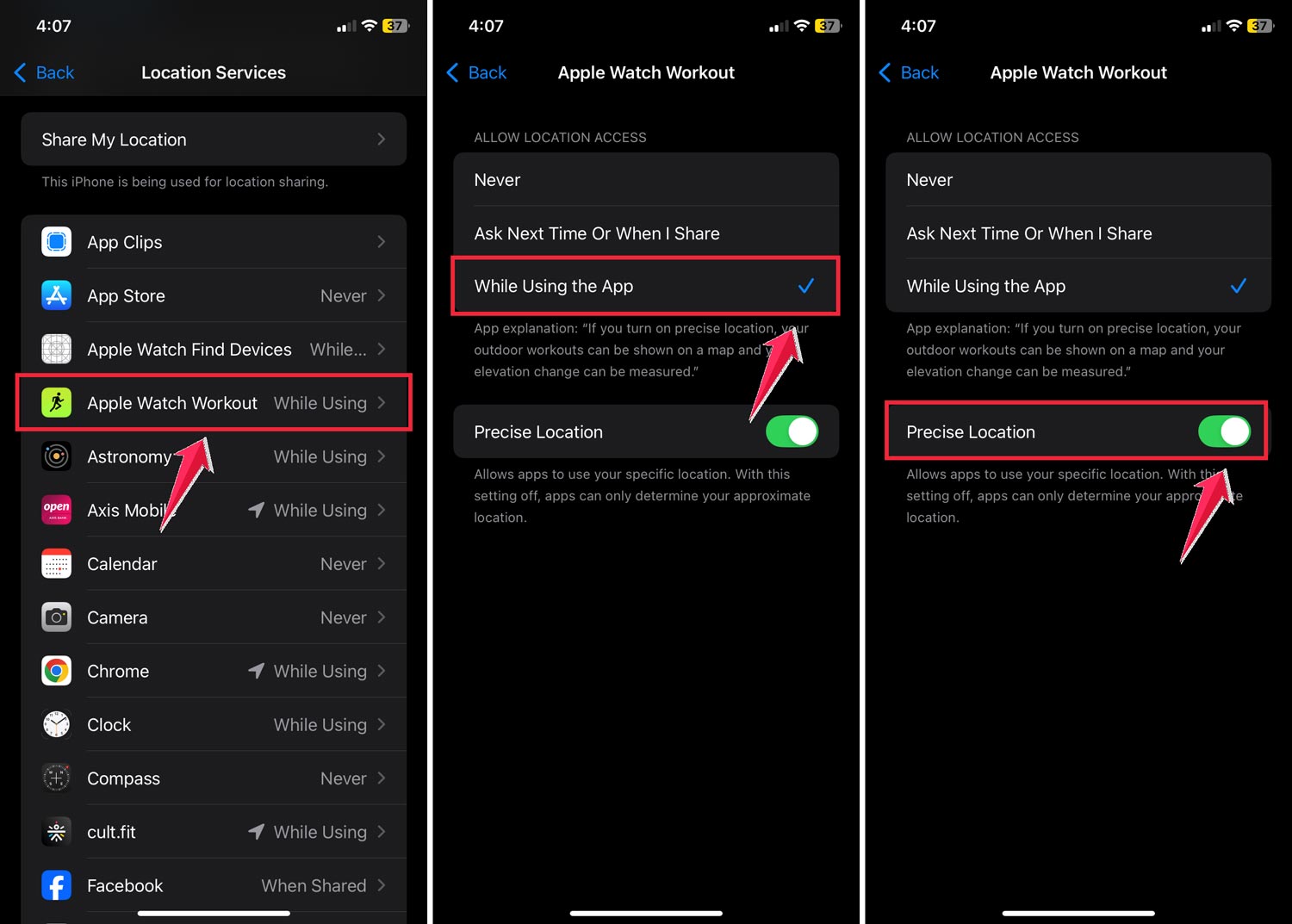
- In “Settings” > “Privacy” > “Location Services”.
- Find “Apple Watch Workouts”.
- Set it to “While Using the App”.
- Turn on “Precise Location”.
6. Calibrate Your Apple Watch
Calibrating your Apple Watch ensures accurate tracking of your fitness activities.
Here’s how to do it:
- Wear your Apple Watch comfortably on your wrist.
- Choose Your Device: Use your iPhone if your watch isn’t cellular-enabled.
- Find a Flat Outdoor Area for accurate movement tracking.
- Select a Suitable Route for steady-paced walking or running.
- Open the Workout App on your Apple Watch.
- Choose Your Activity: Select either ‘Outdoor Walk‘ or ‘Outdoor Run‘.
- Maintain a Normal Pace for at least 20 minutes to help your watch learn your movements.
7. Update watchOS
Keep your Apple Watch running smoothly with regular updates:
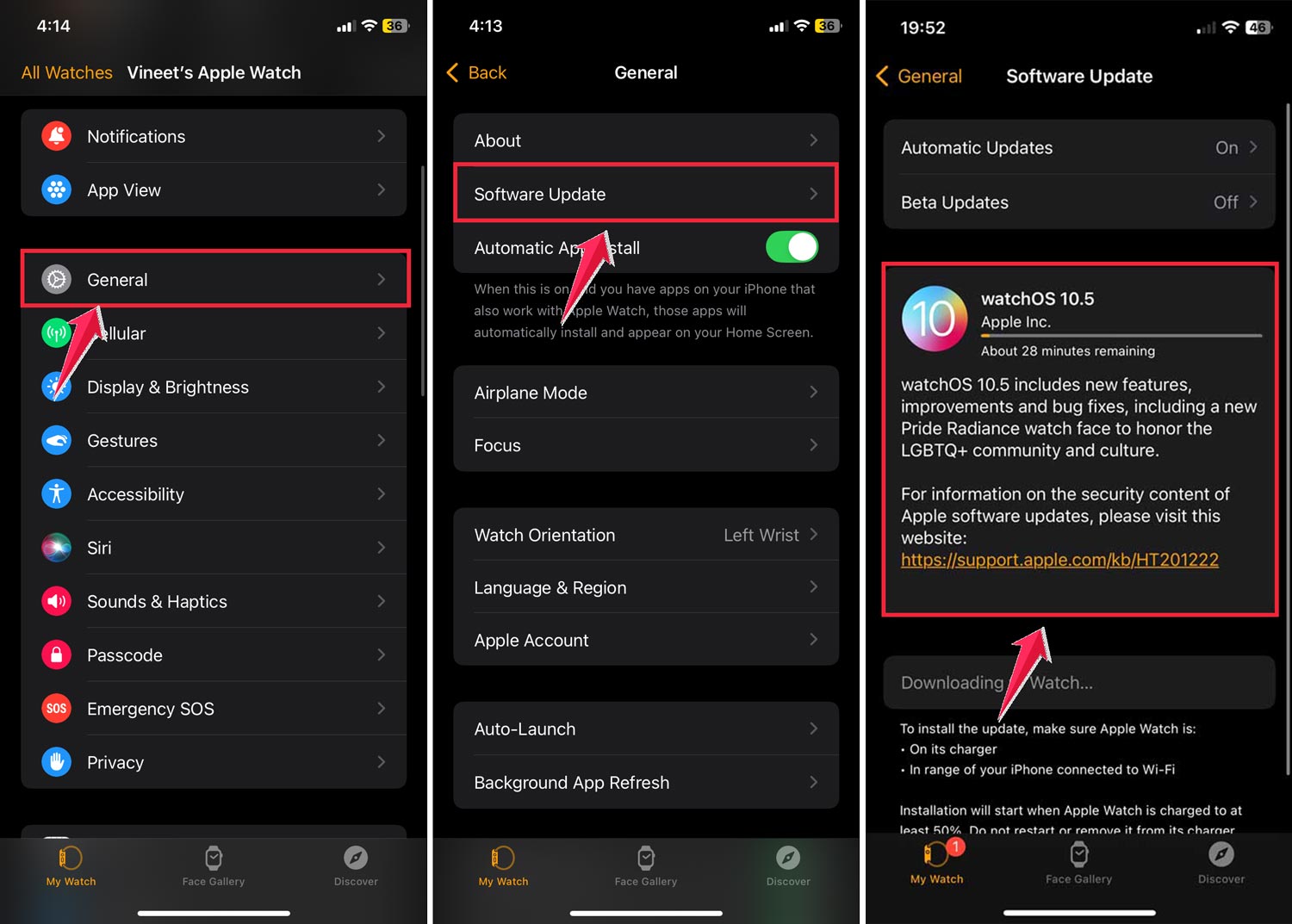
- Open the “Watch” app on your iPhone.
- Tap “General”, then “Software Update”.
- If an update is available, follow the prompts to install it.
8. Check Power Reserve Mode
Power Reserve Mode can affect activity tracking:
- Look for a red low battery icon next to the time.
- To exit this mode, charge your watch for at least 30 minutes.
- Restart your watch after charging to restore full functionality.
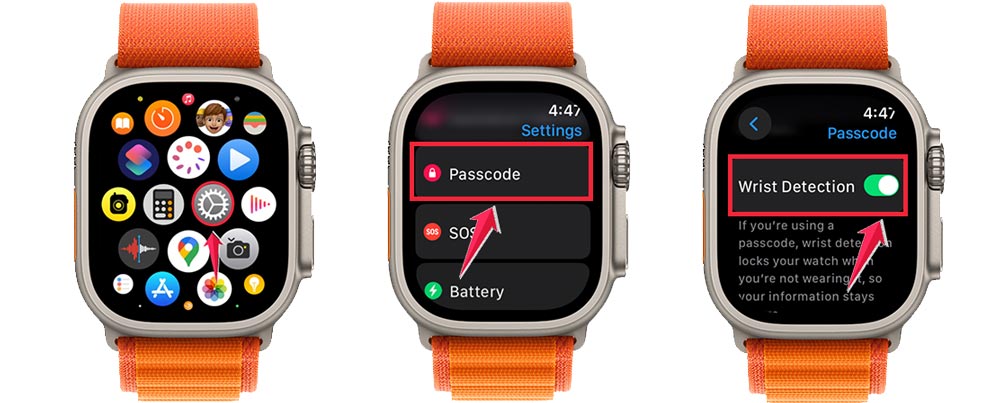
9. Check Wrist Detection
Ensure Wrist Detection is enabled for accurate tracking:
- On your Apple Watch, go to “Settings” > “Passcode”.
- Make sure “Wrist Detection” is turned on.
10. Restart Your Devices
Sometimes, a simple restart can fix tracking issues:
For Apple Watch:
- Press and hold both the Digital Crown and Side button.
- Release when you see the Apple logo.
- Wait for your watch to restart.

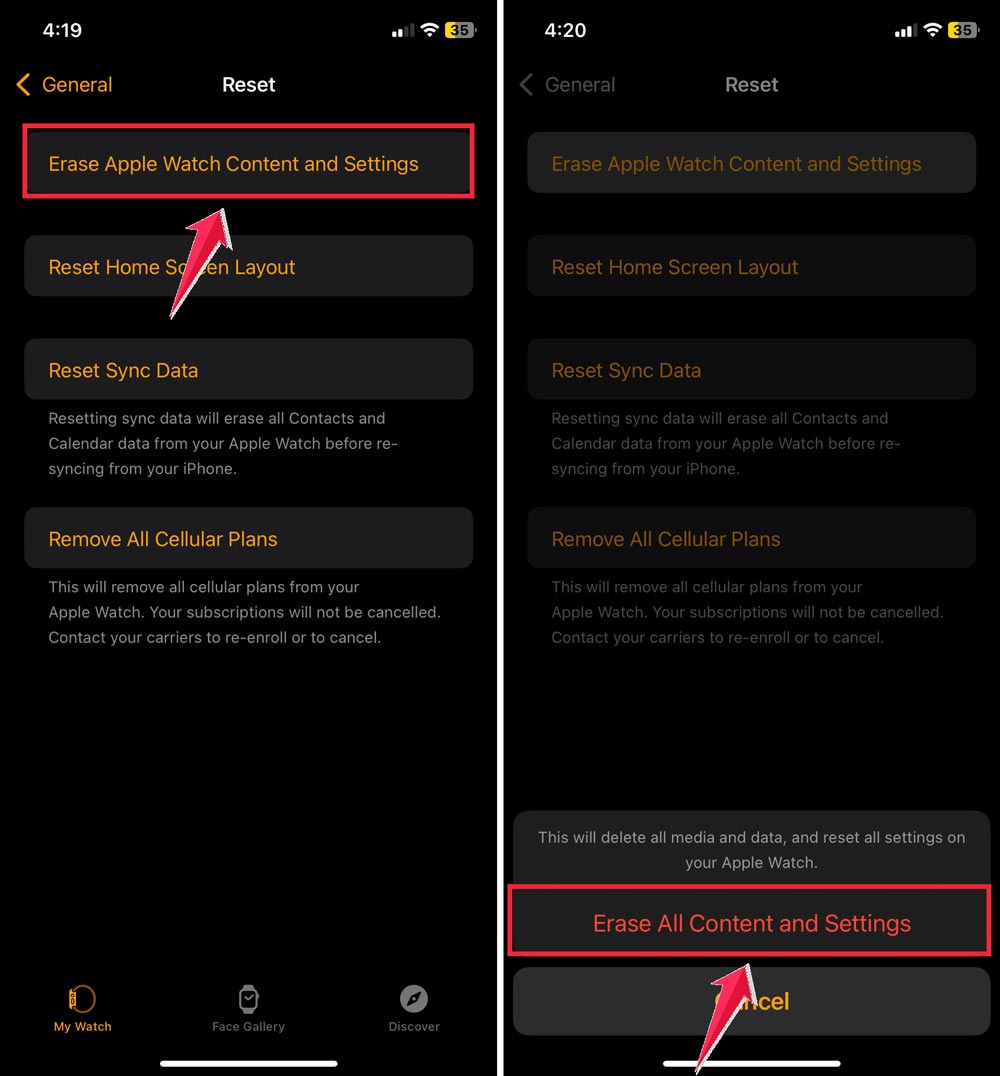
If issues persist, try unpairing and re-pairing your Apple Watch:
- Open the “Watch” app on your iPhone.
- Go to “General” > “Reset”.

- Select “Erase Apple Watch Content and Settings”.
- Follow the prompts to re-pair your watch.
By following these steps, you’re giving your Apple Watch the best chance to accurately track your activities.
The takeaway
When your Apple Watch stops tracking your activities correctly, it can throw a wrench in your fitness plans.
It’s frustrating, but don’t worry. There are solutions at hand.
We’ve covered several DIY fixes you can try at home. From checking your settings and calibrating your watch to updating the software, these simple steps can often solve the problem.
If you’ve tried everything and your watch still isn’t cooperating, don’t assume it’s broken beyond repair.
Apple Support is there to help with more complex issues. They have the tools and know-how to get your watch back on track.
Your Apple Watch is a powerful tool for your fitness journey.
With these tips, you can ensure it keeps accurately tracking your hard work. Keep moving, stay motivated, and don’t let a technical hiccup slow you down. Your fitness goals are still within reach!
Share your experience in a single comment below. Did these solutions work for you, or do you have other tips to share?