Ever tried switching your AirPods from your iPhone to your Mac, and they just… don’t follow? Yeah, I’ve been there. It’s frustrating. You expect everything in the Apple world to just work together, right?
Especially when you’re using the same Apple ID across all your devices. But sometimes, things don’t go as smoothly as they should.
Maybe you’re watching a video on your iPad, and then a call comes in on your iPhone—but your AirPods don’t switch over. Or you’re on your Mac, but the sound still comes from your phone. It’s those little moments that throw off your flow.
The thing is, your AirPods are supposed to sync automatically if you’re signed in to iCloud with the same Apple ID, and Bluetooth is working fine. But when they don’t, it can feel like the whole “Apple ecosystem” promise is broken.
Don’t worry. I’ve got you. In this guide, I’ll walk you through some quick and easy steps to fix the syncing issue.
We’ll go through the basics, check your settings, and make sure everything’s updated and connected the way it should be. Let’s fix this together.
Understanding Why Your AirPods Aren’t Syncing
Before we jump into fixes, let’s quickly understand what might be causing the problem. Trust me, once you know what’s going wrong, it’s a lot easier to fix.
1. Bluetooth Could Be Acting Up
Your AirPods rely on Bluetooth to connect. If Bluetooth isn’t working properly on any one of your devices, syncing will fail.
It’s like trying to have a conversation with someone whose phone is on airplane mode—it just won’t happen.
2. You Might Not Be Signed In to iCloud Everywhere
If even one of your Apple devices isn’t signed into iCloud with the same Apple ID, your AirPods will get confused. They won’t know which device to connect to. So make sure you’re signed in on all of them.
3. Your Software Might Be Outdated
Running an older version of iOS or macOS can cause syncing issues. Apple often fixes bugs and improves device syncing in updates. If you haven’t updated in a while, that could be the culprit.
4. Your Settings Could Be Glitchy
Sometimes, things just go weird. Maybe a setting got changed, or there’s a minor glitch. In that case, a quick reset or tweak might be all you need.
Alright, now that you know what might be happening, let’s move on to fixing it.
How to Fix AirPods Not Syncing Across iCloud Devices
Let’s go step by step. I’ll walk you through everything. Some of these are quick checks, others take a few more minutes.
But together, they’ll help get your AirPods syncing again.
#1 Check That Bluetooth Is Working on All Devices
Your AirPods need Bluetooth to sync and switch between devices. So let’s make sure it’s working properly.
Here’s what to do:
- On your iPhone or iPad, go to Settings > Bluetooth and make sure it’s turned on.

- On your Mac, click the Bluetooth icon in the top menu bar or open System Settings > Bluetooth.

Still not syncing? Try this:
- Put your AirPods in the case and close the lid for about 10 seconds.
- Open the lid and hold the case near your device.
- See if your AirPods reconnect automatically.
Sometimes, just giving Bluetooth a little refresh does the trick.
#2 Make Sure You’re Signed Into iCloud Everywhere
This one’s important. Your AirPods rely on iCloud to know which device to connect to. So, if one device isn’t signed in correctly, the syncing won’t work.
Here’s how to check:
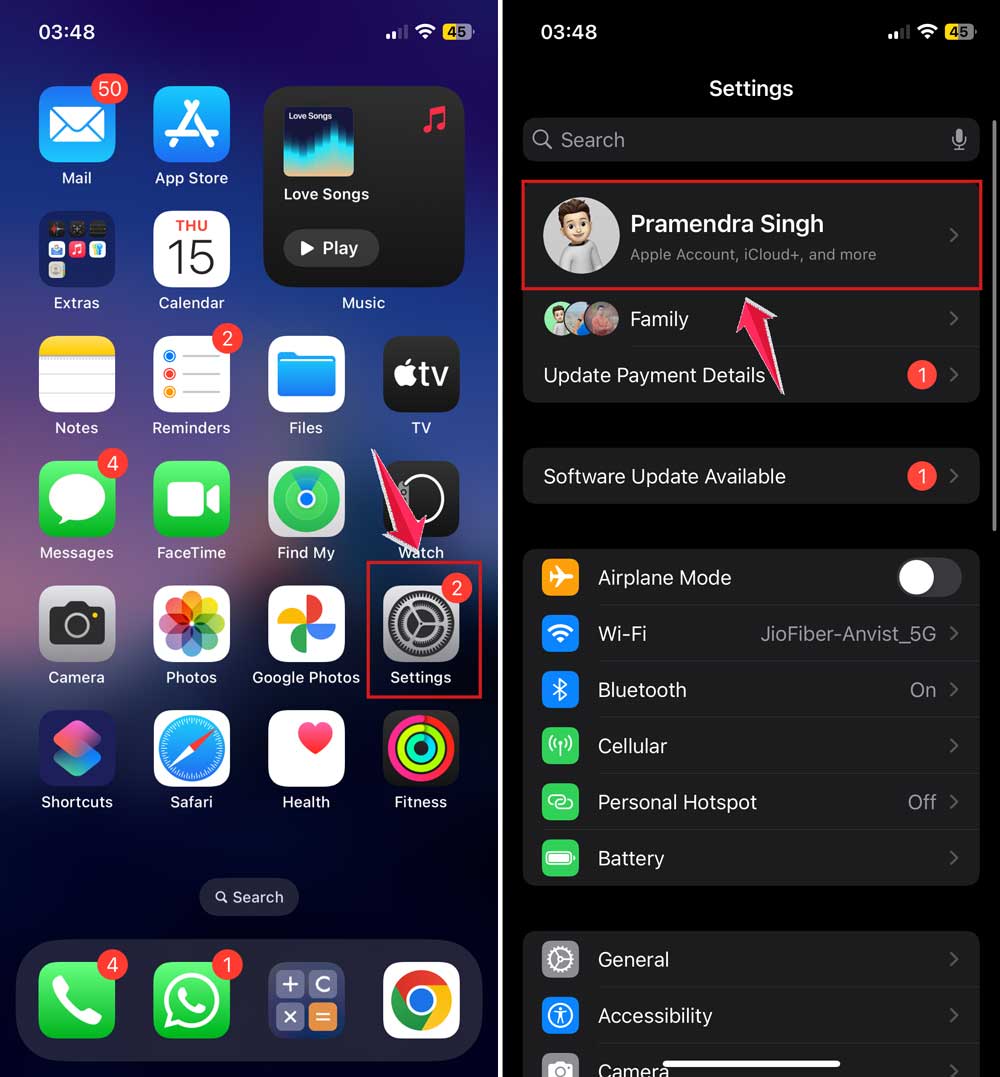
- On your iPhone or iPad, open Settings, tap your name at the top, and confirm your Apple ID.
- On your Mac, click the Apple menu > System Settings > Apple ID and check if it matches.
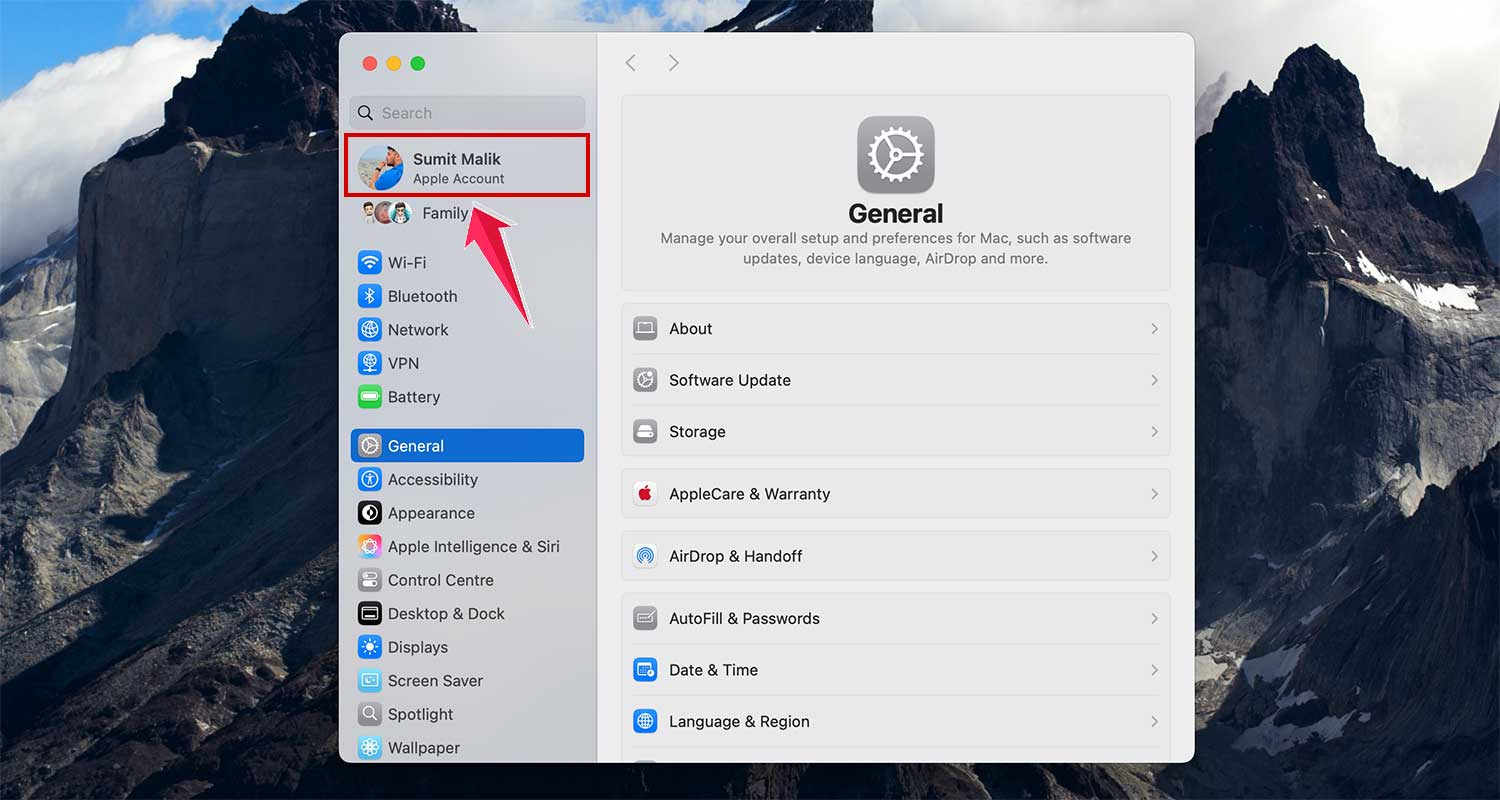
If the Apple IDs don’t match, log out and back in with the right one. That should help get things back in sync.
#3 Update All Your Devices
Old software can mess with syncing. Apple pushes out updates not just for new features but also to fix bugs—like the one you might be dealing with.
Update your devices like this:
- On iPhone or iPad: Go to Settings > General > Software Update. If there’s an update, tap Update Now.

- On Mac: Click the Apple menu > System Settings > General > Software Update.

Once everything’s updated, try switching between devices again. Your AirPods should now follow you more smoothly.
#4 Reset Network Settings (iPhone/iPad)
Sometimes, your network settings get messy and interfere with Bluetooth or iCloud syncing. A reset can help clean things up.
Here’s how:
- On your iPhone or iPad, go to Settings > General > Transfer or Reset iPhone > Reset > Reset Network Settings.
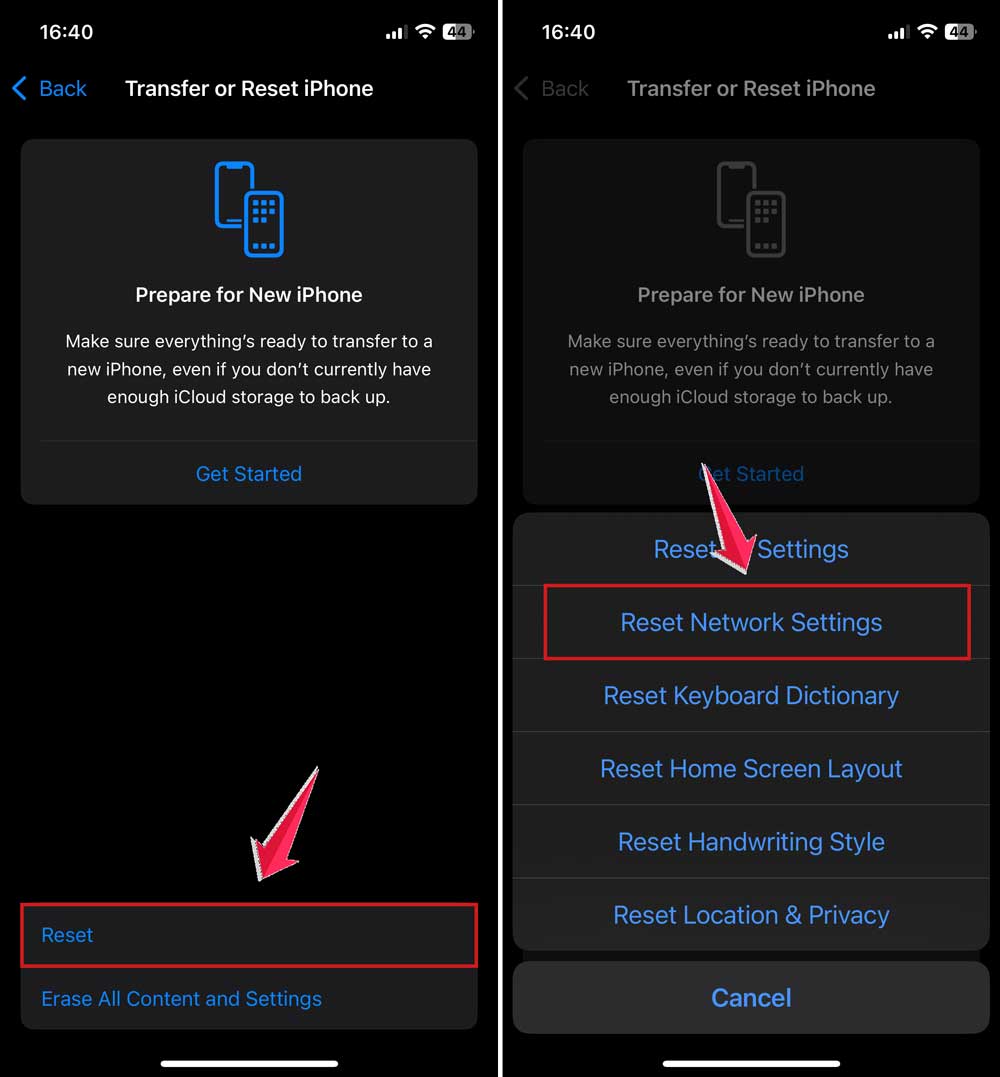
Heads-up: this will erase saved Wi-Fi passwords and networks. So, make sure you know them before resetting.
#5 Remove and Reconnect Your AirPods
When in doubt, start fresh. Removing your AirPods and pairing them again often solves lingering issues.
Do this on your iPhone or iPad:
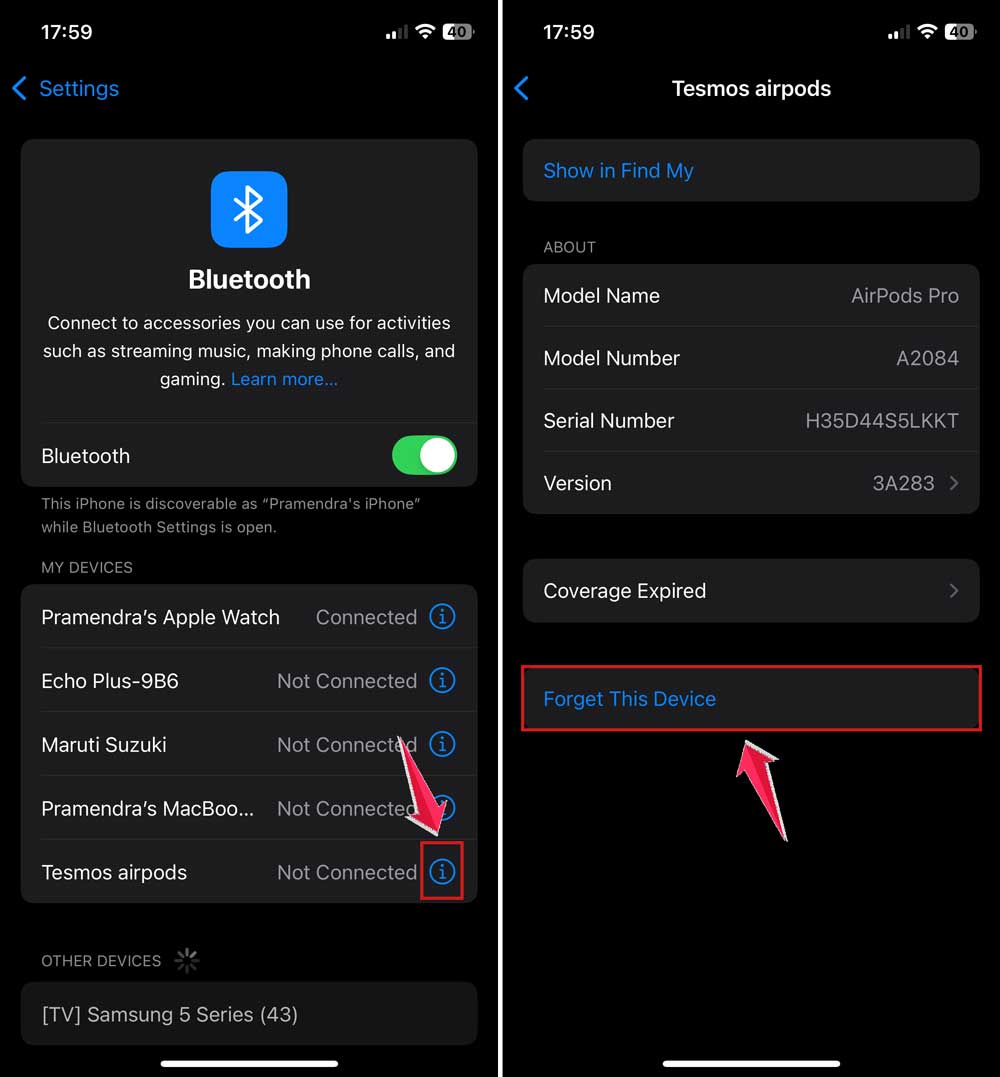
- Go to Settings > Bluetooth.
- Tap the i icon next to your AirPods.
- Tap Forget This Device.
On your Mac:
- Open System Settings > Bluetooth.
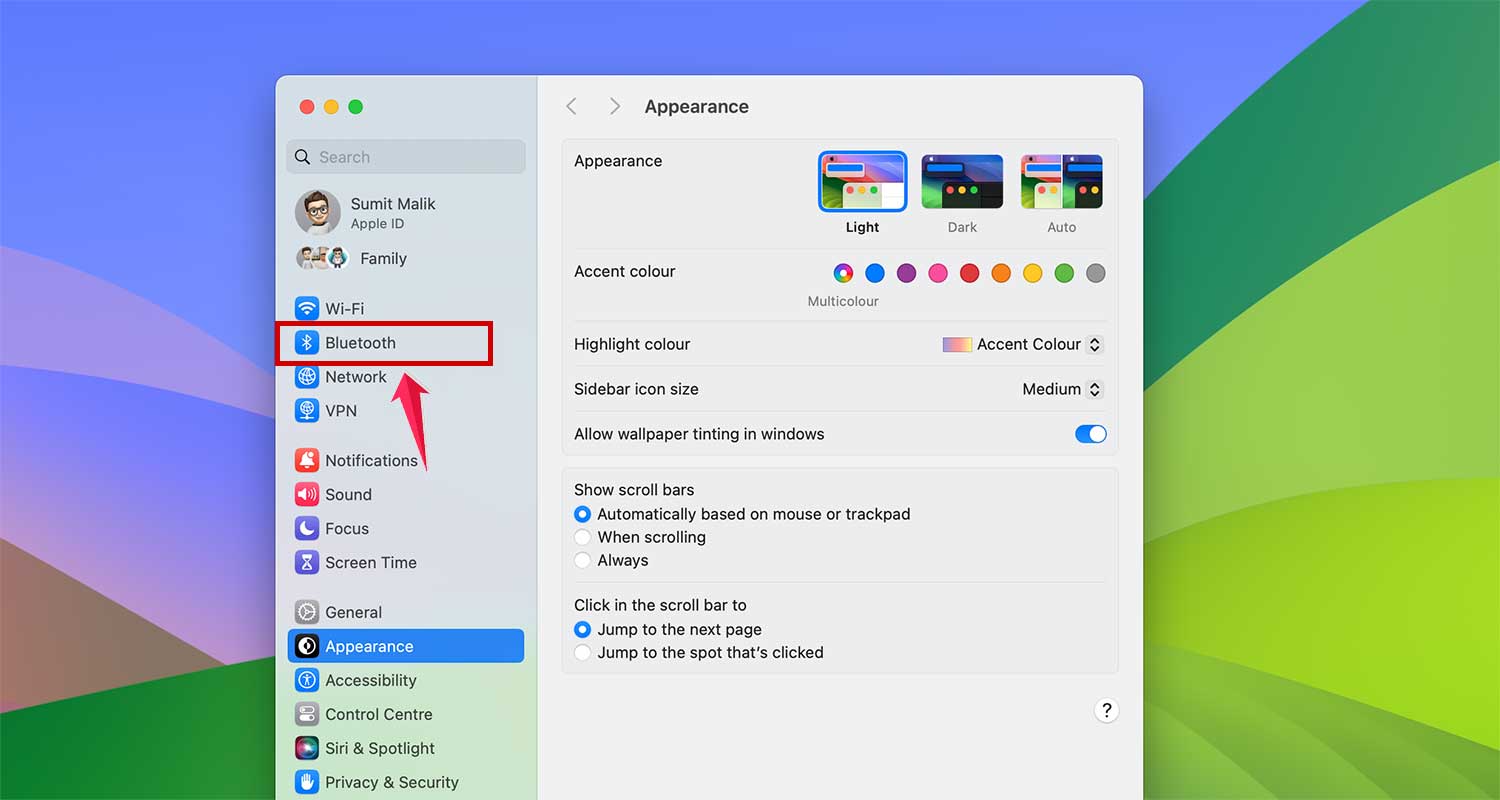
- Tap on “i” button next to your Airpods and choose Forget This Device.

Then, to pair them again:
- Put your AirPods in the case and open the lid.
- Press and hold the setup button on the back until the light flashes white.
- Bring them close to your device and follow the on-screen instructions.
This gives your devices a clean slate to work with.
#6 Reset Your AirPods Completely
Still not working? Let’s reset the AirPods themselves.
Here’s what to do:
- Put both AirPods in the case and open the lid.
- Press and hold the setup button on the back of the case until the status light flashes amber, then white.
Now, reconnect them like new. This reset clears out any weird settings that might’ve been causing trouble.
Extra Tips to Keep AirPods Synced
You’ve fixed the issue, but let’s keep it that way. Here are a few extra tips to help your AirPods stay in sync moving forward.
1. Keep Devices Close
Your AirPods sync best when your devices are near each other. If one’s across the room, syncing might lag or fail. So keep them within arm’s reach when switching.
2. Clean Your AirPods Regularly
Dust or debris in the sensors or case can mess with charging and connectivity. Wipe them down with a dry, soft cloth now and then. It helps more than you’d think.
3. Restart Your Devices Once in a While
A simple restart can fix random bugs. If something feels off—even if it’s not syncing—try turning your device off and on again.
4. Watch Out for Interference
Other electronics can mess with your AirPods. Things like microwaves, routers, or even other Bluetooth devices can cause interference. Try moving away from those if syncing seems slow.
5. Charge Everything
Low battery = low performance. Keep your AirPods, iPhone, Mac, and iPad charged. If anything’s running low, syncing might not happen smoothly.
The Takeaway
So yeah, having your AirPods not sync is annoying. But now you’ve got the tools to fix it. Start with the basics—Bluetooth, iCloud sign-in, and software updates. If that doesn’t work, go deeper with resets and re-pairing.
Most of the time, it’s a small glitch. And once you fix it, your AirPods will go back to doing what they’re supposed to—switching between your Apple devices like magic.
Thanks for sticking with me through this guide. If you’ve got questions or want to share what worked for you, drop a comment below. Let’s help each other out.
You’ve got this. Now go enjoy your AirPods like they’re meant to be used—seamlessly.