Did you know more than 80 % of online videos arrive in formats a Mac can’t play out of the box? That leaves many users staring at error messages instead of movie nights.
The real problem is simple. macOS ships with QuickTime, but QuickTime chokes on heavy files like MKV or high‑bit‑rate 4K clips. You end up hunting for plugins, new players, or endless codec packs—and that wastes time.
It happens because video creators use newer, space‑saving codecs, while stock apps stick to older standards. The gap keeps growing. So your library grows, but your built‑in player falls behind.
Stick around. I’ll show you how Elmedia Player opens these stubborn files in seconds, how it compares to VLC and other tools, and which settings give you sharp picture and smooth sound right now.
Why I picked Elmedia for MKV and other big‑quality videos

I ran into Elmedia after a weekend download marathon. I’d grabbed a stack of 4K Blu‑ray MKV rips—each one huge, each one packed with multiple audio tracks and fancy subtitles.
VLC struggled to keep pace: stutters here, audio drifts there. QuickTime simply refused to play half the files. I needed something reliable, yet simple.
A quick search brought me to Elmedia Player. It promised wide format support, zero codec installs, and a clean interface.
I liked that the free version would handle every common format and that a paid upgrade wasn’t pushed in my face.
Within a minute, those 60‑gig movies were running smoothly, with no frame drops and no menu diving. From that night on, it became my default player for anything that felt “too big” for stock apps.
How picture and sound compare to VLC and QuickTime
After a week of side‑by‑side testing, three differences stood out: sharpness, smoothness, and sync. On the same 4K MKV:
1. Sharpness
I saw extra detail in Elmedia. Tiny text on a sci‑fi screen? Clear. Skin pores? Yep. VLC did fine, but the hair was softer. QuickTime? It asked me to convert first, then still looked fuzzy. If you love crisp lines, Elmedia wins.
2. Smoothness
I hit the fast‑pan scene. Elmedia stayed butter‑smooth. VLC showed a light stutter when the frame rate got weird—23.976 fps does that.
QuickTime never got that far because the file was “unsupported.” You hate jitter. So do I. Elmedia feels nicer.
3. Sync
You press play, and your lips should match words. Elmedia nailed it. VLC? I had to tap the key and push the audio 50 ms ahead. QuickTime, again, didn’t open the multi‑track file. You don’t want to fiddle with delays. I don’t either. Elmedia saves time.
The color looks the same on Elmedia and VLC. Both are good. But Elmedia gives you a quick gamma slider, so you can brighten a dark scene in two clicks.
Also, it leans on your Mac’s hardware chip, so my M1 stays cool and quiet during a two‑hour 4K binge. Your fan stays silent; your lap stays happy.
No hype—just what I saw on‑screen. Heavy file? High demand? Elmedia feels smoother.
Handy features that make watching easier
#1 It opens almost any video without fuss
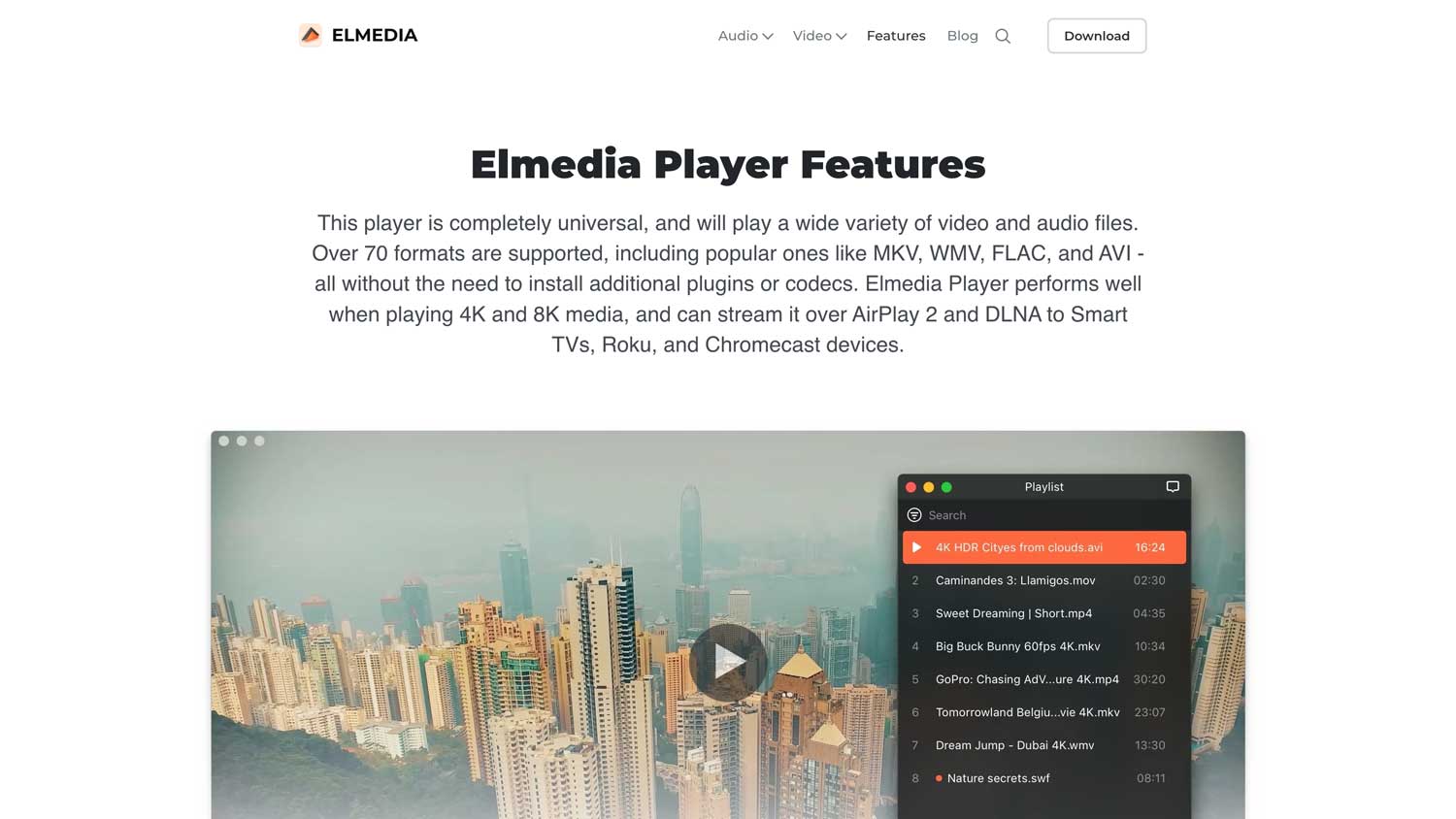
From old AVIs filmed on a flip phone to modern HEVC HDR10, Elmedia just plays. You drop it in, hit play, and you’re done. No warnings, no plugin pop‑ups.
#2 Subtitles line up in one click
Drag a .srt onto the window and it appears, perfectly synced. Need a new font or a bigger size? Two clicks. If the dialogue drifts, tap the ← or → keys to nudge subs a few milliseconds—handy for fan‑made tracks.
#3 You can stream straight from Mac to Chromecast
Want the big TV? Here’s how you do it:
- Click the AirPlay icon.
- Choose Chromecast (or Apple TV, Roku, DLNA).
- Wait a second while the handshake happens—then lean back.
Every control still lives on your Mac—pause, seek, even subtitle adjustments. Smooth, zero‑lag streams on my 5 GHz network.
#4 The built‑in browser pulls videos from the web
Pop the URL of a trailer or lecture into Elmedia’s browser tab, and the clip plays ad‑free inside the player. You can even extract the direct stream link and save it locally.
It’s a niche trick, but perfect when you need background playback without keeping Safari open.
When another player might suit you better
If you only watch lightweight MP4 clips or you need a bare‑bones app that opens in half a second, QuickTime is still fine.
When you rely on advanced filters, transcoding, or command‑line tweaks, VLC’s toolkit wins—FFmpeg under the hood lets you customize every pixel.
Elmedia’s free tier streams ads to YouTube but locks advanced audio equalizers behind a one‑time upgrade; if those pro touches matter and you refuse to pay, stick with VLC.
And if your Mac is ancient (pre‑2012), you may find Elmedia’s hardware decode less effective than a trimmed‑down player like IINA.
The takeaway
Big MKV files freeze in VLC and won’t open in QuickTime. Elmedia Player runs them right away. Picture stays sharp. Sound stays in step. You load subs in one drag. You cast to TV in two clicks. No extra codecs.
Some people think you must convert every file first. Not true. Elmedia shows playback can be quick and easy.
So test it now. Drop your toughest video in and press play. If it works, pin the app to your Dock today.
Comment below and let me know how it works.