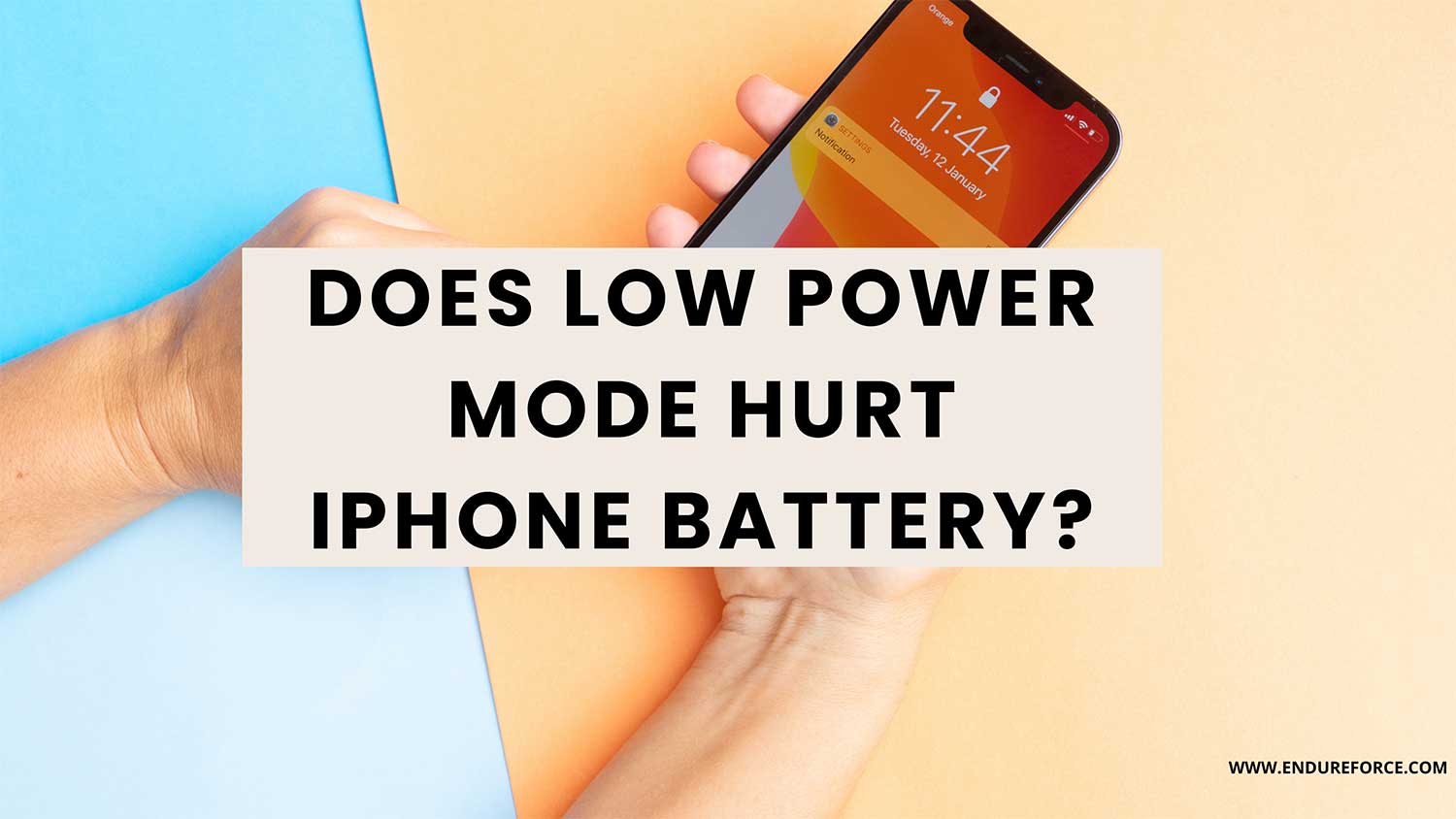
Did you know your iPhone’s battery loses about 1% of its capacity every month?
That’s why it’s important to understand features like Low Power Mode that can help your battery last longer.
If you’re curious about other ways to optimize your iPhone’s performance, you might also want to keep your iPhone screen on by disabling auto-lock.
You might have heard rumors that using Low Power Mode could harm your iPhone’s battery.
Let me set the record straight. That’s not true at all! In fact, Low Power Mode is like a superhero for your battery when it’s running low.
Think of Low Power Mode as your phone’s personal energy saver. When your battery dips below 20% and you’re not near a charger, it jumps into action.
It cleverly reduces your phone’s power needs, making sure your battery lasts longer.
Sure, some features like AirDrop and Siri might take a break, but it’s all to keep your phone alive when you need it most.
I use Low Power Mode a lot, especially when I’m out and about. Let me share what I’ve learned about how it works and what it does to your iPhone.
We’ll look at which features change when you turn it on, and I’ll give you some tips on how often to use it.
How does Low Power Mode work?
Think of Low Power Mode as your iPhone’s personal energy-saving assistant.
When your battery level drops to 20%, your iPhone will ask if you want to turn on Low Power Mode.
If you say yes, it springs into action. But you don’t have to wait. You can turn it on manually anytime you want to save power.
Once activated, Low Power Mode reduces your iPhone’s power consumption in several clever ways:
- It slows down your processor, so your phone doesn’t work as hard.
- It dims your screen slightly to use less energy.
- It pauses some background activities like automatic email fetching and app updates.
- It disables some visual effects to save processing power.
These changes might make your iPhone feel a bit slower, but they can extend your battery life by up to 3 hours.
That’s a big help when you’re far from a charger!
Remember, Low Power Mode turns off automatically when your battery charges back up to 80%.
You can also turn it off manually anytime you want your iPhone back at full power.
What changes when you turn on Low Power Mode?
When you activate Low Power Mode, your iPhone makes several changes to conserve energy. Here’s what happens:
- Your processor slows down: Your iPhone’s brain takes it easy, working a bit slower to save power.
- 5G switches to 4G: If you have an iPhone 12 or newer, it’ll use 4G instead of 5G to save energy.
- Your screen dims and locks faster: The display gets a bit darker, and your phone will lock after 30 seconds of inactivity.
- Visual effects take a break: Animations and some visual flourishes are paused to reduce power consumption.
- iCloud Photo backups pause: Your photos won’t automatically upload to iCloud until you’re back on full power.
- Automatic downloads stop: Your phone won’t download app updates or new content on its own.
- Background tasks pause: Features like email fetching and app refreshing take a breather.
- “Hey, Siri” stops listening: Siri won’t respond to voice commands to save power.
- ProMotion displays slow down: If you have a ProMotion display, it’ll drop to 60Hz refresh rate.
If you’re looking for more ways to optimize your iPhone’s performance, you might be interested in learning how to block apps at certain times on your iPhone.
Will Low Power Mode make my iPhone less useful?
When you turn on Low Power Mode, your iPhone still remains highly functional for most essential tasks.
What still works normally:
- Making calls and sending messages
- Browsing the internet
- Using most of your apps
- Taking photos and videos
- Listening to music
- Using GPS and maps
What might feel different:
- Your iPhone may feel a bit slower when opening apps or scrolling
- Some visual effects and animations will be reduced
- Automatic email fetching will pause (you’ll need to manually check)
- Background app refresh will stop
- “Hey Siri” won’t work until you press the side button
What you might not be able to do:
- Use AirDrop.
- Sync photos to iCloud automatically.
- Google Photos will not sync photos.
- Download app updates automatically.
While your iPhone might not be as snappy in Low Power Mode, it’s still capable of handling your day-to-day tasks.
Think of it as your phone switching to “essential mode“. It focuses on keeping you connected and functional when battery life is crucial.
When should you use Low Power Mode?
Low Power Mode is a versatile tool that you can use in various situations. Here’s when it’s most helpful:
- When your battery is running low: This is the most obvious time. If you’re at 20% battery or below and can’t charge soon, turn it on.
- During long days out: If you know you’ll be away from a charger all day, activate it preemptively to extend your battery life.
- While traveling: Airports, new cities, or hiking trips often mean limited charging opportunities. Low Power Mode can be a lifesaver.
- In emergencies: If you need your phone for an important call or to navigate home, switch it on to ensure your battery lasts.
- When your charger is forgotten: Left your charger at home? Low Power Mode can help your phone last until you get back.
- During power outages: When you can’t charge your phone, preserving battery becomes crucial.
- At events or conferences: These can drain your battery quickly with lots of photos and networking. Low Power Mode can help you stay connected all day.
Can you save battery without using Low Power Mode?
Absolutely! You have plenty of options to extend your iPhone’s battery life without activating Low Power Mode. Here are some effective tips:
- Control your email update frequency.
- Use smart screen brightness.
- Set a quicker auto-lock time.
- Manage background app refresh.
- Monitor and optimize your battery usage.
- Adjust location services.
- Disable unnecessary push notifications.
- Use Wi-Fi instead of cellular data when possible.
For more advanced tips on managing your iPhone’s performance, you might want to explore how to decode your iPhone’s analytics data.
How can you check which apps are draining your battery?
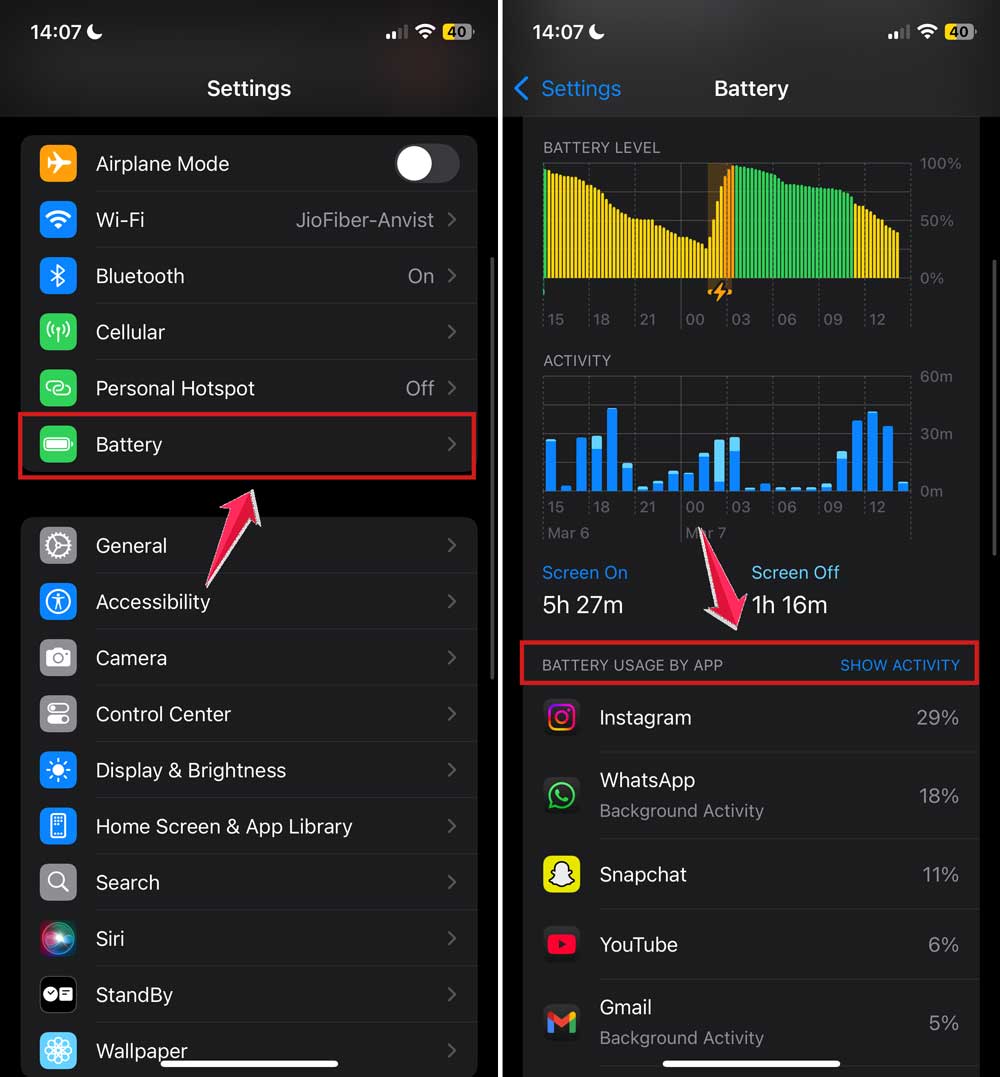
Your iPhone has a built-in tool to help you understand which apps are using the most battery power. Here’s how to use it:
- Open the Settings app and tap on “Battery“.
- Scroll down to “Battery Usage by App“.
- Toggle between “Last 24 Hours” and “Last 10 Days” for different time frames.
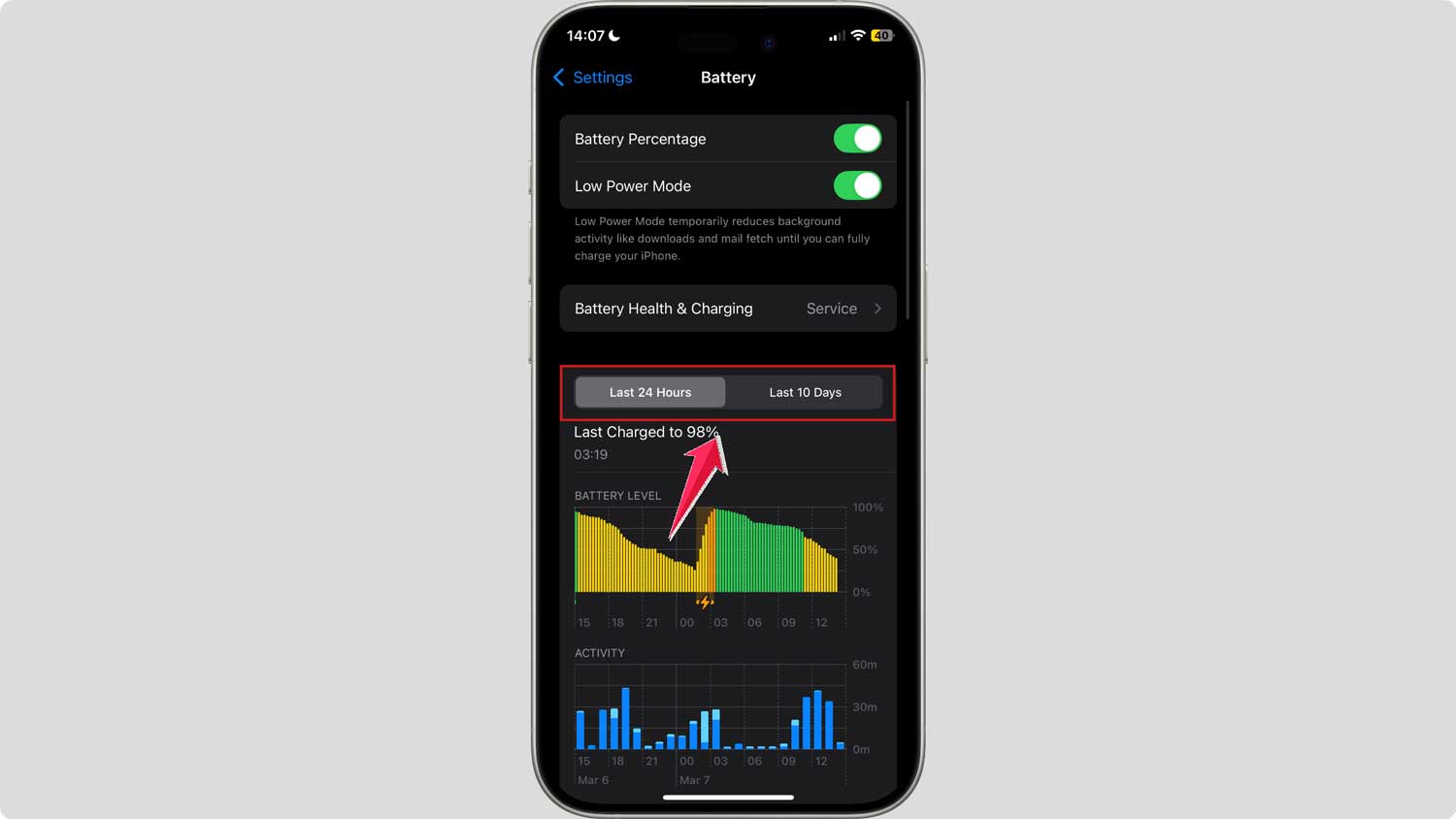
Understanding the battery usage details:
- “Background Activity” shows power use when you’re not actively using the app
- “Battery Health” indicates your battery’s current maximum capacity
Pro tip: Check this “dashboard” regularly to spot power-hungry apps and adjust your usage habits for better battery life.
Is it bad to use Low Power Mode all the time?
While it’s not harmful, using Low Power Mode constantly might hold your iPhone back from its full potential.
It’s designed as a temporary measure, not a permanent setting. Your phone works best when it can use all its features freely.
The takeaway
Low Power Mode is your iPhone’s battery-saving superhero. It’s not harmful to your battery.
In fact, it’s a great tool to keep your phone running when you’re low on power.
When you turn on Low Power Mode, your iPhone slows down a bit, and some features take a break.
This helps stretch out your battery life. You can use it anytime, but it’s best saved for those moments when you’re running low and can’t get to a charger.
Don’t worry about using Low Power Mode too much. Your iPhone is smart and can handle it.
Just remember, it’s there to help in a pinch, not to use all the time. Your phone works best when it can use all its features freely.
So next time your battery is getting low, give Low Power Mode a try. It might just save the day when you need your phone most!
What do you think about Low Power Mode? Let me know in the comments below!