Ever feel like your iPad is just… slow? It’s not just you. A lot of us run into this, especially after using our iPads for a while.
Apps lag, storage fills up, and things just don’t feel as smooth as they used to. That’s usually when people start looking into “cleaner apps.”
Now, cleaner apps sound helpful. They claim to free up space, boost performance, and make everything run faster.
Kind of like a digital clean-up crew. But before you rush to download one, let’s pause for a second. Do you really need one?
Your iPad isn’t like a junk drawer you need to empty every week. It’s actually pretty smart about managing space and memory on its own.
Apple’s built-in tools already do a lot behind the scenes. So, while the idea of using a cleaner app seems like a quick fix, it’s not always the best or safest option.
In this guide, let’s walk through why your iPad might feel slow or cluttered, whether cleaner apps help, and what you can do instead to keep your iPad running smoothly—without risking your privacy or wasting your money.
Why Your iPad Feels Slow or Cluttered
1. Storage fills up faster than you think.
You and I both love saving photos, downloading games, and trying out new apps. But all that stuff takes up space.
Over time, your iPad starts to feel full. And when storage is nearly maxed out, everything slows down. Apps open more slowly, videos buffer, and even simple tasks feel heavy.
2. Too many files and hidden data slow things down.
Apps create temporary files called cache. These are supposed to help things run faster, but when they pile up, they do the opposite. Your iPad ends up working harder just to open something basic. That’s why it might feel like it’s dragging its feet.
3. Unused apps take up more than space.
Even if you’re not using them, apps can still use your iPad’s memory in the background. That means slower performance and less room for the stuff you actually care about. If you haven’t opened an app in months, it’s probably time to remove it.
4. Data clutter makes things messy.
It’s not just about storage. Sometimes it just feels messy—too many files, too many apps, too many random downloads. And that clutter can make it hard to find what you need. Many people think a cleaner app is the answer, but really, it comes down to how we manage our stuff.
So now that we know what’s slowing things down, let’s look at whether a cleaner app is worth it—or if you’re better off using Apple’s own tools.
Do You Need a Cleaner App for iPad? Pros & Cons
#1. Cleaner apps can help free up space.
Some cleaner apps do a decent job clearing out temporary files or old junk. If you’re really low on space, they might give you a quick boost. But be careful—some apps delete things you might want to keep, like downloads or attachments.
#2. They might improve performance a little.
By removing unnecessary files, some apps can help your iPad run a bit smoother. But let’s be honest: no app can make an old iPad feel brand new. If you’re expecting huge speed improvements, you might be disappointed.
#3. They make cleanup simpler.
Cleaner apps often come with easy-to-use tools. You press a button, and it gets to work. That’s handy if you don’t want to dig into settings yourself. But again, you’re handing over control to an app—and that comes with risks.
#1. Your privacy could be at risk.
To clean your iPad, these apps need access to your data. That means your files, photos, and even your browsing history. Not all apps are trustworthy. If you wouldn’t hand your phone to a stranger, don’t give full access to an unknown app.
#2. The results may not match the hype.
Ever seen those ads that say “Boost your iPad speed 200%”? Yeah, that’s usually an exaggeration. Most cleaner apps don’t deliver those big results. You might get a little improvement, but nothing dramatic.
#3. Many of them cost money.
A lot of cleaner apps are free to download but charge for “premium” features. Before you know it, you’re paying monthly just to delete files you could’ve cleared yourself. Always check before you commit.
What You Can Do Instead of Using a Cleaner App
Now let’s talk about what you and I can do ourselves. No need for extra apps. These tips work, they’re safe, and they give you full control.
#1. Back up your iPad regularly.
Backing up not only protects your data, but it also clears some space by syncing files to iCloud.
Here’s how:
- Open Settings.

- Then tap iCloud.
- Select iCloud Backup.

- Turn on iCloud Backup if it’s off, then tap Back Up Now.

#2. Delete apps you don’t use.
This one’s quick and effective. If you haven’t used an app in weeks or months, it’s probably safe to remove it.
To remove an app:
- Tap and hold the app icon on your Home Screen.
- Tap Remove App.

#3. Clear Safari’s cache and browsing data.
Safari stores history, cookies, and cached data. Over time, this adds up.
To clear it:
- Go to Settings.
- Tap on Apps.

- Scroll down and tap Safari.

- Tap Clear History and Website Data.

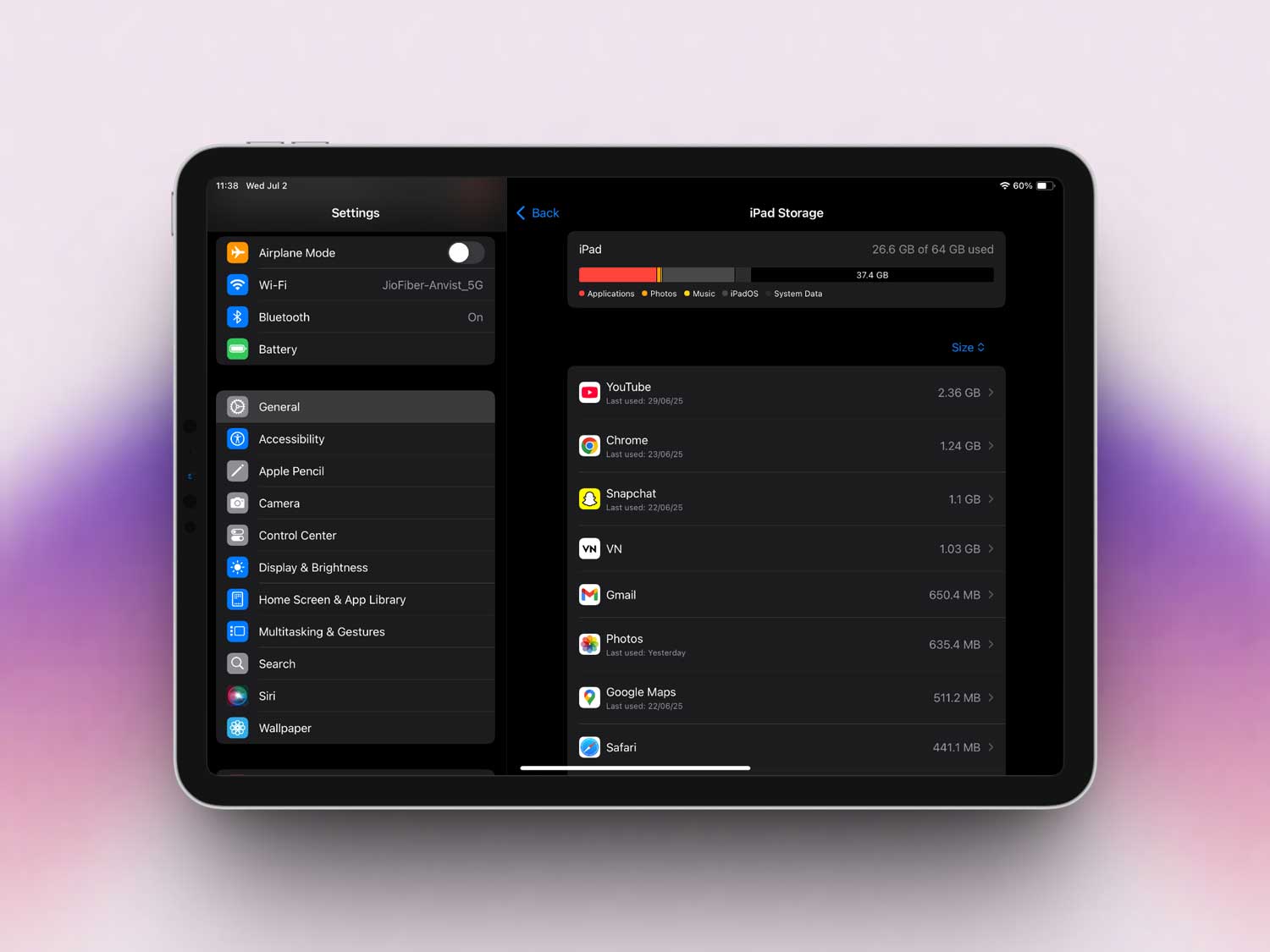
#4. Use Apple’s built-in storage tools.
Your iPad has smart tools that help manage space. Take a look and follow the suggestions—it’s easy and effective.
To access it:
- Open Settings.
- Tap General, then iPad Storage.
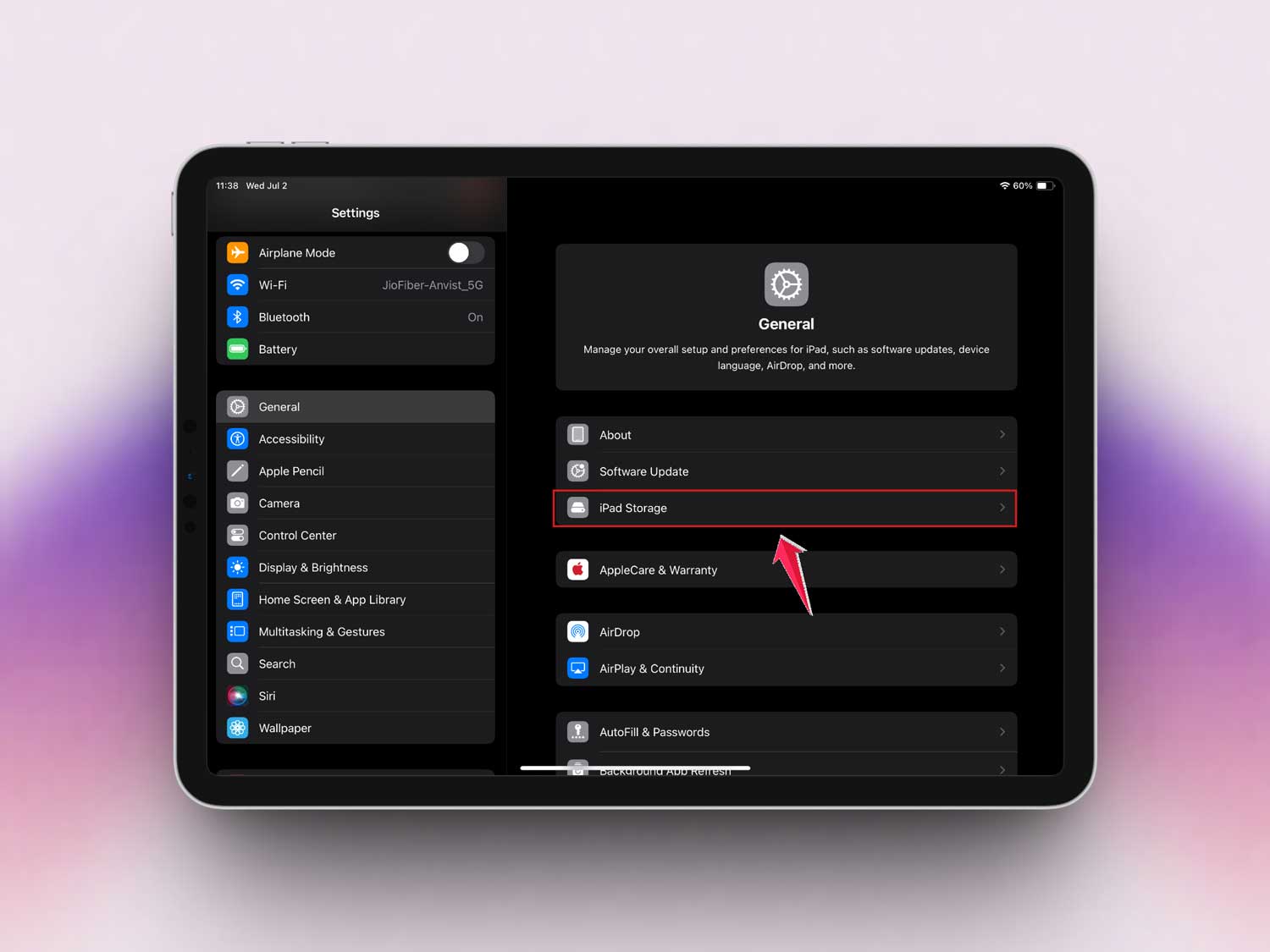
- Review the recommendations and tap to apply them.
#5. Offload unused apps automatically.
This feature removes unused apps but keeps your data, so you can reinstall later without losing anything.
To turn it on:
- Go to Settings > Apps.
- Then tap on App Store.

- Toggle on Offload Unused Apps.

#6. Restart your iPad once in a while.
You’d be surprised how much this helps. A restart clears temporary memory and gives your iPad a quick refresh.
To restart:
- Press and hold the Top button and either volume button.
- When the power slider appears, drag it to turn off.
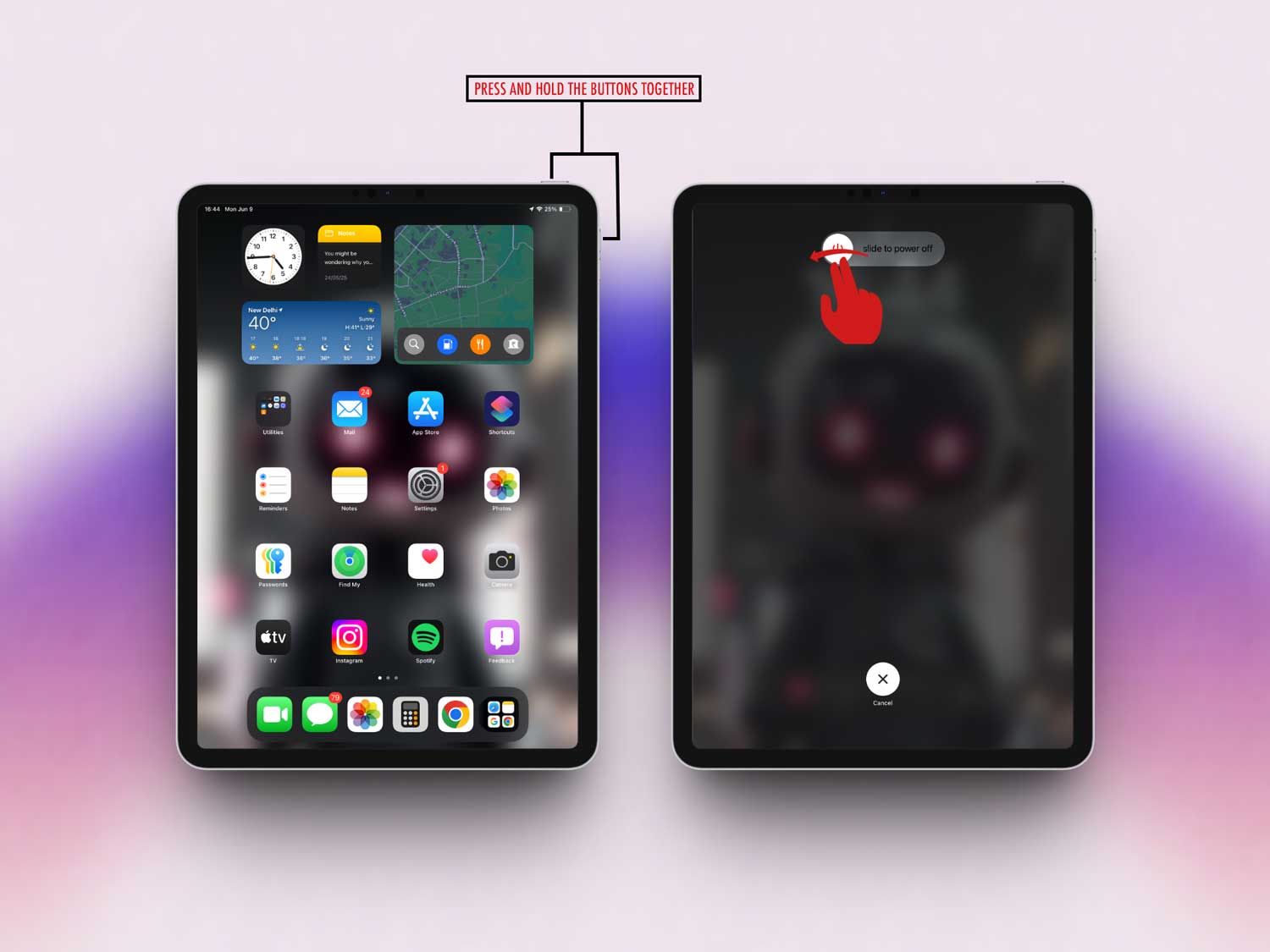
- Wait a few seconds, then hold the Top button again to turn it back on.

The Takeaway
So, do you need a cleaner app for your iPad? Honestly, probably not. We’ve walked through how your iPad gets cluttered and how cleaner apps work—and why they’re not always the best answer.
Sure, they sound helpful, but Apple already gives you tools to manage storage and boost performance safely.
If you back up your data, delete unused apps, and clear your cache now and then, you’re already doing the most important stuff. And the best part? You stay in control. No risky apps, no surprise charges, and no giving away your data.
You’ve got this. Keep your iPad clean with a few simple steps, and it’ll run smoother for longer. Got your own tips or something that worked for you? Drop a comment below—I’d love to hear it!