You’ve got your shiny Apple Watch and your trusty iPhone, but they’re just not syncing up like you expected.
Annoying, right? Especially when you know how much easier life could be if they worked together.
Think about it. You could control your music, find your phone, or send quick messages. Yes, right from your wrist.
It’s like having your own little assistant. But when it doesn’t work, it feels like something’s missing. And honestly, it shouldn’t be this hard.
Don’t stress. You’re not alone in this. Whether it’s a tiny software glitch, a setting you didn’t notice, or something going on with Bluetooth, we’ll figure it out together.
I’ve got a few easy fixes that can help bring your devices back on the same page.
Stick with me. In just a few minutes, you’ll have your tech working like a team again. Let’s make this happen.
Got issues? Let’s fix them step by step
Alright, let’s get into it. We’ll go through the most common reasons your Apple Watch might not be controlling your iPhone. And more importantly, how to fix them.
Don’t worry, I’ll keep it simple, and we’ll go one by one.
#1 Update your software
Start here. It’s easy and often solves the problem. If your Apple Watch and iPhone aren’t running the latest software, they might have trouble talking to each other. Updates often come with bug fixes that smooth things out.
Here’s how to check for updates:
On your iPhone:
- Open Settings > General > Software Update. If there’s an update, go ahead and install it.
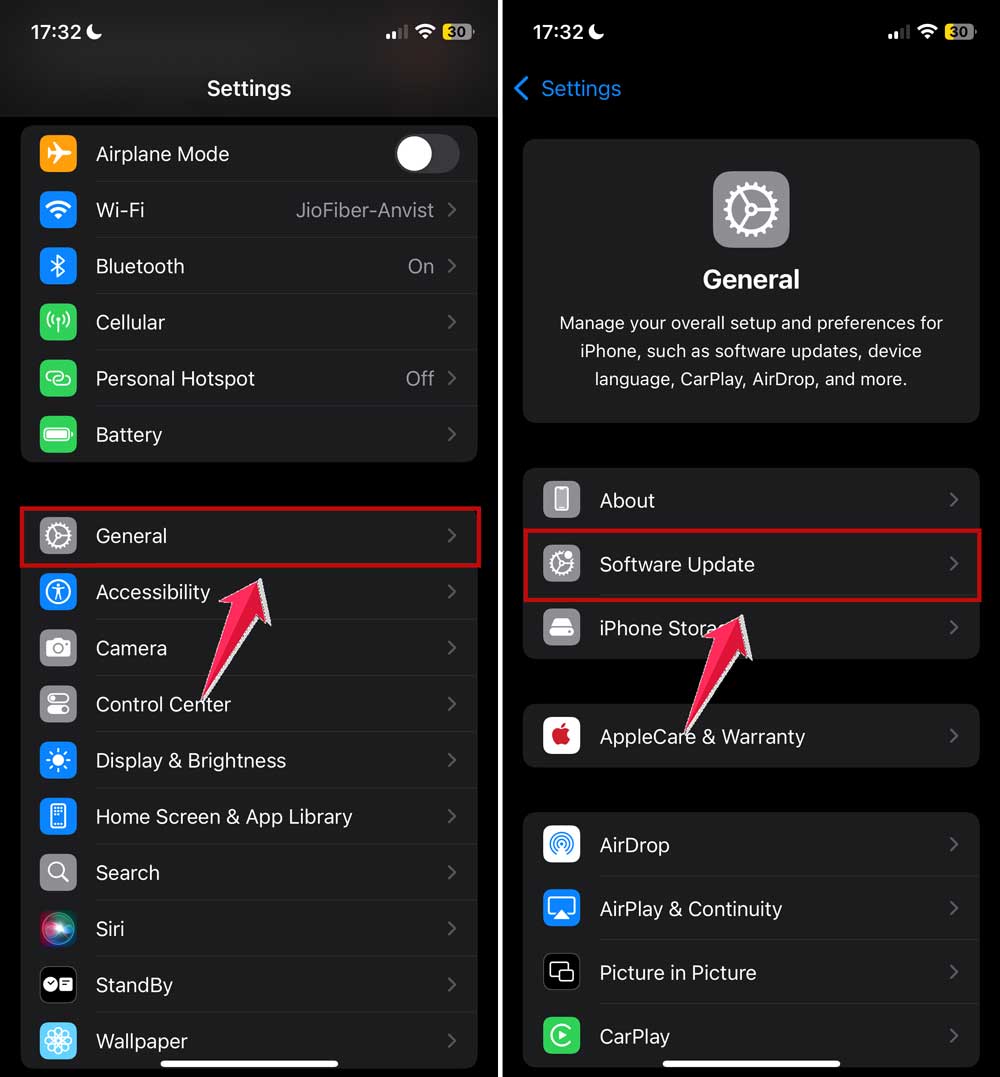
On your Apple Watch:
- Open the Watch app on your iPhone > Tap General > Software Update.
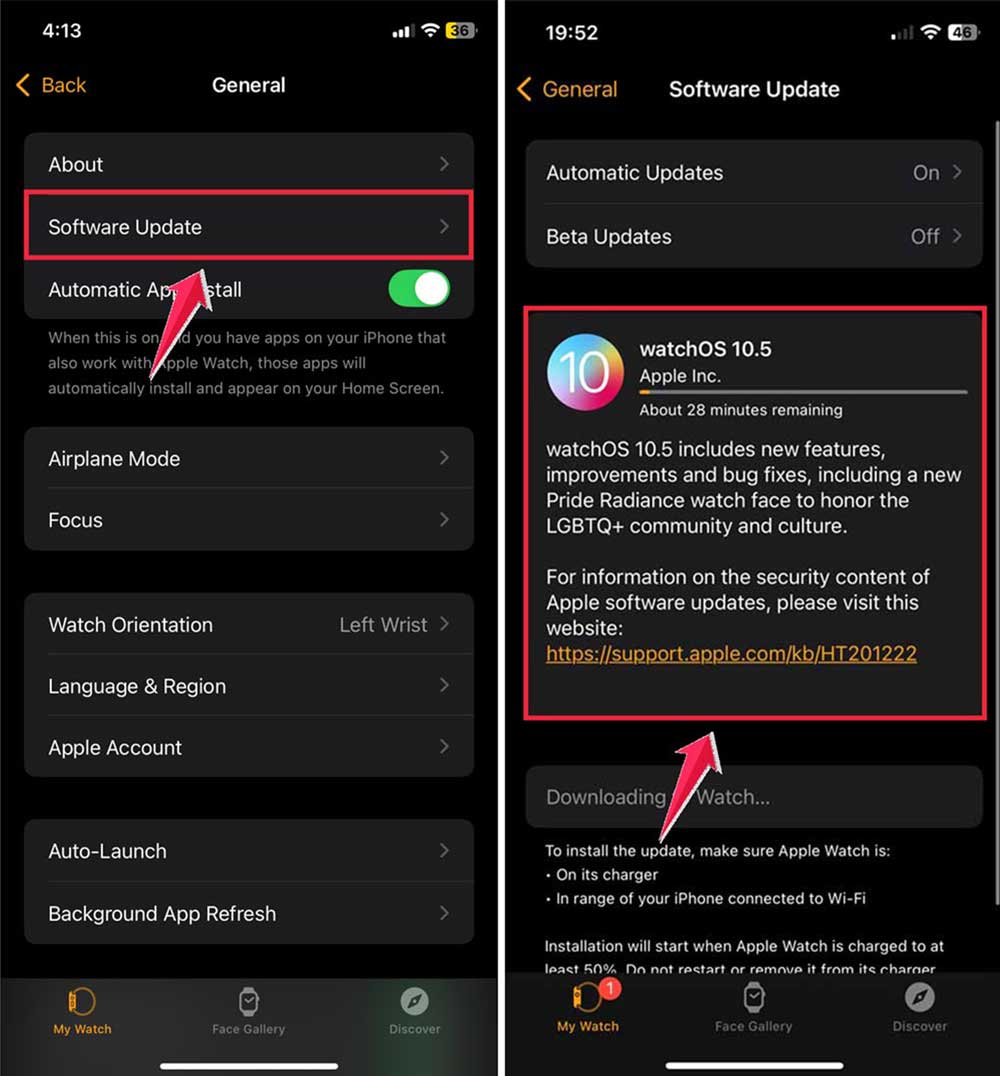
Once both are up to date, try using your watch to control your phone again. If it still doesn’t work, let’s keep going.
#2 Make sure Bluetooth is working
Bluetooth is the bridge between your devices. If it’s off or acting weird, your Apple Watch can’t talk to your iPhone.
Here’s what to do:
- Open Control Center on your iPhone and check that the Bluetooth icon is blue. That means it’s on.
- Do the same on your Apple Watch. Swipe up and make sure Bluetooth is active.
- Keep your iPhone and Apple Watch close together. They need to stay within a short range to stay connected.
If Bluetooth still seems off, try turning it off and back on again on both devices. Sometimes, that’s all it takes.
#3 Turn on Apple Watch Mirroring
This setting lets you watch control your iPhone directly. If it’s off, your devices might not be syncing properly. It’s a quick fix, and it makes a big difference.
To turn it on:
- Go to your iPhone’s Settings.
- Tap Accessibility.
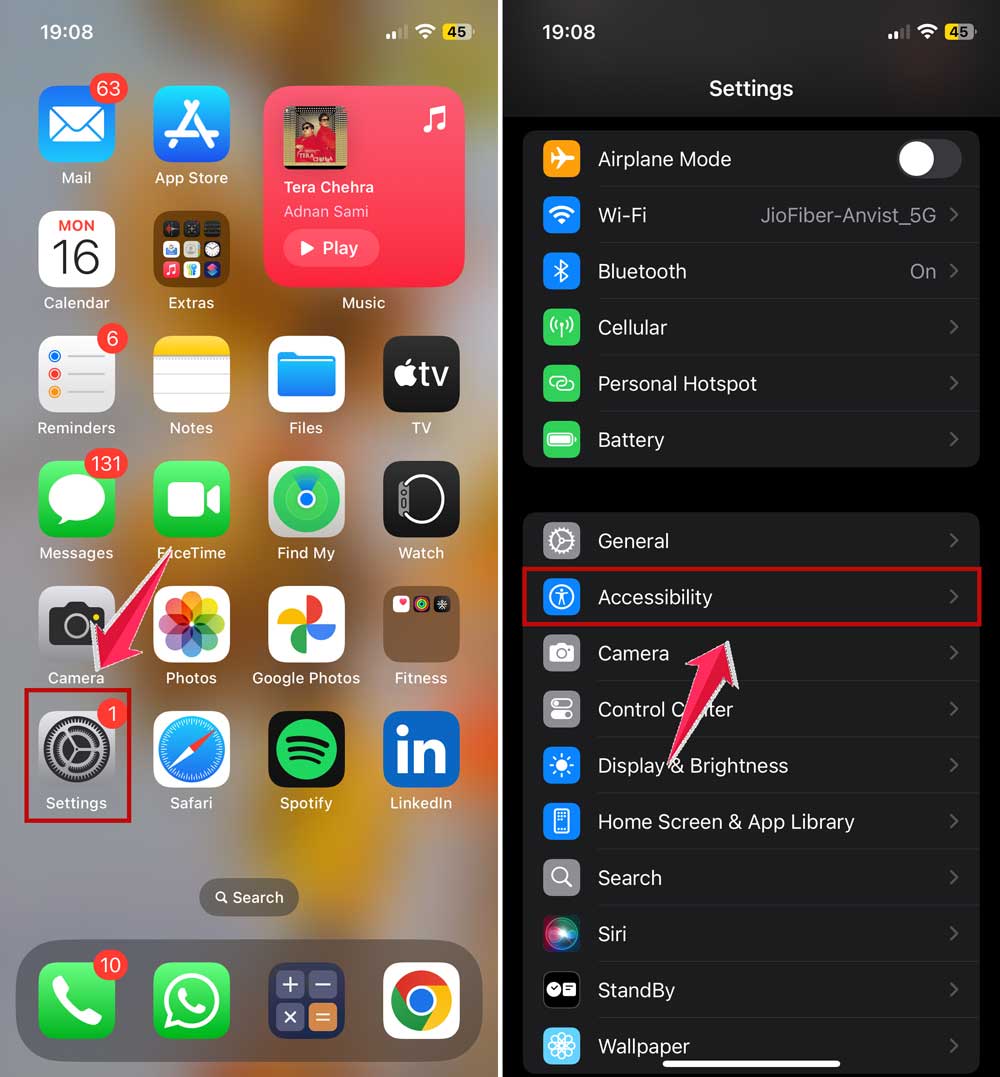
- Select Apple Watch Mirroring and turn it on.

If it was already on, try toggling it off and on again. That can sometimes refresh the connection.
#4 Check the apps on your watch
Some features need specific apps to work. If an app is missing or not installed properly, your watch might not be able to control your phone the way you want.
Here’s what to do:
- Open the Watch app on your iPhone.
- Scroll to see if apps like Remote are installed.
- If not, go to the App Store and download them.
Once installed, open the app and test if your Apple Watch can now control your iPhone. It should work better now.
#5 Restart both devices
Sometimes, your devices just need a quick reboot. It’s like giving them a fresh start. This can fix small glitches that mess up the connection.
Restart your devices like this:
- On iPhone: Hold the power button and either of the volume buttons until you see the power slider. Slide it off. Then turn it back on after a few seconds.

- On Apple Watch: Press and hold the side button until you see the power slider. Slide it to turn off. Wait a bit, then press the button again to turn it back on.
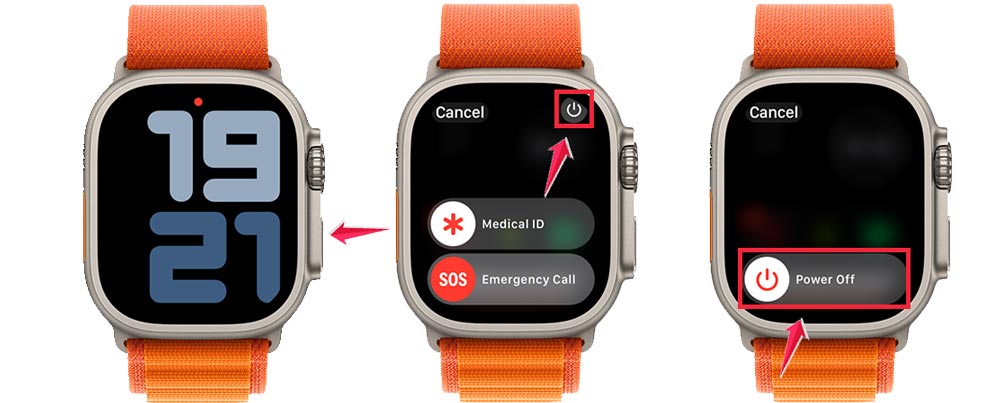
Once both are back on, try using your Apple Watch to control your iPhone. If it works. Great! If not, let’s keep going.
Extra tips to make your life easier
Alright, now that we’ve covered the main fixes, here are some bonus tips to help you get the most out of your Apple Watch and iPhone.
1. Stay on top of notifications
Don’t miss important messages or alerts. Your Apple Watch can show you notifications instantly, even when your phone is in your pocket or bag. Just make sure notifications are enabled in your Watch settings.
2. Customize your watch face
Make your watch work for you. Add the apps and info you use most to your watch face. That way, you get quick access to what matters without digging around.
3. Unlock your iPhone with your watch
Face ID not working with a mask? No problem. You can unlock your iPhone using your Apple Watch. Go to Settings > Face ID & Passcode on your iPhone and turn on Unlock with Apple Watch.

4. Control smart home devices
Your watch can do more than you think. If you’ve got smart lights, plugs, or thermostats, you can control them right from your wrist. Just make sure the correct apps are installed and connected.
5. Keep an eye on battery levels
Don’t get caught with a dead battery. Swipe up on your Apple Watch to check battery status.
You can also enable Low Power Mode when needed to stretch battery life a bit longer.
The takeaway
So, your Apple Watch isn’t controlling your iPhone like it should? That’s frustrating. But totally fixable.
Most of the time, it’s something simple like a software update or a Bluetooth hiccup.
We talked about making sure your devices are updated, checking Bluetooth, turning on Apple Watch Mirroring, installing the right apps, and restarting your devices.
These steps solve the problem for most people. And even if they don’t, don’t worry. Apple Support is always there to help.
Try these fixes and see how it goes. Chances are, you’ll have everything working smoothly in no time.
If you’ve got any questions or your own tips, feel free to drop a comment below. I’d love to hear from you!