Have you ever noticed that Apple doesn’t really let you download those big iOS updates using your phone’s data?
They prefer you to be on a good, steady Wi-Fi connection. That makes sense, right?
But what if you’re somewhere without Wi-Fi and you just got a notification for the cool new iOS update?
You might be thinking, “Can I still update my iPhone without Wi-Fi?” The answer is yes!
And guess what? I’m here to show you how. Stick with me, and by the end of this article, you’ll know all the tricks!
Can You Update Your iPhone without Wi-Fi? Yes, Here’s How!
Although Apple typically prefers you to update your iPhone via Wi-Fi, you can indeed use an alternative method.
If you’re thinking about using your cellular data directly from your phone, hold that thought. It’s not that simple.
But if you have access to a computer with an internet connection, you’re all set.
iOS updates can be quite large. Make sure to check your iPhone’s storage to ensure you have enough space to install the new update.
This way, you’ll avoid any hiccups during the installation process. Let’s get your iPhone up-to-date, even without Wi-Fi!
How to Update iOS Without Wi-Fi: Explore These 4 Methods
Here are four effective methods to help you upgrade to the latest iOS, even without a Wi-Fi connection. Let’s dive right in!
Method 1: Use Cellular Data To Update the iOS
It’s totally possible to update your iPhone using cellular data. Just follow these simple steps:
- Activate Your Data: First, ensure your cellular data is turned on. Go to Settings and switch on the cellular data option. If you’re having trouble with your cellular connection, you might fix it.
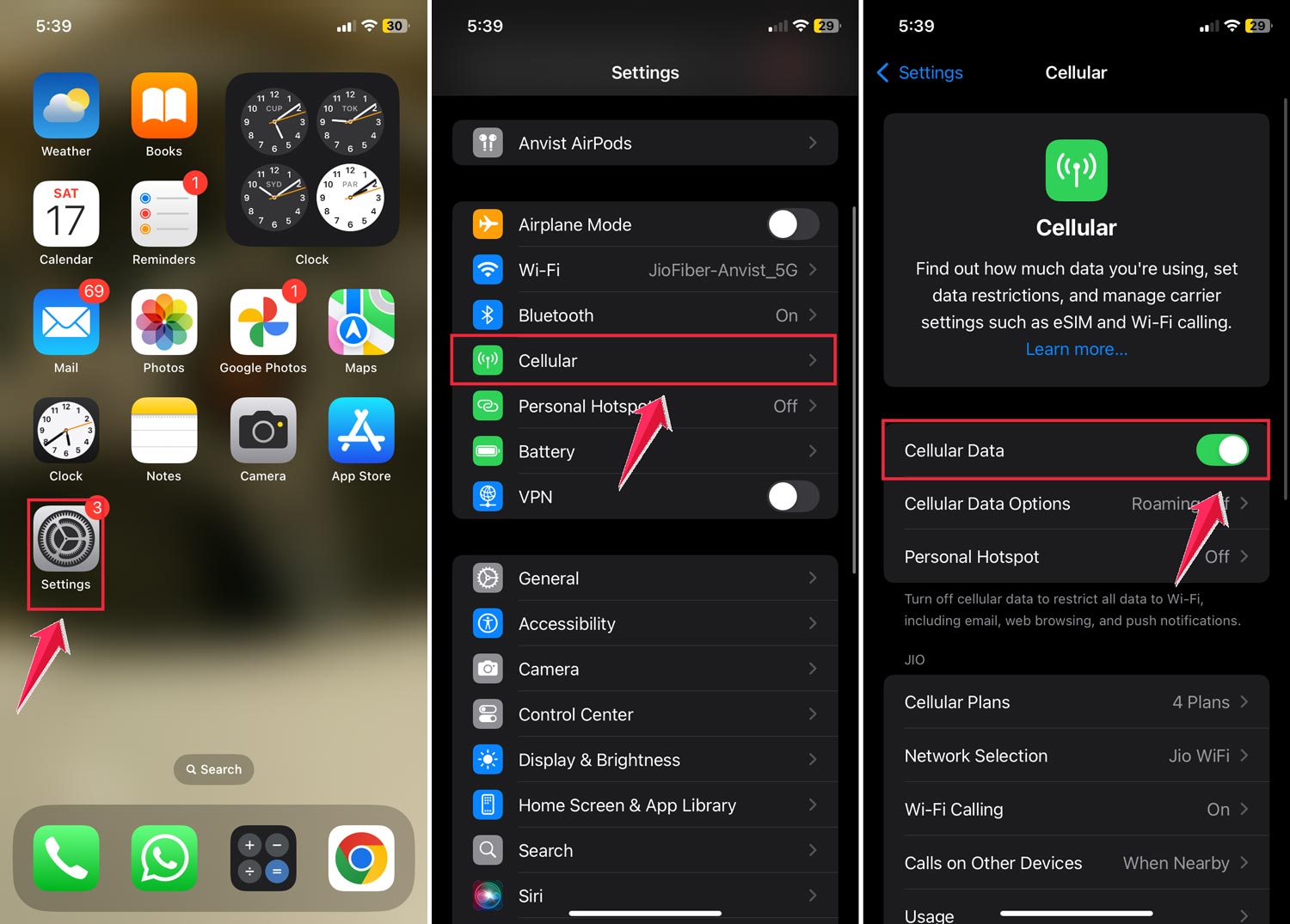
- Navigate to Update: Open Settings, tap on “General,” then “Software Update.” If there’s an update available, it will appear here.
- Download and Install: Tap “Download and Install” to start the update process with your cellular data.
- Patience is Key: Once the download is complete, tap “Install Now.” While the update is installed, you might as well grab a coffee or check out some memes. Just give it a little time.

Method 2: Use iTunes to Update to iOS
If you prefer using your computer, iTunes is a reliable ally. Here’s how to update with iTunes:
- Connect Your iPhone: Plug your iPhone into your computer using a USB cable and open iTunes.
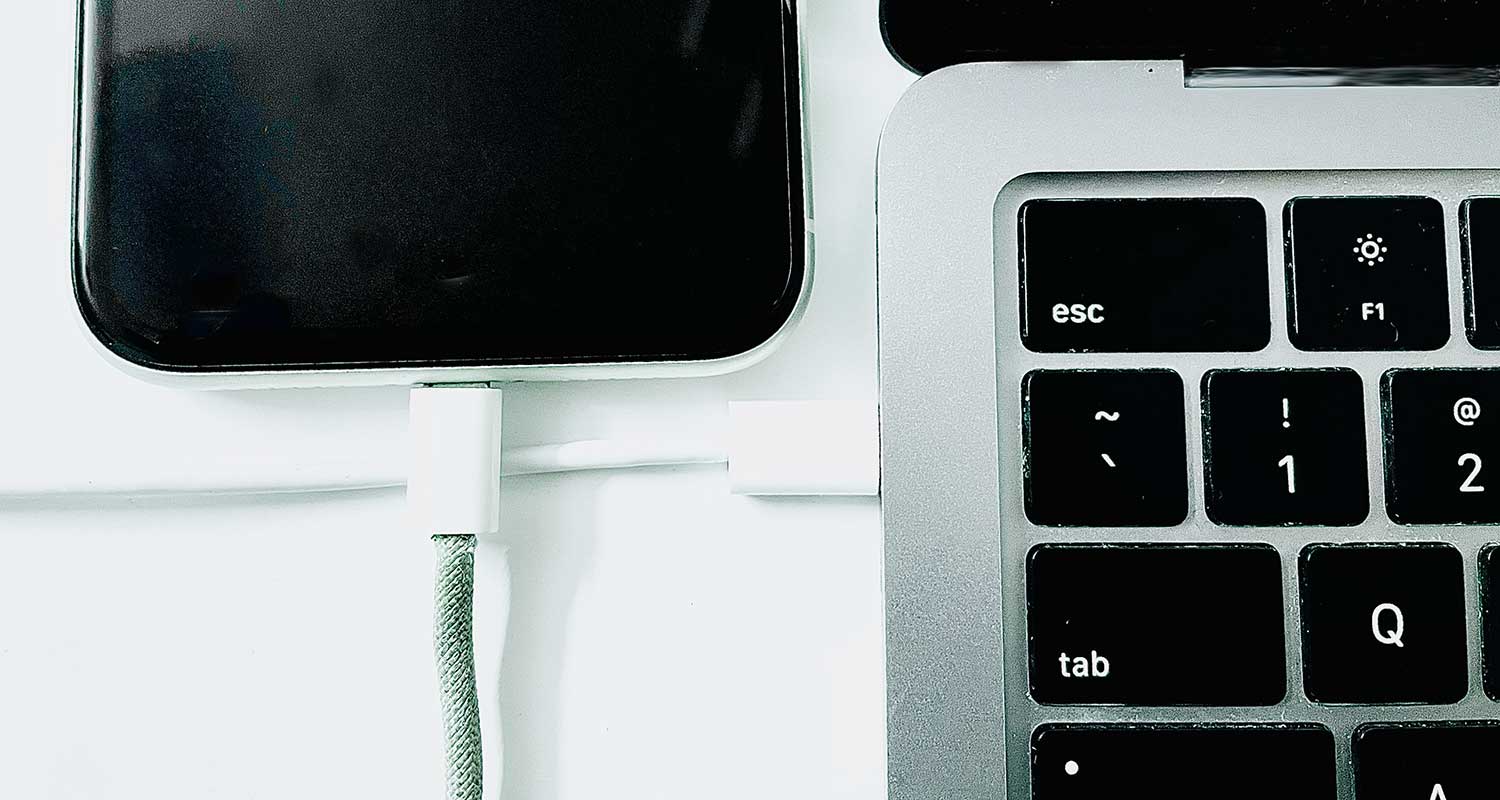
- Access Your iPhone on iTunes: Click on the iPhone icon in iTunes to access your device’s summary.

- Check for Updates: Select “Check for Updates” from the summary pane.

- Download the Update: If an update is available, click “Download” to begin downloading it through iTunes.
- Install the Update: After downloading, click “Update” to install the iOS on your iPhone. Keep your device connected until the update is complete.

Method 3: Update Your iPhone Using A Hotspot
Got no Wi-Fi or cellular data but still need to update your iPhone? No worries! Here’s a clever workaround using a personal hotspot:
- Set Up the Hotspot: Find a friend with data to spare, or use a second phone, and enable the personal hotspot. Just go to Settings > Personal Hotspot on that device.

- Connect Your iPhone: On your iPhone, turn on Wi-Fi and connect to the hotspot you just set up. It’s a bit like borrowing Wi-Fi instead of sugar from your neighbor!
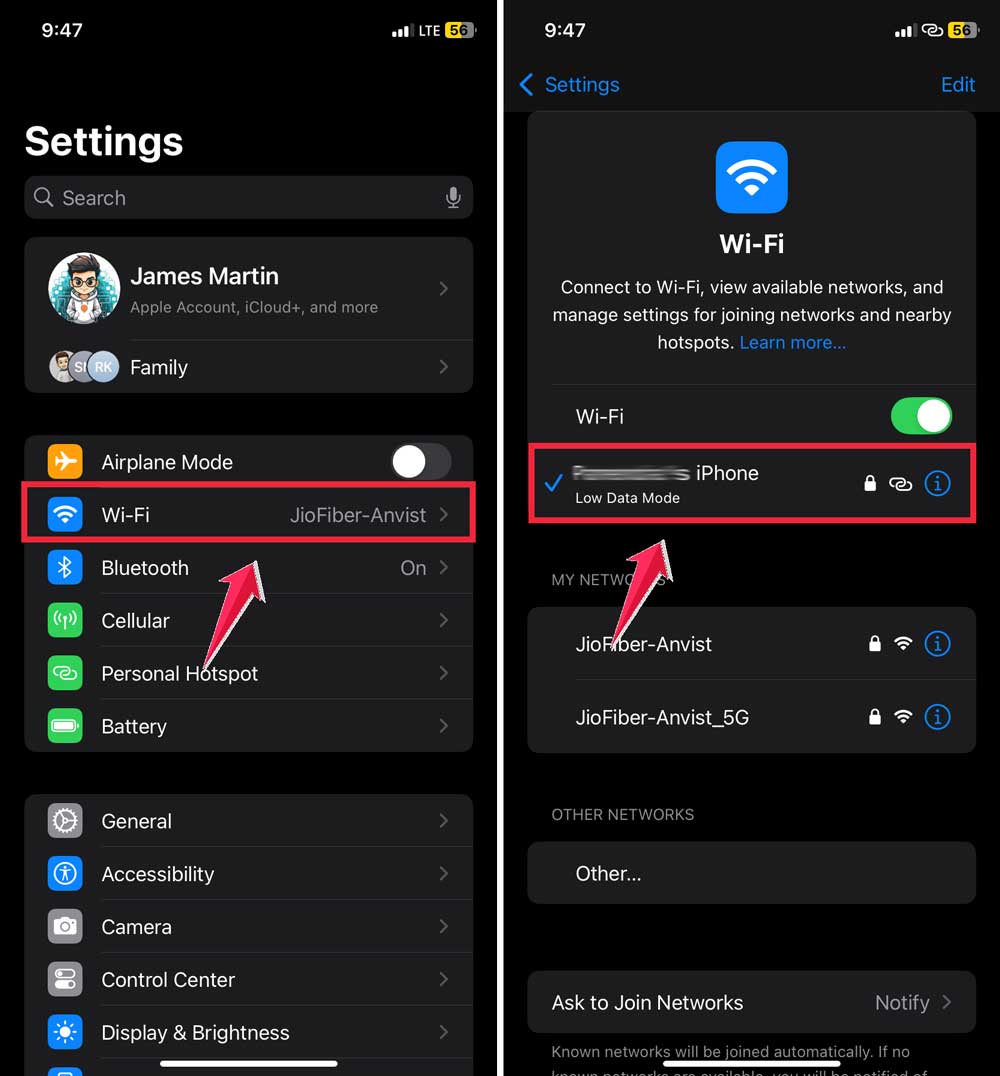
- Download and Install the Update: Head to Settings > General > Software Update on your iPhone. Tap “Download and Install” to start updating your iPhone via the hotspot.
Method 4: Download iOS Updates On A Different Date
Here’s a quirky trick to prompt your iPhone to update. It involves changing the date and time settings:
- Access Settings: Start by opening the Settings app on your iPhone.
- Navigate to Date and Time: Tap on General, then find and tap on “Date & Time”.
- Deactivate Automatic Settings: Turn off the “Set Automatically” option to manually change the date.
- Change the Date: Adjust the date forward by about a month. For example, if today’s date is 29-Sept-2022, change it to 29-Oct-2022.
- Trigger the Update: Go back to General and tap on “Software Update”. Then, select “Download and Install” to start the update process.
- Reset the Date: Once the update begins downloading, return to the Date & Time settings and turn on “Set Automatically” to reset your iPhone’s date.
- Complete the Update: Follow the on-screen instructions to finish updating your iPhone. Once it restarts, your device will be up-to-date with the latest iOS version.
In Conclusion To
And there you have it. Four clever ways to update your iPhone without relying on a Wi-Fi connection.
Whether you use your cellular data, iTunes, a personal hotspot, or even a little data manipulation trick, you’ve got options to keep your iPhone current with the latest iOS.
Feel free to try out these methods and see which one suits your situation best.
If you run into any hiccups or have questions about any of the steps, just drop a comment below. I’m here to help and ensure your updating process is as smooth as possible.
Happy updating, and enjoy the new features of your iPhone!