Ever looked at your AirPods and your gaming PC and wondered if they could work together? You’re not alone.
Many gamers who own AirPods are curious about using them for their PC gaming sessions.
Maybe you’re tired of your bulky gaming headset and want something more comfortable.
Or perhaps you love your AirPods for music and calls, and you’re hoping to use them for gaming, too. AirPods can be surprisingly versatile, but there are some things you should know before you dive in.
Whatever your reason, you’ve probably got questions about compatibility, sound quality, and performance.
The good news is that you can use AirPods with your Windows gaming PC. But there are some things you should know before you dive in.
In this article, you’ll learn how to connect your AirPods to your PC, what features you can expect to work, and how they might affect your gaming experience.
We’ll cover everything from sound quality to microphone performance so you can decide if AirPods are the right choice for your gaming needs.
Let’s get started and find out if your AirPods can level up your PC gaming experience.
Which AirPods can you use with your Windows gaming PC?
If you’re thinking about using your AirPods for gaming on your Windows PC, you’re probably wondering which models are compatible. Let’s break it down for you.
1. Standard AirPods
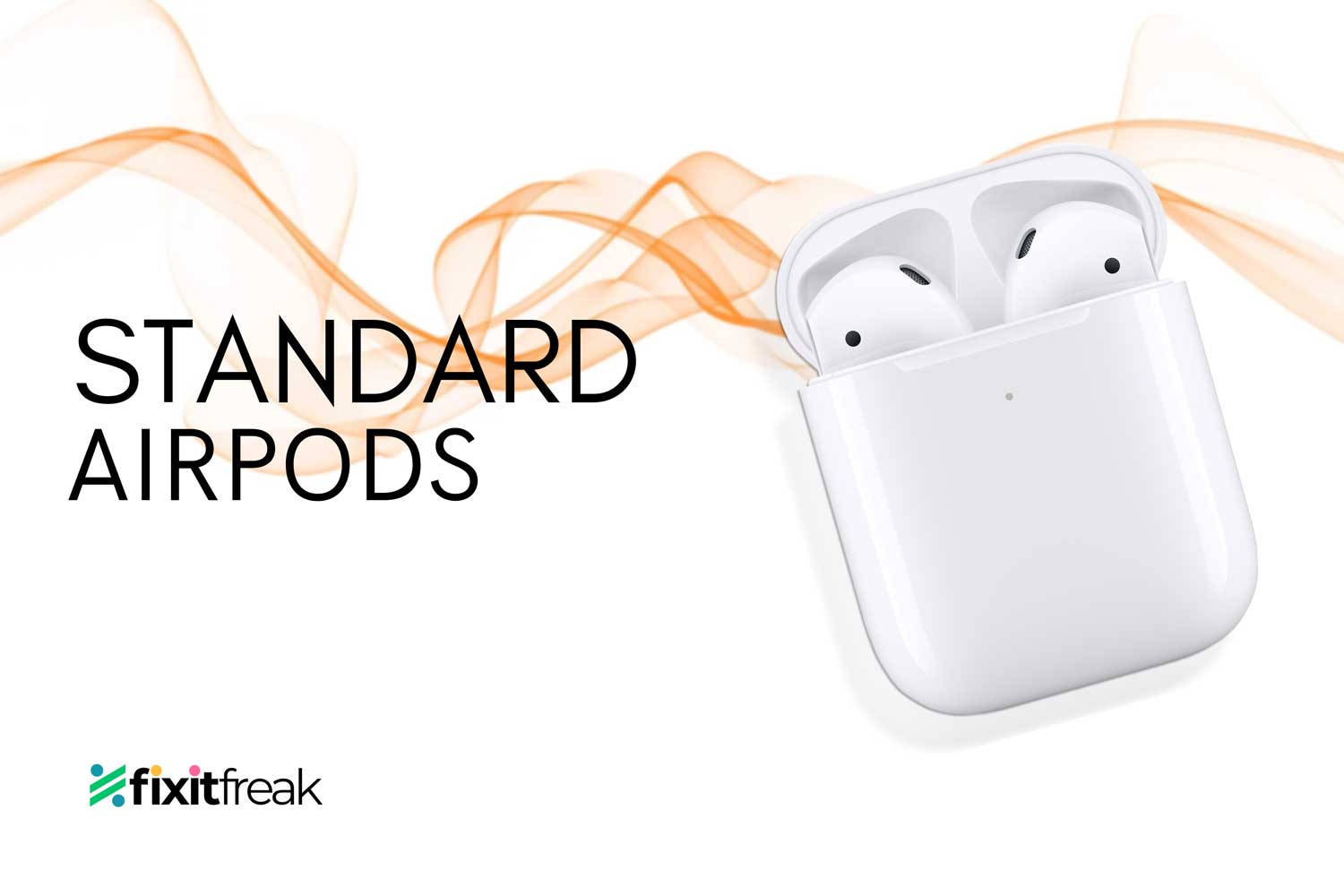
The original AirPods, including all three generations, can connect to your Windows PC via Bluetooth. Here’s what you need to know:
- They come with a charging case and have touch controls.
- They include microphones, which could be useful for in-game chat.
- When connected to Windows, you’ll likely only get basic functions.
- Some users report issues with touch controls and microphone performance.
2. AirPods Pro
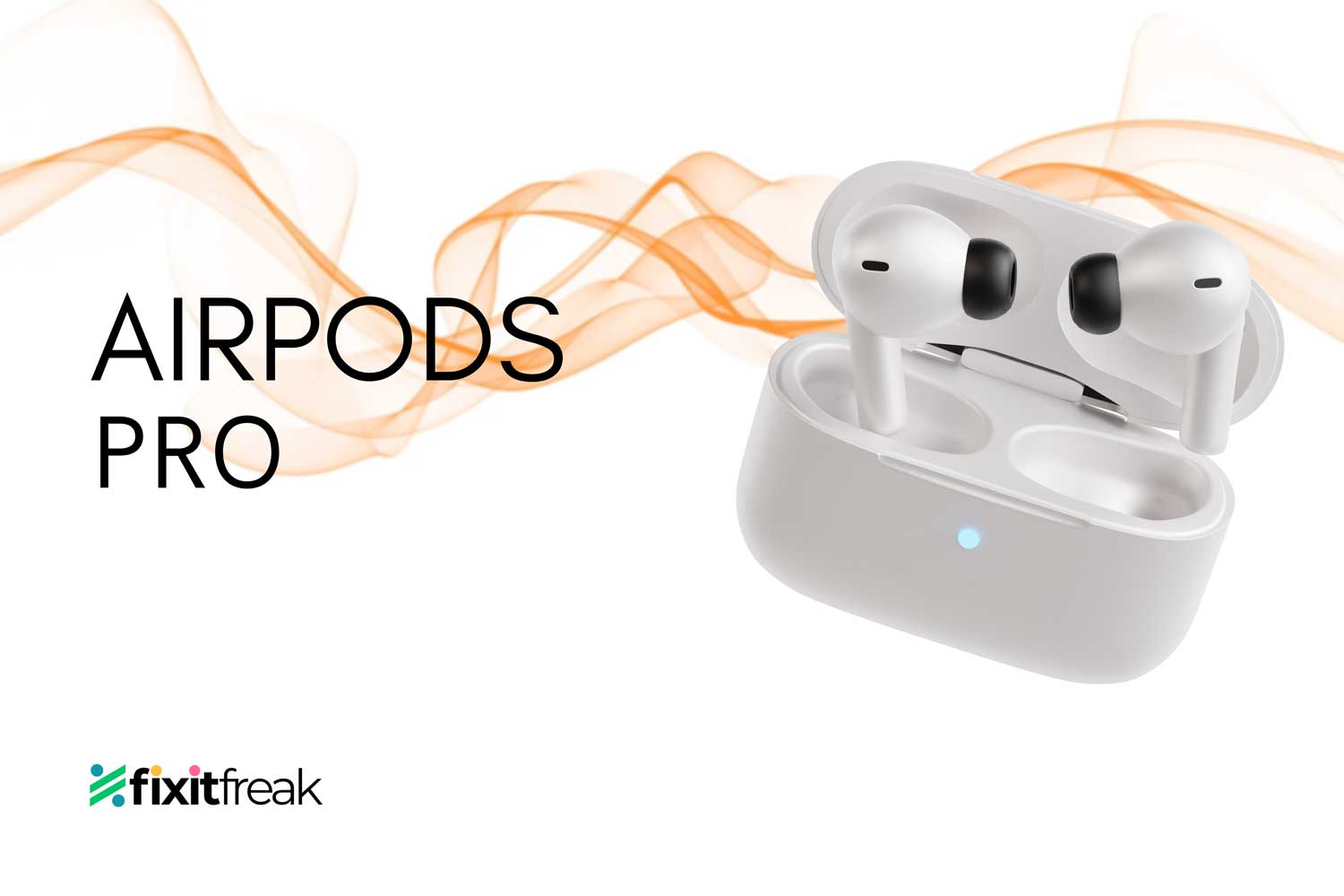
The AirPods Pro offers a few extra features that might enhance your gaming experience:
- They have noise cancellation, which could help you focus on your game.
- The silicone tips provide a more secure fit, useful for longer gaming sessions.
- Noise cancellation works regardless of the device they’re connected to.
- They tend to work slightly better with Windows PCs compared to standard AirPods.
3. AirPods Max
If you prefer over-ear headphones, the AirPods Max can connect to your Windows PC, but:
- They’re larger and might be more comfortable for extended gaming sessions.
- There have been reports of issues, especially with microphone functionality on Windows.
Are AirPods good for gaming on your PC?
Now, let’s address the big question: should you use AirPods for gaming on your Windows PC?
1. Audio quality
The sound quality of AirPods is generally good, offering crisp audio that can enhance your gaming experience.
However, they might not provide the same level of immersive sound as dedicated gaming headsets.
2. Connectivity and features
Here’s where things get tricky. While AirPods can connect to your Windows PC, you might encounter some issues:
- Occasional disconnects can be frustrating during gameplay.
- Microphone problems potentially affect in-game communication.
- Limited access to AirPods’ special features when used with Windows.
What to Consider
If you’re serious about PC gaming, you might want to think twice before relying solely on AirPods. Here’s why:
- Stability is crucial in gaming. Imagine your AirPods disconnecting during an intense match! Connectivity issues can be frustrating, especially when you’re in the middle of a game.
- Clear communication is often essential, especially in team-based games.
- Many games benefit from surround sound, which AirPods don’t provide.
If you’re a casual gamer, AirPods might work just fine. But for more serious gaming, you might want to consider a wired headset or a Bluetooth option designed specifically for Windows PCs.
These will likely provide a more reliable and feature-rich experience for your gaming sessions.
How to connect your AirPods to your gaming PC
Want to use your AirPods with your Windows PC for gaming? You can do it in just a few steps. Here’s how:
- Make sure your AirPods are charged. You don’t want them dying in the middle of your game!
- Open the Settings menu on your PC. You can usually find this by clicking the gear icon near the Start button.

- In Settings, click on “Devices“.
- Select “Bluetooth & other devices“.

- Turn on Bluetooth by clicking the switch if it’s not already on.
- Click “Add Bluetooth or other device“.
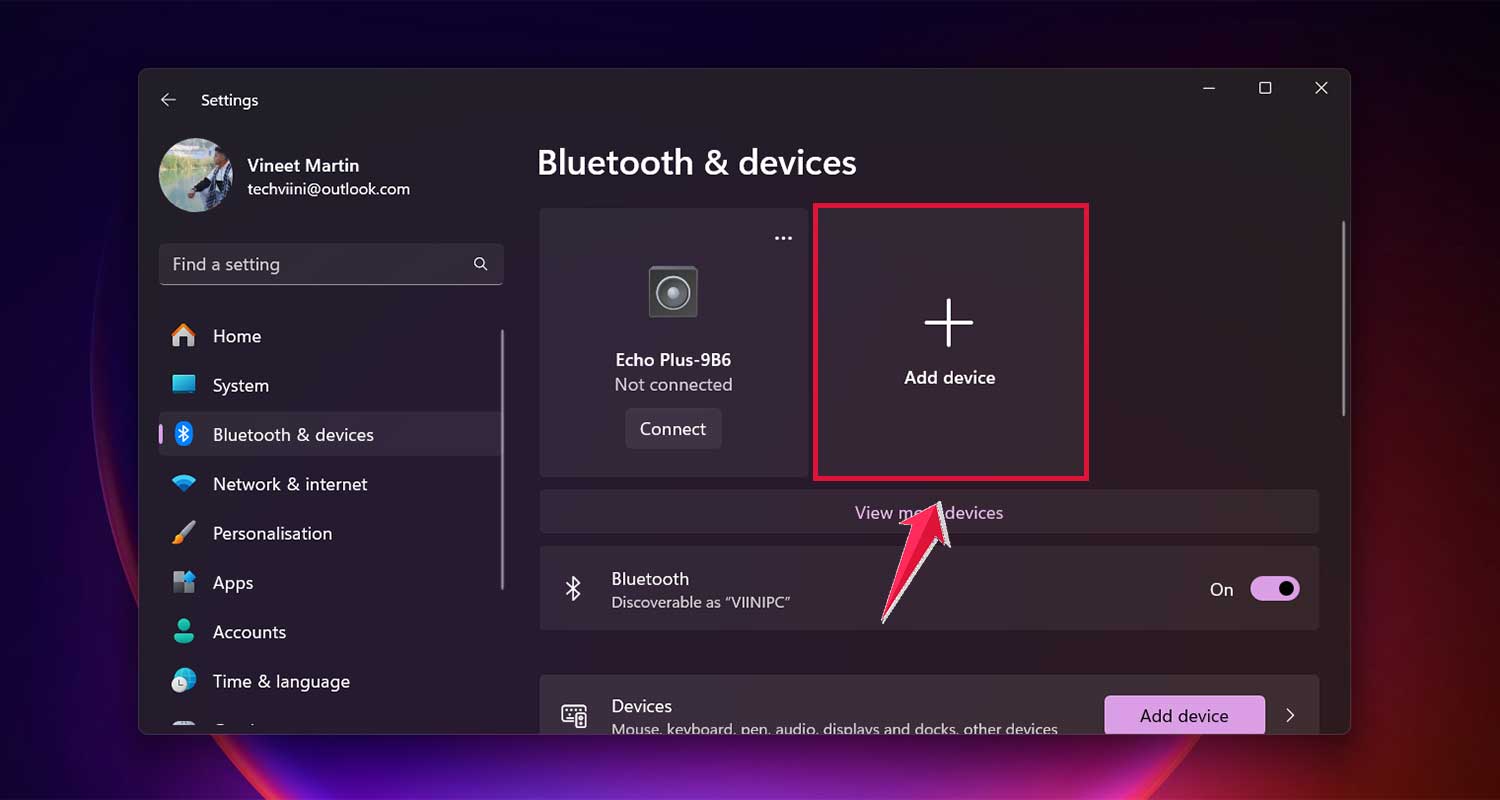
- Open your AirPods case. You should see a small white LED light start flashing.
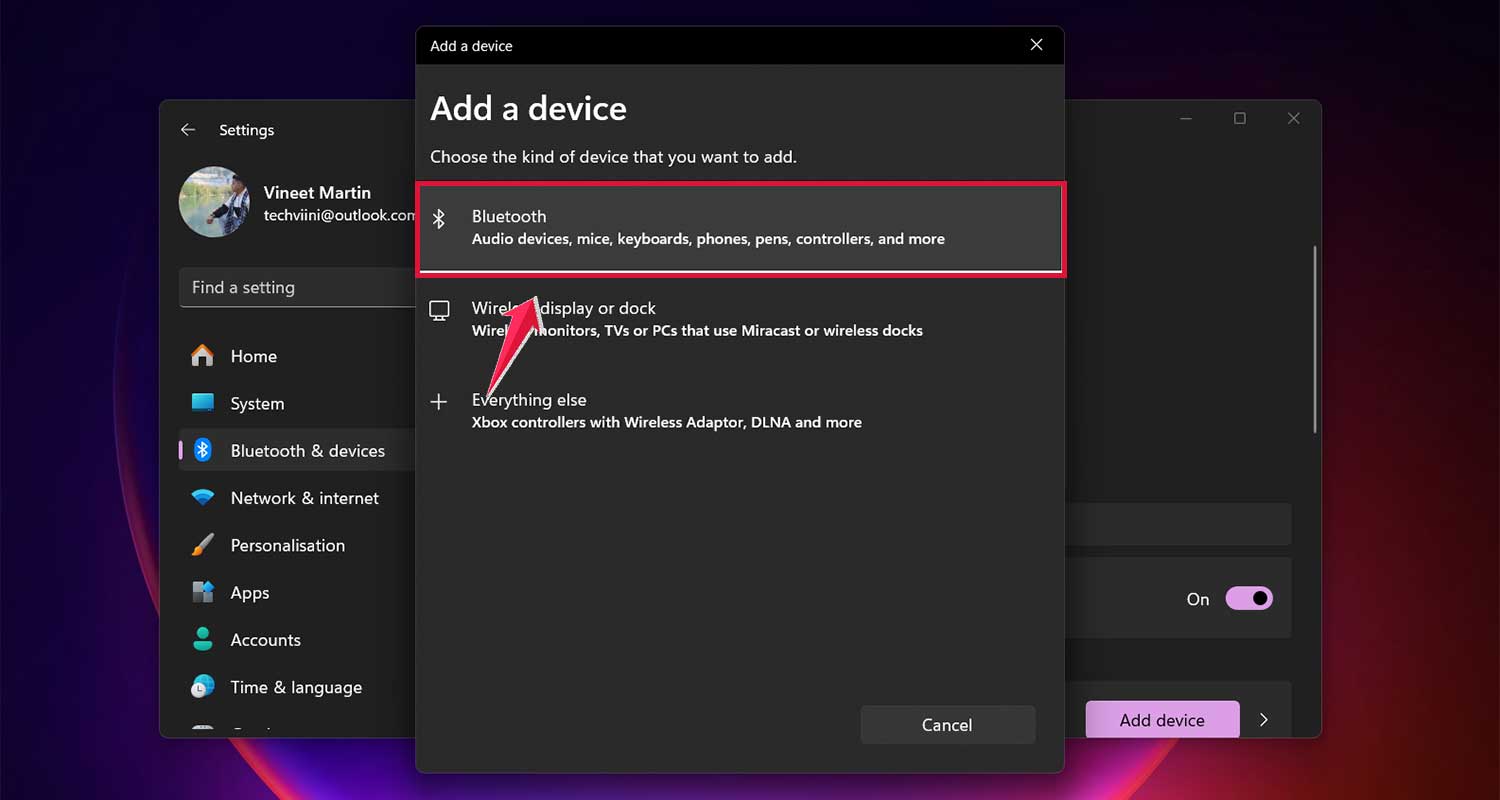
- Look for your AirPods in the list of available devices on your PC and click on them.

- That’s it! Your AirPods should now be connected to your PC.

If you need to adjust your connection settings later, you can find them in the “Windows Bluetooth and other devices settings” section.
How to fix AirPods problems on your gaming PC
Sometimes, your AirPods might not play nice with your Windows PC. Here are some fixes to get you back in the game:
1. Reconnect your AirPods
Often, the simplest solution works best:
- Go to your PC’s Bluetooth devices list.
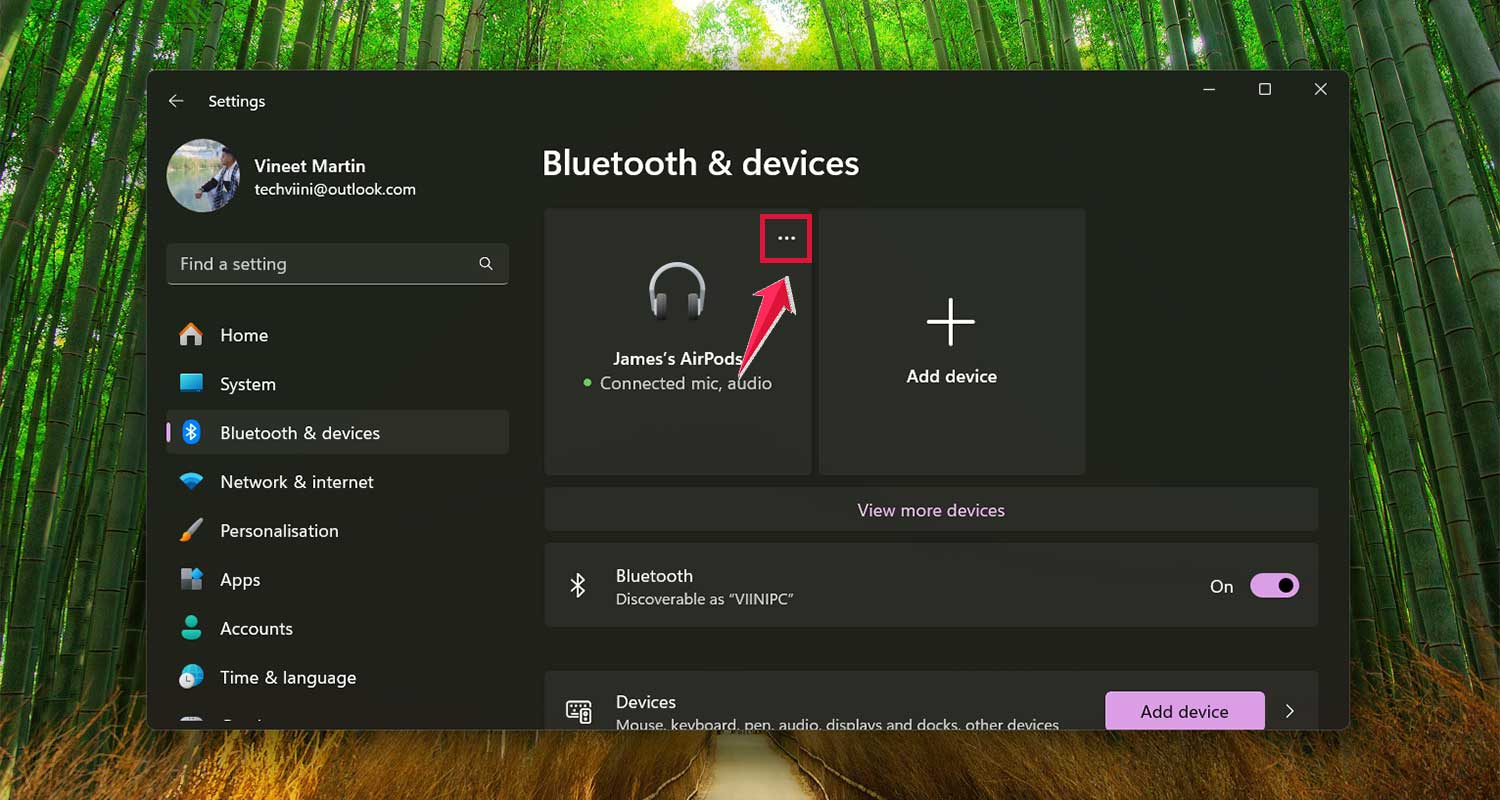
- Remove your AirPods.
- Pair them again as if it’s the first time.

This quick refresh can often solve connection issues.
2. Update your Bluetooth driver
Outdated drivers can cause problems. Here’s how to update:
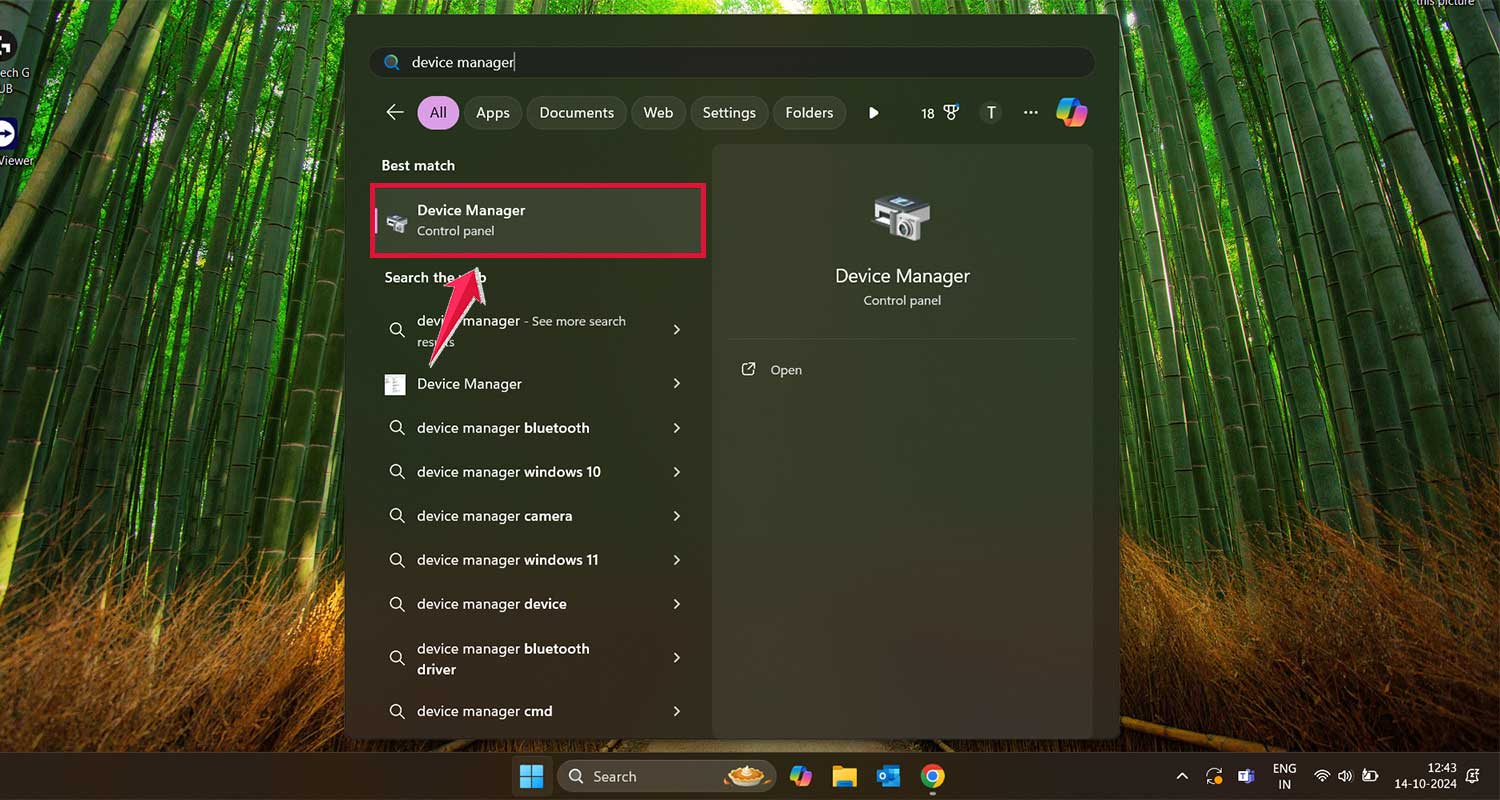
- Open Device Manager on your PC.
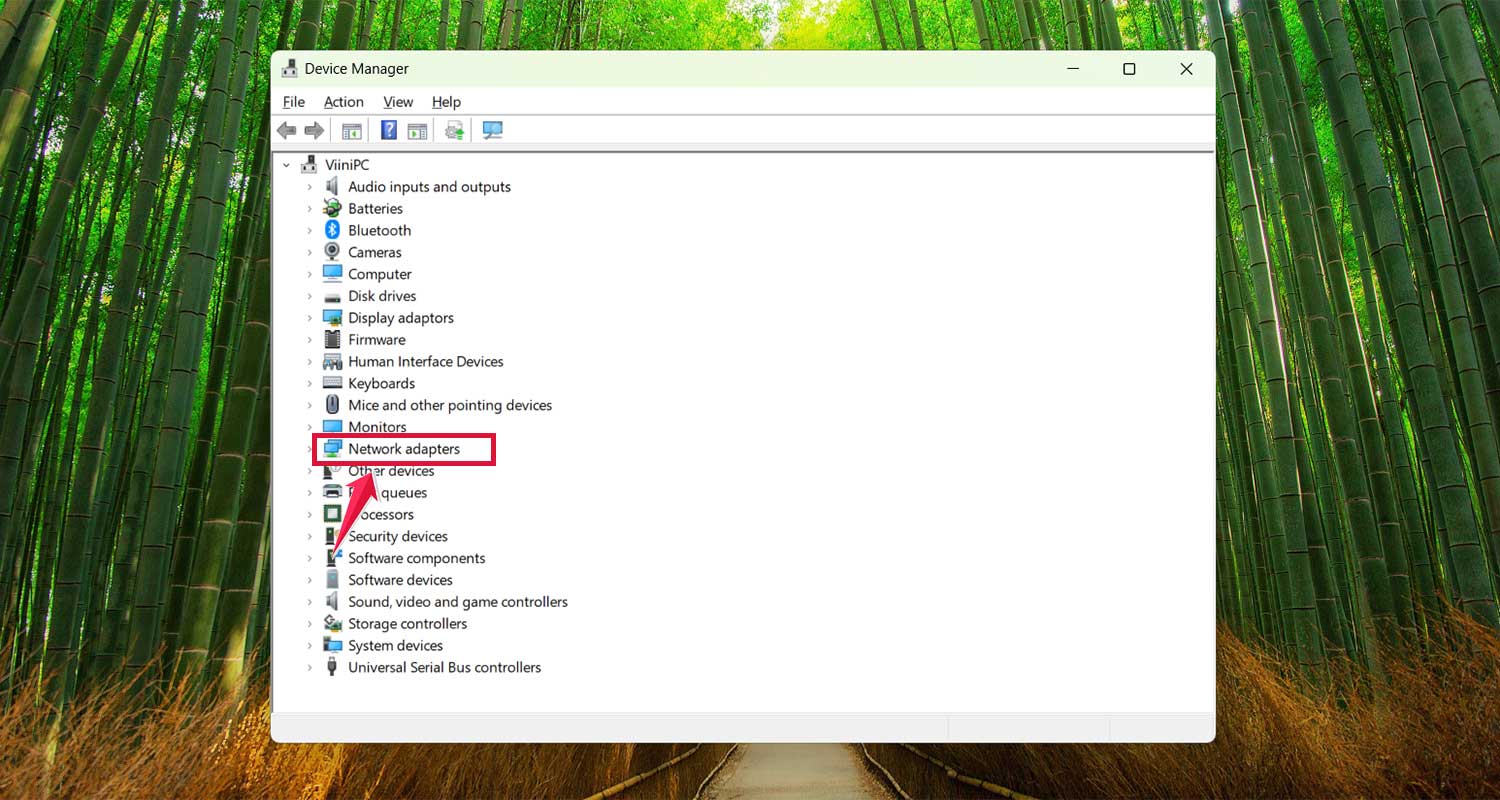
- Find Network Adapters.
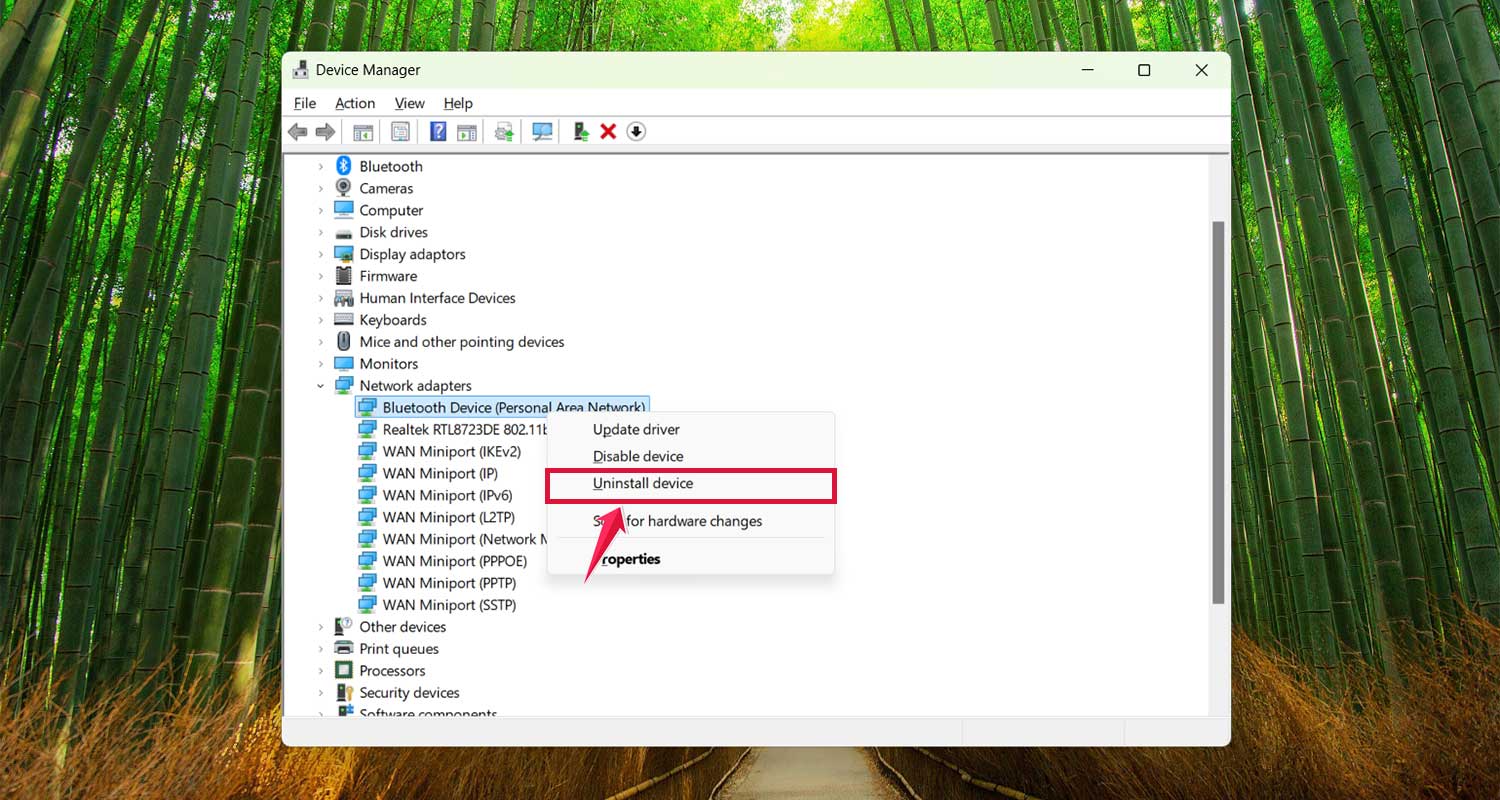
- Uninstall your Bluetooth driver.
- Check on the web for the latest Windows Bluetooth driver.
- Download and install it.

If your PC doesn’t recognize Bluetooth after this, use Scan for hardware changes in Device Manager.
3. Deal with competing Apple devices
Your AirPods might prefer connecting to nearby Apple devices:
- Turn off Bluetooth on other Apple devices.
- Or unpair your AirPods from these devices.
This helps your AirPods stay connected to your gaming PC. Many gamers have reported microphone issues with AirPods on Windows.
4. Manage audio lag
Wireless connections can sometimes cause slight delays:
- This can affect both incoming game audio and your microphone.
- For zero lag, consider using a wired headset for crucial gaming sessions.
5. Reset your Bluetooth adapter
If all else fails, try a fresh start:
- Open Device Manager.
- Expand the Bluetooth section.
- Find your Bluetooth adapter.
- Uninstall it.
- Restart your PC.

Windows should automatically reinstall the Bluetooth adapter when you reboot.
Remember, while AirPods can work with your gaming PC, they’re not designed specifically for this purpose if you’re experiencing persistent issues during important gaming sessions.
A key aspect that many users overlook is understanding the rules of roulette payouts, which determine how much a player wins based on the type of bet placed.
The takeaway
Using AirPods with your Windows gaming PC isn’t as straightforward as you might hope, but it’s definitely possible.
The main challenge is getting these Apple devices to work smoothly with a non-Apple system.
You can connect your AirPods to your PC through Bluetooth, but you might face some issues.
These could include connection problems, audio lag, or trouble with the microphone. Luckily, there are ways to fix these issues, like updating your Bluetooth drivers or reconnecting your AirPods.
It’s a common misconception that AirPods only work well with Apple devices.
While they’re designed for Apple products, they can function with Windows PCs too. You just need to be prepared for a bit of troubleshooting now and then.
In the end, whether you use AirPods for PC gaming comes down to your personal preference.
They can work for casual gaming, but for competitive play or when you need perfect audio sync, you might want to consider a dedicated gaming headset.
The most important thing is to find what works best for you and enhances your gaming experience.
What do you think about using AirPods for PC gaming? Share your experience in the comments!