Ever tried to turn on Voice Control and it just wouldn’t work? Yeah, it’s frustrating.
You’re tapping the settings, expecting it to just work, but then. Nothing.
Don’t worry, you’re not the only one hitting that wall. This happens to a lot of people.
So, what’s going on? Sometimes, it’s a small bug in the system. Other times, it’s outdated software that’s holding you back.
You might’ve even changed a setting without knowing it. Or maybe your device just doesn’t support Voice Control at all. Yes, that’s a thing too.
And why should you care? Well, Voice Control is super helpful. It lets you use your phone without even touching it.
You can open apps, send texts, and more. Just by speaking. If it’s not working, you’re missing out on something really useful.
But here’s the good news: most of the time, it’s an easy fix.
So, let’s go through the reasons Voice Control might not be working and how you can fix it step by step. Ready? Let’s get into it.
What might be stopping Voice Control from working?
Alright, let’s break down the common reasons why Voice Control might not be working on your device.
These are the usual suspects, and once you understand them, fixing things becomes a whole lot easier.
1. Software glitches can mess things up
Sometimes, your device just hits a weird snag. Like a tiny bug in the system. It sounds small, but it can stop features like Voice Control from working properly.
These glitches happen more often than you’d think, and usually, a simple update or restart can fix them.
2. Outdated software might be the issue
If your device hasn’t been updated in a while, that could be the problem. Voice Control is a newer feature, and it works best with the latest software.
If you’re running an old version, things might not work as expected. Think of it like trying to run a new app on an old phone. It just doesn’t click.
3. Settings could be misconfigured
It’s surprisingly easy to change a setting without realizing it. Maybe something got turned off, or maybe a setting was never turned on in the first place.
A small misstep here can stop Voice Control from doing its job. So, it’s worth taking a second look at your settings.
4. Some devices just don’t support Voice Control
Here’s the thing. Voice Control isn’t available on every device. If you’re using an older phone or a budget model, it might not have the hardware or software needed to support it.
Always good to double-check if your device is even compatible before spending too much time troubleshooting.
Alright, now that you know what could be causing the problem, let’s move on to the part you’ve been waiting for. Fixing it.
How to Fix Can’t Enable Voice Control in Accessibility
Okay, now we’re getting into the good stuff. These are the steps you can take to fix the problem. Don’t worry, I’ll walk you through it, and I’ll keep it simple. Let’s do this together.
#1: Check your software version
First things first. Make sure your device is running the latest software. Updates often fix bugs and improve features like Voice Control.
Here’s how you check for updates:
- Open the Settings app on your device.

- Tap on Software Update or System Updates.
- If there’s an update available, download and install it.

Once it’s done, try turning on Voice Control again. Sometimes, that’s all it takes.
#2: Restart your device
Yeah, I know. It sounds basic. But restarting your phone can actually fix a lot of issues. It gives your system a fresh start and clears out small glitches.
To restart your phone:
- Press and hold the power button.
- Tap on Restart or Reboot.

After it turns back on, check if Voice Control works. You’d be surprised how often this step solves everything.
#3: Reset your settings
If you’ve changed settings recently. Or even if you haven’t. It’s possible something’s off.
Resetting your settings can bring things back to normal without deleting your personal stuff.
Here’s how to reset your settings:
- Go to Settings > General.
- Tap on Transfer or Reset iPhone.

- Then tap Reset.
- Select Reset Settings or something similar.
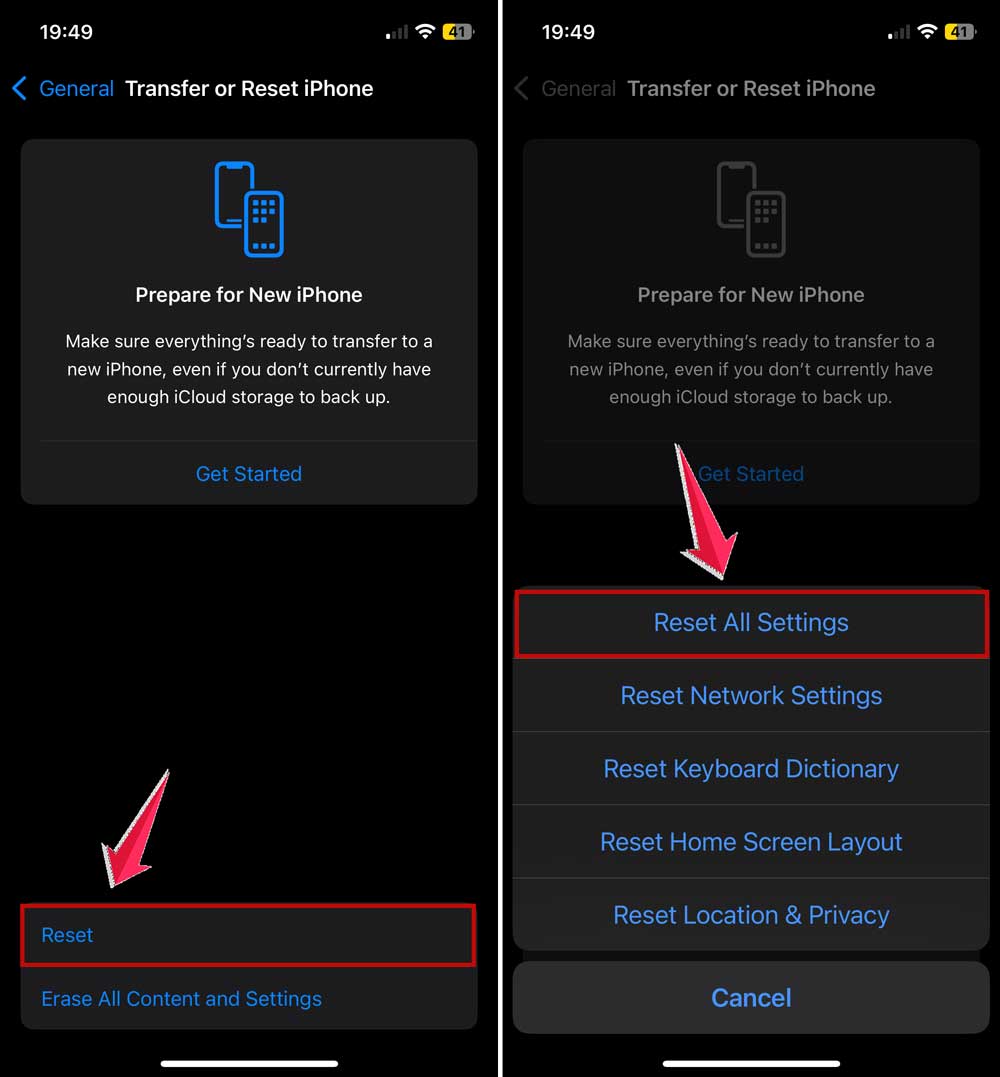
Don’t worry, this won’t delete your photos or apps. It just resets your settings to default, which can fix hidden issues.
#4: Check if your device supports Voice Control
Before we go further, let’s make sure your phone actually supports Voice Control. Some older models or cheaper phones might not have it at all.
Here’s what you can do:
- Visit the manufacturer’s website.
- Find your device model and check the features list.
If you find out your device doesn’t support it, that’s the reason it’s not working. You may need to consider other options like third-party apps.
#5: Make sure Voice Control is downloaded
Sometimes, Voice Control isn’t enabled just because it hasn’t been downloaded yet. It might sound strange, but it happens.
To download Voice Control:
- Open Settings.
- Go to Accessibility or Voice Control.
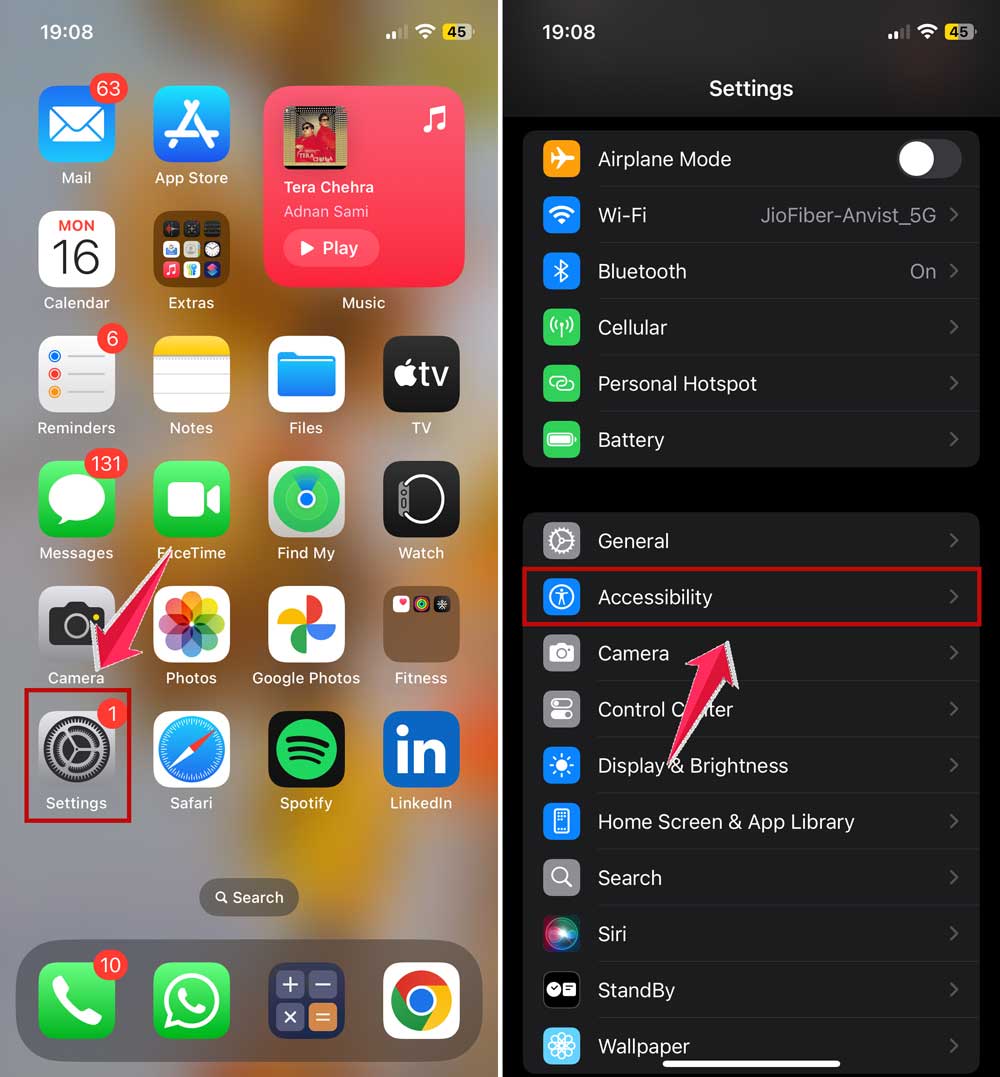
- Check if there’s an option to turn on or update the Voice Control feature.

If you see the option, go ahead and download it. This might be the missing piece.
Still stuck? Try these extra tips
1. Try alternative apps. If built-in Voice Control isn’t working, try a third-party voice assistant app. Some even work better and come with extra features. Just search for “voice assistant” in your app store and check the top-rated ones.
2. Reach out to support. Don’t be afraid to contact customer support. They might know about specific issues with your device and can guide you through steps that aren’t listed here.
3. Join online communities. Tech forums and online groups can be really helpful. Chances are, someone else had the same problem and found a fix. Just search your issue and see what others are saying.
4. Keep your device clean and optimized. Delete unused apps, clear your cache, and make sure your phone isn’t overloaded. A cleaner device runs smoother and might help Voice Control work better.
5. Check your region settings. Some features are limited to certain regions. Go to your settings and make sure your region is set to one that supports Voice Control. Changing it might unlock the feature.
The Takeaway
Trying to enable Voice Control and hitting a wall can be super annoying. But most of the time, the fix is easier than you think.
A simple software update, restarting your phone, or checking your settings can do the trick.
People often assume they need a tech expert, but honestly, these small steps can solve a big chunk of the problems.
So, don’t stress. Go through each fix one by one, and you’ll probably get Voice Control working again without much hassle.
And hey, if something worked for you, drop a comment and let others know. Your experience might help someone else out!