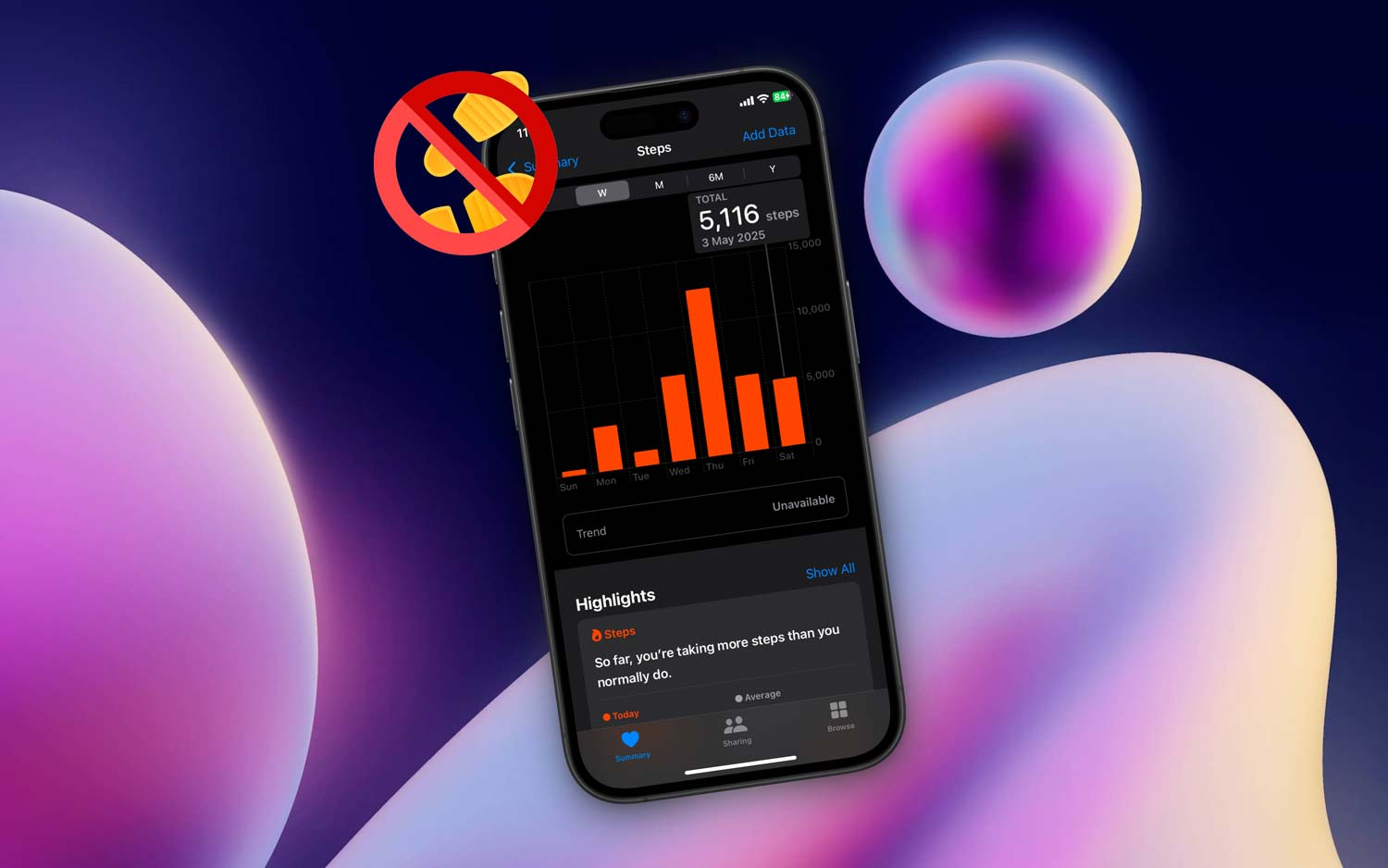
Oh no! Your Apple Health app isn’t tracking your steps, and I know how frustrating that can be.
You’re out there walking, staying active, doing your best, and then you check the app, and nothing. No steps. It feels like all that effort just disappeared.
Now, steps aren’t just numbers. They’re proof of your progress. They show your movement, your habits, and your goals.
So when the app doesn’t track them, yeah. It’s annoying. But don’t worry. You’re not alone, and this is usually something we can fix together.
Most of the time, it’s something simple. Maybe the app doesn’t have the right permissions, or your phone hit a software glitch.
Sometimes, battery-saving modes can stop step tracking, or your phone’s sensors just need a little wake-up call.
So, here’s the good news. I’ve got some easy, clear fixes that’ll help get everything back on track.
We’re going to go through them one by one, and by the end of this, your steps should be showing up just like they should. Ready? Let’s fix this together.
What Could Be Stopping Your Apple Health App From Tracking Steps?
Let’s take a closer look at what might be getting in the way. These are the most common reasons your steps aren’t being counted. And the good news is, most of them are easy to solve.
1. You Might Not Have Given the App Permission
Your phone needs permission to track your movement. If this setting is off, the Health app won’t record anything. Even if you think it’s already set, it’s worth double-checking.
2. Software Glitches Can Happen Anytime
Phones get bugs. It’s normal. A quick update can often fix everything. If your iOS or the Health app is out of date, things might not work right.
3. Battery Saving Modes Could Be Blocking It
Low Power Mode is helpful. But sometimes it cuts off motion tracking to save battery. If you’ve got any battery-saving feature turned on, it might be stopping the app from working properly.
4. Your Phone’s Sensors Might Be Off
Your iPhone uses motion sensors to count steps. If those sensors aren’t working right, your steps won’t be tracked. A simple restart can help reset them.
So, if your Apple Health app isn’t working, chances are one of these things is the cause. Let’s fix them together.
Apple Health App Not Tracking Steps – Fix
Now, let’s roll up our sleeves and fix this. We’ll go through each solution together. Most of these will only take a few minutes, and you don’t need to be tech-savvy. Just follow along.
#1 Check Your App Permissions
Let’s start here. If permissions are off, the app can’t record anything, even if everything else is perfect.
Here’s what you need to do:
- Open Settings on your iPhone.
- Tap Privacy & Security.
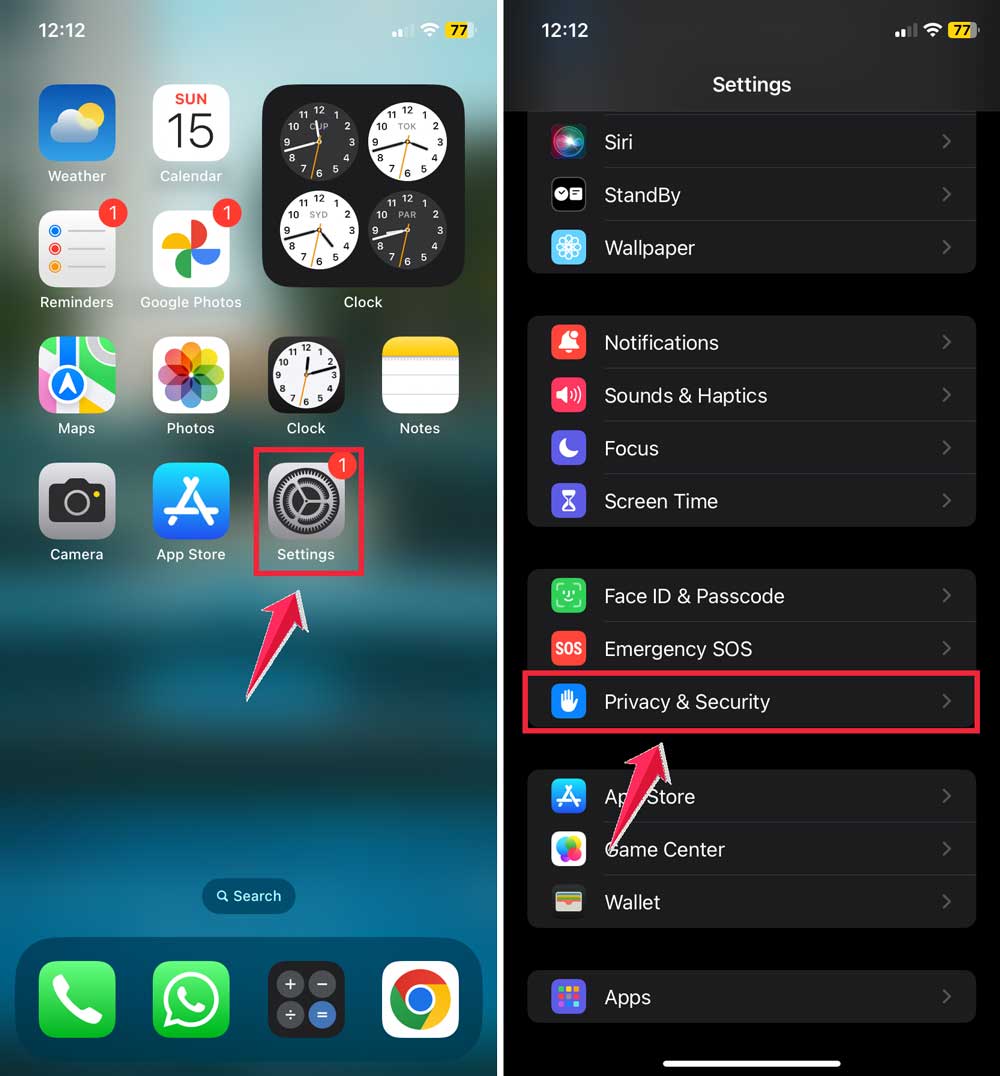
- Choose Motion & Fitness.
- Make sure Fitness Tracking and Health are both turned ON.
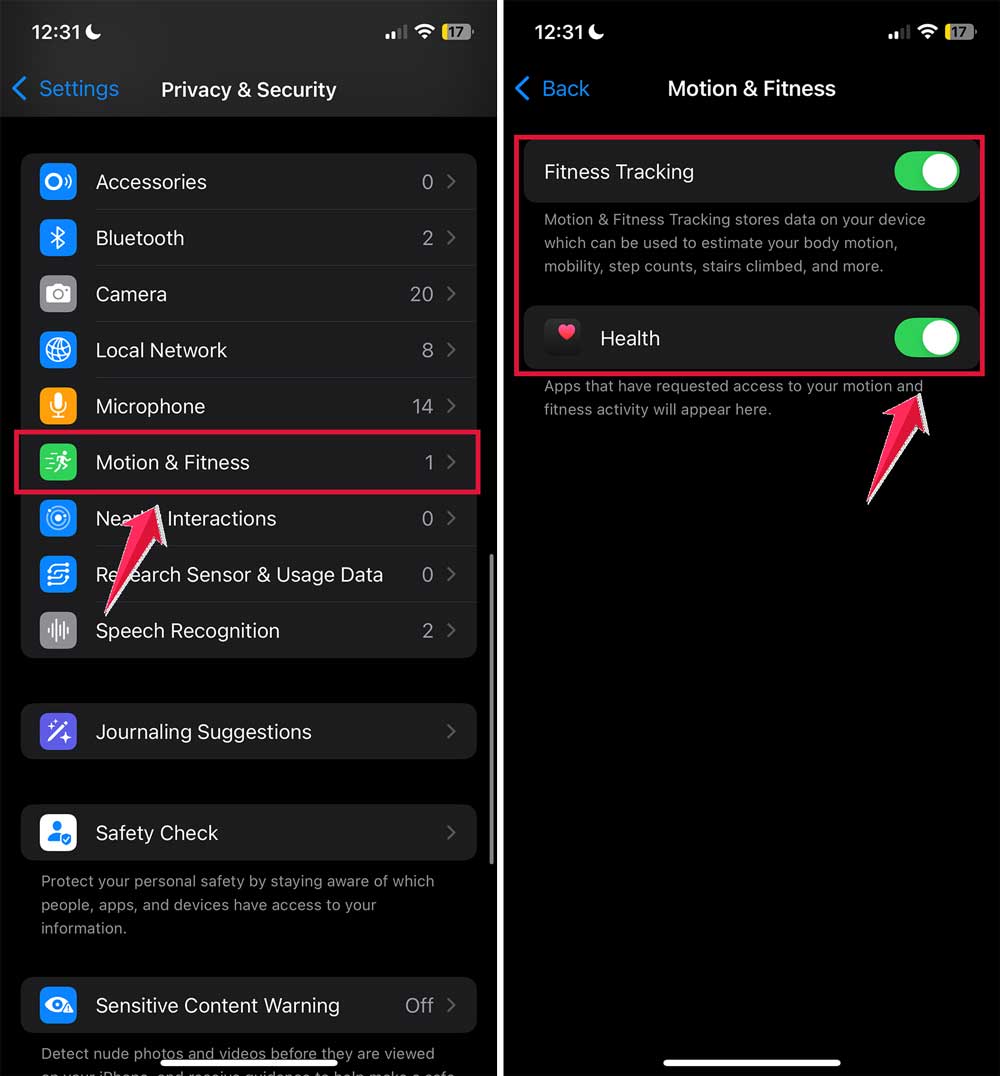
If one of these was off, that could be the reason your steps weren’t showing. Go ahead and turn them on, then take a little walk and see if it starts tracking.
#2 Keep Your iOS and Health App Updated
Outdated software can cause all kinds of weird issues. Let’s check if your phone and app are up to date.
To update your iPhone:
- Go to Settings.
- Tap General.

- Select Software Update.
- If there’s an update available, tap Update Now.

Now, open the App Store and search for the Health app. If there’s an update button, tap it.
Keeping everything updated helps your phone run smoother and fixes bugs that might be affecting step tracking.
#3 Restart Your iPhone
This one’s simple, but it works more often than you’d think. Restarting your phone refreshes everything, including the sensors.
Here’s how:
- Press and hold the power button and volume up button.
- Slide to power off your phone.
- Wait about 10 seconds.
- Press and hold the power button again to turn it back on.
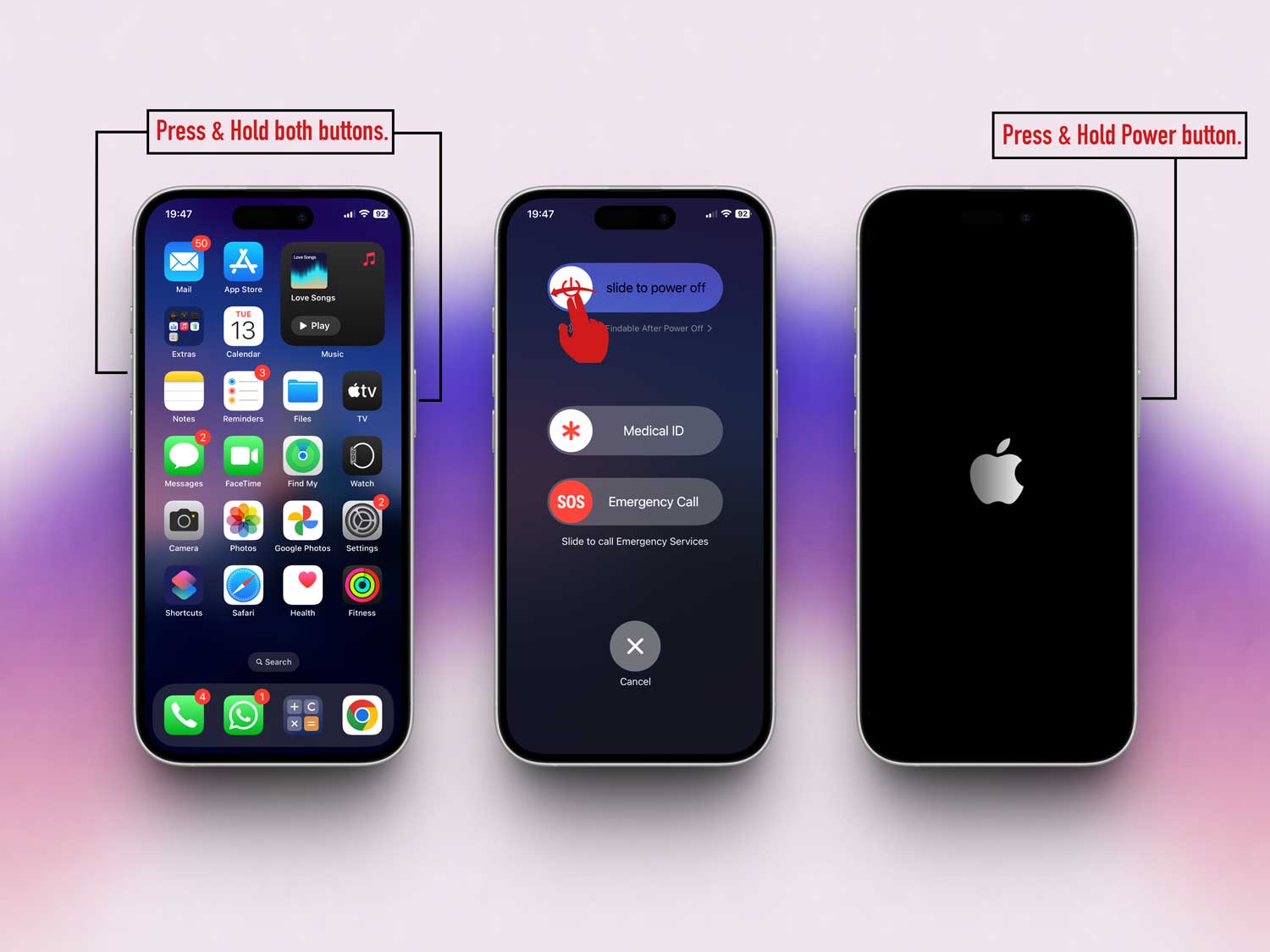
Once it’s back on, check your Health app again. Sometimes, that’s all it takes.
#4 Reset Your Health Data (If Nothing Else Works)
This is more of a last resort. If nothing else has worked, resetting your Health data might help. Just know that this will erase your current step records.
Here’s how to reset:
- Open the Health app.
- Tap your profile picture in the top-right corner.
- Scroll down and tap Apps.

- Choose Health.
- Tap Delete All Data and confirm.

This gives the app a fresh start. After that, try walking a bit and see if your steps start showing again.
Extra Tips to Help You Track Steps Better
Alright, if you’ve tried everything above and still want to make sure you’re doing all you can, here are a few more things to keep in mind.
1. Calibrate Your Device Now and Then
Sometimes your phone needs a reminder of how you move. Go for a short walk while swinging your arms naturally. This helps the sensors learn your motion and improves accuracy.
2. Avoid Using Extreme Battery Saving Modes
Low Power Mode is great, but it can turn off motion tracking. Try to use it only when your battery is really low. Otherwise, keep it off so your steps are always counted.
3. Check the App Often
Make it a habit to open the Health app once a day. It helps you spot problems early, and it also keeps you motivated. Seeing your progress makes a difference.
4. Close Background Apps
Too many apps running in the background can slow things down. Close the ones you don’t need. It’ll help your phone run better and track steps more accurately.
5. Keep the Phone on You
Simple but important. Your phone can’t count steps if it’s sitting on a table. Keep it in your pocket, waistband, or armband while you walk.
The Takeaway
So, your Apple Health app isn’t tracking steps. That can be annoying, especially when you’re putting in the effort to stay active. But now you know what to do.
Start by checking your permissions. That’s the most common fix. Then, make sure your iOS and Health apps are updated, and restart your phone.
If needed, dig into the motion & fitness settings or reset your Health data.
And don’t forget those extra tips. Like keeping the phone on you and checking the app daily. These small habits can make a big difference.
Now it’s your turn. Go ahead and apply these fixes. Get your steps counted like they should be. Your progress matters, and every step counts.
Got a question or your own tip to share? Drop a comment below. I’d love to hear from you!