Want to watch videos on your phone without using the internet? If you’re on a long trip or in a place with no Wi-Fi, you can still enjoy your favorite videos.
How? By saving them to your iPhone or iPad ahead of time.
In this guide, we’ll show you easy ways to download videos to your device. So, let’s get started and make sure you’re never without something fun to watch!
Can You Download Videos To Your iPhone?
Yes, you can download videos to your iPhone, but it’s crucial to understand the legal and ethical boundaries.
Downloading your own videos from platforms like YouTube or Facebook is generally fine as you’re simply accessing your backups.
However, downloading videos uploaded by others can be tricky. If it’s for personal use, you might be in a gray area, but selling or distributing these videos is a clear violation of copyright laws.
How To Find Your Downloaded Videos on iPhone or iPad
By default, Safari, which we’ll focus on in this article, saves your downloads to the Files app. These files might be stored directly on your device or in a Downloads folder on your iCloud Drive.
If you prefer using another cloud service like Dropbox or Google Drive, here’s how to set it as your download location:
- Open the Settings app.
- Scroll down and click on Apps.
- Then find and click on Safari.
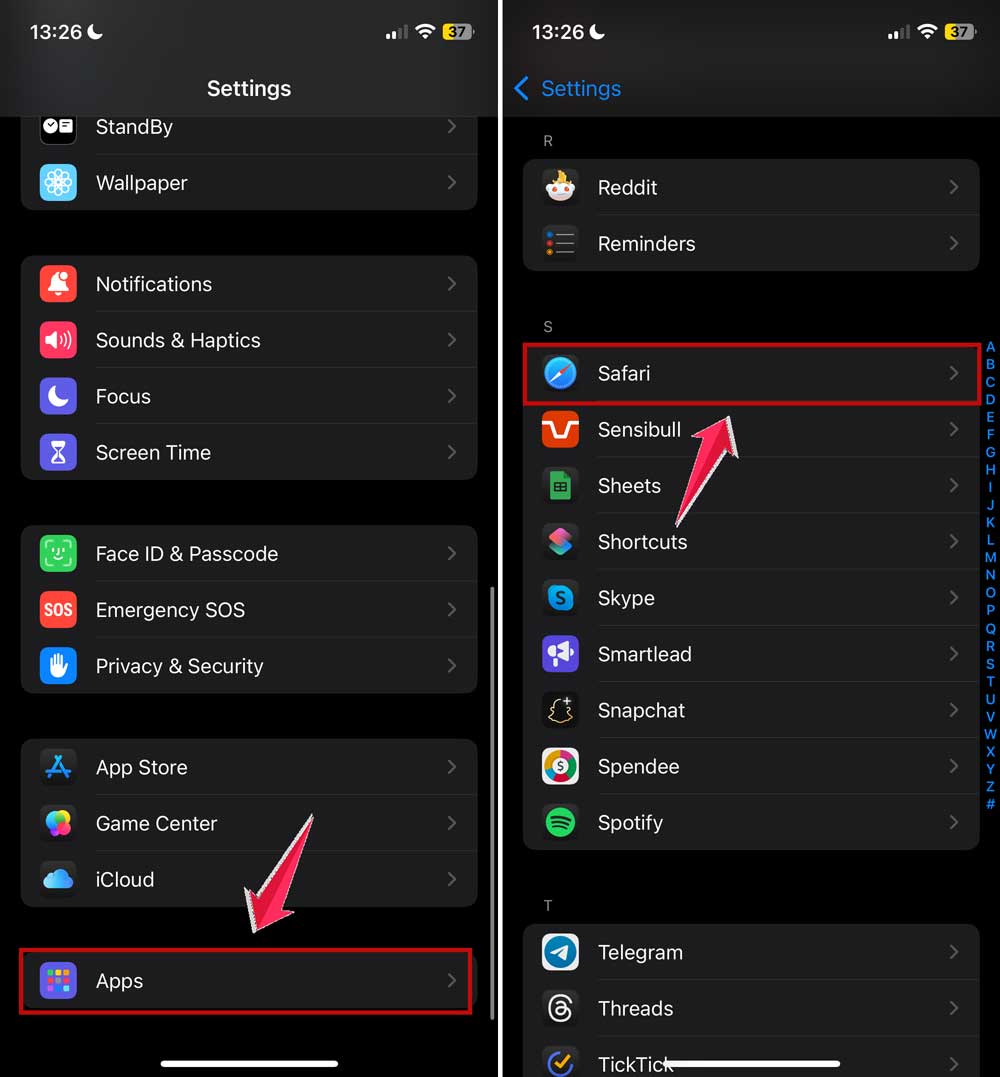
- Now go to Downloads.
- Choose your preferred location from the list, whether it is “iCloud Drive” or “On My iPhone“.

How To Save Videos On Your iPhone From Anywhere Online
Let me now discuss how to download and save videos from all over the internet to your iPhone.
While your iPhone’s Safari browser and Files app can help, there’s a handy website called SaveFrom.net that makes it even easier.
This is great for videos from Facebook or YouTube that don’t have a “download” button.
If all else fails, you can always record your screen while the video plays. It’s not as neat as downloading, but it works!
Let’s look at how to save videos from different places:
#1 Download a Facebook video to your iPhone
- Find the video you want on Facebook.
- Copy the video’s link.
- Open Safari and go to SaveFrom.net
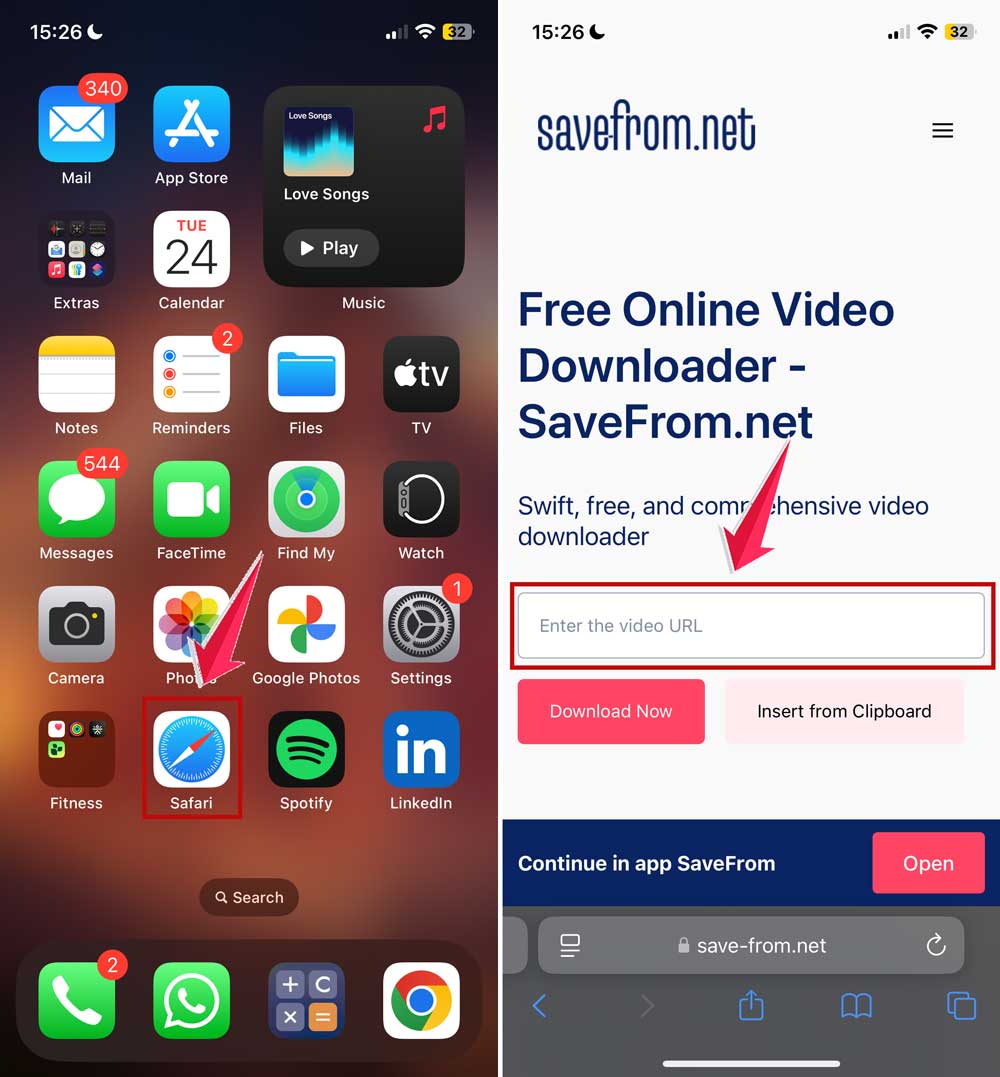
- Paste your link in the search box.
- Tap on the Download Now button.
- Tap on the Downloads icon at the top of Safari to find your video.

#2 Save a YouTube video to your phone
- Find your video on YouTube.
- Tap ‘Share’ and copy the link.
- Open Safari and go to SaveFrom.net
- Paste the link in the search box.
- Tap on the Download Now button.
- Check Safari’s Downloads for your video.
#3 Download videos on iPhone from Safari
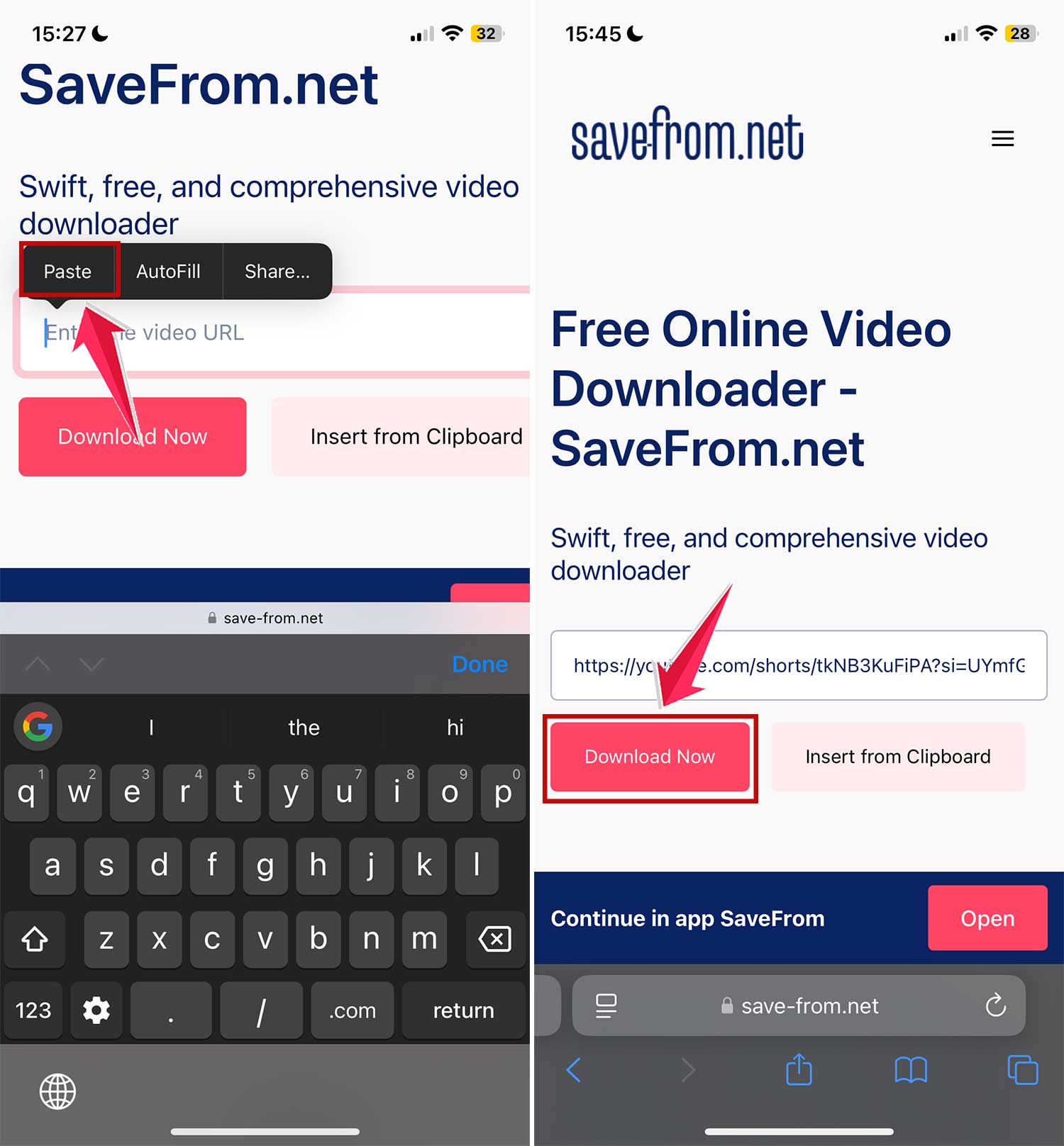
- Copy the video’s web address.
- Open Safari and visit SaveFrom.net
- Paste the address in the search box.
- Tap on the Download Now button.
- Look in Safari’s Downloads for your video.
See? It’s not too hard! With each new iPhone update, it’s getting even easier to save videos. Just remember to be responsible when downloading content.
In Conclusion To
Now you know how to save videos on your iPhone from just about anywhere online. Whether it’s a funny Facebook clip, your favorite YouTube channel, or any other video you find, you can keep it for later.
Just remember to use Safari and SaveFrom.net to download most videos by following the simple steps we’ve shared.
By saving videos, you can watch your favorite content anytime, even without internet. It’s perfect for long trips, waiting rooms, or anywhere you might need some entertainment.
But here’s an important tip: Always think before you download. Not every video is meant to be saved, so use your best judgment.
Now you’re ready to make the most of your iPhone’s video-saving powers.