Did you know that over 70 million smartphones are lost each year? That’s a lot of worried people trying to find their devices.
If you’ve ever misplaced your iPhone, you know how stressful it can be. But don’t panic. Because there are ways to find it, even if it’s turned off or you’re not near a computer.
Losing your iPhone can happen to anyone. Maybe it slipped out of your pocket, or you left it at a restaurant.
Whatever the reason, it’s a problem that can leave you feeling helpless and disconnected.
But here’s the good news: Apple has built-in features to help you locate your device, and there are even some tricks you can use if you don’t have access to Apple’s tools.
In this article, you’ll learn how to find your lost iPhone in various situations.
We’ll cover what to do if your phone is dead or offline, how to track it from an Android device, and even a clever way to use Google Maps if you prefer not to use Apple’s Find My app.
You’ll also discover what “iPhone is findable” means and how to use your Apple Watch to locate your iPhone if it’s nearby.
By the time you finish reading, you’ll have all the tools you need to track down your lost iPhone and get back to your digital life.
How to find your lost iPhone when it’s dead or offline
Have you ever seen the message “iPhone Findable After Power Off” when shutting down your iPhone?
This handy feature helps you track your device even when it’s not powered on. Let’s explore how you can find your dead or offline iPhone using the Find My app.
1. Use your other Apple devices or Family Sharing
If you have an iPad, Mac, or access to a Family Sharing group member’s device, you can easily locate your lost iPhone. Here’s what you need to do:
- Open the Find My app on any of your devices and go to the Devices tab.

- You’ll see a map with all your devices. Select your iPhone from the list.
- If your iPhone is dead, you’ll see it on the map with a black screen. The sidebar will show its last known location and when it was last seen.
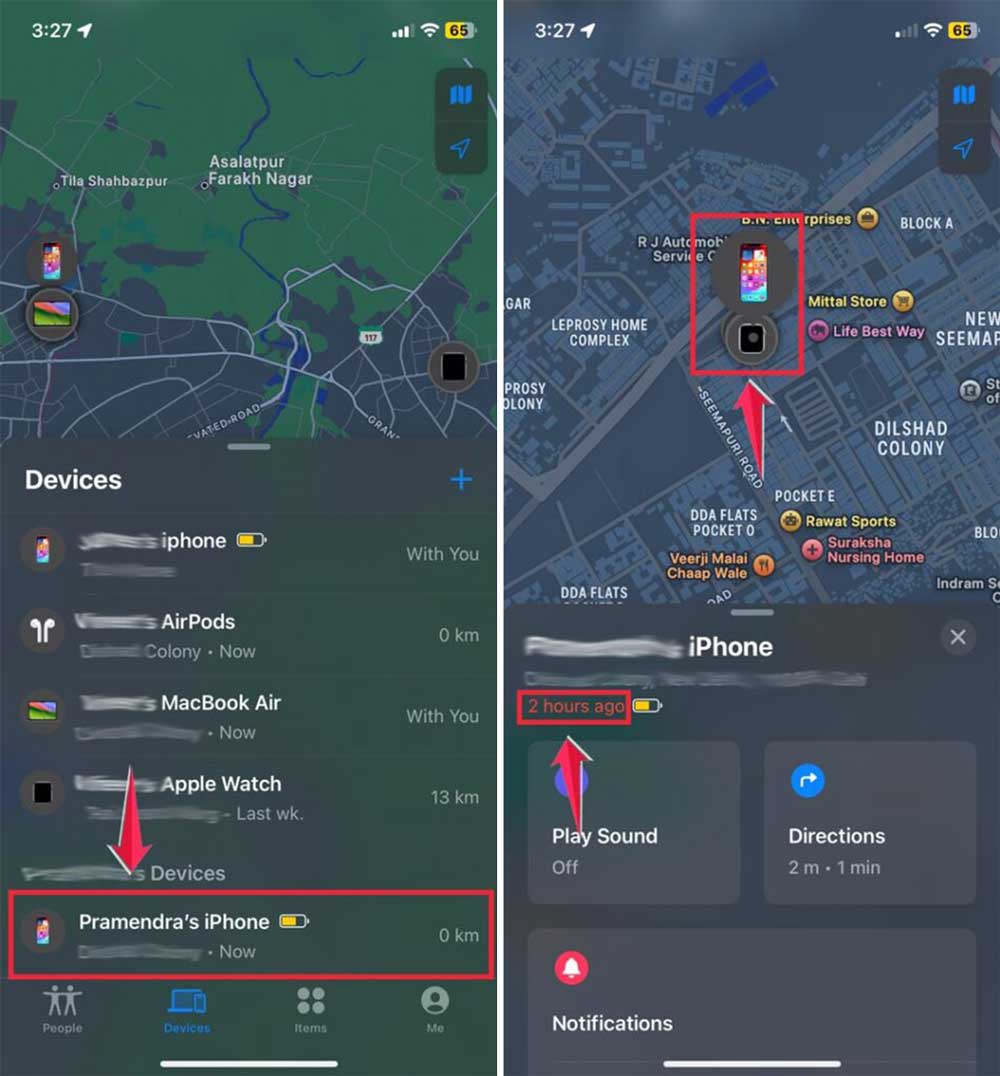
- For a powered-on iPhone, you’ll see a colorful Home screen icon with a battery indicator.
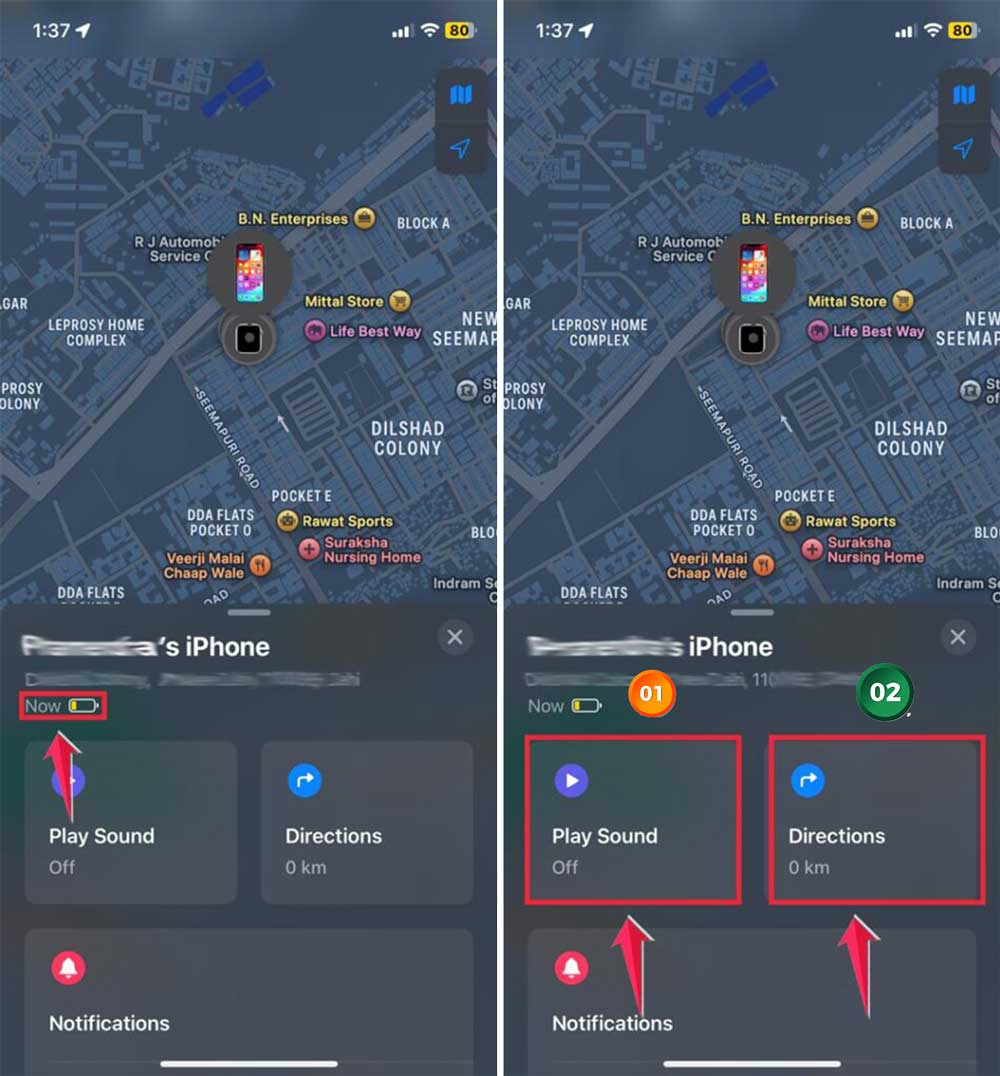
- Click “Directions” for step-by-step guidance on your iPhone’s location.
- If it’s turned on, you can tap “Play Sound” to help find it by noise.
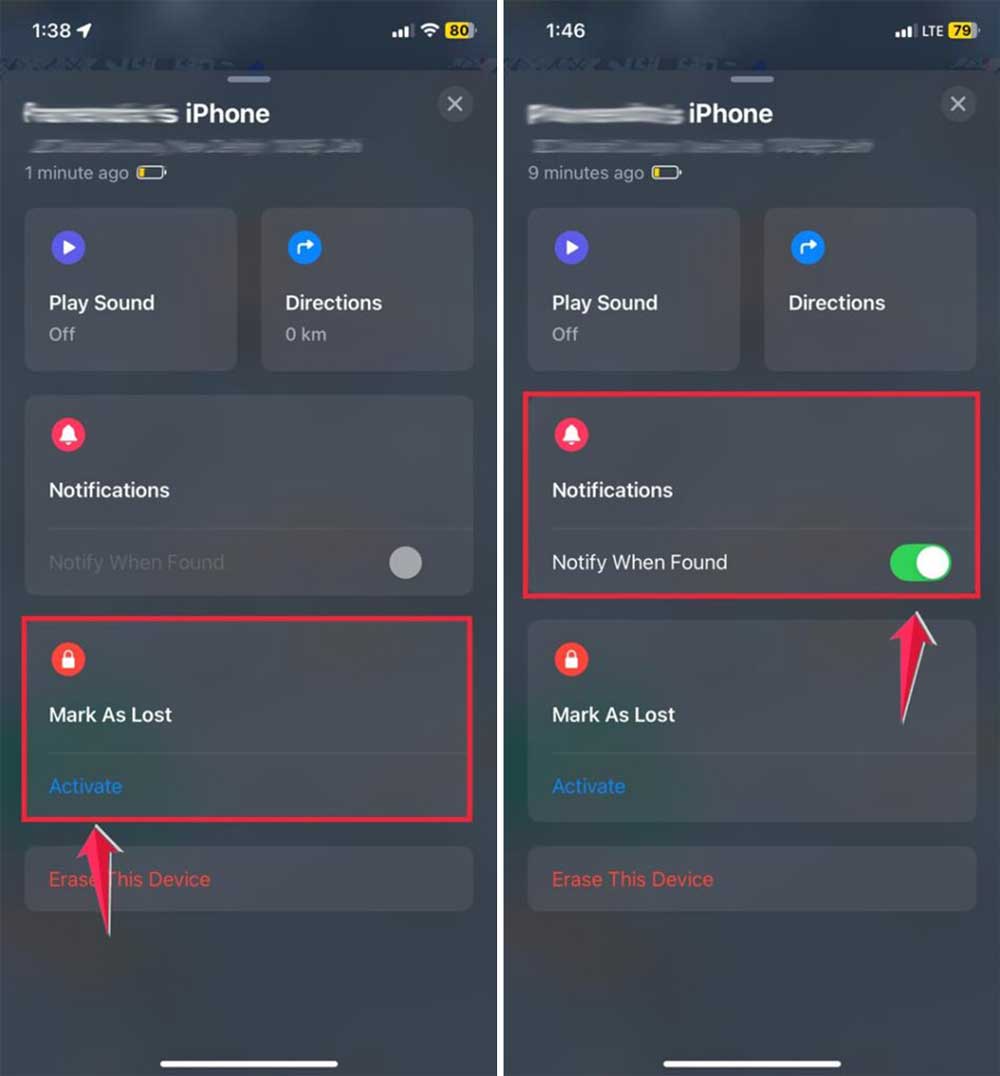
- Use “Mark as Lost” to lock your device remotely and display a contact number for anyone who finds it. If you haven’t enabled Find My before, here’s how to add a device to Find My iPhone.
- Turn on “Notify When Found” to get updates when your phone powers back on.
This method helps you keep track of your iPhone, whether it’s just misplaced or has been missing for a while.
Only use the “Erase this Device” option as a last resort if you think your iPhone is permanently lost or stolen.
2. Track your lost iPhone using iCloud (from Android or PC)
Don’t have an Apple device nearby? No worries! You can still find your dead iPhone using any Android phone or computer with a web browser.
Here’s how to use iCloud.com:
- Go to iCloud.com and sign in with your Apple ID and password.
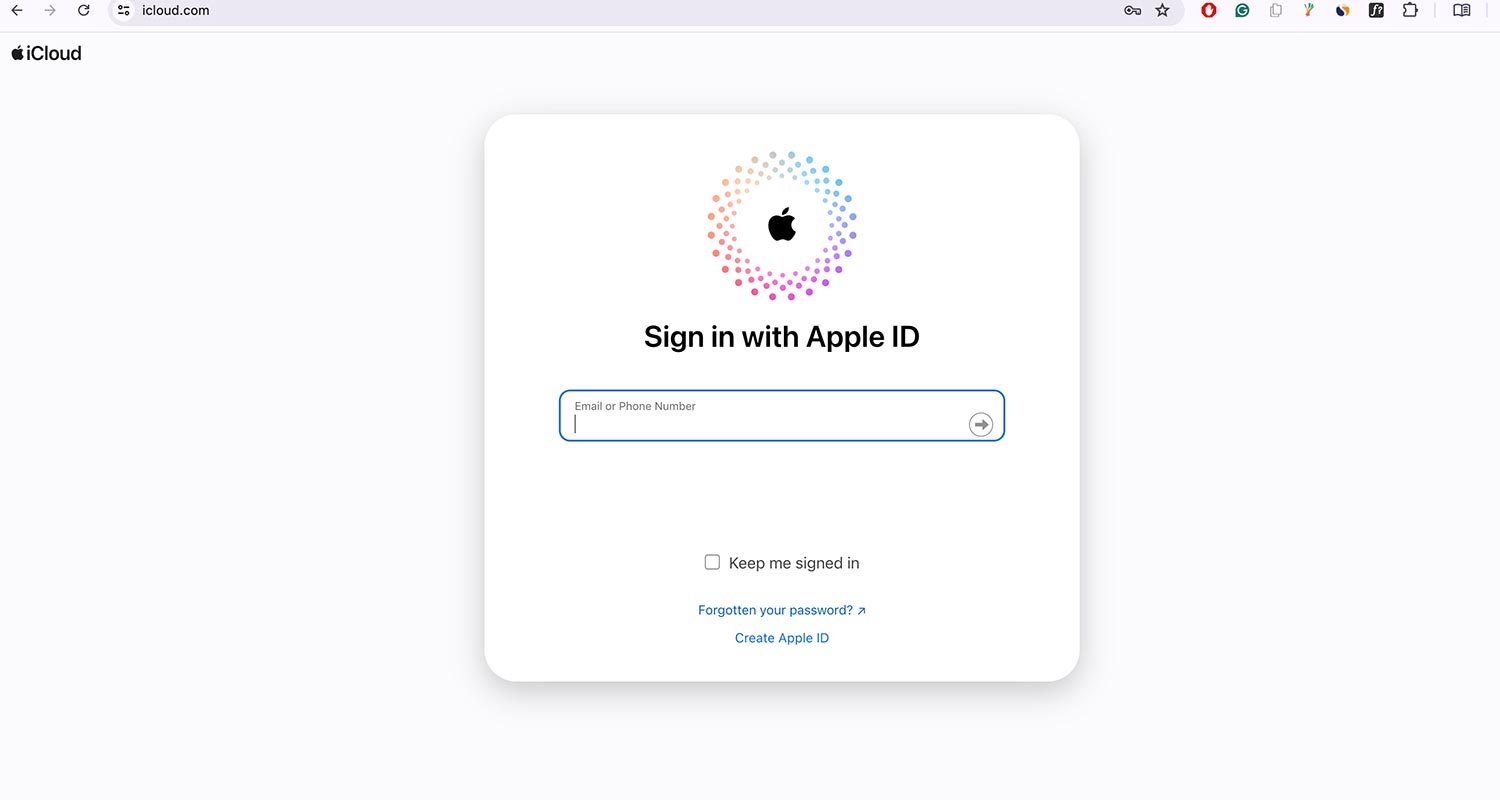
- If asked, select “Allow” to use iCloud on your device and complete two-factor authentication.
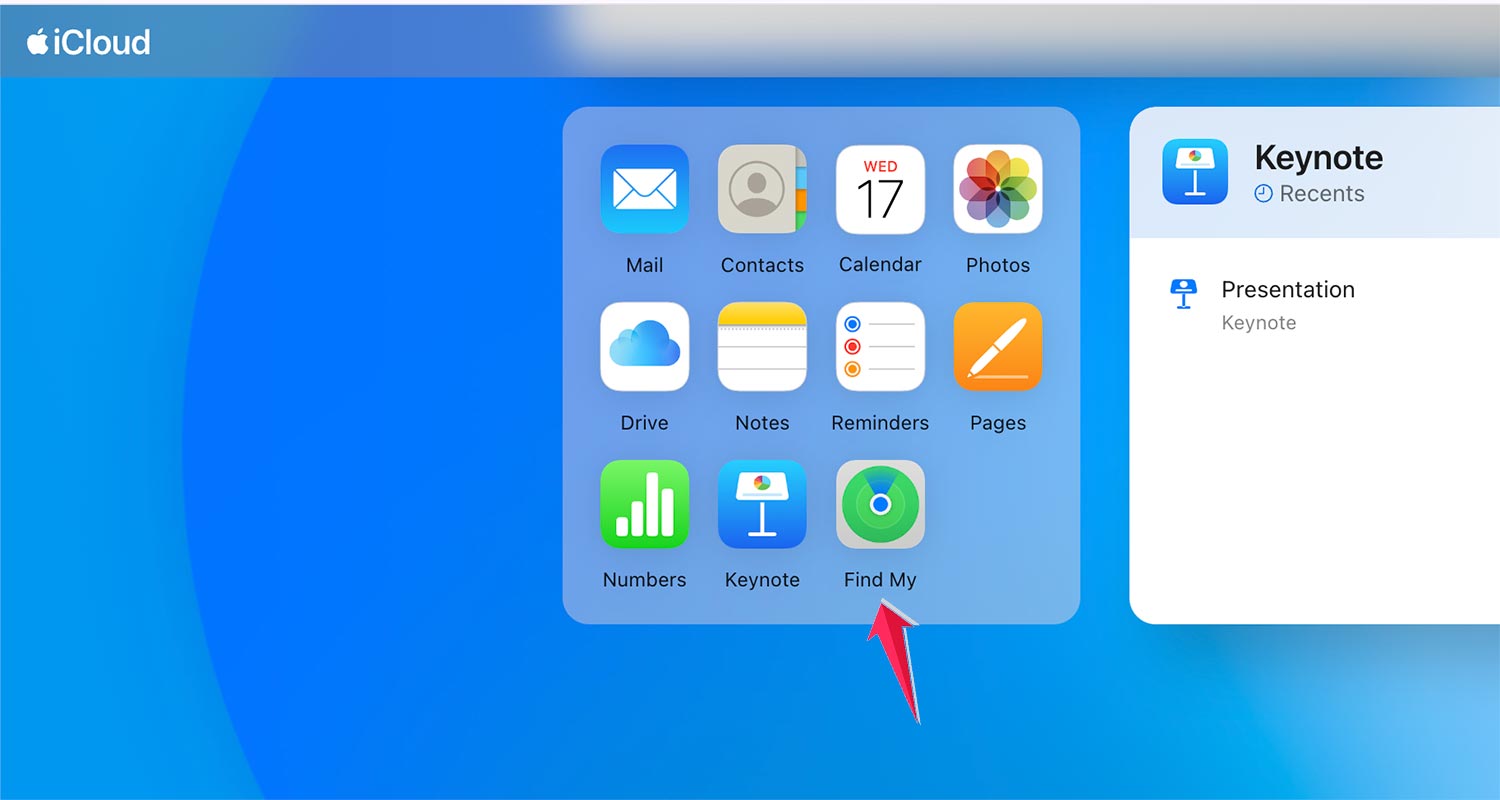
- Click the Find iPhone app icon.
- Choose “All Devices” at the top. Then select your missing iPhone.
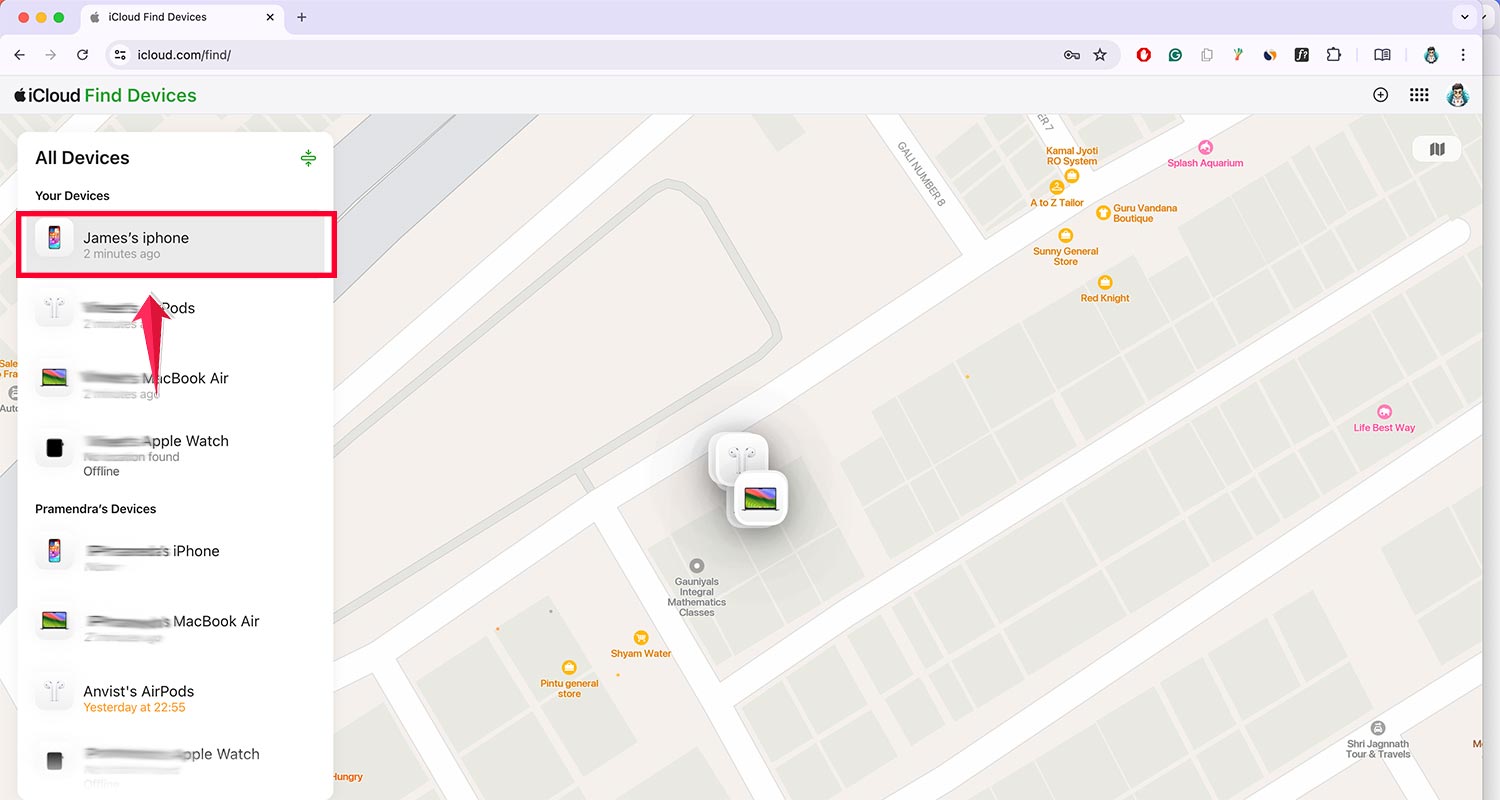
- For powered-off iPhones, you’ll see a black screen icon showing its last recorded location.
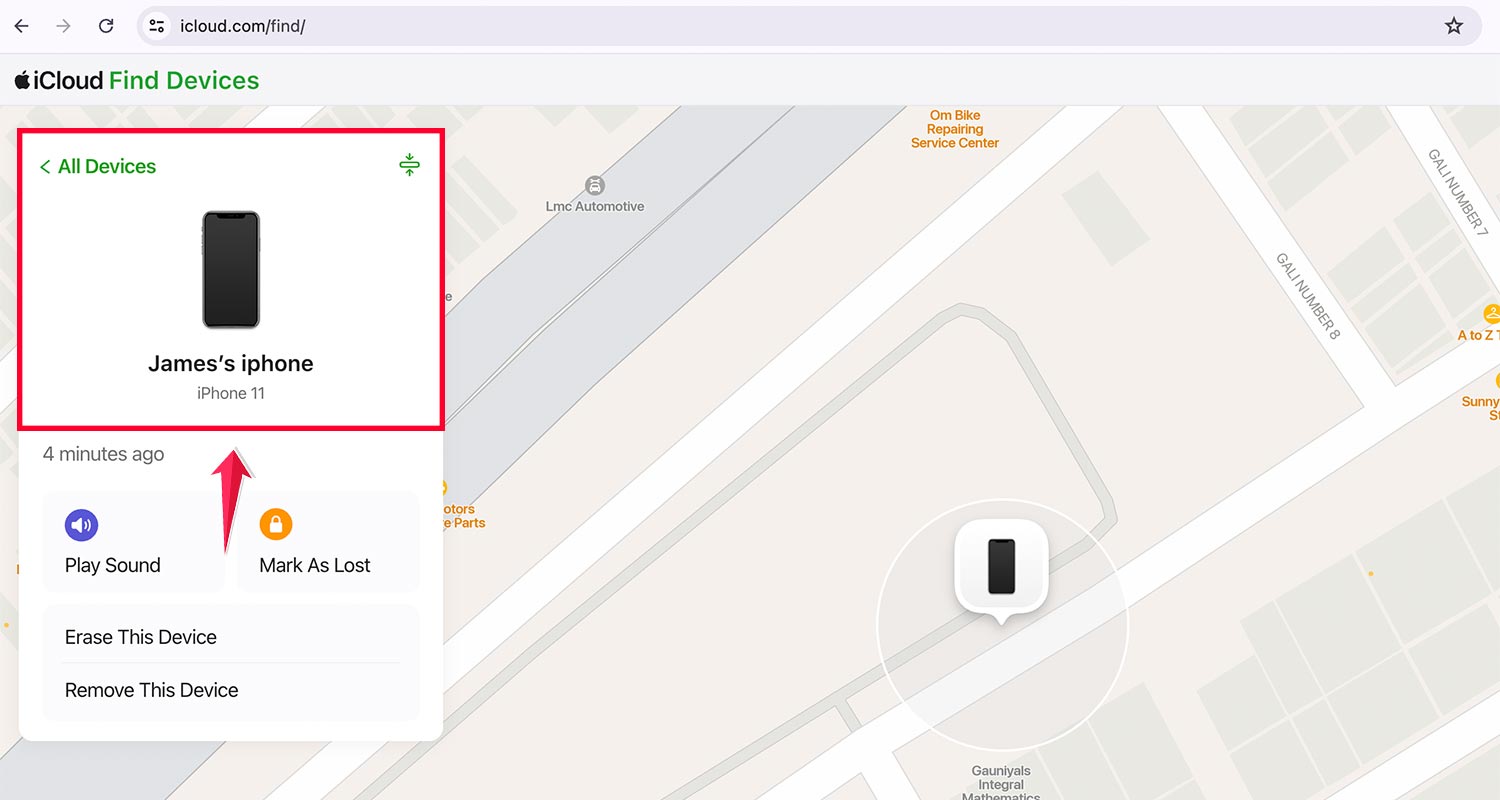
- If your iPhone is on, you’ll see an active Home screen with a battery icon.

- Use “Play Sound” to make your iPhone beep if you think it’s nearby.
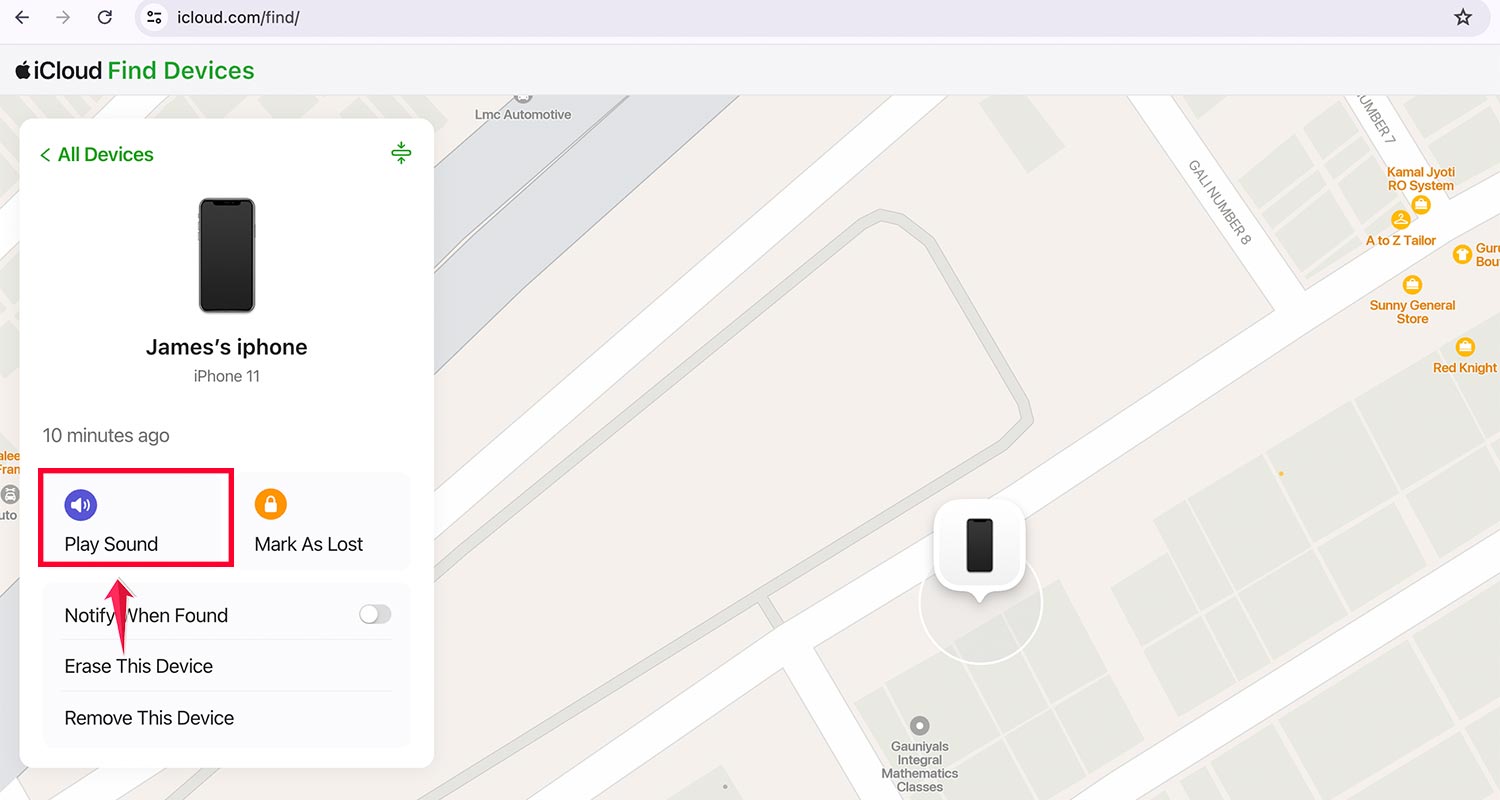
- Activate “Lost Mode” to lock your device remotely and show a custom message with your contact info.

This method is great if you’re using an Android device or don’t have access to other Apple devices.
Remember, only use “Erase iPhone” as a last resort if you believe your iPhone is permanently lost or stolen.
3. Use a friend’s iPhone or iPad to locate yours
If you don’t have your own device or a family member’s, you can still find your lost iPhone by borrowing a friend’s iPhone or iPad.
The “Help a Friend” feature in the Find My app lets you safely log in without extra security checks. Here’s what to do:
- Open the Find My app on your friend’s device.
- Instead of logging into iCloud directly, choose “Help a Friend” at the bottom of the login screen.
- Once logged in, you’ll see your iPhone’s current or last known location, depending on whether it’s on or off.
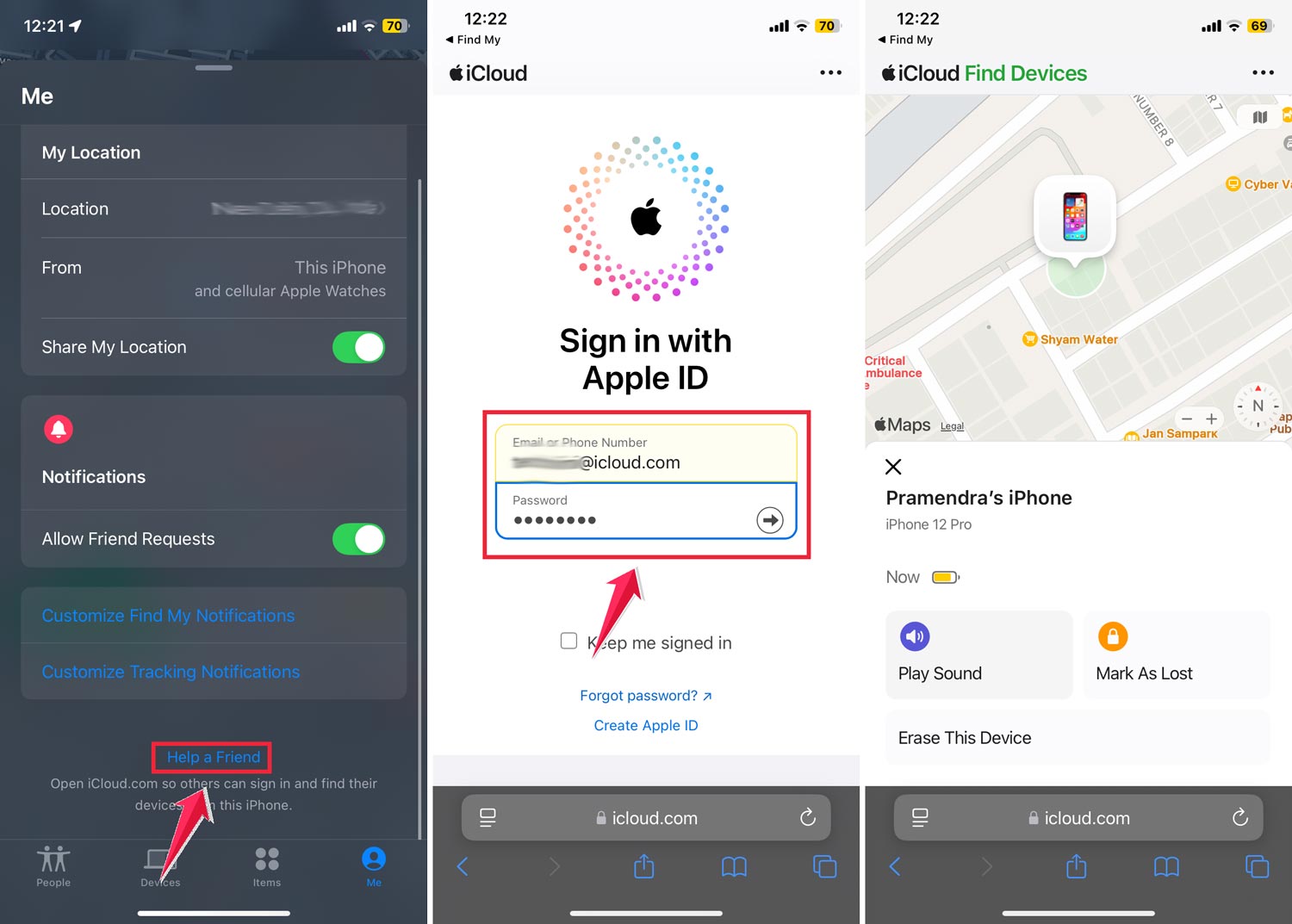
This feature keeps your privacy and security intact while allowing you to find your missing device. It’s a simple way to locate your iPhone without any security hassles. You can also check this guide on how to find someone else’s iPhone if you’re helping a friend.
How to find your lost iPhone without using Find My iPhone
You still have options even if you haven’t set up Find My iPhone. You can use Google Maps’ Location History feature to track your device. Here’s what you need to do:
- Open Google Maps in your web browser.
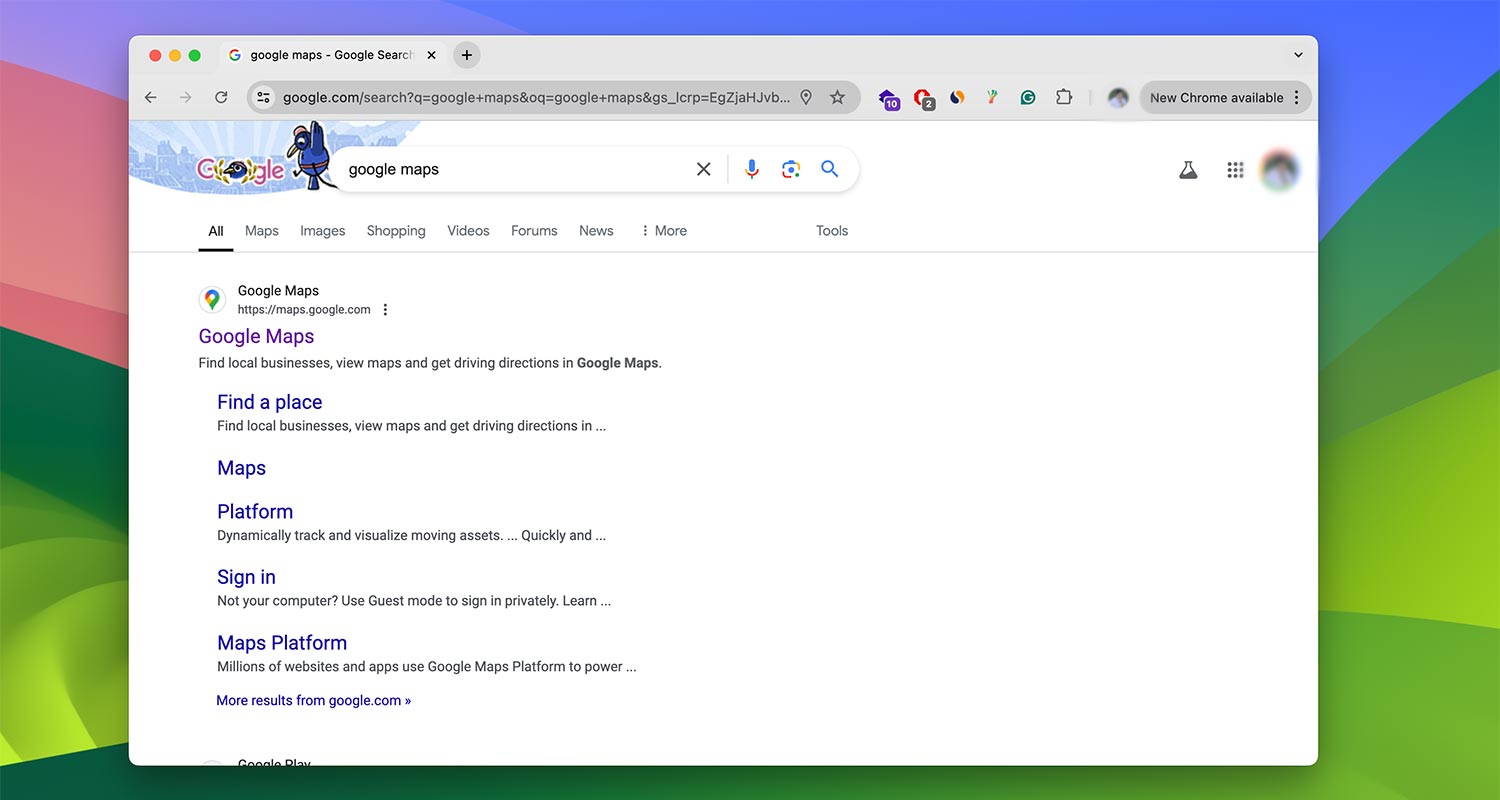
- Make sure you’re signed in to your Google account.
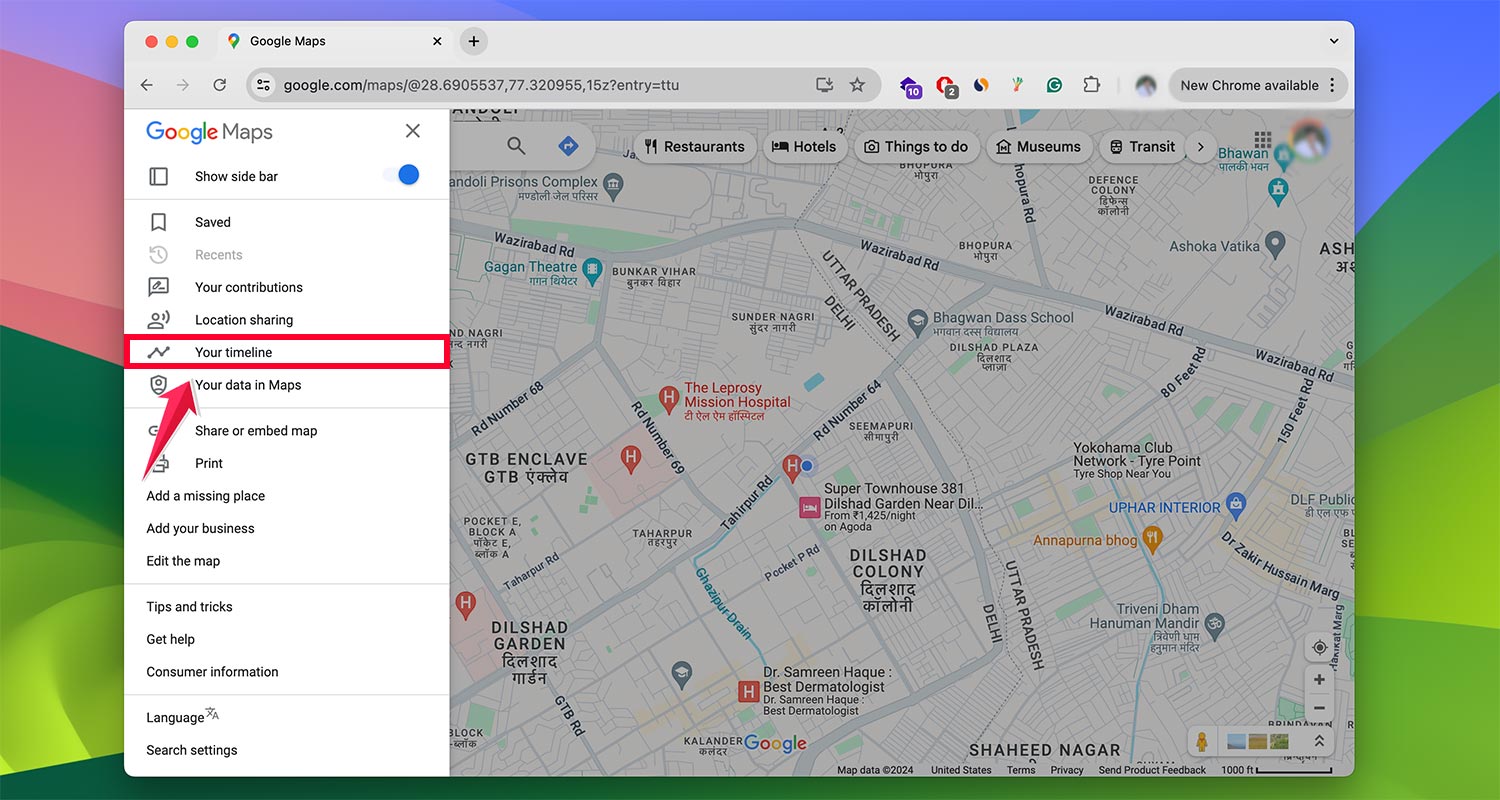
- Now, click on three horizontal lines. Then click on Your Timeline
- Look at the bottom of the screen for your Location History status.

- If it’s turned on, you’re all set. If not, this method won’t work unless you have it on before.
- With Location History active, pick the date you lost your iPhone. You can choose “Today” or use the menus to select a past date.
- Check the map to see where your iPhone was last spotted, and follow its trail to find it.

If you’re also trying to trace suspicious calls while you’re at it, learn how to find no caller ID on iPhone.
If you haven’t already, think about turning on Google Maps Location History for future peace of mind.
It’s a great backup plan if you ever lose your iPhone again and can’t use Find My iPhone.
This method gives you another way to find your iPhone when you’re in a tough spot.
It’s not as feature-rich as Find My iPhone, but it can be a real lifesaver when you need it most.
The takeaway
Losing your iPhone can be really frustrating, but don’t worry. You have several ways to find it.
We’ve covered how you can use the Find My app on your other Apple devices, access iCloud from any computer or phone, and even use a friend’s device to locate your missing iPhone.
The most important thing to remember is to set up these features before you lose your phone. Take a few minutes right now to check your iPhone’s settings.
Make sure Find My is turned on and your location services are enabled. This way, you’ll be prepared if your phone ever goes missing.
Many people think they can’t find their iPhone if it’s turned off or the battery is dead. But that’s not true!
As we’ve discussed, you can still see its last known location, which can be a big help in tracking it down. If your iPhone shows “No Location Found,” here’s what that means and how to fix it.
In the end, the key takeaway is to be prepared. Set up your iPhone’s security features now so you’re ready if it ever gets lost.
And remember, even if your phone is dead or offline, you still have a good chance of finding it using the methods we’ve talked about.
What do you think about these tips for finding a lost iPhone? Let me know in a comment below.