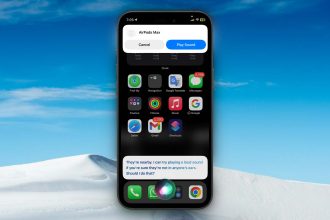
Is your iPhone screen showing “SOS” or “SOS only” right now? Don’t panic. You’re not alone in this situation. Many iPhone users find themselves puzzled and worried when they see this unexpectedly.
You might be here because you’ve accidentally triggered the SOS feature, and now your phone isn’t working as it should.
Perhaps you can’t make regular calls, or your iPhone calls are failing repeatedly. These concerns are common and can be quite stressful.
While the SOS feature is designed for your safety, it can be confusing when activated by mistake.
You’re probably looking for a quick way to turn it off and get your iPhone out of SOS mode. That’s exactly what we’re going to help you with.
In this guide, you’ll find simple, easy-to-follow steps to disable SOS on your iPhone. Whether you have an iPhone 15, an older model, or any version in between, you’ll learn how to regain control of your device.
We’ll also show you how to prevent accidental triggers in the future so that you can use your iPhone with confidence. Let’s get started and solve this problem for you right now.
What does the SOS feature on your iPhone do?
When you see the SOS icon on your iPhone’s screen, it means your phone can’t connect to regular cellular services. In this mode, your iPhone only allows emergency calls. While this feature can be a real lifesaver in critical situations, there are times when you might want to turn it off. Here’s why:
1. Fixing technical hiccups. Sometimes your iPhone might get stuck in SOS mode. Turning it off can help solve these glitches and get your phone working normally again.
2. Customizing your iPhone. If you like to set up your iPhone just the way you want it, you might want to turn off SOS. This can stop it from activating by accident, especially if you’ve changed what the side button does.
3. Keeping emergency lines clear. It’s important to keep emergency services available for real emergencies. Turning off SOS can help prevent accidental calls that might tie up these crucial resources.
4. Avoiding mistakes. If someone who’s not familiar with iPhones uses your device. Like a friend or an older family member. They might accidentally trigger an SOS call. Turning it off can prevent this.
5. Saving battery life. If your iPhone keeps trying to activate SOS, especially in areas with poor signal, it can drain your battery faster than usual.
How to Turn SOS Off on Your iPhone?
While the SOS feature can be a lifesaver, there might be times when you need to turn it off. Here’s a step-by-step guide:
- Open Settings: Tap the “Settings” app on your iPhone’s home screen.
- Find Emergency SOS: Scroll down and tap on “Emergency SOS”.
- Adjust SOS options: You’ll see several toggles:
- “Call with Hold and Release”.
- “Call with 3 Button Presses”.
- “Call After Severe Crash” (on newer iPhones).
To disable these features, switch the toggles to the off position.
- Verify changes: Exit Settings and go back in to ensure your changes were saved.

Important: Remember that turning off SOS means you won’t have quick access to emergency services. Consider your safety needs before making this change.
How to Turn Off SOS on an iPhone when it’s stuck on?
If you’re seeing “SOS only” in an area where you usually have good service, try these steps. It could be linked to issues like why iPhone says “Add Cellular Plan”.
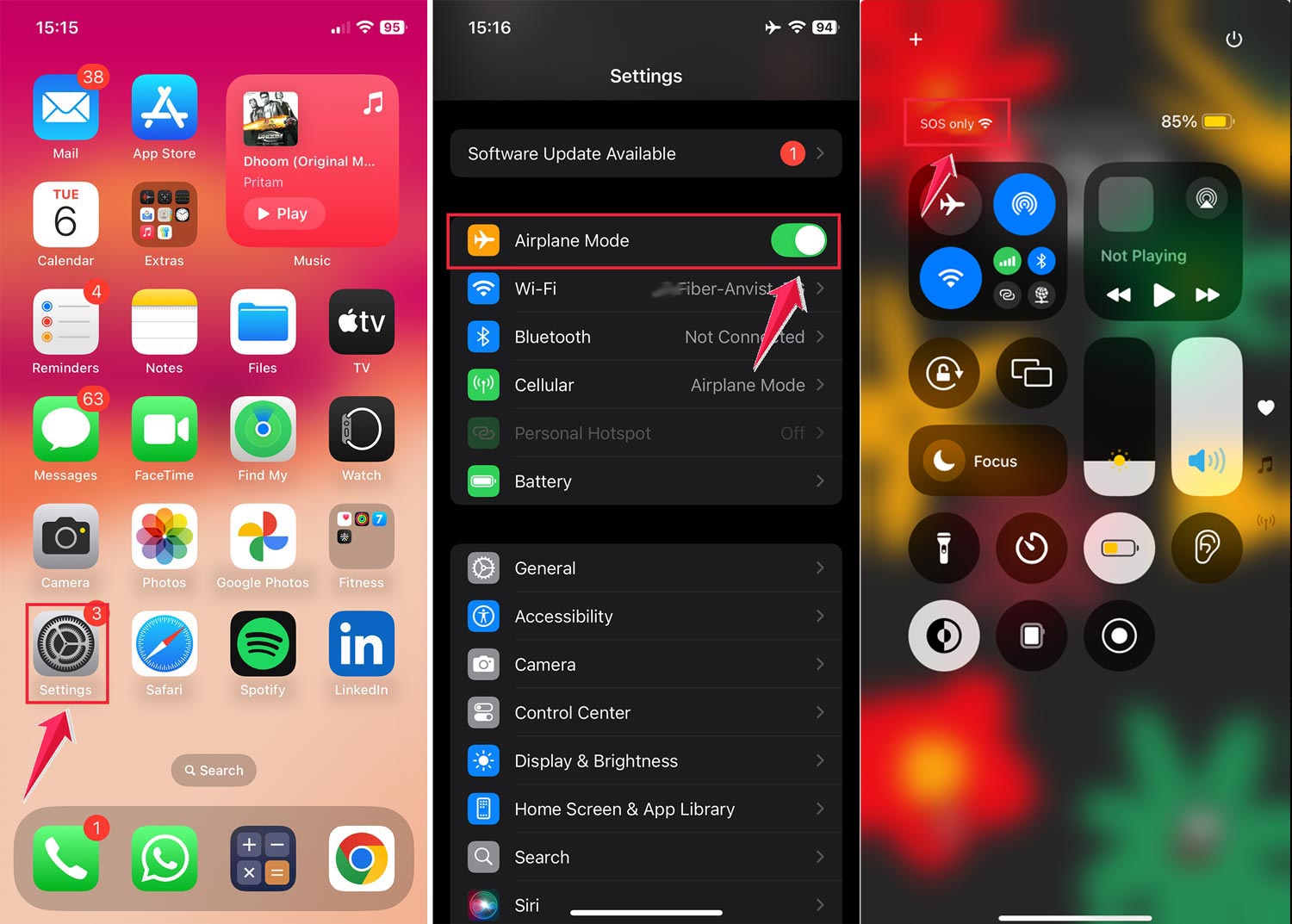
1. Try Airplane Mode
This can help reset your network settings:
- Go to Settings and turn on “Airplane Mode”.
- Wait a few minutes.
- Turn Airplane Mode off again.
- Check if the “SOS only” message has disappeared.
2. Toggle Cellular Data
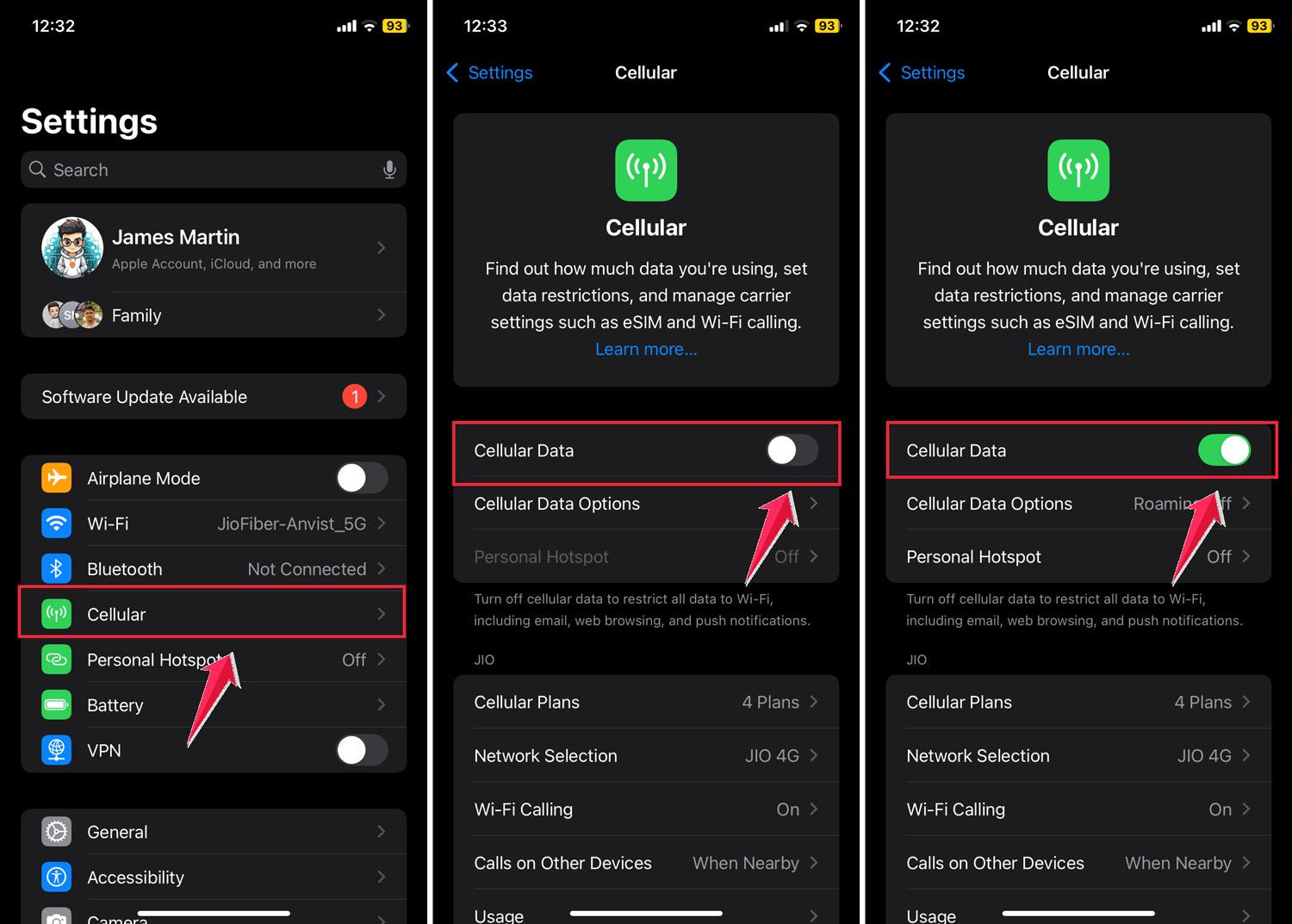
Sometimes, your cellular connection just needs a quick refresh:
- Open Settings and tap on “Cellular”.
- Turn “Cellular Data” off.
- Wait about 10 seconds.
- Turn it back on.
3. Check Roaming Settings
If you’re traveling, especially internationally:
- Go to Settings > Cellular > Cellular Data Options.
- Turn on “Data Roaming”.
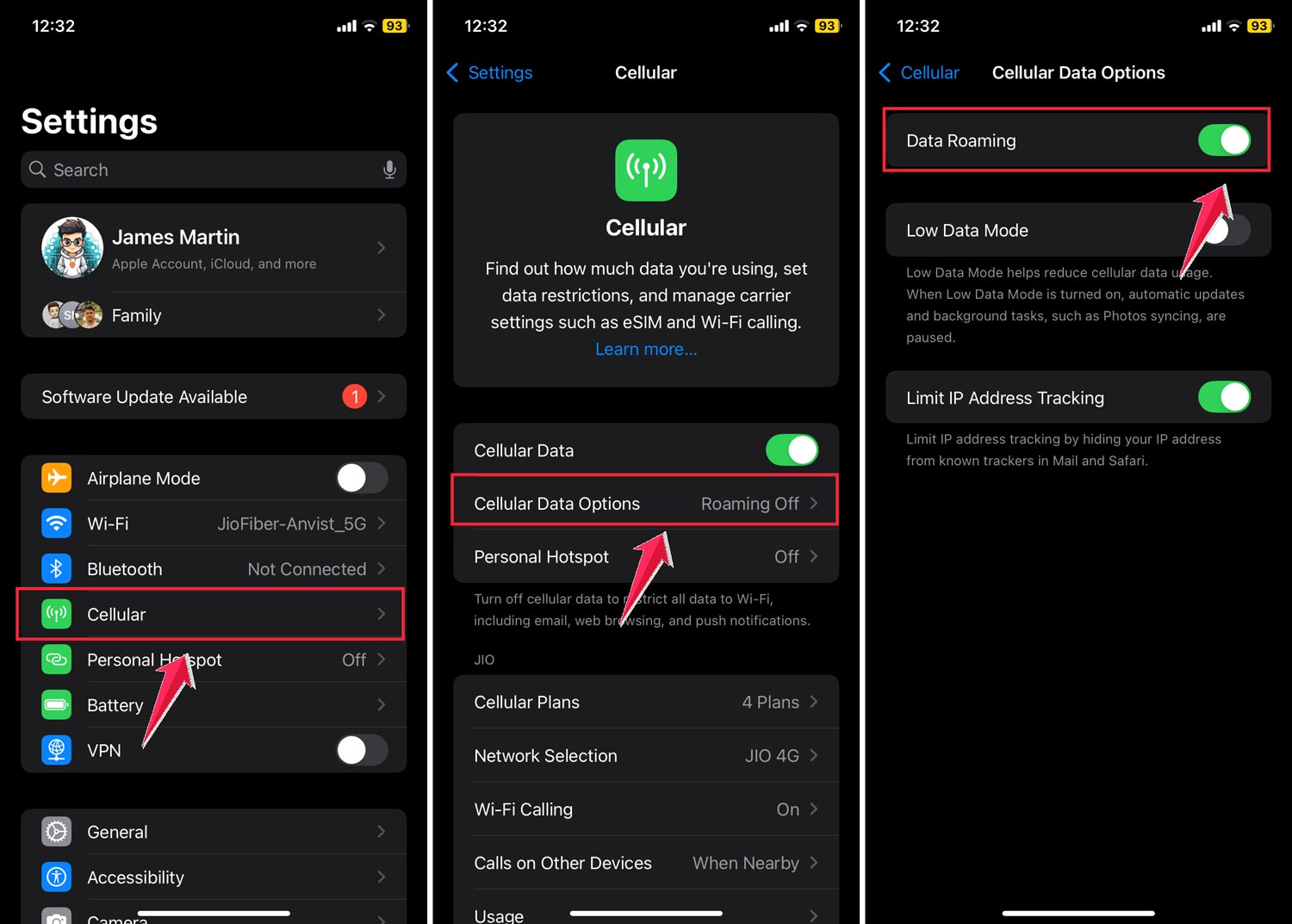
Remember, this might lead to extra charges, so be careful!
4. Look at your SIM Card
If you’re using a physical SIM card:
- Take the SIM card out of your iPhone.
- Check for any visible damage.
- If it looks okay, put it back in.
5. Restart your iPhone
Sometimes, the simplest solution works best:
- Press and hold the side button and either volume button.
- Slide to power off.
- Wait about 30 seconds.
- Press and hold the side button to turn it back on.

These steps should help you get your cellular connection back up and running. If you’re still having trouble, it might be time to contact your cellular provider or Apple support for more help.
The takeaway
Understanding your iPhone’s SOS feature is simpler than you might think. When you see “SOS Only” on your screen, it just means your phone can’t connect to regular cell service, but you can still call for help in an emergency.
If you’re having trouble with SOS popping up when you don’t want it to, you can easily turn it off in your settings. But remember, this feature is there to keep you safe.
Instead of turning it off completely, you might want to just adjust how it works. This way, you won’t accidentally call 911, but you’ll still have help if you really need it.
Your iPhone is designed to help keep you safe. By taking a few minutes to understand and set up the SOS feature in a way that works for you, you can make sure your phone is always ready to help when you need it most.
We’d love to hear your thoughts! Have you ever used the SOS feature? How do you have it set up on your phone? Share your experiences in the comments below.