Ever thought about making your AirDrop name a bit more you?
Customizing your AirDrop name on your iPhone, iPad, or Mac isn’t just about personalization. It also makes it a snap to pick out your device from the crowd when you need to share files.
Ready to change your AirDrop name? Let’s walk through the easy steps to personalize it across all your Apple devices!
Plus, if you run into any snags where you can’t change it, don’t worry. I’ve got you covered with some troubleshooting tips.
Let me know what section you’d like to proceed with, or if there’s anything specific you’d like to add or emphasize!
How to Change Your AirDrop Name on iPhone?
Updating your AirDrop name on your iPhone is a straightforward process that can make sharing content via AirDrop much easier and more personal.
Here’s how you can do it:
- Open the Settings App: Just tap on the Settings icon on your home screen.
- Navigate to General Settings: Scroll down and select the “General” option.
- Access Device Information: Tap on “About” at the top of the list.

- Edit Your Device Name: Now, click into the “Name” field. Erase the existing name and type in your new, preferred name. This is crucial as it’s what others will see when your device pops up on AirDrop.
- Finalize the Change: Hit “Done” to save your new device name.

Your device and thus your AirDrop name is now updated. You can exit the Settings app and start enjoying a more personalized AirDrop experience.
How to Change AirDrop Name on iPad?
If you’re ready to personalize your iPad a bit more, changing your AirDrop name is a great place to start.
This name not only appears during AirDrop transfers but also shows up in Wi-Fi network selections, within the Find My app, and when you connect your iPad to a computer.
Here’s a simple guide to updating your AirDrop name:
- Open the Settings App: Tap the Settings icon on your iPad’s home screen.

- Go to General Settings: Scroll down and select “General.”

- Enter the About Section: Tap “About” to find your device details.

- Change Your Device Name: Tap on “Name” and then type in your new preferred AirDrop name. Choose a name that makes your iPad easily identifiable.

Once you’ve made the change, your iPad will use this new name for AirDrop sessions, making it simpler for you and others to connect devices quickly.
How to Change AirDrop Name on Mac
Changing your Mac’s AirDrop name can significantly ease file sharing, especially if you often work in environments with multiple Mac users.
Here’s a quick guide on how to customize your AirDrop name on your Mac to make your device stand out:
- Access System Preferences: Click the Apple icon in the top-left corner of your screen.
- Navigate to System Settings: From the dropdown menu, choose “System Settings.”

- Go to General Settings: Click on “General.”
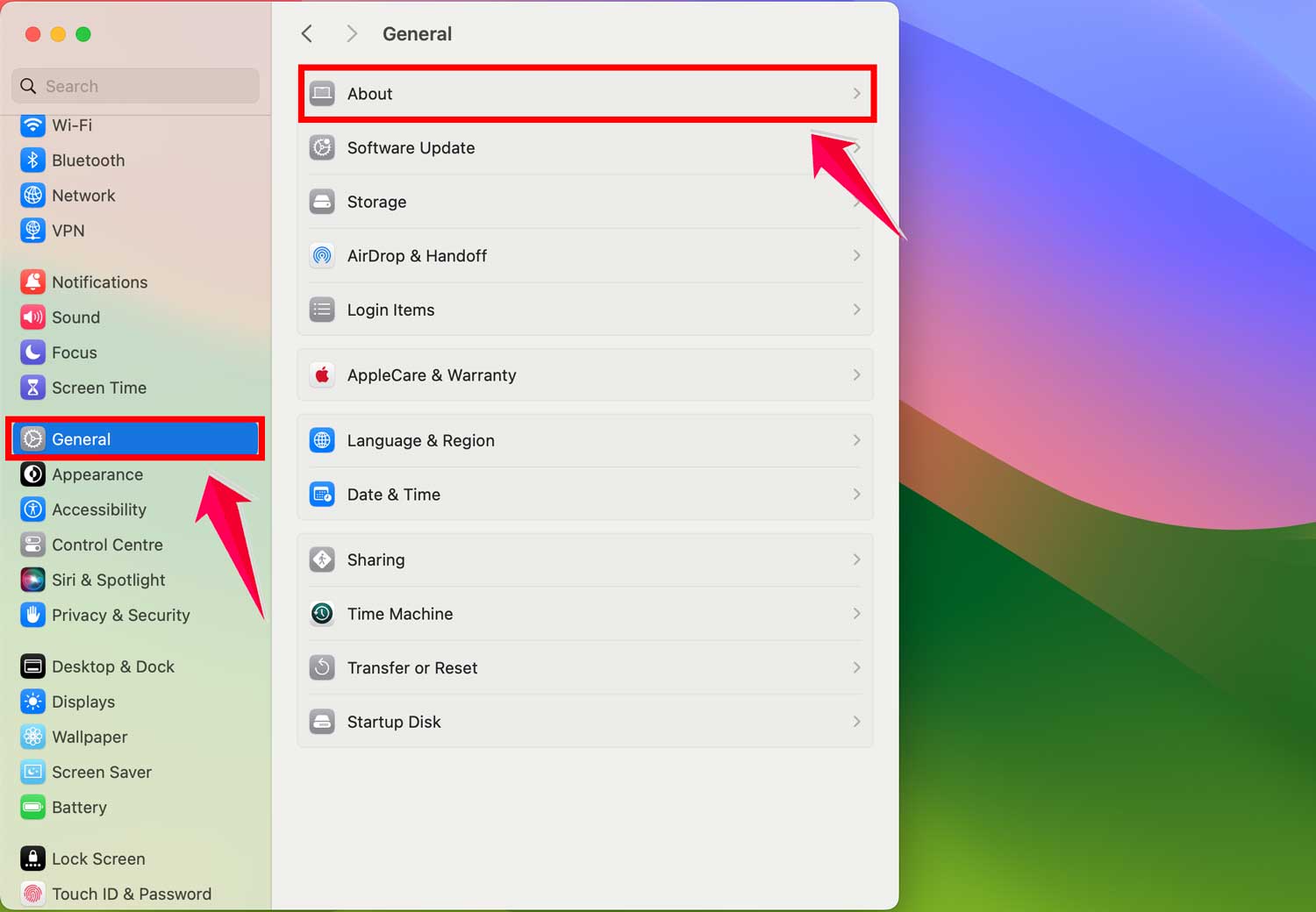
- Edit Your Mac’s Name: Select “About” and then hit “Name.” Here, you can type in your new desired name for your Mac.
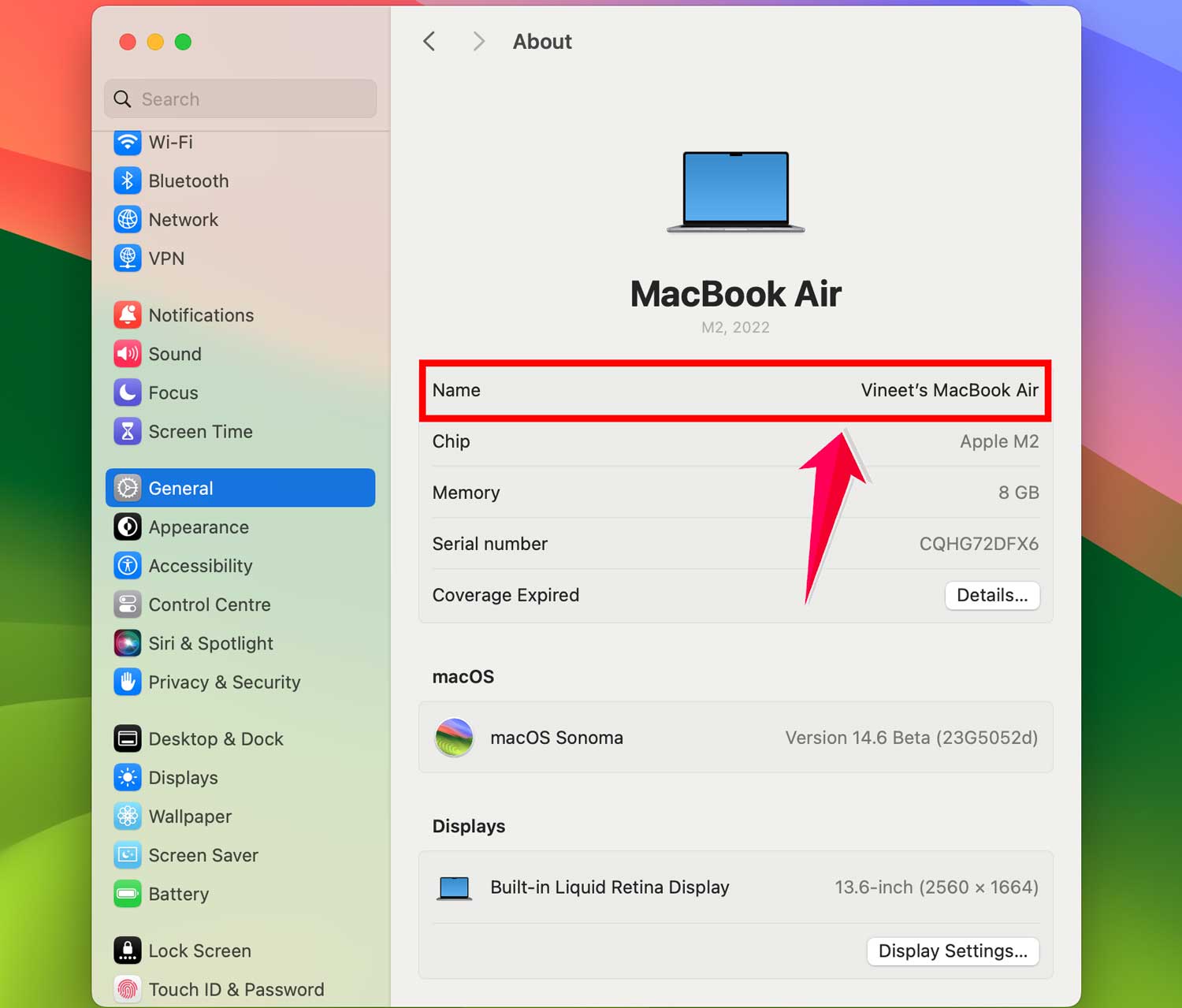
- The changes will save automatically.
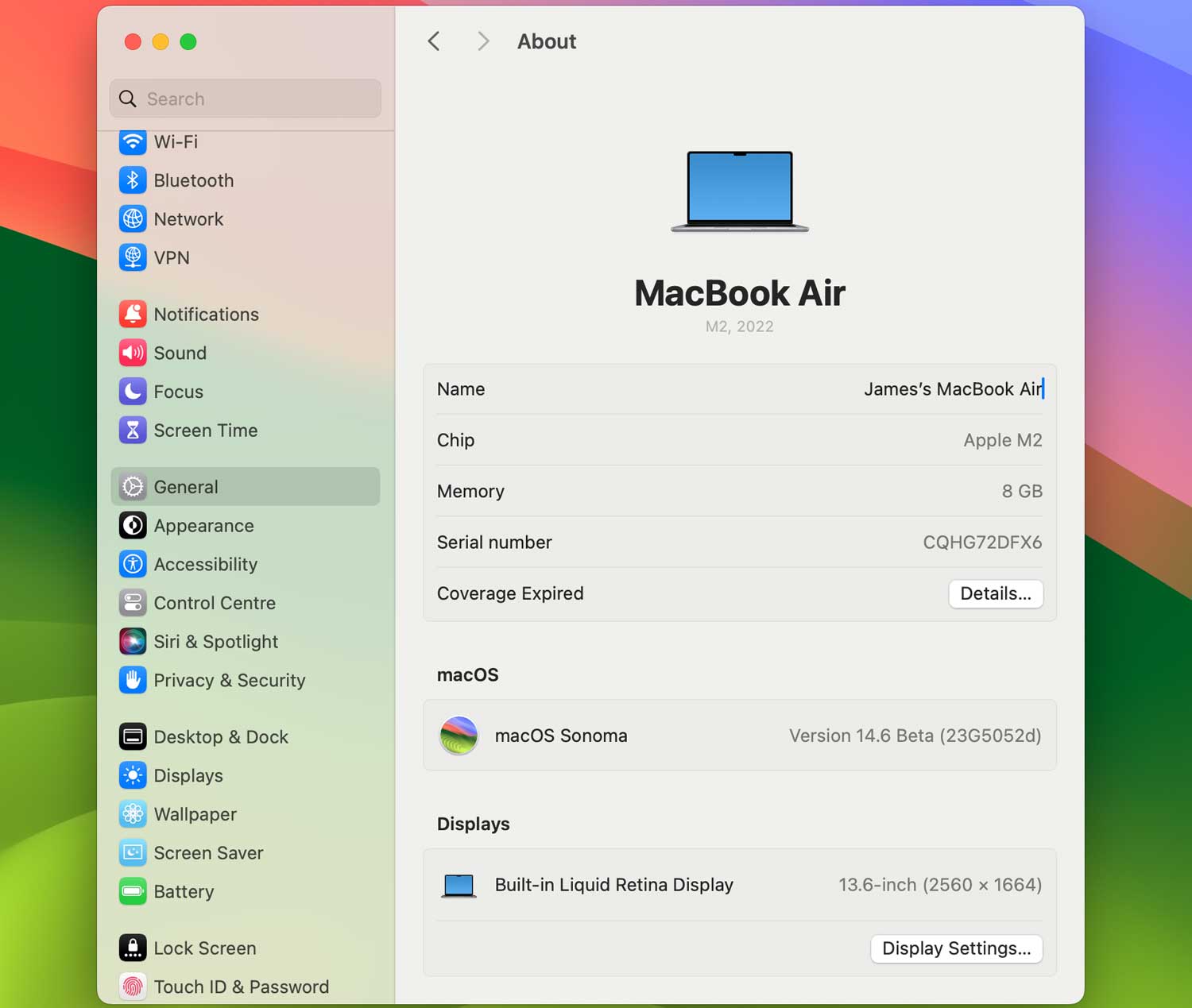
Remember: You might need to restart your Mac to ensure the new name is updated across all applications, including AirDrop. If AirDrop still acts buggy, here’s how you can fix AirDrop issues on Mac.
Now, your Mac should be easily distinguishable during AirDrop sessions, helping streamline your file-sharing process!
What If Your AirDrop Name Doesn’t Update?
Sometimes, even after updating, the new name might not appear. Here’s what you can do:
- Double-Check the Steps: It’s easy to miss a step; try going through the process again to make sure everything was done correctly.
- Check for Software Updates: Ensure your device’s software is up to date for all features to function properly. If AirDrop keeps acting up, it could be a case of troubleshooting random AirDrop disconnections too.
- For iPhone or iPad: Open the Settings app, tap “General,” then “Software Update.”

- For Mac: Open System Settings, select “General,” then click on “Software Update.”

These steps should help resolve any issues with your AirDrop name not displaying correctly. If you need further assistance or have more content to refine, feel free to ask!
What to Do If You Can’t Change Your AirDrop Name
#1 Check Your Device Name
Your AirDrop name is actually the same as your device name. To change it, go to Settings > General > About > Name on your iPhone or iPad. From there, you can enter a new name.
#2 Restart Your Device
Sometimes, a simple restart can resolve issues that prevent changes from being recognized. Turn your device off and on again.

#3 Update Your OS
Make sure your device is running the latest iOS version, as software bugs that affect settings like AirDrop can often be resolved with updates. Go to Settings > General > Software Update to check for available updates.
#4 Reset Network Settings
If updating the name still doesn’t reflect in AirDrop, try resetting your network settings. This can resolve underlying issues related to connectivity.
- Go to Settings > General > Transfer or Reset iPhone.

- Reset > Reset Network Settings.

Keep in mind this will also erase your WiFi networks and passwords, so you’ll need to reconnect to them afterward.
#5 Check Restrictions
If you’re using a device managed by an organization or if there are restrictions set up (such as parental controls), these settings might prevent you from changing your device’s name. Check any profiles or managed settings.
Still having issues? You can also fix common AirDrop problems on iPhone or iPad to get everything back to normal.
Conclusion
Now that you’ve mastered the steps to personalize the AirDrop names on your iPhone, iPad, and Mac, you can navigate file sharing with ease and precision.
Remember, renaming your device not only updates your AirDrop identity but also affects how your device appears on Wi-Fi networks, in the Find My app, and when connected to other devices.
This uniformity ensures that whether you’re transferring documents, photos, or videos, your devices are easily identifiable, reducing confusion and streamlining the process.
Embrace these simple changes and make your AirDrop experience as efficient and personalized as possible!