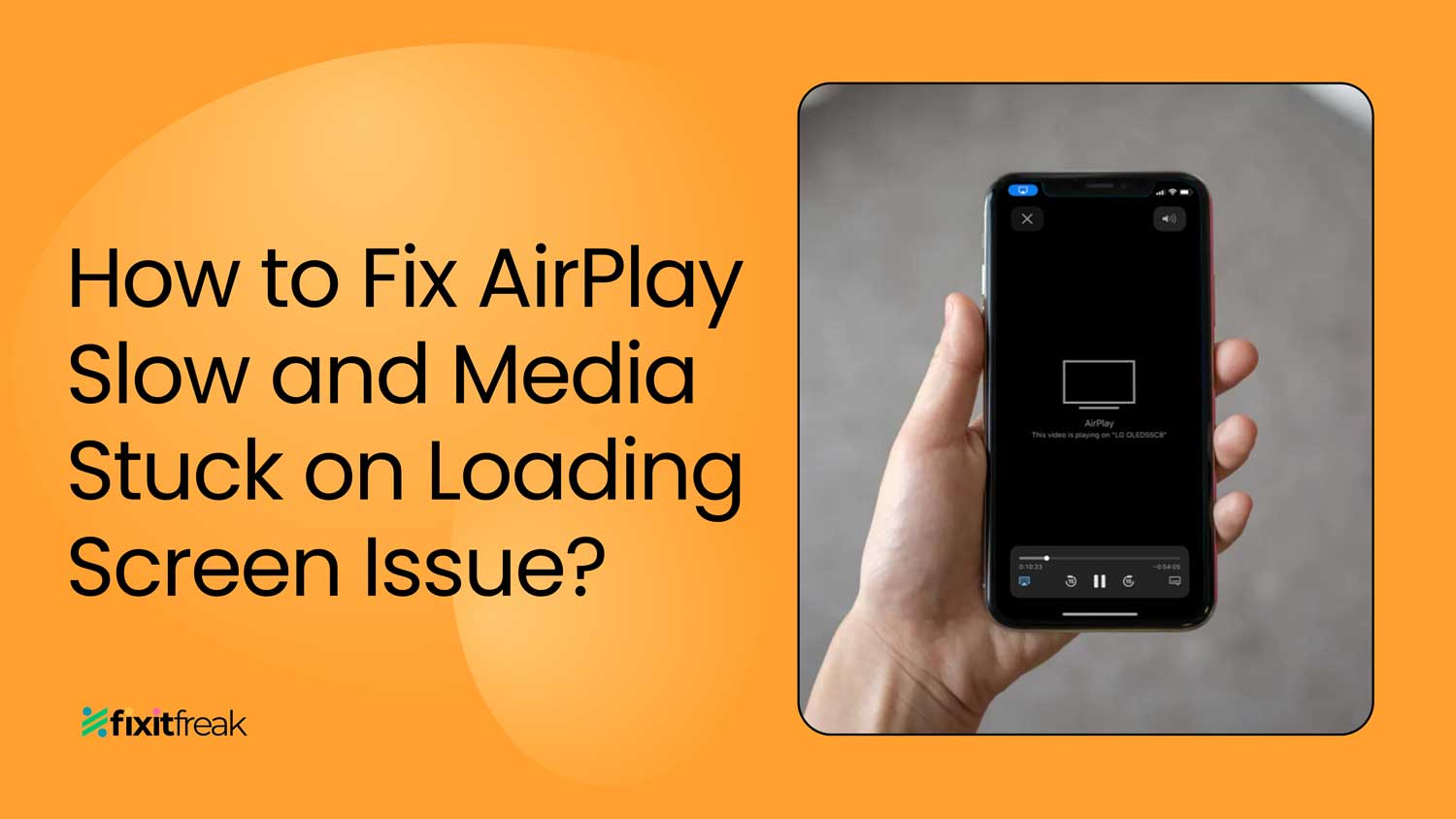
Have you ever tried to show a funny video to your friends on the big screen, only to have AirPlay let you down?
It’s frustrating when technology doesn’t work as it should, especially when you’re excited to share something.
AirPlay is supposed to make sharing content from your iPhone or iPad to your TV easy and fun.
But sometimes, it feels like it’s working against you. Maybe you’ve experienced that annoying lag when streaming a movie, or worse, the endless loading screen that never seems to go away.
Many users also report AirPlay lagging on LG TV, which can be extra frustrating when watching with a group.
You might be wondering, “Is it my Wi-Fi? My device? Am I doing something wrong?” These are all valid questions, and you’re not alone in asking them.
Many Apple users face similar issues with AirPlay, and it can be confusing to figure out why.
The good news is that most AirPlay problems have simple solutions. In this article, you’ll learn why these issues happen and how to fix them.
Whether it’s a network problem, outdated software, or just a small setting that needs tweaking, we’ll walk you through it step by step.
Why your AirPlay might be slow
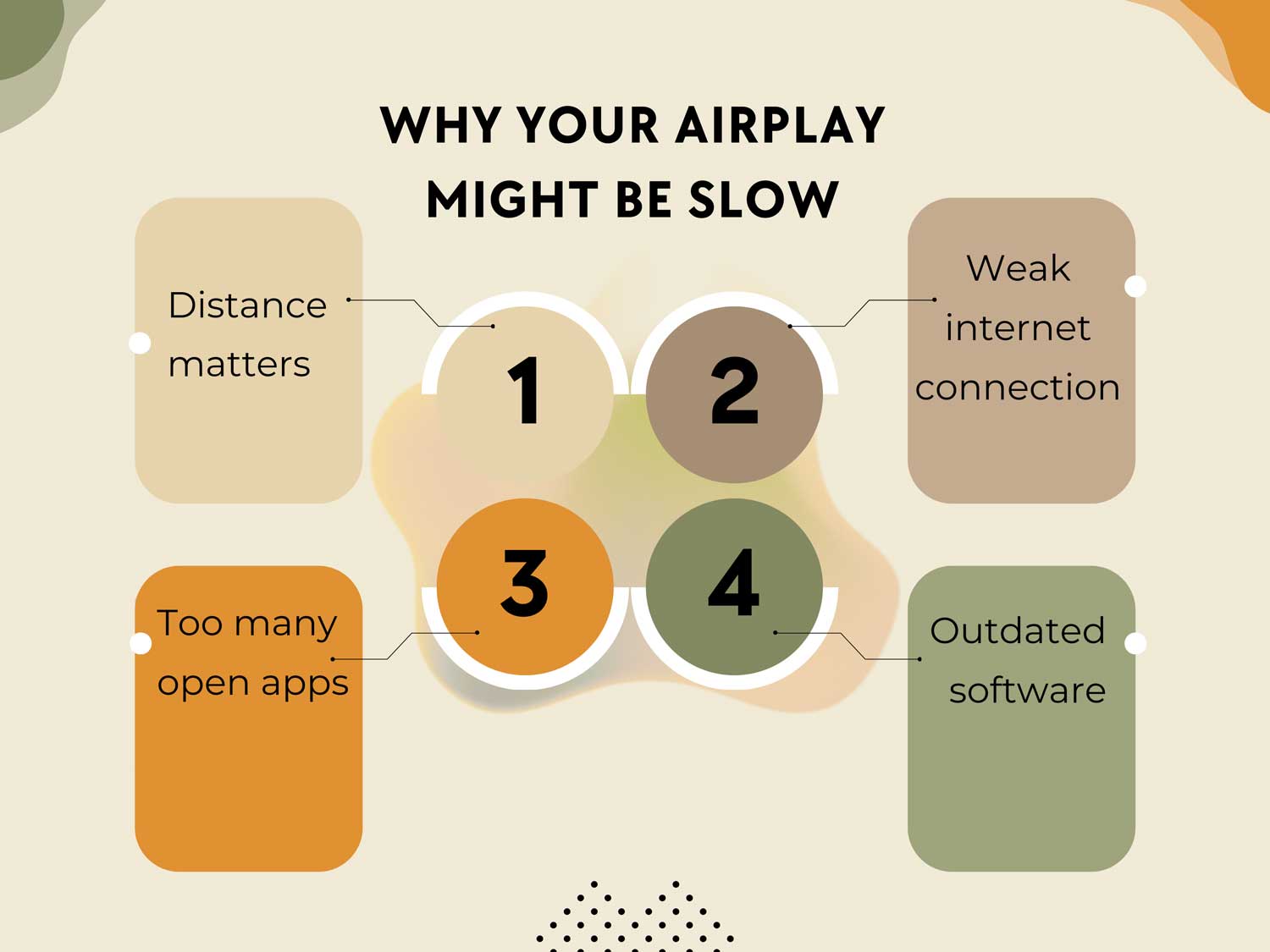
You’ve set up AirPlay, but it’s crawling along at a snail’s pace. Let’s look at some common reasons why this happens:
1. Distance matters.
If your Apple device is too far from your TV, AirPlay might struggle. It’s like trying to have a conversation across a noisy room.
The message gets lost. For best results, keep your devices closer together.
2. Weak internet connection.
AirPlay needs a strong internet connection to work well. If your Wi-Fi is weak or unstable, AirPlay will slow down.
It’s similar to watching a video online without good internet. You’ll see a lot of buffering.
3. Too many open apps.
When you have many apps running on your device, it can slow down AirPlay.
Your device has to work harder, like a juggler trying to keep too many balls in the air at once.
Closing unnecessary apps can help speed things up. In some cases, AirPlay stops when the iPhone locks. It can interrupt your stream unexpectedly.
4. Outdated software.
If your iPhone, iPad, or Apple TV hasn’t been updated in a while, it might not work well with AirPlay.
Think of it as trying to run a new game on an old computer. Sometimes, the old system just can’t keep up.
How to fix slow or lagging AirPlay
Is your AirPlay experience more frustrating than fun? Let’s turn that around with these expanded tips and tricks.
These methods work for Mac, iPhone, and iPad users alike.
1. Close unused apps to free up memory
Your device’s performance can suffer when it’s juggling too many tasks. Here’s a more detailed approach:
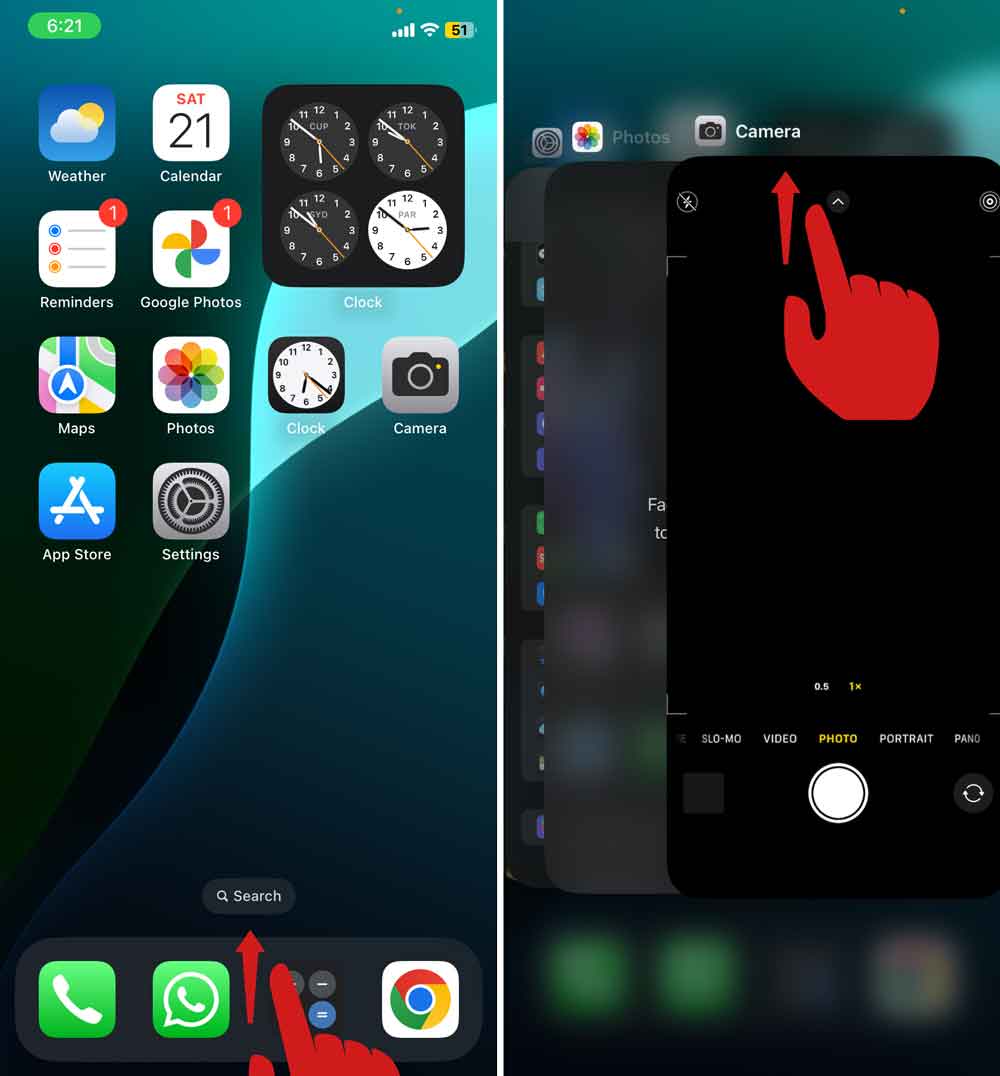
- On iPhone or iPad: Double-click the home button (or swipe up and hold on newer models) to see all open apps.
- Swipe up on each app card to close it.
- On Mac: Right-click on app icons in the dock and select “Quit“.

- Use Activity Monitor on Mac to identify and quit resource-heavy apps.
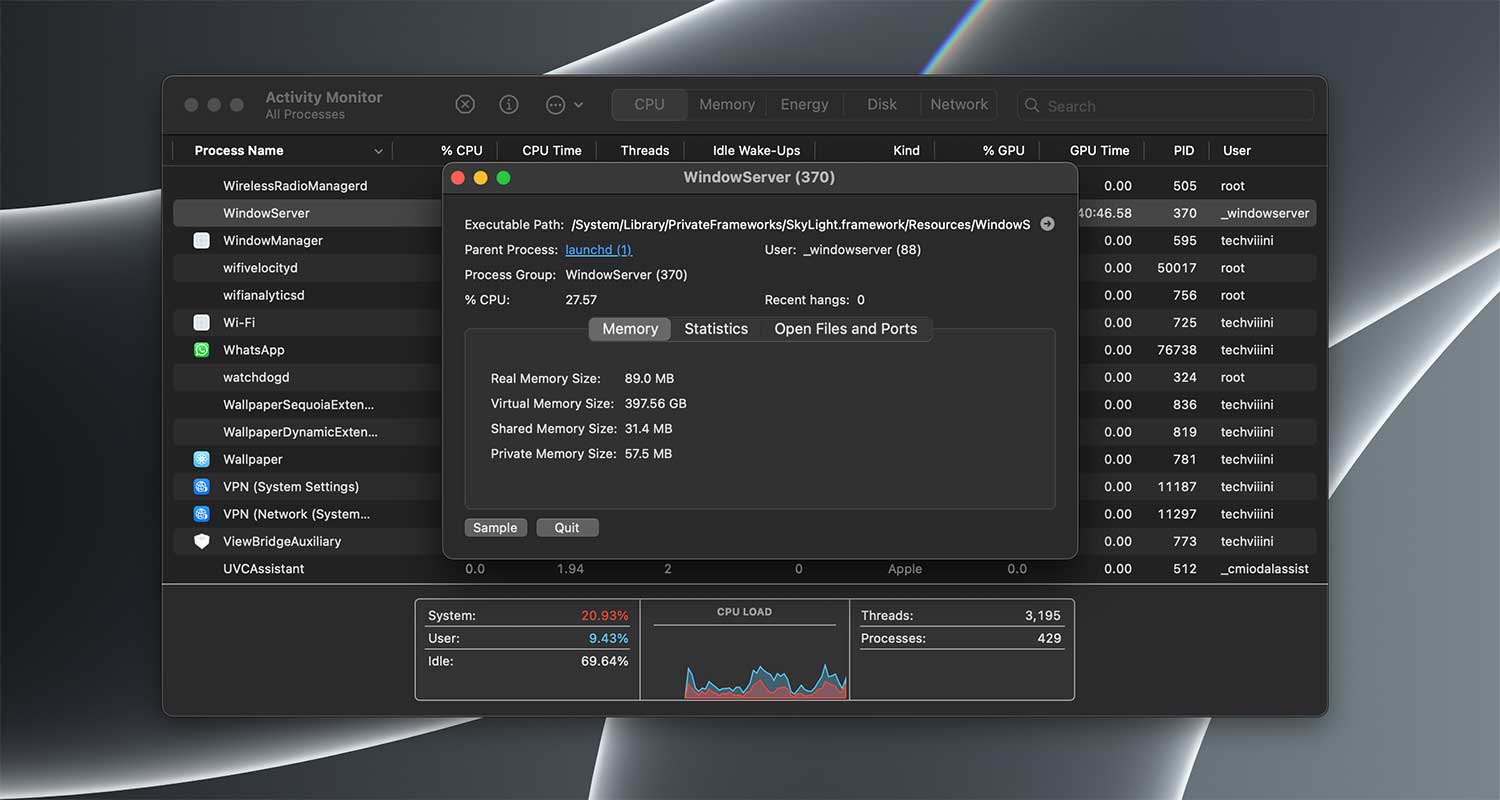
By closing unnecessary apps, you’re giving AirPlay more resources to work with, potentially reducing lag and buffering.
2. Optimize your internet connection
A strong, stable internet connection is crucial for smooth AirPlay streaming. Try these additional steps:
- Run a speed test on your device and your AirPlay receiver (like Apple TV).
- If speeds are low, restart your Wi-Fi router by unplugging it for 30 seconds.
- Change your router’s channel to avoid interference. Use a Wi-Fi analyzer app to find less crowded channels.
- Consider using a 5GHz network if available, as it often provides faster speeds for compatible devices.
- If possible, use an Ethernet connection for your AirPlay receiver for the most stable connection.
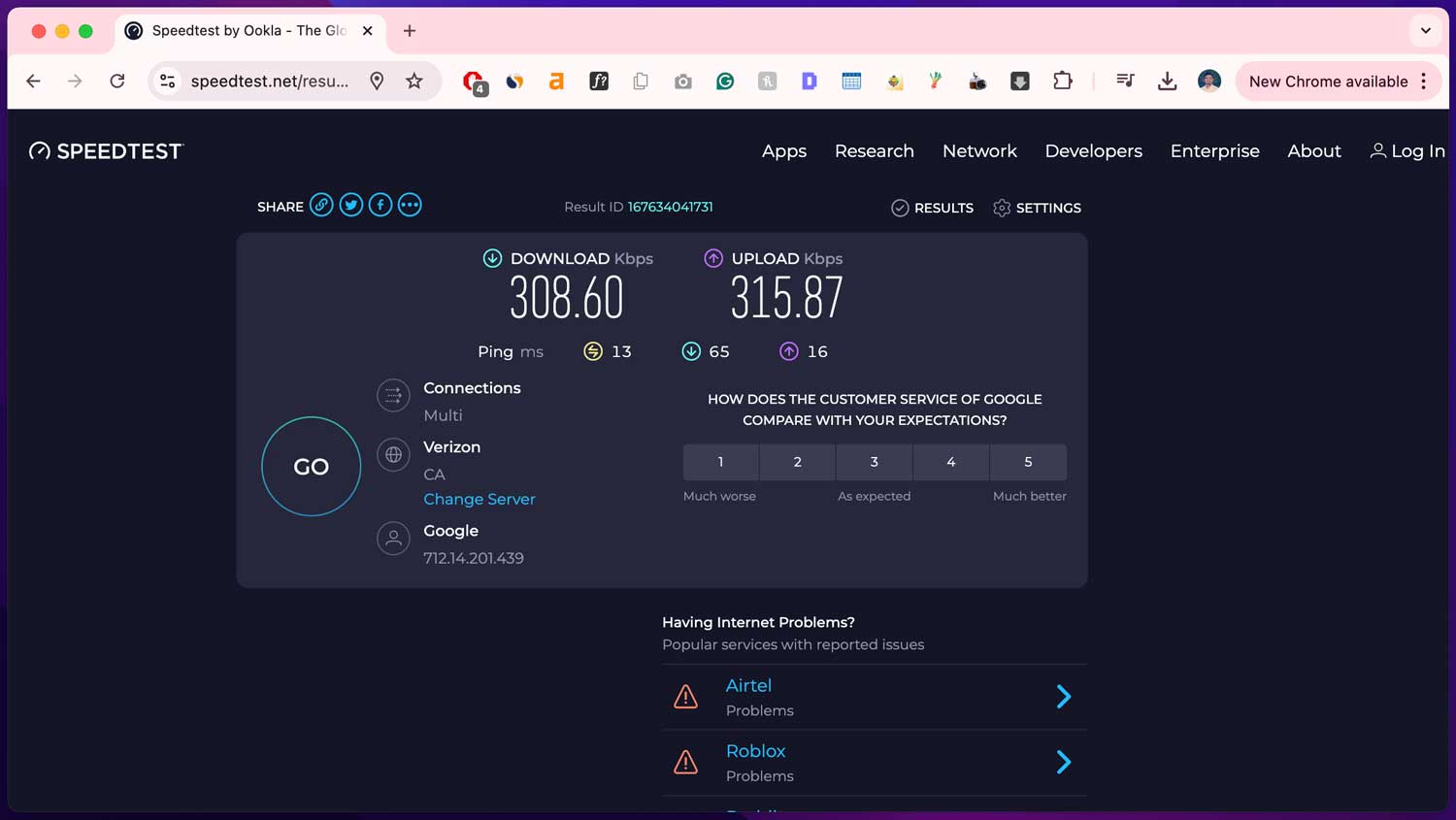
A solid internet foundation can significantly improve AirPlay’s performance.
3. Update all your devices
Keeping your devices up-to-date is crucial. Here’s a more comprehensive approach:
- Update your streaming device (iPhone, iPad, Mac) as previously described.
- Update your AirPlay receiver (Apple TV, smart TV, etc.):
- For Apple TV: Go to Settings > System > Software Updates > Update Software

-
- For smart TVs: Check the manufacturer’s instructions for updating firmware
- Update your router’s firmware by logging into its admin panel (usually via a web browser).
Updated software often includes performance improvements and bug fixes specifically for features like AirPlay.
4. Perform a network reset
If you’re still having issues, try resetting your network settings:
- On iPhone or iPad: Go to Settings > General > Transfer or Reset iPhone.

- Reset > Reset Network Settings

- On Mac: Go to System Settings > Network > Advanced > Reset to remove all network settings.
This can clear out any network-related glitches that might be affecting AirPlay.
5. Use AirPlay 2 when possible
If your devices support it, AirPlay 2 offers significant improvements:
- Check if your devices support AirPlay 2 (introduced in iOS 11.4 and later).
- AirPlay 2 provides better buffering, improved synchronization, and the ability to stream to multiple devices.
Utilizing AirPlay 2 can provide a more robust streaming experience.
6. Adjust video quality settings
Sometimes, lowering the video quality can help with streaming issues:
- In the app you’re streaming from, look for video quality settings. If you’re dealing with a situation where AirPlay only plays audio but not video, adjusting quality settings may help resolve it. Or maybe you’re seeing a black screen with sound during AirPlay. That’s another common issue with simple fixes.
- Try setting it to a lower resolution or auto to let it adjust based on your connection.
This can help reduce buffering and improve overall playback smoothness.
The takeaway
AirPlay can sometimes be frustratingly slow, but don’t worry. It’s usually an easy fix.
We’ve covered several simple solutions that can get your streaming back up to speed in no time.
The main things to remember are: close unused apps to free up your device’s memory.
Make sure your internet connection is strong, keep your devices updated, and try restarting them if you’re still having trouble.
Also, keep your device close to your TV for the best connection. These quick fixes can solve most AirPlay problems.
Some people think AirPlay issues always mean there’s something wrong with their device or TV.
But often, it’s just a matter of fine-tuning your setup.
With the tips we’ve discussed, you can usually solve the problem yourself without needing technical help.
The most important thing is not to get discouraged. AirPlay is a great feature when it’s working well, and now you know how to keep it running smoothly.
So go ahead, try out these tips, and enjoy sharing your favorite content on the big screen.
Your AirPlay experience is about to get a whole lot better!
We’d love to hear how these tips worked for you. Did they solve your AirPlay issues? Do you have any other tricks that have worked well?
Still, having trouble? You might want to explore why AirPlay keeps disconnecting .
It’s one of the most searched issues among iPhone users. Share your thoughts in the comments below!