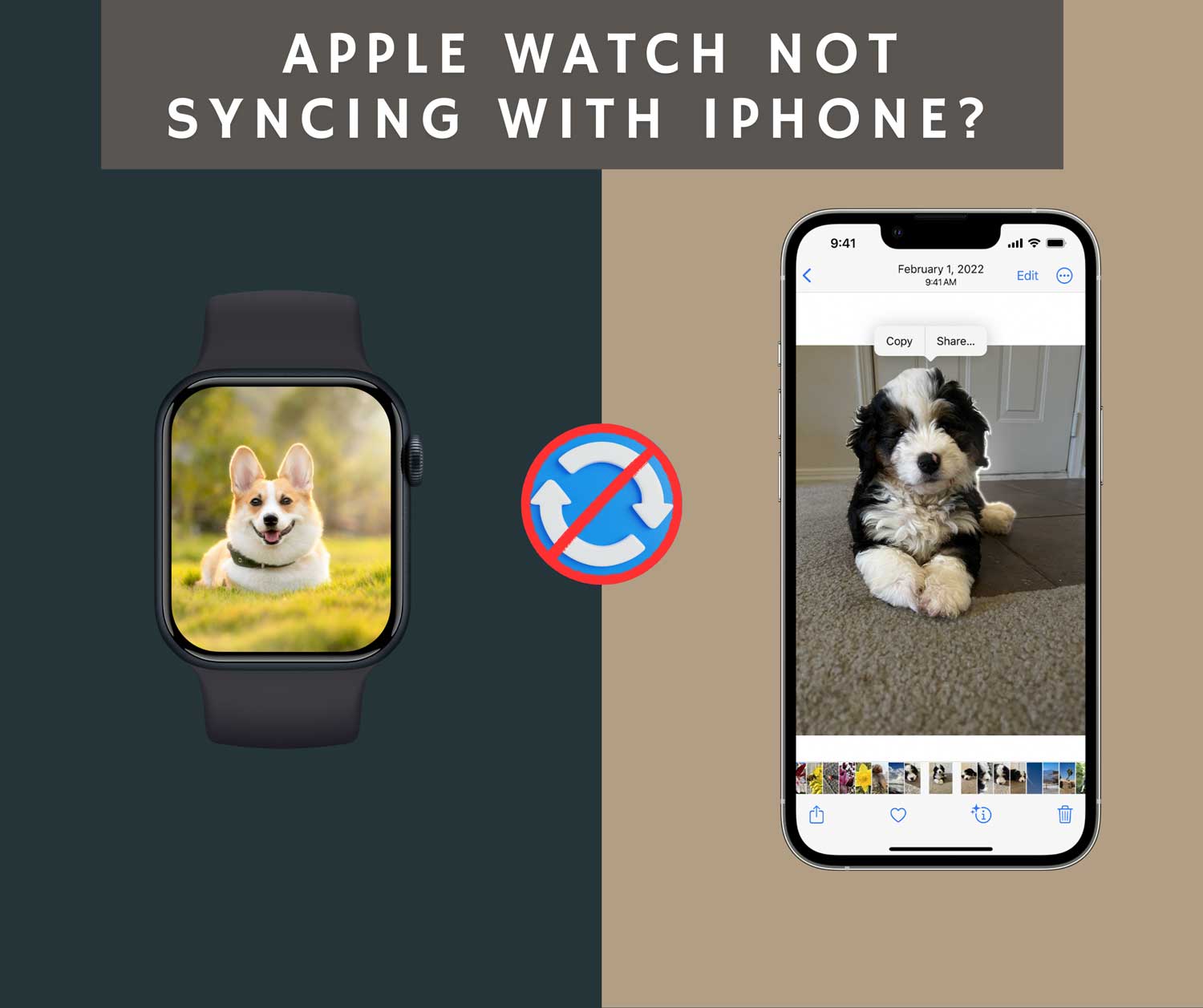
Got an Apple Watch and an iPhone? Imagine them as the ultimate tech team, ready to streamline your day.
Think about it. Your Apple Watch can magically display texts, updates, and more from your iPhone. No need to dig through your pockets!
First things first: let’s get these two synced up! Pairing your Apple Watch with your iPhone is like setting up a superhero team.
Once connected, your watch is no longer just a watch; it’s a mini-command center on your wrist, ready to unleash the full potential of your iPhone with a simple tap.
But what if your dynamic duo starts to disagree? If your Apple Watch and iPhone aren’t syncing properly, it can throw off your groove. Missing notifications, texts, or even important updates can be a real drag.
Eager to eliminate those glitches? Let’s zoom in on some foolproof methods to fix these issues fast. Stick with me, and let’s turn your tech frustrations into victories!
First Steps to Diagnosing Why Your Apple Watch Is Not Syncing with iPhone:
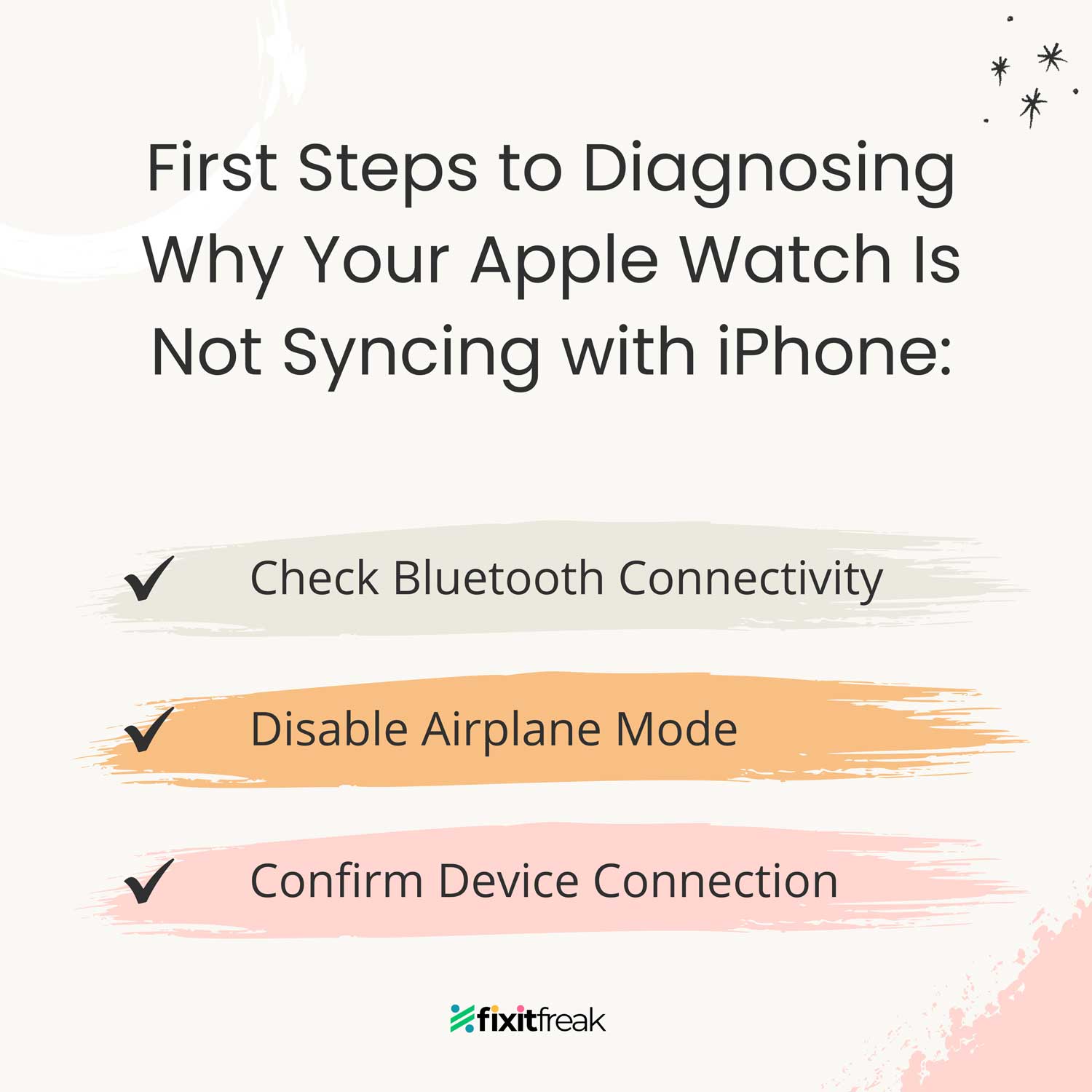
- Check Bluetooth Connectivity: Ensure Bluetooth is active on both your Apple Watch and iPhone. Open the Settings app on your iPhone, tap Bluetooth, and make sure the toggle is enabled.
- Disable Airplane Mode: Make sure your Apple Watch is not in Airplane Mode, which turns off all wireless connections, including Bluetooth.
- Confirm Device Connection: Swipe up on your Apple Watch to open the Control Center. Look for the green iPhone icon to confirm connectivity. If you see a red iPhone icon with a slash through it, your devices are disconnected.
How To Fix Apple Watch Not Syncing With iPhone?
If your Apple Watch isn’t pairing or syncing with your iPhone, don’t worry!
Here’s a handy guide with some common fixes that can help re-establish the connection between your devices.
Fix #1: Toggle Airplane Mode On & Off
Sometimes, simply toggling Airplane Mode on and off can reset the wireless connections and help your devices sync up again.
1.1 On your Apple Watch:
- Swipe up from the watch face to access the Control Center.
- Tap the Airplane Mode icon to turn it on.
1.2 On an iPhone without a Home button:
- Swipe down from the upper-right corner of the screen to open the Control Center.
- Tap the Airplane Mode icon to turn it on.

1.3 To turn off Airplane Mode:
- On your Apple Watch, tap the Airplane Mode icon again to disable it.
- On your iPhone, tap the Airplane Mode icon once more to switch it off.
Fix #2: Restart Your Apple Watch & iPhone
Restarting your devices can clear up various issues including software glitches and connectivity problems.
Here’s how to restart your Apple Watch and iPhone effectively:
2.1 To Power Down Your Apple Watch:
- Press and hold the side button until the power options menu appears on the screen.
- Slide the toggle to turn off your Apple Watch.
2.2 To Power Down Your iPhone:
- On an iPhone with Face ID: Press and hold the side button and either volume button until the power options menu appears.
- Slide the toggle to turn off your iPhone.

2.3 To Restart Your Apple Watch:
- After it’s turned off, press and hold the side button again until the Apple logo appears, signaling that it’s turning back on.

2.4 To Restart Your iPhone:
- Once it’s off, press and hold the power button (side button on iPhone with Face ID) until the Apple logo appears.
Fix #3: Reset Sync Data
This process erases any current sync data and starts the sync process anew, which often solves persistent connectivity problems.
On your iPhone, follow these steps:
- Open the Watch app.
- Tap on General.
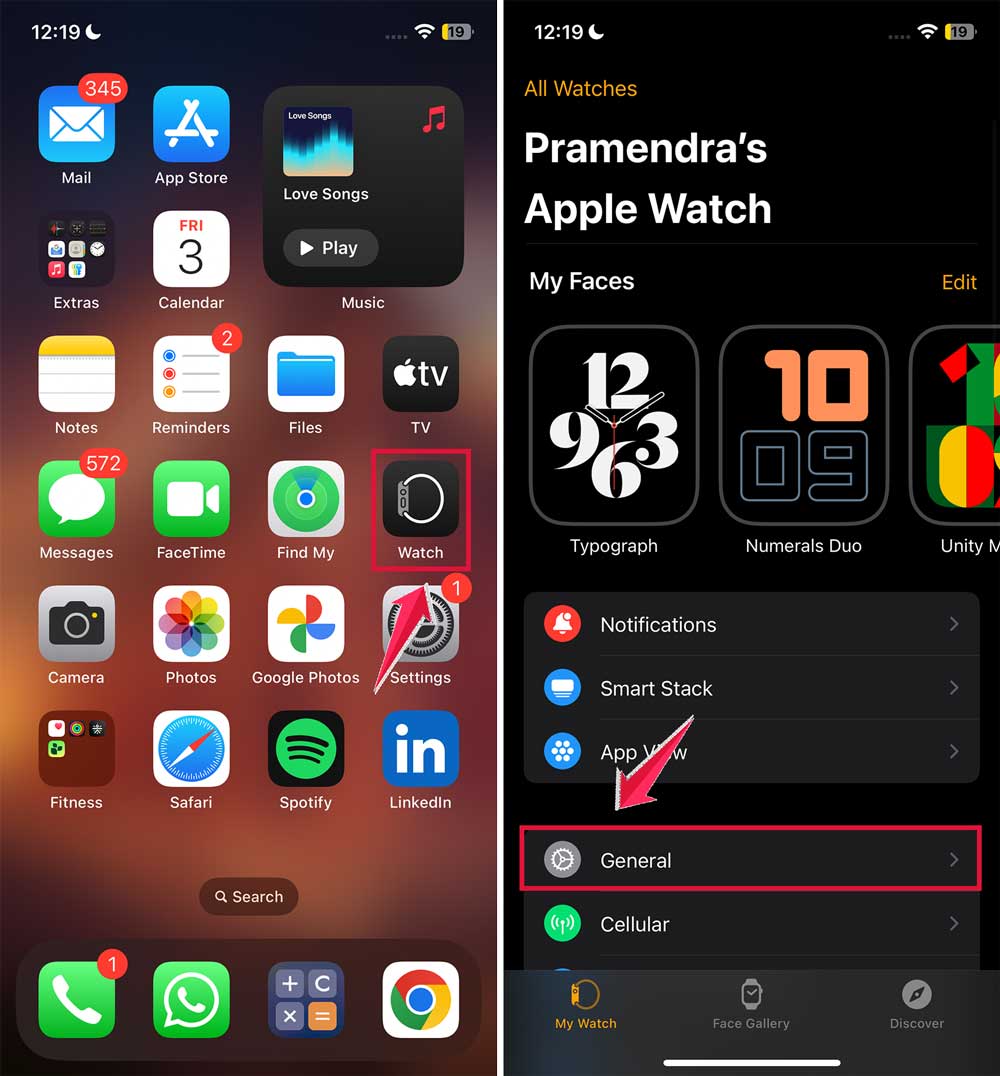
- Scroll down to the bottom and tap Reset.
- Choose Reset Sync Data.

Fix #4: Check Both Your iPhone & Apple Watch for Software Updates
Keeping your devices updated is crucial as software updates often include fixes for bugs and other issues that might be affecting connectivity.
Here’s how to ensure both your iPhone and Apple Watch are up-to-date:
4.1 To check for iPhone software updates:
- Open the Settings app on your iPhone.
- Tap General.

- Tap Software Update.
- If there’s an update available, tap Download and Install.

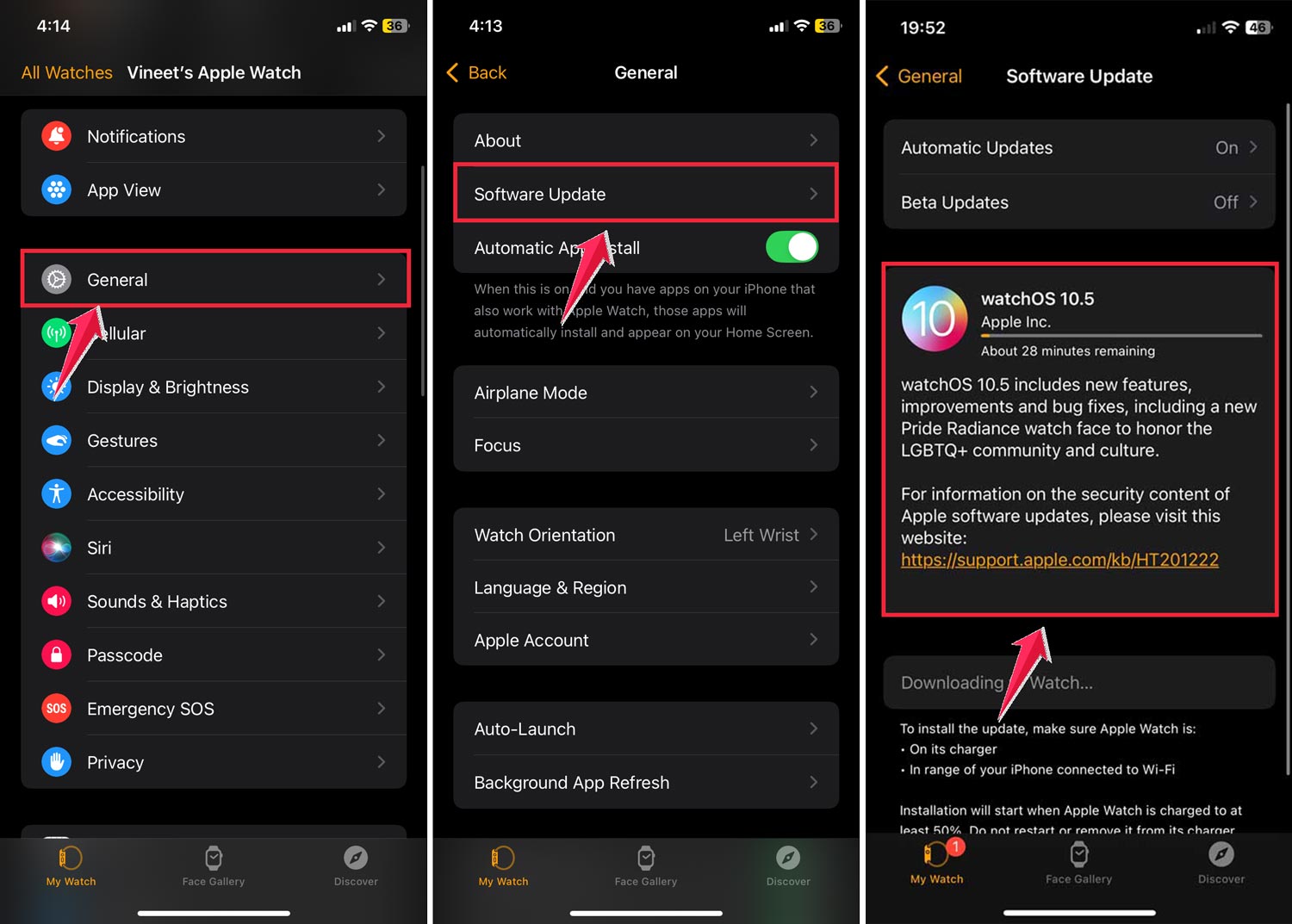
4.2 To check for Apple Watch software updates:
- Open the Watch app on your iPhone.
- Tap General.
- Tap Software Update.
- If there’s an update available for your Apple Watch, tap Download and Install.
Fix #5: Unpair & Re-pair Apple Watch
Here’s how to unpair and re-pair your Apple Watch:
5.1 To Unpair Your Apple Watch:
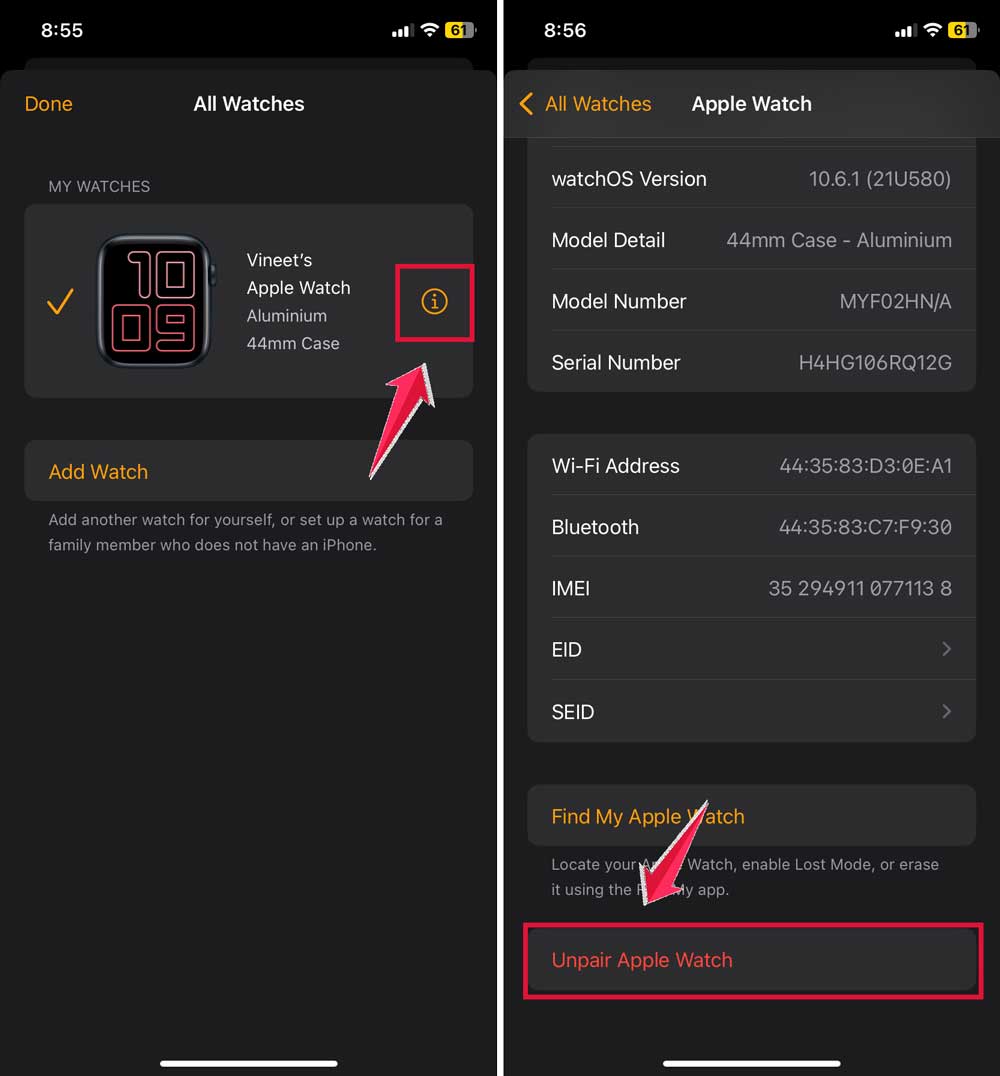
- Open the Watch app on your iPhone.
- Tap All Watches at the top of the screen.

- Tap the info icon next to your Watch.
- Select Unpair Apple Watch.
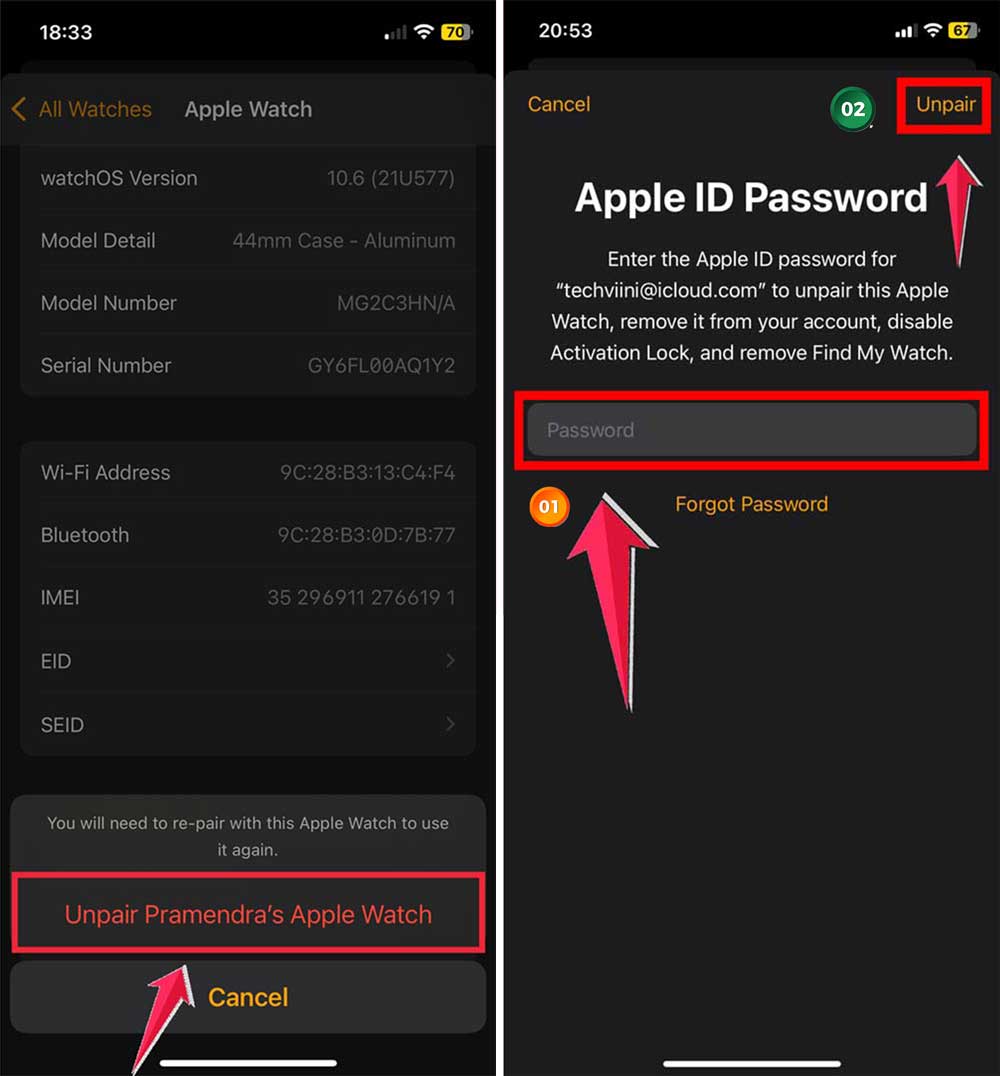
- Confirm by tapping Unpair My Apple Watch.
- Enter your Apple ID and password to disable Activation Lock.
- Tap Unpair again. The unpairing process will begin and may take a few minutes.
5.2 To Re-pair Your Apple Watch:
- On the Watch app start screen on your iPhone, tap Start Pairing.
- On your Apple Watch, choose a language and your region, then tap Start Pairing.
- Line up your Apple Watch in the frame on your iPhone screen to pair it.

- Once paired, select Restore from Backup and choose the most recent backup of your Watch data.

- Follow the prompts to set up your Watch, agreeing to the Terms and Conditions.
- Your Apple Watch will begin syncing with your iPhone after setup.

Wrapping it up
And there you have it! We’ve explored a variety of effective strategies to ensure your Apple Watch and iPhone sync perfectly.
Whether your solution was as simple as keeping your devices closer together or required a bit more technical action, we hope one of these tips did the trick.
We’re optimistic that these solutions have smoothed out any syncing snags you’ve experienced.
Technology can be finicky, but with the right approach, persistence, and a little know-how, most problems are manageable.
This troubleshooting process is similar to fixing other Apple Watch issues, where patience and step-by-step problem-solving often lead to success.
Thank you for following along with these tips! Should you face any other technical difficulties, remember, our guides are here to help you navigate through those tech troubles with ease.