Have you ever noticed your AirPods flashing green? It can be pretty confusing, especially when you’re just trying to listen to some music or take a call.
Don’t worry. You’re not the only one who’s seen this!
When your AirPods flash green, it usually means there’s a small hiccup somewhere. It could be a connection problem or something to do with the battery.
While it might seem annoying, it’s actually your AirPods trying to tell you something.
In this guide, we’ll explain what that flashing green light means and why it happens. More importantly, we’ll show you how to fix it.
By the time you’re done reading, you’ll know exactly what to do if you see that green light again.
So, let’s get started and solve this AirPods mystery together. You’ll be back to enjoying your favorite tunes in no time!
Why are your AirPods flashing green?
When your AirPods flash green, it’s typically a sign that the charging case is having difficulty recognizing one or both of your AirPods. This can occur for several reasons:
1. Your AirPods are struggling to connect with the case. This pairing issue often results in the green flashing light.
2. Your AirPods aren’t sitting properly in the charging case. Improper placement or the presence of debris can interfere with the charging process.
3. Mono mode is causing confusion for your AirPods. While Apple’s Mono Mode is useful, it can sometimes lead to recognition issues with the unused AirPod.
4. Your AirPods may have suffered physical damage. Accidental drops or impacts can cause hardware issues, potentially triggering the green light.
5. One AirPod is performing differently from the other. Uneven audio performance between the two AirPods can activate the green light, signaling a potential malfunction.
6. Your AirPods’ firmware might be outdated. Older firmware can lead to various issues, including the flashing green light problem.
7. There’s a significant battery difference between your AirPods. If one AirPod has a much lower battery level or is completely drained, it can cause the green flashing light.
How to fix the AirPods flashing green problem
When your AirPods start flashing green, don’t worry. It’s a common issue with some simple solutions.
Let’s walk through some steps to get your AirPods back on track.
1. Give your AirPods a quick reset
Sometimes, your AirPods just need a little nudge. Try this quick reset:
- Open your device’s Settings app and turn off Bluetooth.

- Take your AirPods out of their case.
- After a moment, put them back in snugly.
- Close the case lid and wait a few minutes.
- Open the case and check if the light is now steady green.

This simple reset often does the trick, helping your AirPods reconnect properly with the case.
2. Perform a full reset on your AirPods
If the quick reset doesn’t work, it’s time for a more thorough approach.
- Put your AirPods in their case and close the lid for 30 seconds.
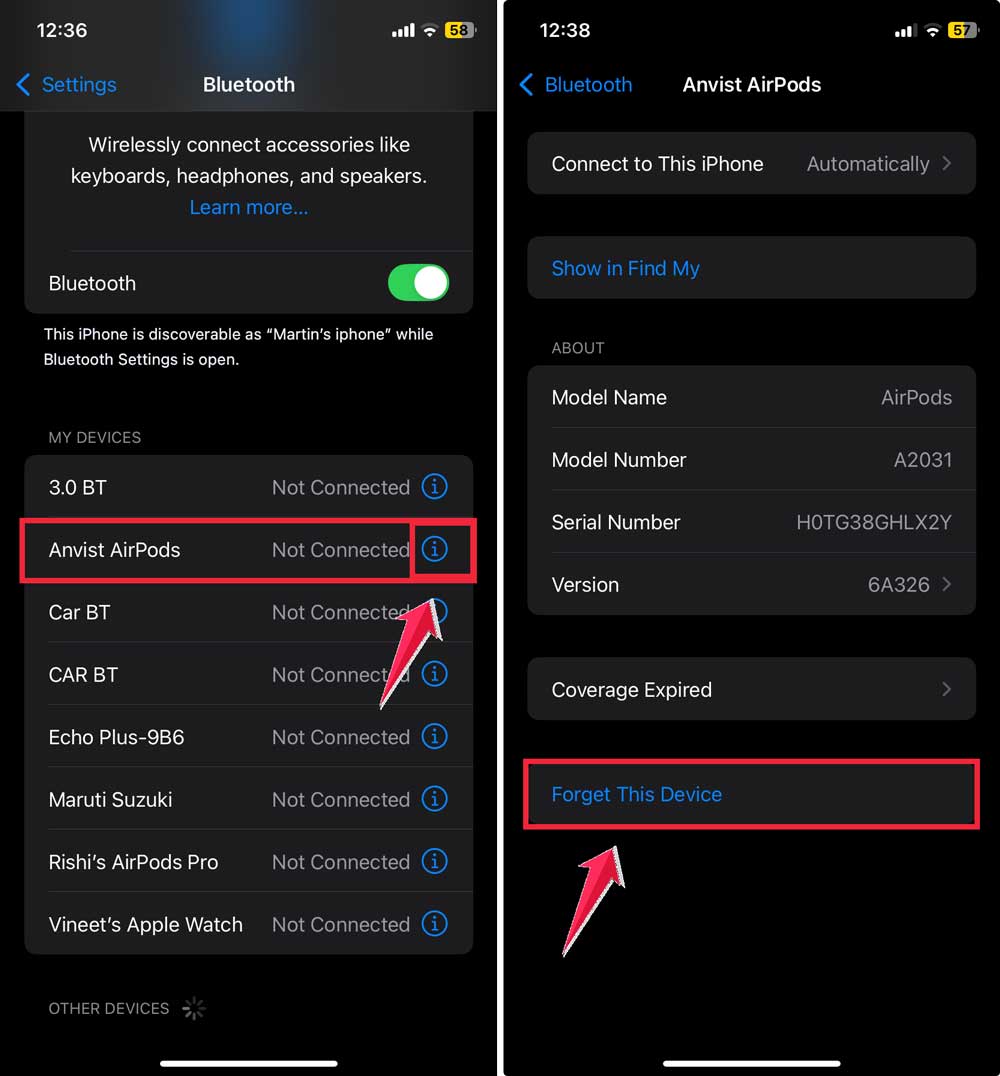
- On your iOS device, go to Settings > Bluetooth.
- Find your AirPods in the list, tap the “i” icon, and choose “Forget This Device”.
- Press and hold the setup button on the back of the AirPods case.

- Until the light turns white.
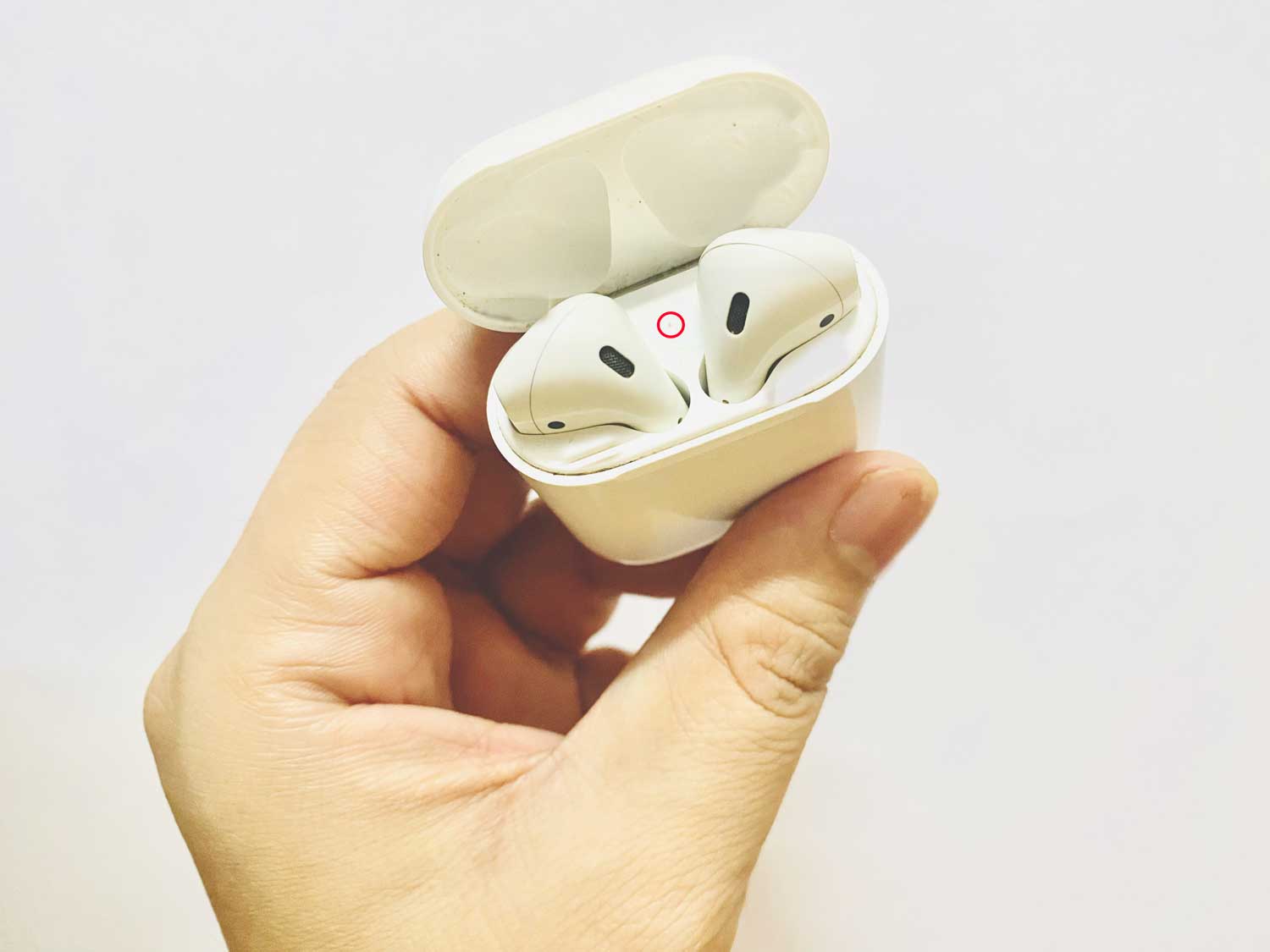
- Keep your AirPods near your iOS device, open the lid, and reconnect when prompted.

This full reset can often solve software-related issues causing the green flashing.
3. Check and charge your AirPods
A low battery can sometimes cause that pesky green flashing. Make sure both your AirPods and the case have enough juice.
You can check the battery levels easily on your iOS device by keeping the AirPods nearby and opening the case.
A handy prompt will pop up showing you the battery levels.
4. Give your AirPods a good cleaning
Believe it or not, a bit of dirt can cause big problems. Gently clean your AirPods and the charging case with a soft, lint-free cloth slightly dampened with water.
Pay special attention to the charging contacts.
For stubborn dirt, you can use a dry cotton swab. Just be careful not to get any liquid in the openings.
5. Update your AirPods’ firmware
Just like your phone, your AirPods need updates too. To check for updates, keep your AirPods in their case and connected to your iOS device.
The update should happen automatically when your device is nearby and connected to Wi-Fi.
You can check the current version in Settings > Bluetooth > [Your AirPods].

6. Reach out to Apple Support
If you’ve tried all these steps and your AirPods are still putting on a green light show, it might be time to call in the experts.
Apple Support can offer professional advice, and they might even replace your AirPods if there’s a hardware issue.

The takeaway
When your AirPods flash green, don’t panic. It usually means they’re having trouble talking to the charging case.
We’ve looked at several ways to fix this, from simply taking them out and putting them back in to giving them a full reset.
Most of the time, these easy steps can solve the problem. Keeping your AirPods clean and up-to-date is also important to prevent issues.
Remember, flashing green doesn’t always mean your AirPods are broken. It’s often just a small hiccup you can fix yourself.
If you’ve tried everything and they’re still flashing green, it’s okay to ask Apple for help.
Your AirPods are meant to work smoothly, so don’t let this small problem stop you from enjoying your music or podcasts.