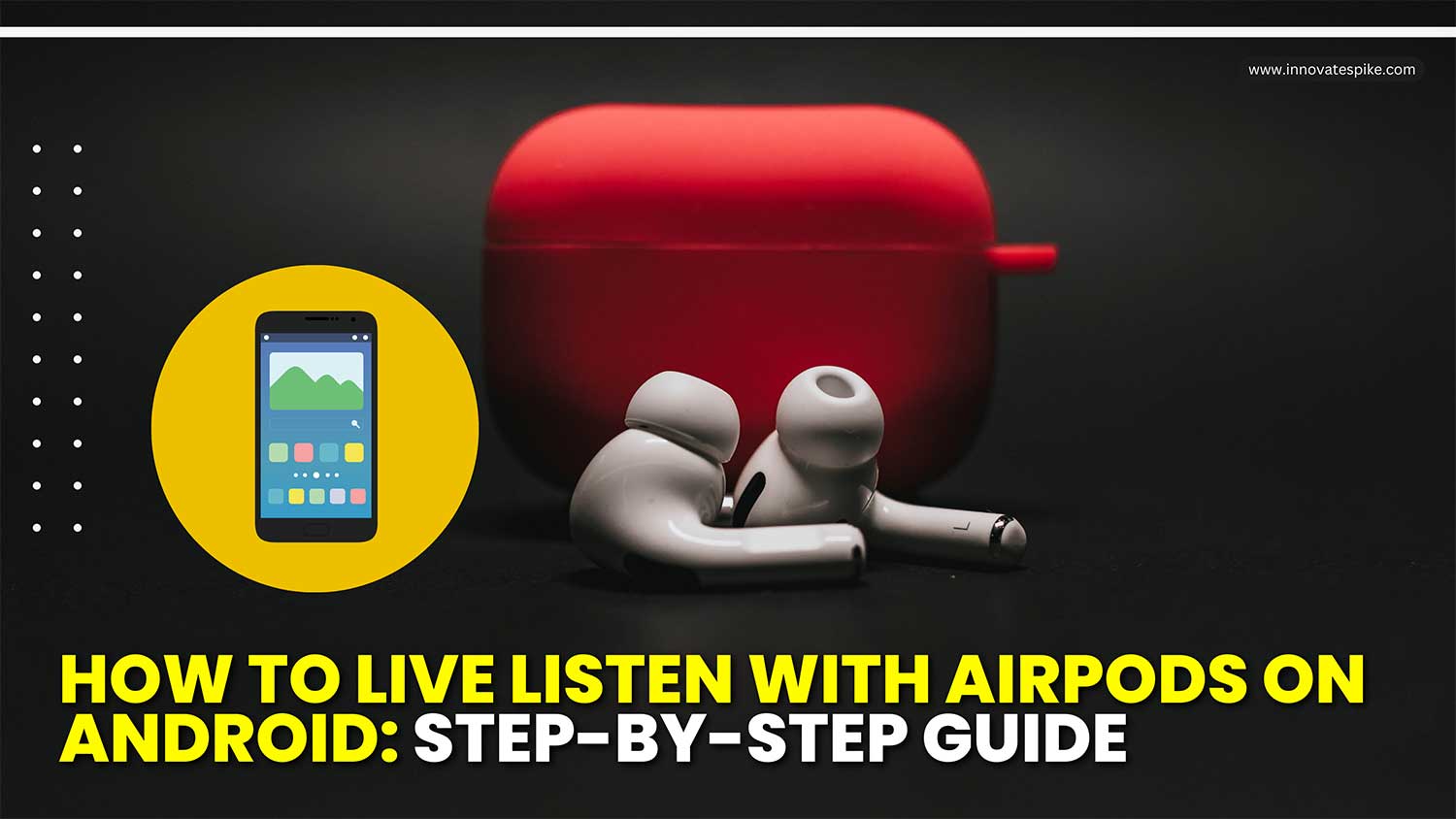
Have you ever felt frustrated trying to use your AirPods with your Android phone? You’re not alone. Millions of Android users own AirPods but struggle to access all their features, especially Live Listen.
Maybe you’ve been in a noisy café, wishing you could hear your friend better. Or perhaps you’re in a lecture hall, straining to catch every word.
That’s where Live Listen comes in handy. It’s like having a timer for your ears instead of your camera. It turns your phone into a microphone, sending amplified sound to your AirPods.
The problem is that Live Listen is an Apple feature. It doesn’t come built-in with Android phones. With a few simple steps, you can get Live Listen working on your Android device.
In this guide, you’ll learn exactly how to set up Live Listen with your AirPods on Android. We’ll walk through the apps you need and how to configure them.
By the end, you’ll be able to use your AirPods to their full potential, no matter what phone you have.
Can you use Live Listen on Android?
The short answer is no, you can’t use Live Listen on Android devices.
Live Listen is a special feature Apple created for its devices. It works by using the microphone in your iPhone, iPad, or iPod touch to pick up sounds around you. Then, it sends those sounds to your AirPods or compatible hearing aids.
Android phones don’t have this feature built into their operating system. The way Android handles audio is different from how Apple does it. That’s why you can’t just download an app and get Live Listen on your Android phone.
This doesn’t mean you’re out of options. While you can’t use Live Listen specifically, there are other ways to get similar functionality on your Android device. In the next sections, we’ll explore some alternatives that can help you achieve a similar effect with your AirPods on Android.
Remember, technology is always evolving. Even if you can’t use Live Listen right now, there might be new solutions in the future. For now, let’s focus on what you can do to get the most out of your AirPods with your Android phone.
How to enable Live Listen on your iPhone
If you have an iPhone and want to use Live Listen, here’s how you can set it up.
First, make sure your iPhone is running iOS 12 or later. You’ll also need AirPods or Powerbeats Pro headphones connected to your device.
If you’re having trouble with connections, you can troubleshoot these common iPhone issues so everything works smoothly.
Here’s what you need to do:
- Swipe down the Home screen and Press and hold the Control Center.

- Tap on “Add a Control”.
- Scroll down And Tap on the Hearing.
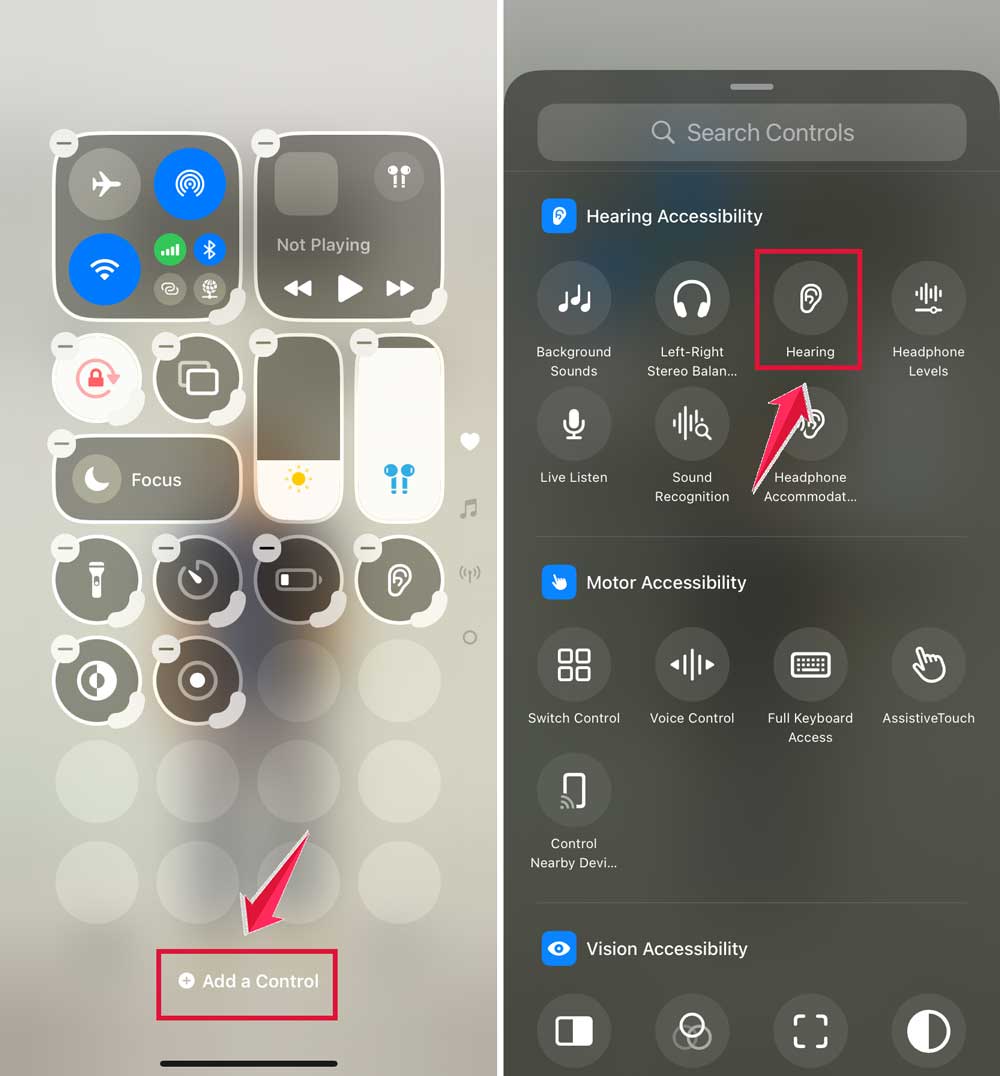
Now that you’ve set it up, here’s how to use Live Listen:
- If you have an iPhone X or later, swipe down from the top-right corner of your screen to open Control Center. For older models, swipe up from the bottom of the screen.
- Look for the ear-shaped icon in the Control Center and tap it.
- Turn on “Live Listen” and adjust the volume to your liking.
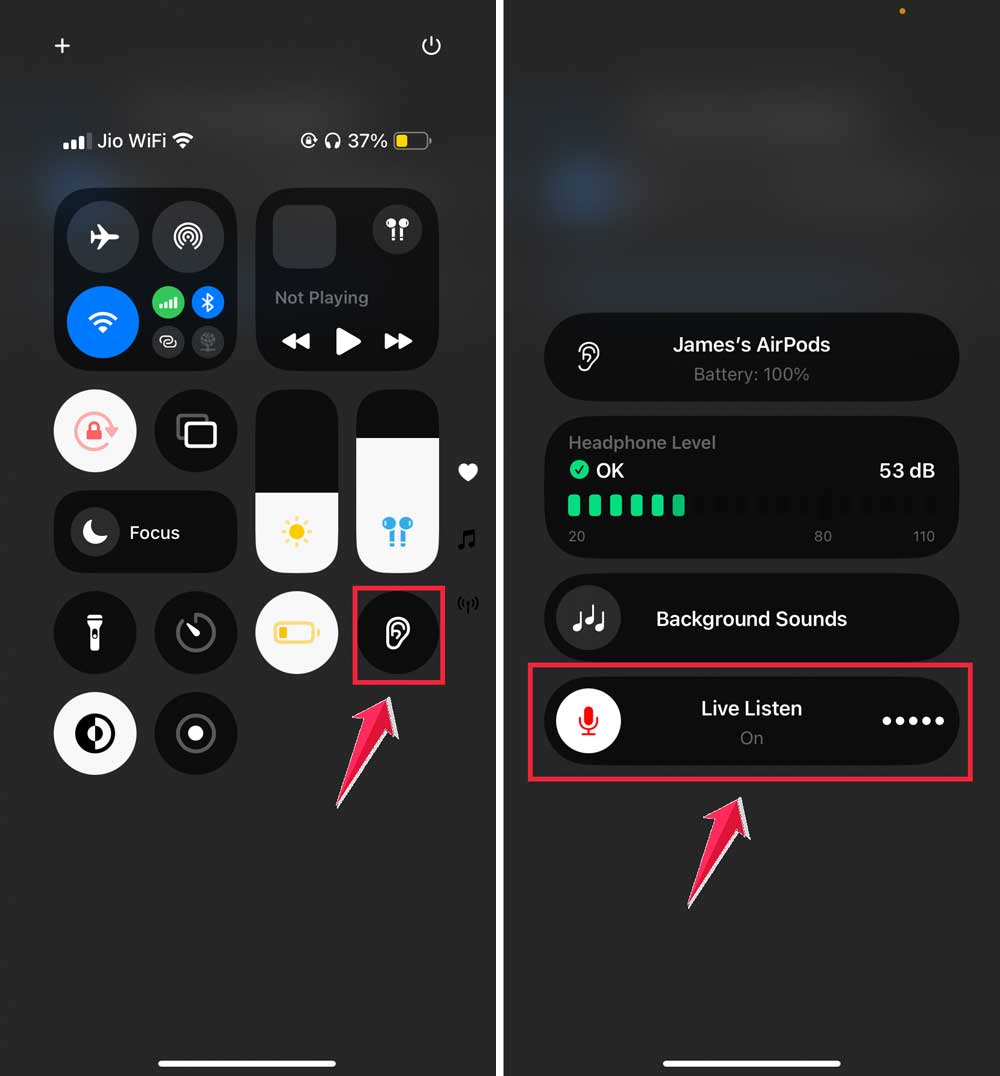
That’s it! Now, when people speak, their voices will be picked up by your iPhone’s microphone and sent directly to your AirPods or Powerbeats Pro.
This can be really helpful in noisy environments or when you’re having trouble hearing someone clearly.
Why is your Live Listen not working?
If you’re having trouble with Live Listen, don’t worry. There are a few common issues that might be causing the problem. Let’s go through some troubleshooting steps:
1. Check your microphone alignment. Make sure the microphone on your hearing aid is pointing towards your ear correctly. A small adjustment can sometimes make a big difference.
2. Check your battery. Low battery power can cause issues. Make sure your hearing aid and device are fully charged and properly connected. Battery issues can affect many functions, including how your phone handles calls.
3. Adjust the volume. The sound might be too low. Try carefully increasing the volume on both your device and hearing aid. Remember to keep it at a safe level for your ears.
4. Refresh the connection. If you’re experiencing a slow or weak connection, try disconnecting and reconnecting your device. Sometimes, this simple reset can solve the problem.
5. Move to a different location. Other signals might be interfering with your connection. Try moving to a different spot and restarting both your device and hearing aid.
If you’ve tried all these steps and Live Listen still isn’t working, it might be time to get some expert help. Contact your hearing care professional. They have the expertise to figure out what’s wrong and how to fix it.
Can you turn on Live Listen from Apple Watch?
No, you can’t turn on Live Listen from your Apple Watch.
Once Live Listen is active, the Apple Watch can help control volume and other audio settings, but the feature itself needs to be initiated from the iPhone.
This is because the iPhone’s microphone picks up the audio and transmits it to your hearing device.
Here’s a helpful tip: You can use the Digital Crown on your Apple Watch to adjust the volume of Live Listen. Just turn it to find the perfect sound level for you.
Live Listen can be really useful in noisy places or when you’re having trouble hearing conversations clearly.
It can also amplify audio from your iPhone, iPad, or Mac, which can be handy in various situations. It’s another way your devices can help you capture moments, but with sound instead of images.
Is there a way to listen to someone’s phone?
Let’s talk about a sensitive topic that comes up sometimes in tech discussions: the idea of listening through someone else’s phone without them knowing.
The short answer is no, you can’t listen to someone’s phone without their knowledge. Modern smartphones are designed with strong security features to protect user privacy.
Here’s why it’s not possible:
- Encryption: Phone calls and messages are encrypted, making them very difficult to intercept.
- Security features: Phones have passwords, PINs, and lock screens that prevent unauthorized access.
- Data protection: Even if someone physically had your phone, they couldn’t access your data without your permission.
- Legal restrictions: Accessing someone’s device without consent is illegal in most places.
Can someone listen to me through my iPhone?
The short answer is yes, but it’s not as alarming as it might sound at first. Let’s break this down:
Your iPhone’s microphone can pick up your voice in several situations, but these are usually ones you’re aware of and have control over:
- Phone calls and video chats: When you’re on a call or video chat, the person on the other end can hear you. That’s the whole point of these features.
- Apps with microphone access: Some apps can record audio or use your microphone for specific functions. But these apps need your permission to access the microphone, and you can control this in your settings.
- Voice assistants: Features like Siri use your microphone to respond to voice commands, but they only activate when you trigger them.
- Bluetooth devices: If you’re connected to a Bluetooth device like headphones or a speaker, someone could potentially listen if they’re also connected to that same device.
The takeaway
Let’s wrap up what we’ve learned about using AirPods and Live Listen on Android phones.
The main issue we addressed is that Android users can’t use Apple’s Live Listen feature directly.
This can be frustrating if you want to use your AirPods to their full potential. However, we’ve discovered there are alternative apps and methods to get similar functionality on your Android device.
Remember, while it might be tempting to look for ways to listen in on others’ devices, this is not only difficult but also unethical and often illegal.
The most important thing to take away is that respecting privacy is crucial in our digital world.
Technology is always evolving, so keep an eye out for new features and updates that might improve how your AirPods work with Android. In the meantime, focus on using the alternatives we’ve discussed to enhance your listening experience ethically and legally.
What do you think about the balance between exploring technology’s capabilities and respecting privacy? Share your thoughts in a single-line comment below.