Ever been in the middle of recording a great video on your iPhone when something unexpected happens? Maybe your phone starts ringing, or someone walks into the room. It’s a common problem, and you’re not alone in wondering how to handle it.
You might think you need to stop recording and start all over again. But guess what? Your iPhone has a handy feature that lets you pause your recording.
It’s not just for videos either. You can pause audio recordings and screen captures, too. This simple trick can save you time and frustration.
In this guide, you’ll learn exactly how to pause and resume recordings on your iPhone. Whether you’re capturing a special moment on video, recording an important voice memo, or creating a tutorial with a screen recording, we’ve got you covered.
You don’t need to be tech-savvy to follow along. We’ll walk you through each step in plain, simple language.
By the time you finish reading, you’ll know how to smoothly pause and resume your recordings. No more lost footage or starting from scratch. Ready to make your iPhone work smarter for you? Let’s get started!
Can you pause a video recording on an iPhone using the Camera app?
The short answer: No, you can’t pause video recordings using the built-in Camera app on your iPhone. This might come as a surprise, but Apple hasn’t included this feature in its standard camera software.
When you’re using the default Camera app to record videos, you’ll quickly notice there’s no pause button. The app only allows you to start and stop recordings.
This limitation can be frustrating, especially when you’re trying to capture a continuous scene but need to take breaks.
But don’t worry. There are workarounds:
1. You can use third-party apps: You can download apps from the App Store specifically designed to add the pause function. These apps enhance your iPhone’s recording abilities, giving you the power to pause and resume your video recordings whenever you need to.
2. You can create multiple clips: If you prefer sticking with the native Camera app, you can:
- You can record multiple video clips instead of one long video.
- Later, stitch these clips together using a video editing app.
This method creates the illusion of a continuous video with pauses. It requires some extra editing work, but it’s a good solution if you want to avoid downloading third-party apps.
While it’s not as convenient as having a built-in pause button, these techniques allow you to create seamless-looking videos on your iPhone.
With a bit of practice, you’ll be able to produce professional-looking videos that appear to have pauses, even when using just the basic Camera app.
Remember, whether you choose a third-party app or the multiple-clip method, you have options to overcome this limitation and create the videos you want.
How to pause a video recording on your iPhone
Since you can’t pause video recordings with the built-in Camera app, you’ll need to use a third-party app. Here are some popular options and how to use them:
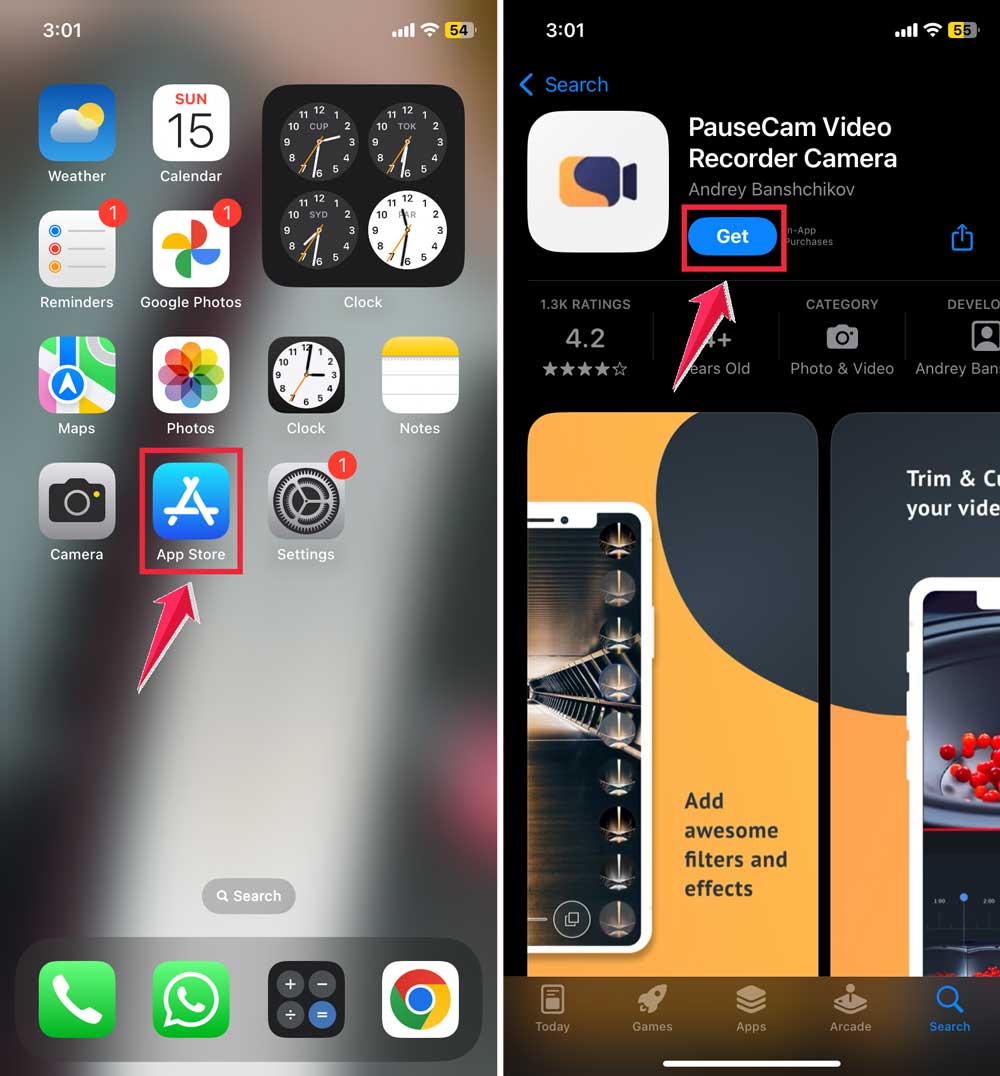
#1 PauseCam
- Download PauseCam from the App Store.
- Open the app and tap “Record” to start your video.
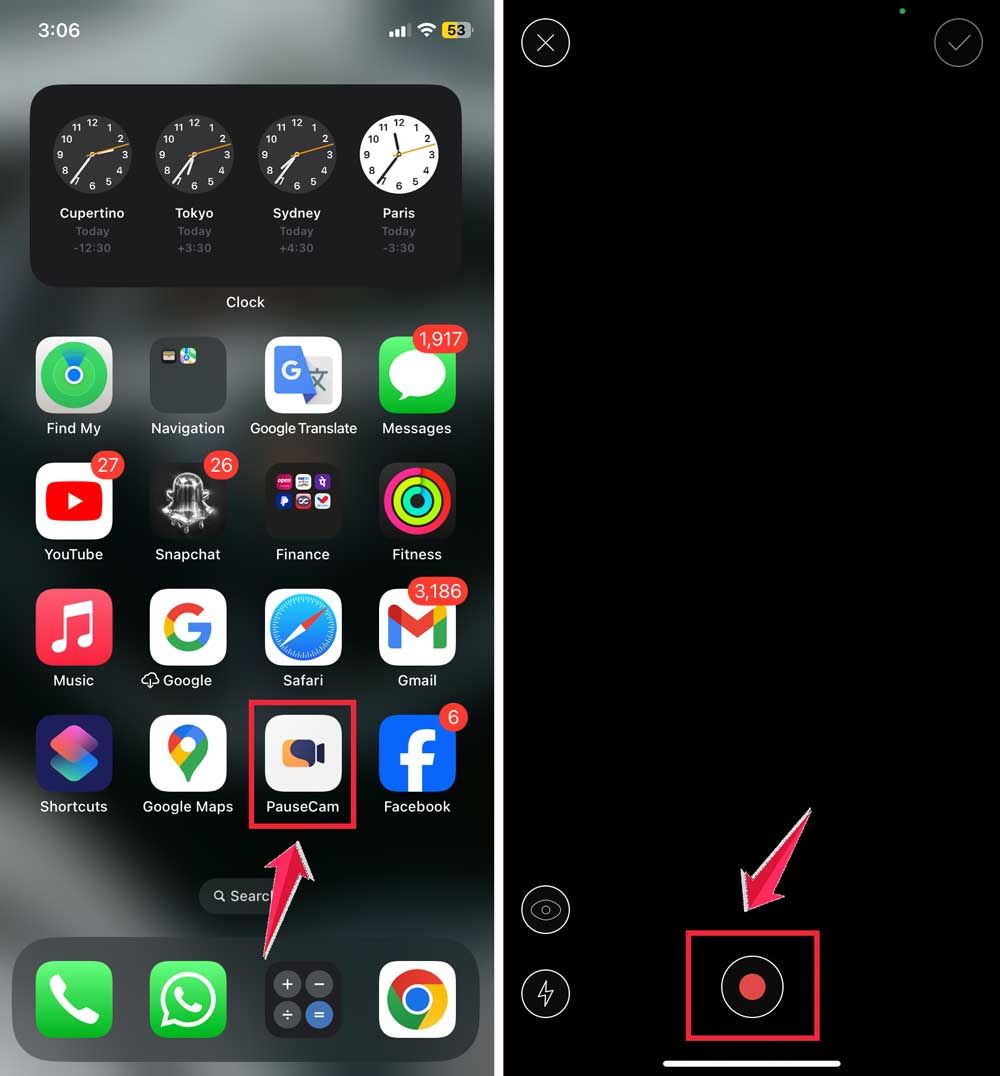
- To pause, tap the “Pause” button.
- When you’re ready to continue, tap “Resume”.
- Repeat as needed throughout your recording.

#2 ClipyCam
- Get ClipyCam from the App Store.
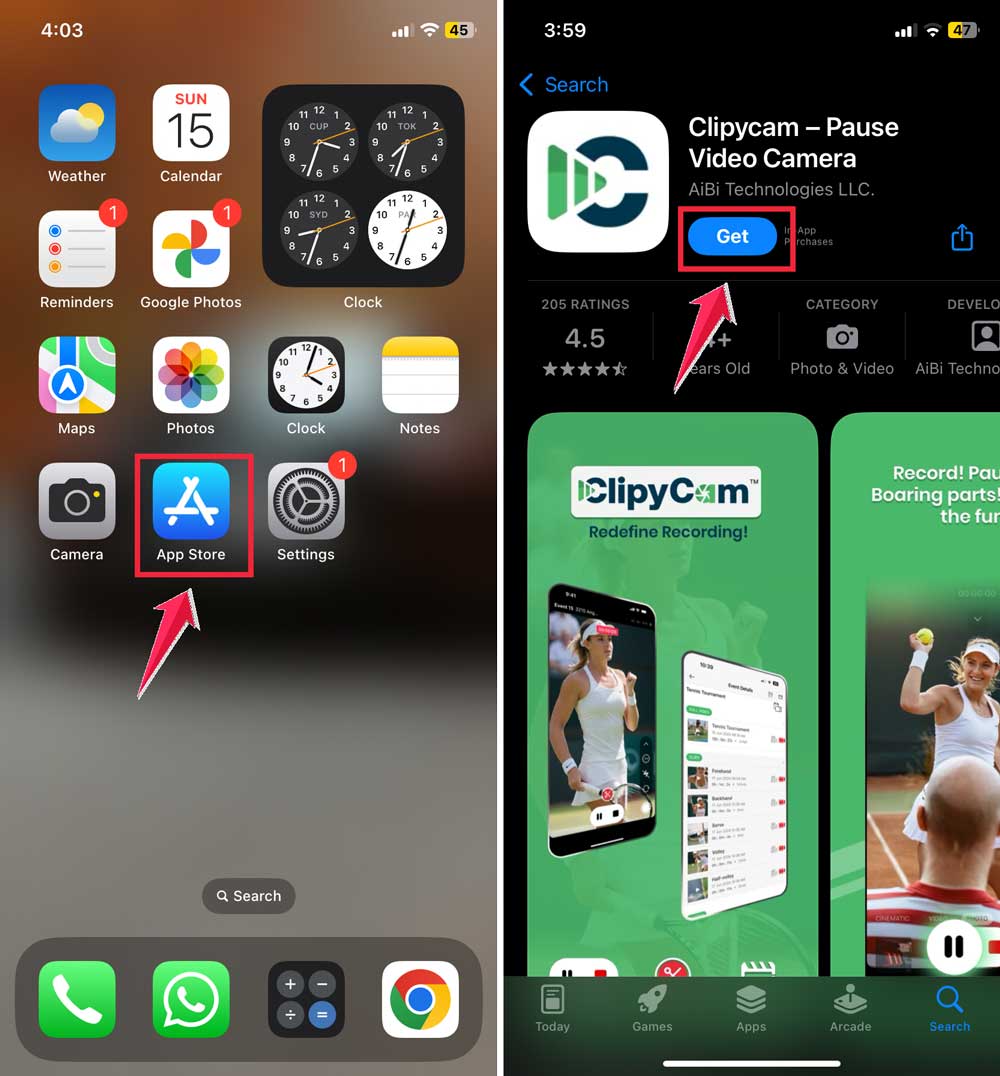
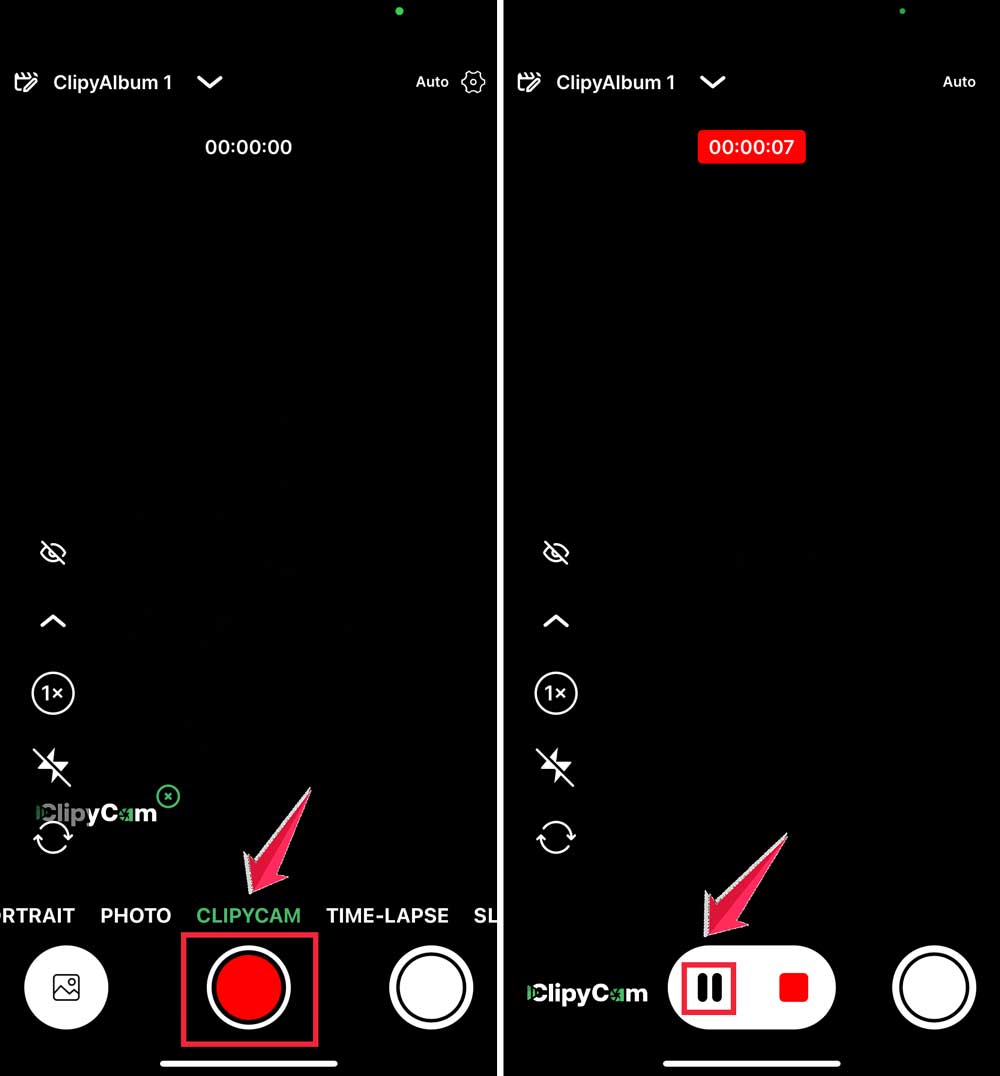
- Open the app and tap the red record button to start.
- To pause, tap the pause button on the bottom left.
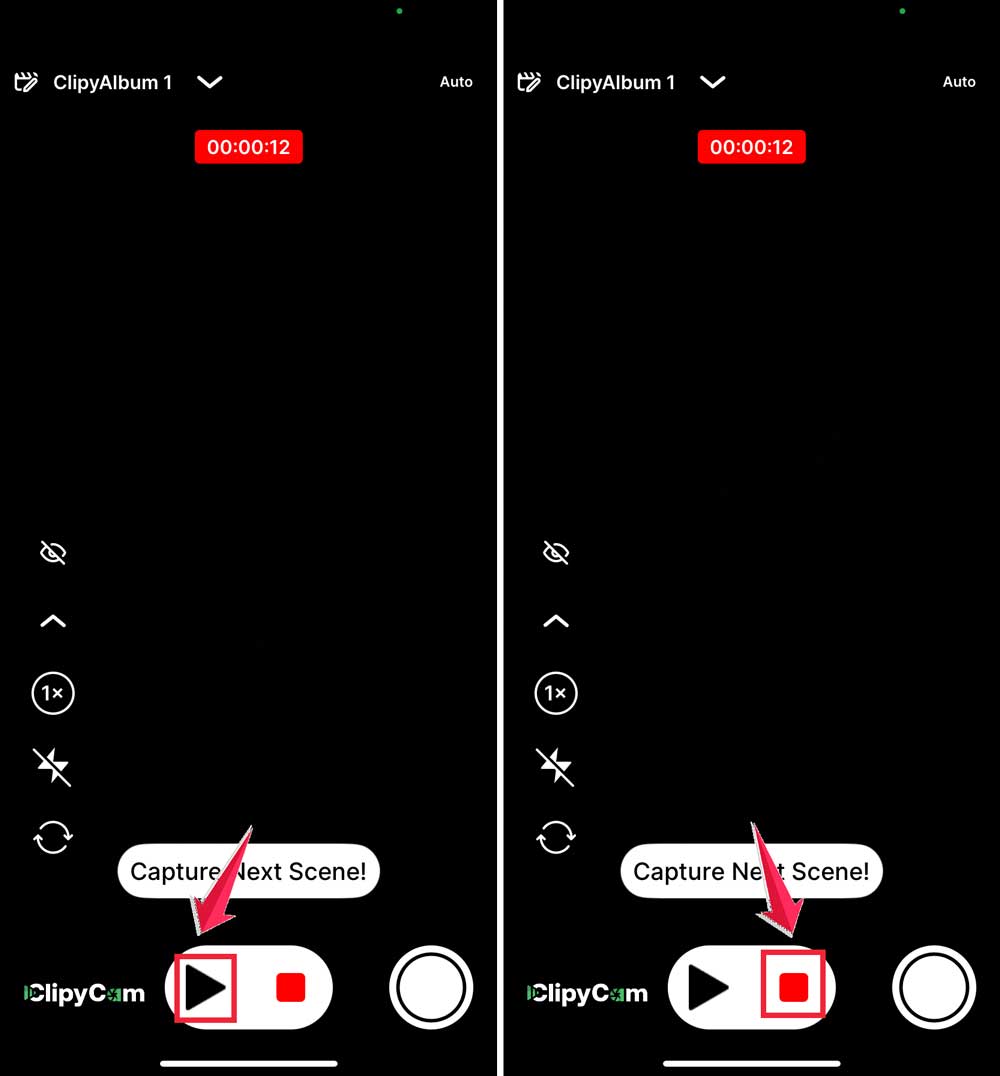
- Tap the record again to resume.
- When finished, tap stop to save your video to your camera roll. Make sure you have storage space first—here’s how to clear space on iPhone before recording to avoid issues.
#3 iMovie
- Download iMovie from the App Store.
- While recording, tap the white pause button to stop.
- Tap the resume button that appears to continue.
- Use the stop button in the bottom right corner when you’re done.
These apps give you the power to pause and resume your iPhone video recordings easily. They also offer extra features for more control over your videos. Try them out and see which one works best for you.
Remember, the key steps are always similar: start recording, tap to pause, and tap again to resume. With a bit of practice, you’ll be pausing and resuming your videos like a pro.
How to pause audio recording on iPhone
While your iPhone’s built-in Voice Memos app doesn’t allow pausing, you can use third-party apps to add this feature.
Using these apps is straightforward and gives you the flexibility to pause and resume your audio recordings as needed.
This feature can be especially useful for longer recordings or when you need to take breaks during interviews or note-taking sessions.
- Download a third-party app that supports pausing. Some popular options include Voice Recorder Lite: Record HD, Audio Recorder HD & Voice Memo, and Voice Recorder: Audio Editor.
- Open the app you’ve downloaded.
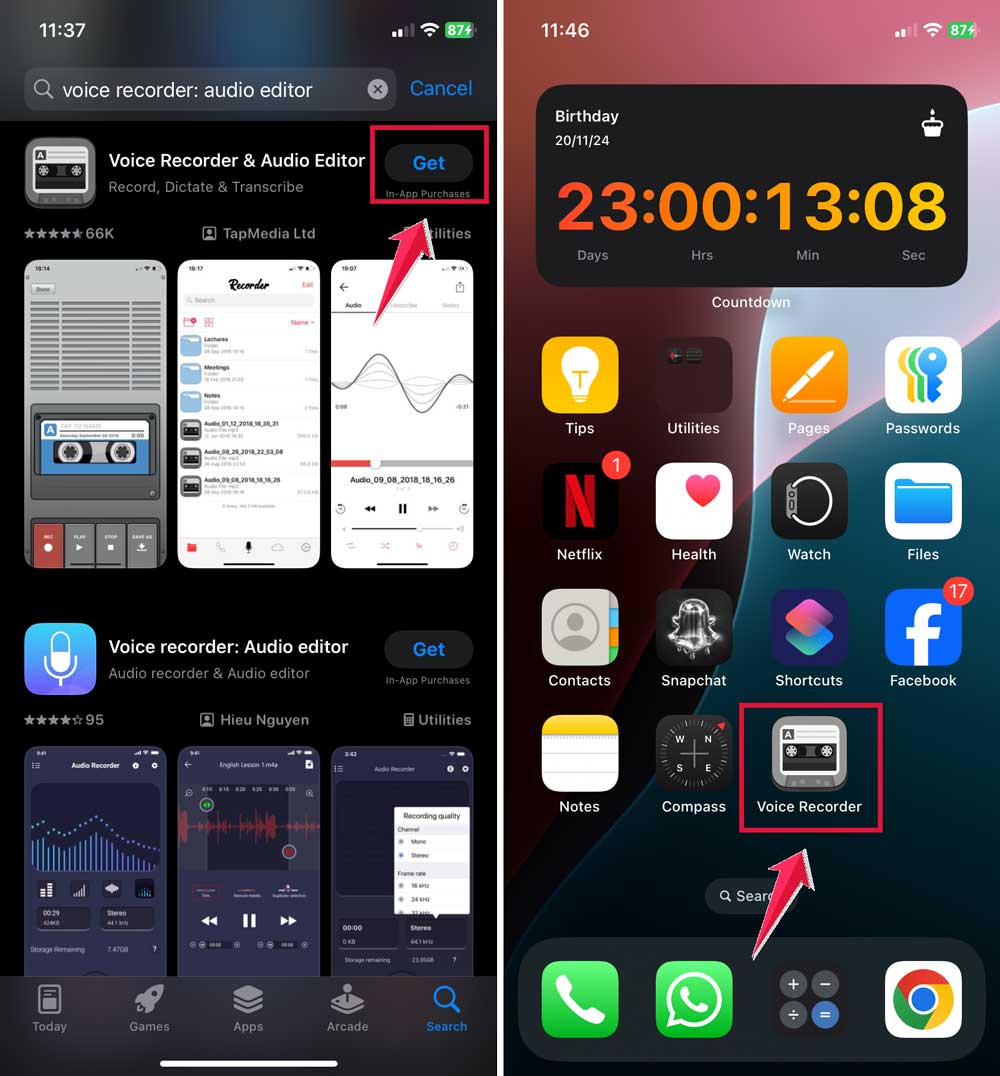
- Start your audio recording using the app’s interface.
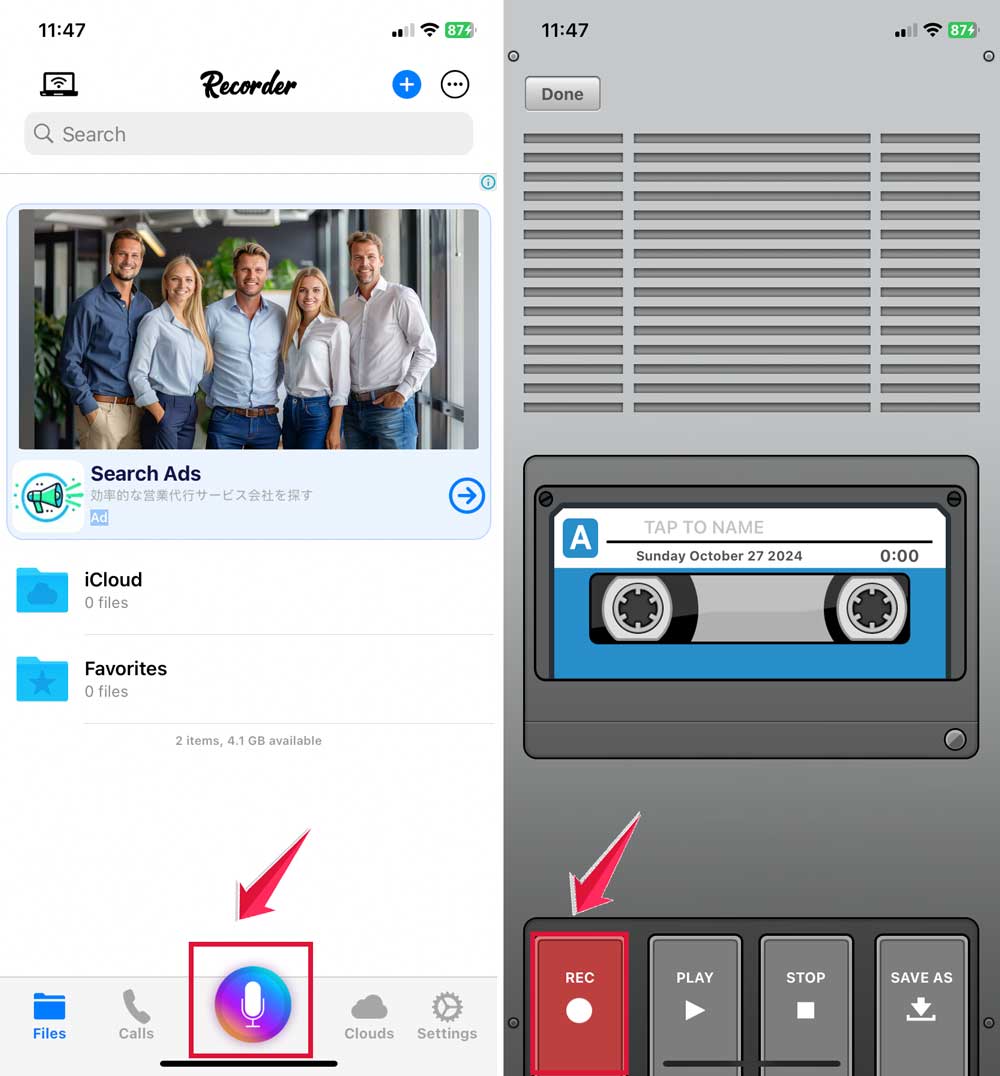
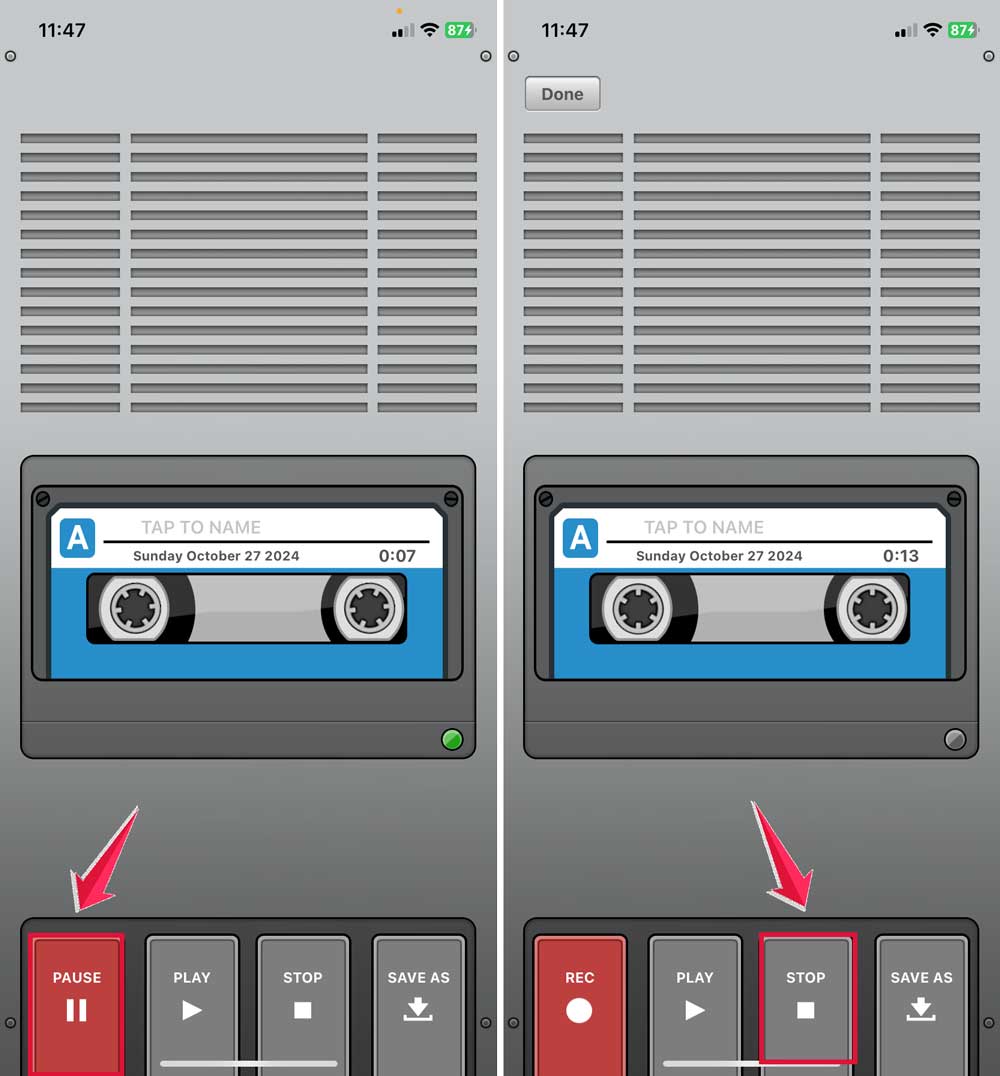
- When you need to pause, look for a pause button. This is usually represented by two vertical lines (||).
- Tap the pause button to temporarily stop your recording.
- When you’re ready to continue, look for a resume button. This is often shown as a triangle (▶️).
- Tap the resume button to start recording again from where you left off.
- Repeat steps 5-7 as needed throughout your recording.
- When you’re finished, tap the stop button (usually a square ■) to end your recording.
- Your audio file will typically be saved automatically within the app.
Can you pause screen recording on iPhone?
The short answer: No, not with the built-in feature
Unfortunately, your iPhone’s native screen recording function doesn’t include a pause option. Once you start recording your screen, you can only stop the recording entirely.
However, there’s a workaround:
Third-party apps offer a solution
While the built-in feature doesn’t allow pausing, some third-party apps do provide this functionality. Here’s what you need to know:
- Several paid apps in the App Store offer screen recording with pause capability.
- These apps add flexibility to your screen recording tasks.
- You can capture exactly what you need without unnecessary content.
Keep in mind:
- Most apps offering this feature are paid applications.
- Always check reviews and developer credibility before downloading.
- Be cautious about granting screen recording permissions to third-party apps.
The takeaway
The iPhone Camera app doesn’t let you pause video recordings directly. However, you can find great third-party apps on the App Store that can help.
Apps like PauseCam, ClipyCam, and iMovie let you pause and then resume recordings. This way, you won’t lose any footage.
These apps let you pause and offer extra features to improve your videos. Some even let you edit and blur parts of your pictures to remove distractions.
You can add effects and gain more control over your recordings. Just be mindful that some apps may have a cost or include in-app purchases.
It’s a good idea to check reviews and be cautious about privacy when downloading new apps.
Don’t let the absence of a pause button in the default Camera app hold you back. With these third-party options, you can create smoother, more professional-looking videos.
If you’re vlogging, taking special photos, or making content, these apps can help you get the perfect shot.
Remember, you have options! Try out a few different apps to see which one fits your needs best.
With practice, you’ll get better at making smooth, polished videos on your iPhone.
We’d love to hear about your experiences with these apps. Please share your thoughts in a single-line comment below!