You’ve probably come across a screenshot where something important is blacked out. Maybe it was a name. Or a message. Or some detail you wish wasn’t hidden.
It’s frustrating, right?
Your brain keeps wondering, “What’s under that blur or black line?”
Whether it’s a funny chat, a censored document, or something someone sent you. That curiosity can drive you a little crazy.
Good news? You can try a few tricks to reveal what’s behind that hidden text. I’m not talking about hacking. These are simple editing steps anyone can try using just a phone or laptop.
Let’s go through them one by one.
Try changing the image settings on your phone
This one works best if the blacked-out text was done using a highlighter tool or soft markup.
You just have to edit the image in your phone’s photo editor.
- Step 1. Open the image in your iPhone or Android photo gallery.
- Step 2. Tap Edit.
- Step 3. Increase Exposure to 100%.

- Step 4. Set Brilliance to 100%.
- Step 5. Bring Contrast down to -100%.

- Step 6. Turn Brightness all the way up.
- Step 7. Set Saturation to 100%.
- Now zoom in.

If the person didn’t completely block the text, you’ll often see letters start to pop through the highlight. You won’t always get full words, but you might spot enough to figure it out.
This method works well for screenshots where someone just dragged a marker or highlighter over the text.
Try screenshotting again and using markup tools
This works best if the original image is marked up using iPhone tools.
- Step 1. Take a screenshot of the marked-up image.
- Step 2. Tap the screenshot preview that appears in the bottom-left corner.
- Step 3. Tap the Markup icon (looks like a pen tip).
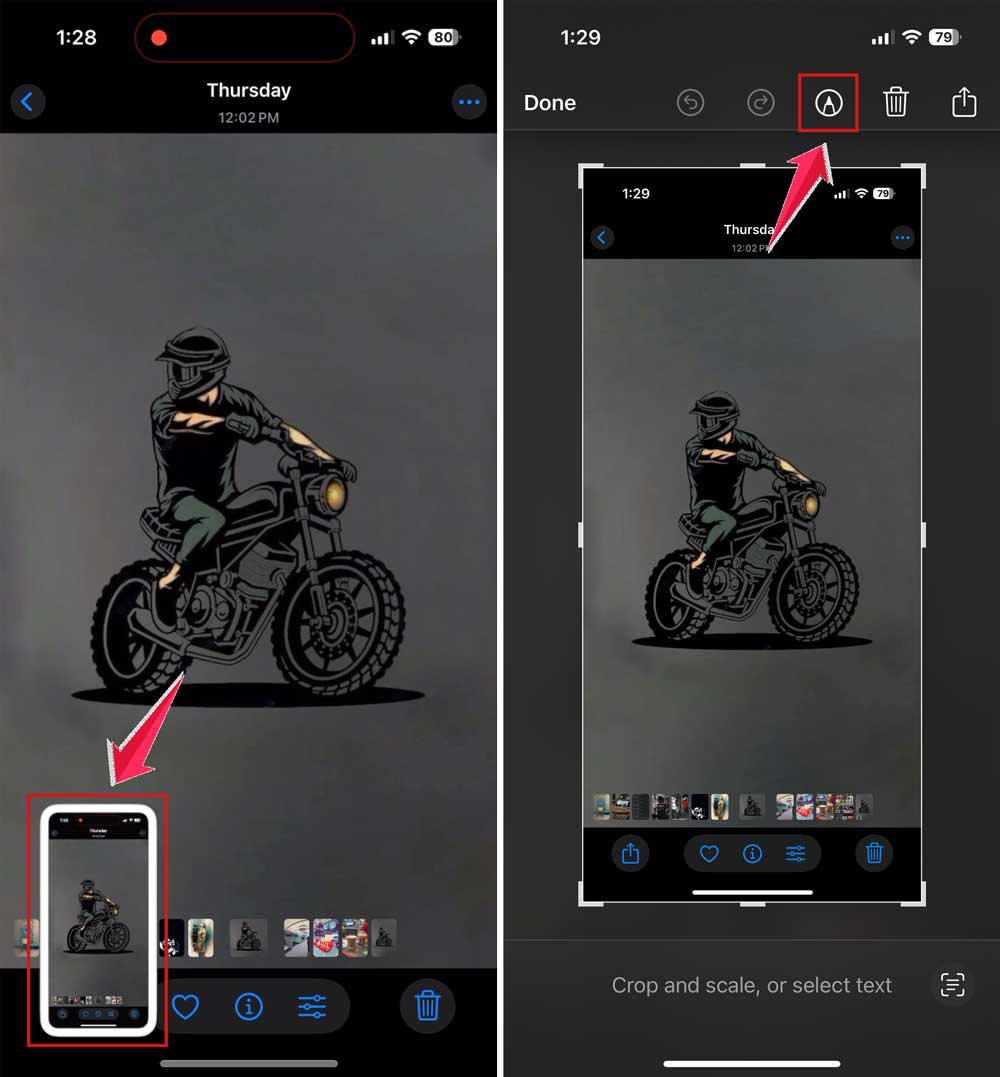
- Step 4. Select the Highlighter tool and tap it again. Now set the opacity to 100%.
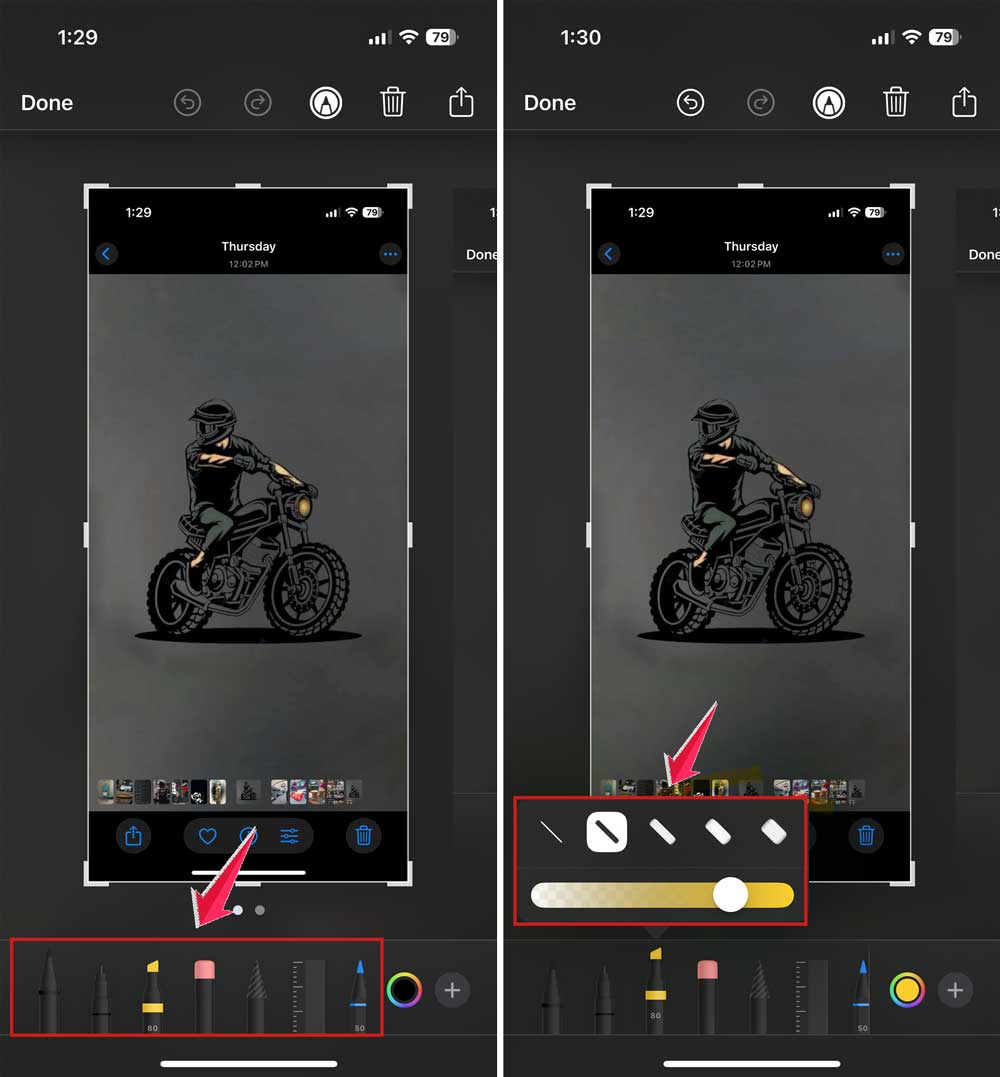
Now drag the highlighter over the same blacked-out area.
In many cases, this reveals the text underneath. Why? Because Apple’s markup doesn’t completely block the image pixels. So, stacking more highlight layers actually lifts the text below instead of hiding it.
It doesn’t always work. But when it does, it feels like magic.
Check if the image can be reverted to the original
If someone sent you an edited photo directly from their phone, there’s a small chance the edits can be undone.
Here’s how to check:
- Step 1. Open the image in the Photos app.
- Step 2. Tap Edit.
- Step 3. Look for a Revert to Original option.
- Step 4. Tap it and confirm.

This resets the photo to its original version. before they covered anything up.
Most people don’t realize that when they crop or mark up a photo and send it immediately, the edits can sometimes still be reversed.
If this works, you’ll instantly see the blacked-out text disappear.
Try a third-party photo editing app
If your phone’s tools don’t work, try using an app that gives you more control.
Apps like Snapseed, Remini, or Lightroom Mobile can help.
- Step 1. Download a photo editing app from the App Store or Play Store.
- Step 2. Open your screenshot in the app.
- Step 3. Use tools like Brush, Selective, or Healing to enhance, brighten, or remove parts of the image. You’ll need to play around a little.

Some apps also offer AI-powered enhance tools. These can sometimes sharpen the text just enough to make it readable again. especially if it’s only faintly covered.
Be patient with this step. It may take a few tries to get it right.
Can you remove black boxes from screenshots?
If someone used a solid black box to cover text, you probably can’t remove it unless the edit was done poorly.
However, if they used a semi-transparent box or layered highlighter instead of a filled shape. Yes, you might still reveal the text.
That’s why many people fail to hide things properly. They think it’s covered, but image editors can still bring the hidden layer back to life.
Be careful when you try to hide text
Let’s flip this around for a second.
What if you’re the one sending screenshots and trying to hide something?
You should know that tools like the highlighter don’t fully block what’s underneath. Especially in iOS, the highlight sits on top of the image but doesn’t always flatten it.
So even if it looks hidden to you, someone else can probably see what’s under it.
Always use filled shapes or pixel blur tools when hiding sensitive information. That way, there’s nothing to uncover.
And if you’re editing a PDF? Don’t just add black boxes on top. Use tools that erase or redact the text fully.
Because black boxes in PDFs can often be removed with just one click in the right app.
Can this be done legally?
Let’s be real for a second.
Just because you can uncover hidden text doesn’t always mean you should.
Sometimes people hide details for a reason. It could be privacy, security, or just personal boundaries.
So while these tools and tricks are helpful, always ask yourself: “Is it okay for me to do this?”
Use these methods for fun or learning. But don’t use them to invade someone’s privacy.
When uncovering makes sense
There are legit situations where these tricks come in handy.
Maybe you accidentally edited out something important from your own photo and now want it back. Maybe you blurred something too much and lost the info. Maybe someone sent you something and didn’t realize they hadn’t fully hidden private text.
In these cases, it’s okay to try recovering what was lost.
Just keep it respectful.
The takeaway
You now know how to uncover blacked-out text from a screenshot. And you can do it with tools you already have.
Start with your phone’s image editor. Play with exposure, brilliance, and brightness.
If that doesn’t work, use markup tricks. Try taking a new screenshot and layering highlighters or filters.
If the image came straight from a phone, see if you can undo the edits.
Still stuck? Try advanced apps like Snapseed or Lightroom and fine-tune the details.
Just remember, not all text can be recovered. Solid black boxes or deeply edited files are hard to reverse. And that’s probably a good thing. because privacy matters.
So go ahead and try these tricks when needed. But always use them responsibly.
And next time you’re hiding something yourself? Do it the right way. not with a see-through highlighter.