Have you ever felt frustrated when you needed to quickly share a photo from your iPhone to your MacBook but couldn’t find your USB cable?
You’re not alone. Many iPhone and MacBook users face this common problem every day.
Connecting your devices wirelessly can make your life much easier, but it might not seem very easy if you’ve never tried it before.
Maybe you’ve heard about wireless connections but thought they were too technical or time-consuming to set up. The good news is, it’s simpler than you might think.
Imagine being able to answer a phone call on your MacBook while your iPhone charges in another room or sending a text message from your computer without picking up your phone.
These conveniences can save you time and make your workflow smoother, whether you’re working from home, studying, or just managing your daily life.
In this article, we’ll walk you through several easy methods to connect your iPhone to your MacBook wirelessly.
You’ll learn how to set up features like AirDrop for quick file sharing and how to sync your messages and calls across devices.
How to connect your iPhone to your Mac wirelessly
Let’s talk about the different ways you can connect your iPhone to your Mac without any cables.
Each method has its perks, so let’s dive in and see which one might work best for you.
1. AirDrop
You know those times when you just want to send a photo or document from your iPhone to your Mac super fast? That’s where AirDrop comes in handy. It’s like a direct pipeline between your devices.
Here’s how you can use it:
- Turn on Wi-Fi and Bluetooth on both your iPhone and Mac.
- On your Mac, open Finder and click on “AirDrop” in the sidebar.

- On your iPhone, find what you want to share, tap the share button, especially if you want to share Safari content with AirDrop too, and pick your Mac from the AirDrop options.
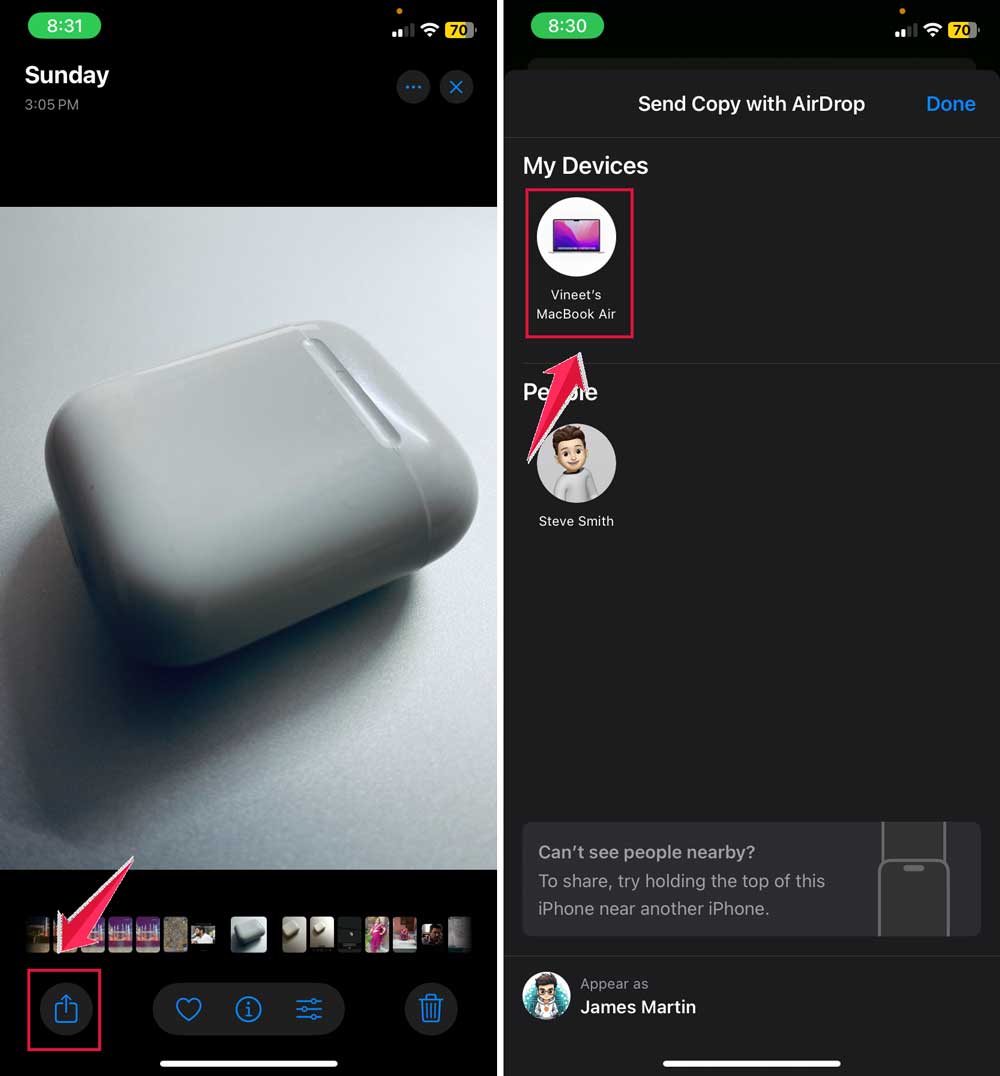
Just like that, your file zips across the air from one device to the other! If it doesn’t, you might need to fix AirDrop issues on Mac.
2. Bluetooth
Bluetooth isn’t just for connecting your AirPods. You can use it to link your iPhone and Mac for various purposes, including using your iPhone as a personal hotspot.
To get it set up:
- On your Mac, head to System Settings, then Bluetooth.

- On your iPhone, go to Settings, then Bluetooth.

- Make sure Bluetooth is switched on for both devices. If it doesn’t show up, you might need to troubleshoot Bluetooth on your Mac.
- Look for your iPhone in the list on your Mac and click “Connect“.
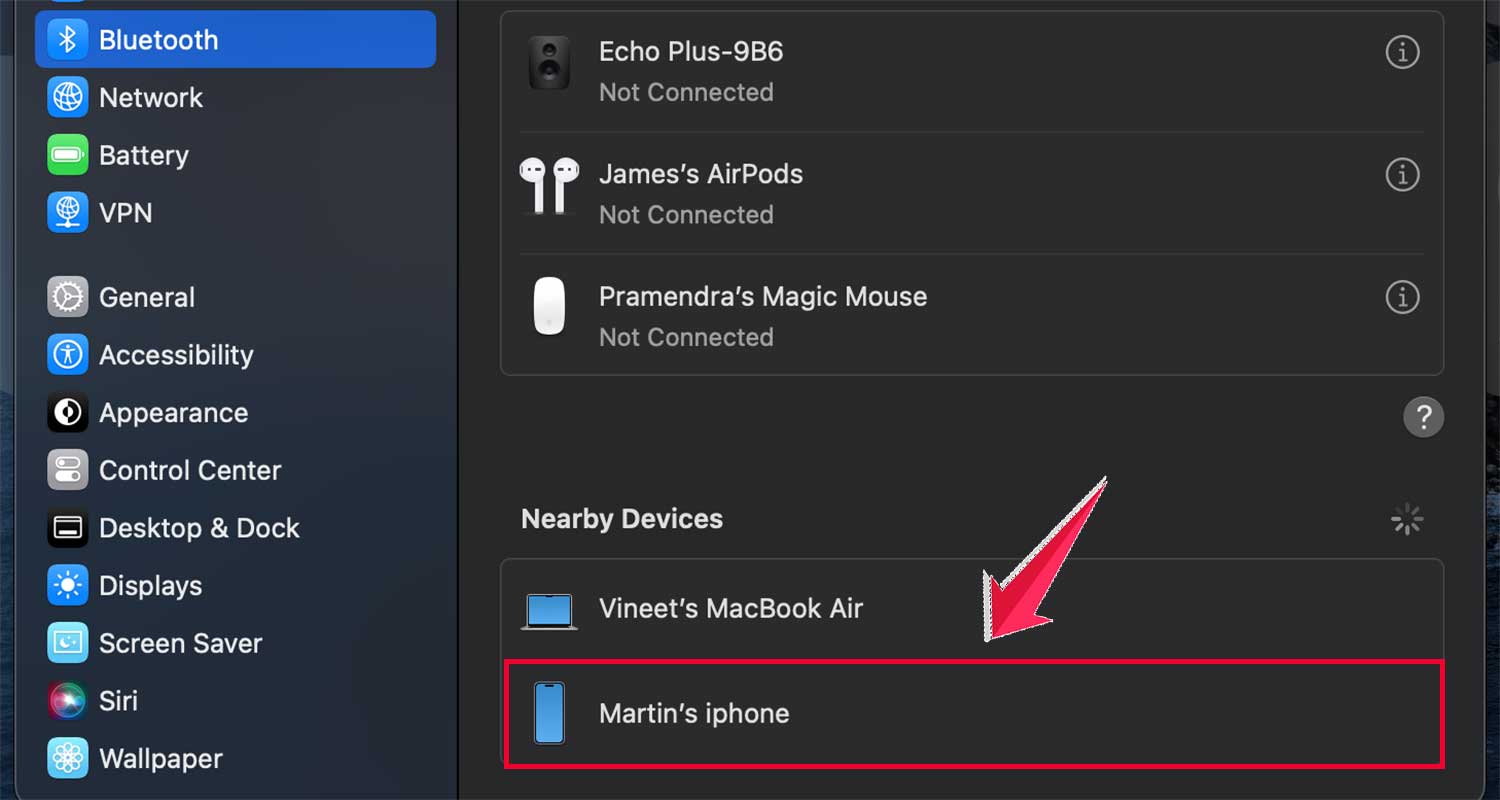
Now, your devices are buddies and ready to work together.
3. Wi-Fi Sync
Want to keep your iPhone and Mac in perfect sync without thinking about it? Wi-Fi Sync is your answer. Once set up, it works its magic in the background.
Here’s how to get started:
- Connect your iPhone to your Mac with a cable (just this once, I promise).
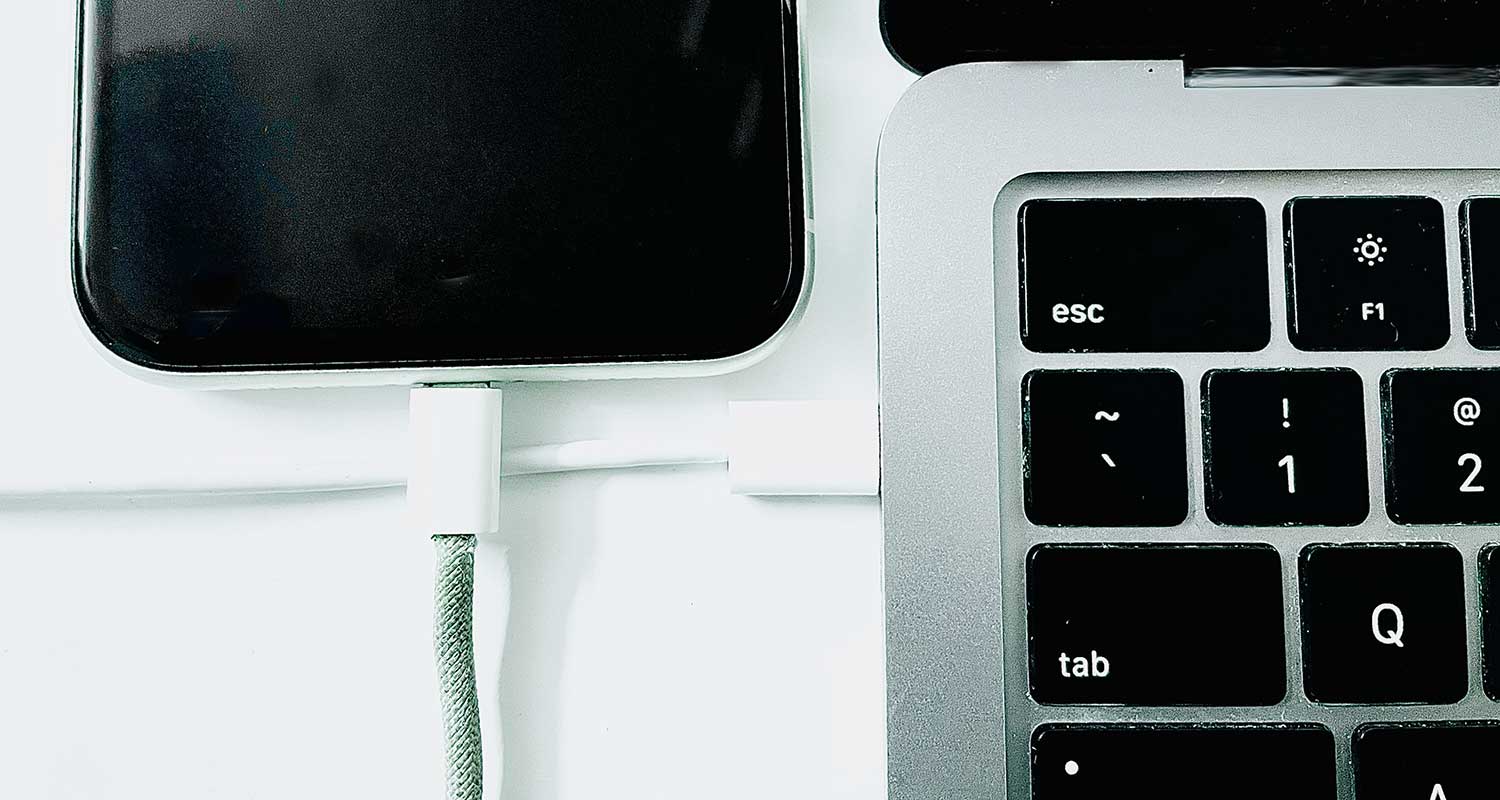
- Open Finder on your Mac and select your iPhone from the sidebar.
- Check the box for “Show this iPhone when on Wi-Fi”.
- Click “Apply,” and you’re all set.

From now on, your devices will sync whenever they’re on the same Wi-Fi network or you can explore use Wi-Fi Direct for device communication if needed.
4. iCloud
While not a direct link, iCloud keeps your data flowing between devices through Apple’s servers. It’s great for keeping your photos, documents, and more in sync.
To use iCloud:
- On both devices, go to Settings, tap your name, then iCloud.
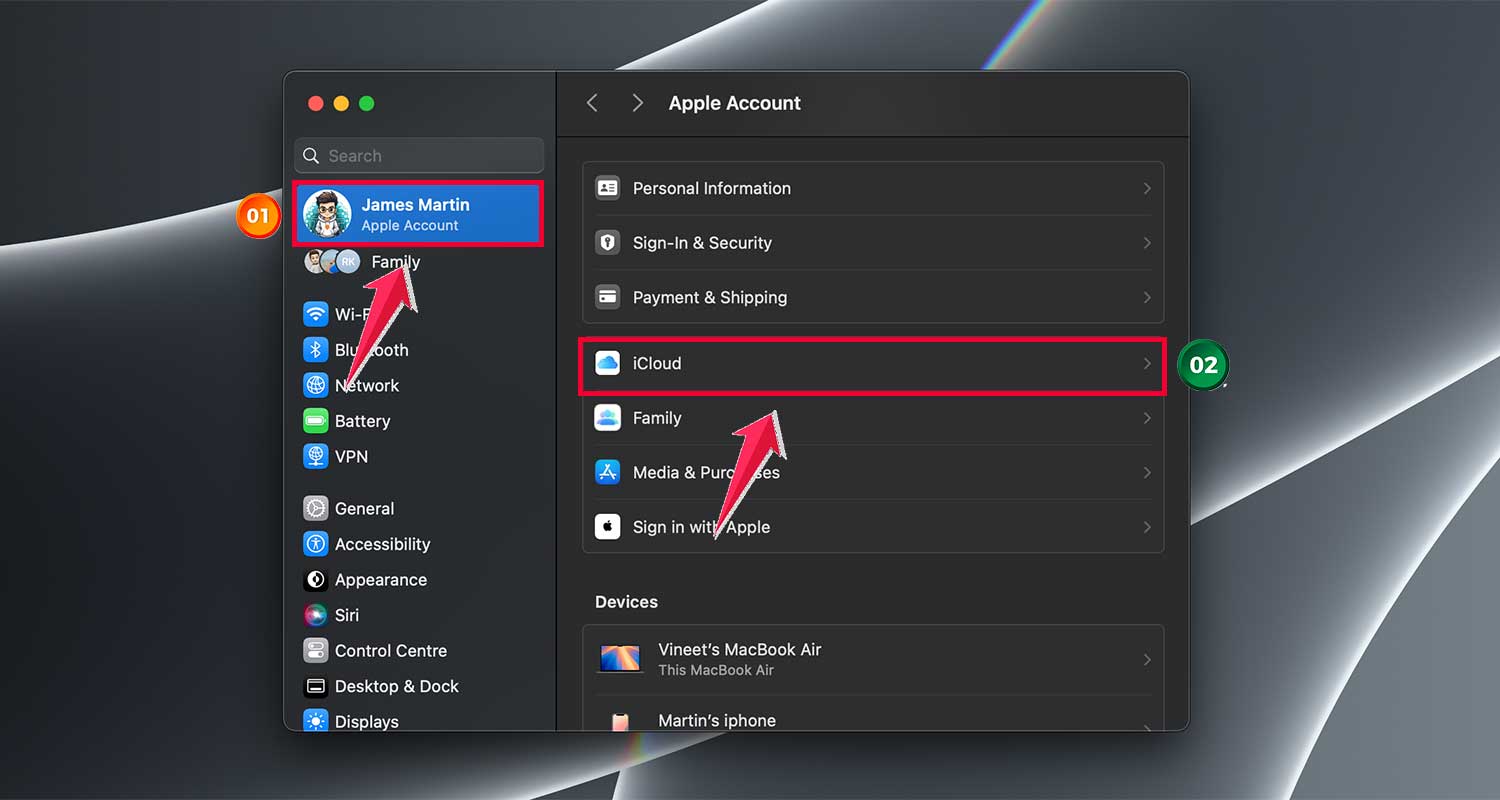
- Sign in with the same Apple ID on both.
- Choose what you want to sync.
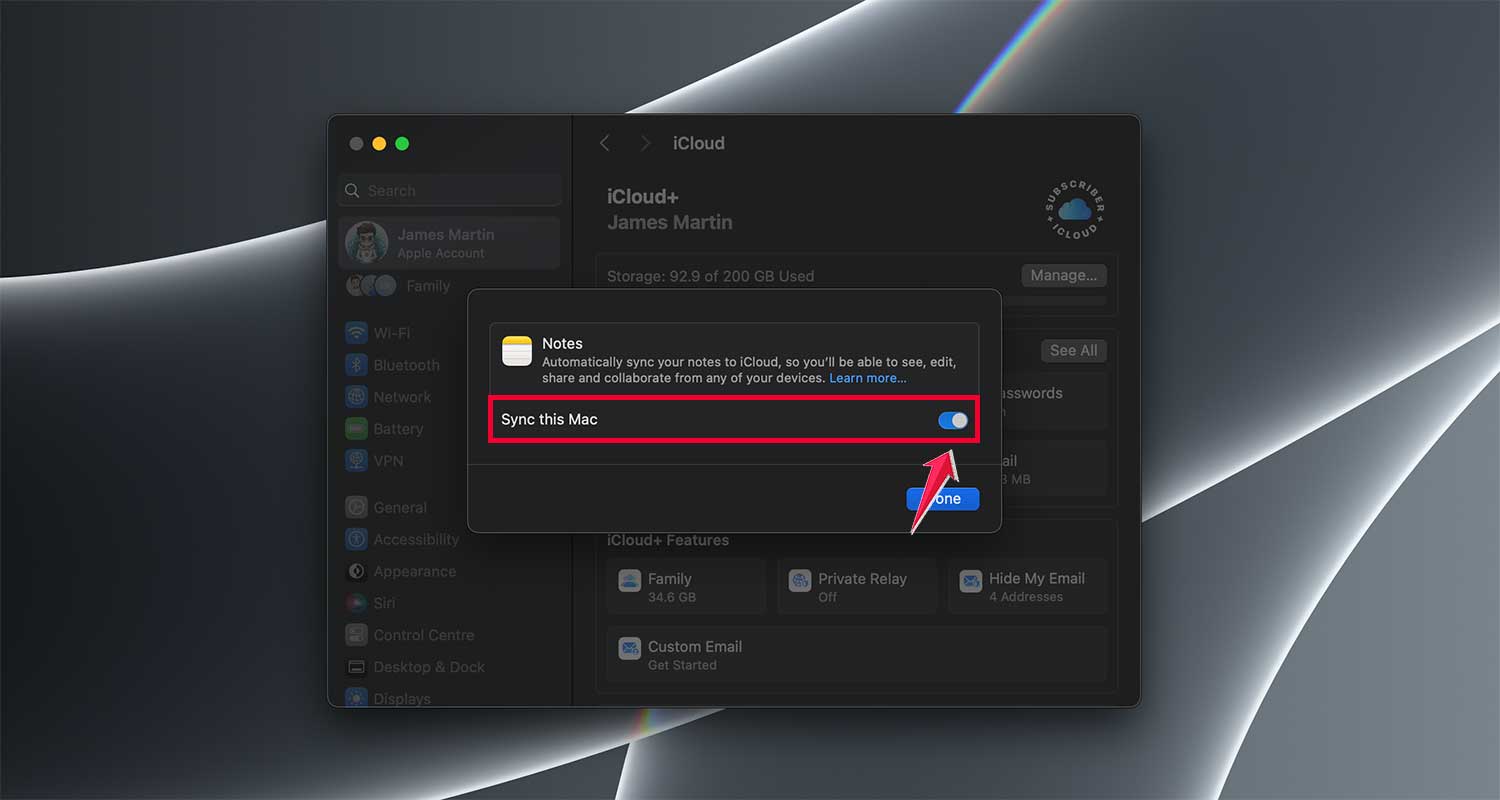
Now, your stuff will stay up-to-date across your devices automatically.
5. Continuity features
Last but not least, let’s talk about Continuity. These features make your iPhone and Mac work together like a dream team.
Some cool things you can do:
- Start an email on your iPhone and finish it on your Mac with Handoff.
- Copy text on your iPhone and paste it on your Mac with Universal Clipboard.
- Make and receive calls on your Mac using your iPhone’s cellular connection.
To use these features:
- Sign in to iCloud with the same Apple ID on both devices.
- Turn on Bluetooth and Wi-Fi on both.
- Enable Handoff in Settings on both devices. Also, don’t forget to secure your iPhone using Face ID for an even smoother experience.
And there you have it! These methods give you plenty of options for connecting your iPhone and Mac wirelessly. Try them out and see which ones fit best into your digital lifestyle.
You can answer calls on your Mac
Ever wished you could answer your iPhone without getting up from your computer? Well, you can. Your Mac can handle your iPhone calls, making life a bit easier. Here’s how to set it up:
- Connect both devices to the same Wi-Fi network.
- On your iPhone:
- Open Settings.
- Tap Phone.

- Turn on Wi-Fi Calling.

- On your Mac:
- Launch the FaceTime app.

- Go to FaceTime > Preferences.
- Check the box for Calls From iPhone.

Now, you’re ready to answer calls right from your Mac. No more dashing across the room when your phone rings!
Send and receive text on your Mac.
Your Mac isn’t just for calls. It can handle your text messages too. Setting it up is easy if you want to sync messages between your iPhone and Mac. Here’s how to set up this handy feature:
- Ensure both devices use the same Apple ID for iCloud.
- On your iPhone:
- Go to Settings.
- Tap Messages.
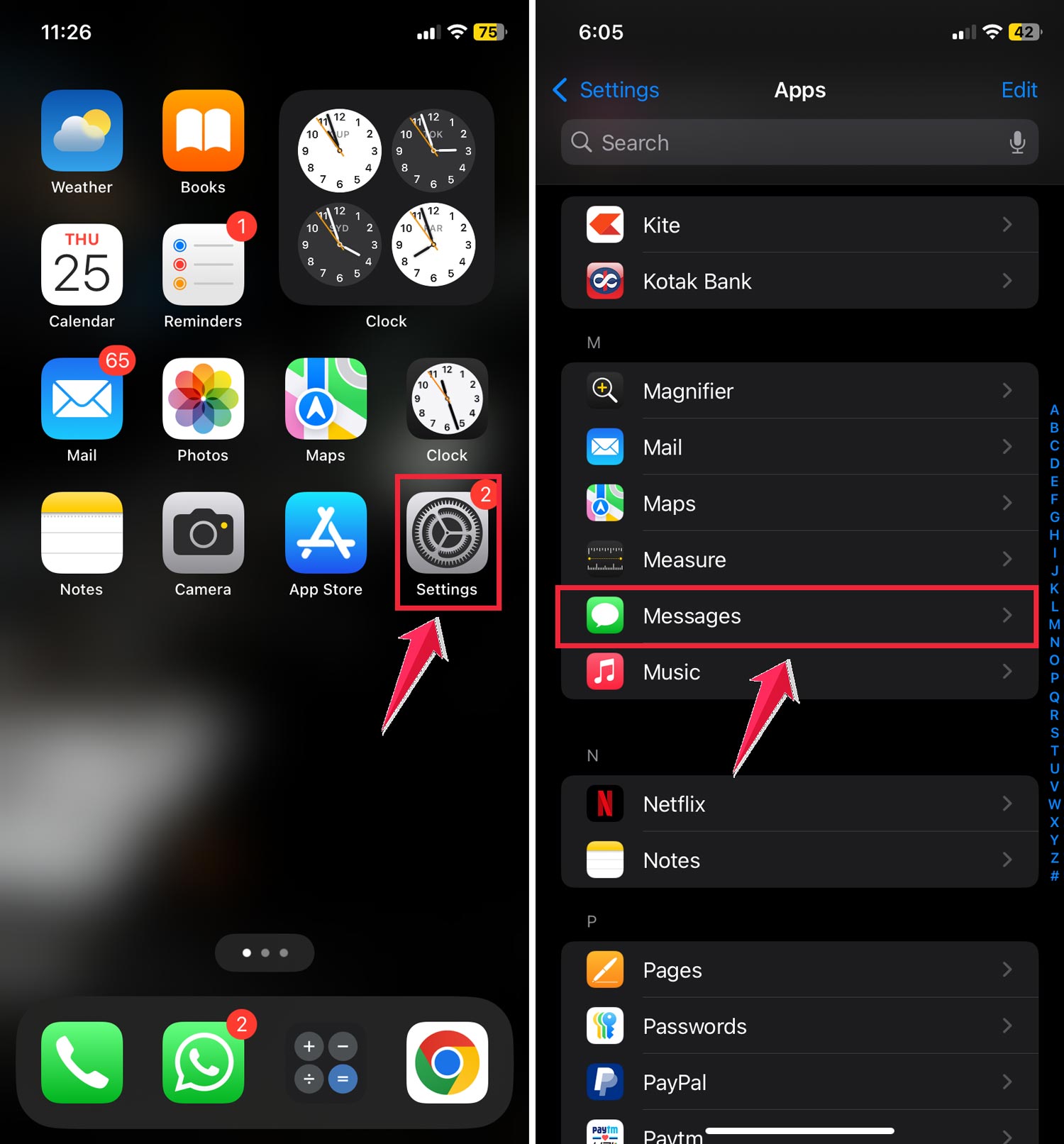
- Select SMS Forwarding.
- Find your Mac and switch it on.
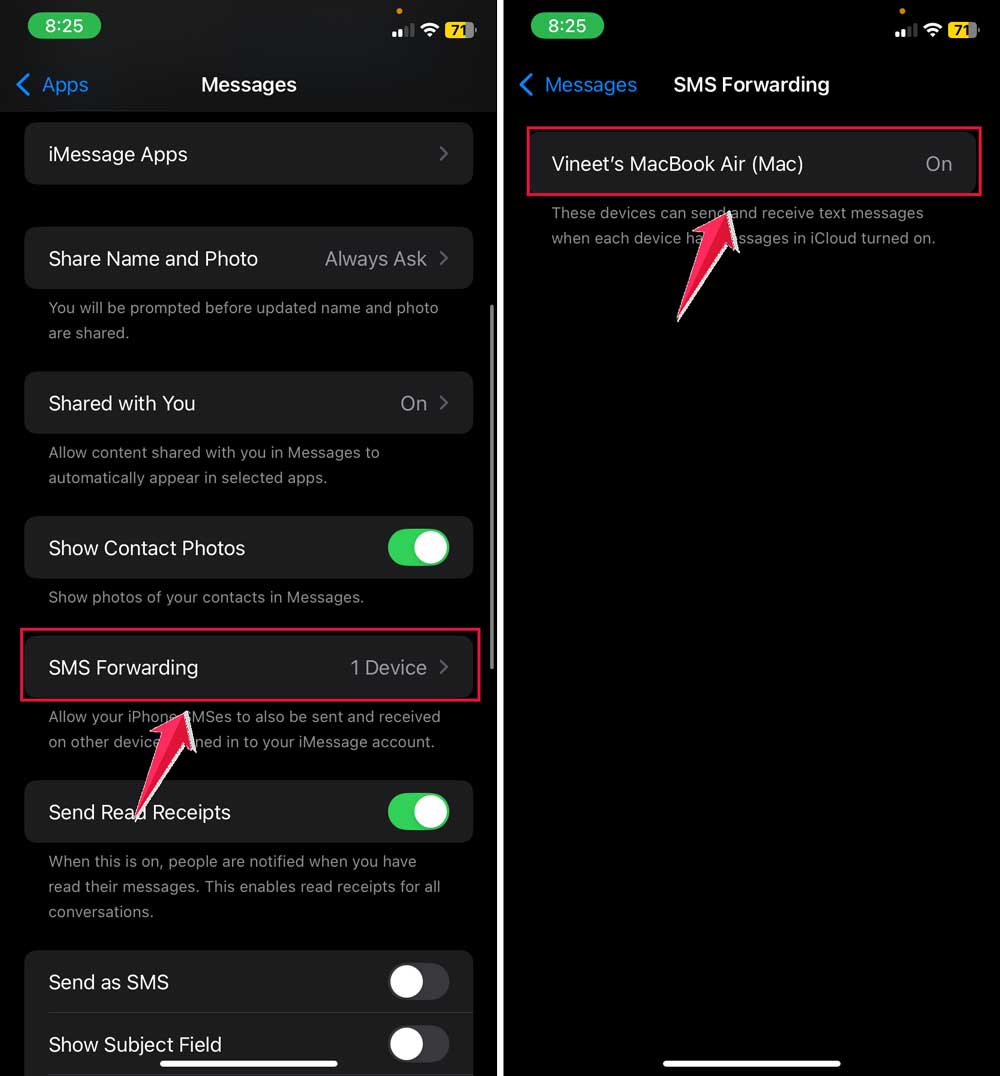
Now your Mac can send and receive both SMS and iMessages. It’s like having your iPhone’s messaging app on your computer.
The takeaway
Connecting your iPhone to your MacBook wirelessly isn’t just a cool trick. It’s a real game-changer for your daily life. Let’s recap what we’ve learned.
First, we tackled the problem of needing a USB cable to link your devices.
As you’ve seen, there are several ways to connect wirelessly, from AirDrop for quick file transfers to Wi-Fi Sync for keeping everything up-to-date automatically. You can even answer calls and send texts right from your Mac!
A common misconception is that these features are complicated to set up. In reality, most take just a few simple steps. Once they’re set up, they work seamlessly in the background, making your life easier without you even thinking about it.
The most important thing to remember is that these features are designed to help you work more efficiently.
By connecting your iPhone and Mac, you’re creating a more seamless digital experience. So go ahead and give these methods a try. You might be surprised at how much time and effort they can save you.
What do you think about these wireless connection methods? Share your thoughts in a comment below!