If you’re wondering whether your AirPods are linked to your Apple ID, you’re not alone. This is something many people ask, especially when their AirPods start acting up or they’ve just bought a second-hand pair. It can be not very clear, I get it.
Sometimes, your AirPods might stop connecting the way they should. Maybe you’ve been switching between your iPhone and iPad, or maybe you just reset them. Or, if you got them from someone else, they could still be linked to the previous owner’s Apple ID.
When that happens, you might not be able to find them using the Find My app. Or worse, someone else could still see them on their devices.
But don’t worry. I’m here to help you figure this out. In this guide, I’ll walk you through some simple steps to check if your AirPods are properly connected to your Apple ID.
If they’re not, I’ll also show you how to fix it. Let’s make sure everything’s working the way it should.
Why Your AirPods Might Not Be Linked to Your Apple ID
Let’s talk about why this might even be a problem. If your AirPods aren’t linked to your Apple ID, they won’t show up in Find My, and you could lose some important features.
So let’s go through a few reasons why this might be happening.
1. Switching Devices Can Confuse Your AirPods
If you’re like me, you probably jump between your iPhone, Mac, or iPad all the time. AirPods are smart, but they’re not perfect.
When you switch devices often, they might lose track of which device they’re paired with. That’s when they stop syncing correctly with your Apple ID.
2. Resetting AirPods Makes Them Forget Everything
When you reset your AirPods, they basically forget everything, like who they belonged to. If you or someone else recently reset them, they might not be connected to any Apple ID at all.
So, even if they’re working fine, they won’t show up under your account unless you reconnect them properly.
3. Second-Hand AirPods Might Still Be Linked to the Old Owner
Bought your AirPods from someone else? If they didn’t remove their Apple ID from the AirPods, they’re still technically theirs.
Even if you can use them, you won’t be able to track them or make them fully yours until they’re unlinked from the previous owner’s account.
So now that you know what might be causing the issue, let’s get into how to check and fix it.
How to Check if Your AirPods Are Linked to Your Apple ID
Alright, now let’s actually check where your AirPods stand. I’ll guide you through this step by step. It’s easy, and you don’t need to be a tech expert to do it.
#1. Use Your iPhone to Check
Let’s start with your iPhone. This is the simplest way to find out if your AirPods are connected to your Apple ID.
Here’s how you do it:
- Open the Settings app on your iPhone.
- Tap on your Apple ID name at the top.
- Look for your AirPods in the list of devices.
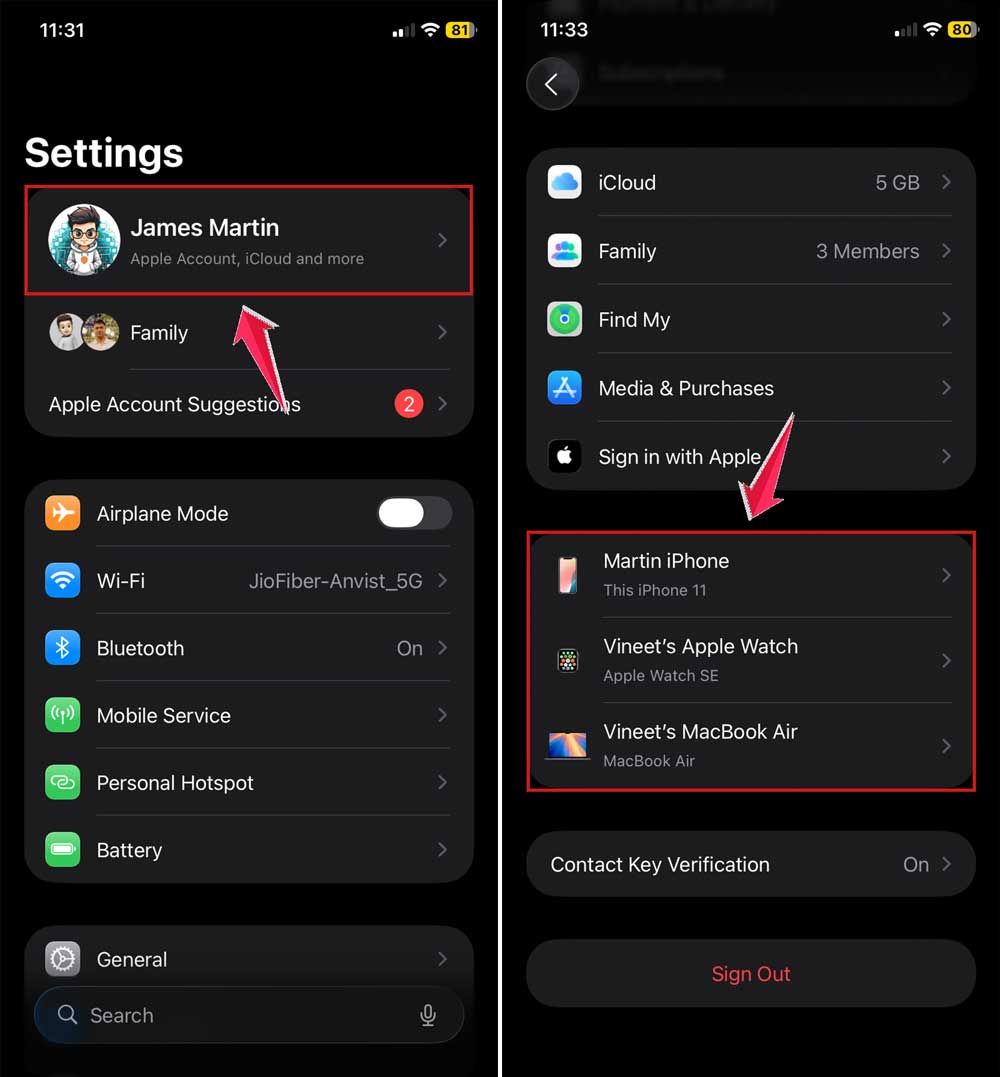
If you see them listed there, great! That means they’re linked to your Apple ID. If not, don’t panic—we’ve still got options.
#2. Check in the Find My App
Still not sure? Let’s double-check using the Find My app. It’s super helpful when you’re trying to track Apple devices.
Follow these steps:
- Open the Find My app on your iPhone or iPad.
- Tap on Devices at the bottom.
- Look for your AirPods in the list.

If your AirPods show up here, then they’re connected. If they’re missing, we’ve got more ways to check.
#3. Check Through iCloud
Now let’s go a bit deeper. We’ll use iCloud to see if your AirPods are connected to your Apple ID.
Here’s what to do:
- Visit iCloud.com in a web browser.
- Sign in with your Apple ID.
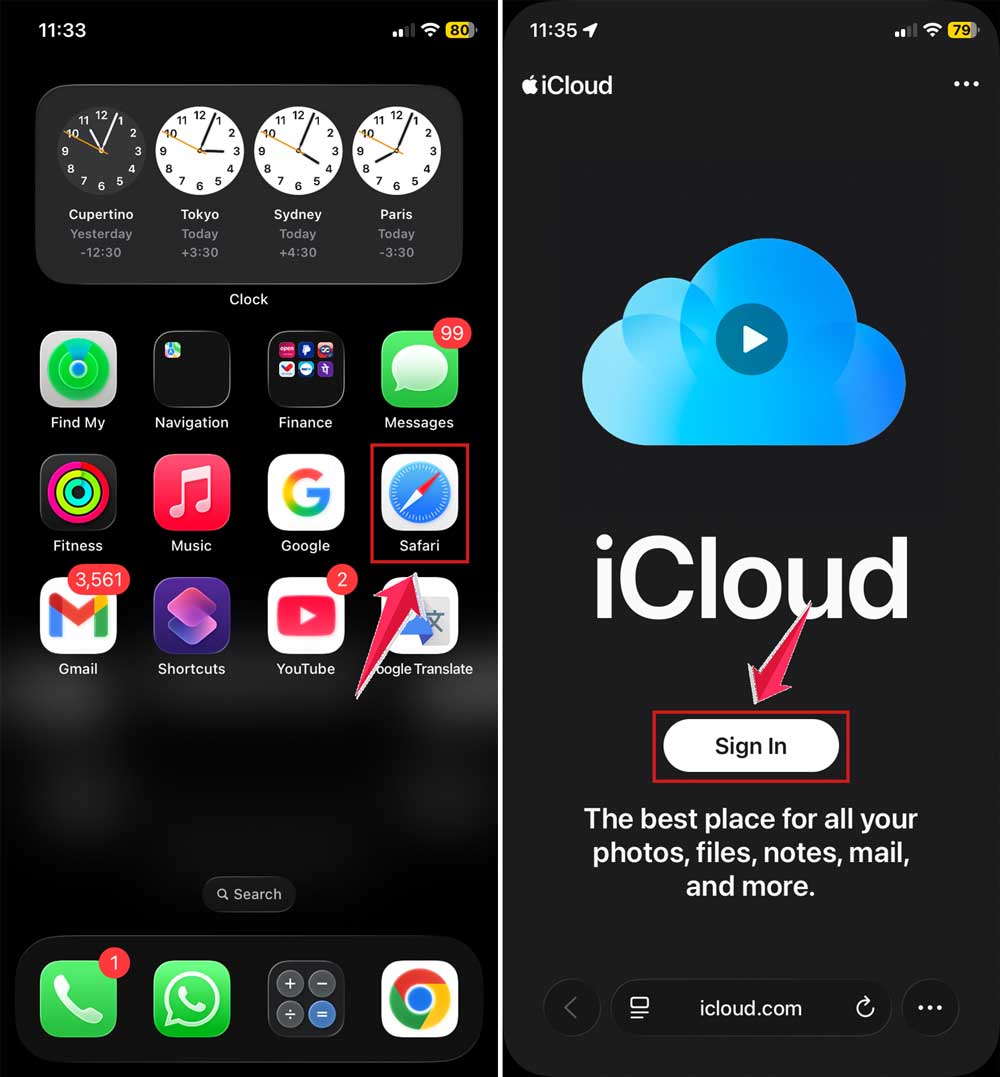
- Click on Find iPhone.
- See if your AirPods are listed there.

If they are, that’s a good sign. If not, let’s keep going.
#4. Make Sure Your Device Is Up to Date
Sometimes, your software can be the problem. If your iPhone or iPad isn’t updated, it might cause issues with syncing your AirPods.
Here’s how to update:
- Open the Settings app.
- Tap General.

- Select Software Update.
- Install any available updates.

Once everything’s updated, try reconnecting your AirPods again.
#5. Reset and Reconnect Your AirPods
Still not working? Let’s give your AirPods a fresh start. This will remove any confusion and let you set them up like new.
Here’s how to reset and relink:
- Go to Settings > Bluetooth on your iPhone.

- Tap the info (i) icon next to your AirPods.
- Select Forget This Device.
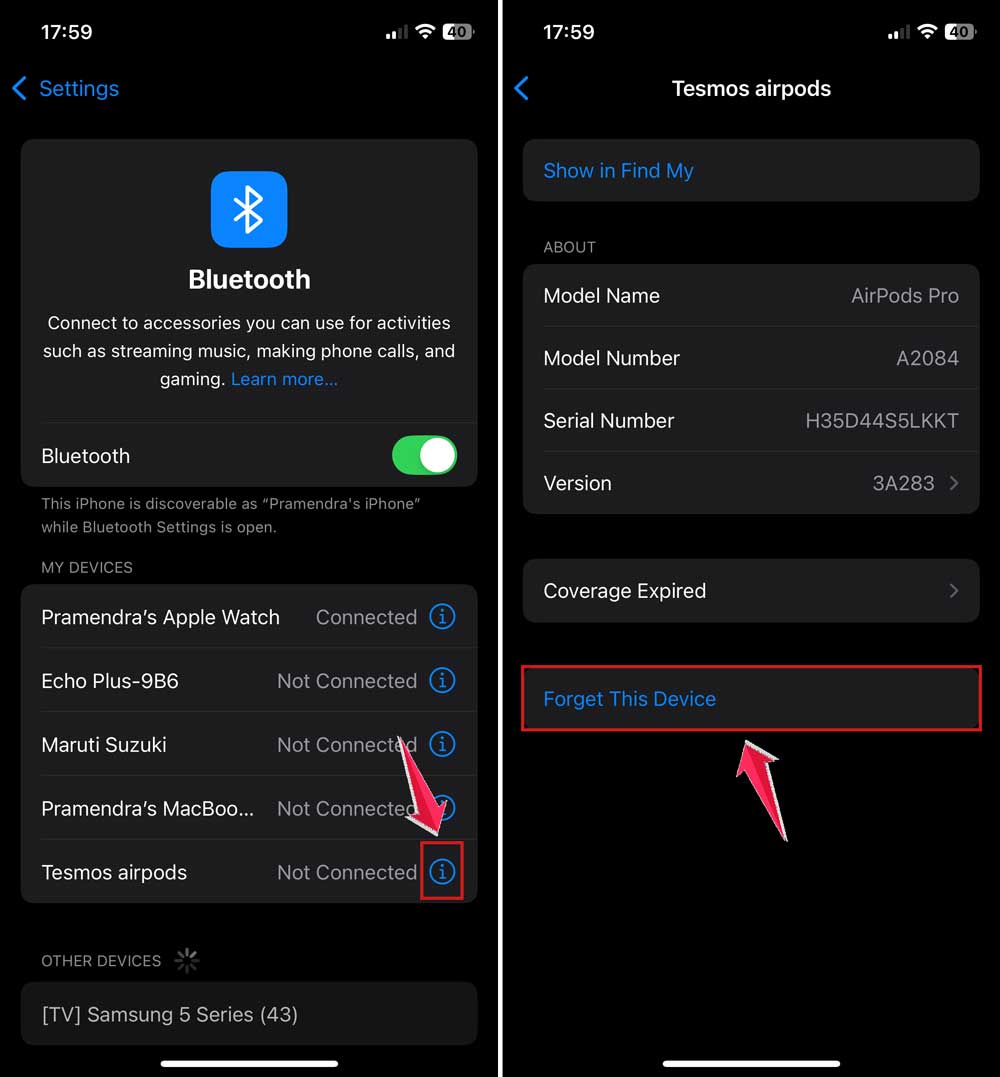
- Put your AirPods in the case and close the lid for 30 seconds.
- Open the lid and press the setup button on the back until the light flashes white.
- Bring your AirPods close to your iPhone, and follow the on-screen steps to reconnect.
After this, your AirPods should be linked to your Apple ID again.
More Tips to Keep Your AirPods Working Smoothly
Want to make sure your AirPods stay connected and work without any hiccups? Here are a few extra things you can do.
1. Keep Your AirPods Updated
You don’t have to do much here. Just leave your AirPods in their case near your iPhone, and Apple updates them automatically. Easy, right?
2. Check Bluetooth Settings Often
Every now and then, take a look at your Bluetooth settings. Make sure your AirPods are listed and connected. If they’re not, try reconnecting or restarting your device.
3. Charge Them Regularly
Low battery can cause weird connection issues. Try to keep your AirPods charged. Don’t let them sit dead for too long.
4. Rename Your AirPods
If you have more than one Apple device, renaming your AirPods can help. Go to Settings > Bluetooth > Tap the (i) > Name. Pick something easy to spot.
5. Try Another Device
Just to be sure it’s not your phone, try connecting your AirPods to another Apple device. If they work there, the issue might be with your original device.
The Takeaway
So, we’ve covered everything you need to know to check if your AirPods are connected to your Apple ID.
We started with the basics—using your iPhone, the Find My app, and iCloud. Then we looked at how to reset and reconnect them if things weren’t working.
The main thing to remember? Don’t panic. These issues are super common, and most of the time, they’re easy to fix.
Just follow the steps, and you’ll be back to listening to your favorite tunes in no time.
Now it’s your turn. Go ahead, check your setup, and fix what’s needed. If you’ve got questions or need help, drop a comment. I’m here to help!