Ever tried to copy something on your iPad or Mac, and it just wouldn’t work? Super frustrating, right?
One moment your text is there, and the next—gone. It feels like your device just gave up on one of the most basic things it should do.
But don’t worry, you’re not alone. It happens to a lot of us. And the good news? Most of the time, it’s a small issue that you can fix yourself without much effort.
Sometimes, the problem is just a tiny glitch in the system, or maybe the clipboard is full and not clearing properly.
Other times, it could be a setting that’s off, or the app you’re using doesn’t play well with copy/paste. Whatever it is, it’s not the end of the world.
In this guide, I’ll walk you through simple fixes step-by-step. You don’t need to be a tech expert.
Just follow along, and we’ll get copy and paste working again on your iPad or Mac. Ready? Let’s do this.
Why does copy and paste stop working?
1. Your device just needs a quick break
Sometimes your iPad or Mac just needs a little rest. Just like us, devices can get tired and act weird when they’ve been on too long. A quick restart can clear out small bugs and get things back on track.
2. Your settings might be off
It’s easy to miss a small setting that affects how copy and paste works. Maybe something got changed without you noticing. A quick check in your settings can often fix things right away.
3. Your clipboard might be full or stuck
Think of your clipboard like a temporary storage space. If it’s full or frozen, it might stop working. Clearing it out gives your copy/paste a fresh start.
4. Some apps just don’t play nice
Not all apps handle copy and paste the same way. If it works in one app but not in another, the issue might be with that specific app. You can try a different app or check its settings.
Alright, now that we know what could be causing the issue, let’s fix it. I’ll guide you through each step like we’re doing it together.
How to fix copy/paste not working on iPad or Mac
#1. Restart your device
This is the easiest thing to try first—and it works more often than you’d think. A restart clears out temporary bugs and gives your device a fresh start.
Press and hold the power button until you see “slide to power off.” Slide it, wait a few seconds, and turn it back on.

Once it turns back on, try copy and paste again. Fingers crossed—it might already be fixed.
#2. Check your settings
If restarting didn’t help, let’s head into your settings. Sometimes a small setting can stop copy/paste from working, especially after a software update or app install.
Go to Settings > General > Keyboard. Make sure everything looks normal there.

Just a few taps might save you a lot of time later.
#3. Clear the clipboard
Sometimes the clipboard is holding something weird or too much data, and it needs to be cleared. There’s no official “clear clipboard” button on iPad, but there’s a neat trick.
Open the Notes app. Create a new note and copy a blank space (just tap and hold in a blank note and select a space). This replaces whatever was stuck in your clipboard.
That’s it. Now go ahead and try copying and pasting again.
#4. Update your software
Running an older version of iOS or macOS can cause small bugs—including copy/paste issues. Let’s make sure your software is up to date.
- Go to Settings > General > Software Update.

- If there’s an update, tap Download and Install.
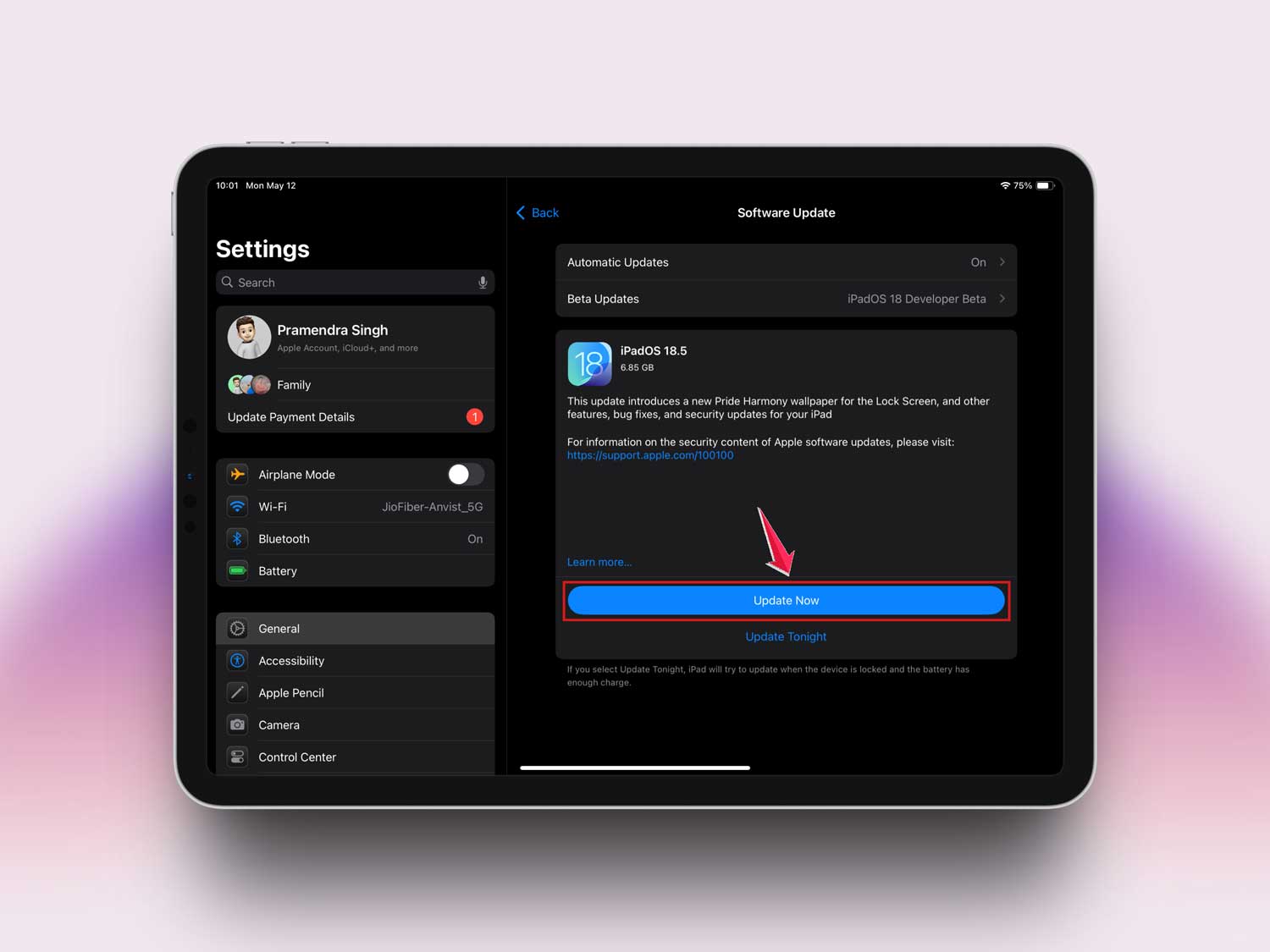
Updates fix bugs and improve how everything works—including your clipboard.
#5. Check app permissions
Some apps need permission to work properly with copy/paste. If permissions are blocked, that could be why it’s not working.
Go to Settings, scroll down to the app you’re using, and check its permissions. Allow access if needed.
This small change might get everything working again.
#6. Try using a different app
If nothing else has worked yet, this test can help. Try copying and pasting in a different app. If it works there, the issue is with the original app.
Copy something from Notes and try pasting it in Pages or Mail.
If it works, try updating or reinstalling the app that’s giving you trouble.
Extra tips for smoother copy and paste
1. Use keyboard shortcuts
Shortcuts can save you time. On Mac, press Command + C to copy and Command + V to paste. On iPad, if you use a keyboard, those same shortcuts work too.
2. Use Universal Clipboard to copy between devices
Did you know you can copy something on your iPhone and paste it on your Mac? It’s called Universal Clipboard, and it’s super handy. Just make sure Handoff is turned on in your settings.
3. Keep your apps updated
App updates fix bugs and improve performance. Go to the App Store and check if your apps have any pending updates. Keeping them fresh can prevent problems like this.
4. Try a clipboard manager
Apps like Paste or Copied let you save multiple copied items. That way, you don’t lose anything important. It’s great if you copy and paste a lot during your day.
5. Reset your device settings (last resort)
If nothing else works, you can reset your settings. Don’t worry—it won’t delete your data, but it will reset your preferences. Just make sure to back up your device first.
The takeaway
So yeah, copy and paste not working on your iPad or Mac can be annoying. But most of the time, it’s a small issue with a simple fix.
Restart your device, check your settings, and clear your clipboard. These easy steps usually do the trick.
Sometimes, the problem is with a specific app or a permission setting. And if all else fails, keep your software and apps updated—or try a clipboard manager to make life easier.
Now you’ve got all the tools to fix this yourself. Ready to give it a try? Let me know how it goes in the comments below!