Did you know that over 1 billion people use Google Photos to store and share their memories? It’s an incredibly popular app, but there’s one small problem: you can’t directly access it on your TV.
Have you ever wanted to show your family and friends those amazing vacation photos or funny videos on a bigger screen?
Well, you’re not alone. Many people struggle to find an easy way to display their Google Photos on their TVs, especially if they use Apple devices.
This is where screen mirroring comes in handy. It’s a simple way to show what’s on your iPhone or Mac on your TV screen. But if you’re not tech-savvy, it might seem a bit tricky at first.
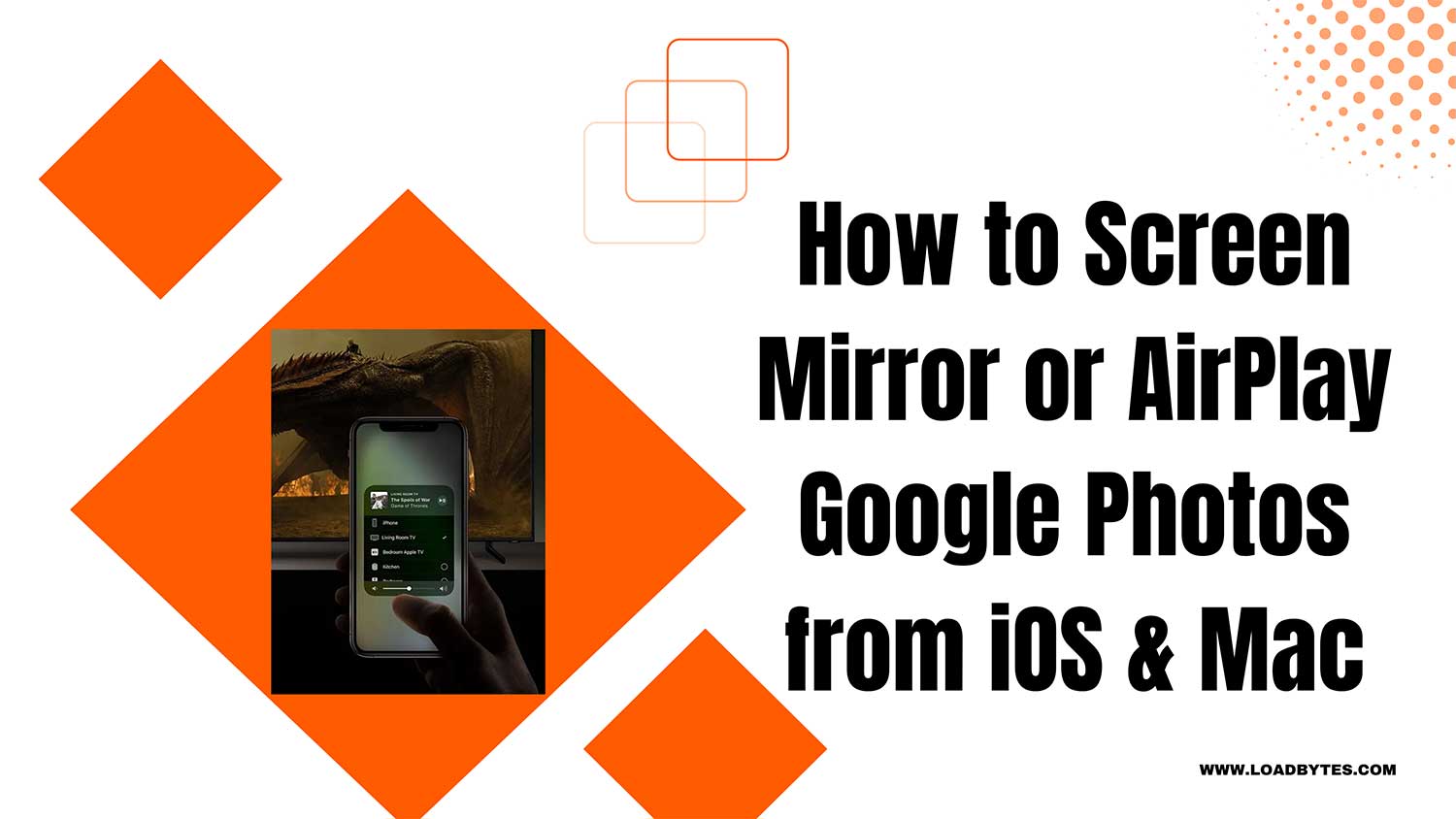
Don’t worry, though! In this article, we’ll walk you through the process step by step. You’ll learn how to use AirPlay to display your Google Photos on your TV, whether you’re using an iPhone or a Mac.
How to display Google Photos on your TV from your iPhone or Mac
Ever wanted to show off your photos and videos from Google Photos on your TV? You’re in luck!
Even though there’s no Google Photos app for Apple TV, you can still make it happen.
Here’s how you can display your memories on the big screen using your iPhone, iPad, or Mac.
Setting up your devices
Before we dive in, there’s one important thing you need to do: make sure your Apple device and your TV are on the same Wi-Fi network.
This is crucial for them to communicate with each other. Once that’s done, you’re ready to go!
1. Using AirPlay from your iPhone or iPad
- Turn on your AirPlay-compatible TV.
- Open the Google Photos app on your iOS device.
- Find the AirPlay icon in the app and tap it. If you encounter any issues, you might need to fix AirPlay only playing audio issue.
- Choose your TV from the list of available devices.
- If it’s your first time connecting, you might need to enter a code shown on your TV.

- Your photos and videos will now appear on the TV screen.

Use Screen Mirroring as an alternative
If you can’t find the AirPlay icon in Google Photos, don’t worry. You can use screen mirroring instead:
- Swipe down from the top-right of your iOS device to open Control Center. If you experience delays, you might want to troubleshoot AirPlay lagging issues.
- Tap the “Screen Mirroring” icon.
- Select your TV from the list.

- Open Google Photos, and everything you see on your device will appear on the TV.
2. Displaying Google Photos from your Mac
Even though there’s no Google Photos app for Mac, you can still show your photos on the TV:
- Open the Google Photos website in your browser.
- Sign in to your Google account.

- Look for the AirPlay icon at the top of your Mac screen.
- Choose your TV from the list.

- Your Google Photos will now display on the TV.
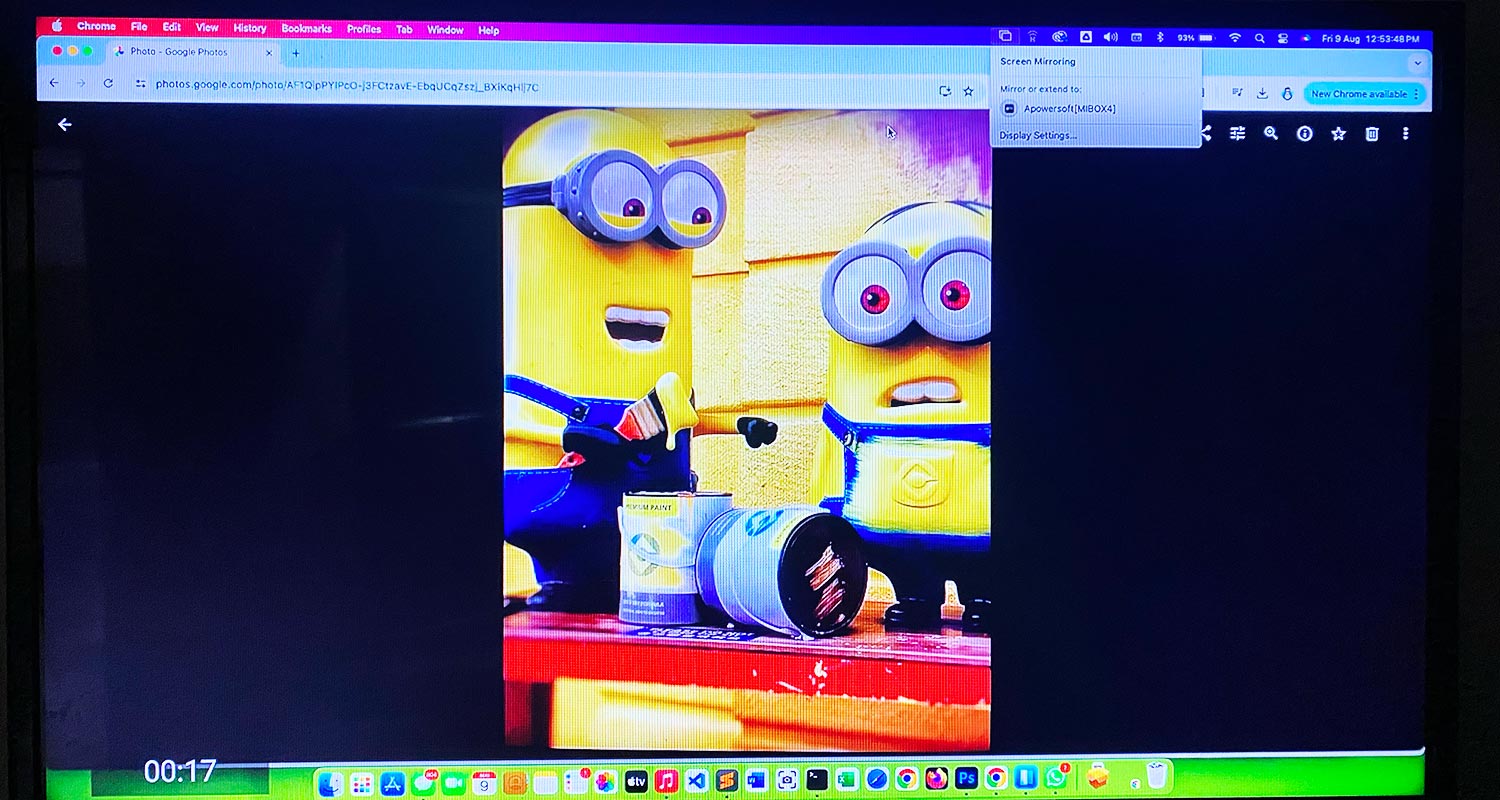
With these simple steps, you can easily share your Google Photos on the big screen, making it perfect for reliving memories with family and friends.
Give it a try and enjoy your photos in a whole new way!
The takeaway
Displaying your Google Photos on your TV isn’t as tricky as you might think. Even without a dedicated app for Apple TV, you can still share your memories on the big screen.
The main thing to remember is to keep your devices on the same Wi-Fi network. This simple step is key to making everything work smoothly.
Whether you’re using an iPhone, iPad, or Mac, you’ve got options. AirPlay Safari from iPhone is another neat trick you can explore alongside AirPlay and screen mirroring.
Some people think you need special equipment or technical skills to show photos on your TV. That’s not true! With the steps we’ve covered, you can easily share your Google Photos using devices you already have.
So go ahead and give it a try. Sharing your photos and videos on the big screen can make your memories come alive in a whole new way.
It’s a great way to relive special moments with family and friends. Don’t keep those photos locked away on your phone. Let them shine on your TV!
What do you think about this article? Feel free to share your thoughts in a single line.