Ever find your iPhone going silent when you least expect it? That’s probably the “Do Not Disturb” (DND) mode kicking in. While it’s great for focus, it can be a problem if you’re waiting for important calls.
If you’ve been puzzled by your phone’s sudden silence, don’t worry. I’m here to help you take control of your DND settings.
In this article, we’ll examine why your iPhone might be turning on DND by itself and how you can change it. You’ll learn how to customize DND so you don’t miss important calls while still enjoying some peace.
Let’s get started on making your iPhone work better for you!
1. Disable Do Not Disturb Schedule
Your iPhone might be silencing itself due to something called Focus Mode. It’s like a little assistant inside your phone deciding, “It’s study time, let’s keep it quiet!”
This happens because of schedules set based on time, place, or activity. Kind of magical, right? But if it’s not working for you, let’s fix that!
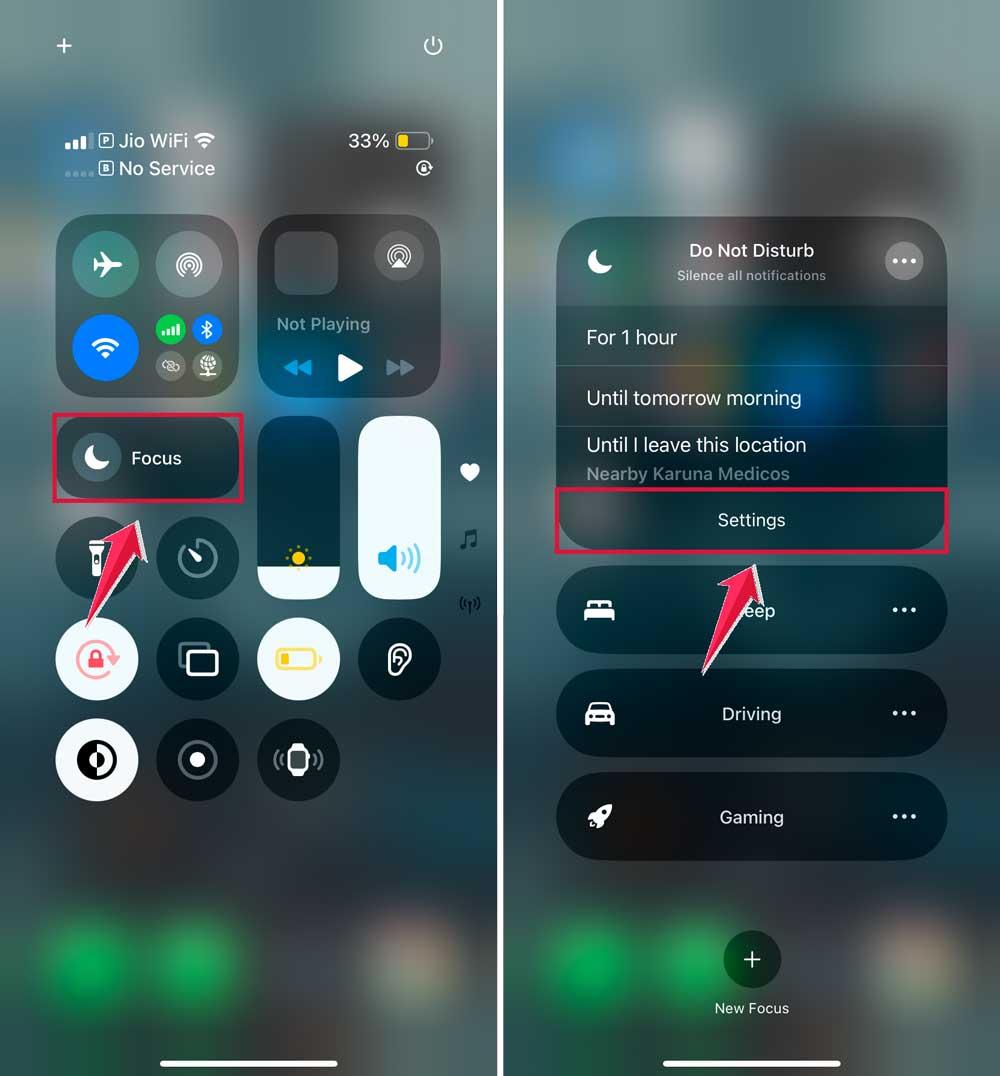
Access Control Center:
- On the latest iPhones: Swipe down from the top right corner.
- iPhones with a Home button: Swipe up from the bottom.
Adjust Settings:
- Press and hold the Focus button.
- Tap the three-dot icon next to Do Not Disturb, then hit Settings.
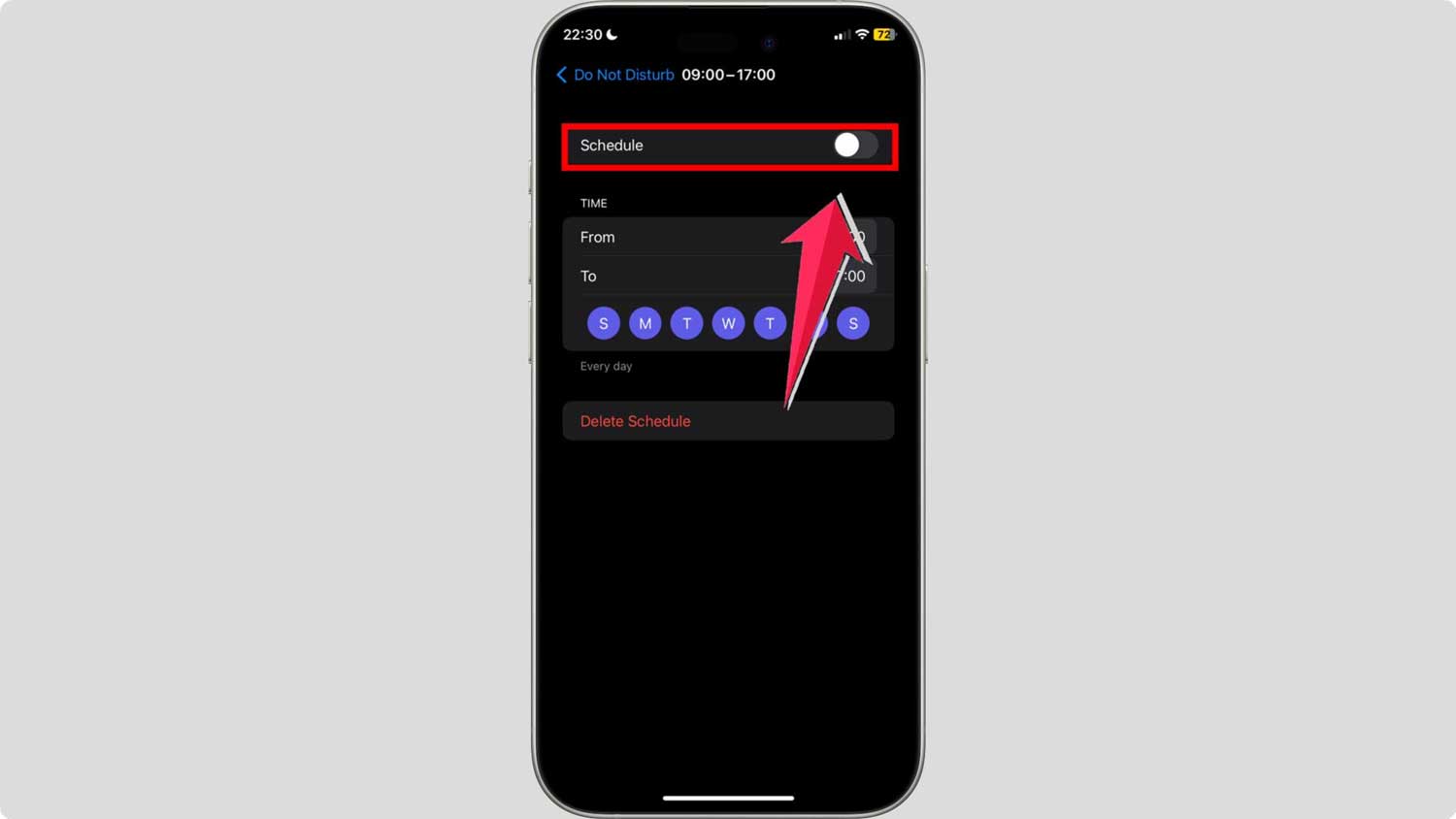
In the settings, find the Add Schedule section. If there are any schedules that don’t make sense anymore, just toggle them off. Say goodbye to unwanted quiet times!

In the settings, find the Add Schedule section. If there are any schedules that don’t make sense anymore, just toggle them off. Say goodbye to unwanted quiet times!
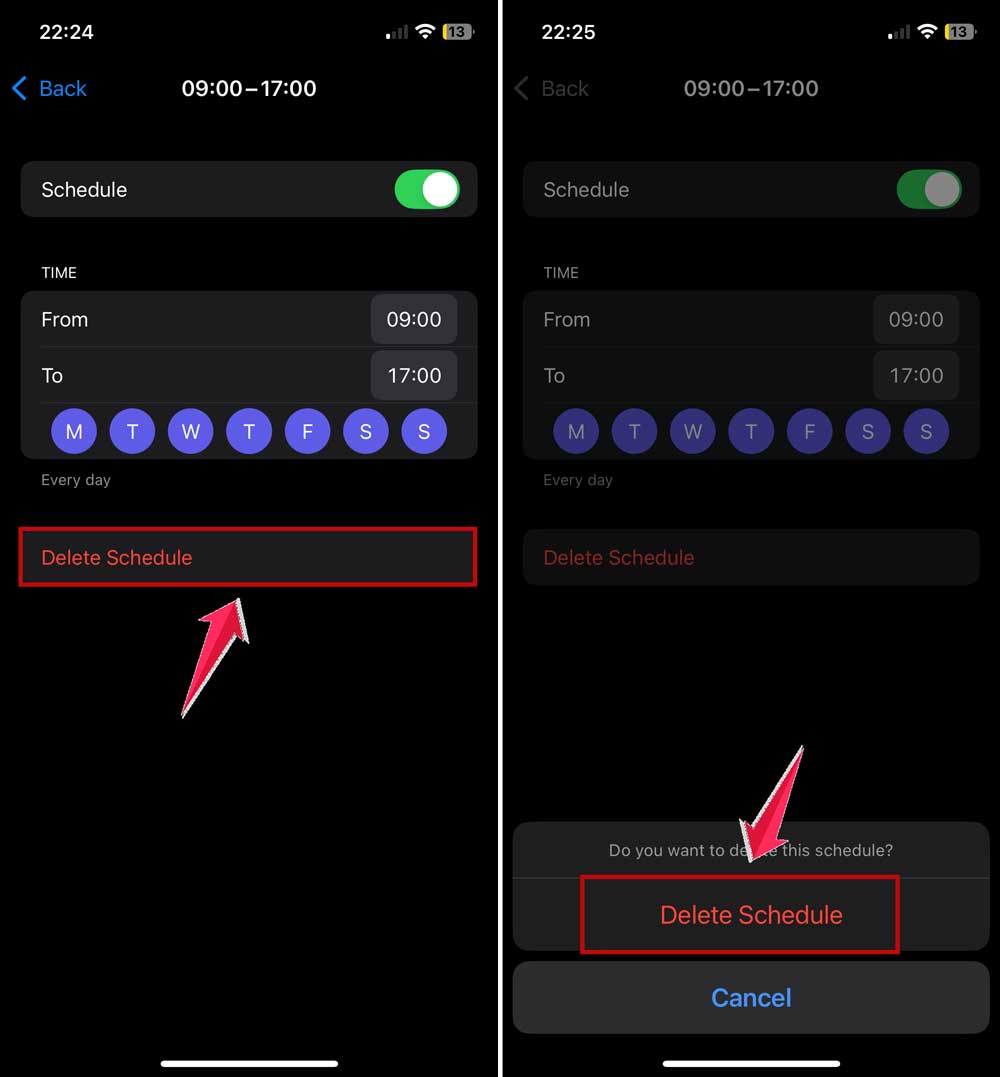
Erase Unwanted Schedules
If you stumble upon a schedule that feels like it’s from another era, hitting Delete Schedule will make it disappear. Confirm your choice, and it’s like it never existed.
2. Disable Share Across Devices
While it’s super handy to sync your quiet times across devices, it’s not so fun when you’re caught in an unintended game of silent tag.
Want to break the silence chain? Here’s how to stop your devices from copying each other’s DND settings:
For iPhone and iPad:
- Open Settings. Just tap on that gear icon.
- Navigate to Focus. This is where all your concentration tools live.
- Toggle Off ‘Share Across Devices’. Find this option and give that switch a flick to the off position. This action ensures your devices act independently, keeping the silence only where you want it.

For Mac Users:
#1. Access the Control Center. Look for it usually up in the right corner of your screen.

#2. Click on Focus. This is where you can manage how your Mac handles distractions.
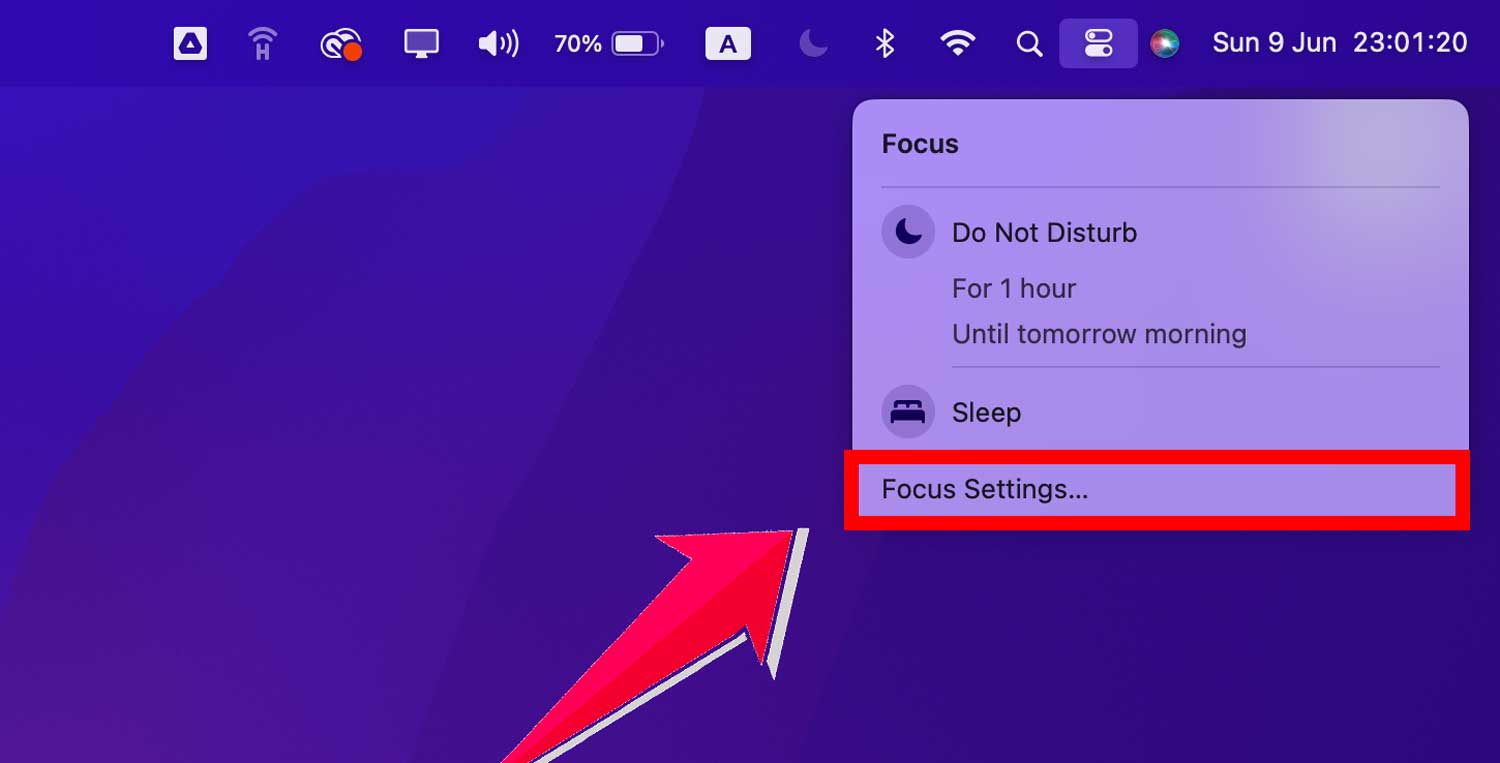
#3. Adjust Focus Settings. Find the ‘Share Across Devices’ toggle and switch it off to stop the sharing.

3. Unlink Focus from Lock Screen
Here’s how to tell your lock screen to cool it with the DND:
Unlink Focus from Lock Screen:
- Wake up your iPhone by pressing the power button.
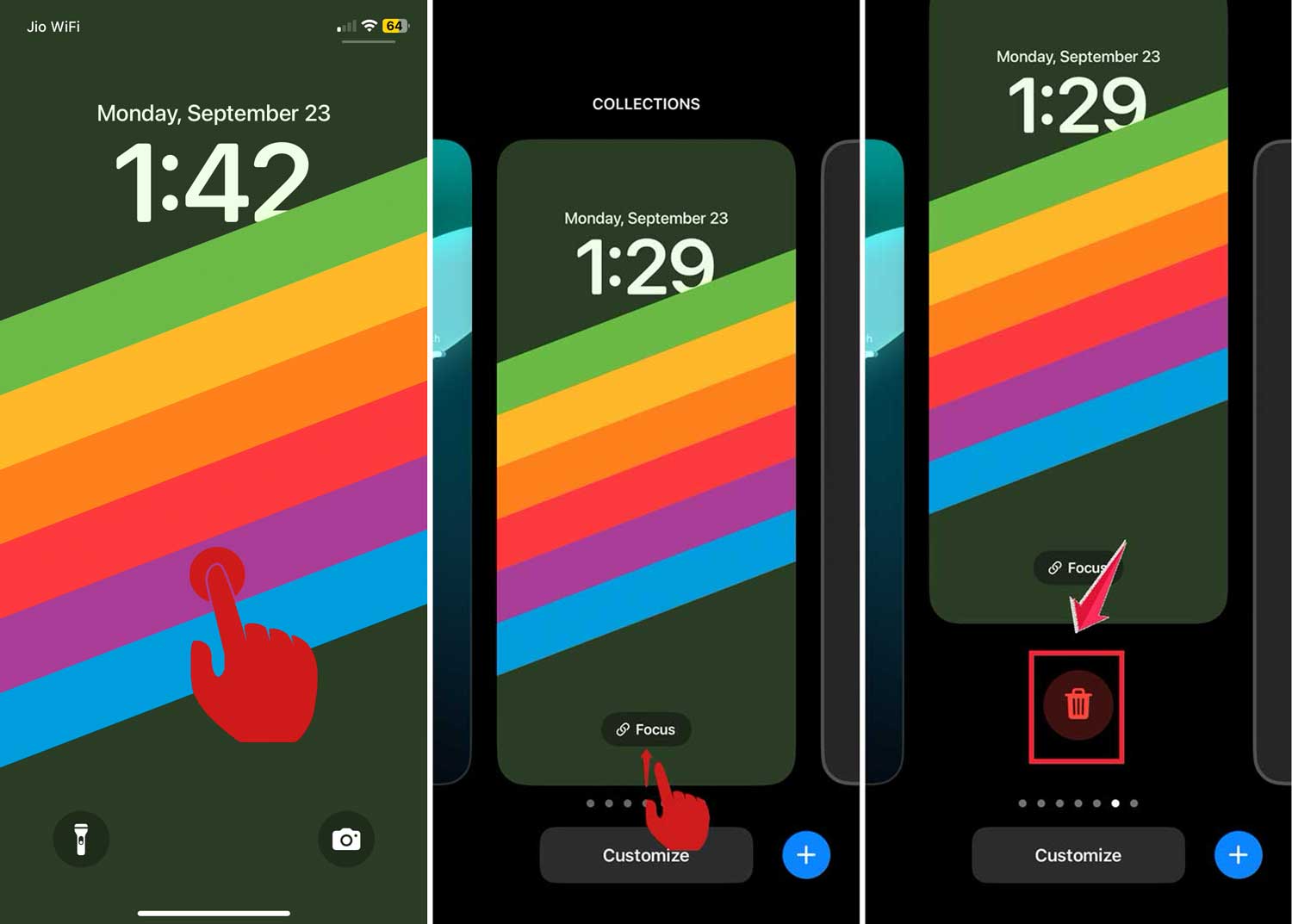
- On your Lock Screen, touch and hold an empty area (where there are no icons).
- Swipe left or right to find the Lock Screen you want to change.
- Look for the name of the Focus mode linked to this Lock Screen and tap it.
- Tap the name again and choose to unlink it.

If the Lock Screen Won’t Let Go:
If you’re having trouble unlinking them, you might need to remove that particular Lock Screen:
- Touch and hold your current Lock Screen until you can move it.
- Swipe to find the Lock Screen you want to remove.
- Swipe it up towards the top of your screen.
- Tap the trash can icon that appears and confirm to delete it.
4. Disable DND when connected to CarPlay
You know when you’re jamming to your favorite tunes in the car, and your iPhone suddenly decides to go silent because it’s connected to Apple CarPlay?
It’s trying to be helpful by turning on Driving Focus, which is like Do Not Disturb’s cousin who’s really into road safety.
If you’d rather not have your iPhone go mute every time you plug into CarPlay, here’s the fix:
- Open up your Settings app. That’s the one with the gears on it.
- Tap on Focus, then find and select Driving.
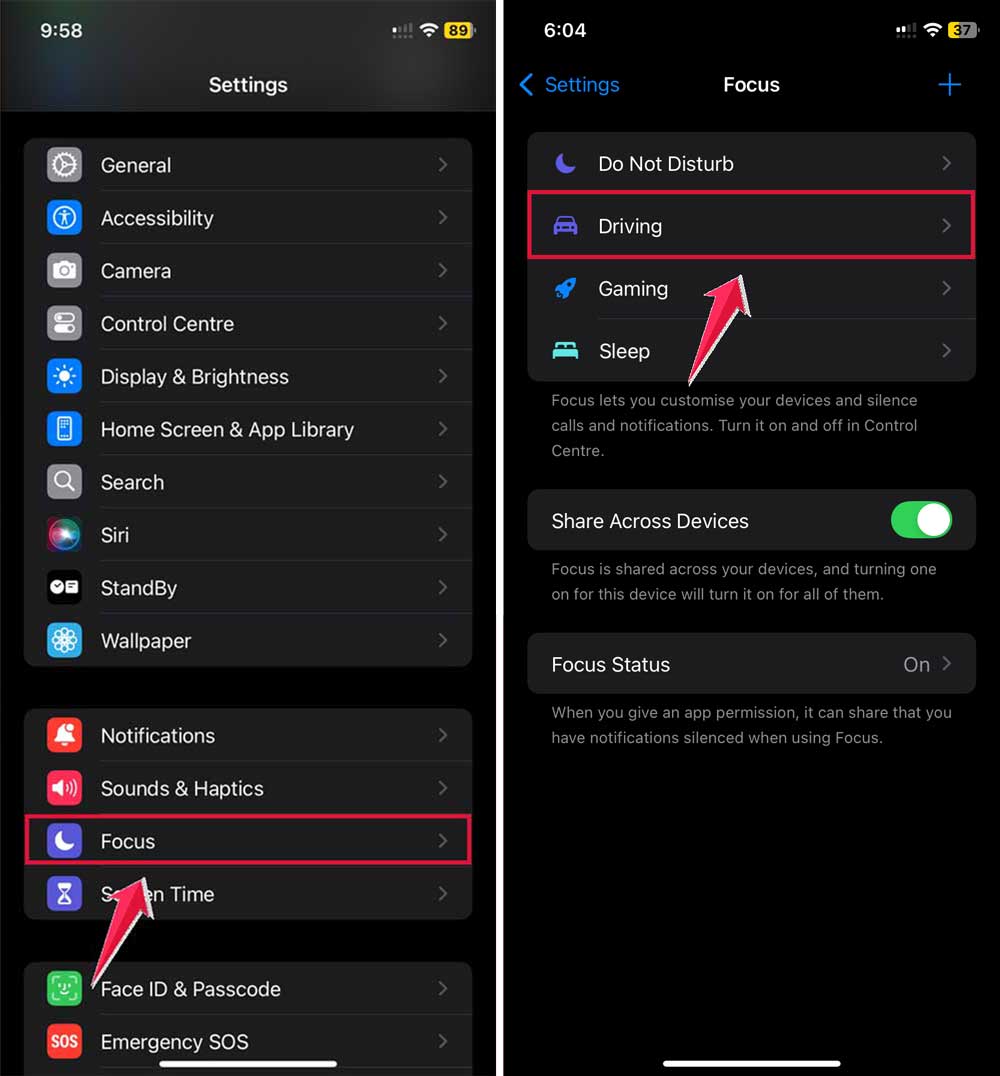
- Now, look for the option that says While Driving.
- You’ll see Activate With CarPlay. Just switch that toggle off.

5. Turn off DND When Connected To Car Bluetooth
If you want to make sure DND doesn’t kick in every time your iPhone buddies up with your car’s Bluetooth, here’s the step-by-step:
- Hit the Settings icon on your iPhone.
- Scroll to Focus and tap it.
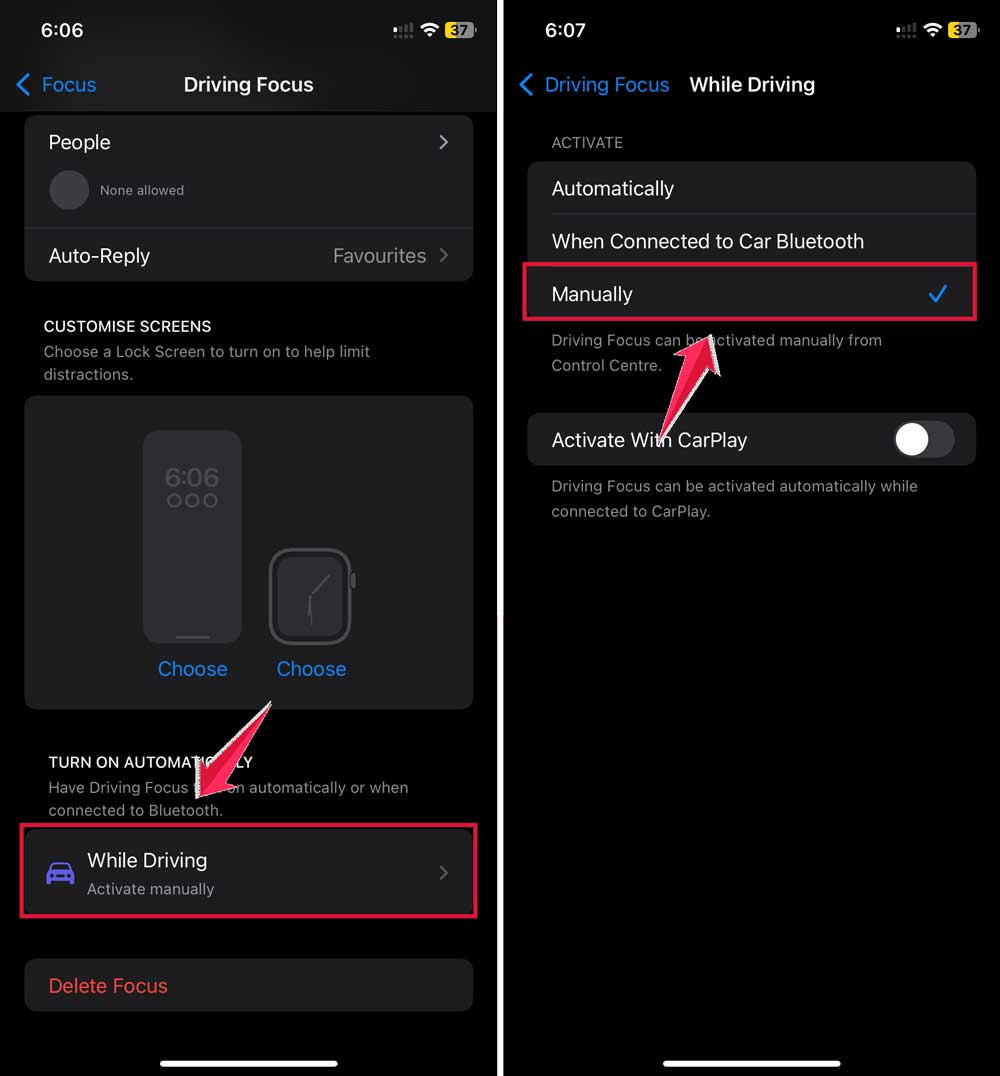
- Now, select Driving.
- Under the While Driving section, you’ll see an option to choose how you want the Driving Focus to kick in. Tap that.
- Pick Manually from the options. This way, your iPhone won’t automatically decide it’s quiet time just because it’s connected to your car.
6. Delete Driving Focus
Sometimes, the best fix is just to clear out what’s not working for you.
If Driving Focus is more of a backseat driver, constantly turning on DND when you don’t want it to, it might be time to kick it to the curb.
To completely delete Driving Focus from your iPhone:
- You guessed it. Start in the Settings.
- Go to Focus again.
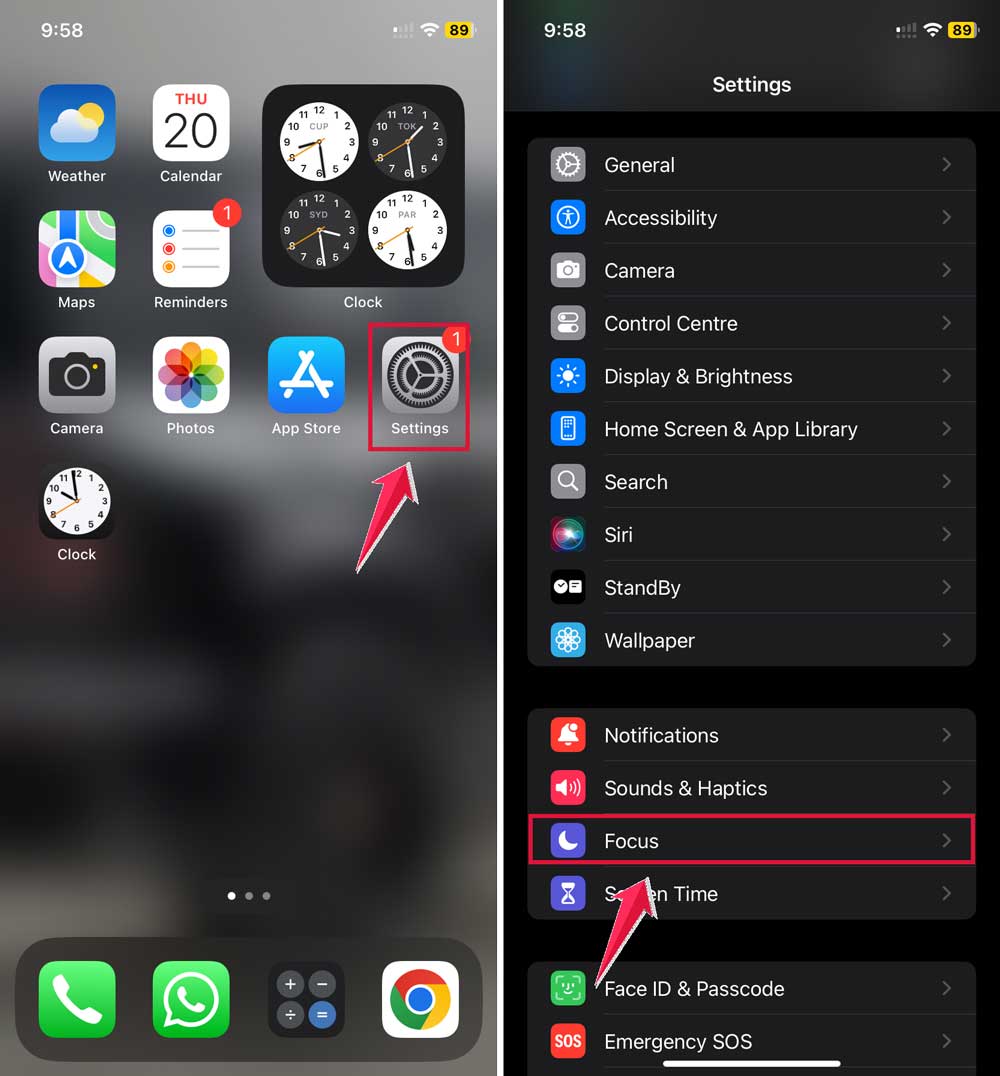
- Tap on Driving.
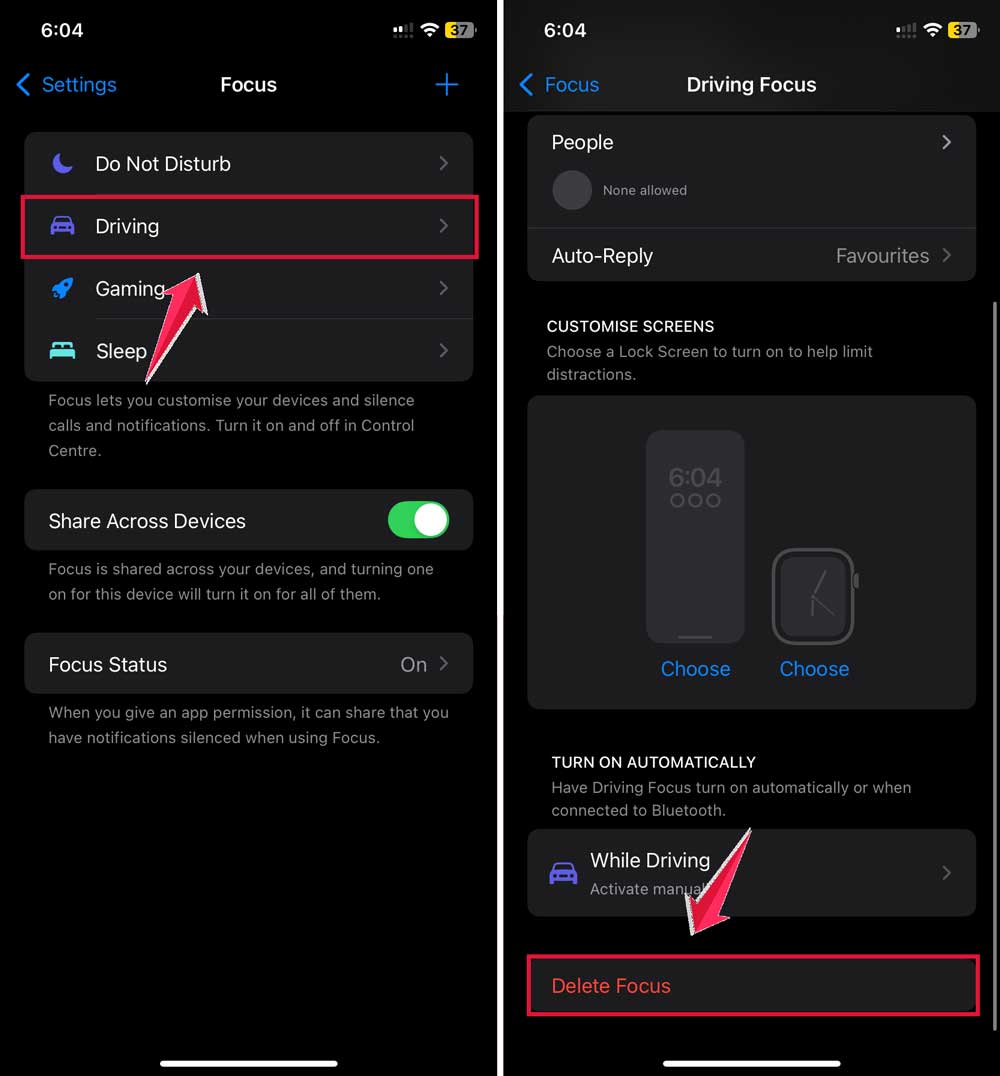
- Scroll to the bottom and you’ll see Delete Focus.
- Tap that, and your iPhone will ask if you’re sure. If you’re ready to move on, tap Delete Focus again.
7. Other possible fixes
Okay, so you’ve tried everything above, and your iPhone is still playing hard to get with those notifications? Don’t sweat it! I’ve got a few more aces up my sleeve that might just do the trick.
#1 Kick Out New Apps
If you’ve recently downloaded an app and suddenly your phone’s acting all weird, giving you the silent treatment, that new app might be the troublemaker. Here’s what you can do:
- Think about when the problem started.
- Did you download a new app around that time? If yes, try saying bye to that app for a bit and see if things go back to normal.
#2 Stay Updated
Apple’s always fixing little bugs and glitches with updates. So, make sure your iOS is the latest and greatest:
- Dive into Settings.
- Tap on General.
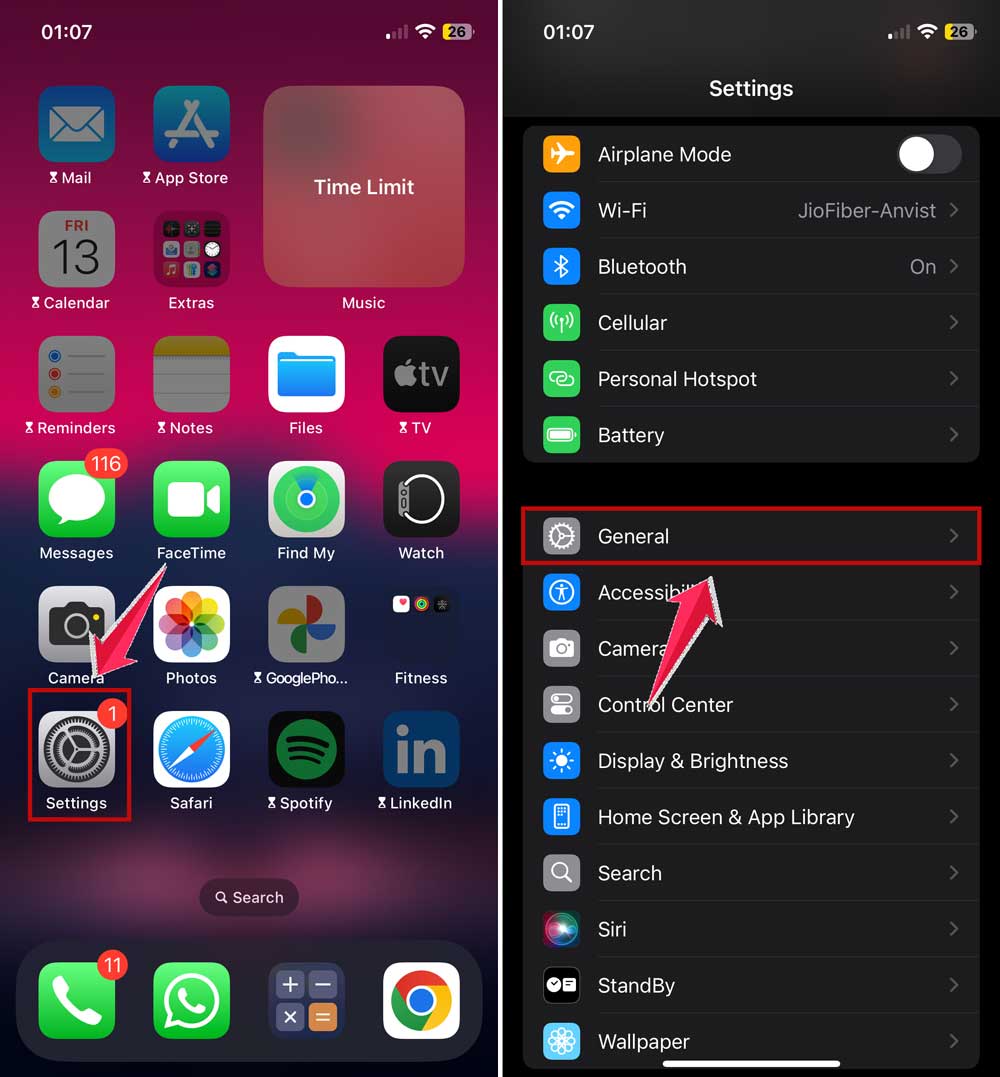
- Then hit Software Update and let your iPhone do its update thing if there’s one waiting.

#3 Restart Your iPhone
Sometimes, just turning your iPhone off and on can magically fix a lot of problems. It’s like a mini-vacation for your phone:
- Hold down the power button.
- Slide to power off.
- Wait a bit, then power it back on.

#4 Reset Your iPhone
This is the big one. Resetting your iPhone. But before you do this, back up all your precious photos, messages, and everything else because a reset wipes it all clean:
- Back up your iPhone to iCloud or your computer.
- Once that’s done, go back to Settings.
- Tap on General.
- Click on Transfer or reset iPhone.

- Scroll down and choose Reset.
- Pick Erase All Content and Settings to wipe the slate clean.

#5 Call Apple Support
If you’re still stuck, it might be time to ask the experts. Apple Support is like the tech doctor for your iPhone:
- Reach out to Apple Support online or over the phone.
- Or set up an appointment at an Apple Store and let a Genius take a look.
Wrapping It Up: No More Missed Calls or Messages!
And there you have it! You’re all set with a bunch of strategies to keep your iPhone from giving you the silent treatment when you least expect it.
Remember, you don’t have to miss out on important calls, messages, or app notifications just because Do Not Disturb mode decides to be a bit overzealous.
From tweaking your Focus settings to giving your iPhone a fresh start with a reset, you’ve got the power to ensure that you stay connected on your terms.
And hey, if things get a bit too tricky, Apple Support is always there to lend a helping hand.
Now go on and enjoy the peace of mind knowing that your iPhone will alert you when you want it without any unexpected interruptions. Happy connecting!