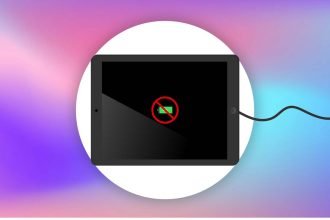
Ever plugged your iPad into your MacBook and thought, “Why is this thing charging soooo slow?” You’re not alone. It’s a real head-scratcher.
But don’t worry—I’m here to break it down for you.
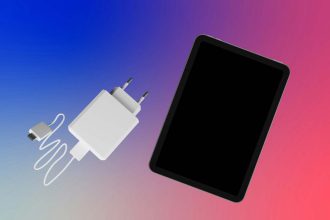
So, here’s the deal. iPads usually charge slower on a MacBook than when you use a wall adapter. And the main reason? It’s all about power output.
MacBooks just don’t give as much power as those chunky wall chargers. Think of it like trying to fill a big bucket with a tiny cup. It’s gonna take longer, right?
Now, you might be thinking, “Why should I even care?” Well, fast charging is super helpful. Especially when you’re rushing out the door or need your iPad ready for a meeting or class. So yeah, it’s a pretty big deal.
But hang tight! I’ve got some easy tricks to help you charge your iPad faster—even if you’re using your MacBook. Sounds good? Let’s jump right into it!
Why does my iPad charge slower when plugged into my MacBook?
1. MacBook’s power is weaker
Alright, first thing you need to know—MacBooks don’t push out as much power as your wall charger. They’re just not built for that.
So when you connect your iPad to your MacBook, it gets less juice. And less juice means slower charging.
2. Use the right port
Second, the port you’re using matters a lot. Some MacBooks have old-school USB ports, and others have the faster USB-C or Thunderbolt ports.
If you plug into an old USB-A port, your iPad will charge way slower. You and I want that USB-C or Thunderbolt action for the best speed.
3. Background apps slow things down
Here’s another thing apps running in the background can eat up power while you’re trying to charge.
So even if your iPad is plugged in, it’s also using battery at the same time. That’s like trying to fill a leaking bucket.
4. Cable quality matters
And don’t forget about the charging cable. A bad or damaged cable can seriously slow down charging.
Even if it looks fine, tiny damages inside can mess things up. Always use a good, preferably Apple-certified cable to keep that power flowing strong.
There you go! These are the main reasons your iPad might be crawling when it’s connected to your MacBook.
But don’t worry—I’ve got solutions coming right up!
How to Fix: iPad Charges Slower on MacBook Than Wall Adapter
Let’s fix this together! Here’s what you can do step-by-step to get your iPad charging faster.
#1 Use the Best Port Available
First, let’s make sure you’re using the best port you’ve got. Some MacBooks have different ports, and trust me, it makes a difference.
Here’s what you need to do:
- Look at your MacBook’s ports.
- If you see a USB-C** or Thunderbolt port, plug your iPad there.
- Avoid using the old USB-A ports if you can.
Using the faster port is like giving your iPad a highway instead of a bumpy road. It really helps!
#2 Close Background Apps on Your iPad
Next, let’s talk about those sneaky background apps. They can slow down charging without you even noticing.
Here’s how you can close them:
- Double-click the home button (or swipe up from the bottom if you don’t have one).
- You’ll see all the open apps.
- Swipe up on the apps you don’t need.
This way, your iPad can focus all its energy on charging, not running apps.
#3 Check Your Charging Cable
Now, let’s check that cable you’re using. Not all cables are made equal, my friend. A bad one can slow things down big time.
Here’s what to do:
- Inspect your cable for any wear, fraying, or damage.
- Use an Apple-certified cable if you can.
- Try a different cable if you’re not sure yours is working right.
A good cable can make all the difference. It’s a small change with a big payoff.
#4 Keep Your Software Updated
Believe it or not, sometimes it’s just a matter of needing a software update. Apple often tweaks things behind the scenes to make charging better.
Check for updates like this:
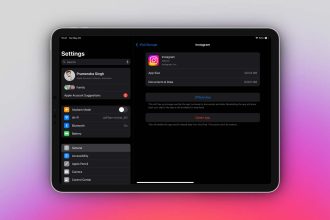
- On your iPad, open Settings.
- Tap General.
- Tap Software Update and install if one’s available.
- On your MacBook, click the Apple logo, go to System Preferences, then Software Update.
Keeping both devices updated gives you the best shot at smooth and speedy charging.
#5 Look at the Power Source
Lastly, don’t forget about the MacBook itself. If your MacBook is low on battery or not plugged in, it’s not going to charge your iPad very well.
Here’s what you should do:
- Make sure your MacBook is plugged in when charging your iPad.
- Use a strong, stable power source like a wall outlet, not just a weak power bank.
A happy MacBook means a happy, fast-charging iPad!
Extra Tips to Charge Your iPad Faster
Want a few more tricks? Let’s squeeze every bit of speed we can!
1. Keep the Screen Off
When your iPad’s screen is on, it’s using power. Just press the power button to turn it off while charging. It’ll help speed things up.
2. Try Airplane Mode
Switching to Airplane Mode cuts off Wi-Fi and Bluetooth, saving even more power.
- Swipe down to open Control Center.
- Tap the airplane icon.
You’ll notice your iPad charges faster without all that background activity.
3. Avoid Extreme Temperatures
Charging in very hot or cold places can slow things down—or worse, hurt your battery. Try to keep it at room temperature when you’re charging.
4. Use the Right Brightness
If you need the screen on, lower the brightness. Less light means less power wasted.
5. Don’t Use Your iPad While Charging
I get it—you want to keep using your iPad. But using it while charging is like trying to run while eating. It just doesn’t work well. Let it rest and it’ll charge much faster.
The Takeaway
So, there you have it! Charging your iPad on a MacBook can be slower, mostly because of the lower power output. But it’s not the end of the world.
Stick to using USB-C or Thunderbolt ports, close those background apps, and check your charging cable. Also, don’t forget to keep your devices updated and use a good power source.
With these easy tips, you’ll have your iPad back to full power quicker, even when it’s plugged into your MacBook.
Give these fixes a try and see how much faster your iPad charges next time!
And hey, if you found these tips helpful, drop a comment below—I’d love to hear from you!