Imagine this: You’re all set for an important FaceTime call. You pop in your AirPods, hit the call button, and… silence.
Frustrating, right? This scenario is more common than you might think, and it’s probably why you’re here reading this now.
Let’s face it. When your AirPods don’t work with FaceTime, it’s not just annoying. It can throw a wrench in your plans.
Whether it’s a work meeting, a catch-up with family, or a virtual date, you need your audio to work flawlessly.
If your AirPods connect but there’s no sound, it might be a separate issue altogether, like when your AirPods connected but no sound.
So why does this happen? There could be several reasons. Maybe it’s a software glitch, or perhaps your AirPods need an update. Sometimes, it’s as simple as a connection issue.
But here’s the good news: most AirPod problems with FaceTime are fixable. In this article, we’ll walk you through the most common issues and their solutions.
Why your AirPods might not work with FaceTime

You’re all set for a FaceTime call, but your AirPods aren’t cooperating. It’s frustrating, but don’t worry. This is a common issue with several possible causes. Let’s break it down:
1. First, your AirPods might be having connection issues. Sometimes they just need a little nudge to reconnect properly.
2. Second, your settings might need adjusting. A small tweak can often make a big difference.
3. Third, your AirPods or your device might need a software update. Keeping everything up-to-date is key for smooth operation.
4. In some cases, there could be a hardware problem with your AirPods. While this is less common, it’s worth considering if other solutions don’t work.
5. Lastly, believe it or not, even a tiny bit of dirt or debris can cause issues with your AirPods’ performance.
Also, keep in mind that if calls are dropping, it might not be the AirPods.
Why your AirPods are flashing white but not connecting
You’re seeing a white light on your AirPods, but they’re not connecting to your device. This can be frustrating, but don’t worry.
There are a few common reasons for this issue. If, instead, your AirPods are flashing green, that could point to a different issue.
1. Low battery could be the culprit. When your AirPods flash white, they’re trying to tell you they’re ready to connect. But if they’re too low on power, they might not have enough energy to complete the connection.
2. Sometimes, a software glitch can cause this problem. Your AirPods and device might just need a quick refresh to get back on the same page.
3. Put your AirPods back in their case for a few seconds, then take them out again. This gives them a quick “restart” that might solve the issue.
4. If that doesn’t work, you might need to reset your AirPods. Don’t worry, we’ll cover how to do this in the next section.
5. Bring your AirPods and your device very close together. Sometimes, interference can block the Bluetooth connection, and this can help overcome that.
If none of these quick fixes work, don’t worry. We’ll go through more detailed solutions in the following sections. Stick with me, and we’ll get your AirPods connected in no time!
How to fix AirPods not working with FaceTime
Having trouble using your AirPods during FaceTime calls? Don’t worry, we’ll walk through some solutions together. But first, let’s do a quick check:
Quick checklist:
- Try using the microphone in another app to see if it’s a FaceTime-specific issue. This helps rule out an AirPods mic not working issue entirely. You can also test your AirPods Pro microphone to ensure it’s functioning properly.
- Make sure your AirPods have enough battery charge.
If those basic checks don’t solve the problem, let’s move on to some more detailed fixes:
1. Refresh your Bluetooth connection
Sometimes, simply turning Bluetooth off and on can work wonders:
- Turn off Bluetooth on your device.
- Put your AirPods in their case.
- Wait a few seconds.
- Turn Bluetooth back on.
- Take your AirPods out of the case.
This quick reset often helps establish a fresh, stable connection.
2. Disconnect other Bluetooth devices
Your device might be juggling too many Bluetooth connections:
- Go to Settings, then Bluetooth.

- Look for other connected devices.
- Tap the “i” icon next to each one and select Disconnect.
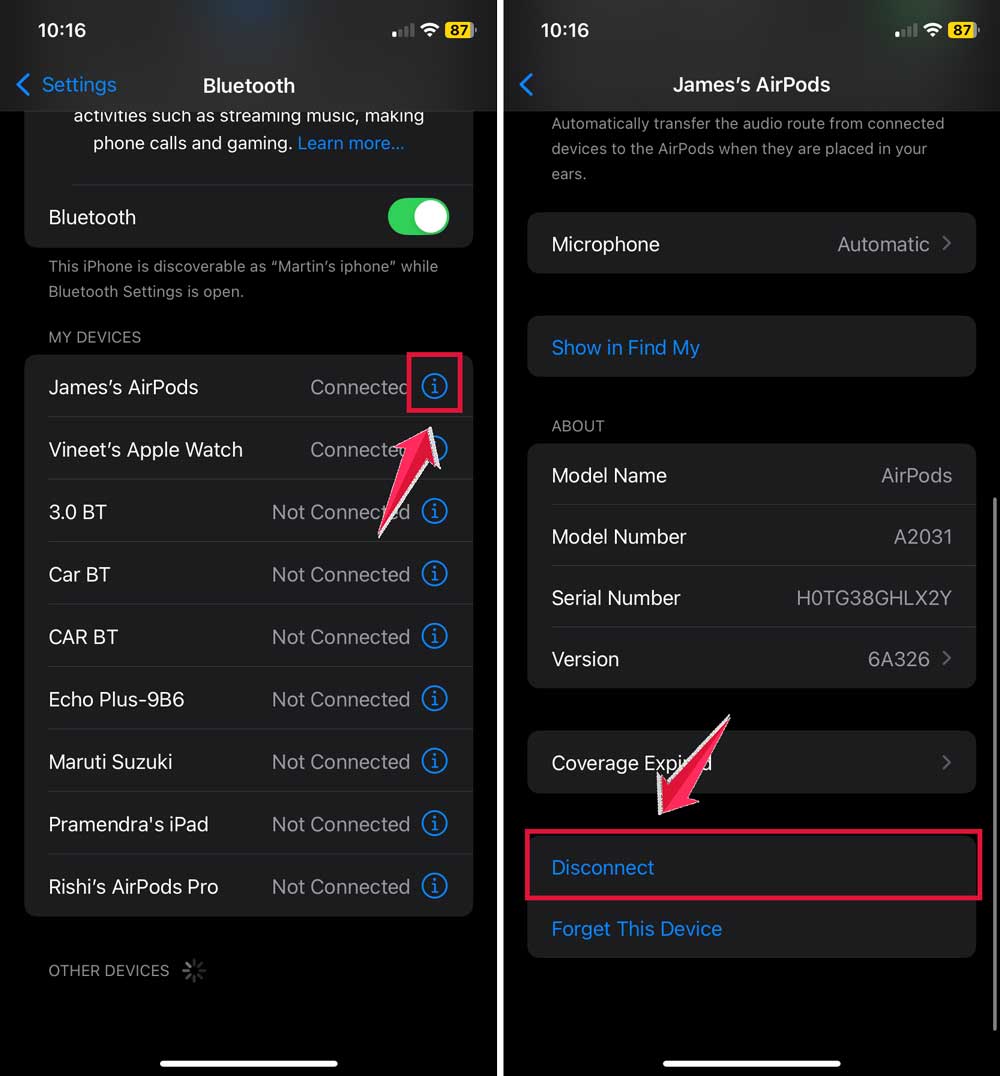
This helps your device focus on connecting properly with your AirPods.
3. Manually switch audio output device
Sometimes your iPhone needs a reminder to use your AirPods during calls:
- During a call, tap the Audio button (next to the Keypad).
- A list will appear. Select your AirPods from this list.
Remember, your AirPods need to be connected to show up on that list. Double-check this first.
4. Check the AirPods volume
It might seem obvious, but it’s easy to overlook:
- There could be a bug affecting your AirPods’ volume.
- Press the volume up button on your iPhone to ensure it’s at a good level.
This simple step might be the quick fix you’re looking for.
5. Forget AirPods device
If you’re still having issues, try making your iPhone forget your AirPods and then reconnect them:
- Go to Settings app.
- Tap Bluetooth.
- Find your AirPods and tap the blue “i” icon next to them.
- Select Forget This Device.
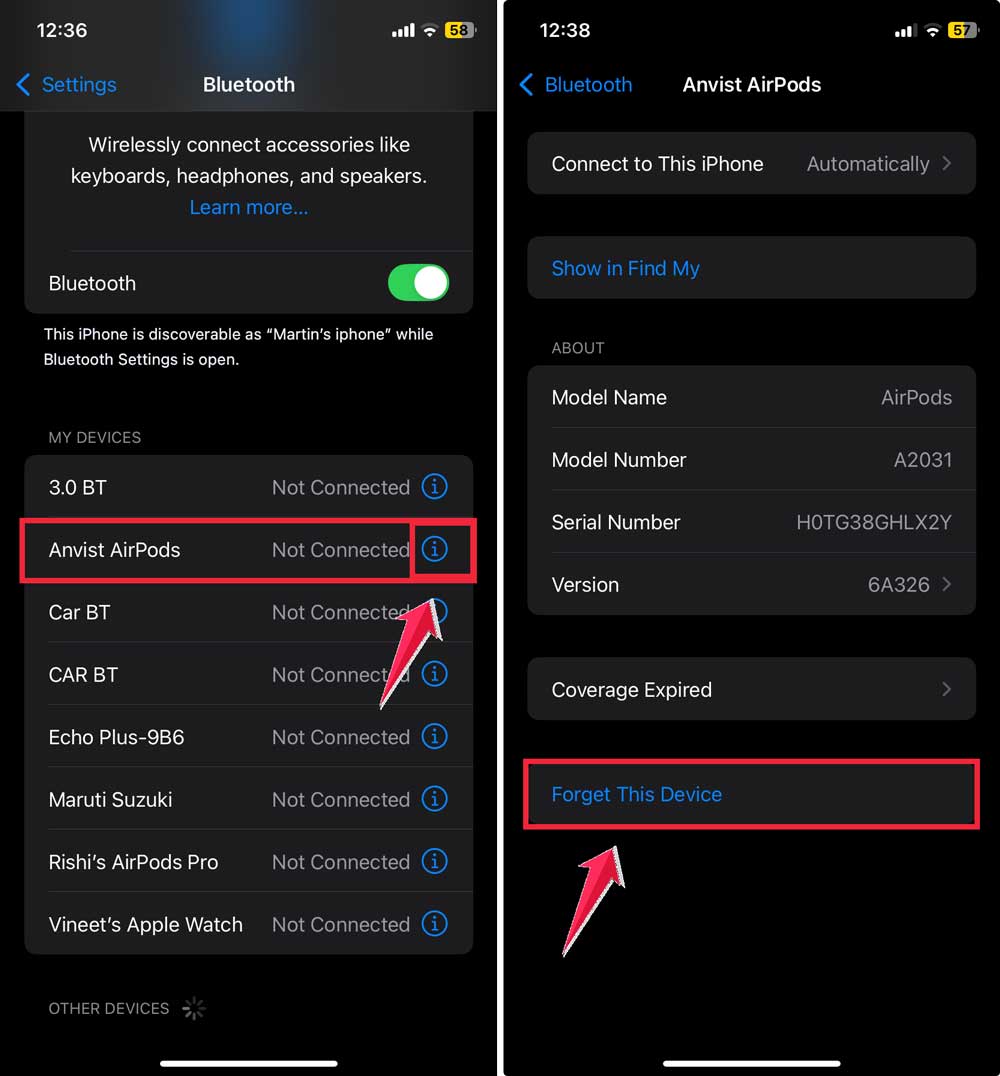
This gives your devices a fresh start.
6. Factory reset AirPods
If nothing else has worked, it’s time for a complete reset:
- Put your AirPods in their case.
- Open the lid.
- Press and hold the setup button on the back for about 15 seconds.

- Watch for the light to flash amber, then white.

This white flash means your AirPods are reset to factory settings. If you’ve purchased second-hand AirPods, resetting AirPods from a previous owner might be necessary too.
Remember to forget the device (as in step 5) before doing this reset.
After resetting, you’ll need to reconnect your AirPods as if they were new.
The takeaway
You’ve made it through our troubleshooting journey, and I hope you’re now listening clearly on your FaceTime calls. Remember, even the best tech can hiccup sometimes, but there’s usually a fix.
We’ve covered several solutions, from the simple Bluetooth toggle to a full AirPods reset. Don’t be afraid to try these steps.
They’re designed to be user-friendly and effective. If you’re still having trouble, remember that Apple Support is there to help.
A common misconception is that AirPods problems are always hardware-related. In reality, most issues are software glitches that you can fix yourself with these steps.
The key takeaway? Don’t give up on your AirPods. They’re amazing little devices, and with a bit of troubleshooting, you can get them working smoothly again.
Keep this guide handy, and you’ll be ready to tackle any AirPods issue that comes your way.