Picture this: you’re out on a beautiful sunny day, trying to snap the perfect photo or reply to an important message, when suddenly your iPhone screen dims. Frustrating, right?
This unexpected dimming is a common headache for many iPhone users, often leaving them squinting at their screens and wondering what’s going on.
Your iPhone has a bunch of smart features designed to protect your eyes and save battery life. Sometimes, though, these well-meaning features can be a bit overzealous, dimming your screen when you least expect it.
This isn’t just a minor inconvenience. When your screen dims at the wrong moment, it can interrupt what you’re doing, make your iPhone harder to use, and even leave you wondering if there’s something wrong with your device.
But don’t worry. You’re not stuck with a temperamental screen forever. Understanding why this happens and how to control it can make a world of difference in your iPhone experience.
In this article, we’ll dive into the reasons behind your iPhone’s dimming dilemma and, more importantly, show you how to take back control.
Let’s know the iPhone’s brightness features first
Your iPhone comes equipped with several features designed to optimize your viewing experience. Let’s break them down:
1. Auto-Brightness. This feature automatically adjusts your screen’s brightness based on your surroundings. When you’re in bright sunlight, it increases the brightness, and in dim settings, it lowers it. Auto-Brightness aims to provide the best visibility while conserving battery life.
2. True Tone. True Tone uses advanced sensors to adjust the color and intensity of your display based on your environment’s lighting. This feature makes colors appear more natural and reduces eye strain. It’s especially useful when moving between different lighting conditions.
3. Night Shift. Night Shift adjusts the colors of your display to the warmer end of the spectrum during evening hours. By reducing blue light, it aims to help you get a better night’s sleep if you use your device before bed. You can schedule the Night Shift to turn on and off automatically.
4. Attention-Aware Features. Available on iPhones with Face ID, this feature dims the display when it detects you’re not looking at it. It’s designed to save battery and provide privacy, but it can sometimes dim the screen when you don’t want it to.
Common reasons why your iPhone screen is dimming unexpectedly?
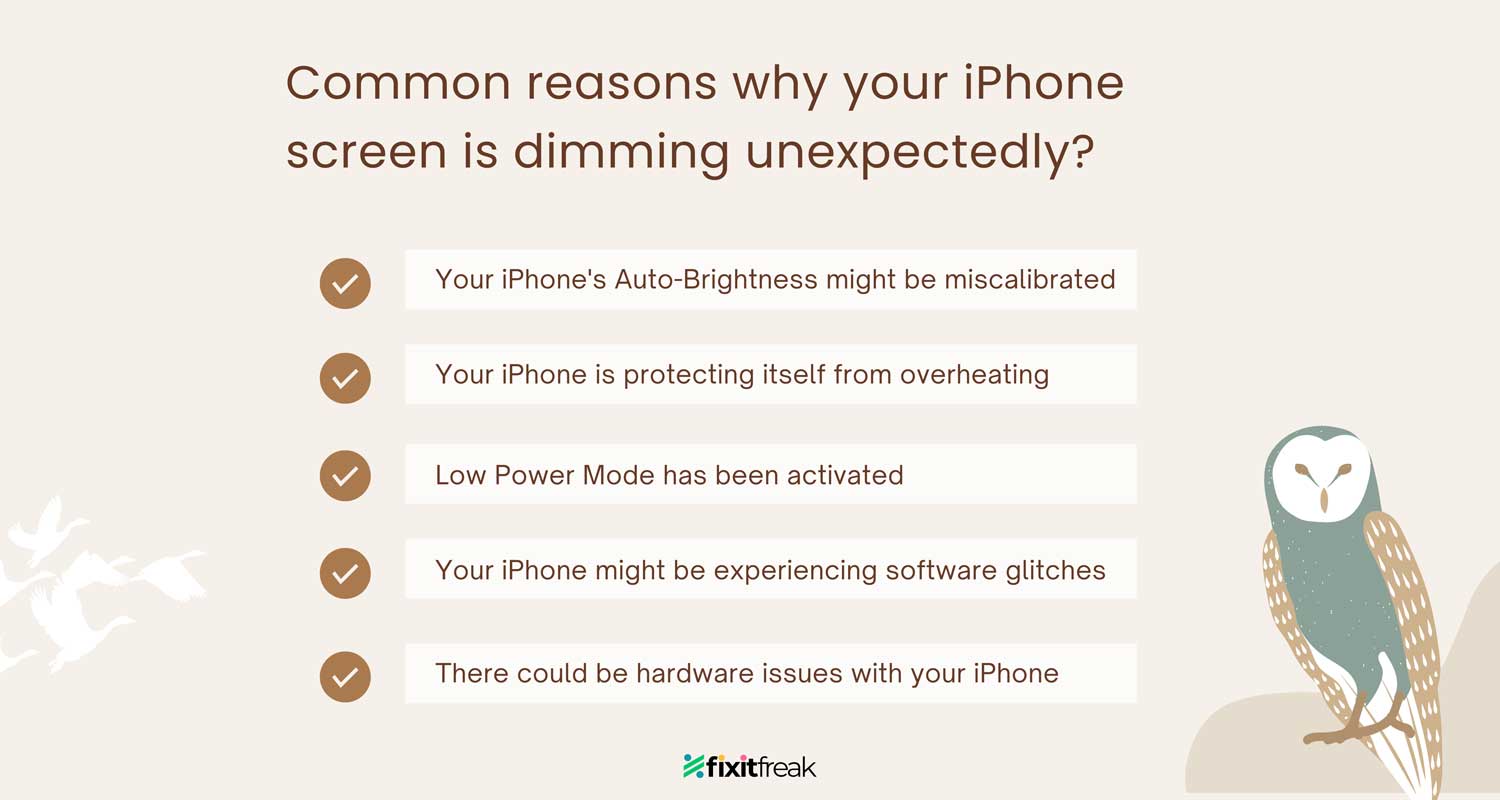
Your iPhone’s screen might dim for several reasons, even when you don’t want it to. Here are the most common culprits:
1. Your iPhone’s Auto-Brightness might be miscalibrated
Sometimes, your iPhone’s light sensors might not accurately read your environment, causing the Auto-Brightness feature to dim your screen unnecessarily. This can happen if the sensors are dirty or if you’re in an area with rapidly changing light conditions.
2. Your iPhone is protecting itself from overheating
If your iPhone gets too hot, it will automatically dim the screen to reduce power consumption and cool down the device. This is a built-in safety feature to protect your iPhone’s internal components from heat damage.
3. Low Power Mode has been activated
When your battery level drops below 20%, your iPhone may automatically enter Low Power Mode. This mode dims the screen to conserve battery life. It can also be manually activated, which might cause unexpected dimming.
4. Your iPhone might be experiencing software glitches
Occasionally, a bug in iOS might cause your screen to dim unexpectedly. These glitches can occur after an update or due to conflicts between different settings or apps.
5. There could be hardware issues with your iPhone
In rare cases, problems with your iPhone’s display hardware or ambient light sensor could cause unexpected dimming. This is less common but worth considering if other solutions don’t work.
How to stop your iPhone from dimming?
Let’s explore several methods to prevent your iPhone screen from dimming unexpectedly:
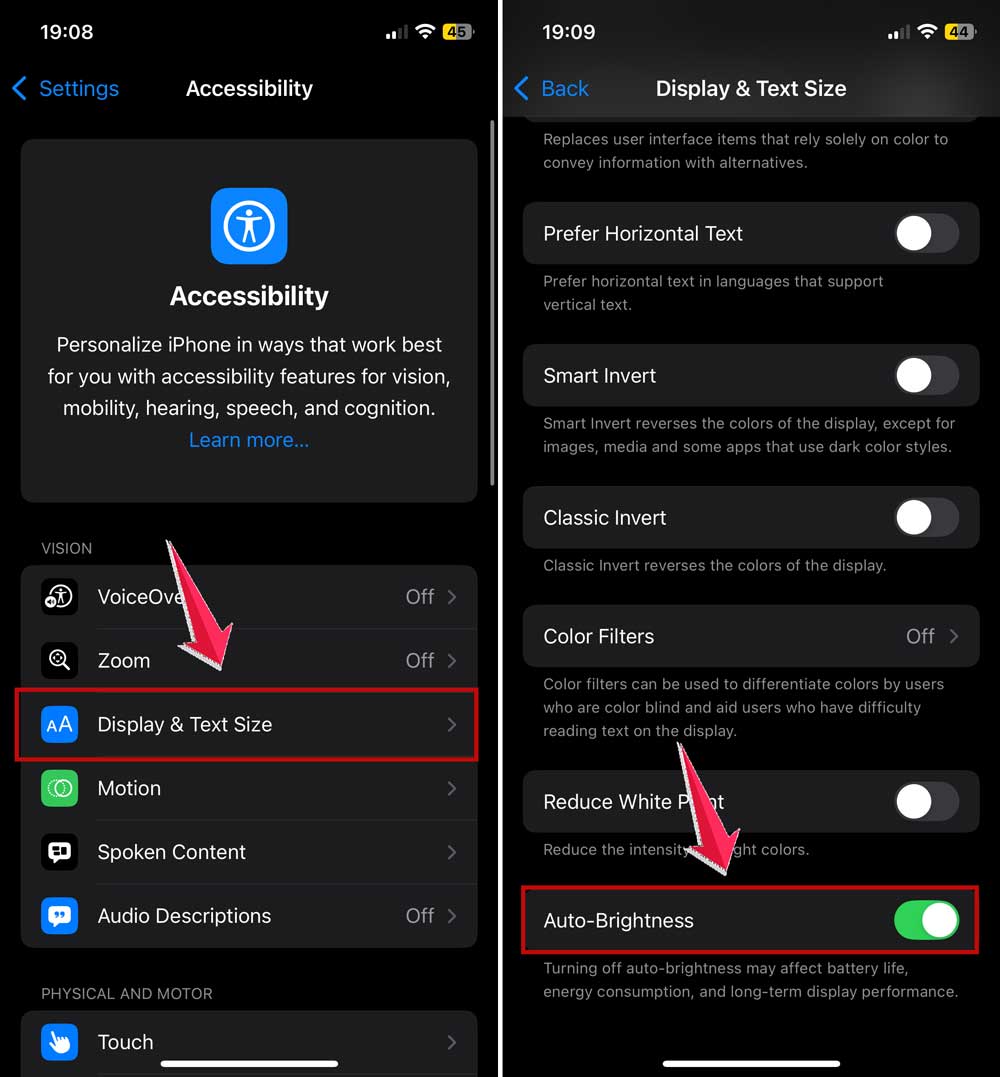
1. Disable Auto-Brightness
- Open the “Settings” app on your iPhone.
- Tap on “Accessibility“.
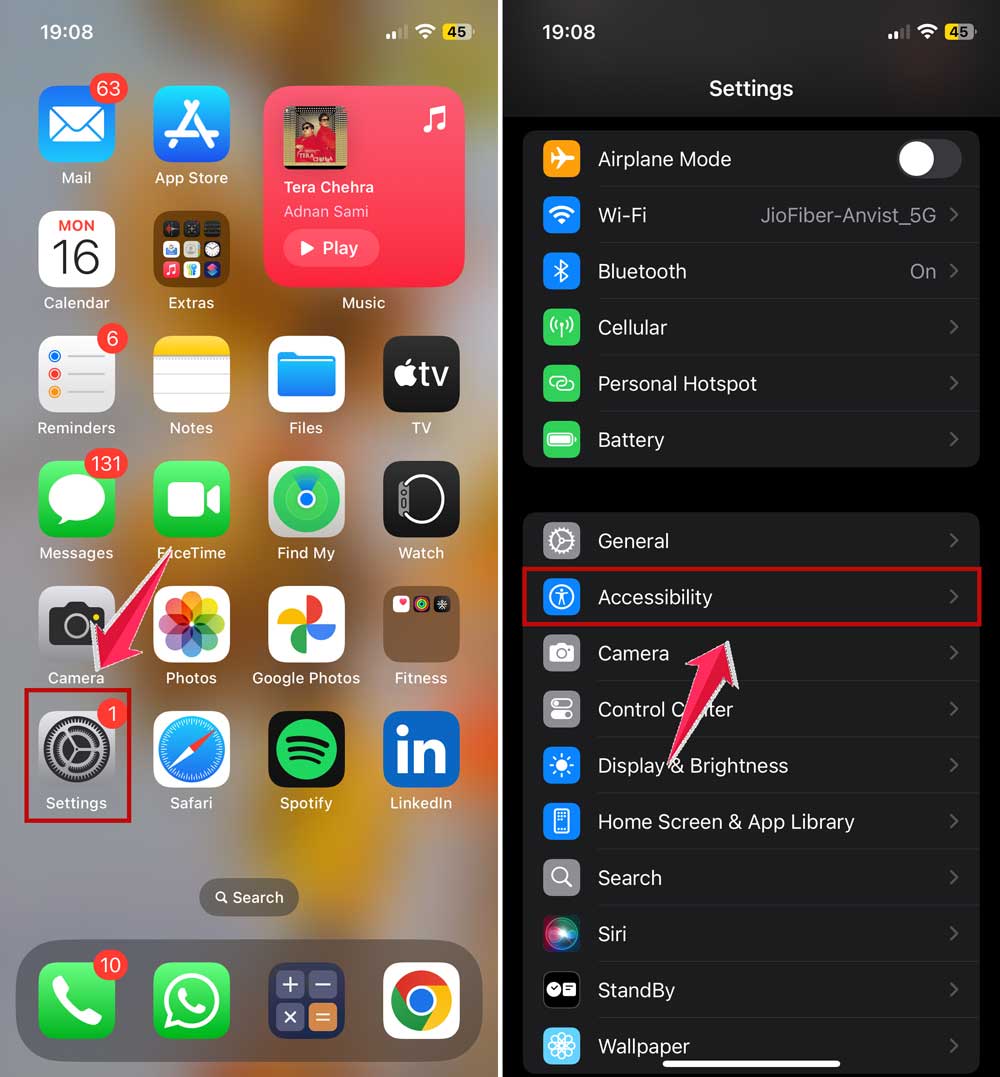
- Select “Display & Text Size“.
- Scroll down and toggle off “Auto-Brightness“.
- Consistent screen brightness in all environments.
- More control over your display.
- May need to adjust brightness manually more often.
- Potential for increased battery drain.
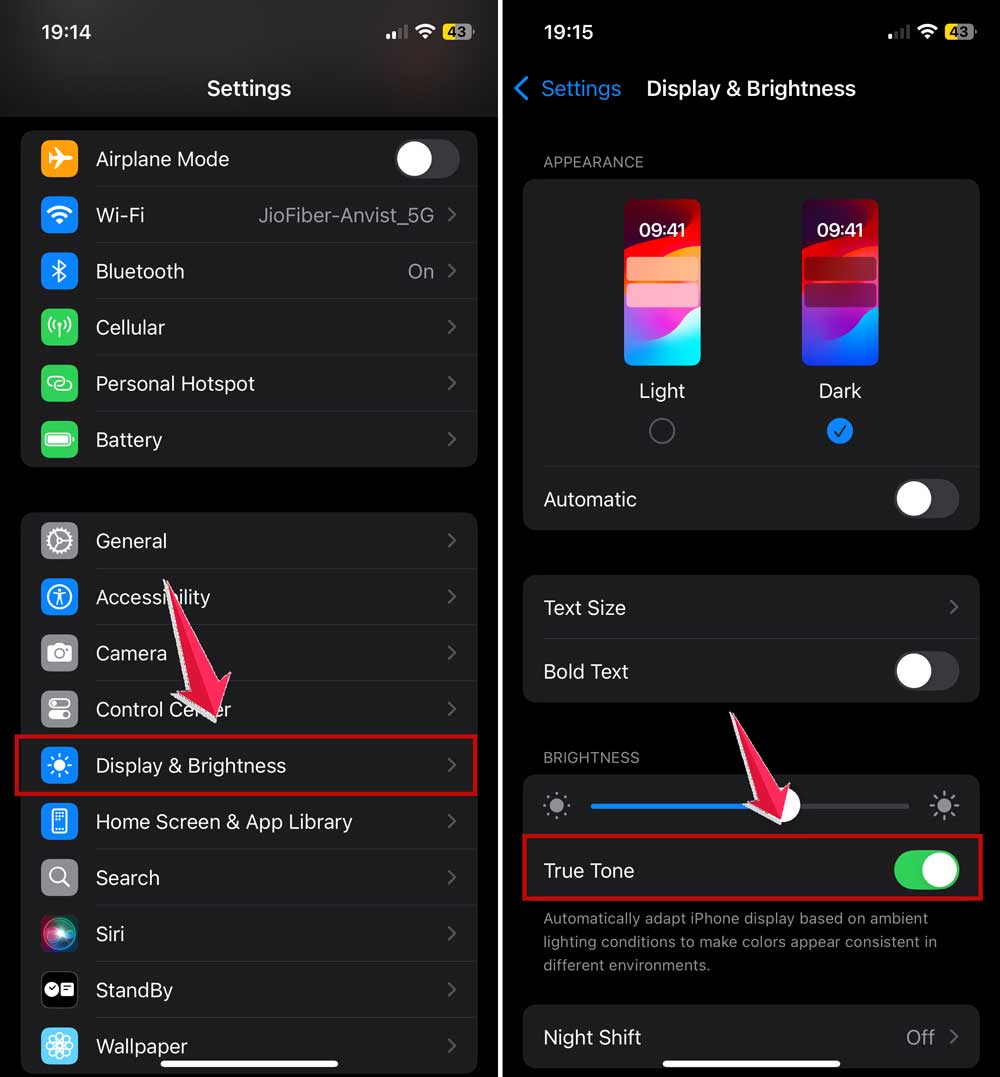
2. Turn off True Tone
- Open “Settings” on your iPhone.
- Tap “Display & Brightness“.
- Toggle off “True Tone“.
3. Disable Night Shift
- Open “Settings” on your iPhone.
- Tap “Display & Brightness“.
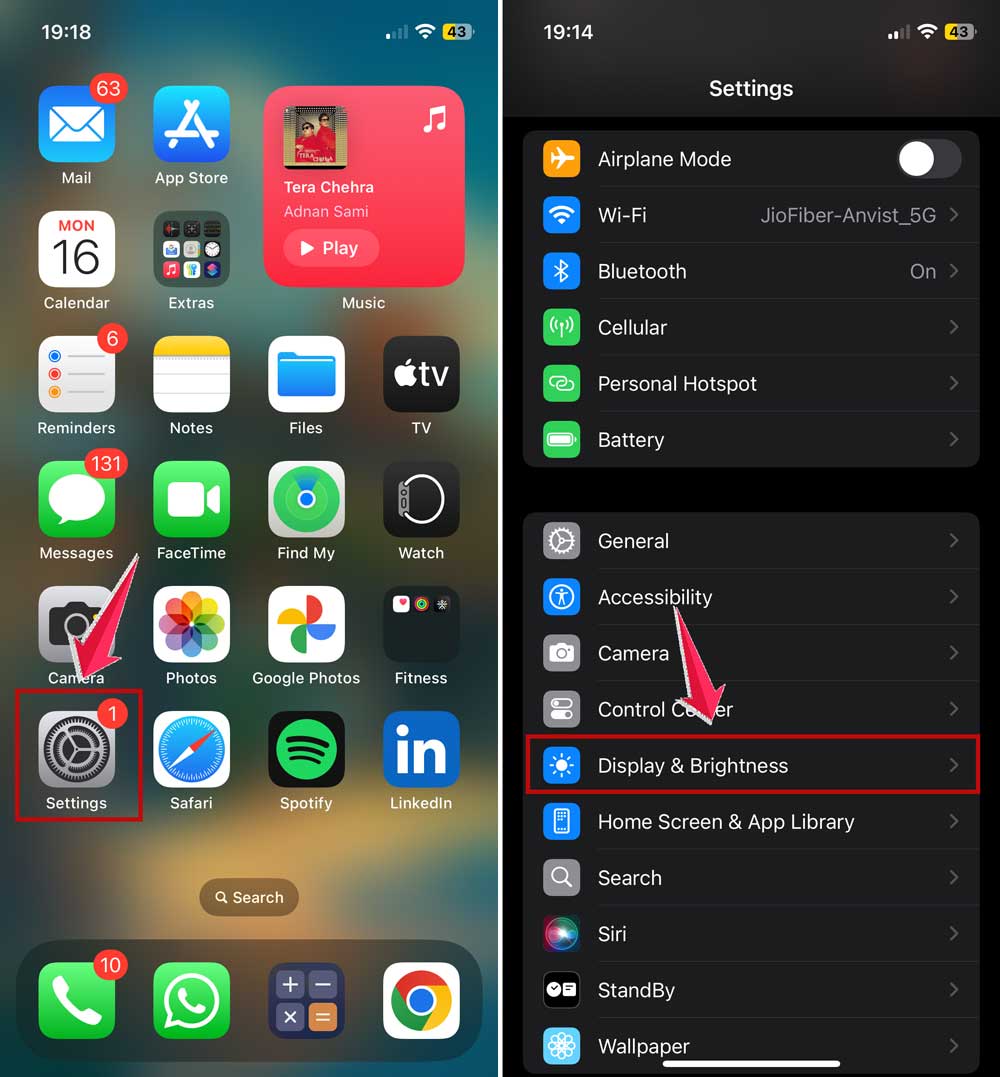
- Select “Night Shift“.
- Either adjust the schedule or toggle off the Night Shift completely.

When should you use True Tone and Night Shift?
Well, True Tone is great for making your screen look more natural as your surroundings change. It’s like having a personal lighting assistant for your iPhone!
As for Night Shift, think of it as your digital bedtime buddy. It’s perfect for those late-night scrolling sessions, helping to cut down on that pesky blue light that can mess with your sleep.
So, use True Tone during the day for comfort, and switch to Night Shift when you’re winding down for the night.
4. Turn off Attention-Aware Features
Instructions for disabling:
- Go to “Settings” > “Face ID & Passcode“.
- Toggle off “Attention Aware Features“.

This feature dims the screen when you’re not looking at it to save battery and enhance privacy. Disabling it can prevent unwanted dimming but may slightly increase battery usage.
5. Manage Low Power Mode
How to turn it off:
- Go to “Settings” > “Battery” > Toggle off “Low Power Mode“.

- Or, swipe down to open Control Center and tap the battery icon.

It’s beneficial to keep it on when your battery is low, and you need to extend its life. Or, when you’re away from a charger for an extended period.
6. Prevent Overheating
First off, keep your iPhone out of the sun. It’s not a sunbather! Also, if you’re using heavy-duty apps, try taking off that thick case. It’s like letting your phone breathe.
Oh, and those unused apps running in the background? Close them up! They’re like leaving the AC on with the windows open.
I would advise you not to charge your phone while using those power-hungry apps. It’s a bit much for your iPhone to handle all at once.
And, if your iPhone’s throwing a heat tantrum, try to find a cooler spot for it to chill out. Then, give it a little break by turning it off for a few minutes.
If it’s wearing a case, take it off to help it cool down faster. And remember, using your iPhone while it’s charging can make it heat up, so try to avoid that.
How to manually control your iPhone’s brightness?
Taking control of your iPhone’s brightness can greatly enhance your user experience. Here’s how you can do it effectively:
1. Use Control Center
- Swipe down from the top-right corner of the screen.
- Locate the brightness slider (sun icon).
- Drag the slider up or down to adjust brightness.

2. You can use Siri as well if you have it turned on
- Say, “Hey Siri, increase brightness” or “Hey Siri, decrease brightness“.
- Siri adjusts brightness in 25% increments.

3. Use Settings
- Open the Settings app.
- Tap on “Display & Brightness”.
- Use the slider to fine-tune your brightness level.

How to troubleshoot persistent dimming issues
If you’ve tried basic solutions and your iPhone screen still dims unexpectedly, try these advanced troubleshooting steps:
1. Check for iOS Updates:
Apple often releases updates to fix bugs, including display issues.
- Go to Settings > General.

- Then click on Software Update.
- If available, tap “Update Now”.

- Ensure your iPhone is connected to Wi-Fi and a power source.
2. Reset All Settings:
Resolves conflicts between settings causing dimming issues.
- Go to Settings > General > Transfer or Reset iPhone.

- Tap Reset > Reset All Settings.
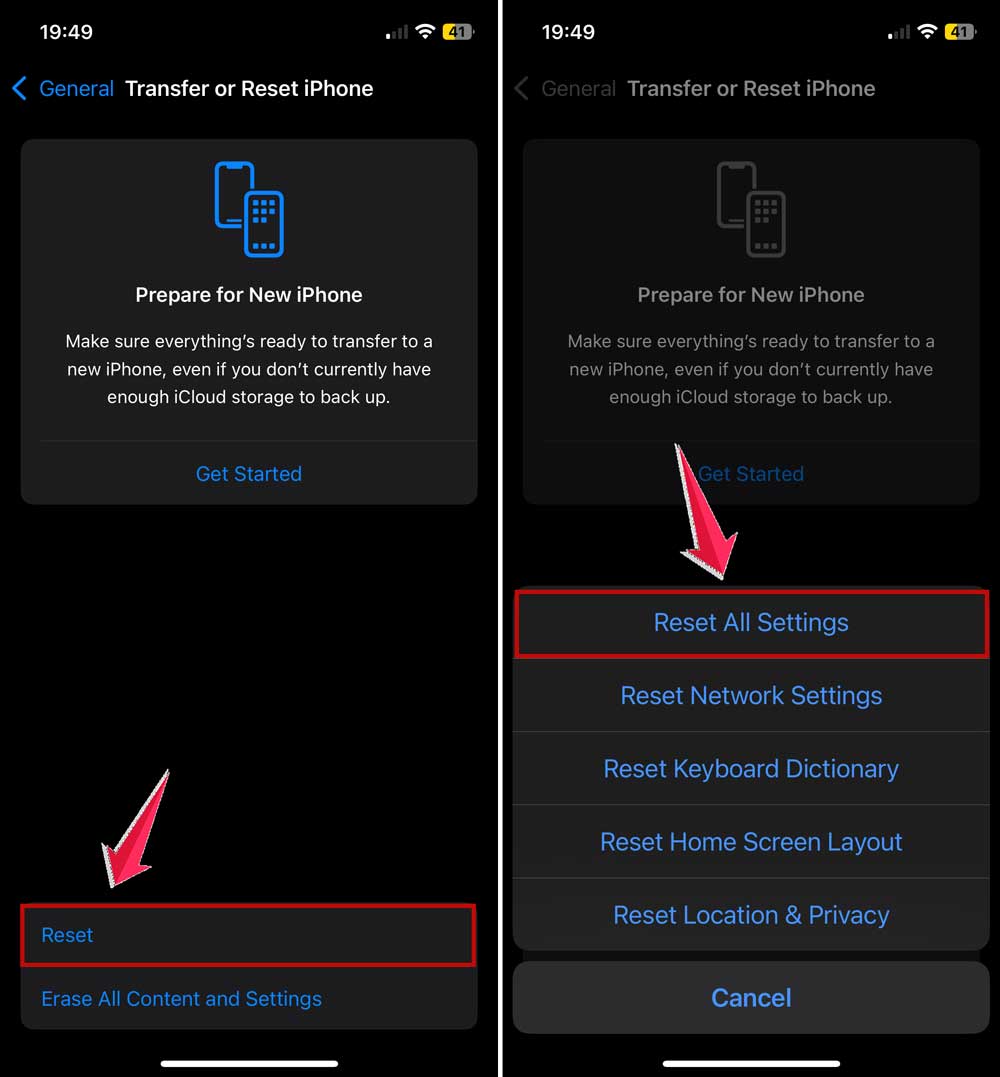
- Enter your passcode if prompted.
- Confirm by tapping “Reset All Settings”.
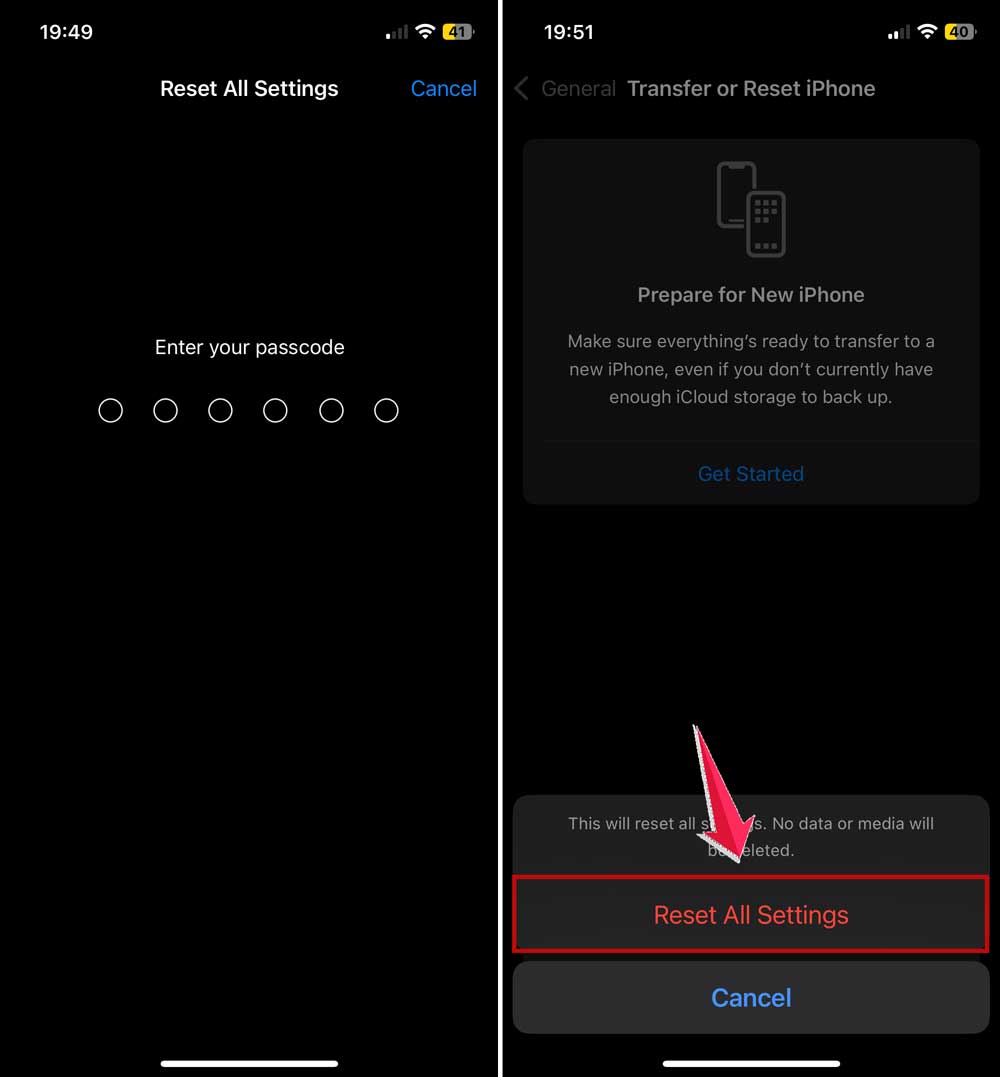
Note: This won’t delete data, but you’ll need to reconfigure some settings.
3. When to Contact Apple Support:
If the issue persists after trying the above steps
Contact Apple Support if dimming starts after physical damage or if you notice other display problems. If the problem is occurring in safe mode, it’s best to contact them only. Don’t do anything yourself now.
You can visit support.apple.com. Or use the Apple Support app for quick online support. If you have an Apple Store near to your home, it would be best to visit physically.
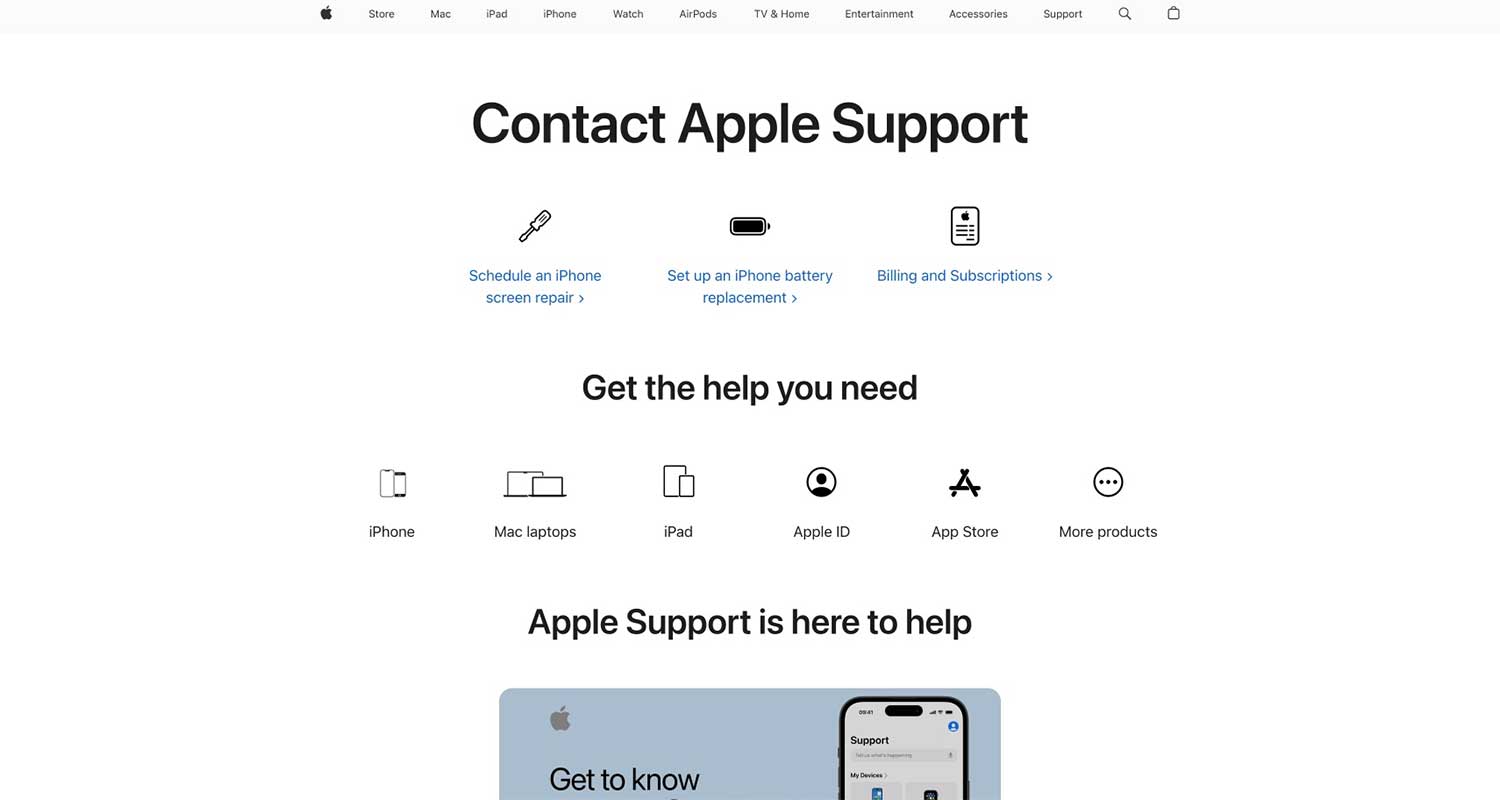
Remember, persistent issues might indicate a hardware problem requiring professional diagnosis. Don’t hesitate to reach out to Apple for proper assistance.
Advanced tips to control iPhone brightness
For power users seeking more control over their iPhone’s display, try these advanced techniques:
1. Create a Shortcuts App for Custom Brightness Routines
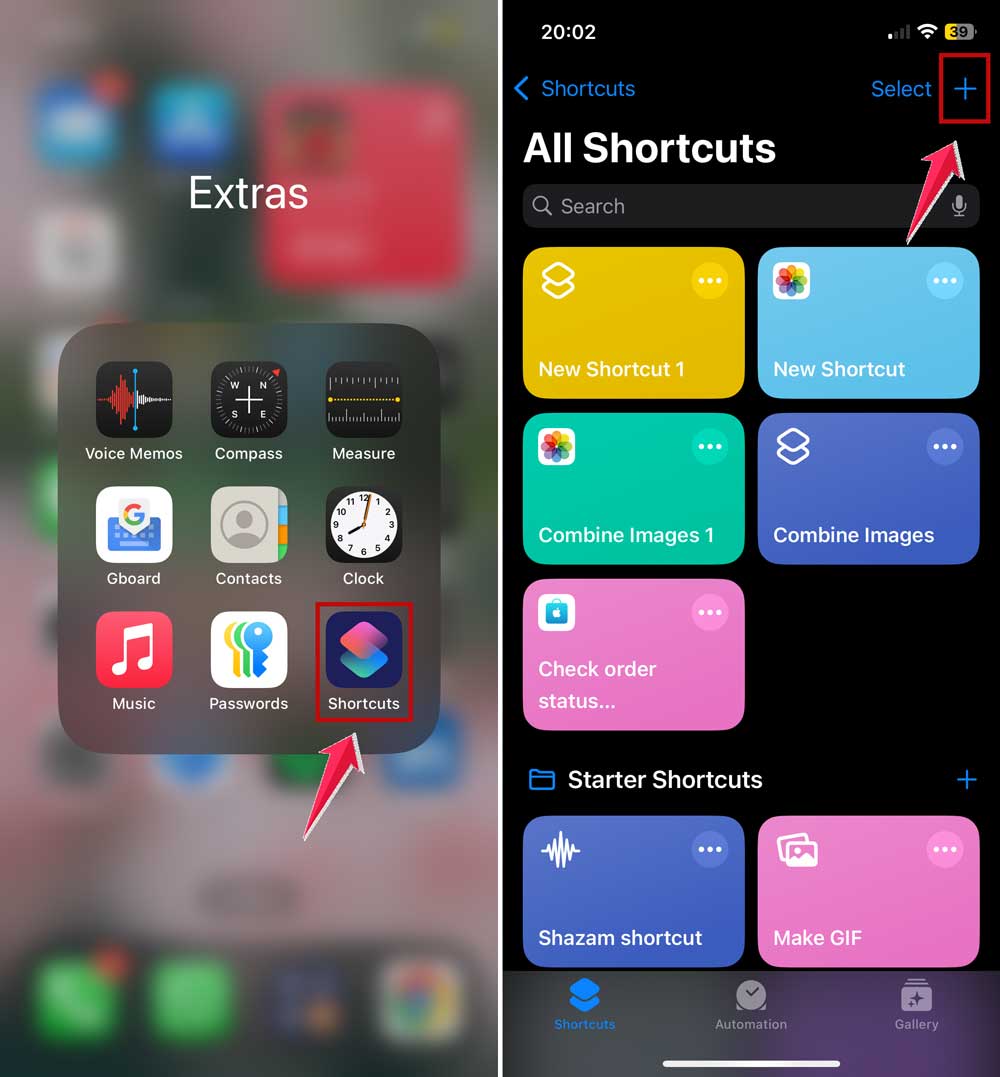
- Open the Shortcuts app.
- Tap “+” to create a new shortcut.
- Search and add the “Set Brightness” action.
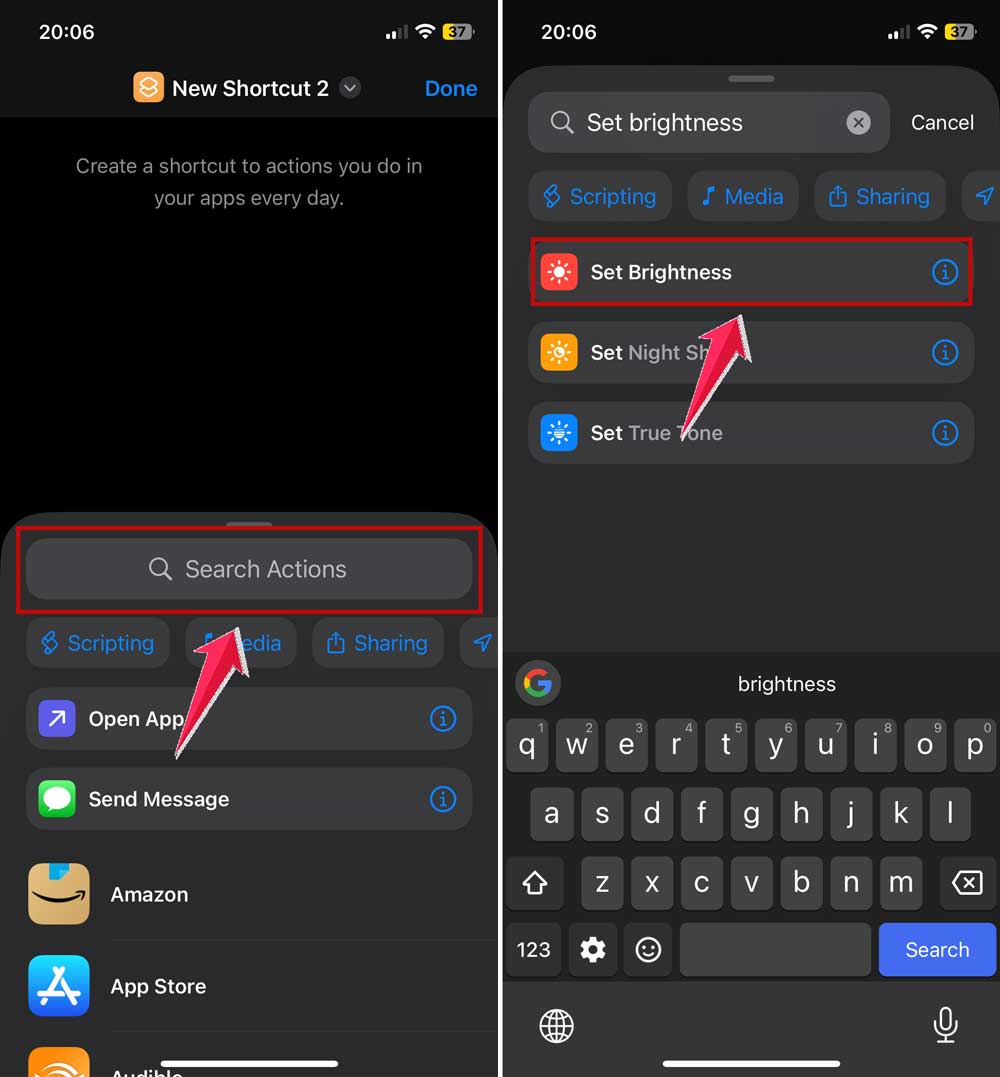
- Choose your desired brightness level.
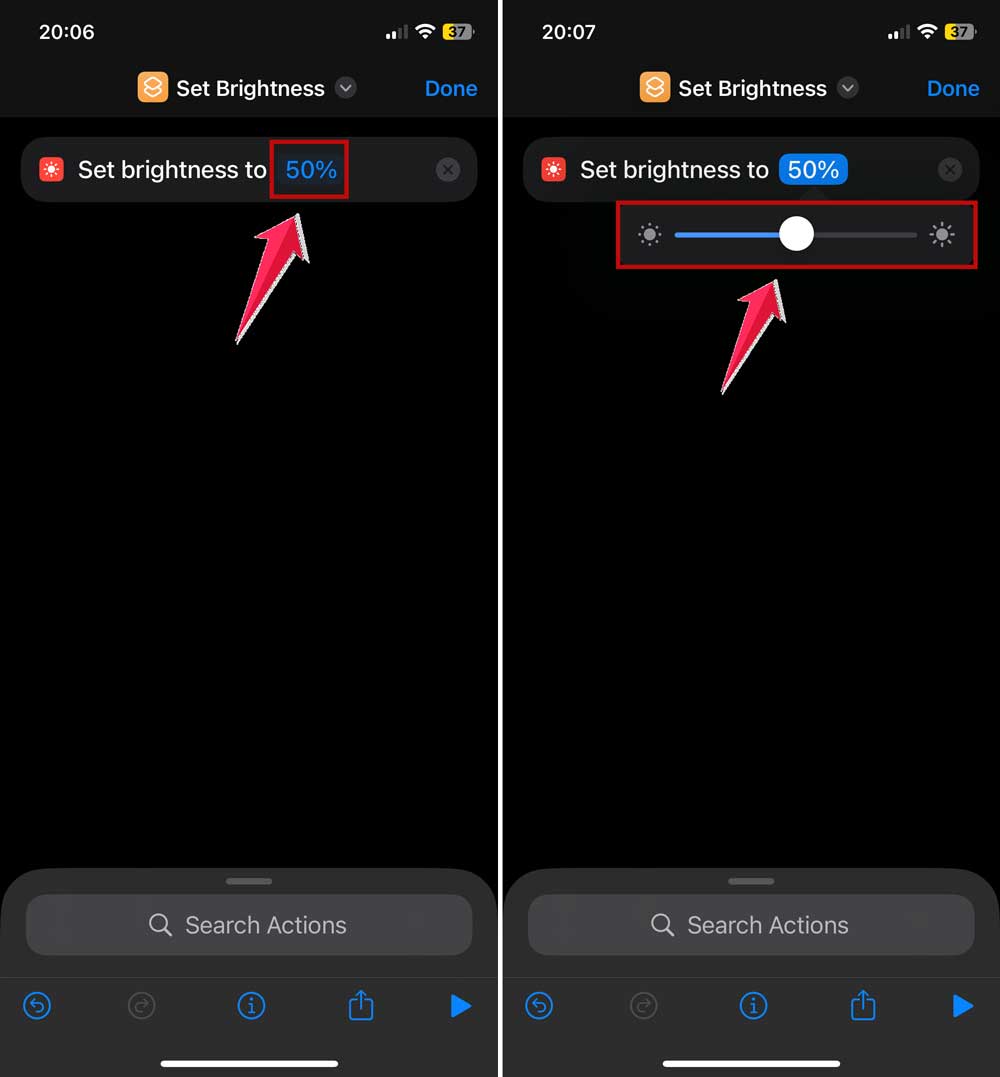
- Now search and add other actions like “Set Dark Mode” or “Set True Tone”.

- Tap Done to save your shortcut.
- To Rename your shortcut, just tap & hold on it and choose Rename from the options.
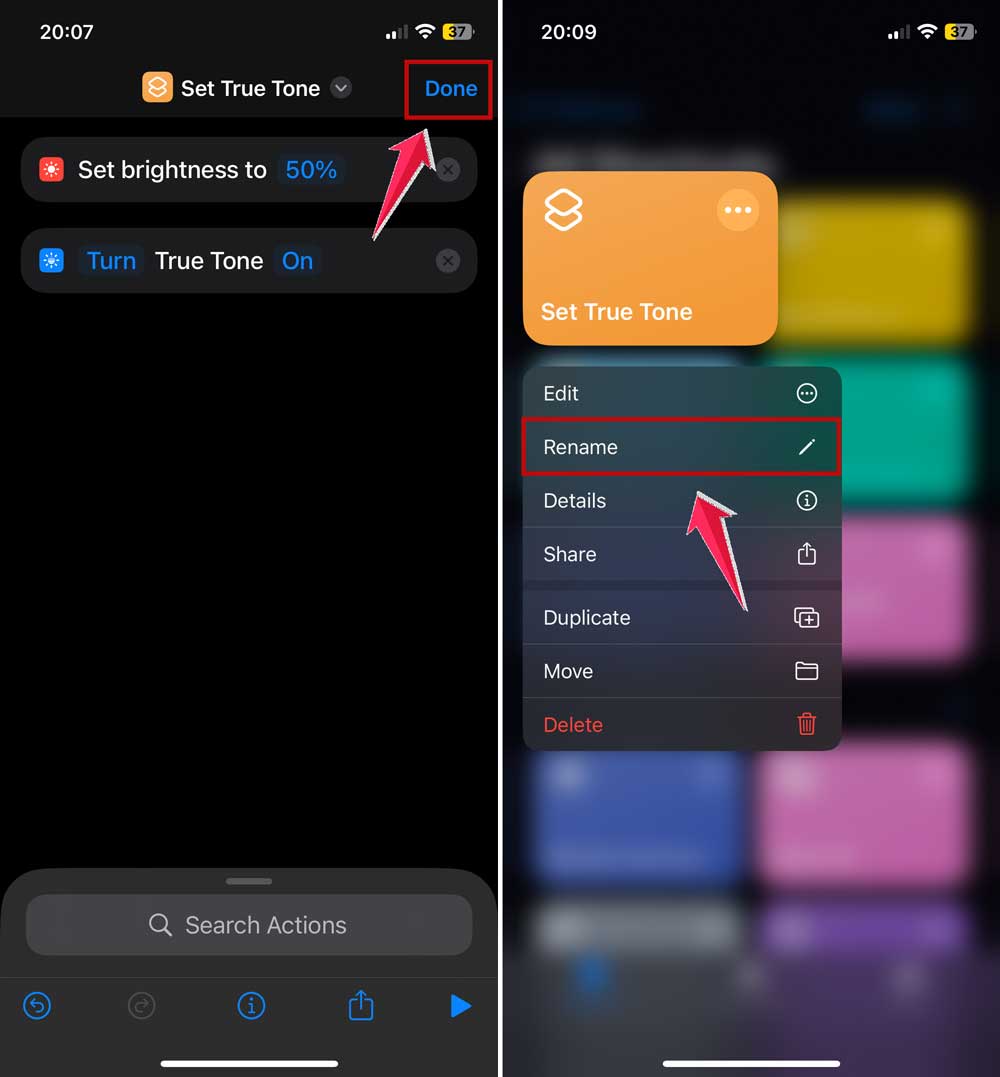
You can add these shortcuts to your home screen or trigger with Siri for quick access.
2. Use Accessibility Settings for Fine-Tuning Display
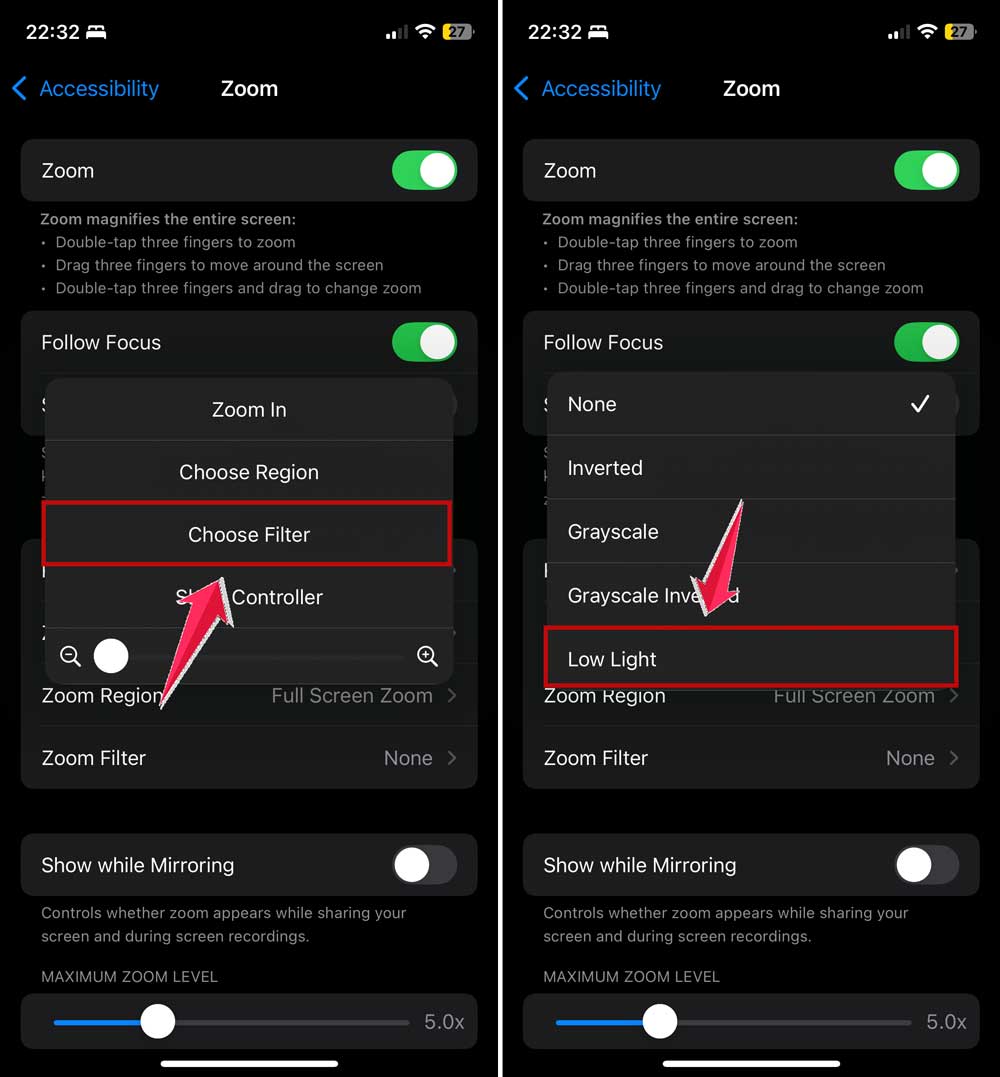
2.1 Zoom’s Low Light Filter
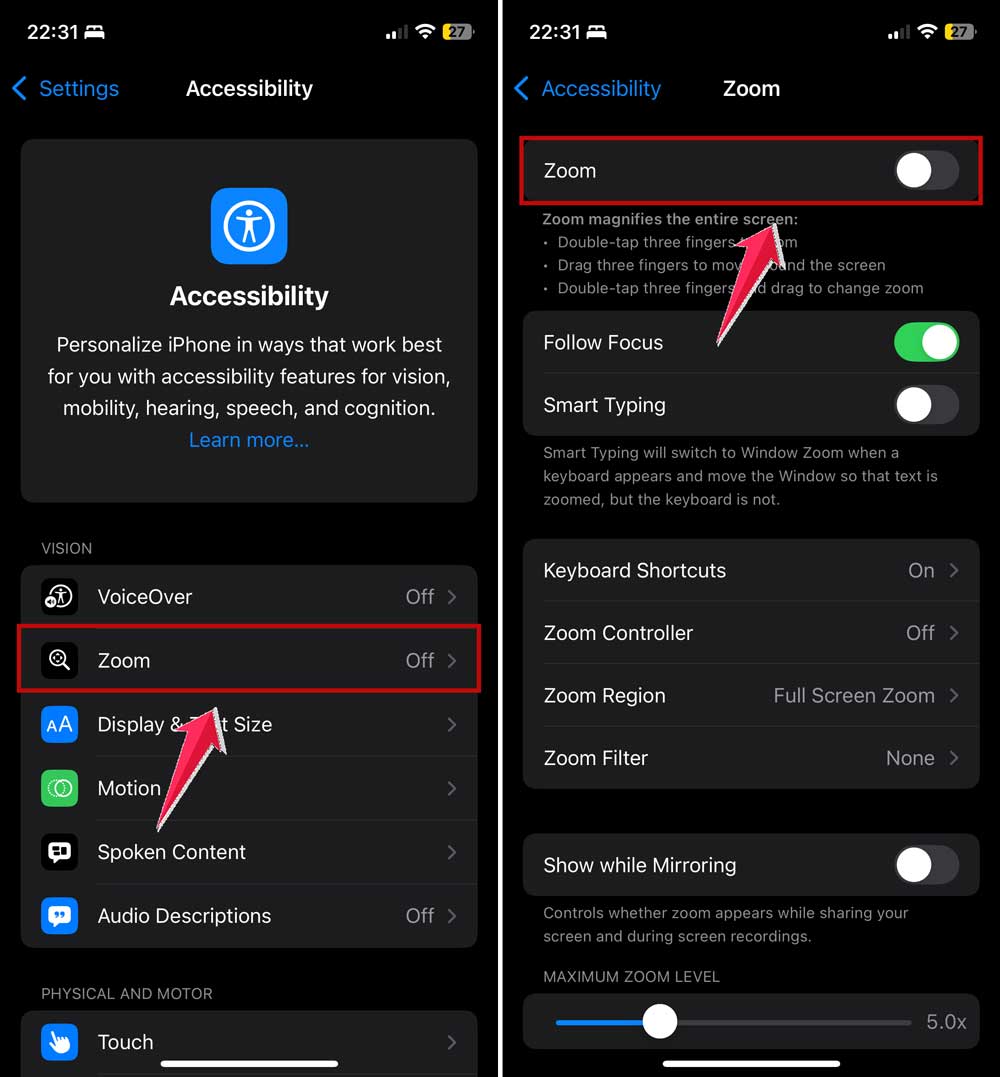
- Go to Settings > Accessibility
- Tap on Zoom in the menu.
- Enable Zoom.
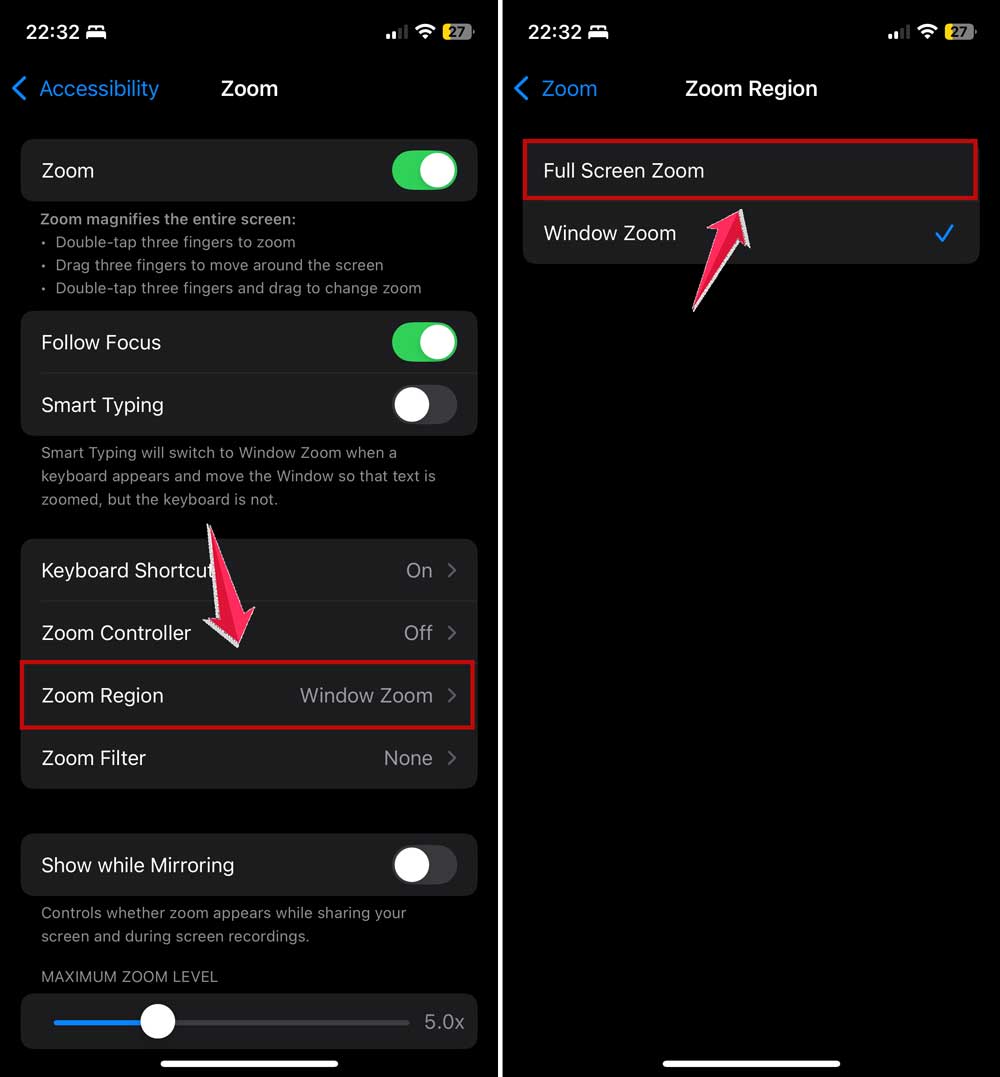
- Set “Zoom Region” to “Full-Screen Zoom”.
- Now, Double-tap with three fingers on the screen to open the Zoom menu.

- Choose “Choose Filter” > “Low Light”.
2.2 Color Filters
- Go to Settings > Accessibility > Display & Text Size > Color Filters.
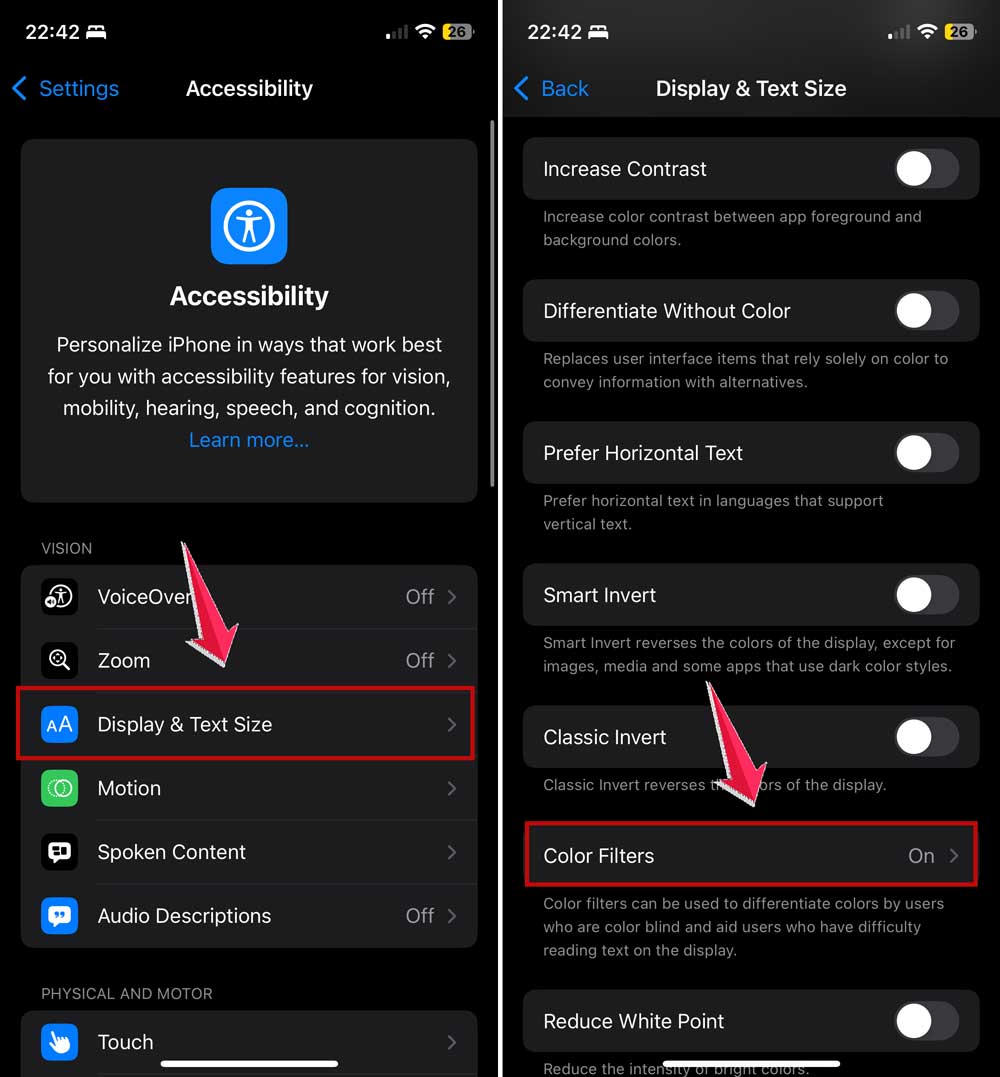
- Experiment with different filters for eye comfort.
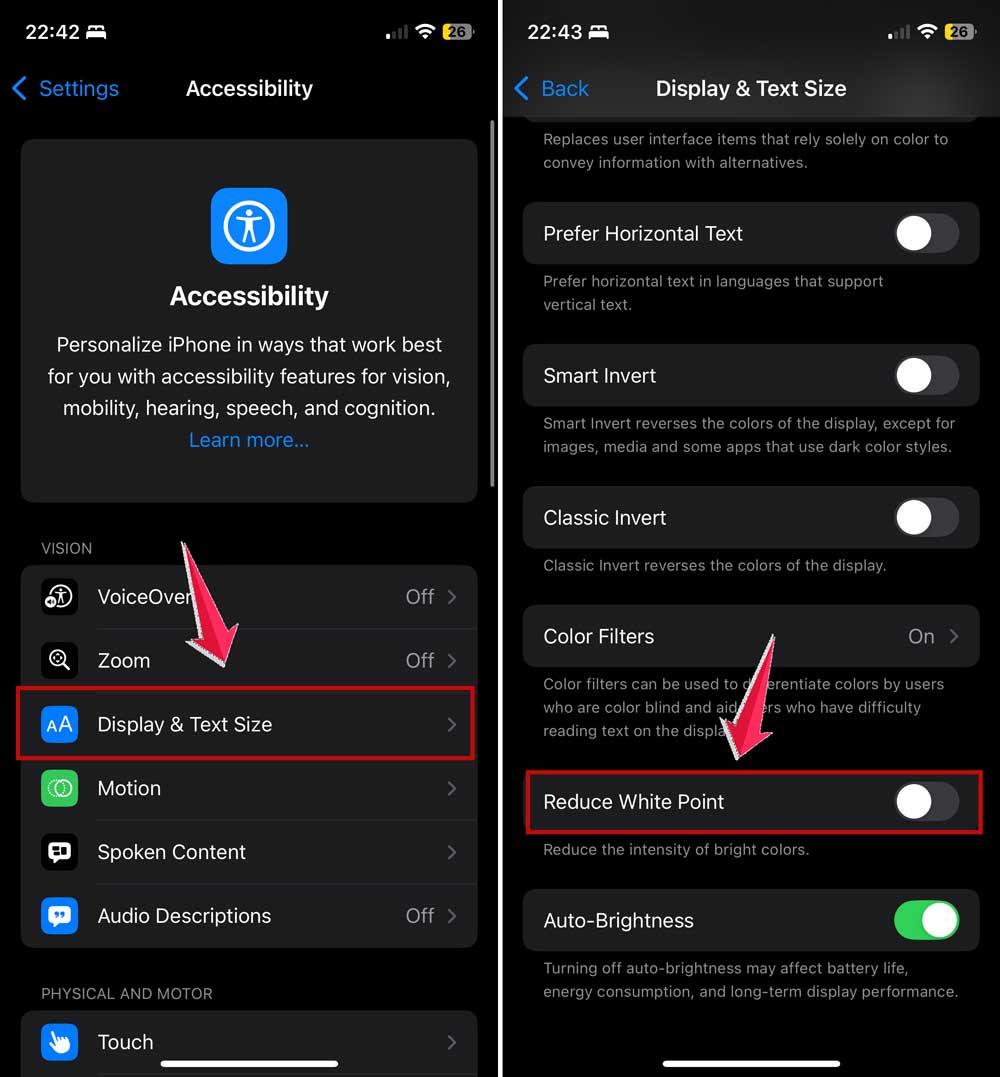
2.3 Reduce White Point
- Go to Settings > Accessibility > Display & Text Size.
- Enable “Reduce White Point” and adjust the slider.
2.4 Auto-Brightness Calibration
- Go to a dark room and set brightness to the minimum.
- Gradually increase ambient light and let Auto-Brightness adjust.
- Repeat in reverse order.

By using these advanced features, you can create a highly customized display experience tailored to your specific needs and preferences.
How does screen brightness affect your iPhone’s battery life?
It’s a balancing act, really.
The brighter your screen, the more power it gobbles up. Did you know that your display is often the biggest battery drain on your iPhone? Here’s a nifty tip: dropping your brightness from 100% to 50% can extend your battery life by up to 20% when you’re actively using your phone. Cool, right?
But it’s not just about dimming your screen. There are other battery-saving tricks up your iPhone’s sleeve. Try enabling Dark Mode if you have an OLED screen. It’s easier on your battery. And don’t forget about Wi-Fi. It’s usually gentler on your battery than cellular data.
Here’s another pro tip: keep an eye on those background app refreshes and notifications. They’re silent battery vampires! And when you’re really trying to stretch that battery life, Low Power Mode is your best friend.
Remember, finding the right brightness is personal. Use the lowest comfortable setting for your environment. And hey, don’t be afraid to let Auto-Brightness do its thing. It’s pretty good at finding that sweet spot between visibility and power saving.
The Takeaway
We’ve journeyed through the ins and outs of iPhone screen dimming, from understanding why it happens to master your display’s settings. Remember, features like Auto-Brightness and True Tone are there to help, but sometimes they need a little tweaking to suit your needs.
The key is to take control. Whether it’s adjusting settings manually, creating custom shortcuts, or diving into Accessibility options, you now have the tools to make your iPhone’s display work for you. Don’t forget about those battery-saving tips, too. A bright screen can be a real power drain!
Your iPhone is uniquely yours, so don’t be afraid to experiment. Play around with different settings, create custom modes for various situations, and find that sweet spot between visibility, comfort, and battery life.
It might take a bit of time, but the improved experience will be worth it. Your perfect display setup is out there – go find it!
We’d love to hear about your experience with managing your iPhone’s brightness. What tips worked best for you? Share your thoughts in a comment below!