Did you know that over 100 Apple users have reported issues with AirPlay disconnecting unexpectedly? It’s a widespread problem that can disrupt your entertainment and presentations.
Whether you’re streaming music, sharing videos, or mirroring your screen, sudden disconnections can be incredibly frustrating.
AirPlay is designed to make sharing content between Apple devices seamless.
However, various factors can interfere with this process, leading to unexpected disconnections. These can range from network issues to device settings or even software glitches.
Don’t worry, though. You’re not alone in facing this challenge, and there are solutions. In this article, we’ll explore the common reasons why your AirPlay keeps disconnecting and provide you with straightforward fixes.
Whether you’re using an iPhone, iPad, Mac, or Apple TV, you’ll find practical steps to keep your AirPlay connection stable and reliable.
Why your AirPlay keeps disconnecting and how to fix it
Are you ready to play detective and figure out why AirPlay keeps giving you the cold shoulder?
There are a bunch of reasons it might be acting up, but don’t worry, we’re going to try some trusty tricks to get to the bottom of it.
By trying each step, you’ll learn a little more about what’s up and how to keep it from ditching you in the future.
1. Restart the device
Sometimes, the oldest trick in the book is turning it off and on again. It works like a charm. It’s like giving your device a quick nap to shake off the grumps.
For your Apple TV:
- Go to the Settings menu.
- Select System.
- Choose Restart.

You can also unplug the HDMI and power cables for about five minutes, then plug them back in.
For your iPhone, iPad, Mac, or Smart TV. Just switch them off and then on again. It’s like hitting the reset button on a wonky day.
2. Disable Auto-Lock
Did you know that the sneaky Auto-Lock feature could be the reason AirPlay takes a timeout? Here’s how to put Auto-Lock on pause:
- Go to Settings on your iPhone or iPad.
- Tap Display & Brightness.

- Select Auto-Lock.
- Set it to Never.

This way, your device won’t lock itself and go to sleep if you’re not using the screen. Just remember to lock it manually when you’re done for security.
3. Turn off Sleep Mode
Sleep Mode can be another culprit. Here’s how to keep AirPlay wide awake:
- Swipe down from the top-right corner of your iPhone screen to open the Control Center.
- Look for the Bed icon (Sleep Mode button).
- Tap it to turn off Sleep Mode.

4. Turn off Low Power Mode
Low Power Mode can also mess with your AirPlay vibes. Let’s beef up your device’s energy:
For iPhone:
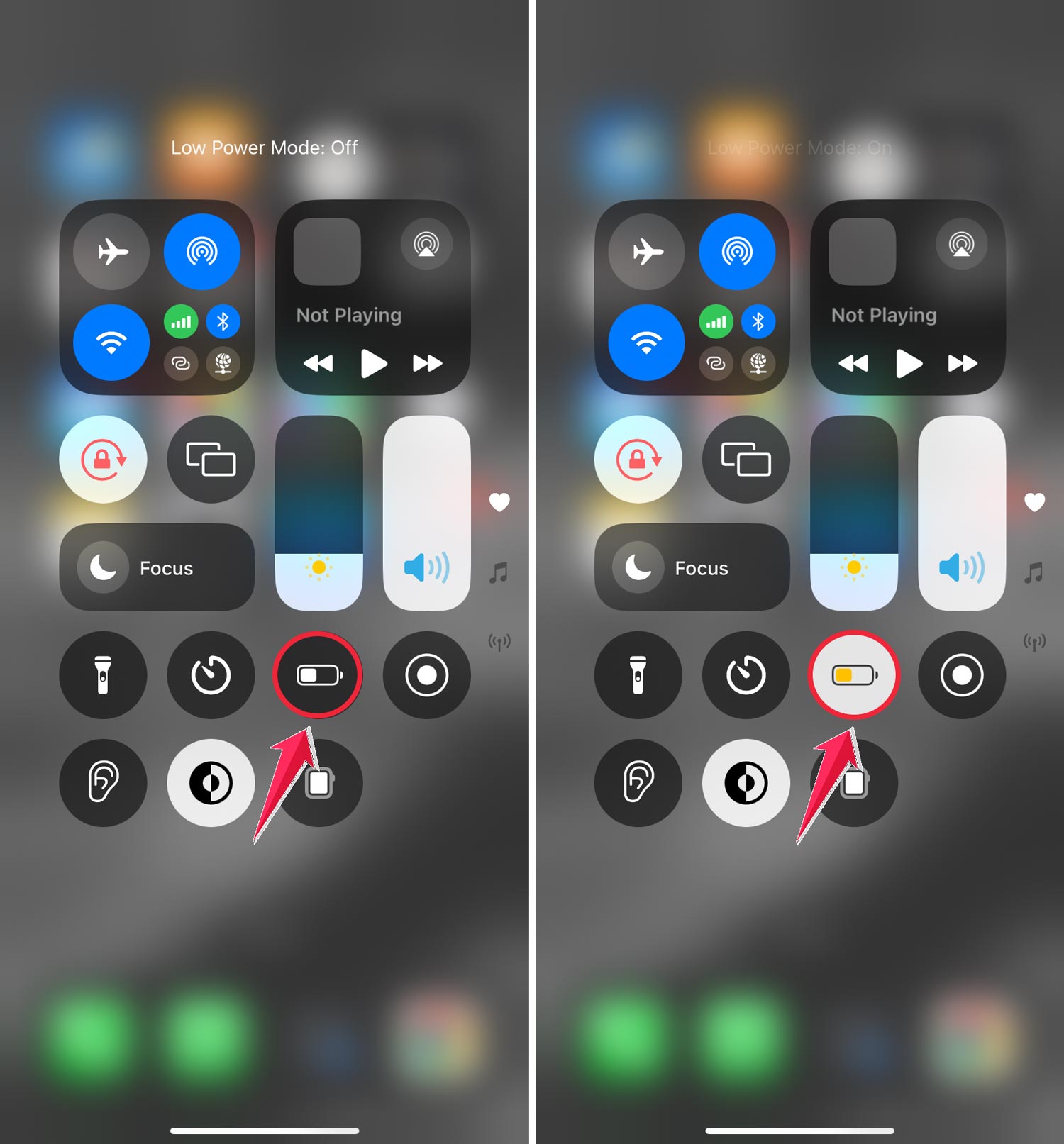
- Open the Control Center.
- Tap the Battery icon to turn off Low Power Mode.
For Mac:
- Click the Battery icon in the menu bar.
- Choose Battery Settings.

- Set Low Power Mode to Never.

If you’re curious, here’s more on whether Low Power Mode hurts your iPhone battery.
5. Check device compatibility
Make sure your gadgets are actually friends with AirPlay:
- Check if your device supports AirPlay or AirPlay 2.
- Ensure your Apple TV or smart TV is compatible with AirPlay 2.
Some users have better luck with mirroring from iPhone or Mac to Chromecast instead, especially when AirPlay compatibility is limited.
6. Check the internet connection
AirPlay needs a good WiFi connection to work properly:
- Make sure both devices are on the same WiFi network.
- If the signal is weak, try moving closer to the router or restarting it.
7. Using the AirPlay-supported app
Make sure you’re using an app that supports AirPlay. If you’re not sure, check the app’s settings or do a quick online search. Some streaming platforms like Netflix or Twitch need special tweaks.
8. Check connectivity settings
AirPlay needs some setup love:
- Make sure Bluetooth and WiFi are turned on.
- Try Peer-to-Peer AirPlay by setting up a hotspot from your device.
- Consider using an Ethernet cable for a direct internet connection.
9. Use 2.4GHz WiFi

Sometimes, AirPlay prefers the 2.4GHz WiFi frequency:
- It has a longer range and better wall penetration.
- Some older devices work better with 2.4GHz.
10. Connect to Ethernet instead of WiFi
Ethernet can provide a more stable connection:
- Hook up your Apple TV or AirPlay 2-compatible smart TV with an Ethernet cable.
- Make sure your iPhone is on the same network.
11. Change the resolution
If the picture doesn’t fit right, try this:
- On Apple TV 4K or HD, go to Settings > AirPlay > AirPlay Display Underscan.
- Set it to Auto.
12. Update your Apple devices
Keep your devices speaking the latest Apple lingo:
- For iPhone/iPad: Settings > General.
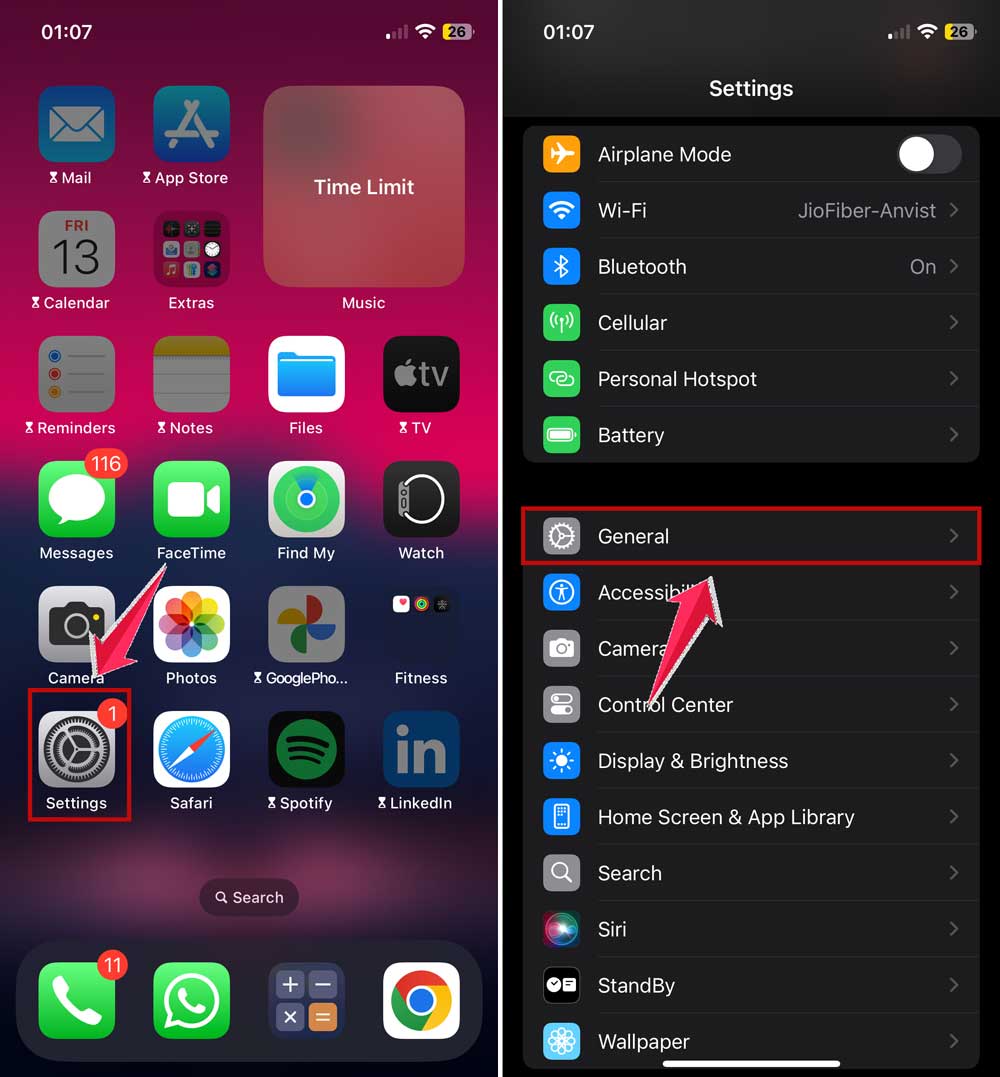
- Click on Software Update.

- For Mac: Apple icon > System Settings > Software Update.

- For Apple TV: Settings > General > Software Update.

Don’t forget to update your smart TVs too! Still stuck?
It might help to reset your Apple Watch or iPhone to fix related syncing issues, which can sometimes affect AirPlay performance indirectly.
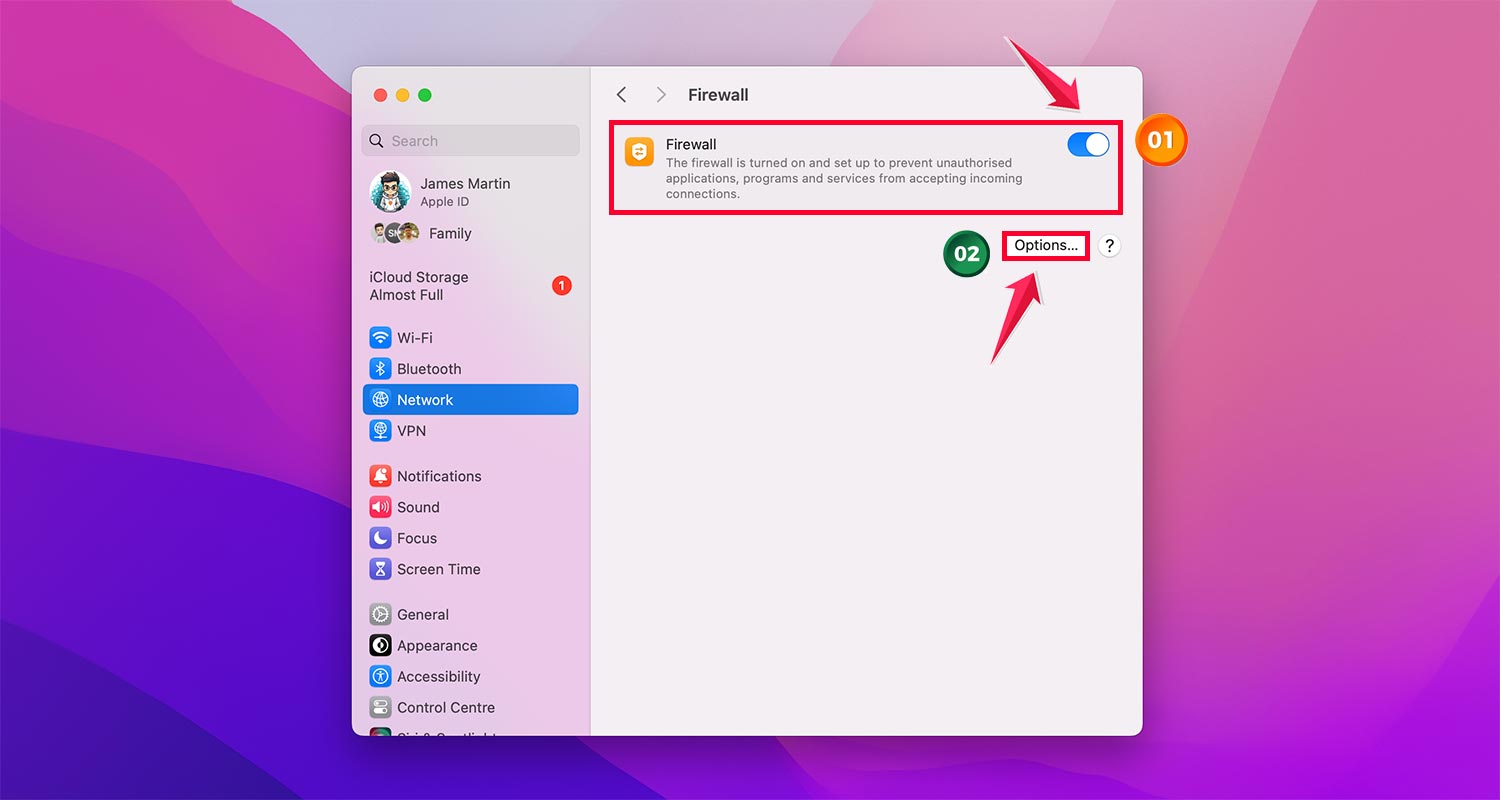
13. Check the Firewall on the Mac
Configure Mac Firewall settings
- Click the Apple menu > System Settings.
- Select Network in the sidebar.
- Click Firewall (you may need to scroll down).

- If off, toggle Firewall on.
- Click Options.
- Ensure “Block all incoming connections” is unchecked.
- Check “Automatically allow signed software to receive incoming connections“.
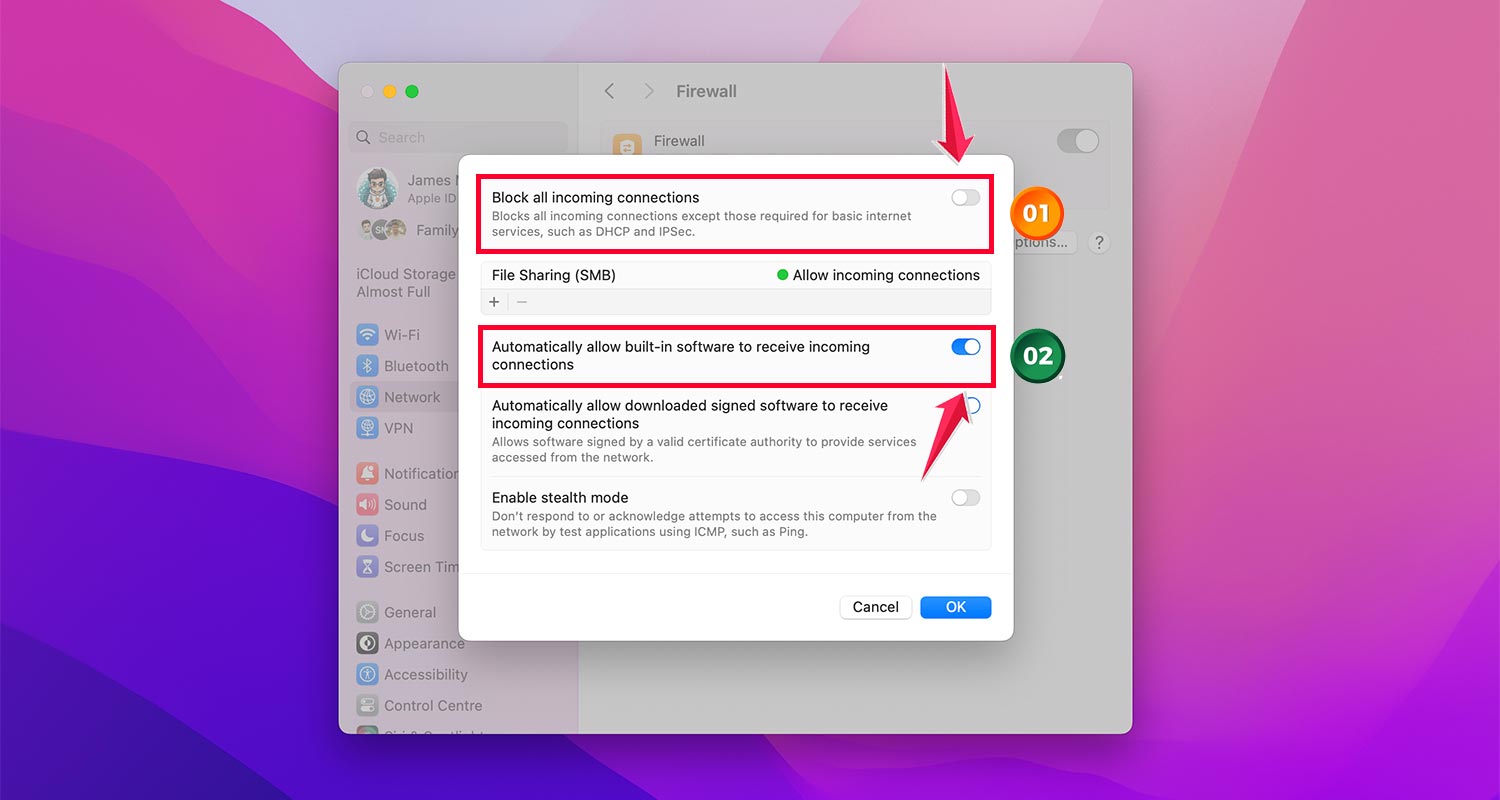
These settings allow necessary connections while maintaining security. Adjust as needed based on your specific security requirements.
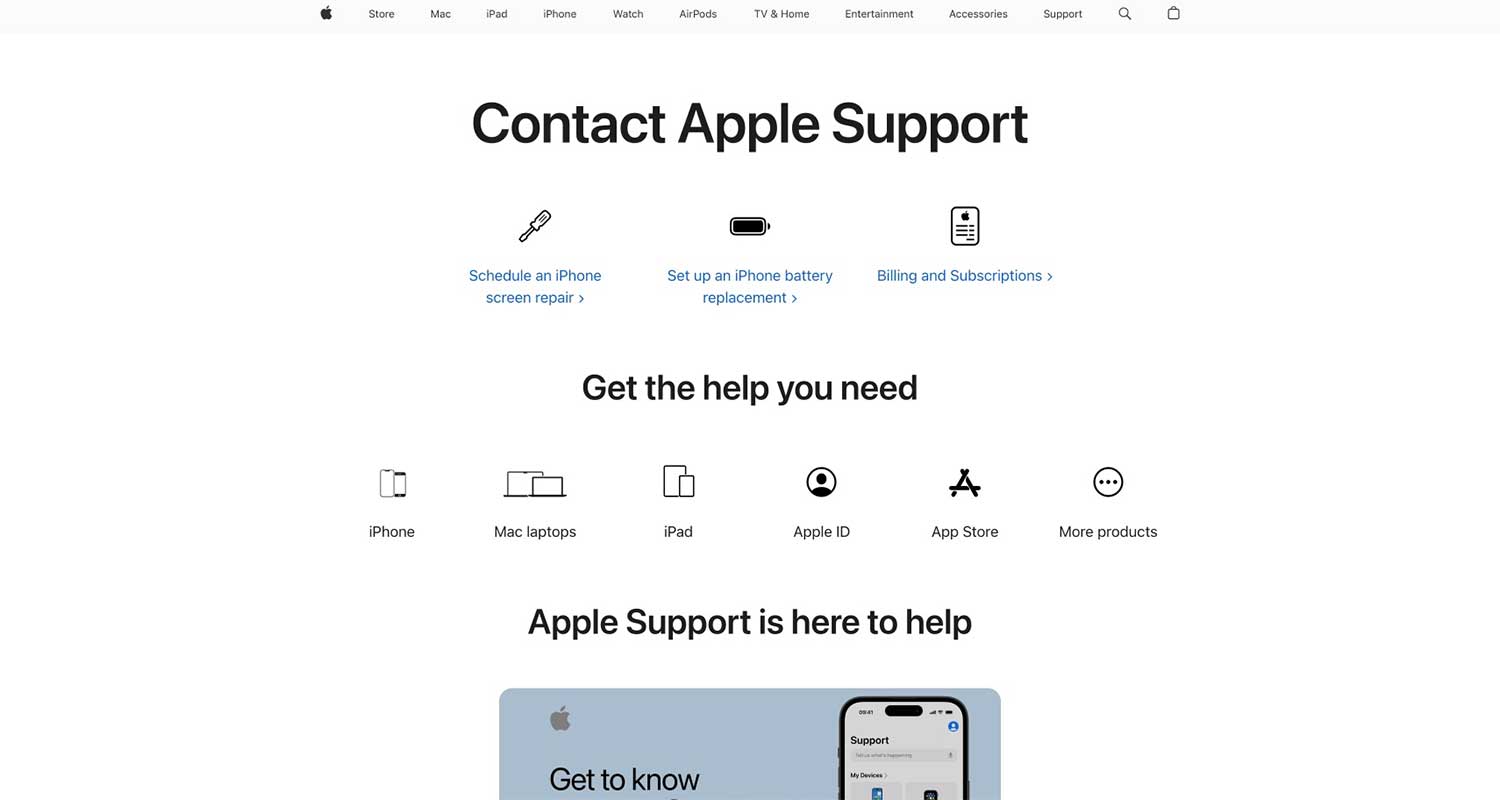
14. Contact Apple Support
If you’ve tried everything and AirPlay still isn’t cooperating, it might be time to call in the pros. Reach out to Apple Support for guidance on fixing your AirPlay woes.
Remember, technology can be tricky sometimes, but with a little patience and these tips, you’ll be back to streaming in no time!
The takeaway
AirPlay disconnections can be frustrating, but they’re often fixable with a few simple steps. We’ve explored various solutions, from restarting devices to adjusting settings like Auto-Lock and Sleep Mode.
Remember, a stable internet connection and updated software are crucial for smooth AirPlay performance.
Contrary to what some might think, AirPlay issues aren’t always due to faulty hardware. Often, it’s a matter of tweaking settings or ensuring compatibility. By following the tips in this guide, you can usually resolve most AirPlay problems without needing to replace your devices.
The most important thing to remember is that persistence pays off. If one solution doesn’t work, try another.
And if all else fails, don’t hesitate to reach out to Apple Support. With a bit of troubleshooting, you can get back to enjoying seamless streaming and sharing across your Apple devices.
Now, we’d love to hear from you! Have you tried any of these solutions? What worked best for you? Share your experience in a comment below.