Imagine you’re in the middle of an important work call, and suddenly, your AirPods start making an annoying chirping sound. It’s not just distracting. It’s downright embarrassing.
Or maybe you’re trying to relax with your favorite podcast after a long day, only to have these strange noises ruin your moment of peace. Frustrating, isn’t it?
You’re not alone in this. Millions of AirPods users have experienced this issue, and it always seems to happen at the worst possible time.
Whether you’re in a crucial meeting, on a call with a loved one, or just trying to enjoy some music, chirping AirPods can throw a wrench in your plans.
But don’t worry. You don’t have to live with this problem. There are several reasons why your AirPods might be making these odd sounds, and most of them have simple solutions.
In this guide, you’ll learn about the nine most common causes of chirping AirPods. We’ll walk you through each potential issue and give you practical, easy-to-follow steps to fix them.
By the end of this article, you’ll be equipped to troubleshoot your AirPods and get back to crystal-clear audio, no matter where you are or what you’re doing.
What is the chirping sound in your AirPods?
If you are hearing a strange, high-pitched noise coming from your AirPods? It might sound like little beeping or chirping sounds or tweets.
That’s what we’re calling the “chirping sound.” It’s not the pleasant chirp of a bird outside your window. It’s an unwanted noise that can really disrupt your listening experience.
This chirping can pop up at the most inconvenient times. Maybe you’re in the middle of an important phone call or trying to focus on a podcast during your commute. Suddenly, these odd sounds start interrupting your audio. It’s frustrating, right?
Why are your AirPods chirping?
Let’s dive into the most common reasons behind that annoying chirping sound in your AirPods. Understanding these causes is the first step to fixing the problem:
1. Low battery issues. When your AirPods are running low on power, they might start making strange noises. This is their way of telling you it’s time for a recharge.
2. Software glitches. Sometimes, the software running your AirPods can get a bit confusing. These glitches can lead to unexpected sounds, including chirping.
3. Water damage. If your AirPods have had an accidental swim or been exposed to excessive moisture, it could cause them to chirp. Water and electronics don’t mix well!
4. Bluetooth connection problems. A shaky Bluetooth connection between your AirPods and your device can result in odd noises. This often happens in areas with a lot of wireless interference.
5. Outdated firmware. Using old firmware on your AirPods can sometimes lead to quirky behavior, including unexpected sounds.
6. Physical damage. If you’ve accidentally dropped your AirPods, the impact could have caused internal damage, leading to the chirping sound.
7. Earwax buildup. It might sound gross, but accumulated earwax can block the speakers in your AirPods, potentially causing strange noises. Make sure you’re cleaning your AirPods properly to avoid sound issues.
9 Common Causes of Chirping AirPods
If your AirPods are making chirpy noises, it’s like they’re trying to tell you something. Let’s play detective and look at some common reasons:
1. Battery issues
When your AirPods are running low on power, they might start making chirping noises as a last-ditch effort to alert you. This is especially common when the battery level drops below 10%.
Put your AirPods back in their charging case and connect the case to a power source. Let them charge for at least 15-30 minutes.
If the chirping stops after a full charge, you’ve likely solved the problem. It’s a good habit to keep your AirPods charged regularly to avoid this issue.
2. Connectivity problems
Bluetooth connections can be finicky. If there’s interference from other devices or physical obstacles, your AirPods might struggle to maintain a stable connection, resulting in chirping sounds.
First, try moving closer to your connected device.
If that doesn’t work, turn off Bluetooth on your device, wait a few seconds, then turn it back on.
- Go to Settings > Bluetooth.
- Turn off Bluetooth.
- Wait for 10 seconds.
- Turn Bluetooth back on.

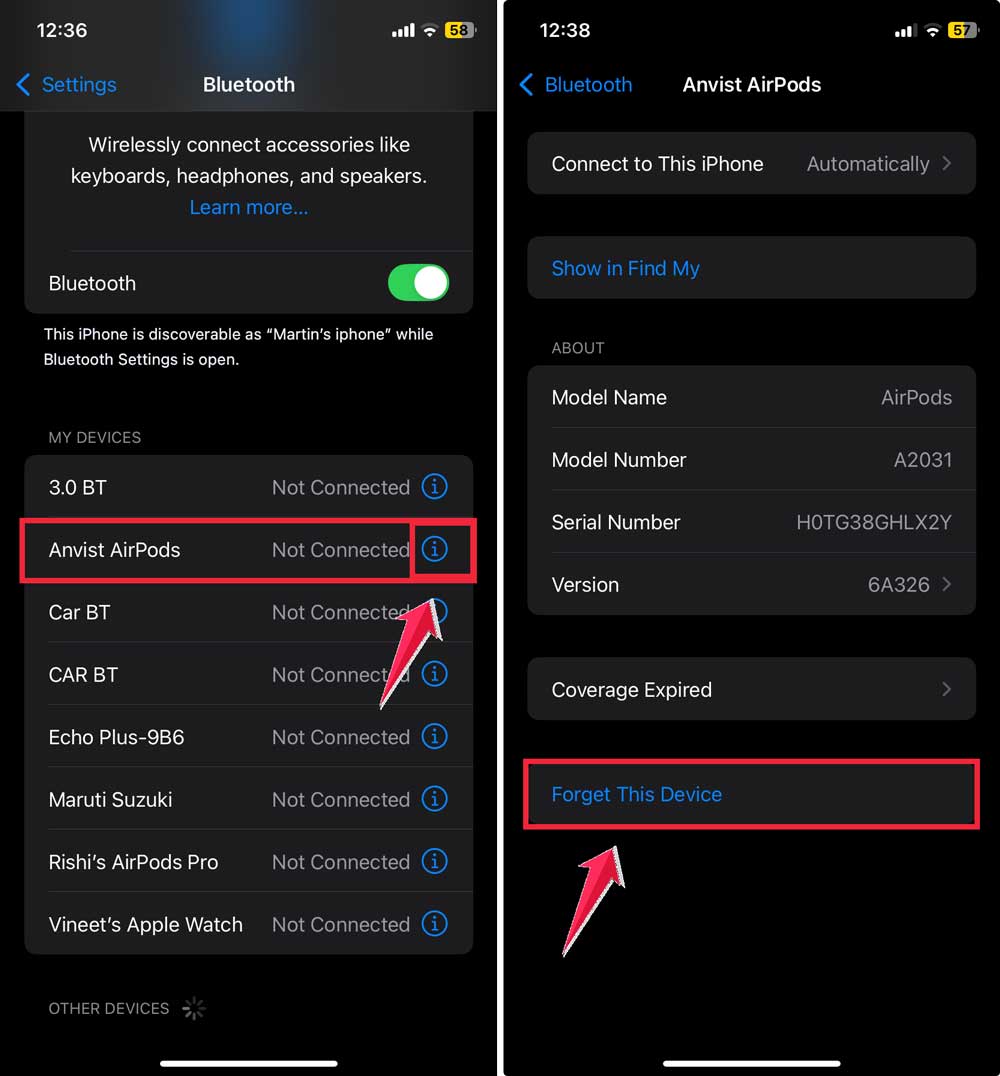
You can also try forgetting the AirPods in your Bluetooth settings and then reconnecting them.
- Go to Settings > Bluetooth.
- Tap the “i” next to your AirPods.
- Select “Forget This Device“.
- Put your AirPods in the case and close the lid.
- After 30 seconds, open the lid and hold the setup button until the light flashes white.
- Reconnect your AirPods to your device.
If you’re in an area with lots of other wireless devices, like a busy office or crowded café, try moving to a less congested space.
3. Audio settings issues
Your device’s audio settings can sometimes cause unexpected sounds if they’re not configured correctly. This could be due to changes in the equalizer settings or volume limits.
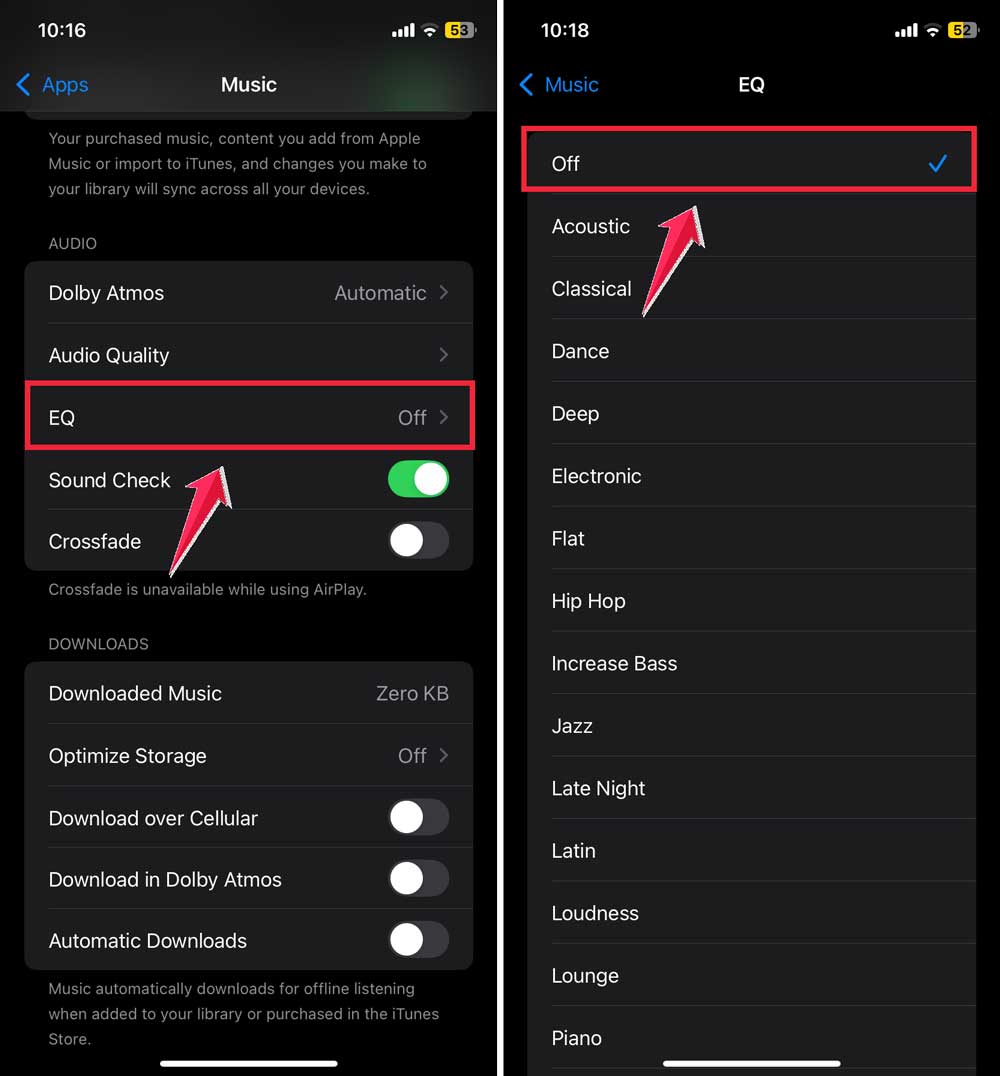
- On your connected device, go to Settings > Music > EQ.
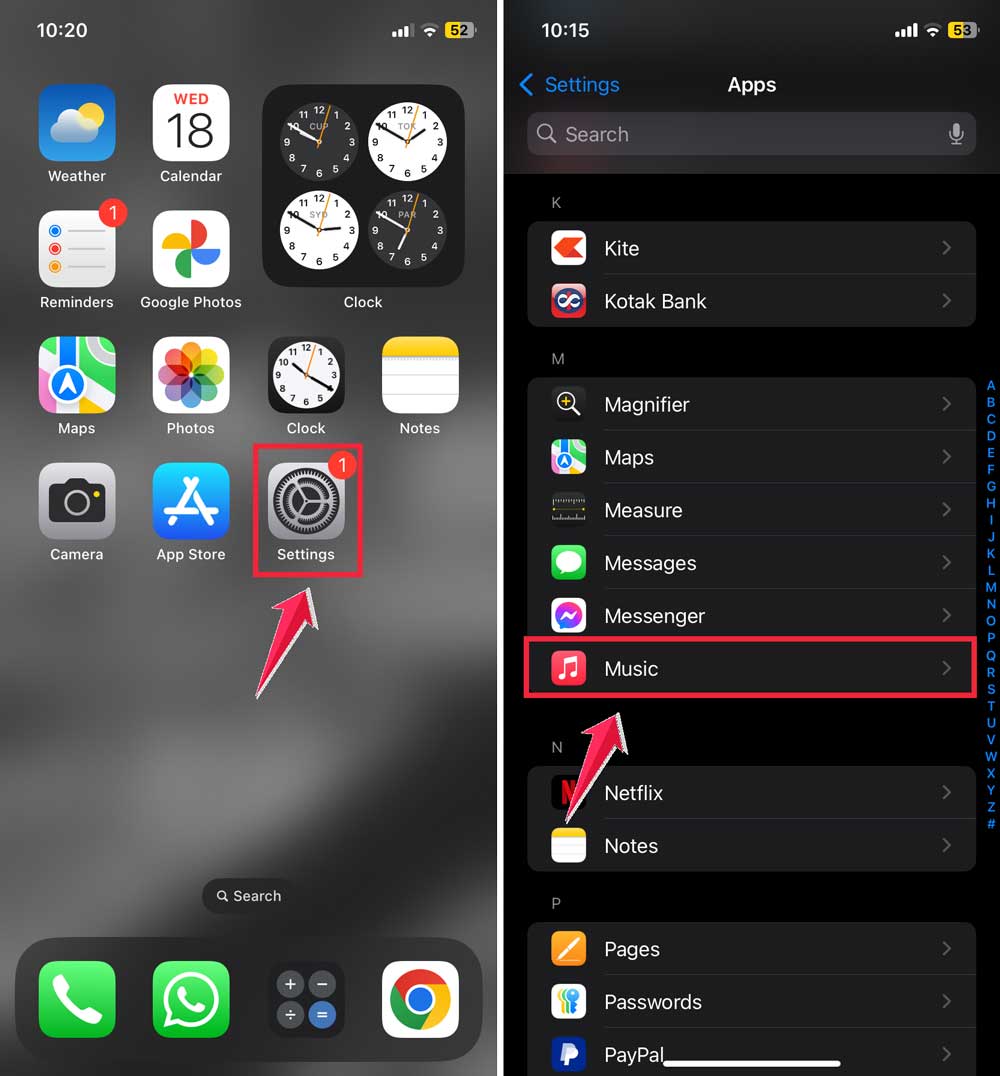
- Set it to “Off” or “Flat“.
- Check for volume limits:
- Go to Settings > Music > Volume Limit.
- Adjust if necessary.
- If using a third-party music app, check its audio settings as well.
4. Software glitches
Like all technology, AirPods can experience software bugs that cause unexpected behavior, including chirping sounds.
First, ensure your AirPods firmware is up to date.
- Connect your AirPods to your iPhone.
- Go to Settings > Bluetooth > [Your AirPods].
- Look for any available updates.
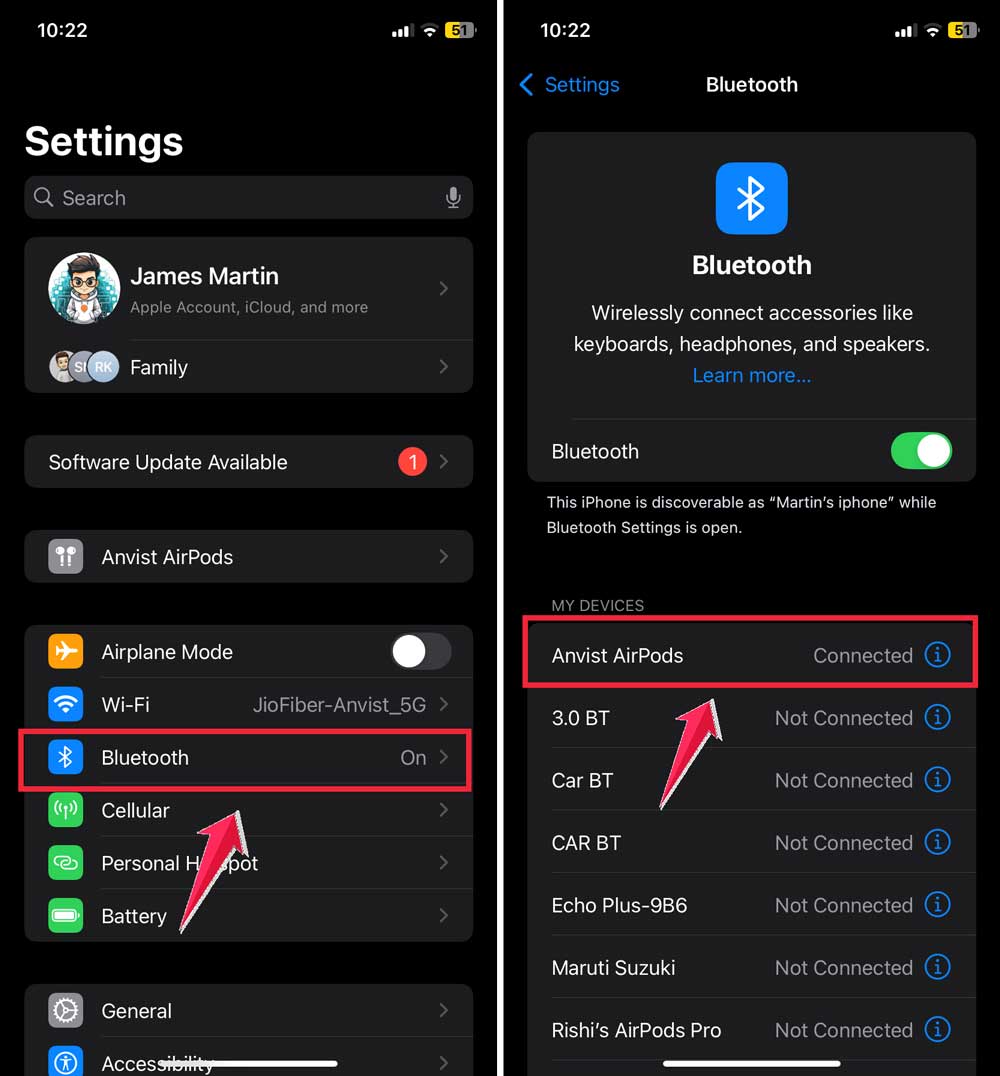
If updates are available, connect your AirPods to power and keep them near your iPhone to update automatically.
If issues persist, try resetting your AirPods.
- Put your AirPods in the charging case.
- Press and hold the setup button on the back of the case for about 15 seconds.

- Wait until the status light flashes amber, then white.
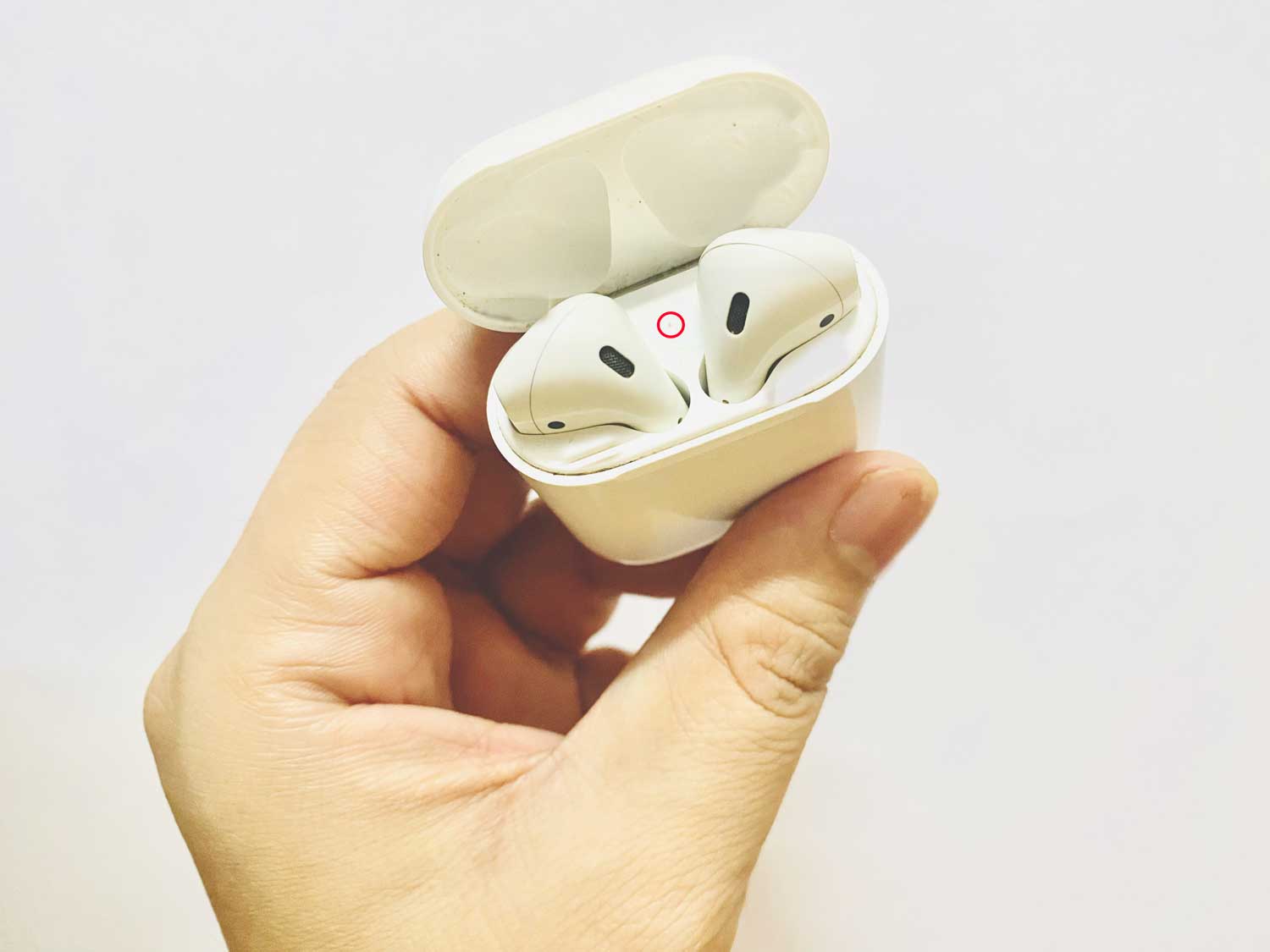
- Reconnect your AirPods to your devices.
5. Faulty firmware
Sometimes, firmware updates can go wrong, especially if they’re interrupted during the installation process. This can lead to all sorts of quirky behavior, including chirping.
Unfortunately, there’s no way to manually reinstall AirPods firmware. If you suspect a faulty firmware update is causing issues, your best bet is to contact Apple Support. They can guide you through additional troubleshooting steps or arrange for a repair if necessary.
6. Water damage
AirPods aren’t waterproof, so exposure to water or excessive moisture can cause internal damage, leading to chirping or other unusual sounds.
If your AirPods have gotten wet, immediately dry them with a soft, lint-free cloth. Remove as much moisture as possible, then let them air dry for at least 24 hours before trying to use them again. Here’s a guide on drying your AirPods after water exposure.
Don’t use heat sources like hair dryers, as this can cause further damage. If the chirping persists after drying, there may be internal water damage, and you’ll need to contact Apple Support.
7. Environmental factors
Extreme temperatures, high humidity, or electromagnetic interference from other devices can sometimes cause AirPods to behave strangely, including making chirping noises.
Try to use your AirPods in environments with normal temperature and humidity levels. If you’re in a very hot or cold place, let your AirPods adjust to room temperature before using them.
If you’re near large electronic devices or in areas with a lot of wireless activity, try moving to a different location to see if the chirping stops.
8. Physical damage
Accidents happen, and if your AirPods have been dropped or bumped, internal components might have been knocked loose or damaged, causing the chirping sound.
Carefully inspect your AirPods for any visible signs of damage, like cracks or dents. Check if the chirping is coming from one AirPod or both.
Sometimes, you might also face issues where your AirPods are connected, but there’s no sound. In some cases, physical damage may also cause AirPods’ microphone issues.
If you see damage or the chirping persists, it’s best to contact Apple Support or visit an authorized Apple service provider. They have the tools and expertise to diagnose and repair physical damage.
9. Hardware malfunction
Sometimes, there might be an internal hardware issue with your AirPods that’s not related to physical damage or water exposure. This could be due to a manufacturing defect or general wear and tear over time.
If you’ve tried all the other troubleshooting steps and the chirping persists, it’s likely a hardware issue. In this case, the best course of action is to contact Apple Support or visit an Apple Store or authorized service provider.
They can run diagnostics and determine if your AirPods need to be repaired or replaced.
You can also test if your AirPods’ microphone is working before visiting a service center. If your AirPods are still under warranty, this service might be free or at a reduced cost.
Troubleshooting steps
If you’re in a hurry and want to try the most common fixes first, here’s a quick troubleshooting guide:
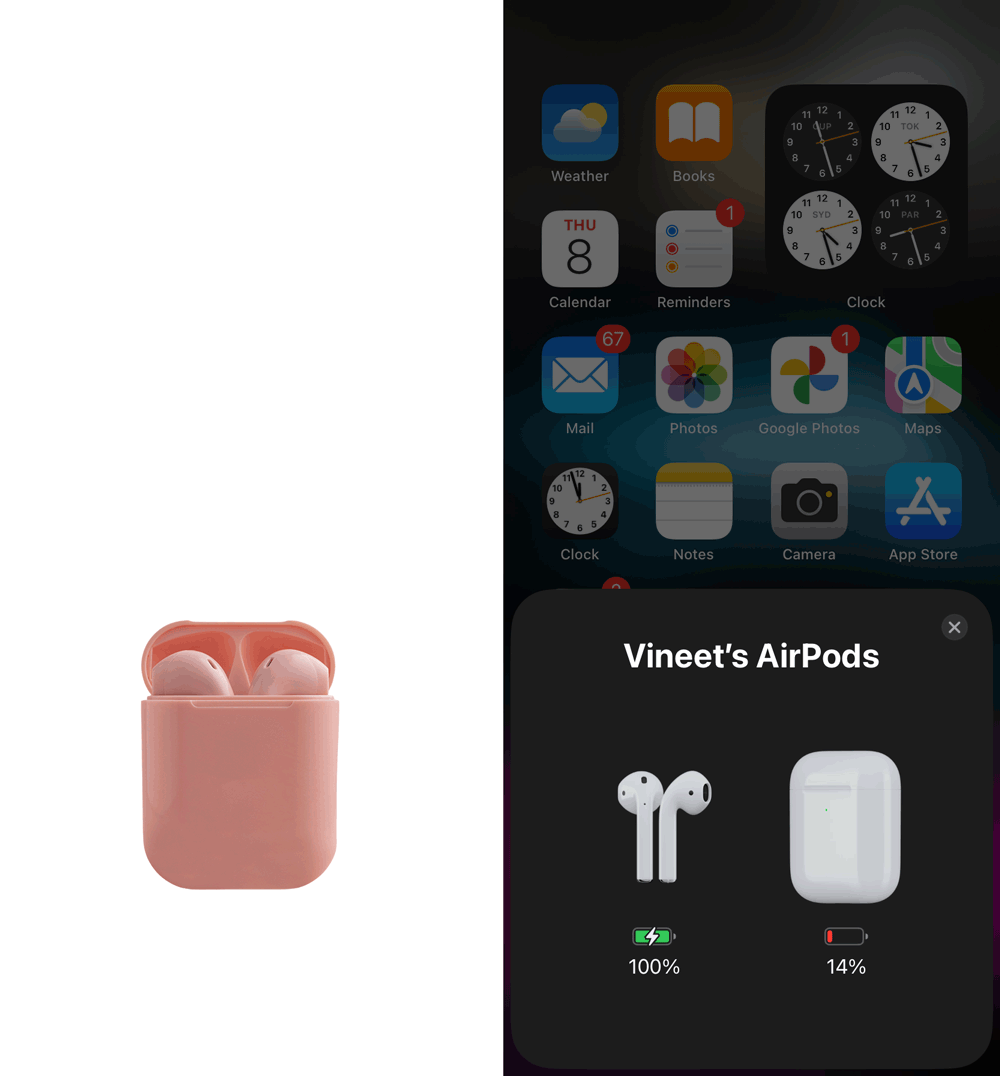
1. Check the battery
Your AirPods might be chirping because they’re running low on power. Here’s a quick check:
- Open the AirPods charging case near your iPhone or iPad.
- Wait for the battery level to appear on your device’s screen.
- If the battery is low, charge your AirPods for at least 15-30 minutes before testing again.
2. Reset your AirPods
If charging doesn’t solve the issue, try resetting your AirPods:
- Go to your device’s Bluetooth settings.
- Find your AirPods in the list of devices.
- Tap the “i” icon next to your AirPods.
- Select “Forget This Device” and confirm.
- Put your AirPods in their case and close the lid.
- After 30 seconds, open the lid.
- Press and hold the setup button on the back of the case until the status light flashes white.
- Reconnect your AirPods to your device.

3. Update your AirPods’ firmware
Keeping your AirPods up-to-date can help prevent issues:
- Ensure your AirPods are connected to your iOS device and are charging.
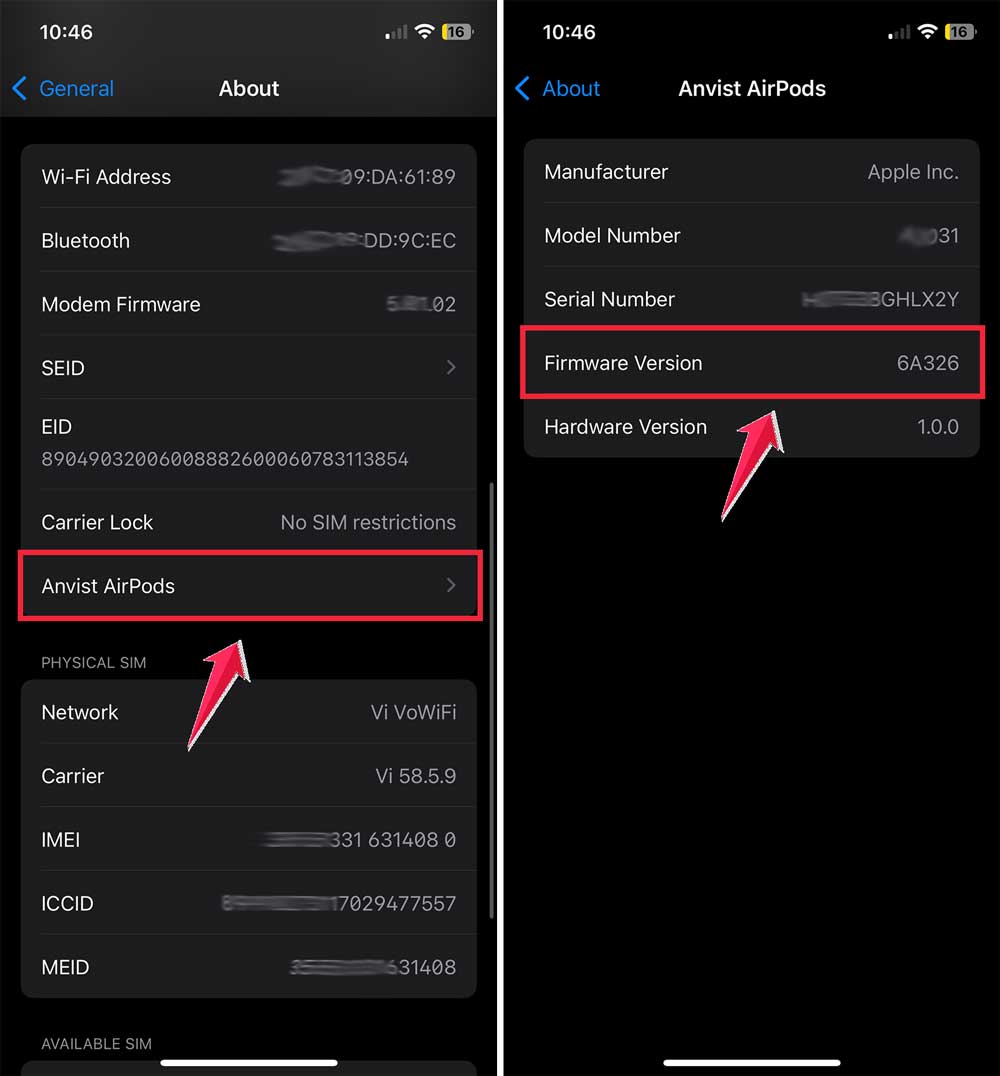
- On your iOS device, go to Settings > General > About > AirPods.
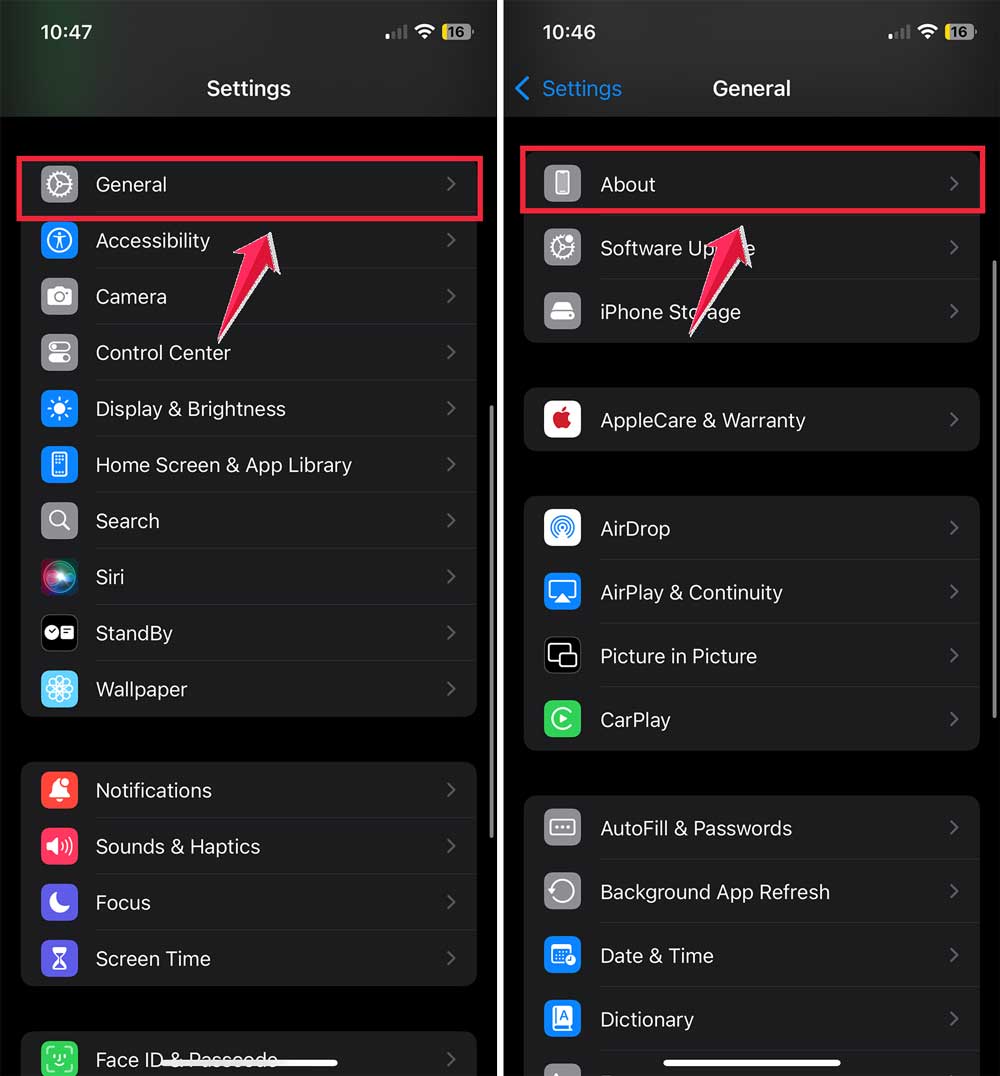
- Check the firmware version.
- If an update is available, keep your AirPods connected and near your device. The update should install automatically.
4. Check audio settings
Sometimes, adjusting your device’s audio settings can help:
- Go to Settings > Music > EQ on your iOS device.
- Try setting it to “Off” or “Flat.”
- Check for any volume limits (Settings > Music > Volume Limit) and adjust if necessary.
- Test your AirPods with different audio sources to see if the chirping persists.
5. Clean your AirPods
Dirt or debris can sometimes cause audio issues:
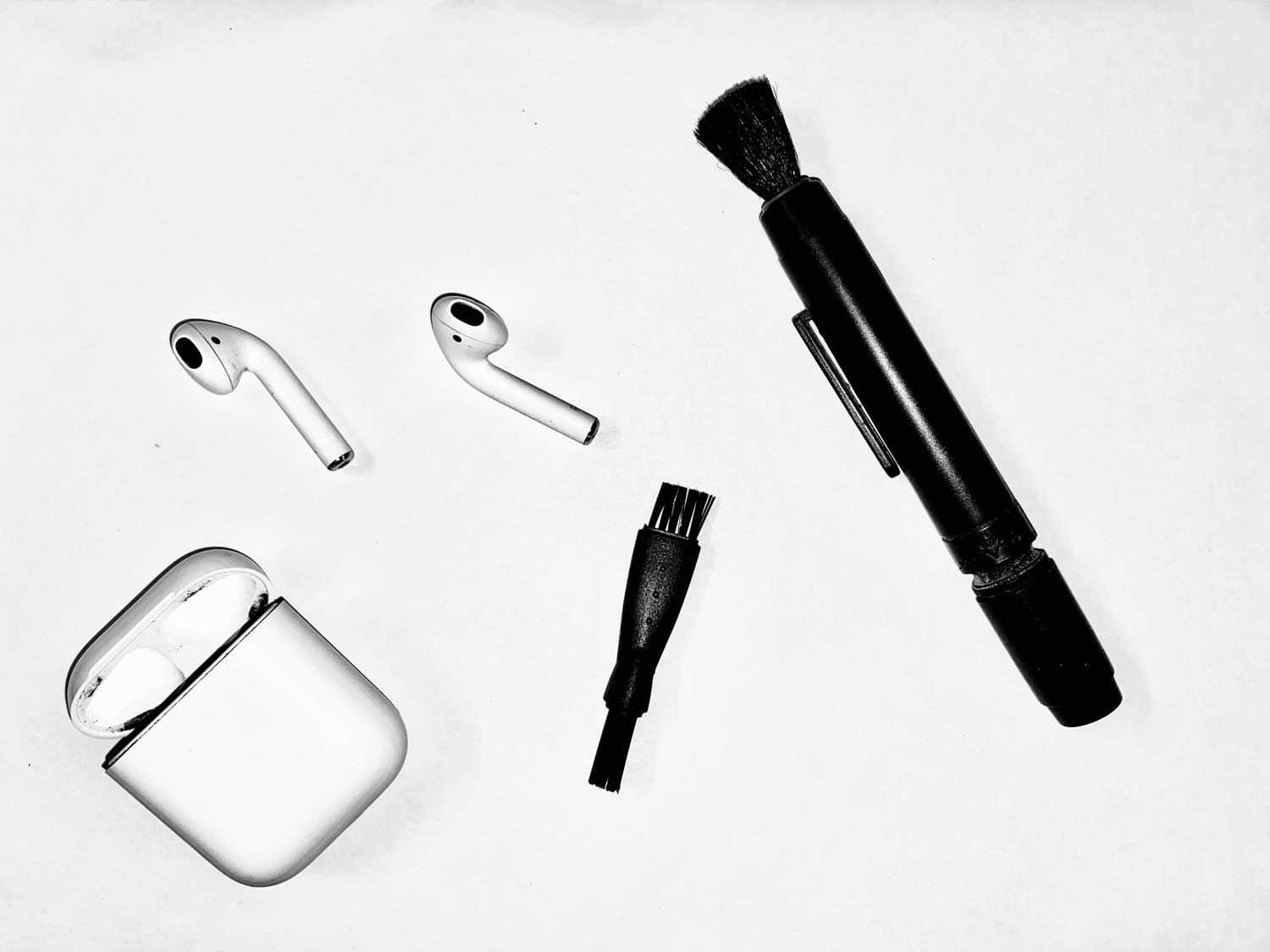
- Use a soft, dry, lint-free cloth to gently clean your AirPods.
- Pay special attention to the speaker grilles and charging contacts.
- For stubborn dirt, slightly dampen the cloth with fresh water, but be very careful not to get moisture in any openings.
- Clean the charging case similarly, both inside and out.
The takeaway
Chirping AirPods can be a real nuisance, but it’s a problem you can often solve on your own. Throughout this article, we’ve explored various reasons why your AirPods might be making these strange sounds and how to fix them.
Remember, the most common culprits are low battery, connectivity issues, and software glitches. Simply charging your AirPods, resetting them, or updating their firmware can often do the trick. Don’t forget to keep them clean and handle them with care to prevent future problems.
Contrary to what some might think, chirping AirPods don’t always mean they’re broken beyond repair. In many cases, a few simple steps can get them back to normal. However, if you’ve tried everything and the issue persists, don’t hesitate to seek help from Apple Support.
The most important thing to remember is that your AirPods are designed to give you a great listening experience. With a little troubleshooting and regular maintenance, you can keep them chirp-free and enjoy your music, podcasts, and calls without interruption.
So don’t let a little chirp discourage you. You’ve got the knowledge to tackle this issue head-on!
We’d love to hear your thoughts! Share your experience or any tips you might have in the comments below.