You’ve probably seen those blue bubbles when texting another iPhone user. That’s iMessage. It’s smooth, fast, and full of little features like typing dots and read receipts.
But what if you turn it off?
Maybe you’ve wondered what would change. Maybe iMessage has been giving you trouble lately. Or maybe you’re switching to a new phone and want to avoid issues.
Whatever the reason, let’s break it down in plain words.
What happens if you turn off iMessage on your iPhone?
So, let me share the top things that happen to your iPhone once you turn off iMessages.
1. Your texts will turn green
The first thing you’ll notice is the color.
When you send a message to another iPhone, it normally shows up as blue. That means it’s using iMessage. Apple’s internet-based messaging system.
But once you turn it off, messages from your iPhone will show up green. That means they’re being sent as SMS through your mobile carrier instead of Apple’s system.
This also means you’ll be using your carrier’s text service. If you don’t have unlimited texts, your mobile plan might charge you.
2. You’ll lose a few extra features
iMessage gives you things like read receipts, typing indicators, message reactions, and animations. When it’s turned off, all of that goes away.
You won’t see when someone is typing. You won’t get message effects or confetti. And you won’t be able to send high-quality media the way iMessage allows.
If you’re used to group chats through iMessage, those may not work the same either. Some group features disappear when it switches to SMS.
It’s not a deal-breaker, but you’ll definitely notice the difference.
3. Your messages won’t sync across devices
If you use a Mac, iPad, or Apple Watch. turning off iMessage on your iPhone affects all that.
You’ll stop receiving messages on those devices. Everything will go straight to your iPhone’s text message inbox. and only there.
No more checking your iPad for messages or replying from your Mac.
That cross-device syncing only works when iMessage is active.
4. FaceTime might get disconnected too
If you decide to turn off both iMessage and FaceTime, your iPhone won’t be able to make FaceTime audio or video calls.
You’ll have to switch to normal voice calls instead.
You can still use WhatsApp, Telegram, or any other app. But FaceTime goes offline unless you turn it back on.
5. Your Apple ID gets unlinked from messages
When iMessage is off, your phone number is no longer tied to iMessage in Apple’s system.
This means people who try to message your Apple ID (especially if they’re using your email) won’t reach you through iMessage anymore.
You’ll still get regular texts to your phone number, but anything sent as an iMessage to your Apple ID won’t come through.
6. But your old chats won’t disappear
Turning off iMessage doesn’t delete your previous messages.
They’ll stay right there in your Messages app. You can read them, search them, and scroll back through the entire history.
If you turn iMessage back on later, it picks up right where you left off.
So no need to worry. You’re not losing any chats just by turning it off.
Why would you turn off iMessage in the first place?
Now that you know what changes, let’s talk about why someone might actually do this.

1. You might be switching to Android
This is one of the most common reasons.
If you don’t turn off iMessage before switching to an Android phone, your friends’ texts might still go to your old iPhone instead of your new phone.
That can cause a lot of confusion and missed messages.
So if you’re changing phones, always turn iMessage off first. That way, your number gets disconnected cleanly from Apple’s system.
2. You’re not getting notifications properly
Sometimes iMessage notifications just stop working.
You get the message, but your phone doesn’t alert you. No sound. No banner. It just sits there silently.
This bug happens more than you’d expect. And one easy fix? Turn iMessage off and rely on SMS instead.
Regular text messages almost always trigger notifications, and that can help you avoid missing something important.
3. You’re in a place with bad internet
iMessage needs either Wi-Fi or mobile data to work.
If you’re in a place with poor signal, or you’ve run out of data, your iMessages might take forever to send. Or they might fail altogether.
Turning off iMessage forces your phone to send texts over the mobile network instead, which is more reliable in low-signal areas.
That means your messages will actually go through, even if the bubble isn’t blue.
4. Your messages are stuck or delayed
Ever seen a message sit there with a “Sending…” status that never finishes?
That’s usually an iMessage issue. not an SMS issue.
Turning iMessage off can instantly resolve these kinds of bugs. Especially if your iPhone is having trouble with Apple’s servers or syncing messages between devices.
5. You’re trying to save battery
Here’s something you might not have thought about.
iMessage checks for updates in the background, constantly syncing across devices and using your network connection.
That extra activity uses a small amount of power. which adds up, especially on older iPhones.
If you’re in battery-saving mode or your phone dies quickly, turning iMessage off can help you stretch those extra minutes when you need them.
6. You have privacy concerns
While iMessage is encrypted and secure, some users prefer not to use cloud-based messaging services at all.
Maybe you don’t want your messages to go through Apple’s servers. Or you just feel more comfortable using plain old SMS.
That’s a personal choice. And turning off iMessage gives you more control over how your messages are handled.
How to turn off iMessage and FaceTime
If you’ve decided to turn it off, here’s exactly how to do it.
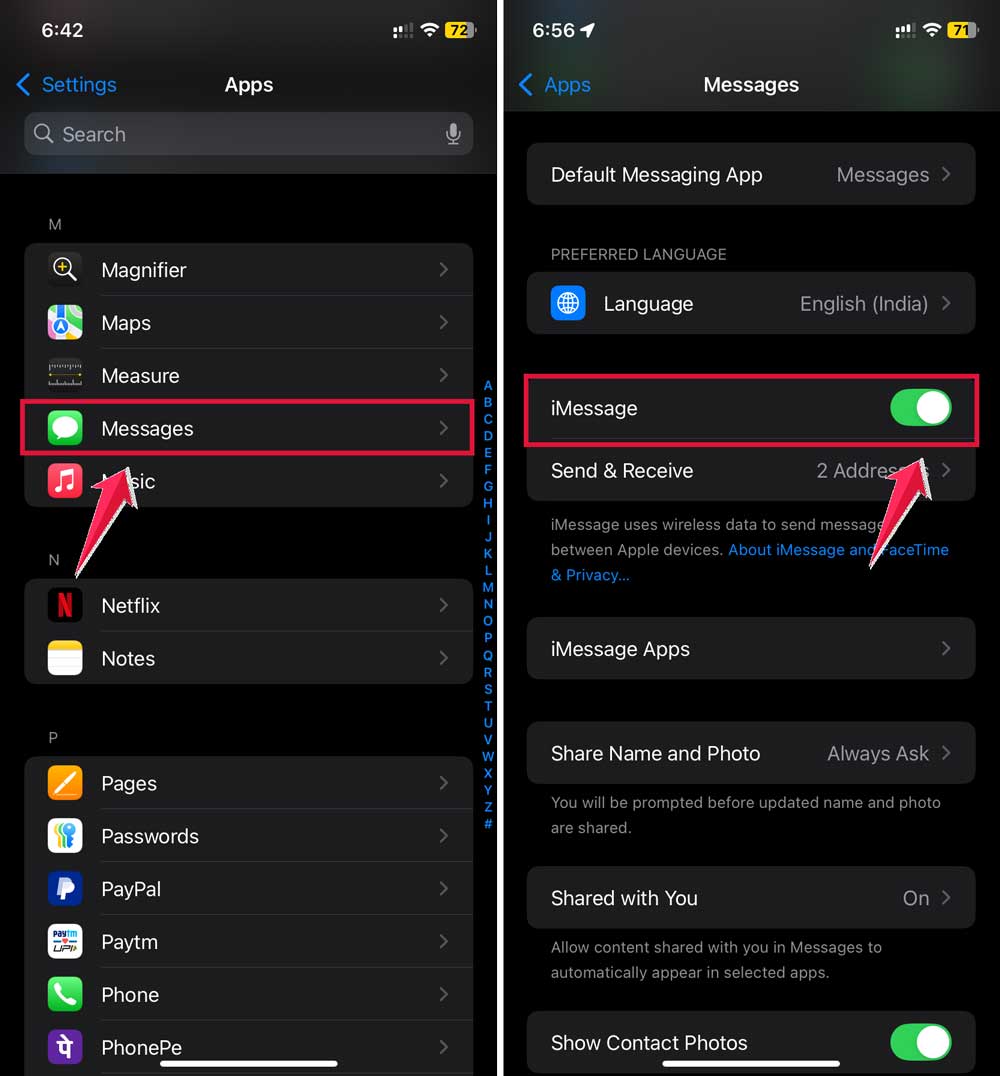
- Open the Settings app on your iPhone.
- Scroll down and tap on Apps.

- Now tap on the Messages.
- At the top, turn off the switch next to iMessage.
- Now go back to the main Settings screen.
- Tap FaceTime.
- Turn off the switch next to FaceTime.
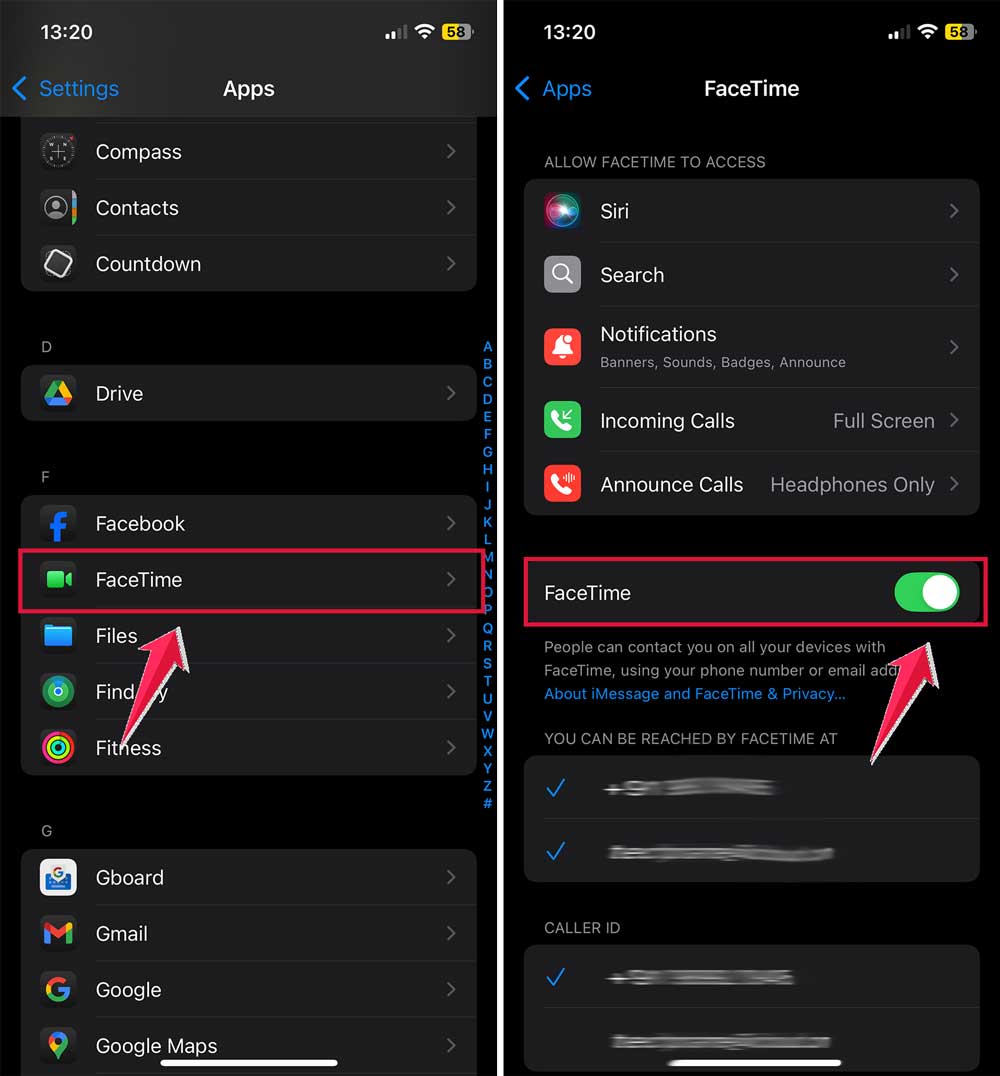
That’s it. You’re now using regular text messages and calls instead.
People can still text you. You’ll still get messages. They’ll just show up as green bubbles instead of blue ones.
The takeaway
Turning off iMessage might sound drastic, but it’s really not.
You’re not breaking anything. You’re not losing your chats. You’re just switching how your messages are sent and received.
Sometimes it makes sense. especially if you’re switching devices, dealing with bugs, or just trying to simplify things.
And remember, you can always turn it back on with one tap.
Technology should make your life easier. So if iMessage is causing more problems than it solves, it’s okay to take a break from it.
If you’ve ever turned off iMessage before, I’d love to hear how it went. Did it help? Did it cause any surprises? Let me know.
And if you’re thinking about doing it now. At least you know exactly what to expect.