Find My. Formerly called Find My iPhone and Find My Friends is a key app made by Apple.
It helps you locate your friends and Apple devices using GPS.
Ever noticed the small “Live” tag under a friend’s name in the app?
Stay tuned as we dive deeper into how this feature works and how you can use it to stay connected with your friends!
What Does Live Mean on Find My iPhone?
Here’s what it means when someone’s location is live:
Live Location: It tells you that your friend is currently sharing their live location with you, moving and their location is updating in real-time.
This feature is super handy if you’re trying to find each other at crowded places like festivals or big malls.
It’s also great for parents to keep an eye on kids playing outside or hanging out with friends.
How To See Live Location Of My Friends On Find My?
Want to see someone’s live location on your iPhone? Just follow these steps:
- Share Your Location: Make sure you’ve shared your location with the contact and they’ve done the same.
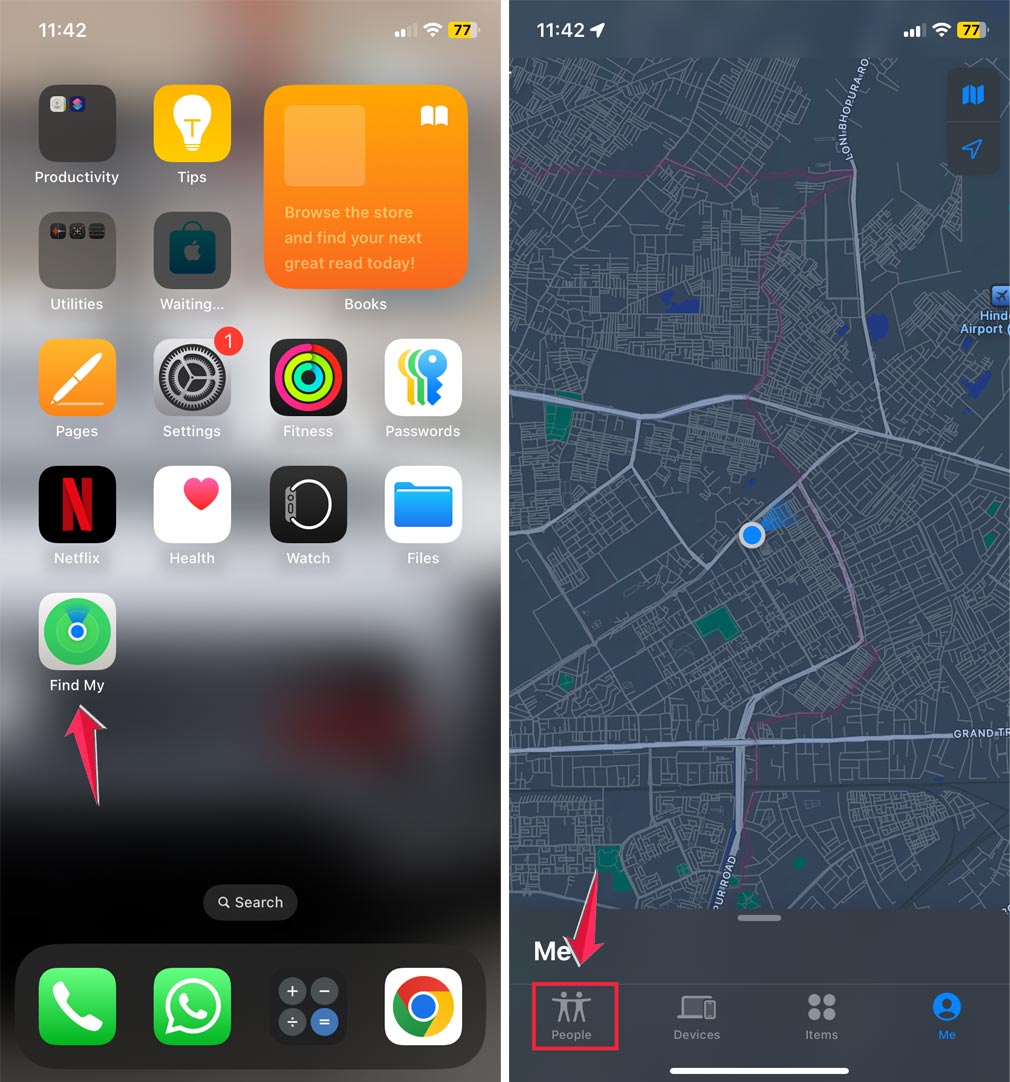
- Open the App: Launch the Find My app on your iPhone.
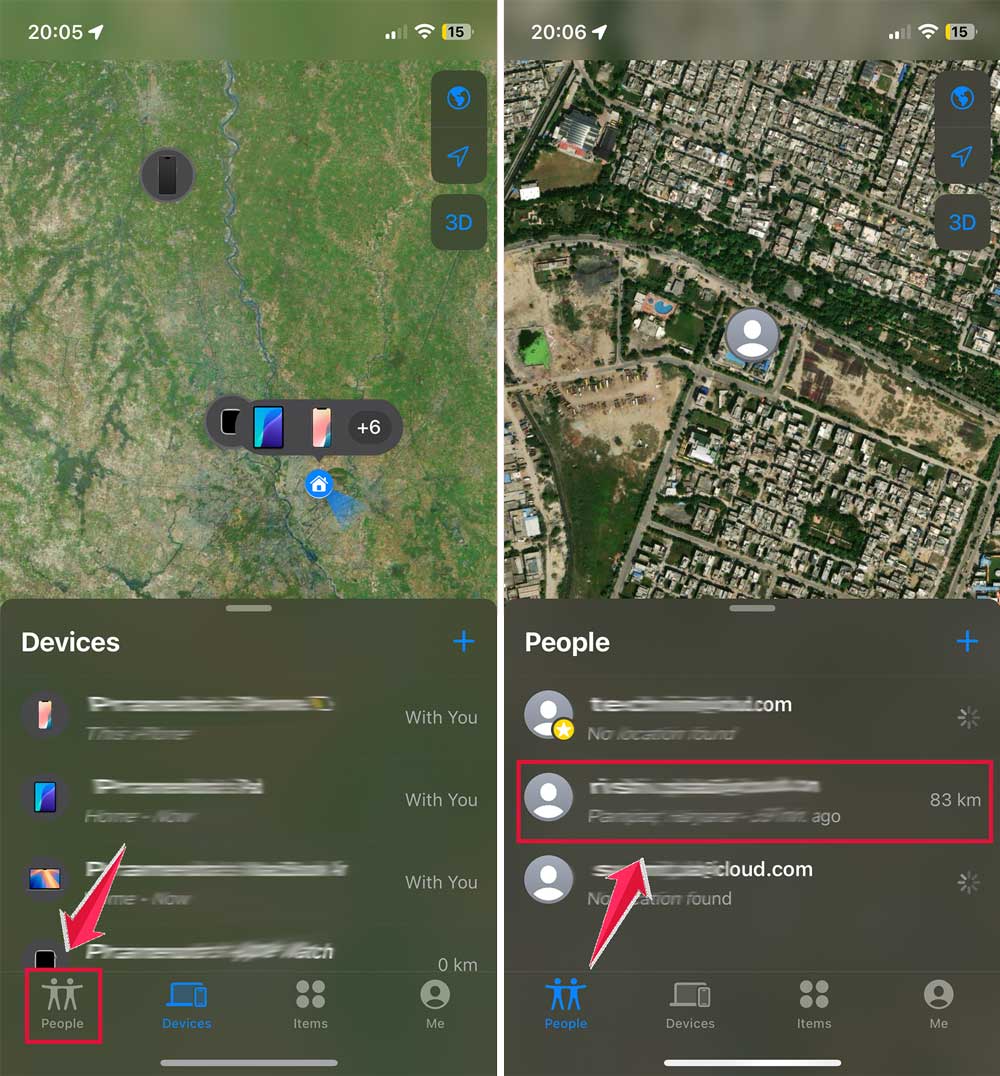
- Go to People: Tap on ‘People’ at the bottom left.
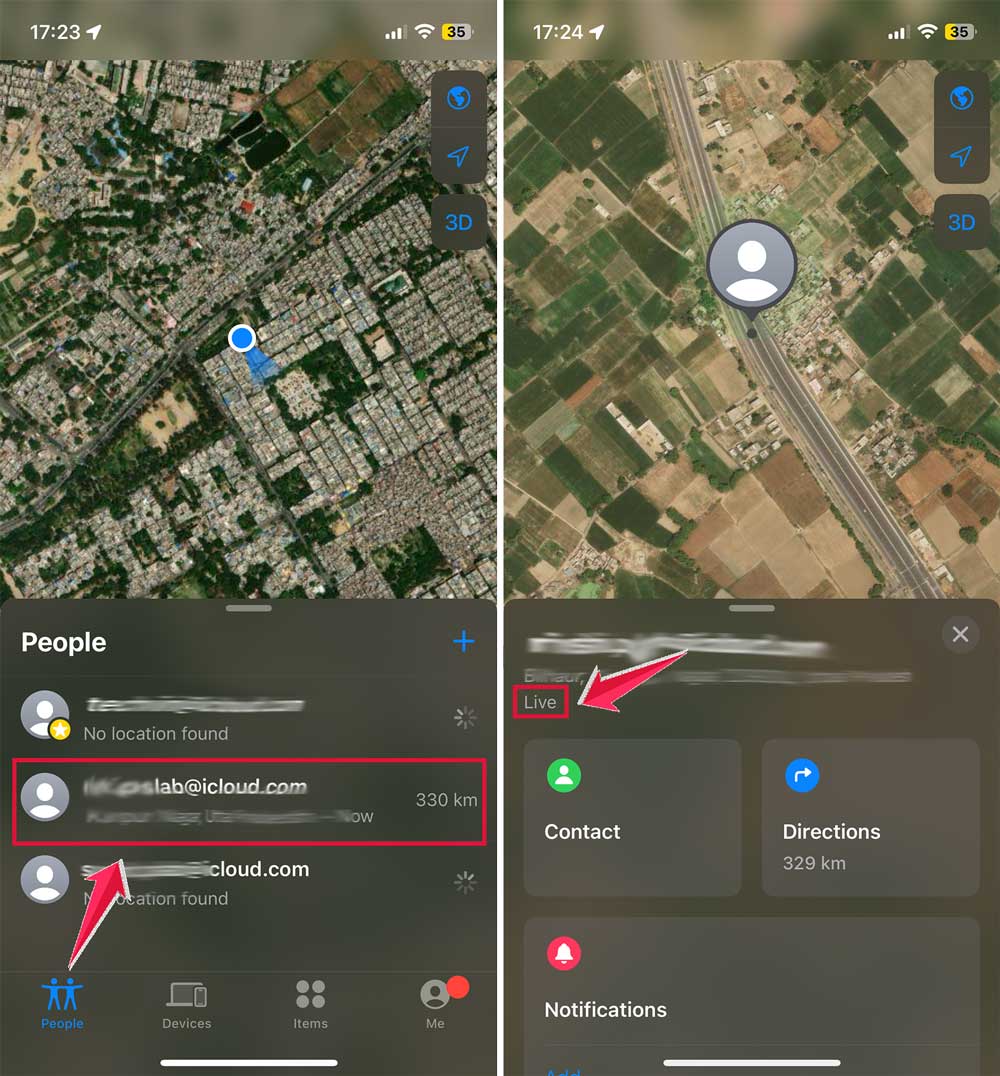
- Choose a Contact: Select the name of the person you want to track.
- View Live Status: You’ll see the “Live” label under their name, showing their current movement on the map.
How to Share Your Live Location to Your Friends?
Can’t see your friends’ Live Locations on your iPhone? You might need to adjust a few settings. Here’s a straightforward guide to ensure you’re all set:
Step 1: Check Your iPhone’s Location Settings
- Open Settings: Start by launching the Settings app on your iPhone.
- Tap on Privacy & Security.
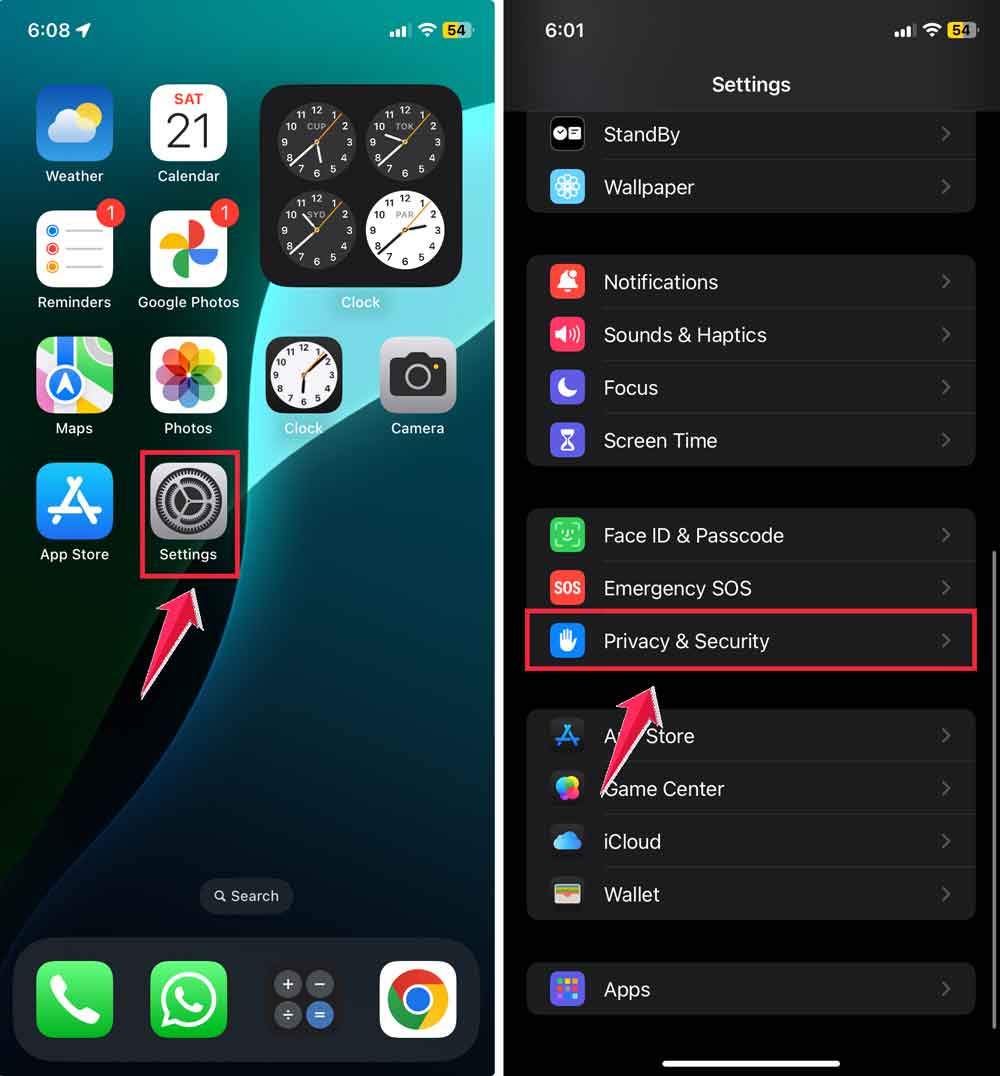
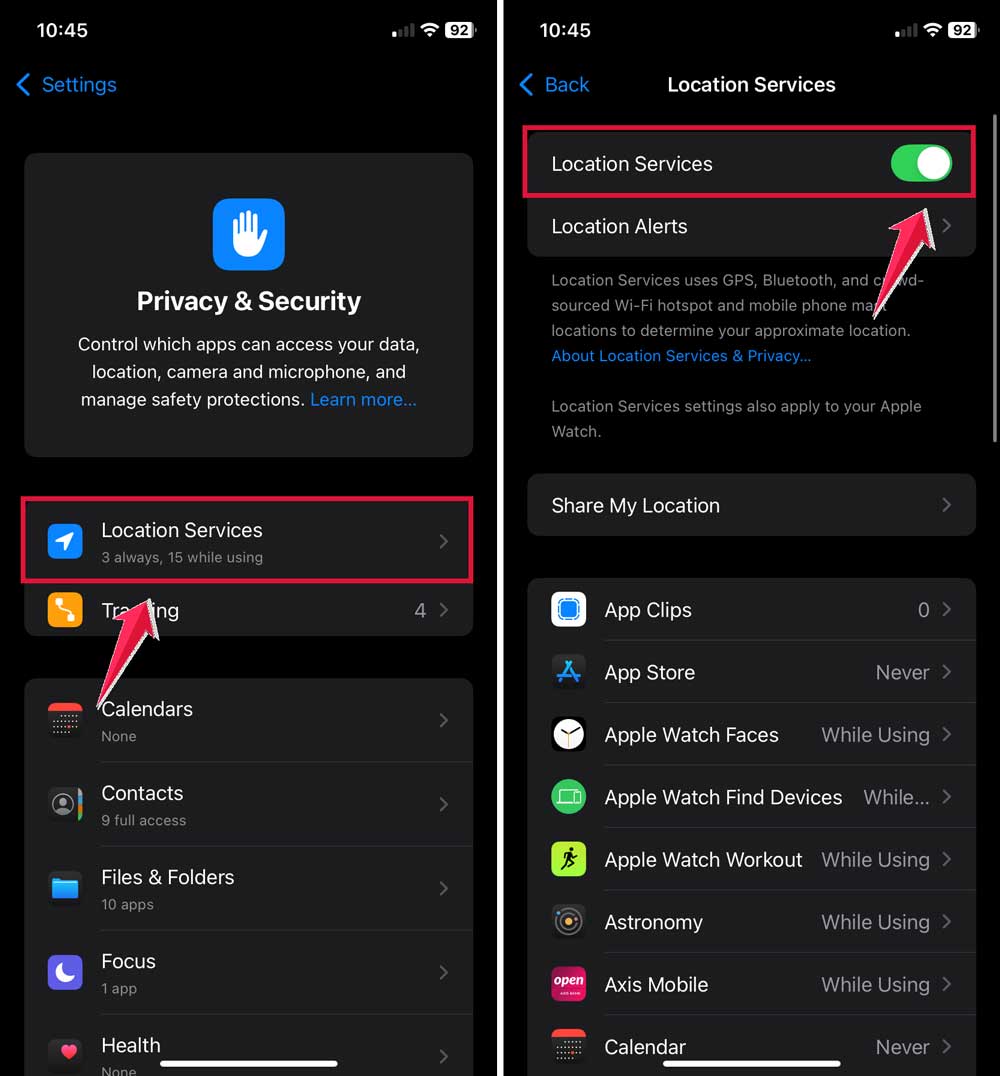
- Click on Location Services and make sure it’s activated (the switch should be green and positioned to the right).
- Turn on Location Services.
Step 2: Share Your Location in the Find My App
- Open Find My: Tap on the Find My app and select Devices in the bottom bar.
- Tap the “+” button above the listed devices.
- Select Share My Location.

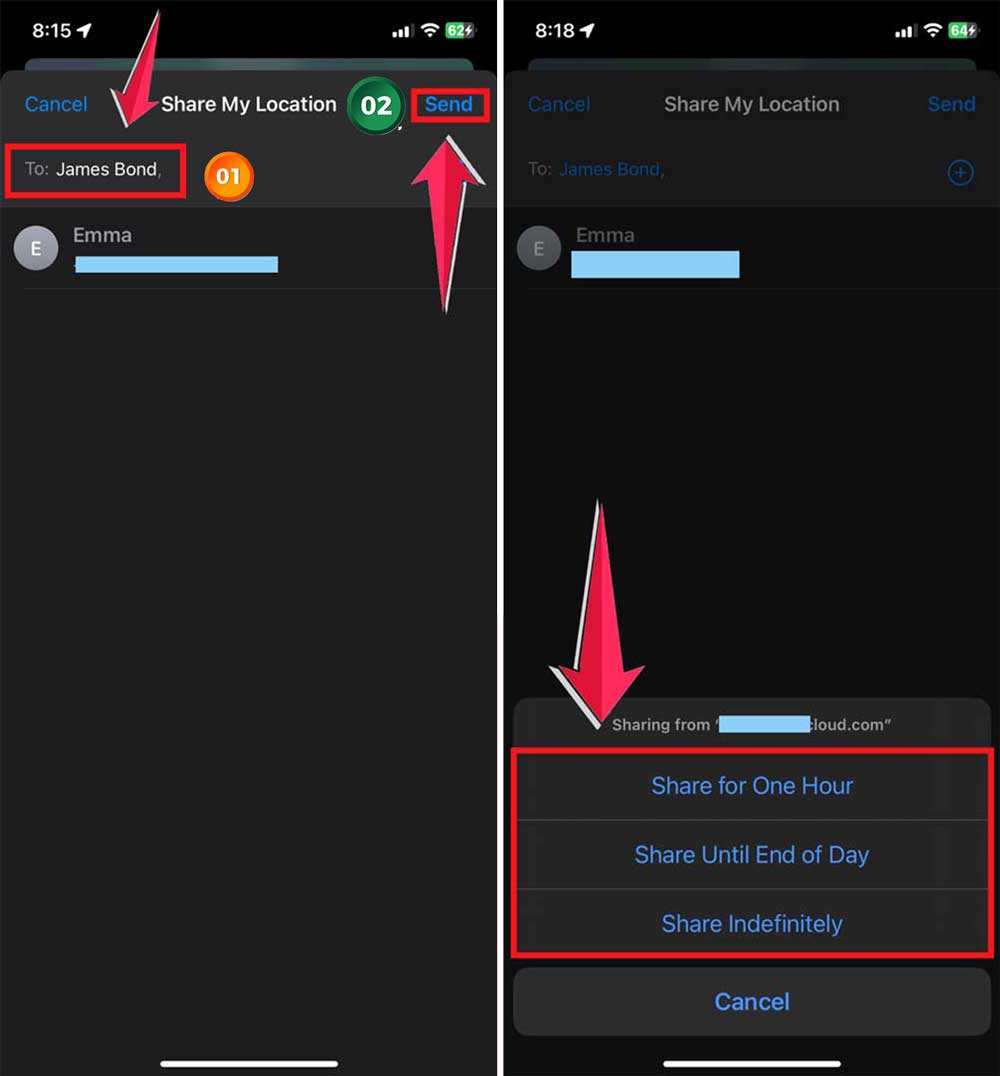
- A list of contacts will appear. Here, you’ll need to enter the names of the friends you want to share your location with. Ensure you aren’t already sharing your location with them, as their names won’t appear if you are.
- Type their names and press the SEND button.
- Decide how long you want to share your location. You can choose from options like Share for One Hour, Share Until End of Day, or Share Indefinitely.
You’ve successfully started sharing your location. Your friends can see your movements in real-time. You can also personalize the experience by naming your location on Find My.
How to Stop Sharing Your Location with a Friend on Find My iPhone?
If you decide you no longer want to share your location with a friend, the process is simple and quick. Here’s how to do it:
- Open the Find My App: Launch the Find My app on your iPhone.
- Navigate to People: Tap on the ‘People’ option in the bottom bar.
- Select a Friend: You’ll see a list of friends with whom you are currently sharing your location. Click on the friend with whom you want to stop sharing.
- Tap on Stop Sharing Location.
- Confirm your choice by clicking Stop Sharing Location again.
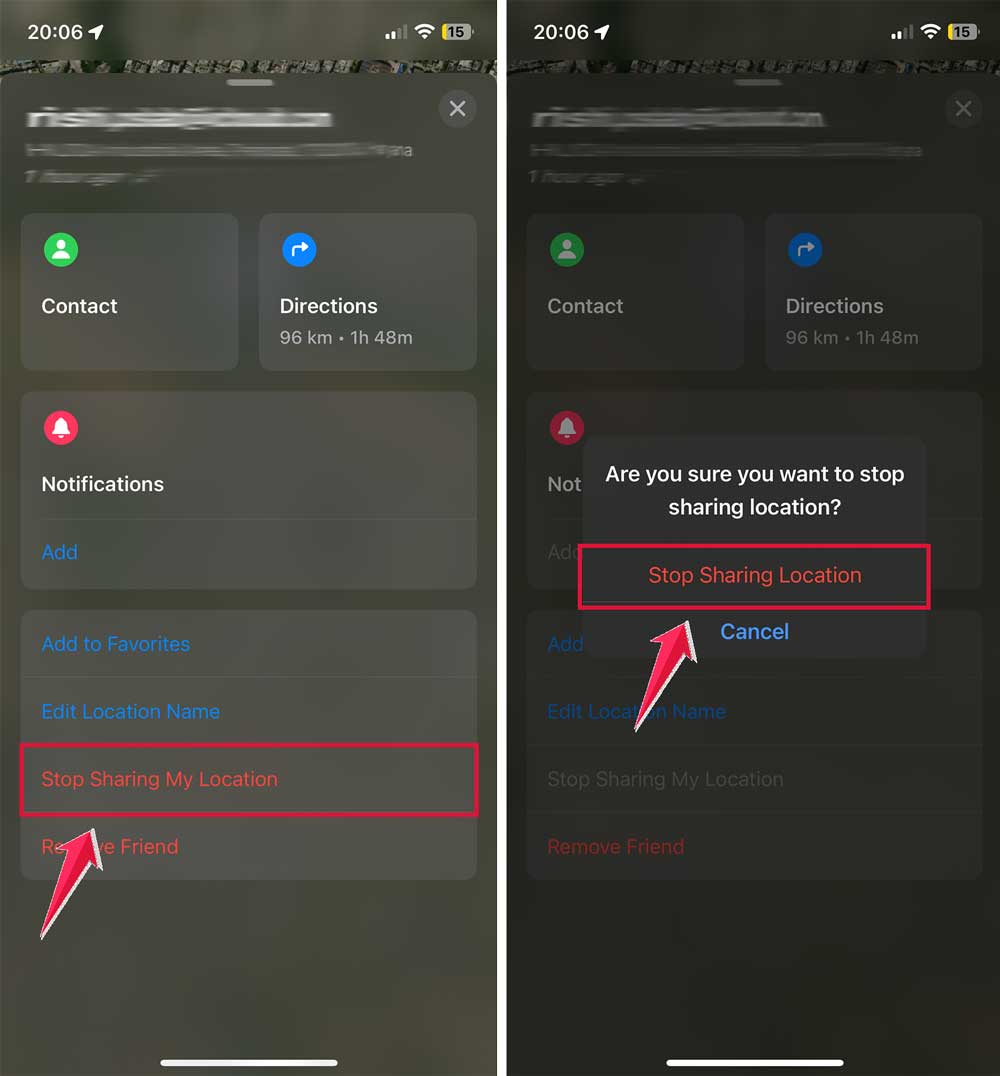
Done! You’ve successfully stopped sharing your location.
Conclusion
Now that you know all about the Find My app’s Live Location feature, you’re ready to keep tabs on your friends and devices like a pro!
Remember, the “Live” label lets you see real-time updates of locations, making it super easy to meet up or keep an eye on each other in crowded places.
Just make sure your settings are correct by following the steps we covered.
If you ever see “Now” instead of “Live,” just be a bit patient. It usually means the app is trying to reconnect and will update soon.
And remember, if you need a little privacy, you can always stop sharing your location or pause it temporarily.
Stay safe and connected, and use your Find My app to its fullest potential! And don’t forget. If you find a lost iPhone, you’ve got the know-how to help it get back to its owner.