You wanted to make a FaceTime call. You hit the button. It tried connecting. Then suddenly, it says “FaceTime Failed.” No explanation. No reason. Just… failed.
You stare at the screen. Was it a bad signal? Did the other person block you? Is something broken?
Don’t panic. This happens more often than you think. And I’ll help you fix it.
What “Failed FaceTime” really means
That message just means your call couldn’t connect. It doesn’t mean it was rejected. It doesn’t mean your iPhone is dead.
So, when you see “Failed FaceTime” error, it means something like network, software, settings, or even Apple’s servers got in the way.
Let’s break down the real causes and what you can do.
You need strong internet.
FaceTime doesn’t work without a good internet connection. If you’re on a shaky Wi-Fi signal or your mobile data is patchy, your call won’t even start.
You need to go closer to your Wi-Fi router.
If that doesn’t help, turn Wi-Fi off and switch to mobile data.
Still not working? Try restarting your internet or using a different network.
Also, make sure the person you’re calling has internet too. FaceTime needs it on both ends.
Their FaceTime might be off
If the other person has FaceTime turned off, your call will fail.
It could happen if they have disabled FaceTime in their settings.
Or, their phone is in Do Not Disturb mode.
This sometimes also happens if they’re using Screen Time restrictions that block FaceTime.
You can just text them and ask. “Hey, can you check if FaceTime is on?”
You need to update FaceTime
Old app versions cause bugs. If you haven’t updated FaceTime in a while, that might be the reason.
Go to App Store. Search FaceTime. If it says Update, tap it.

Also, ask your friend to check theirs too. Both ends should stay updated.
Some countries block FaceTime
If you’re calling someone in the UAE or Saudi Arabia, FaceTime often won’t work. It’s restricted by law.
So even if everything’s perfect on your end, the call will still fail.
In that case, use something else like WhatsApp or Zoom.
Your Apple ID might be glitching
FaceTime runs through your Apple ID. So if your account has a problem, calls won’t go through.
You can fix this fast.
Go to Settings. Tap your name. Scroll down and tap Sign Out. Restart your iPhone. Then sign in again with your Apple ID.

This resets your connection with FaceTime and often fixes weird bugs.
Apple servers might be down
Sometimes it’s not you. Or your internet. Or even your settings.
Sometimes Apple’s servers are having a bad day. Go to Apple System Status. Search for “FaceTime” on that page.

If it shows yellow or red, wait. There’s nothing you can do except try again later.
Your date and time might be wrong
Sounds silly, right? But if your iPhone has the wrong date or time, FaceTime gets confused.
Go to Settings. Tap General. Tap Date & Time. Turn on Set Automatically.

Now restart your phone. Try FaceTime again.
Your software might be glitching
Sometimes it’s just a temporary glitch. Nothing major.
Swipe up or double-press your Home button to close FaceTime. Restart your iPhone. Try the call again.
If it is still not working? You may need a software update. You can do this by going to Settings > General > Software Update.

If there’s one available, download it. FaceTime usually behaves better after updates.
Does “FaceTime Failed” mean they declined?
No. It does not mean they declined.
When someone declines your FaceTime, it says “Unavailable.” Not “Failed.”
“Failed” means the call didn’t even go through.
So don’t worry. It’s not personal. It’s technical.
What to do when FaceTime keeps failing
If one attempt fails, try again after a minute.
Still not working? Check your internet. Make sure FaceTime is turned on. Check if your Apple ID is signed in properly.
Try calling someone else to see if FaceTime works with them. That’ll tell you if the issue is on your end or theirs.
If nothing works, it could be an Apple-side problem. Just wait a while and try later.
What if FaceTime fails instantly?
You tap call. And it fails before even ringing. That’s usually a setup issue.
Go to Settings. Scroll down to FaceTime. Make sure it’s toggled ON. Check if your Apple ID and phone number are listed there.
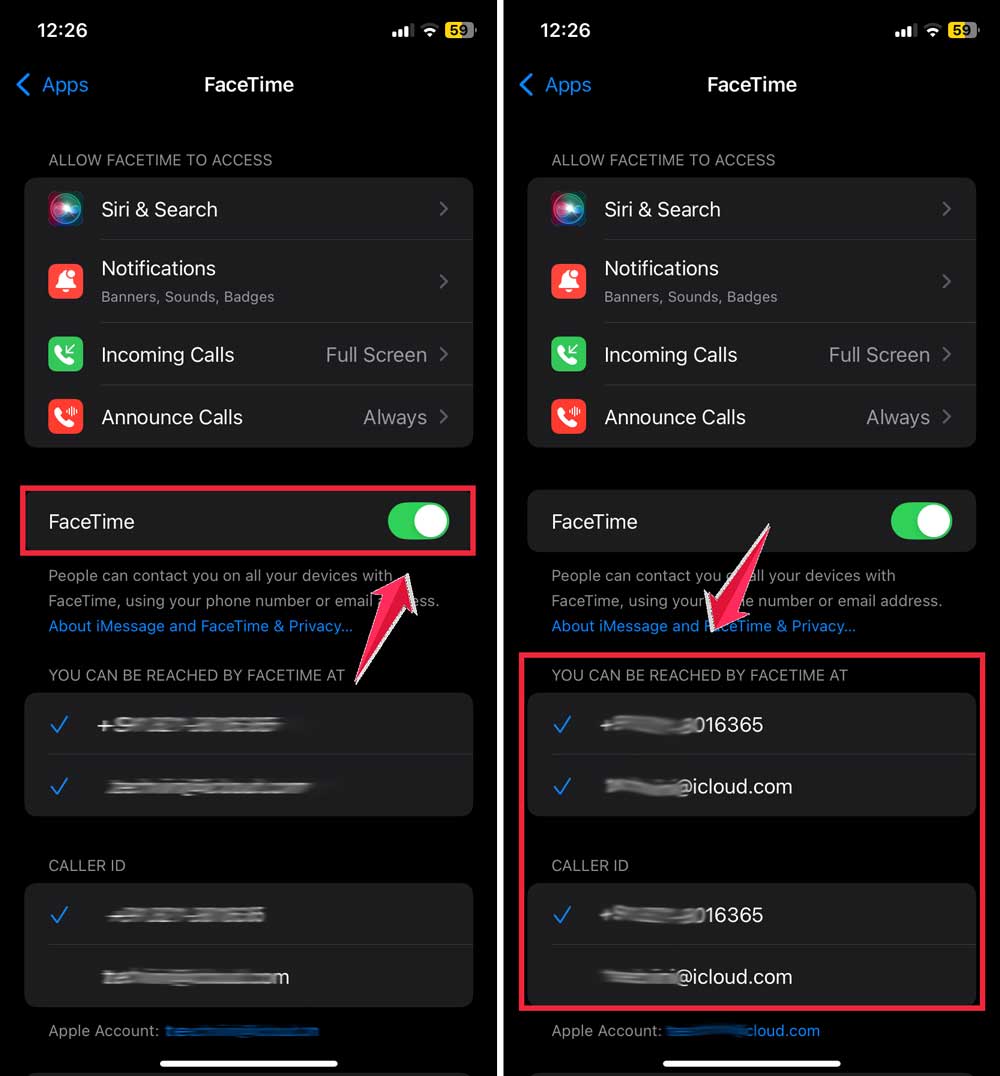
If not, add them. That alone might fix it. Now, try FaceTime again.
Check the other person’s settings too
Maybe your settings are fine. But theirs aren’t.
If FaceTime isn’t set up correctly on their iPhone, your call will always fail.
Ask them to check:
- FaceTime toggle is ON.
- They’re signed in with Apple ID.
- Their device has good internet.
FaceTime works best when everything is updated
If either you or the other person has an old iOS version, things break.
Go to Settings > General > Software Update. If there’s an update, install it.

This isn’t just for features. It also fixes known bugs.
FaceTime bugs get patched often. So stay up to date.
What if nothing works?
If you’ve checked everything. internet, Apple ID, updates, FaceTime settings. And it’s still failing, do this:
Reset your network settings.
Go to Settings > General > Transfer or Reset iPhone. Tap Reset > Reset Network Settings.

Your phone will restart and forget Wi-Fi passwords. So reconnect after that.
Now, you can try FaceTime again. If even that fails, it’s time to call Apple Support.
The takeaway
When you see “FaceTime Failed,” it just means something blocked the connection. That’s all.
It doesn’t mean you were ignored. It doesn’t mean you’re blocked.
Most of the time, it’s just a glitch or a setting issue.
Fix your internet. Restart FaceTime. Check Apple ID. Update everything.
Try again. You’ll be back on video calls in no time.
And if nothing helps, don’t stress. You can always switch to another video app or message them directly.
You’ve got options. And now, you’ve got answers.