Are you tired of your iPhone lighting up like a Christmas tree every time you get a message?
Those flash notifications can be downright annoying, especially when you’re trying to relax or focus on something important. If you’ve had enough of these constant interruptions, you’re in the right place.
Flash messages on iPhones were designed to grab your attention, but for many users, they’ve become more of a nuisance than a help.
They pop up at the most inconvenient times, disrupting your work, conversations, or even your sleep.
The good news? You don’t have to put up with this anymore. There are simple ways to take control of your iPhone’s notifications and restore some peace to your digital life. Whether you want to disable flash messages completely or just tone them down a bit, we’ve got you covered.
In this guide, you’ll learn three effective methods to turn off flash messages on your iPhone. We’ll walk you through each option step by step, so you can choose the one that works best for you.
By the time you finish reading, you’ll be ready to enjoy your iPhone without those pesky flashing interruptions. Let’s get started on reclaiming your screen and your sanity!
Why you might want to turn off flash messages
Have you ever been jolted by a sudden pop-up on your iPhone screen? That’s a flash message.
While they’re supposed to deliver quick information, they often cause more headaches than help. Here’s why you might want to disable them:
1. Flash messages interrupt you constantly. These messages pop up at the most inconvenient times. You might be in the middle of writing an important email, watching a crucial moment in a video, or trying to get some sleep when your screen lights up with yet another notification.
2. Your phone becomes a spam magnet. Let’s face it, a lot of these messages are just plain spam. Companies use them to bombard you with ads, promotions, and other content you never asked for. Your phone screen shouldn’t be a billboard for unwanted advertisements.
3. Accidental taps can cost you money. Here’s a scary thought: one accidental tap on a flash message could sign you up for a service you never wanted. Even worse, some of these services might start charging your account without you realizing it. It’s an easy mistake to make when these messages keep popping up unexpectedly.
4. Your battery drains faster with flash messages. Every time a flash message appears, your screen lights up. If you’re getting a lot of these messages throughout the day, it can significantly drain your battery. You might find yourself reaching for your charger more often than you’d like.
5. Flash messages can compromise your privacy. These messages can display information on your lock screen, potentially visible to anyone nearby. This could include sensitive details from emails, messages, or app notifications.
Now that you understand why these messages can be such a nuisance let’s look at how you can turn them off and reclaim control of your iPhone experience. You deserve to use your phone without constant interruptions and unwanted distractions.
How to turn off flash messages on your iPhone
Are you tired of unexpected alerts popping up on your iPhone? Let’s put a stop to those pesky flash messages. Here are some simple ways to regain control of your screen.
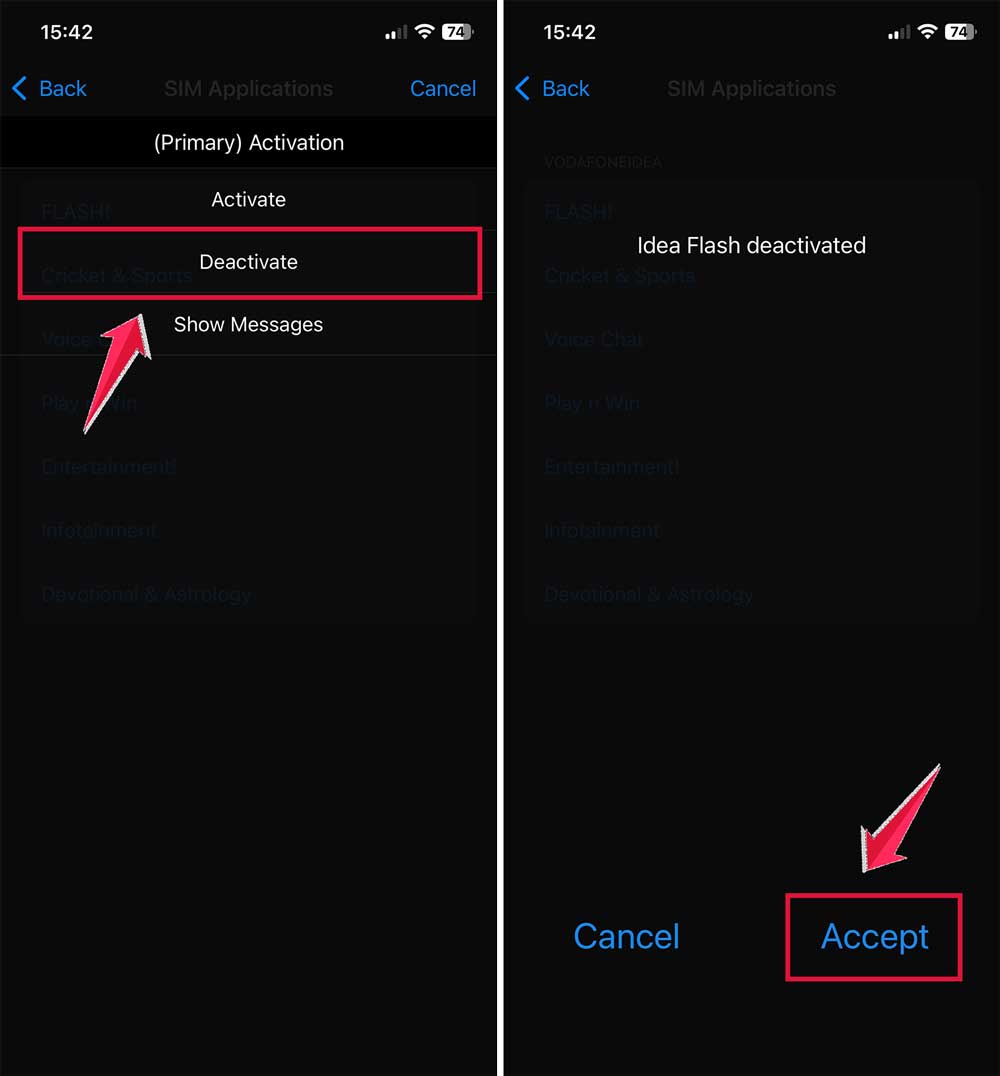
1. Disable flash messages in your iPhone settings
Most flash messages come from your SIM card services. Here’s how you can turn them off:
- Open the “Settings” app on your iPhone.
- Tap on “Cellular“.
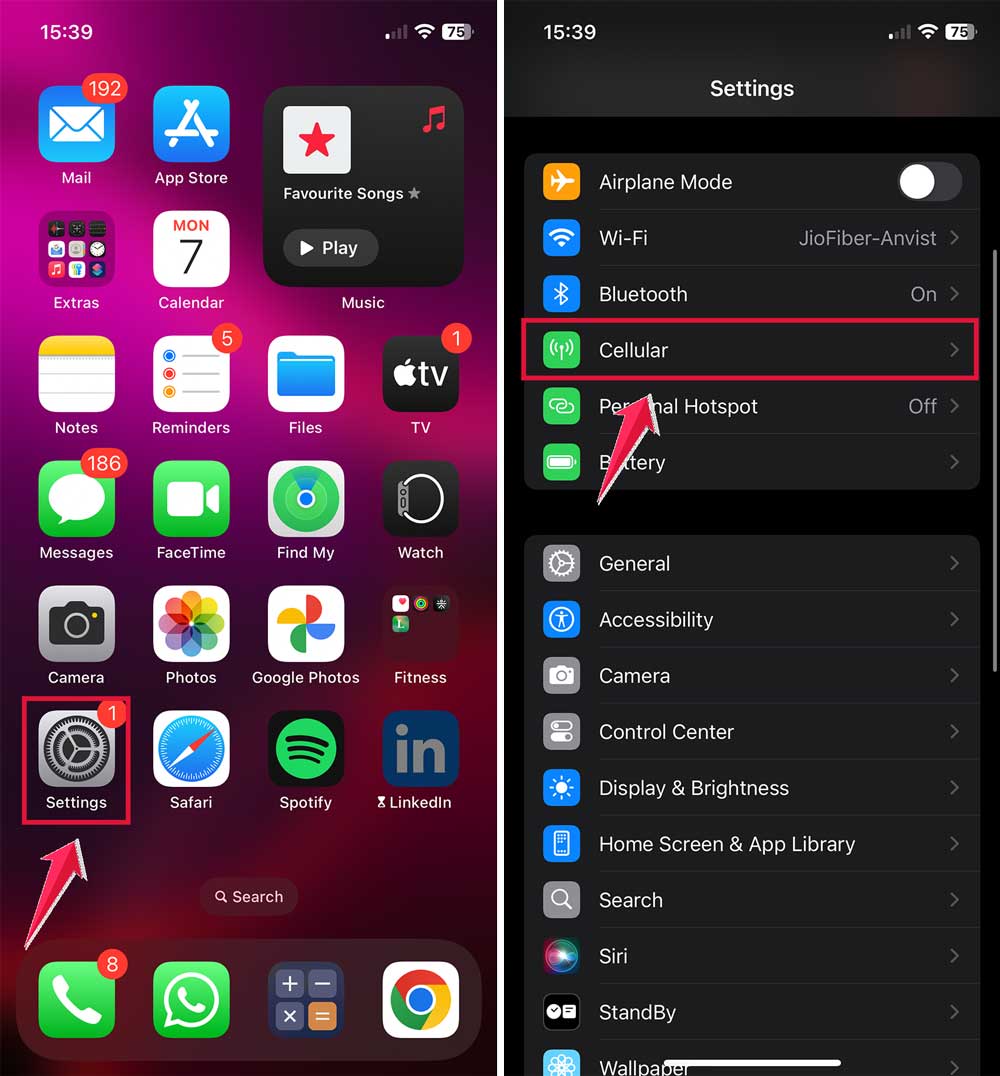
- Select “SIM Applications” (you might see your carrier’s name here).
- Click on Flash!.

- Look for a “(Primary) Activation” button and tap “Deactivate” to turn off flash messages.
- Confirm your choice by tapping “Accept“.
2. Ask your network carrier for help
If you’d rather not fiddle with settings, your network carrier can help. Just give their customer support a call. Here are some common carrier numbers:
- Reliance Jio: Dial 198
- Airtel: Dial 121
- Vodafone Idea: Dial 198
- BSNL: Dial 1504 or 18003451500
Some carriers even let you send a text message to stop these alerts. It’s an easy option if you don’t want to make a call.
3. Deal with stubborn Class 0 flash messages
Some flash messages, known as “Class 0” messages, might still show up even after you’ve changed your settings. For these, the best approach is simple: just dismiss them when they appear. Tap the “Dismiss” button, and they’ll go away.
4. Contact the sender directly
Sometimes, flash messages come from companies trying to promote their products. If this happens, you can:
- Look for contact details in the message.
- Reach out to the sender.
- Ask them to remove your number from their list.
If they don’t stop sending messages, you have the right to take legal action against them for unwanted messaging.
The takeaway
Flash messages on your iPhone can be incredibly annoying, interrupting your day and cluttering your screen. But now you have the power to stop them.
By adjusting your settings, contacting your network carrier, or directly reaching out to senders, you can significantly reduce or even eliminate these unwanted notifications. Remember, you can always dismiss stubborn messages that slip through.
Some people think they need to keep flash messages enabled to receive important alerts. In reality, most crucial information comes through other channels, like regular text messages or app notifications.
Your iPhone should work for you, not against you. Take control of your device and enjoy a calmer, less distracted mobile experience. Don’t hesitate to try these methods. Your peace of mind is worth it.
Now you know how to stop those annoying flash messages on your iPhone. You might also want to check out ways to turn off Siri suggestions for a quieter, more streamlined experience overall. We hope this guide helps you enjoy your phone without constant interruptions.
Did you find this article helpful? We’d love to hear from you. Feel free to leave a comment below and share your experience. Your feedback helps us create more useful content for you.