Let’s be real—using multiple apps at once on your iPad can feel a bit overwhelming sometimes. You’re not alone if you’ve ever felt a little tangled up trying to switch back and forth.
But guess what? Your iPad actually has some awesome tools to make multitasking super easy.
I’m talking about Slide Over and Split View. These two features can seriously change the game for you. No more flipping between apps every two seconds.
With just a few swipes, you can have two apps open side-by-side or have one floating neatly on top.
Sometimes, though, things don’t go as smoothly as we’d like. Maybe you’re new to using an iPad. Or maybe a recent iOS update made things feel different.
Plus, let’s be honest—Apple’s way of doing things can seem a little weird at first. And not all apps play nice with multitasking, which can be frustrating.
But don’t stress. Streamlining your workflow is easier than you think. Once you get the hang of Slide Over and Split View, you’ll wonder how you ever lived without them.
Imagine checking your email while browsing the web—all on the same screen. Cool, right?
Ready to unlock these features and make your iPad life a whole lot easier? Let’s dive in. You’re just a few swipes away from feeling like a multitasking pro!
New to iPad multitasking? Let’s sort it out together
Alright, buddy, let’s jump in and fix these troubles. You’re definitely not alone if Slide Over and Split View have been confusing you. Let’s break it down step-by-step.
1. Just getting started with your iPad?
I get it—starting fresh with a new device can be exciting and a little overwhelming all at once. If you’re new to the iPad world, you might not have found these multitasking features yet.
But don’t worry. We’ll unlock them together. Once you know where to find them and how to use them, it’ll feel like second nature.
Seriously, it’s easier than you think. Just a few swipes and taps, and you’ll be flipping between apps like a pro.
2. iOS updates making things weird?
Yeah, updates can be a real headache sometimes. One day you know exactly how everything works, and then—bam—an iOS update changes the way things look or behave.
If Slide Over or Split View feels off after an update, you’re not losing your mind. It’s just the new settings or gestures messing with your muscle memory a bit. Stick with me, and I’ll help you get comfortable again.
3. Apple’s way of doing things feels strange?
You’re not wrong. Apple’s UI can feel a little strange if you’re starting out. The gestures, the swipes, the hidden features—it’s a lot at first.
But here’s the deal: once you spend a little time with it, it actually becomes super smooth. You just need to know where to swipe, where to tap, and how to move apps around.
4. Some apps just don’t work?
Here’s something not everyone tells you—not every app supports Slide Over and Split View. If you’re trying to use these features and it’s not working, it might not be you. It might be the app.
We’ll figure it out together. I’ll show you how to tell if an app supports multitasking, and what you can do if it doesn’t.
Alright, feeling a little better? Great. Let’s move on to actually using these features—this is where the fun begins!
How to use Slide Over and Split View on iPad like a pro
Now that you know the basics, let’s make multitasking on your iPad super easy. I’ll walk you through everything step-by-step. We’ll keep it simple, and I’ll talk you through it like a friend.
#1: How to use Slide Over – your floating app buddy
First up, let’s talk about Slide Over. It’s like having a tiny app floating over your main app. Great for quick checks without leaving what you’re doing.
Here’s how you can set it up:
- Open any app you’re using.
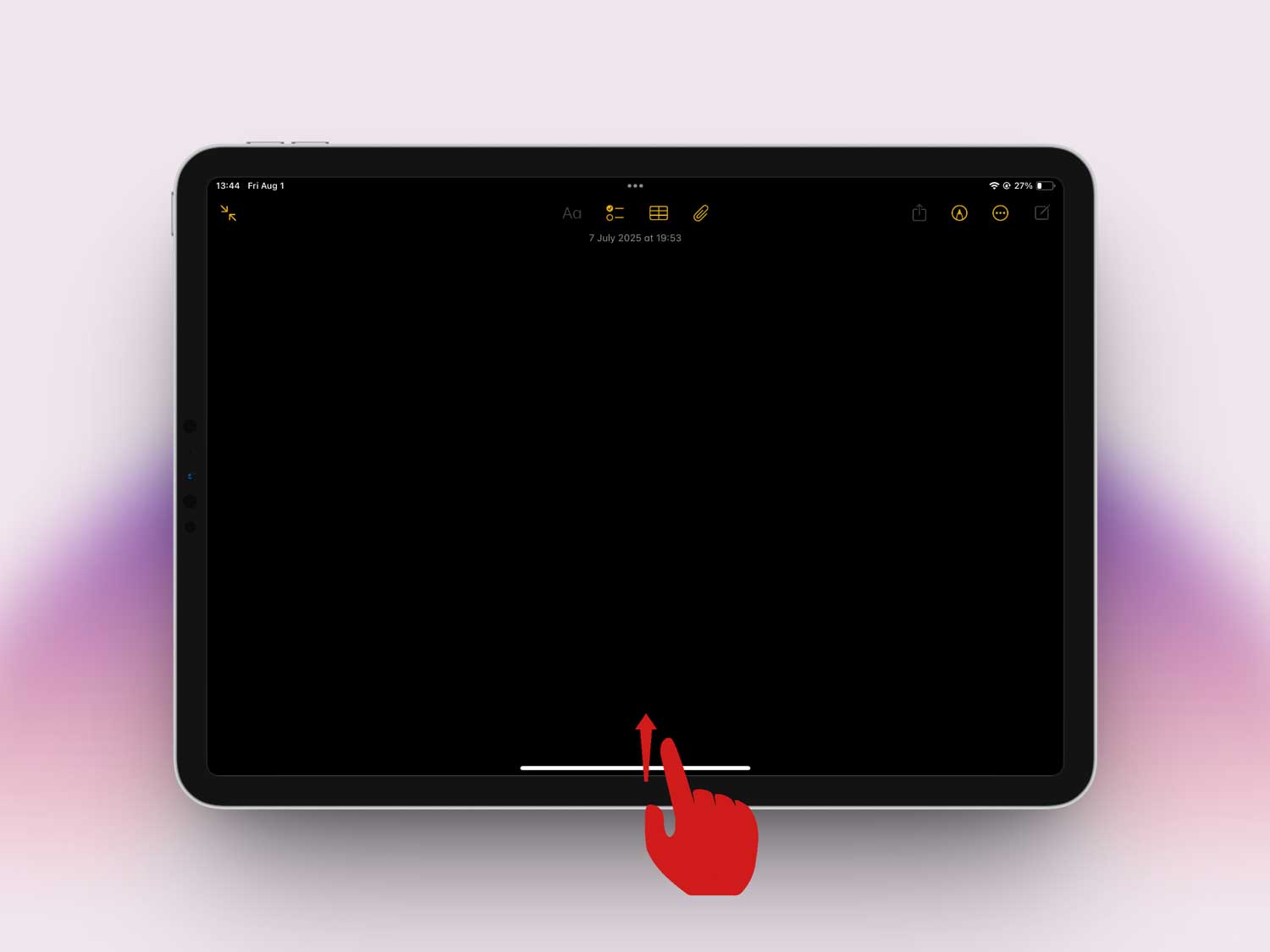
- Swipe up from the bottom of the screen to bring up the Dock.
- Drag the second app you want to use and drop it in the center of the screen.
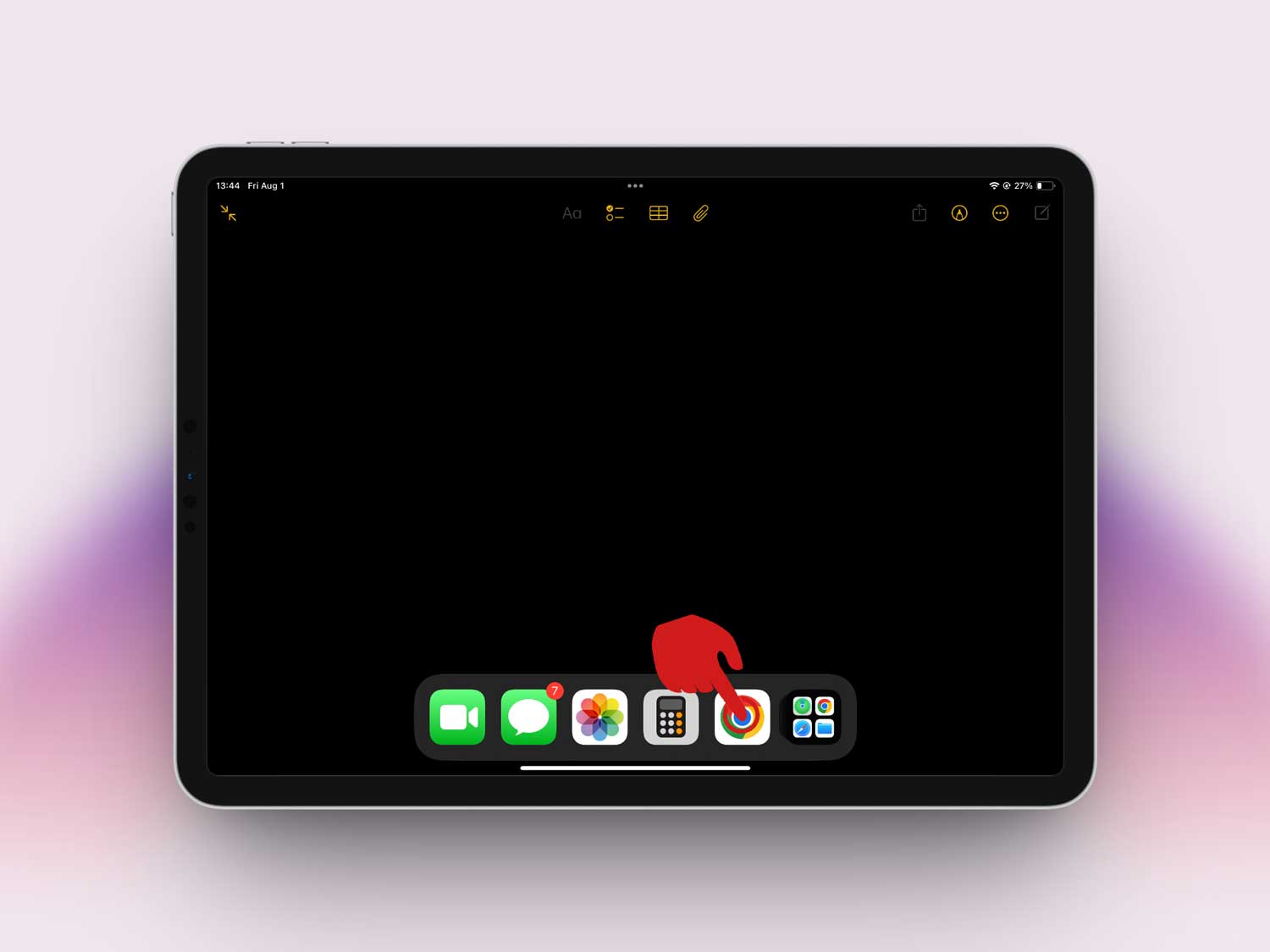
And that’s it! Now you can move it around, swipe it away, or bring it back whenever you need. Handy, right?
#2: How to use Split View – double the apps, double the fun
Next, let’s jump into Split View. This is when you have two apps sitting side-by-side.
Here’s what you need to do:
- Open your first app.
- Swipe up again to show the Dock.
- Drag the second app all the way to the left or right edge of the screen until you see it make room.
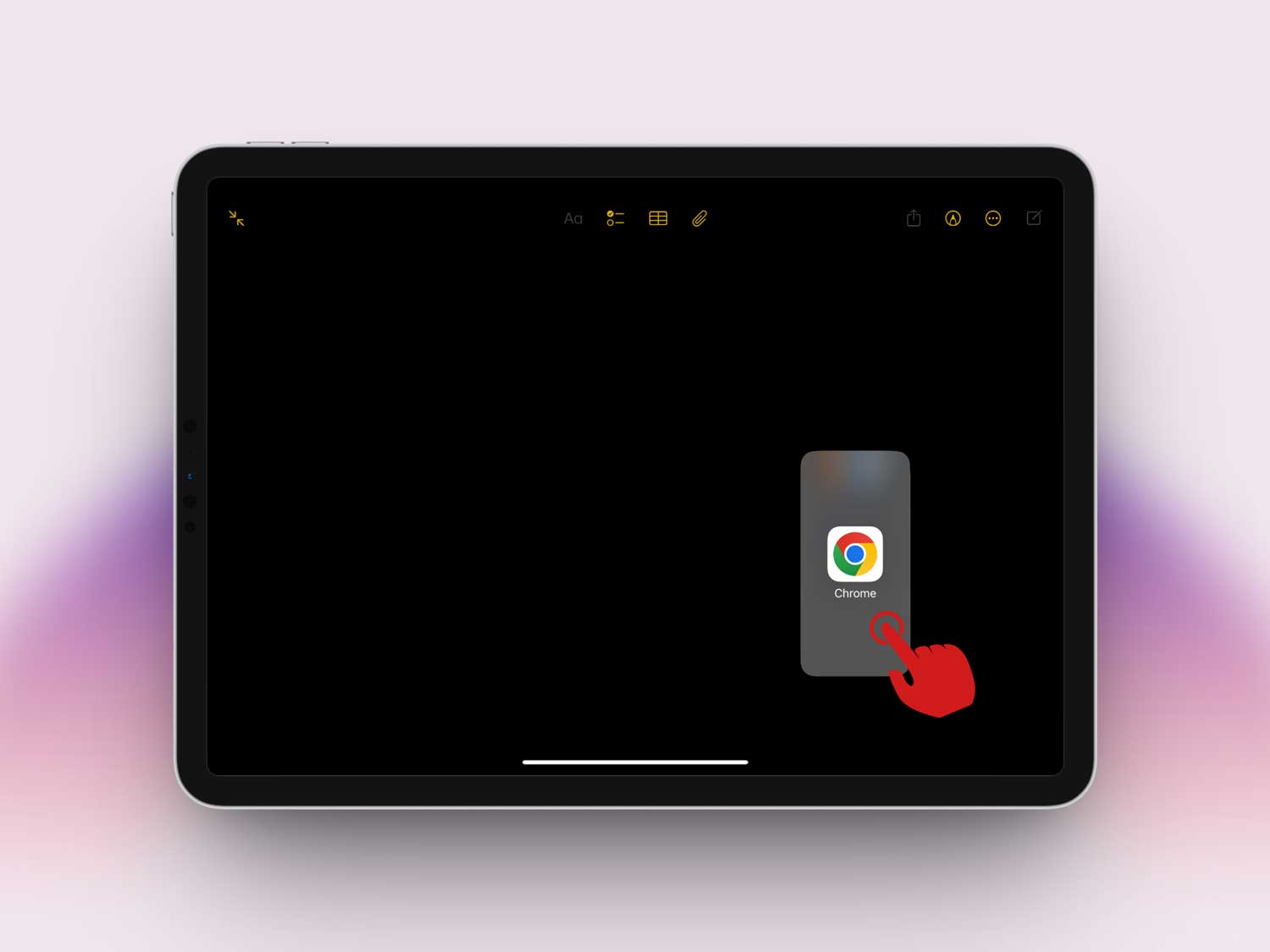
- Let go and boom—you’re in Split View!
Now, both apps are open at the same time. You can browse, write, shop, or whatever you need—all without switching screens.
#3: Adjust the sizes to fit what you need
So you’ve got two apps open. Awesome. But what if you want one app bigger than the other?
Here’s the easy fix:
- Find the divider bar between the two apps.
- Drag it left or right to give more space to one app.
Simple, right? You can make your browser bigger if you’re reading something important or shrink it down if you just need a quick glance.
#4: How to swap or close apps easily
Sometimes you open the wrong app or just want to clean things up. No big deal.
Here’s what you do:
- To swap Slide Over apps, just swipe left or right on the floating panel.
- To close it, flick the app off the side of the screen with a quick swipe.
Feels good to keep things tidy, doesn’t it?
And just like that, you’re multitasking like a champ. But wait—there’s more you can do to make it even smoother.
Extra tips to make your iPad multitasking even better
Let’s level up your multitasking game with these bonus tips. These little changes can make a big difference!
1. Keep your iPad updated
Alright, here’s the scoop. Keeping your iPad’s software updated is super important. Updates don’t just bring new features—they also fix bugs that might mess with Slide Over or Split View.
Trust me, it’s worth it. Always check for updates in Settings > General > Software Update.

2. Organize your Dock for faster access
You and I both know a messy Dock can slow you down. Fill your Dock with the apps you use the most.
That way, when you swipe up, everything you need is right there. No digging around or wasting time.
3. Master the gestures
Gestures are like secret shortcuts. Swipe, pinch, and flick your way through tasks. It feels weird at first, but after a few tries, you’ll be flying through your apps.
Spend a little time practicing, and you’ll be amazed how fast you get.
4. Check your multitasking settings
Did you know there are settings that make multitasking even easier? Go to Settings > Multitasking & Gestures and make sure everything is turned on.

Features like Picture in Picture and Multitasking Gestures can make your life a whole lot smoother.
5. Play around and customize
Last tip—don’t be afraid to experiment. Move apps around. Try different setups. Find what feels best for you.
The beauty of the iPad is that it’s super customizable. Make it work for you, not the other way around.
The Takeaway
Using multiple apps on your iPad doesn’t have to be a headache. With Slide Over and Split View, you can easily boost your multitasking skills.
Remember, it’s all about dragging apps from the Dock and setting them side-by-side.
Keeping your Dock organized and your iPad updated will make everything even smoother. Many people think multitasking is only for tech pros—but that’s not true. You’ve got everything you need now.
So go ahead—give it a try! Set up your apps, adjust your screens, and enjoy a faster, easier iPad experience. Got questions or tips to share? Drop a comment below and let’s chat!