Did you know that over 85% of smartphone users take screenshots at least once a month? That’s a lot of screen capturing! But what happens when you need to grab more than just what’s visible on your screen?
You’ve probably run into this problem before. You want to save a long conversation, an entire webpage, or a lengthy document on your iPhone, but standard screenshots only capture what’s on the screen at that moment. It’s frustrating, right?
For those dealing with cluttered screenshots, you might also want to blur sensitive content in a picture before sharing it online.
This issue is particularly tricky if you’re using an older iPhone or apps that don’t have built-in scrolling screenshot features. But don’t worry. You’re not out of options.
In this article, you’ll learn three simple, free ways to take scrolling screenshots on your iPhone.
Whether you’re using the latest iOS or an older version, these methods will help you capture everything you need. Ready to up your screenshot game? Let’s get started!
How to capture long screenshots on your iPhone: 3 free methods
1. Capture full webpage screenshots in Safari
Have you ever wanted to save an entire webpage in one go? It’s super useful when you need to keep a record of important information or share something interesting with friends. Here’s how you can do it:
- Open the webpage you want to capture in Safari.
- Take a screenshot by pressing the Side button and Volume Up button simultaneously.
- Tap on the mini-preview that appears in the bottom-left corner.

- At the top of the preview, you’ll see two options: Screen and Full Page. Select “Full Page”.
- You can now use the slider on the right to scroll through the entire webpage.
- Tap “Done” in the top-left corner.
- Choose “Save to Files” to save the full-page screenshot.
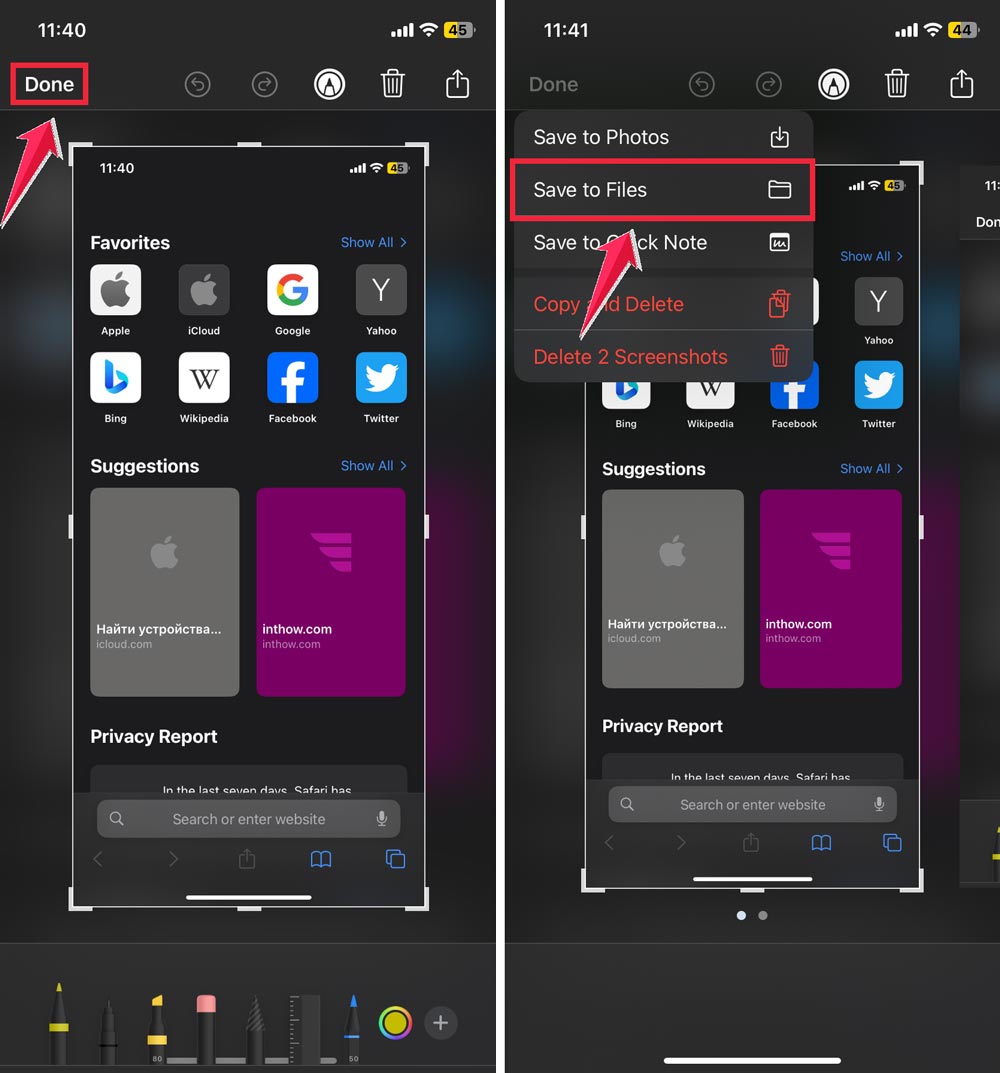
Remember, this method saves your screenshot as a PDF in the Files app. If you want it in your Photos, you’ll need to convert it using a shortcut or take multiple screenshots and stitch them together.
2. Stitching multiple screenshots together
Sometimes, you need to capture more than just a webpage. Maybe it’s a long conversation or a document that spans multiple screens. Here’s how you can combine several screenshots into one long image:
- Download the Picsew app from the App Store. It’s free with in-app purchases.
- Take multiple screenshots of the content you want to capture.
- Open Picsew and tap the “+” button to create a new project.
- Select the screenshots you want to combine.

- Picsew will automatically stitch the screenshots together.
- You can make adjustments if needed, such as removing status bars or overlapping content.
- Tap “Export” to save your long screenshot to your Photos app.

This app is like having a digital tailor for your screenshots. It’s a powerful tool that can save you a lot of time and effort.
3. Using the built-in screen recording feature
For content that’s difficult to capture with static screenshots, you can use the screen recording feature:
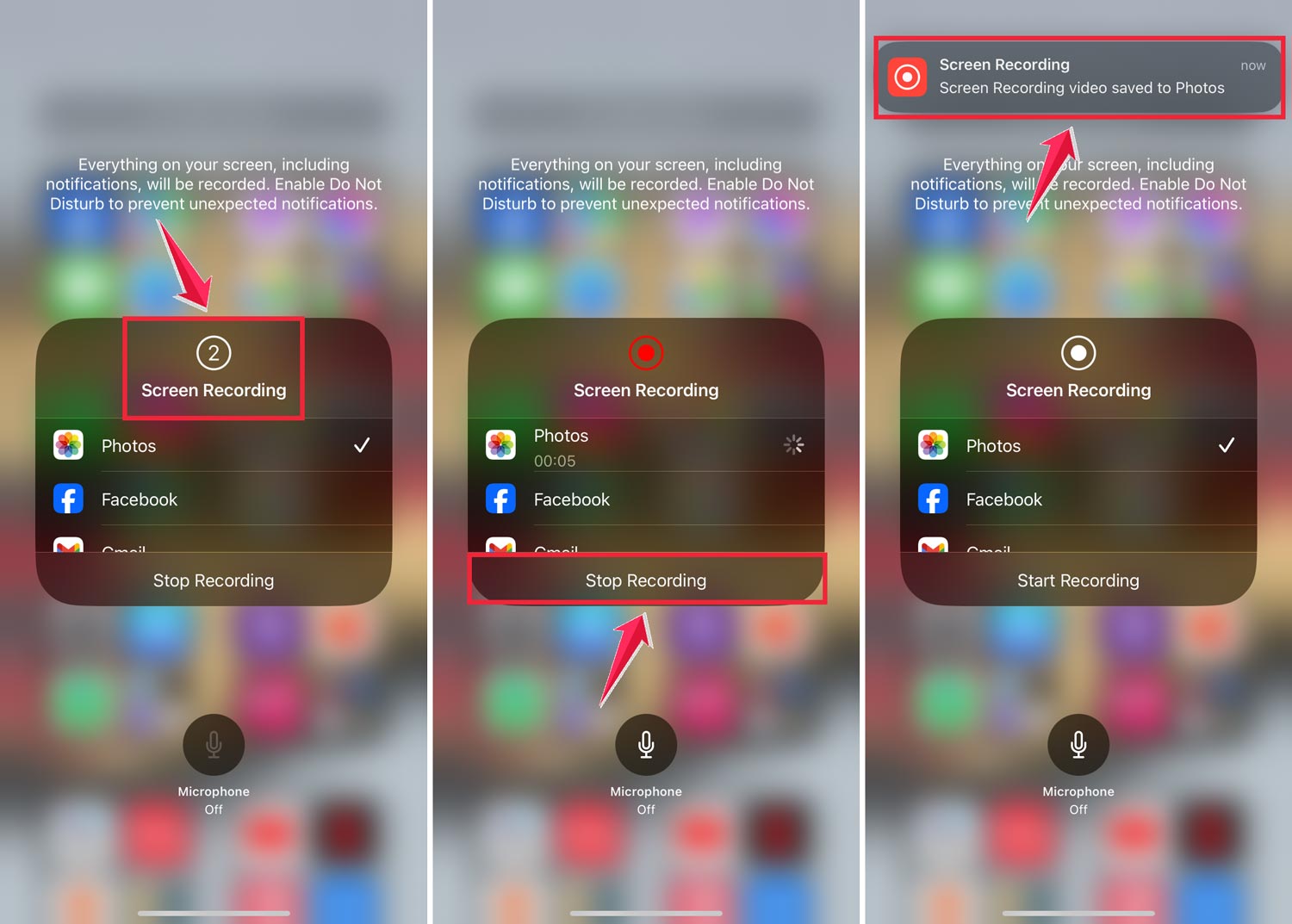
- Swipe down from the top-right corner (or up from the bottom on older iPhones) to open Control Center.
- Tap the Screen Recording button (it looks like a circle inside another circle).

- After the three-second countdown, start scrolling through your content.
- When you’re done, tap the red status bar at the top and select “Stop”.
- The video will be saved to your Photos app.
You can then use a video editing app to convert the recording into a long static image if needed.
The takeaway
Taking long screenshots on your iPhone used to be a challenge, but not anymore. You now have several easy ways to capture everything you need, whether it’s a full webpage, a long conversation, or a multi-screen document.
We’ve explored three main methods: using Safari’s built-in feature for full webpage screenshots, stitching multiple screenshots together with apps like Picsew, and using the screen recording feature for dynamic content. Each method has its strengths, so you can choose the one that works best for your needs.
Many people think capturing long screenshots is complicated or requires technical skills. In reality, it’s quite simple with these tools at your fingertips. You don’t need to be a tech expert to use any of these methods effectively.
The most important thing to remember is that you have options. Whether you prefer using built-in features or downloading an app, there’s a solution that fits your style.
So next time you need to capture more than what’s on your screen, give these methods a try. You’ll be surprised at how easy it is to save and share long content from your iPhone.
Now, it’s your turn to share. Which method do you find most useful? Leave a comment below, but keep it to a single line. We’d love to hear your thoughts!