Ever misplaced your phone and wished you had a magic button to find it instantly? Yeah, it’s frustrating.
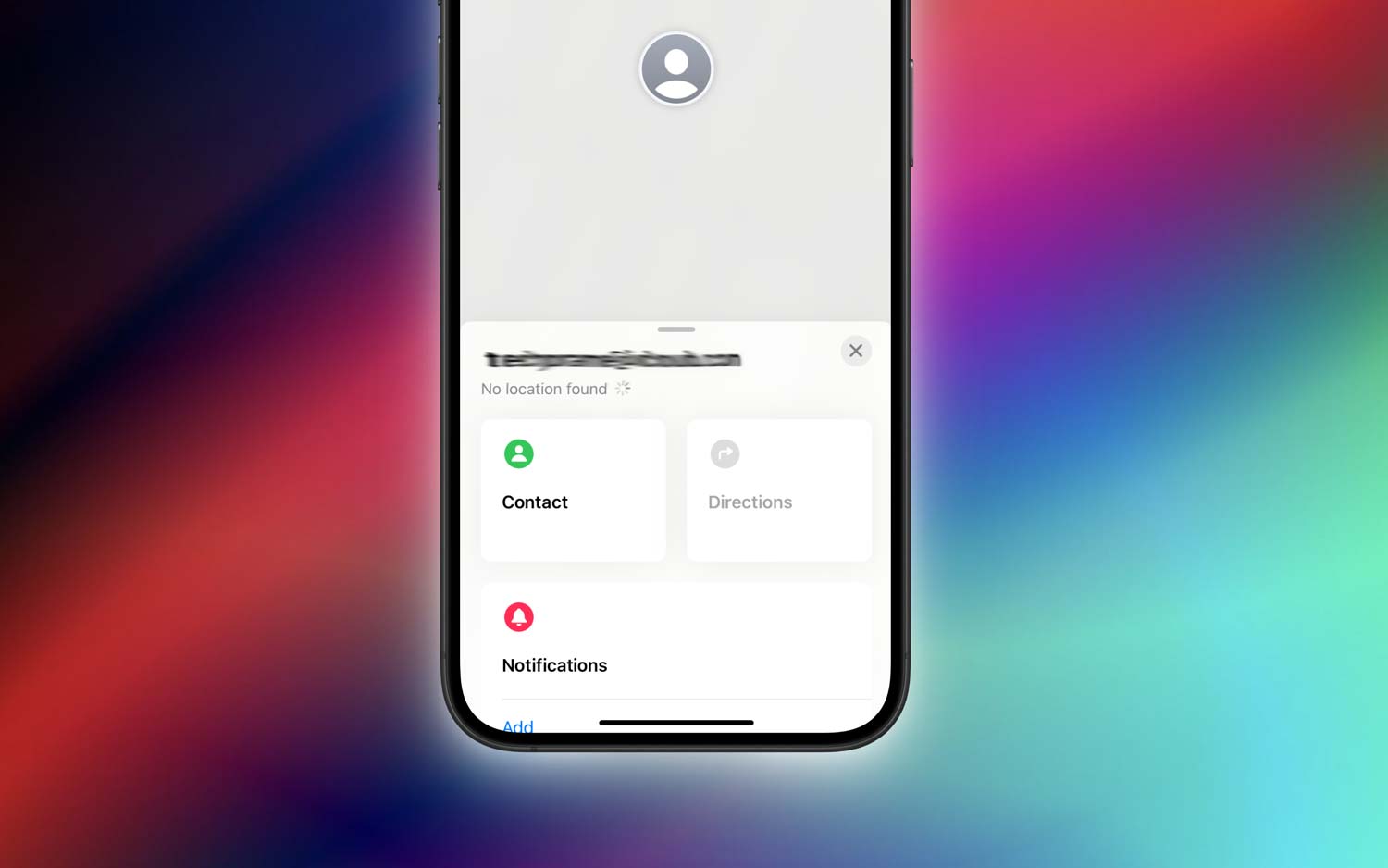
You open the Find My app or try to share your location, and boom. You get hit with messages like “No Location Found” or “Location Not Available.” Not helpful, right?
So, what’s really going on here? When your phone says “No Location Found,” it usually means your GPS or internet connection isn’t working properly.
Maybe your phone’s in a spot with a weak signal, or some setting got turned off without you realizing.
On the other hand, “Location Not Available” can happen if your phone doesn’t have permission to share your location, or if it’s offline completely.
Why does this matter to you? Because knowing the difference helps you fix the issue faster. You won’t waste time guessing or panicking. Instead, you’ll know exactly where to look and what to change.
Let’s break everything down in a way that’s super easy to follow. I’ll walk you through the quick fixes so you can get back to tracking your phone. Or sharing your location without all the stress.
Let’s Quickly Check a Few Basic Things First
Alright, we’re in this together. Let’s figure out why your phone isn’t showing your location properly. It’s annoying, but don’t worry. We’ll fix it step by step.
1. Check Your GPS and Network
If your phone is showing “No Location Found,” it might be having trouble getting a good signal. GPS and the internet work together to show where you are. If either one is acting up, your phone can’t find you.
Take a look at your signal bars. Are they low? If so, try moving to a spot with better coverage. Also, double-check that your mobile data or Wi-Fi is turned on. If it’s off, your phone can’t connect to anything.
2. Turn On All the Right Settings
Sometimes, your phone just forgets to keep things on. If your location settings are turned off, your phone can’t do its job. Go into your settings and make sure location services are enabled.
Still not working? Try restarting your phone. It sounds simple, but it helps more often than you’d think.
3. Check Permissions Like a Detective
Now, if you’re seeing “Location Not Available,” your phone might not be allowed to share your location. Apps need your permission to use your location. If that permission is off, the app won’t know where you are.
Go into your app settings and check if location access is turned on for the apps you’re using. Sometimes it turns off on its own after an update, so it’s worth a look.
4. Make Sure Your Phone Stays Online
If your phone is offline, apps won’t be able to show your location. It’s like trying to call someone when their phone’s off. It just won’t work.
Check that you’re connected to Wi-Fi or mobile data. If you’re in airplane mode, turn it off. Being online is key for location services to work properly.
How to Get Your Location Working Again
Okay, now let’s dive deeper and fix this. I’ll walk you through each issue, and we’ll get your phone back on track. Whether it’s a setting, a signal, or just a simple restart, we’ll cover it all.
#1: Fix “No Location Found” by Checking Your Network Connection
Let’s start with the basics. A weak or no network connection is often the reason you see “No Location Found.” Without a strong signal, your phone can’t figure out where it is.
Here’s what you should do:
- Check the top of your screen for signal bars. If they’re low, try moving to a spot with better reception.
- Make sure your Wi-Fi or mobile data is turned on.
- If you’re in a building or underground, step outside for better signal.
Once your phone has a good connection, it should be able to find your location again.
#2: Enable GPS Services for “No Location Found” Issue
Next up. Your GPS might be turned off. Don’t worry, it happens.
Here’s how to turn it back on:
- Open your Settings.
- Tap Location or Location Services.
- Make sure it’s switched to On.
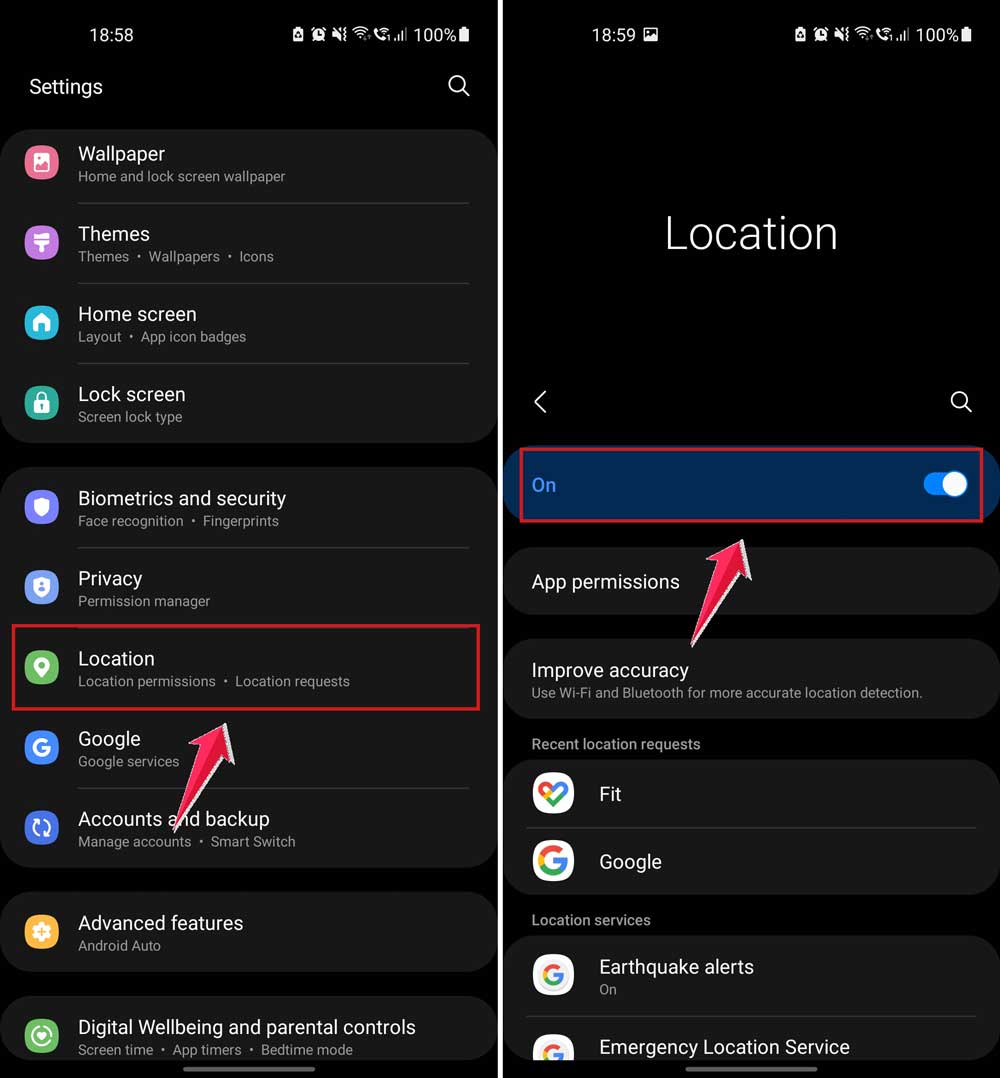
Some phones also have a “High Accuracy” mode. If you see that option, turn it on too. It helps your phone use Wi-Fi, mobile data, and GPS together to find your location more accurately.
#3: Give Your Phone a Restart to Fix “No Location Found”
Still no luck? Let’s try the classic fix. Restart your phone. It clears out small bugs that might be messing with your GPS.
To do this:
- Hold your phone’s power button until the restart option appears.
- Tap Restart or Power Off and wait a few seconds.
- Turn it back on and try again.
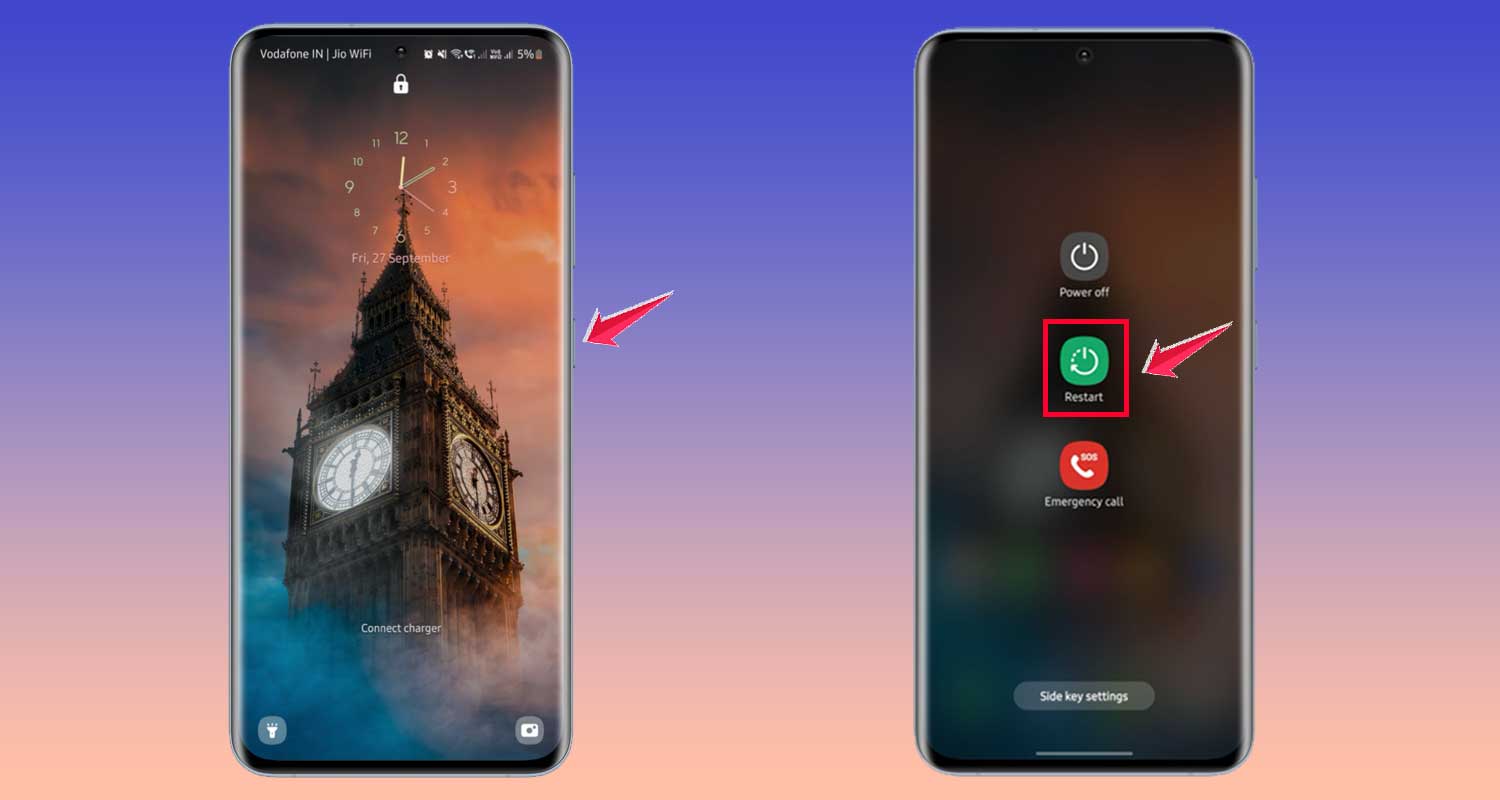
It’s simple, but it really works most of the time.
#4: Solve “Location Not Available” by Granting Necessary Permissions
Now let’s fix the “Location Not Available” message. This usually means your app doesn’t have permission to access your location.
Here’s how to fix that:
- Go to your phone’s Settings.
- Tap Location, then App Permissions.
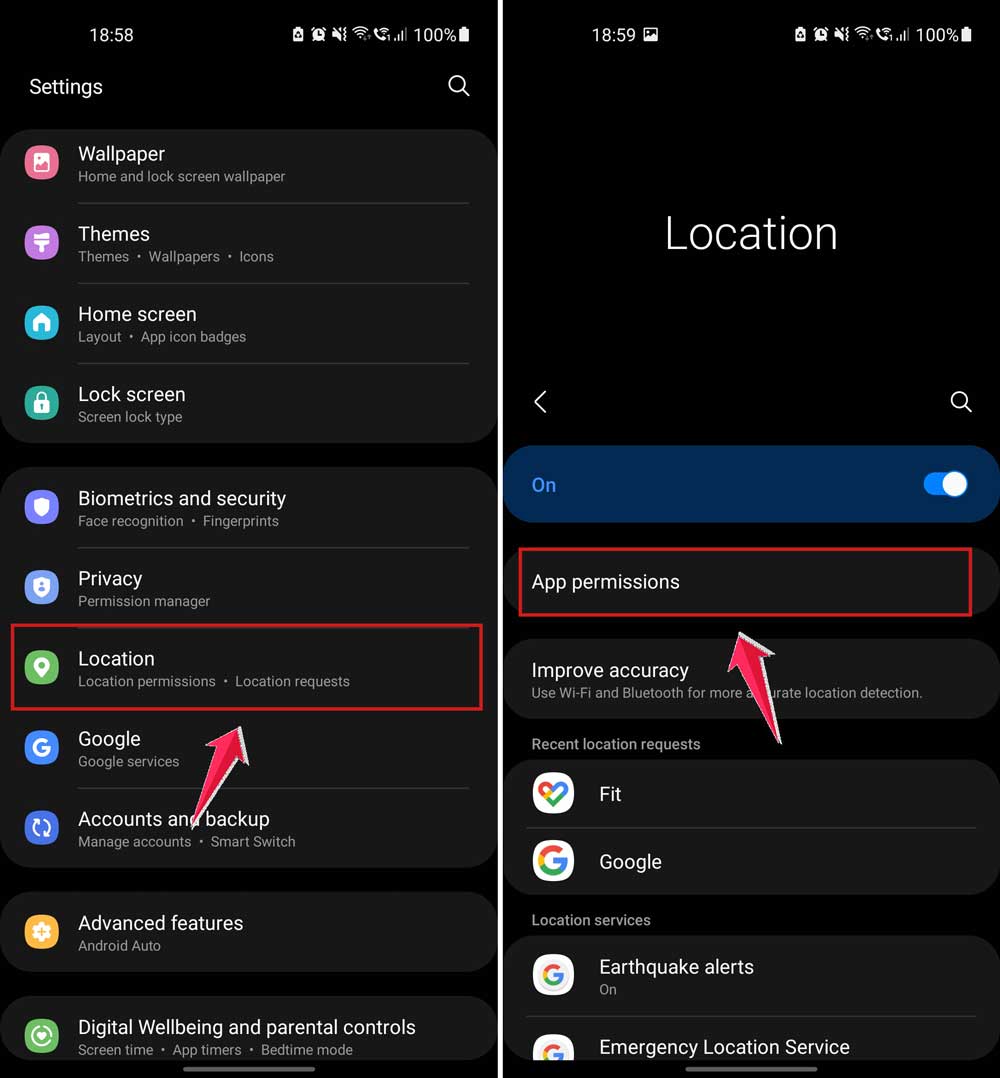
- Look for the app (like Find My or Maps), and make sure it’s set to “While Using the App” or “Always”.
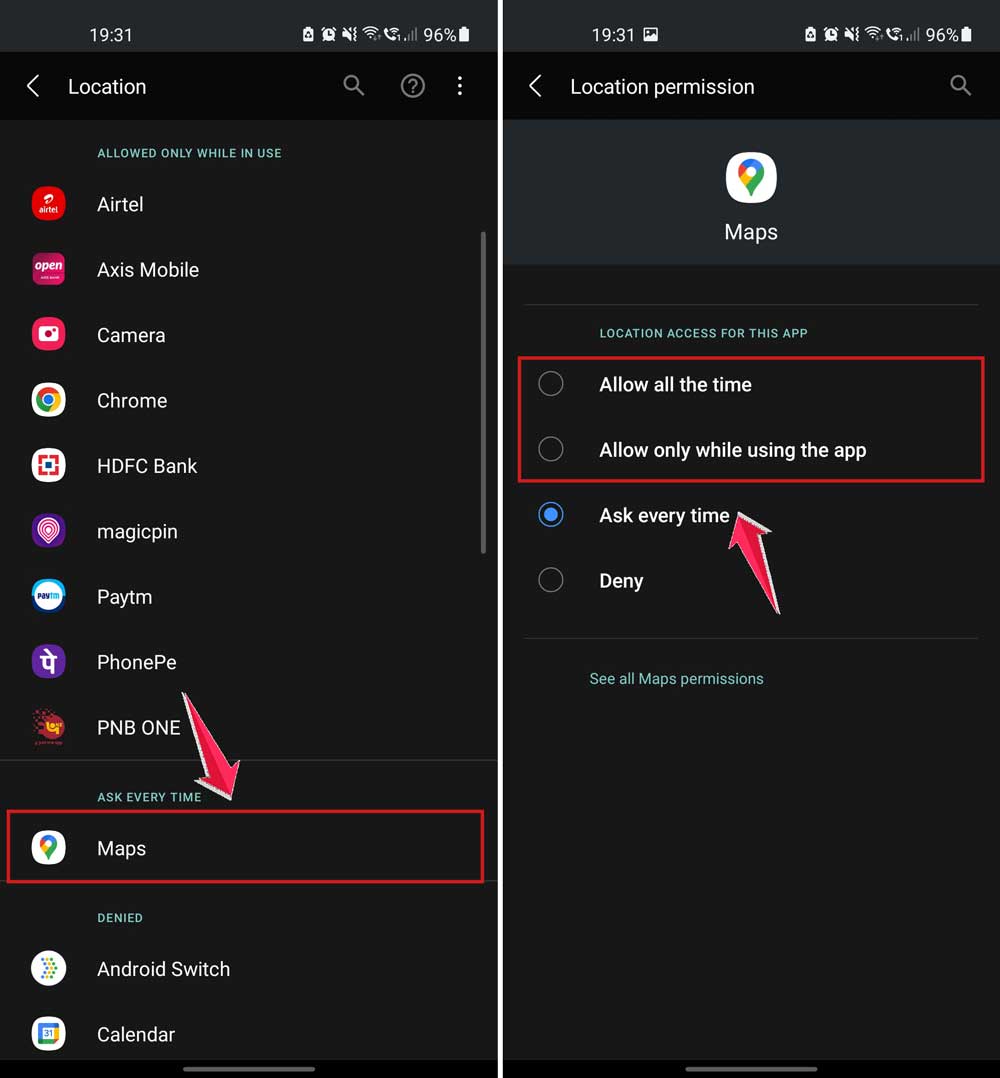
Once you give the app permission, it should start working properly.
#5: Check Your Device Settings for “Location Not Available” Issues
Another thing to check. Are you in airplane mode? If so, your phone can’t connect to the internet or GPS.
To fix it:
- Swipe down to open Quick Settings.
- Tap Airplane Mode.
- Make sure it’s turned Off.

Now your phone can connect to the outside world again.
#6: Keep Your Device Online to Fix “Location Not Available”
Apps need the internet. If your phone isn’t online, your location won’t update.
Do this:
- Turn on Wi-Fi or mobile data.
- Make sure you’re connected to a stable network.
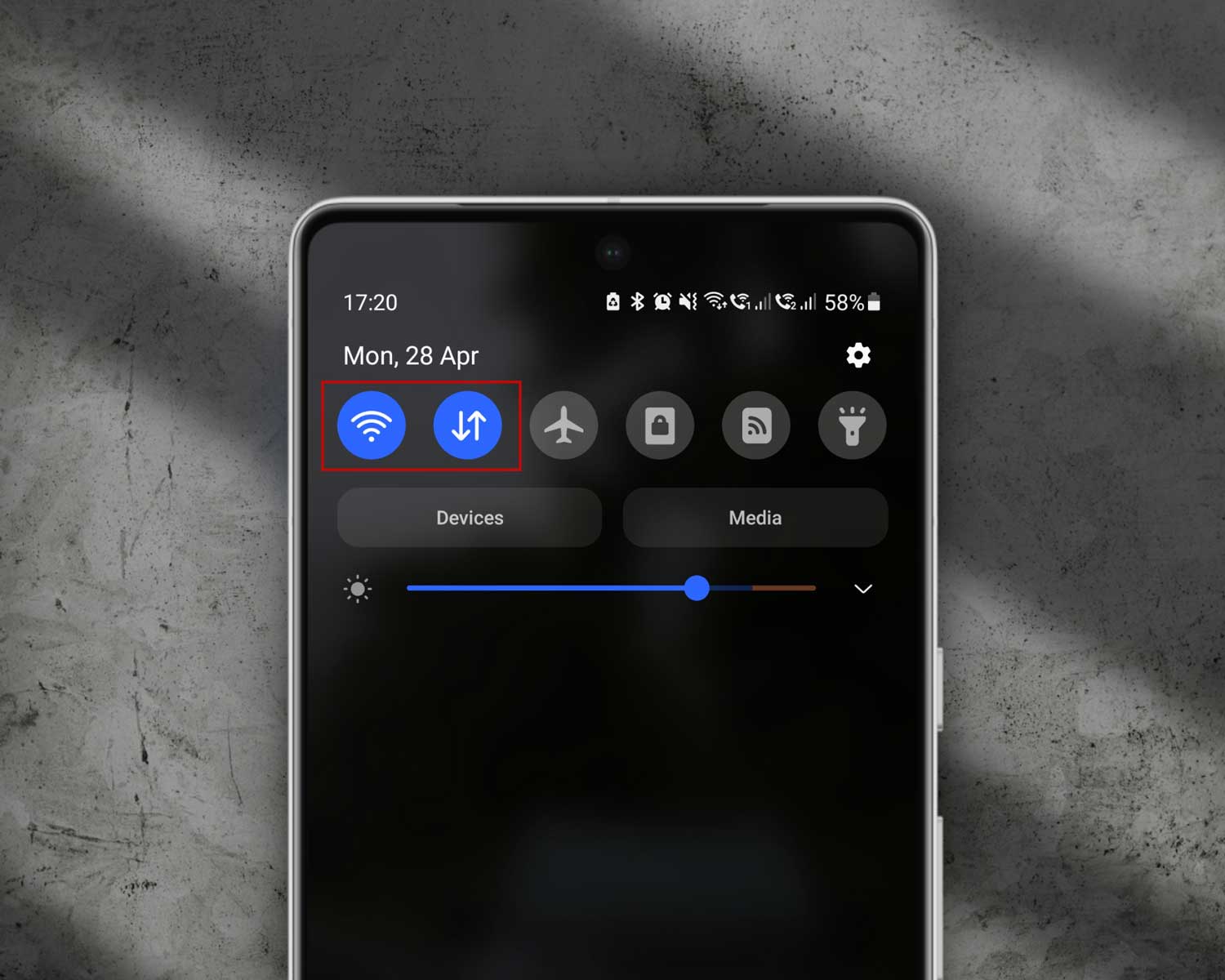
If you’re using Wi-Fi and the signal is weak, switch to mobile data or find a better network.
Extra Tips to Keep Location Services Running Smoothly
You’ve made it this far. Nice work! Now, let’s talk about a few extra things you can do to keep your phone’s location tracking smooth and reliable.
1. Stay on Top of Software Updates. It’s tempting to hit “Later” when an update shows up, but don’t. Updates fix bugs, include ones that mess with location services. So, always update your phone when you get the chance.
2. Use Apps You Can Trust. Not all apps are created equal. Some sketchy ones might mess with your settings. Stick to apps you know and trust. If something feels off, uninstall it.
3. Review Your Device Settings Regularly. Sometimes settings change without you noticing. It’s a good idea to check your location and privacy settings once in a while. Just to make sure everything’s still set up the way you want.
4. Turn Off Battery Saver Mode When Needed. Battery Saver is great. But it can limit your phone’s ability to find your location. If you’re having trouble, turn it off and see if that helps.
5. Clear Cache for Location-Based Apps. Apps like Maps and Find My store a lot of data. Sometimes that data gets in the way. Clear the cache from your app settings to give them a clean slate.
The Takeaway
So, we’ve covered it all. Whether your phone says “No Location Found” or “Location Not Available,” the fix is usually simple. It’s often just a setting, a signal, or a permission that needs a little tweak.
Remember to make sure your network connection is strong. You can check your location settings and app permissions as well. Just remember to keep your phone online and updated.
A lot of people think these problems need tech skills to fix. But they don’t. You just need to know where to look. And now, you do.
Got a question or found a tip that worked for you? Drop it in the comments! I’d love to hear how you fixed it. Let’s help each other out.