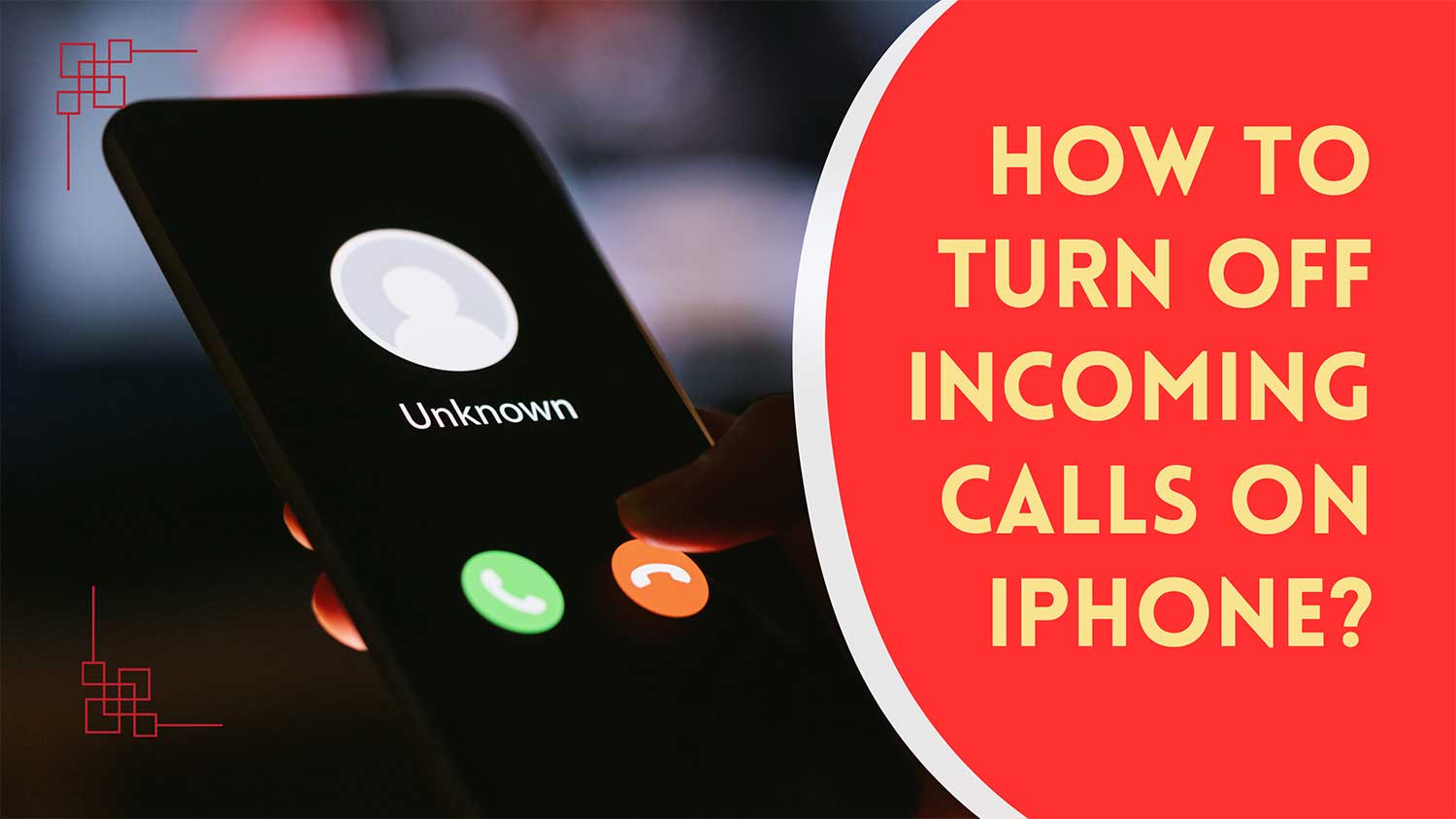
Is your iPhone ringing at the worst possible moment?
Whether you’re in an important meeting, trying to avoid an awkward situation, or just need some peace and quiet, you can quickly silence those incoming calls.
Right now, your iPhone might feel like it’s working against you, but it actually has built-in features to help you out of this fix.
You don’t need to be tech-savvy or have time to dig through complicated settings. There are quick, simple ways to regain control of your device and protect your privacy.
In this guide, we’re going to walk you through exactly what you need to do to silence those calls.
We’ll cover everything from blocking individual callers if you’re worried about a specific person to silencing unknown callers when you’re in the middle of something important.
We’ll also show you how to use Do Not Disturb or Focus mode to block all notifications and even how to use Airplane mode as a last resort to cut off all communication instantly.
Whether you need a quick temporary fix or a more permanent solution, you’ll find an option that works for your situation. We’ll explain each method step by step, using language that’s easy to understand, even if you’re stressed or in a hurry.
Ready to take back control of your iPhone and stop those unwanted calls? Let’s jump right in and solve this problem for you. In just a few moments, you’ll have the peace and privacy you need.
How to block incoming calls on your iPhone
Method 1: Block individual callers
This method is useful when there’s one specific person you don’t want to receive calls from. Maybe it’s a persistent telemarketer or someone you’d rather not hear from. Here’s how to do it:
- Open the “Settings” app on your iPhone.

- Click on Apps.
- Scroll down and tap “Phone“.
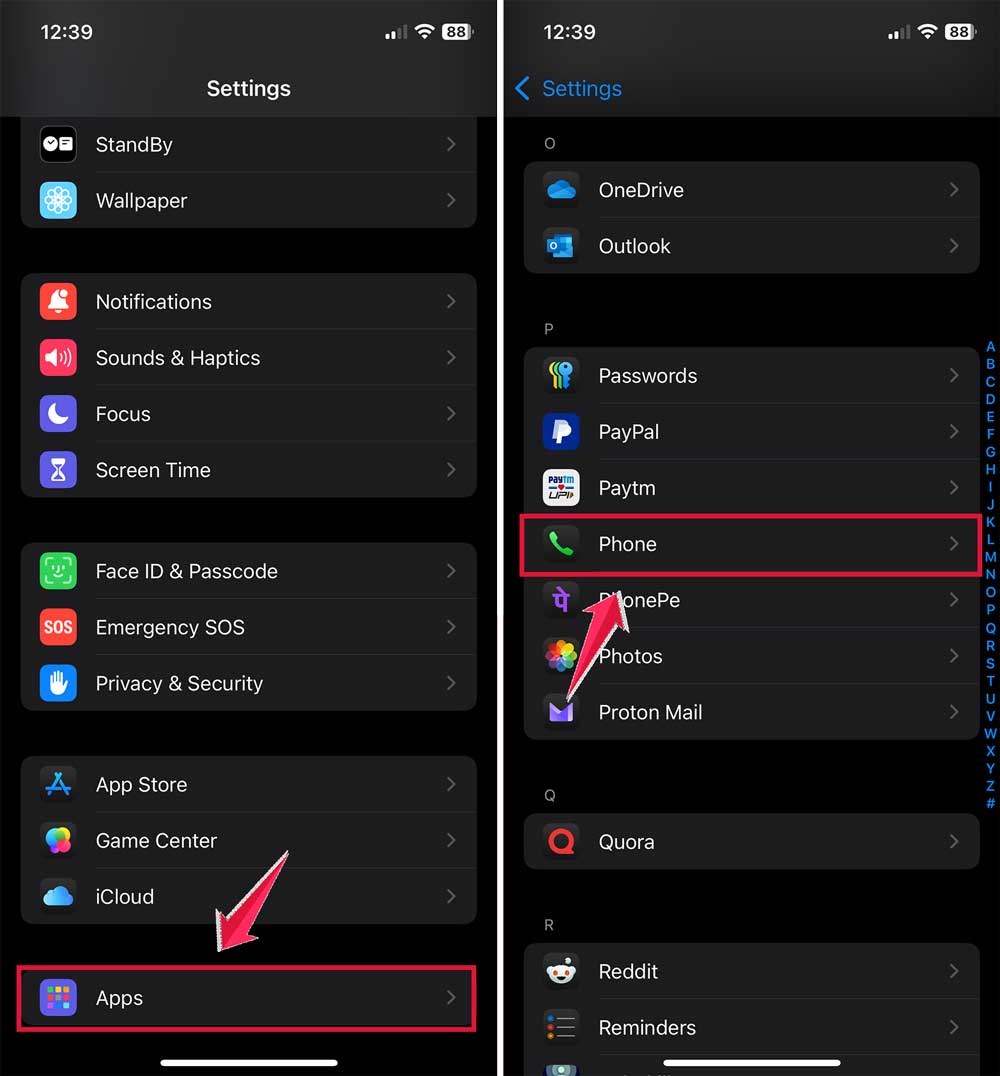
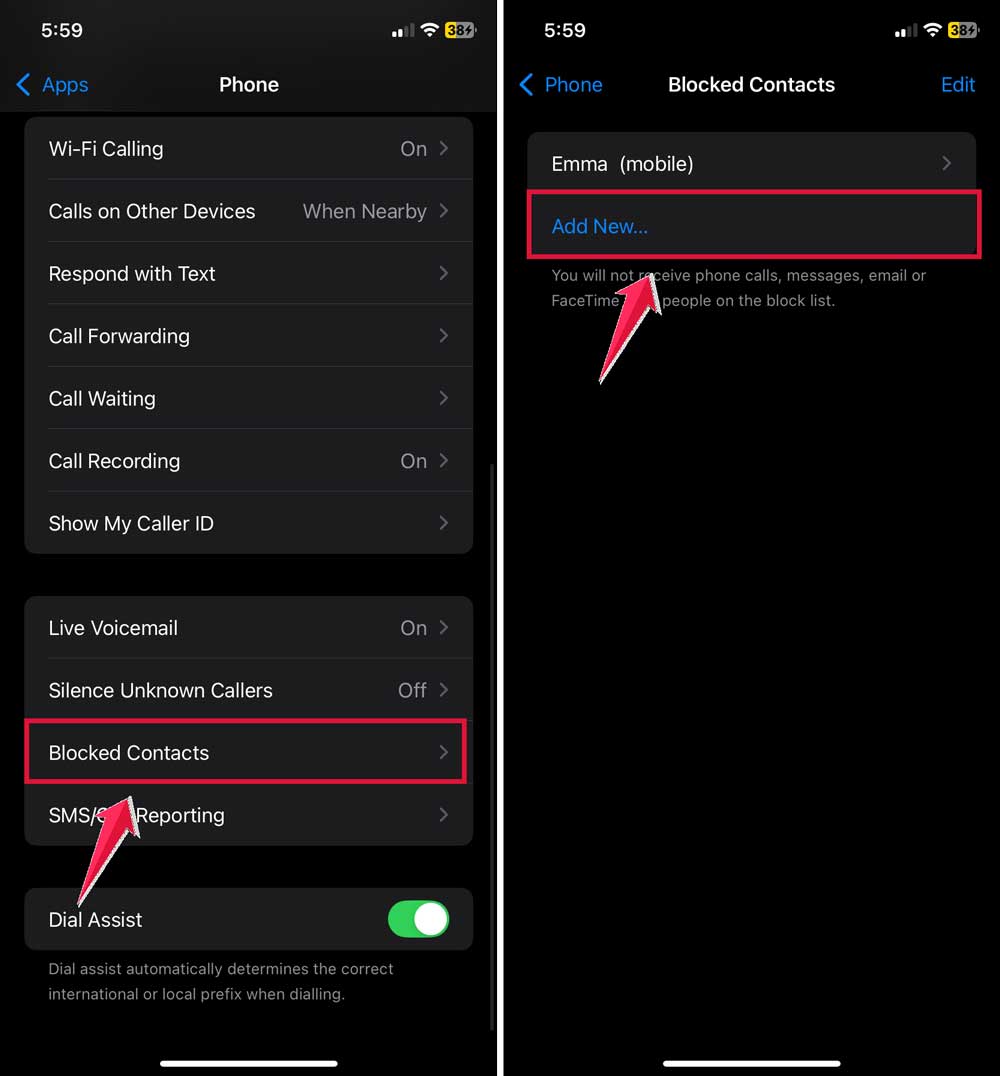
- Tap “Block Contact“.
- Click on Add New and Search for the Contact.
- Choose the contact you want to block from your list.
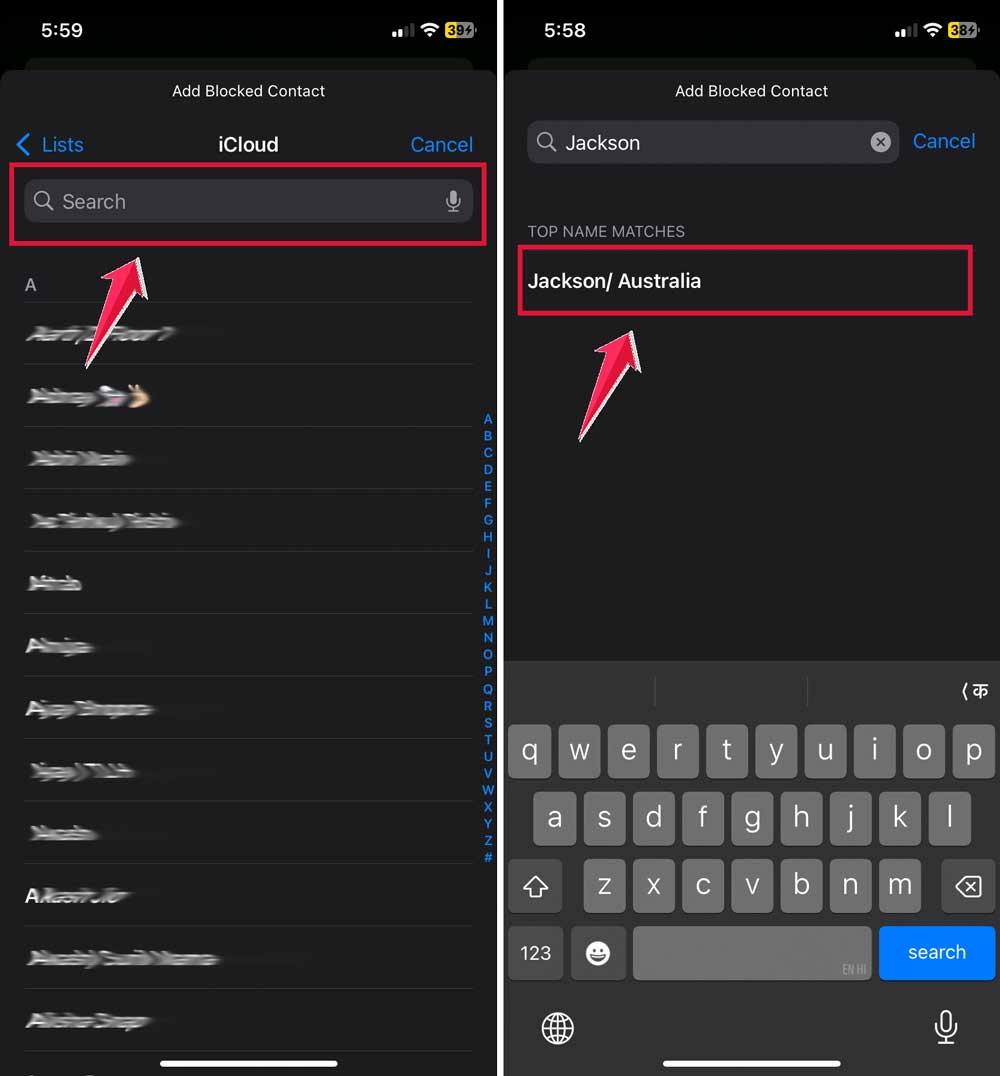
That’s it! You’ve successfully blocked that specific caller. They won’t be able to call or message you anymore. This method gives you precise control over who can reach you, allowing you to customize your communication experience.
Method 2: Silence unknown callers
If you’re getting spam calls or calls from numbers you don’t recognize, you can use this method. It’s particularly helpful if you’re being bothered by robocalls or telemarketers.
- Go to “Settings” on your iPhone.
- Scroll down and tap “Phone“.
- Look for “Silence Unknown Callers” and turn it on.
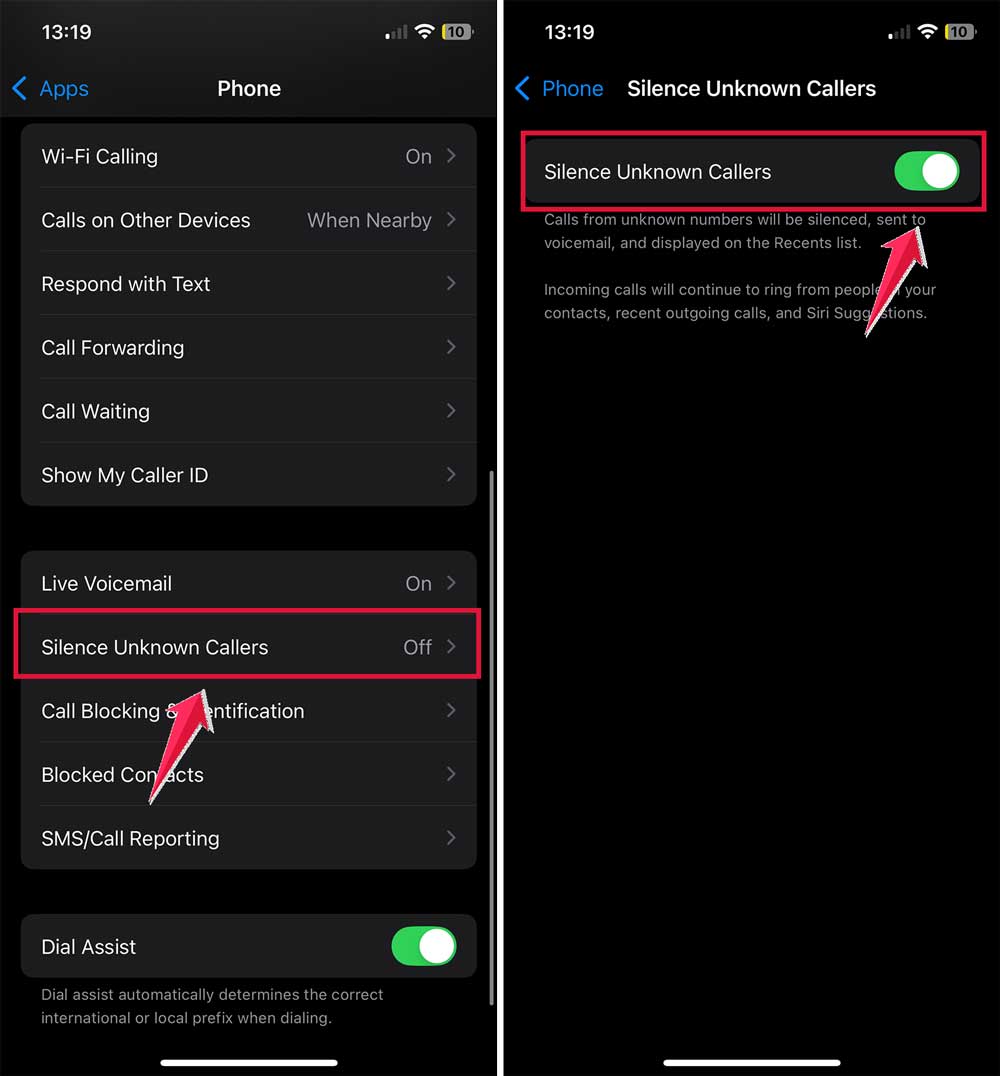
If you don’t see this option, you might need to download a call-blocking app from the App Store.
Search for “spam call blocker” and choose one with good reviews. This method helps you filter out unwanted calls without having to block each number individually.
Method 3: Use Do Not Disturb mode in Focus
This method will block all incoming calls and notifications, giving you complete peace when you need it most:
- Open “Settings” on your iPhone.
- Scroll down and find “Focus“.
- Tap “Do Not Disturb“.
- Toggle the switch to turn it on.
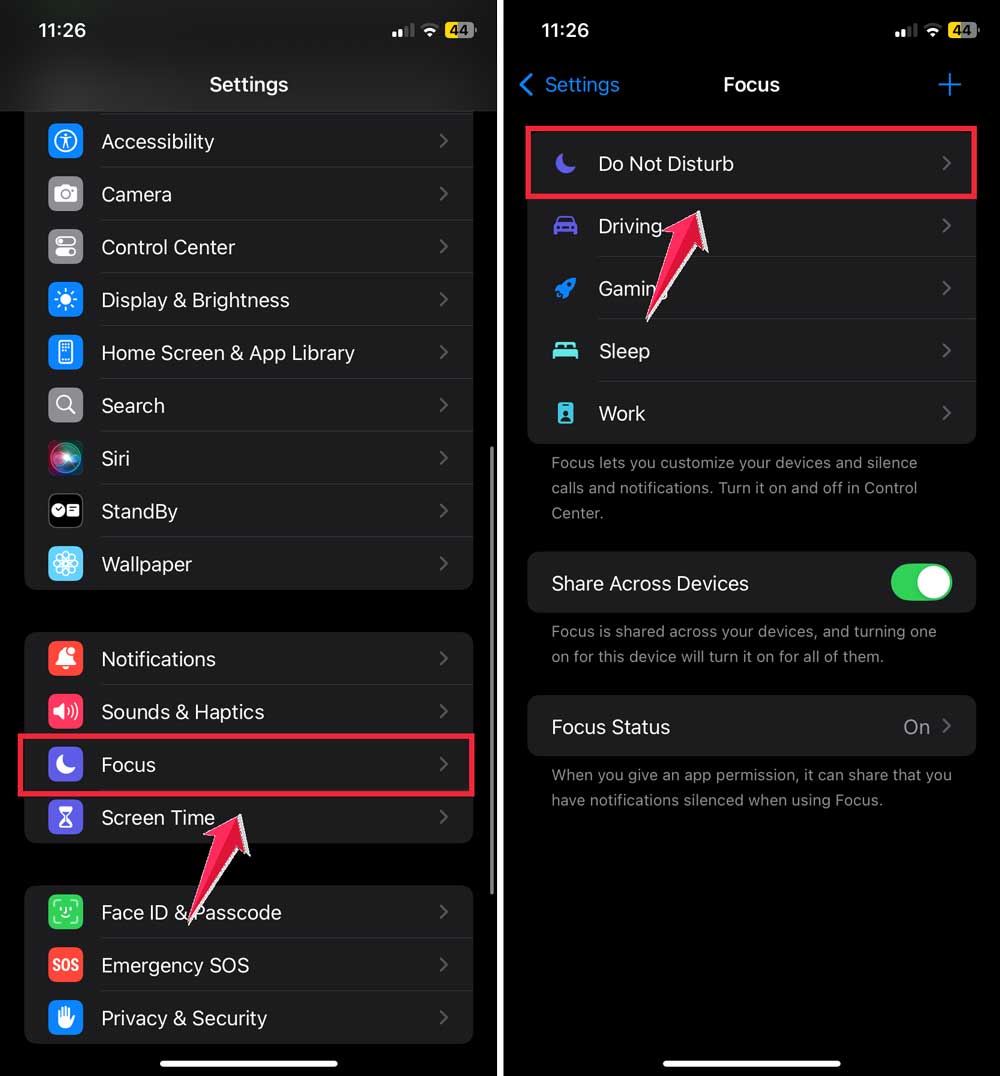
When Do Not Disturb is active, your phone won’t ring or vibrate for incoming calls. You’ll still receive messages, but they’ll arrive silently.
This is perfect for when you need to focus without interruptions or when you’re in a situation where your phone ringing would be inappropriate.
Method 4: Use Airplane mode and turn on Wi-Fi
This is the quickest way to stop all communication:
- Swipe down from the top-right corner of your screen (or up from the bottom on older iPhones) to open Control Center.
- Tap the airplane icon to turn on Airplane mode.
- If you need internet access, you can turn Wi-Fi back on after enabling Airplane mode.

Airplane mode will stop all calls, messages, and notifications immediately. It’s the most thorough way to silence your phone, but remember that you won’t receive any communications while it’s on.
This method is ideal for situations where you need complete disconnection or when you’re in an environment where cell phone signals are prohibited.
Now, you know four different ways to silence incoming calls on your iPhone.
Whether you need to block a specific person, avoid unknown callers, silence all notifications, or cut off all communication instantly, you have the tools to do it. Take control of your iPhone and enjoy your peace and quiet!
The takeaway
Your iPhone can sometimes feel like it’s working against you, interrupting important moments with unwanted calls. But now you have the power to control when and how your phone rings.
We’ve covered several ways to silence incoming calls. You can block individual callers, silence unknown numbers, use Do Not Disturb mode, or even turn on Airplane mode for complete silence. Each method has its own benefits, and you can choose the one that best fits your situation.
Some people think silencing calls means missing important messages. But remember, most of these methods still allow messages to come through silently. You can check them when you’re ready, without the interruption of a ringing phone.
“The most important thing to remember is that you’re in charge of your iPhone. Don’t let unwanted calls control your day. Use these tools to create the peaceful, uninterrupted time you need, whether you’re working, relaxing, or just need a break.
Your iPhone is there to help you, not stress you out. And if you’re wondering about other communication issues, like what happens to your texts when someone blocks you, we’ve got you covered there too.
We’d love to hear how these methods work for you. Feel free to leave a comment below with your experience or any questions you might have.